Remote Desktop in the Browser
An application of a portal can open a remote desktop (RDP), a terminal (SSH) or a remote screen (VNC) on a machine behind the gateway asset, right in the browser. The person needs nothing but a browser: no XTNA-agent, no RDP, SSH or VNC program and no network path to the machine. The gateway asset connects to the machine and streams the screen to the browser.

Such an application is a remote desktop application. Its Upstream is
rdp://host, ssh://host or vnc://host instead of a web address, and everything else
about applications applies unchanged: the trust level, the policy that
grants the portal, Allowed user groups, Allowed networks, the session
lifetime and Sign Out Everyone.
Publishing a Remote Desktop walks through the first application step by step.
Requirements
- The gateway asset runs the XTNA-agent on Linux, or is the asset container image, with a current agent version. An older agent refuses the portal and the console shows it as not served.
- guacd on the gateway asset: the program that speaks RDP, SSH and VNC
for the browser. You install nothing for it: the agent downloads it (about
12 MB from
dl.xplicittrust.com, amd64 and arm64) when the first remote desktop application reaches it, on a Linux asset and with the asset container image alike, and keeps it up to date with the agent. Without internet access, see the options for a Linux asset and the asset container image. guacd runs as an account of its own,guacd, which the agent's deb and rpm packages and the container image bring; a tar.gz install needs it created by hand. - The target machine is reachable from the gateway asset on its RDP port (3389), SSH port (22) or VNC port (5900). It needs no agent and no public address.
- A VNC application needs an agent version that supports VNC on the gateway asset. Saving one for a gateway asset with an older agent is refused; update the agent first. RDP and SSH applications are not affected.
- An RDP target must offer TLS or NLA, which every current Windows version does. A target that only offers the old RDP Security Layer is refused, because its identity cannot be verified.
Setting up a remote desktop application
On the portal's Applications tab, choose Add application:
| Setting | Value |
|---|---|
| Name | What people see for the desktop, for example Finance PC, on its page and in the list of applications. At most 64 characters; without a name, the pages show the target |
| Path prefix | Where the desktop opens, for example /desktop |
| Upstream | rdp://192.168.1.30, ssh://192.168.1.31 or vnc://192.168.1.32, with :port when the target does not use the default port; no path. A VNC display number is a port: display :1 is vnc://host:5901 |
| Trust level | identity or tunnel. public is not allowed: a remote desktop always needs someone the policy grants |
The application then shows Remote desktop (RDP), Terminal (SSH) or Remote screen (VNC) settings:
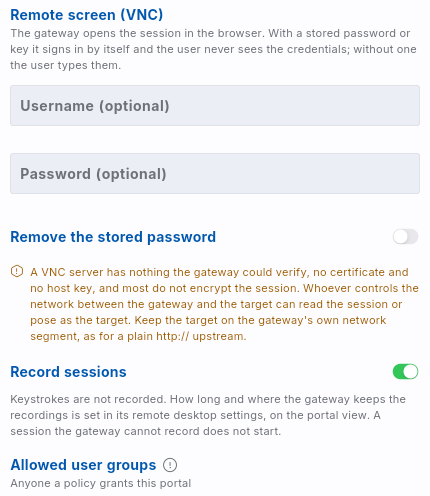
- Username, Domain (RDP) and Password: when the application stores them, the gateway asset signs in by itself and the person never sees the credentials. Leave them empty to have the person type their own account. Most VNC servers ask for a password only: store the password alone, and a username only for a server that asks for one, such as Apple's Screen Sharing.
- Private key and Key passphrase (SSH): sign in with a key instead of a password. The key is checked when you save, so a wrong passphrase is reported at once and not at the first session.
- Certificate fingerprints (RDP) or Host keys (SSH): pin the target's identity; see Target identity. A VNC server has no identity to pin.
- Keyboard layout of the target (RDP): the layout the Windows session
uses. Default is
en-us-qwerty. - Copy from the session, Paste into the session: the clipboard, in each direction.
- File upload, File download (RDP and SSH): for RDP, a drive named XplicitTrust in the session's file explorer, which exists for that session only; for SSH, transfers over SFTP into the account's home directory. VNC has no file transfer.
- Idle timeout (minutes): a session without keyboard, mouse or touch input for this long is ended, 30 minutes by default.
- Record sessions: the gateway asset records every session of the application, without keystrokes; see Session recording.
The keyboard layout, the clipboard and file switches, Allowed networks and the idle timeout are under Advanced.
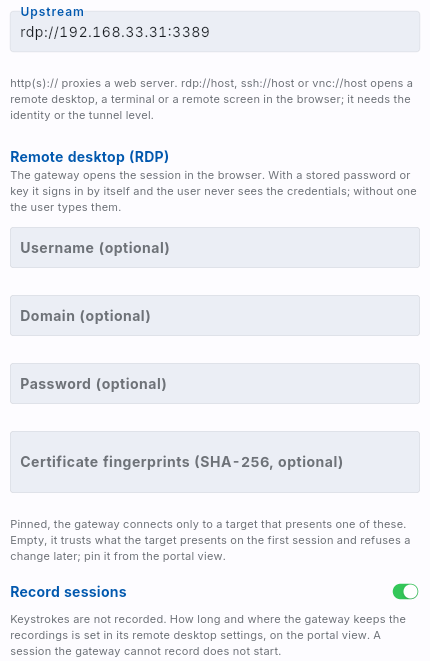
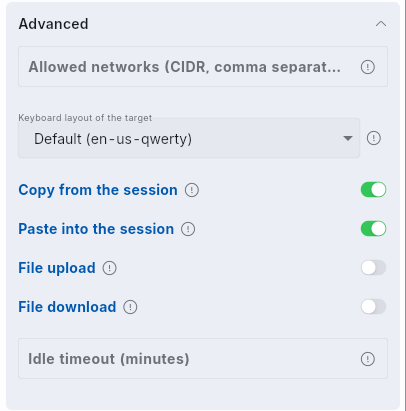
Stored passwords and keys are never shown again. XplicitTrust stores them encrypted for the gateway asset, which alone can decrypt them and keeps them in memory only. To change the passphrase of a stored private key, enter the key again with it. When you edit the application later, leave the fields empty to keep what is stored. If you change the Upstream or the Gateway Asset, or pin a key the gateway asset has not seen, the stored credentials are removed unless you enter them again: a typo in the target must not hand the credentials to another machine.
People open the desktop at https://<hostname><prefix>/, for example
https://portal.example.com/desktop/. The screen follows the size of the
browser window. Without stored credentials, the page asks for whatever the
target needs: the username, then the password.
Several applications in one portal
A portal can have as many remote desktop applications as you need, for example two Windows servers and two Linux servers, each under its own path prefix. Each one has its own page, and the portal also lists them, together with its web applications:
- at
https://<hostname>/_xt/apps, always; - at
https://<hostname>/too, as long as no application has the path prefix/.
Hand out that one address instead of one per desktop. The list shows each
application's Name (or, without one, the target of a desktop or the path
of a web application; a web application at / goes by the portal's name)
and the protocol (rdp, ssh, vnc or web), and links to it. A desktop's page
links back to the list when the person may open more than that one.
The list only shows what the person may open: the policy grants the portal,
the application's Allowed user groups take them, their network is in the
application's Allowed networks, and a tunnel application only shows on a
device with the agent connected. Applications with the trust level public
are not listed, as anyone can open them already. Someone who is not signed
in yet is sent to your identity provider first, as for an identity
application, and comes back to the list. One sign-in opens every application
the list shows, including those restricted to user groups.
Target identity
The gateway asset only connects to a target whose identity it trusts: the SSH host key, or the certificate of an RDP server.
- Pinned: with Host keys or Certificate fingerprints filled in, the target must present one of them. Anything else is refused.
- Trusted on first use: with the fields empty, the gateway asset trusts what the target presents at the first session and refuses a change later.
The portal's detail page lists the remote desktop targets with what the gateway asset learned: the fingerprint, and Pinned, Trusted on first use or Refused: the target presented a different key. Before the first session, the gateway asset's connection test already shows what the target presents, marked not trusted yet. Pin copies a learned or presented key into the application.
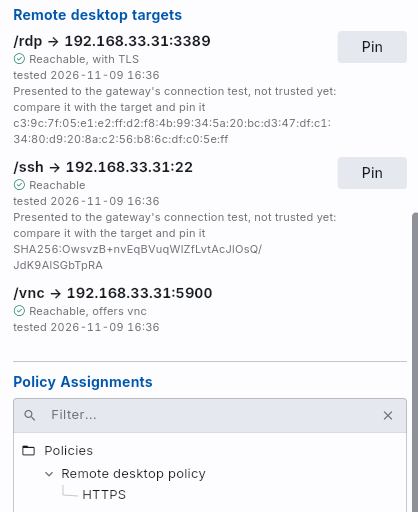
Compare a learned key with the target's own before you pin it, for example
with ssh-keygen -lf /etc/ssh/ssh_host_ed25519_key.pub on an SSH target, or
the certificate in the target's Remote Desktop settings. When a target is
reinstalled and its key really changed, the sessions stay refused until you
pin the new key.
VNC targets
A VNC server has no identity the gateway asset could verify: no certificate
and no host key. Most VNC servers do not encrypt the session either, and the
VNC password protects the sign-in only. Whoever controls the network between
the gateway asset and the target can read the session or pose as the target,
as with a plain http:// upstream. Put the gateway asset in the same network
segment as the VNC target, without other networks in between, or prefer RDP
or SSH where the machine offers them.
The gateway asset still checks before each session that the target answers
as a VNC server. The portal's detail page shows which security types the
target offers, for example vnc (a VNC password) or ard (Apple's Screen
Sharing), and warns when it offers none: such a server lets anyone in who
reaches it, without a password. Turn that off on the target.
The settings of a VNC application say the same: they have no fields to pin an identity, and show the warning instead.
Clipboard and files
- Copy puts text the session copies onto the browser's clipboard. On VNC, the clipboard carries Latin-1 text, as VNC defines it: characters outside it, such as emoji or Asian scripts, do not arrive.
- Paste sends the browser's clipboard into the session. The browser asks for permission the first time. The page reads the clipboard whenever the tab gets the focus, so whatever is on the clipboard reaches the session each time the person returns to the tab. Turn Paste off where that matters.
- Upload: the page's upload button, or drag and drop onto the session.
- Download: for RDP, a file put into the Download folder of the
XplicitTrust drive is downloaded right away; for SSH, run
guacctl --download <file>in the terminal. Anyone in the session can start a download; turn File download off where that matters.
Phones and tablets
The page works with a finger as well as with a mouse:
| On the screen | In the session |
|---|---|
| Tap | Click |
| Long press | Right-click |
| Tap, then drag right away | Drag, for example a window or a text selection |
| Two fingers up or down | Scroll |
A swipe with one finger and no tap before it does nothing, so a stray finger does not move anything in the session. The browser does not zoom or move the page under a finger on the session either.
On a device with a touchscreen, the bar shows Keyboard once the session is connected. It opens the device's on-screen keyboard, and what is typed goes to the session; tapping into the session keeps the keyboard open. Tap Keyboard again to close it. The session's screen follows the size of the browser window, so it changes when the device is turned.
Touch needs a current agent version on the gateway asset. With an older one, the page ignores touches; a mouse or a keyboard connected to the tablet still works.
Events
| Event | Meaning |
|---|---|
web_app_desktop_session_started |
A remote desktop session opened. The event names the user, the device for a tunnel application, the target and the account on the target. |
web_app_desktop_session_ended |
The session ended, with its duration and the reason: closed, access_revoked (sign out, an expired login, a removed policy or a changed application), idle_timeout or failed with the error. |
web_app_desktop_recording_completed |
The session's recording is complete, with its size and SHA-256. |
web_app_desktop_recording_uploaded |
The gateway asset uploaded the recording to your bucket and removed its own copy. |
web_app_desktop_recording_upload_failed |
An upload failed, with the error; the recording stays on the gateway asset and is tried again. |
web_app_desktop_recording_deleted |
The gateway asset removed a recording, with the reason: age (the retention), size (the disk space for recordings) or missing (the file was gone). |
web_app_desktop_recording_viewed |
An administrator played the recording in the console. |
The account is the application's username when the application stores credentials, and otherwise the name the person typed; the target's own log tells who really signed in. A VNC session names the application's username or no account, as its page asks for none. A gateway asset that stops in the middle of a session never reports the end, so a start can have no matching end.
Access while a session runs
Access is checked again every 10 seconds while a session runs. Sign Out Everyone, the end of the login's lifetime, a removed policy or a change to the application ends the session within seconds, and the page says Your access to this remote desktop has ended.
Just-in-time access
When the policy that grants the portal requires approval (see Just-in-Time Access), the gateway asset learns the end of the approved access together with the access itself. The session ends at that end even when the gateway asset cannot reach the controller at that moment; a revoked or shortened access still ends within seconds, as above.
The session's bar shows Access until and the time. In the last hour it counts the minutes down, from 10 minutes before the end it is highlighted, and Request more time opens the request on the self-service page, where the technician asks for an extension. An approved extension moves the end on the page within half a minute, and the session runs on without reconnecting. When the time is over, the page says Your access to this remote desktop has ended. in the language of the page.

Language and appearance
The remote desktop page and the list of a portal's applications
(/_xt/apps) have a language menu and a button that switches between the
light and the dark appearance. Until a person chooses, the pages follow the
browser's language and the device's appearance. A choice is kept for a year
in a cookie of the portal's host, so it applies to every application of that
portal in that browser, and not to other portals.
Open sessions and session limits
The portal's detail page shows under Remote desktop sessions how many sessions run on the gateway asset, against its limits, and lists the sessions of this portal that run now: who holds each one, the application, the target and the account, since when it runs, and from which device or address. The list refreshes every 30 seconds. A gateway asset that is offline lists no sessions: it reports its list while sessions run, and a list older than 15 minutes is no longer shown.
A gateway asset runs at most 64 remote desktop sessions at once, and at most 8 for each person. Both limits belong to the gateway asset and count the sessions of all of its portals. To change them, choose the settings icon next to Remote desktop sessions:
- Sessions on the gateway: 1 to 256.
- Sessions per person: 1 to 256, and no more than the sessions on the gateway.
An empty field is the default. The gateway asset picks up a change within a few seconds. A new session over a limit is refused; sessions that run keep running, also when a lower limit leaves more open than it allows. What a session costs the gateway asset, and which limits suit its CPU and memory, is in Sizing the Gateway Asset.
Session recording
With Record sessions on, the gateway asset records every session of the application: what the browser showed, so it can be watched again later like a video. Keystrokes are not recorded, because they include passwords. A session that cannot be recorded does not start: a recorded application never runs unrecorded.
Where the recordings go
The settings belong to the gateway asset and apply to all of its recorded applications. Choose the settings icon next to Remote desktop sessions on the portal's detail page:
- Keep recordings for (days): 30 by default, up to 3650.
- Disk space for recordings (GiB): 4 by default, up to 10240.
- Upload to a bucket (S3 compatible): off by default.
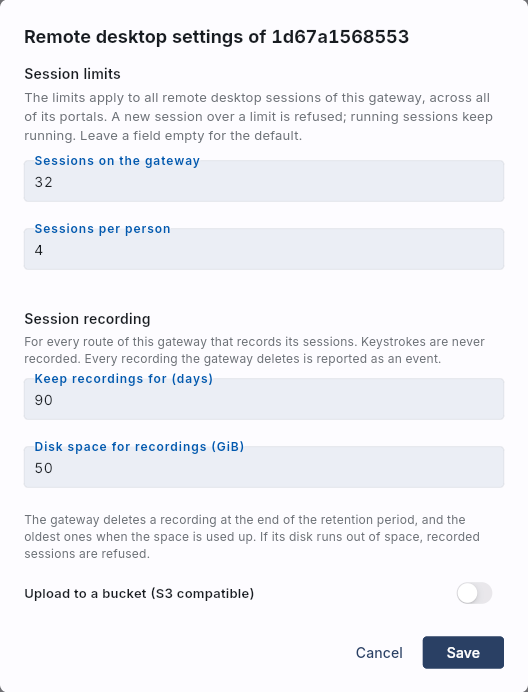
Without a bucket, the recordings stay on the gateway asset's disk, in
/etc/XplicitTrust/recordings (for the container, in its volume). The
gateway asset deletes a recording at the end of the retention period, and
the oldest ones when the disk space for recordings is used up.
With a bucket, the gateway asset uploads every recording once the session has ended, and removes its own copy when the bucket has confirmed the upload. While uploads fail, nothing is deleted: the recordings wait on the gateway asset, and once they fill the disk space for recordings, recorded sessions are refused until the uploads catch up. The gateway asset never deletes anything from the bucket; set a lifecycle rule on the bucket for the retention, and Object Lock if recordings must not be changed or deleted early. Amazon S3 and other services with an S3-compatible API work:
| Setting | |
|---|---|
| Endpoint | The service's address, for example https://s3.eu-central-1.amazonaws.com. |
| Region | The bucket's region; empty is us-east-1. |
| Bucket | The bucket's name. |
| Prefix | Optional, ending with /. The recordings go to <prefix><portal id>/<recording>.guac. |
| Path-style requests | On for an endpoint given as an IP address, for a bucket name with dots, and for most self-hosted services. |
| Access key ID, Secret access key | An access key that may write and read objects in the bucket (s3:PutObject, s3:GetObject), nothing more. |
| CA certificate | Optional: the PEM certificate of your own CA, when the endpoint's certificate comes from it. |
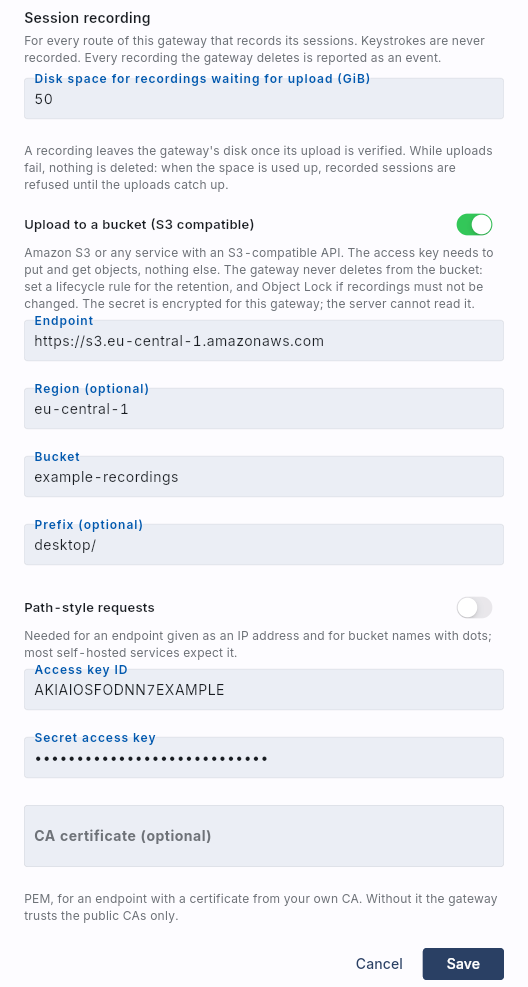
The secret access key is encrypted for the gateway asset: neither the server nor the console can read it again, and the field stays empty after saving. Leave it empty to keep it. Uploading needs a current agent on the gateway asset; an older one keeps the recordings on its disk for 30 days, up to 4 GiB.
Whatever happens to a recording is an event: complete, uploaded, an upload that failed, deleted and why, and every playback. A recording therefore never disappears without a trace, and the events reach your event forwarders like all others (Events).
Watching a recording
The portal's detail page lists the recordings under Session recordings, newest first, with who held the session, the application and the target, when and how long, the size, and where the recording is now. The line above the list shows the gateway asset's recording storage and warns when it refuses recorded sessions or when uploads fail.
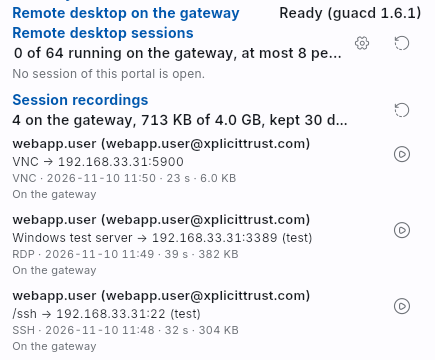
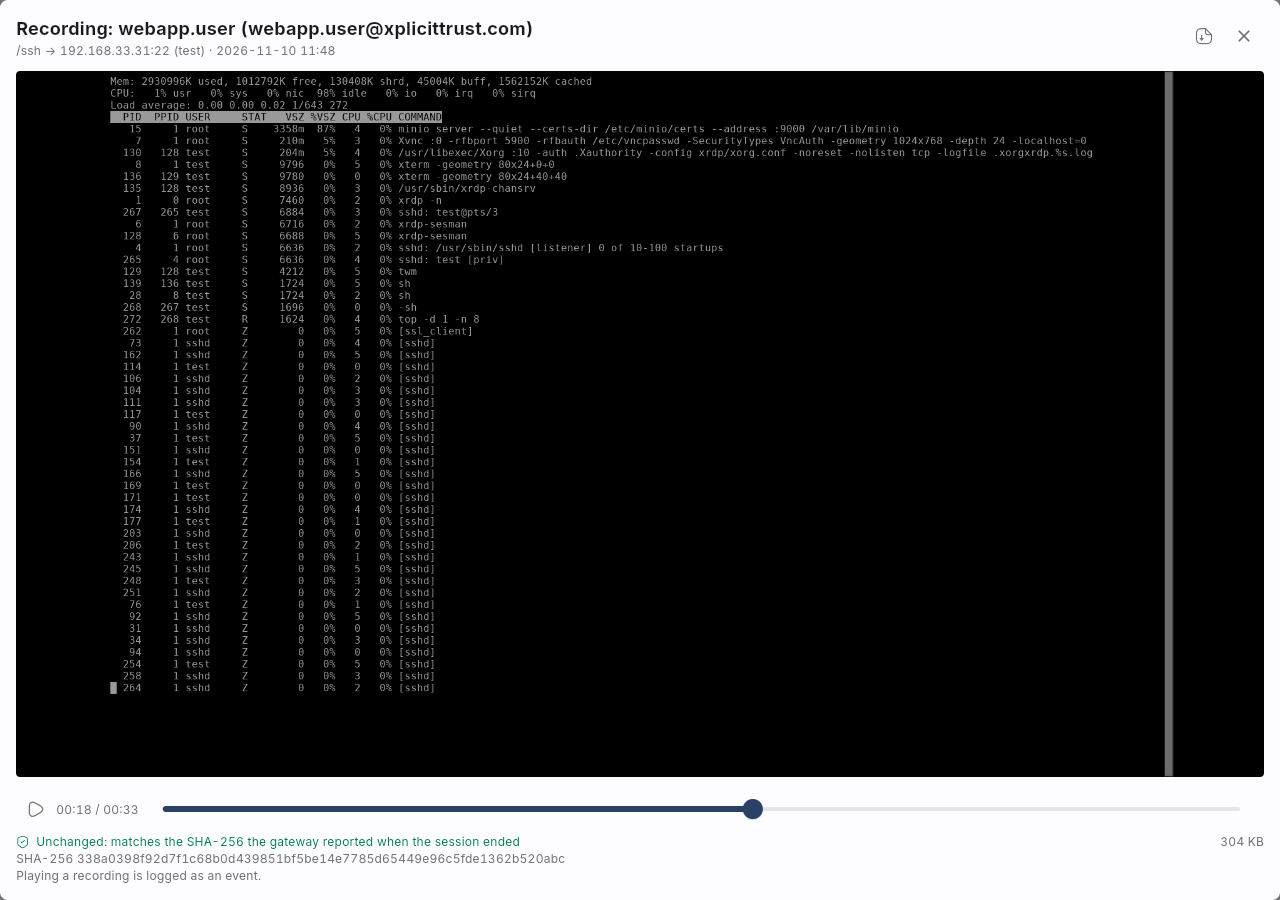
Choose the play button next to a recording. The console asks the gateway
asset for the recording, wherever it is, checks it against the SHA-256 the
gateway asset took when the session ended, and plays it, with pause and a
position slider. Unchanged means the file is exactly what the gateway
asset recorded. The download button saves the file. The recording comes
from the portal's address, so the device you watch on has to reach the
portal, just like the people who use it; for a tunnel portal, that means
a device with the agent.
How much space
A recording grows with what changes on the screen, not with the length of the session: an idle desktop costs next to nothing, scrolling, videos and animations a lot. The measured sizes for each protocol, and how to work out the disk for a retention period or for a bucket, are in Sizing the Gateway Asset.
- Plan with about 120 MB per hour for ordinary work, about 1 GB for a working day of one session.
- A session that scrolls, plays video or animates the whole screen fills gigabytes per hour: the default of 4 GiB holds less than half an hour of it.
- A recording is removed or uploaded only once its session has ended, so Disk space for recordings must hold at least the largest session you expect, plus everything the retention keeps. With a bucket it only has to hold what waits for upload.
Once your own sessions are recorded, the list shows their sizes and the line above it what the recordings take now; adjust the settings to that.
Troubleshooting
| What you see | Cause and fix |
|---|---|
| Gateway status: "The gateway asset downloads guacd …" | Nothing to do: the gateway asset downloads guacd with the first remote desktop application. |
| Gateway status: "The gateway asset cannot download guacd yet and keeps trying: …" | The gateway asset cannot reach dl.xplicittrust.com, or a proxy or firewall changes the download (the reason names the checksum then). Allow HTTPS to dl.xplicittrust.com, or use a mirror (Linux asset, container). |
| Gateway status: "The gateway asset cannot serve RDP applications: …" | The reason says what is missing, usually the guacd account on a tar.gz install (create it). Saving a new or changed remote desktop application for such a gateway asset is refused with that reason. |
| "The gateway is still installing the remote desktop service. Try again in a minute." | The gateway asset is downloading guacd. When it stays, see Gateway status for the reason. |
| Saving: "the gateway asset has not reported its encryption key yet …" | Stored credentials are encrypted for the gateway asset, which reports its key when it runs a current agent version. Start or update the gateway asset, wait a minute and save again. |
| Gateway status: "the secret is encrypted for another key of the gateway asset …" | The gateway asset's configuration was reset, so it has a new key. Enter the stored password or key, and the TLS private key of an uploaded certificate, again. |
| Gateway status: "The agent of the gateway asset does not support VNC applications yet; update it." | The gateway asset runs an agent version from before VNC. Update it; saving a new VNC application for it is refused until then. |
| Detail page: "Reachable, and lets anyone in without a password" | The VNC server offers access without a password. Set a VNC password on the target, or turn the security type None off. |
| "The gateway does not trust the identity of …" | The target presented a key other than the pinned one, or other than the one learned at the first session. Check the target, then pin the new key on the portal's detail page. |
| "The remote desktop service is not available on the gateway." | guacd did not start on the gateway asset. The agent log names the reason. |
| "You already have 8 remote desktop sessions open on this gateway" | The person reached the gateway asset's limit for each person (8 unless changed). Close a session, for example a forgotten browser tab; Remote desktop sessions on the portal lists the open ones. Or raise the limit (Open sessions and session limits). |
| "The gateway runs as many remote desktop sessions as it can; try again later." | The gateway asset reached its limit of sessions (64 unless changed). Raise it if the gateway asset has the capacity (Open sessions and session limits). |
| The session ends with "The connection failed." | The gateway asset cannot reach the target, or the target refused the account. |
| "This desktop is recorded, and the gateway has no room for another recording right now (…)" | The gateway asset has less than 512 MiB free on its disk, or, with a bucket, the recordings waiting for the upload fill the disk space for recordings. Free disk space, raise Disk space for recordings, or fix the upload (Session recordings shows its error). |
| Session recordings: "Uploads fail (…): the bucket answered 403 AccessDenied" | The access key may not write to the bucket, or the bucket or prefix is wrong. Fix the key's permissions, or the settings. |
| Playing a recording: "The browser could not reach the gateway at …" | Your device cannot reach the portal's address, for example a tunnel portal without the agent, or a firewall in between. |
| Playing a recording: "Changed: does not match the SHA-256 …" | The file is not what the gateway asset recorded when the session ended. Treat it as tampered with. |
| On an Android device with Android 17 or later, the page does not open while the client is connected | The browser needs the Nearby devices permission; see Troubleshooting of the portal page. |
Not supported
- File transfer on VNC applications, and VNC reverse connections or repeaters.
- Several people in one session, or watching someone else's session while it runs; recordings can be watched once the session has ended.
- Personal stored credentials for each user: an application stores one account.
- Windows, macOS and OpenWrt gateway assets.