Just-in-Time Access
Just-in-time access gives a person access to a destination for a limited time, after someone else has approved it. A technician asks for one destination, says for how long and why, a member of an approver group decides, and the access ends by itself when the time is over.
It works for every kind of destination a Policy can name: Assets, Virtual Assets, Subnets, Machine Groups and the Portals of Agentless Access, through the tunnel as well as in the browser.
How it works
Access on approval starts with an ordinary Policy marked Requires approval. Such a policy grants nothing by itself:
- Its Sources (User Groups) say who may ask for access.
- Its Destinations say what may be asked for.
- Its Conditions apply to the access once it is granted, for example an operating system condition or allowed origins.
- Approver group names the User Group whose members decide.
- Longest approval is the longest time an approval may grant, from 5 minutes to 7 days. It has no default: choose it for every policy that requires approval.
When an approver approves a request, the technician gets access to exactly the requested destination, for the approved time and only for themselves. Nobody else in the source groups gains anything. When the time is over, or someone ends the access early, it is gone: tunnel connections to the destination are removed within about a minute, and a browser session on a portal stops working.
The access follows the technician like any user-based access: it applies while the technician is signed in on their Client.
Setting it up
- Create the User Groups: one for the people who may ask (for example Technicians), one for the people who decide (for example Service Owners). External technicians need a user in your tenant.
-
Create a Policy with the technicians' group as Source and the destinations they may ask for. On the Advanced tab, in the Just-in-time access section, switch on Requires approval, choose the Approver group and the Longest approval: one of the durations in the list, from 30 minutes to 7 days, or Custom to enter any number of minutes from 5 to 10080. The policy cannot be saved without it. All Users cannot be the approver group: every user could approve, and every user would get every request by email. A policy saved with it earlier asks for another group the next time it is edited.
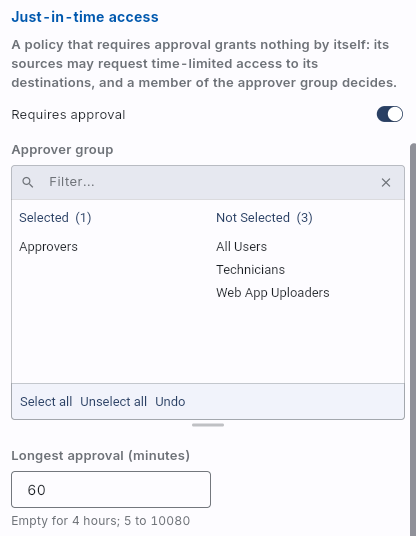
The policy list marks such a policy with an Approval badge.
-
Check the warning the policy shows if another policy already gives the same people access to the same destination without approval: that access stays, and a request would add nothing. Narrow or remove the other policy.
If the policy has time conditions of its own (for example Mondays 18:00 to 22:00), an approval only grants the time inside them.
Two tenant settings, under Settings on the General tab, apply to the emails:
- Time zone: the zone of the times in every email about a request and in the report, for example Europe/Berlin. Without a choice, the emails use UTC. The console and the self-service page always show the reader's local time.
- Access report email: who gets the report, see Report.
Requesting access
Technicians and approvers do not need administrator rights. They open https://console.xplicittrust.com/#/jit-access and sign in with their e-mail address and their usual identity provider login. This self-service sign-in reaches the just-in-time access pages and nothing else.
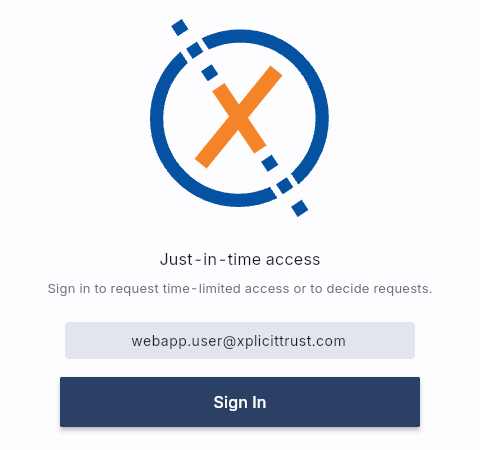
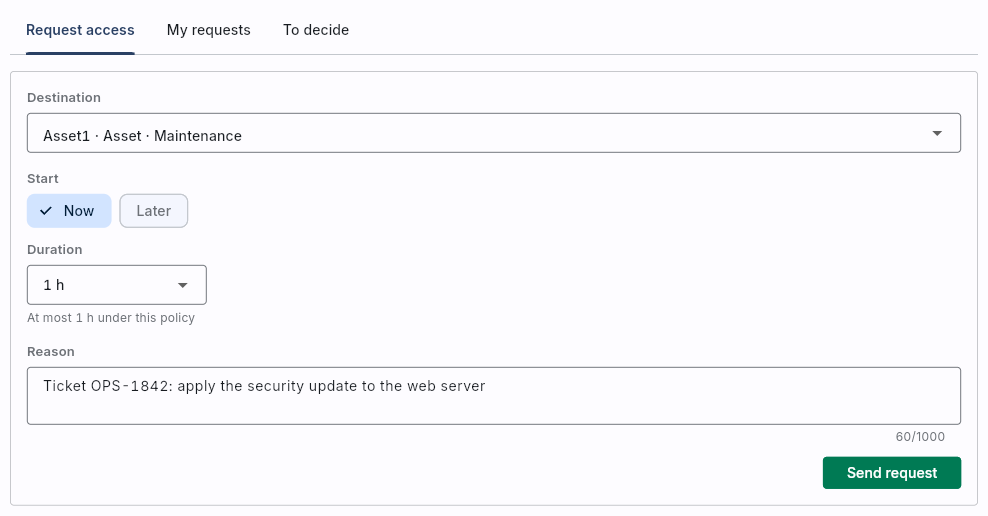
On the Request access tab, a technician:
- Chooses the Destination: every destination of every policy they may request under, with the policy's name.
- Sets the window: Start now or later, and the Duration, at most the policy's longest approval.
- Gives a Reason, for example the ticket they are working on, and sends the request.
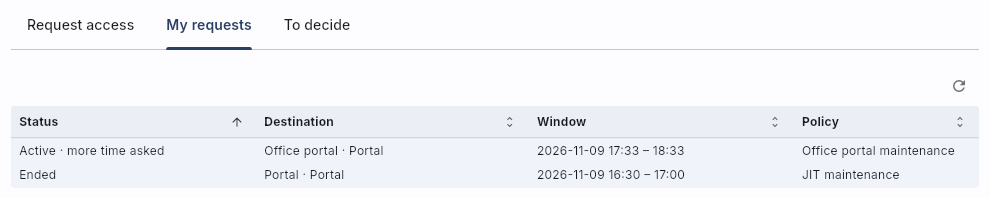
My requests lists the technician's requests with their state: pending, approved, active, denied, cancelled, expired or ended. A request opens with its details, its timeline and, once access has started, its report.
A destination whose Asset does not report network activity is marked: the request works, but the report afterwards will not list which addresses were reached. Activity is reported by Linux and Windows agents with access tracking enabled.
A technician has at most one open request per destination.
How long a request stays open
A pending request is valid until the end of the time it asks for. An approver can still approve it after its start has passed; the access then starts at the approval and ends as requested. If nobody decides before the requested time is over, the request is withdrawn on its own: it shows as cancelled with the reason Nobody decided before the requested time ended, the technician gets an email, and can send a new request for the same destination.
Opening a portal without access
A technician who opens an application of a portal they may request, but have no approved access to yet, sees Access must be requested instead of a sign-in error, with a Request access button that opens the self-service page. With a request that is pending, or approved for a time that has not started, the page says Your access request is not active yet. Through the tunnel, the gateway's No policy grants you this app page offers the same button for a portal that just-in-time access covers.
These pages need a current agent on the gateway; an older agent shows the
reason access_request_required or access_request_pending instead.
Deciding
Every member of the approver group gets an email with the request: who asks, by name and email address, for which destination, when and why, and an Approve or deny button that opens the request on the self-service page. Approvers sign in the same way as technicians and find the request on the To decide tab.
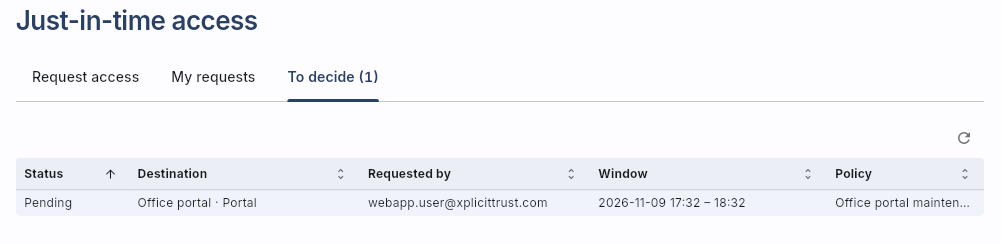
An approver can:
- Approve it, optionally with a shorter or later window (Change the window) and a note the technician sees.
- Deny it, with a note.
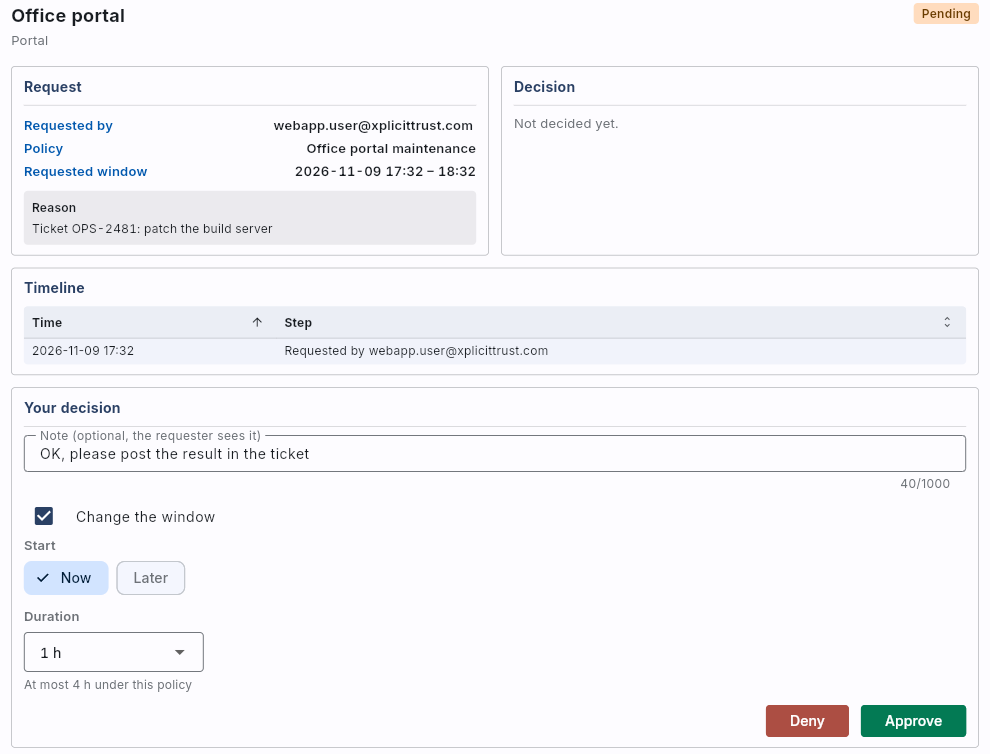
Nobody can decide their own request, also when they are in the approver group: the request offers no Approve or Deny to its requester, and the controller refuses the decision if it is sent anyway. Approvers who request access themselves need another member of the approver group to decide, so an approver group whose members also ask for access needs at least two people. The requester does not get the email to the approvers.
Administrators see all requests on the Access requests page of the Admin Console (below Users & Clients in the menu), but decide only if they are in the approver group.

The technician gets an email when the request is approved or denied, when the access starts, 10 minutes before it ends, when it has ended, and when the request was withdrawn because nobody decided it. Every email has a button to the request.
Requesting more time
While a request is approved or its access is active, the technician can ask to keep the access longer: Request more time on the request opens a dialog with the new end and a reason, which the approvers see.
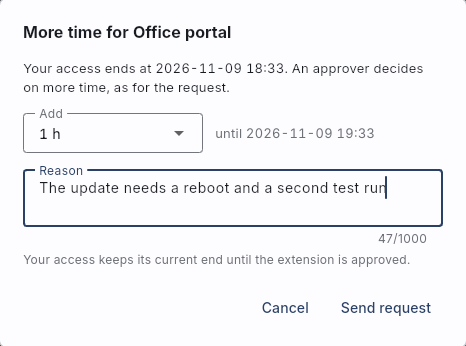
- Each extension adds at least 5 minutes and at most the policy's Longest approval, counted from the current end. To keep access longer still, the technician asks again after the extension has been decided.
- One extension waits for a decision at a time. While it waits, the request shows more time asked next to its status, and the technician can withdraw it with Withdraw extension.
- The access keeps its current end until the extension is approved. An extension nobody decides before the access ends is dropped with the access.
The approvers get an email for every extension, with the current end, the end asked for and the reason. On the To decide tab the request shows up again, and the request has a section Your decision on more time:
- Approve grants the time asked. Grant less time approves a shorter extension instead.
- Deny keeps the current end, with a note the technician sees.
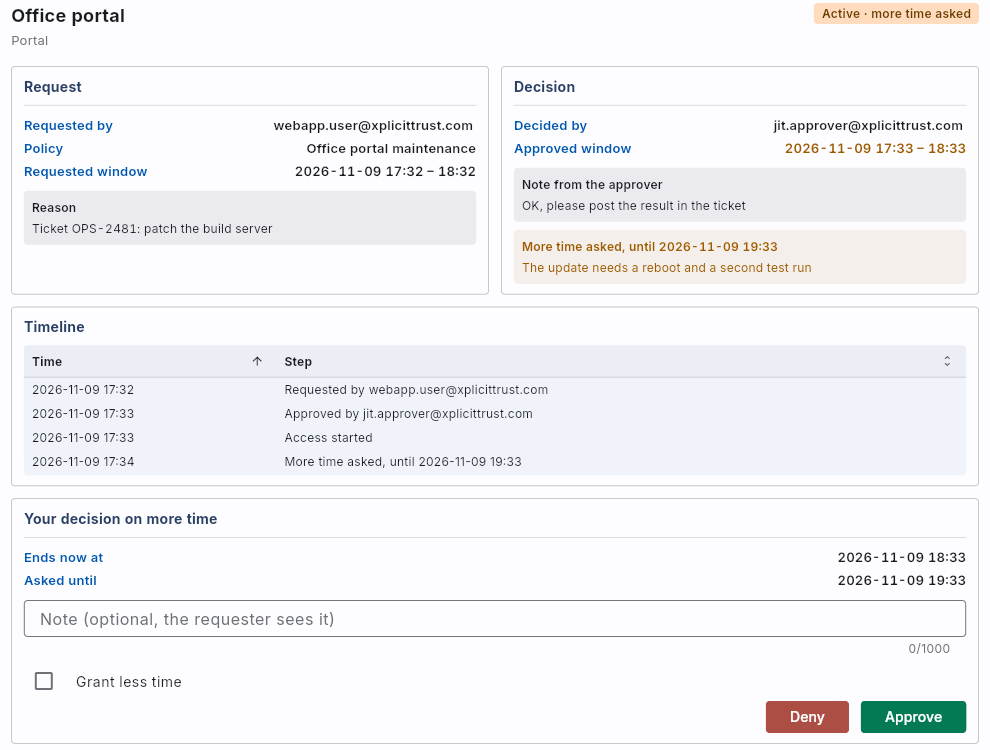
As for the request itself, nobody decides an extension of their own access. Approvers deny an extension rather than withdraw it, so the technician learns why; an administrator can withdraw it.
An approved extension takes effect without a gap: the controller grants the longer access before it removes the old grant, and the devices and gateways pick up the new end within seconds. The 10-minute warning is sent again for the new end. The request shows how many Extensions it had, and the report covers the access up to its final end.
The technician gets an email when the extension is approved or denied, and when an administrator withdrew it.
A remote desktop or terminal opened in the browser shows when the access ends, counts down in the last hour and links to the request with Request more time; see Just-in-time access on the page Remote Desktop in the Browser.
Ending access early
The technician, an approver or an administrator can end active access at any time with End access now, and withdraw an approved request before its time starts. When someone other than the technician ends it, the technician's devices are signed out and sign in again without the access.
The access also ends by itself when the policy it was granted under changes: when the policy is deleted or disabled, no longer requires approval, no longer names the destination, or the technician leaves its source groups.
Report
A few minutes after the access has ended, the report goes out by email, and it can be opened from the request: who asked, why, who approved, when the access started and ended, the sign-ins and other events of the technician during that time, and every address the technician's device reached through the destination's gateway, with protocol, port, first and last access and the number of connections. Traffic volumes are not part of the report. The email lists the 30 most used addresses and the first 30 events; the request in the console lists all of them.
Who gets the email is set in Settings > General > Access report email:
| Setting | Default | Meaning |
|---|---|---|
| On/off switch | On | Off sends no report email. The report stays on the request, and the events still reach the event log and your forwarders. |
| Send to the policy's approver group | On | Every member of the approver group except the technician. If the policy has been deleted, or no longer requires approval, the person who decided the request gets the report instead. |
| More recipients | None | Up to 50 addresses that get every report of the tenant, for example an audit or security mailbox. |
With the switch on, at least one of the two must reach someone: a setting that would send the report to nobody cannot be saved. To stop the report, use the switch.
Events
Every step of a request, and every address reached during a granted access, is an event in the event log (event class Just-in-time access under Insights > Events), and a forwarder delivers them to your SIEM. See jit_access for the events and their fields, and Wazuh for the rules.
Sign-ins on the self-service page, and everything done in that session, carry
the session type jit_self_service rather than command_console. That keeps
the technicians' sign-ins apart from the administrators'.