Packet Capture
When a connection does not work as it should, Packet Capture records the traffic of one or more devices for a short time, from the Admin Console and without touching the devices. You follow the packets live in the console, or download them as a file that Wireshark and other analysers open.
A capture can record on each device:
- Inside the tunnel: the traffic as the applications on the device send and receive it, before it is encrypted. This shows whether a request leaves the application, and whether an answer comes back.
- Outside the tunnel: the network interface of the device's default route. It carries the tunnel itself, as encrypted WireGuard packets over UDP (or the connection to the relay), and everything else the device sends over its network.
- Loopback: what the device sends to itself, such as an application
talking to a local proxy, database or web server on
localhost. This traffic appears neither inside nor outside the tunnel. - Another interface of the device, such as a second network card or the LAN interface of a gateway.
Each device and interface of a capture is recorded on its own and shown together in one table. Inside and outside on both ends of a connection is the usual case: you see a packet leave the application, enter the tunnel, cross the network encrypted and come out on the other side, or where it got lost.
Packet Capture is available to administrators of the tenant and to partner API keys that may change the tenant. It works on Windows, macOS and Linux agents, as clients and as assets. Phones and tablets cannot capture, and neither can agents from before Packet Capture: the console lists such a device switched off, with "The agent on this device cannot capture packets yet", until its agent is updated.
Starting a capture
Open the capture from where you look at the problem:
- A connection: in the Connectivity Explorer, select a connection and click the Packet Capture button in the header of its side panel. Both ends are selected, each captured inside the tunnel and filtered to the traffic between the two ends' tunnel addresses, so the capture holds this connection and nothing else. When one end is a gateway, it records only what passes between the two, not what it forwards for the other end to the networks behind it. When one end is a phone or tablet, it is listed but cannot be selected, and the other end is captured alone.
- A device: Packet Capture in the side panel of an asset or a client opens its captures of the last 24 hours. When the panel's header has no room for the button, it is in the menu More actions (⋯). New capture starts a capture on this device.
Add a device under the devices adds another one to the same capture: type part of its name and pick it from the list. Phones and tablets are not offered. Each computer is listed once, also when several users sign in on it: with a user signed in, under that user's email address; with nobody signed in, once, without a user. A computer already in the capture is not offered again.
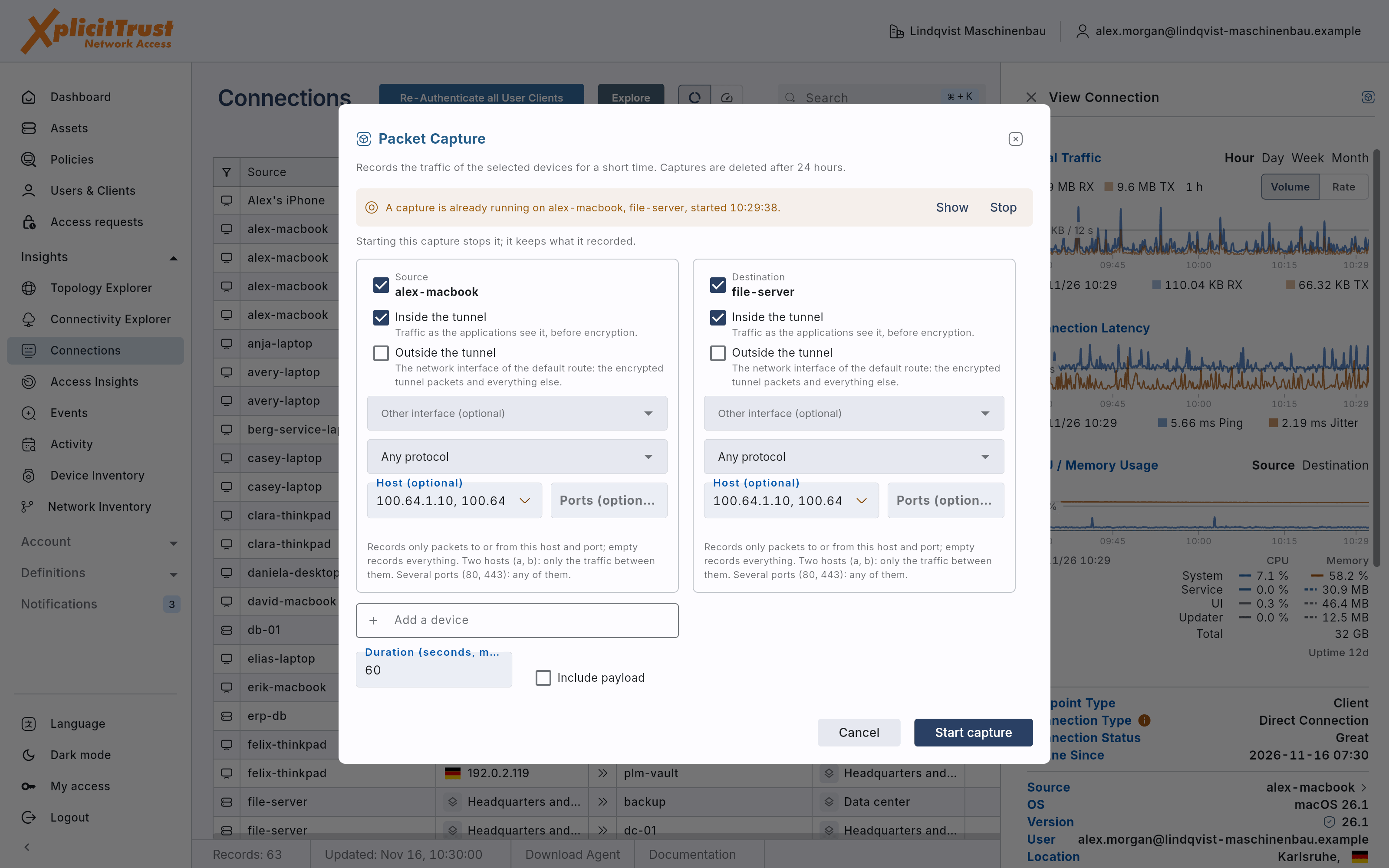
For each device:
| Setting | Meaning |
|---|---|
| The check box next to its name | Whether the device takes part. |
| Inside the tunnel | Capture the device's tunnel interface. |
| Outside the tunnel | Capture the interface of the default route. |
| Other interface | Capture one more of the device's network interfaces. Loopback is what the device sends to itself (see Loopback). Below it the list holds the interfaces the device reported last, with their addresses; default route marks the ones the device reaches the internet through. The tunnel interface is not listed, it is Inside the tunnel. |
| Protocol, Host, Ports | Record only packets of this protocol (TCP, UDP or ICMP), from or to this host, and from or to one of these ports. Empty means any. Host takes one IP address, or two separated by a comma for only the traffic between them. Ports takes up to 8 ports separated by commas, such as 80, 443, for packets with any of them, for example to follow a redirect from HTTP to HTTPS. The host field suggests the tunnel addresses of the other devices selected for the capture. |
The filter applies to every interface of the device, and the device applies it itself: packets it filters out never leave the device. A tunnel address matches nothing outside the tunnel, where the tunnel's packets carry the devices' network addresses. That is why ticking Outside the tunnel clears a host that is the other end's tunnel address. Narrow the outside with the other end's public address and the tunnel port instead, or leave it unfiltered.
Loopback
Loopback records the packets a device sends to itself: connections to
localhost, 127.0.0.1 or ::1, and connections it opens to one of its
own addresses, such as its own tunnel address. The operating system hands
these back without sending them through a network interface, so they show
neither inside nor outside the tunnel. Each packet is recorded once.
The other end's tunnel address as Host matches nothing there, so selecting Loopback clears it, as Outside the tunnel does. Filter by port instead, for example the port of the local service.
For the capture as a whole:
| Setting | Meaning |
|---|---|
| Duration | How long the devices record, in seconds: at most 300, 60 by default. |
| Include payload | Record whole packets instead of their headers. See What a capture contains. |
Start capture sends the request. The devices pick it up within a few seconds, the next time they check in with the controller, and the live view opens.
A device runs one capture at a time. When a capture is already waiting or running on one of the selected devices, for example one whose window you closed, the dialog says so above the devices: "A capture is already running on …", with when it started. Show opens that capture's window, Stop ends it. Otherwise Start capture stops it and starts the new one in its place; it keeps what it recorded. When the selected devices run more than one capture between them, stop them first: the start is refused with "A capture is already waiting or running on one of these devices." A capture covers at most 8 interfaces.
Following a capture
The capture's window shows the packets of all its interfaces in one table, in the order they were captured, while the devices record them. New packets appear within about two seconds, and the table keeps the newest in view. Pause scrolling next to the search field holds the table where it is; scrolling up does the same. While it is held, the button reads Follow new packets with the number of packets that arrived since; click it, or scroll back to the end, to follow again.
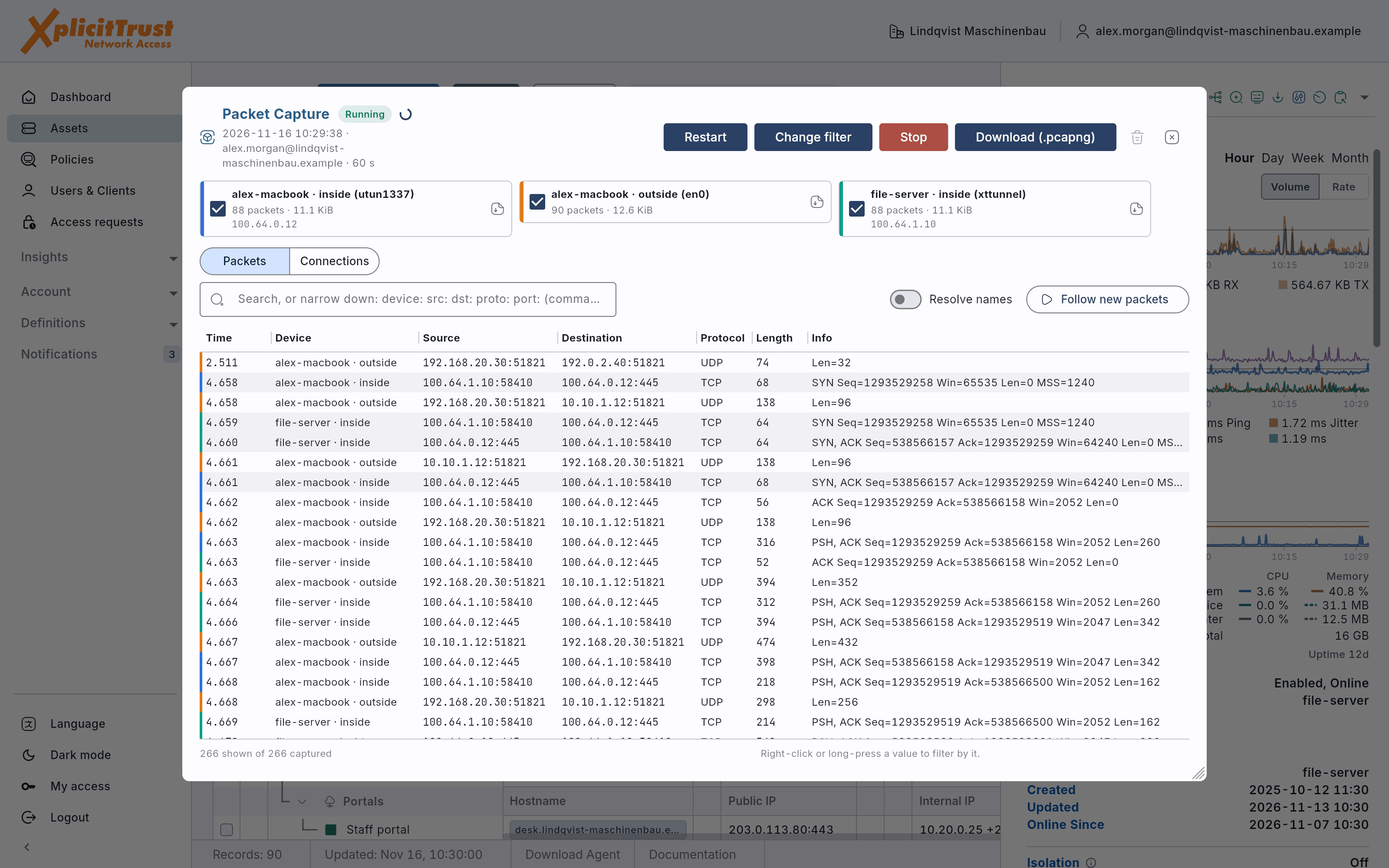
The header names who started the capture, when, and for how long. Above
the table, one box per device and interface shows where it records (with
the interface's name on the device, such as utun1337 or en0), its
status, how many packets and bytes it recorded, and its filter (two hosts
as a ↔ b). A device's reason for an interface it could not record is shown
in the box in red. A device whose agent cannot capture yet takes the request
without starting it; after a minute its box says "The agent on this device
cannot capture packets yet; update it", and the capture ends with its other
devices.
Each interface has a colour: the border of its box and a bar at the start of
its rows. Rows stand out where something happened, after the default colours
of Wireshark:
| Row | Meaning |
|---|---|
| Red | A TCP reset (RST), or an ICMP error such as DestinationUnreachable or TimeExceeded: a connection was refused or broken, or a packet could not be delivered. Also a packet whose headers do not add up, shown as Malformed packet with what could be read; the download contains it unchanged. |
| Orange | A DNS answer with an error, such as Non-Existent Domain or Server Failure. |
| Grey | A TCP SYN or FIN: a connection opens or closes. |
Drag the bottom-right corner of the window to make it larger, and double-click it for the default size. Drag the right edge of a column's header to make it wider or narrower, and double-click the edge to reset it; the browser keeps the widths. The check box of an interface hides or shows its packets in the table. The search field above the table narrows the table down (see Searching packets); the line under the table says how many of the captured packets are shown.
| Column | Meaning |
|---|---|
| Time | When the packet passed the interface, as the device's operating system recorded it, in seconds since the first device started recording. Each device uses its own clock, so packets of different devices can be a few milliseconds out of step. |
| Device | The device and where it captured: inside, outside, loopback or the interface's name. |
| Source, Destination | Addresses and ports. Inside the tunnel these are the tunnel addresses, outside the network addresses. |
| Names | Only with Resolve names on (see Resolving names): the names of source → destination, the tenant's devices by their tunnel addresses and the names of other addresses; – for an address without a name. |
| Protocol | TCP, UDP, ICMP or DNS. |
| Length | The packet's length on the wire. |
| Info | A summary: the TCP flags, sequence and acknowledgement numbers, window and data length; the name a TLS connection asks for; the question or answer of a DNS packet; the type of an ICMP message; for other UDP packets, their length. |
With Include payload, clicking a packet shows the first 64 bytes of its content in hexadecimal. Stop ends the capture on every device before its time is up; the packets recorded so far are kept.
Resolving names
The Source and Destination columns always show the IPv4 and IPv6 addresses as they were captured. The switch Resolve names next to the search field adds the Names column. It names the tenant's devices by their tunnel addresses, and the other addresses:
- From the capture itself. When the capture recorded the DNS answer for an address, the address gets the name that was asked for, also behind an alias (CNAME). These are the names as the device saw them, so internal servers and private addresses are named too. With Include payload, the name a TLS connection asks for names its destination as well. For this, the capture has to contain the device's DNS traffic: a filter on one host or on another port leaves it out, and a device that already knew the address does not ask again.
- By a reverse lookup. For public addresses that are still unnamed, the controller asks the DNS for the name registered for the address (its PTR record). The names appear a moment after the packets. Private, tunnel and link-local addresses are never looked up; they get a name only from the capture. Many public addresses have no such name, or only their provider's, such as a cloud host name.
A device's name comes before a name from the capture, and that before a looked-up name. Names from the capture are what the recorded packets said, and a looked-up name is what the address's owner registered: read them as a hint, and the address as the fact.
The switch is off at first, and the browser keeps your choice. With it off,
the search still finds the tenant's devices by name (name:). It changes
only what the table shows: the capture and the downloads are the same with
and without it. With the switch on, the controller's DNS resolver learns
which public addresses the capture contains.
Searching packets
Words typed in the search field are found in any column, the names
included: an address, a
port such as :445, RST, or a name a DNS packet asks for. Several words
must all be found; put a phrase in double quotes.
To search one column, write its name, a colon and the value. The field suggests the names as you type, and after the colon the values that occur in the captured packets, the most frequent first.
| Term | Keeps the packets | Examples |
|---|---|---|
device: |
of the device whose name contains the value | device:mac-mini, device:"Alex MacBook" |
src:, dst: |
from or to the address, a range of addresses, or an address and port | src:100.64.0.12, dst:10.8.0.0/24, dst:100.64.0.12:443, src:[fd00::1]:53 |
host: |
from or to the address | host:100.64.0.12 |
name: |
from or to the address whose name contains the value: a device by its tunnel address, or with Resolve names a resolved name (the Names column) | name:fileserver, name:example.com |
port:, sport:, dport: |
with the port on either side, as source, or as destination; a range with a hyphen | port:443, dport:8000-8100 |
proto: |
of the protocol: tcp, udp, dns, icmp, icmpv6, arp, ipv4 or ipv6. udp includes DNS |
proto:tcp |
flags: |
with the TCP flag | flags:rst |
len: |
of the length | len:>1000, len:<100, len:60-80 |
- An address matches as a whole:
src:100.64.0.1does not find100.64.0.12, as a word in the field would. - Commas give alternatives:
proto:tcp,udp,port:80,443. - A minus in front keeps the packets that do not match:
-proto:dns. - All terms must match:
host:100.64.0.12 host:100.64.0.7keeps the packets between those two addresses, in both directions.
Every term shows as a chip under the field; its cross removes it. A term
that cannot be read, such as src:10.8 or proto:http, is shown in red,
says why when you point at it, and is left out until it is fixed.
Right-click a value in the table (or press and hold it) to filter by it:
Only this device, Only this source, Hide this protocol, Only port
443, Only a name of the Names column, Only between these two
addresses and so on. When the search already has a port term, Also port
… adds the port as an alternative (port:80 becomes port:80,443). Each
entry shows the term it adds to the search, and Copy copies the value.
The search only changes what the table shows; the capture and the
downloads keep every packet. To record only what the search names, use
Capture only this while the capture runs: it opens Change
capture with the protocol, address and port
of the search as the filter of each device (a name: term that is exactly
the name of one address counts as that address), and with only the devices
that device: terms keep selected. A device's filter knows one protocol, up
to two addresses and a list of ports, so ranges, other alternatives, terms
with a minus, flags, lengths and words stay a search of the table. For
host:a host:b, every device records only the traffic between the two
addresses, also a gateway that carries more traffic of one of them.
Changing a running capture
Change filter in the header of a running capture opens the settings it was started with: its devices, their interfaces and filters, the duration and Include payload. A device that was switched off when the capture started, or that Capture only this left out, is listed again, switched off; tick it to take it back in. Change what you need and click Restart capture. The running capture stops and keeps what it recorded, a new capture with the new settings starts on the selected devices, and the window switches to it. It keeps its search, the interfaces hidden from the table and the view it was in. A device first ends the old capture and picks up the new one the next time it checks in, so up to about 15 seconds pass between the two. Both captures stay in the history of each device.
Restart starts the same capture again at once, with the same devices, filters and duration; a running capture stops first. A finished capture has Change filter too. It opens the same settings as New capture: Start capture starts a new capture on the same devices, the finished one stays as it is, and the window switches to the new one in the same way.
Reading the example
The picture shows a capture started from the connection of the laptop alex-macbook to the server file-server, while a file is opened over SMB (TCP port 445):
- alex-macbook · inside: the laptop's application opens the TCP connection to the server's tunnel address and sends its SMB requests.
- alex-macbook · outside: each of these packets leaves the laptop's network interface a fraction of a millisecond later as a WireGuard packet over UDP, 32 bytes or more longer than the packet inside. The UDP packets of the same length in the other direction are the server's answers, arriving before they appear inside.
- file-server · inside: the server receives the requests about a millisecond after they left the laptop, and answers.
A packet that appears outside on the sender but never inside on the receiver was lost on the way, or blocked by a firewall between the two. A packet that appears inside on the sender but not outside means the device did not send it into the tunnel, for example because a local firewall or another VPN took it.
Related captures
A capture covers only the devices it was started on. When the other end of a connection was captured on its own at the same time, for example from its side panel, Related captures above the table lists that capture: the console looks for captures of the devices whose tunnel addresses appear inside the tunnel in this capture, and keeps those that recorded at the same time. Select one to show its interfaces and packets in this table too, in time order; select it again to remove it. Stop, Download (.pcapng) and the trash icon still act on the capture you opened; the download icon of an interface downloads that interface.
Only packets inside the tunnel name the other end, so a capture outside the tunnel alone finds no related captures. To capture both ends from the start, start the capture from the connection, or use Add a device.
The history of a device
Packet Capture in a device's side panel lists its captures of the last 24 hours, newest first, with the interfaces each covered, who started it and how many packets it recorded. Click a capture to open it, follow it if it is still running, or download it. This is also where earlier captures are found again: a capture that covered several devices is listed on each of them.
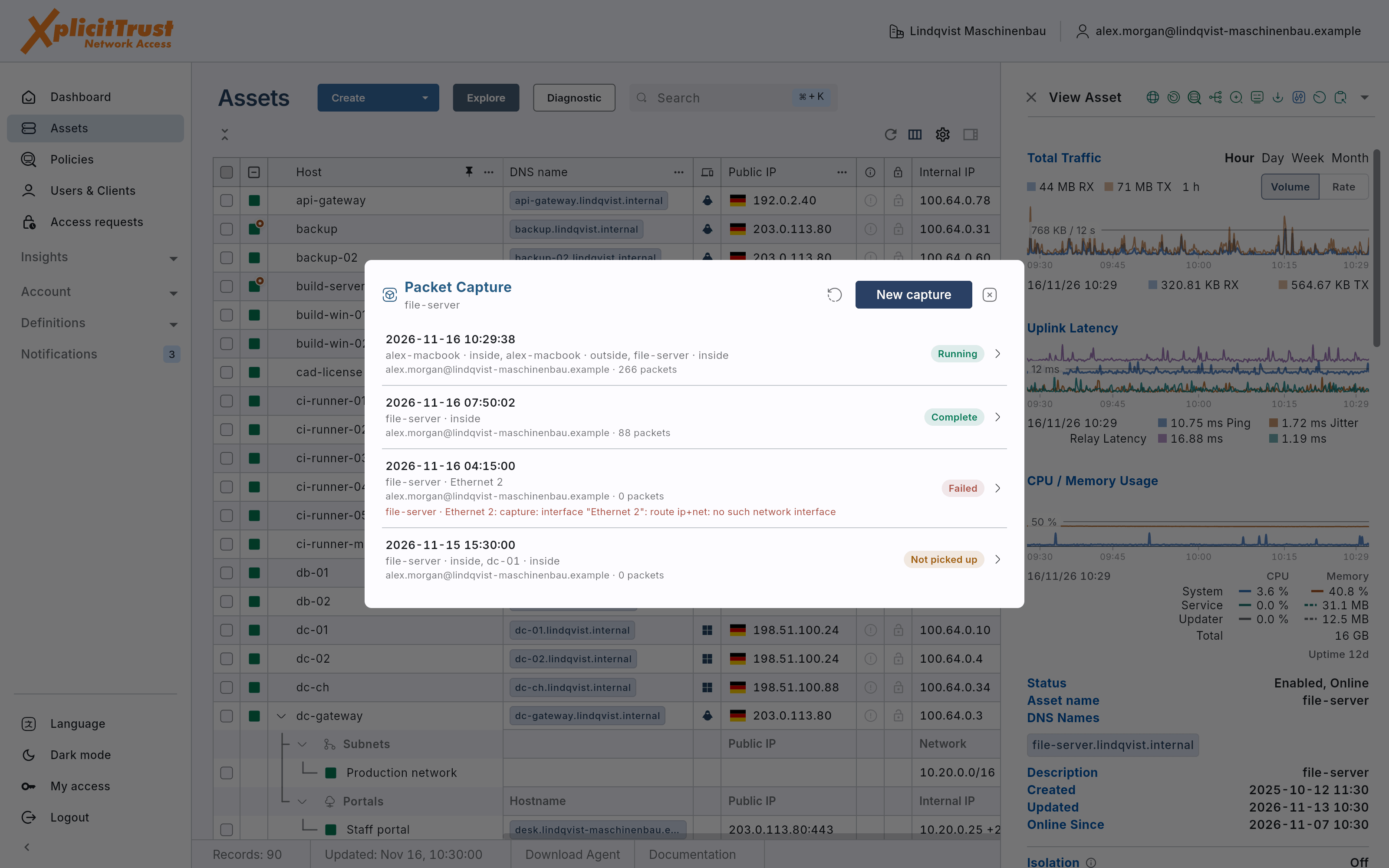
| Status | Meaning |
|---|---|
| Waiting for device | Requested; no device has started it yet. |
| Running | At least one device is recording. |
| Complete | Every device recorded until the end. |
| Incomplete | Some interfaces did not record until the end: one failed, a device went offline, or one never started. |
| Failed | No interface could record. The reason the device gave is shown under the capture, for example an interface name the device does not have, or that its agent cannot capture packets yet. |
| Not picked up | No device started the capture within 10 minutes, so it is not run any more: you asked for the traffic of that moment. The devices were offline. |
Downloading
As soon as a capture has packets, they can be downloaded, while it runs too. A capture of file-server that has ended, with the capture of taylor-surface taken at the same time added from Related captures:
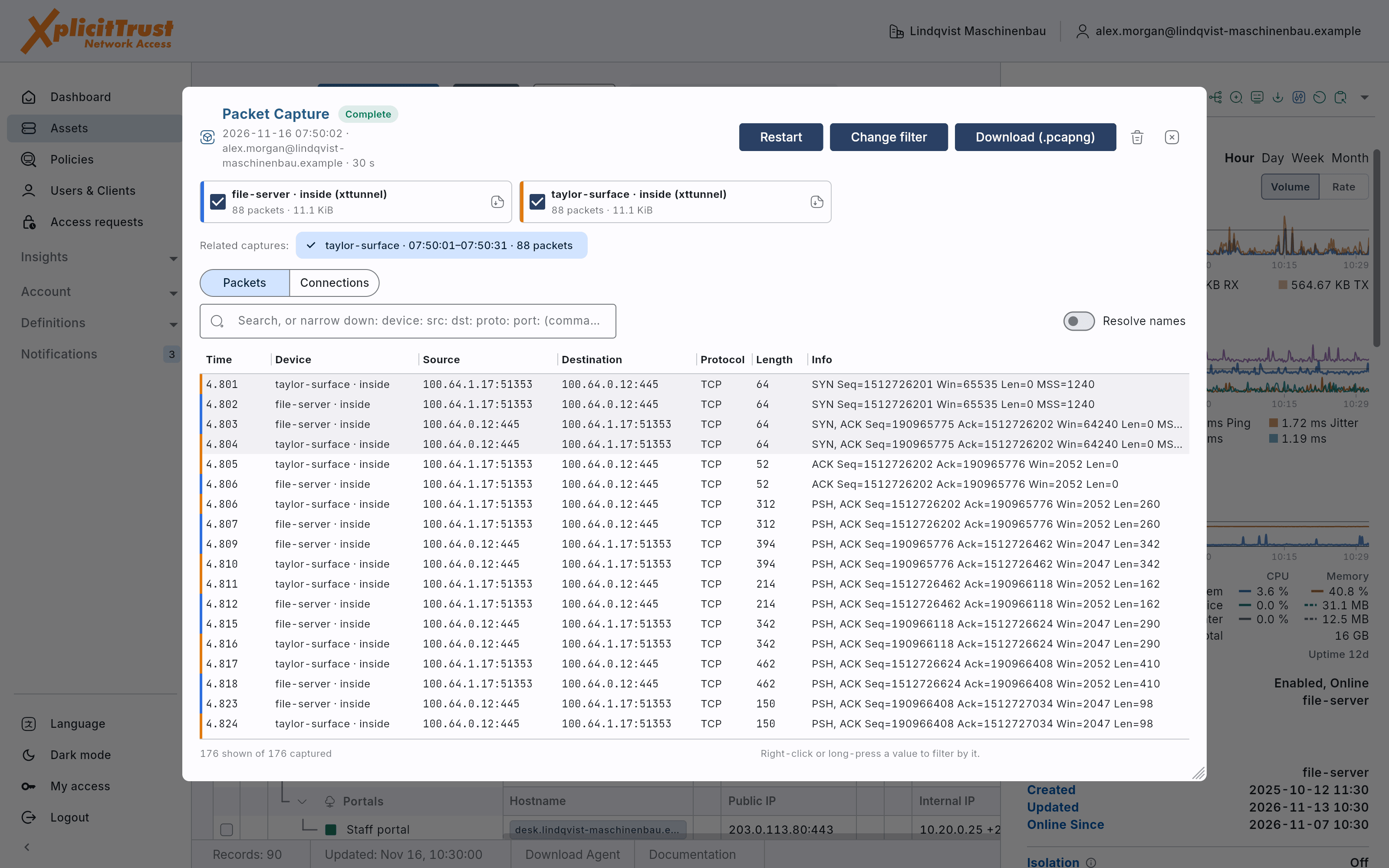
- Download (.pcapng): all interfaces in one pcapng file, one interface per
device and interface, named after the device and the interface as the
device calls it, for example
alex-macbook / utun1337. Wireshark lists them under Statistics > Capture File Properties; add the columnframe.interface_nameto tell them apart in the packet list. Each interface keeps its own link type: IP packets inside the tunnel, Ethernet frames outside on macOS and Linux. - The download icon in the box of an interface (Download this interface (.pcap)): that interface alone, as a classic pcap file for tools that do not read pcapng.
To look inside the tunnel's packets outside the tunnel you do not need to decrypt them: capture inside the tunnel on the same device and compare the two by time and length.
The trash icon deletes a capture that has ended, with its packets, after asking. The window stays open: it lists the other captures of the same devices to open, and New capture starts one with the settings of the deleted one. Otherwise captures are deleted after 24 hours.
What a capture contains
Captured traffic can contain everything the devices send and receive, so Packet Capture keeps as little as works for troubleshooting:
- Headers only, by default. Without Include payload the devices keep the first 128 bytes of each packet: addresses, ports, flags, the name a TLS connection asks for and the question of a DNS packet, but not the content. With Include payload they keep whole packets, and the capture can contain unencrypted data, credentials and personal data. Use it only when the headers are not enough; the console marks such captures with with payload.
- The device's connection to the controller is left out. Outside the tunnel a device would otherwise record its own uploads of the capture. Behind an HTTP proxy the device talks to the proxy, which is not left out; filter the outside by protocol, host or port to keep it short.
- Bounded size. Besides the duration, a device stops an interface at 100,000 packets or 25 MB, and the controller keeps at most 32 MB per interface and 64 MB per capture. An interface that reaches a bound ends early and is marked truncated.
- Kept for 24 hours. Captures are deleted 24 hours after they started.
- The device's user is not notified. Instead, every capture is recorded
in the event log: who started it on which device, what each device
recorded, who stopped, downloaded or deleted it, and its deletion after
24 hours. See the event class
packet_capture.