XplicitTrust App
The XplicitTrust app is the agent that runs on your device. It signs you in with your identity provider, builds the tunnel to your organization's network and shows you what you can reach. This section describes what each screen of the app shows and what its buttons do, one page per area. For installing and for the concepts behind it, see the pages linked below.
In short
The app signs you in, builds the tunnel and lists what you can reach. One page per area: Home, My Access, Connections, Diagnostics and Settings. Start here for the layout, the first sign-in, the tray icon and Asset mode. When something does not work, go to Troubleshooting.
Platforms and where to get the app
| Platform | Where to get it |
|---|---|
| Windows | Installation on Windows (Client Mode) |
| macOS | Installation on MacOS (Client Mode) |
| Linux | Installation on Linux (Client Mode). The graphical app is the desktop client xtna-desktop. |
| iOS (iPhone, iPad) | XplicitTrust Network Access in the App Store |
| Android (phone, tablet) | XplicitTrust Network Access in Google Play |
The desktop app is one app for Windows, macOS and Linux. The pages of this section state where a system differs. The iOS and Android apps share one layout and are described together; "mobile" on these pages means both.
A desktop computer can also run in Asset mode, to be reached by others instead of reaching them. See Asset mode and Clients and Assets.
Areas of the app
| Area | What it is for | Page |
|---|---|---|
| Home (Main on the desktop) | Connection status, connect and disconnect, device name and tunnel address. | Home |
| My Access | Applications and destinations you can open, and access you can request. | My Access |
| Connections | The assets you can reach. | Connections |
| Diagnostics | Checks that find out why a connection does not work. | Diagnostics |
| Settings | Desktop only. Appearance, language, sign-in browser and other preferences. | Settings |
The menu has further entries that are covered in these pages: Accounts, Send Logs, About, and, when your administrator set it up, Help. On iOS and Android there is also Approvals, for people who decide access requests and new devices.
Layout of the app
Desktop
The app is one window. It is not a separate "compact" view: it is the window that opens from the tray icon or the menu bar icon. On Windows and macOS, click the icon to show the window, and click it again to hide it; on Linux the icon opens a menu, where Show window does the same. The close button in the top bar hides the window (on Windows it minimises it); the app keeps running and you quit it from the tray menu. On Linux the window also has the desktop environment's own title bar; its close button ends the app like Quit in the tray menu. Without a saved position the window opens at the bottom right on Windows and Linux, and below the icon in the menu bar on macOS.
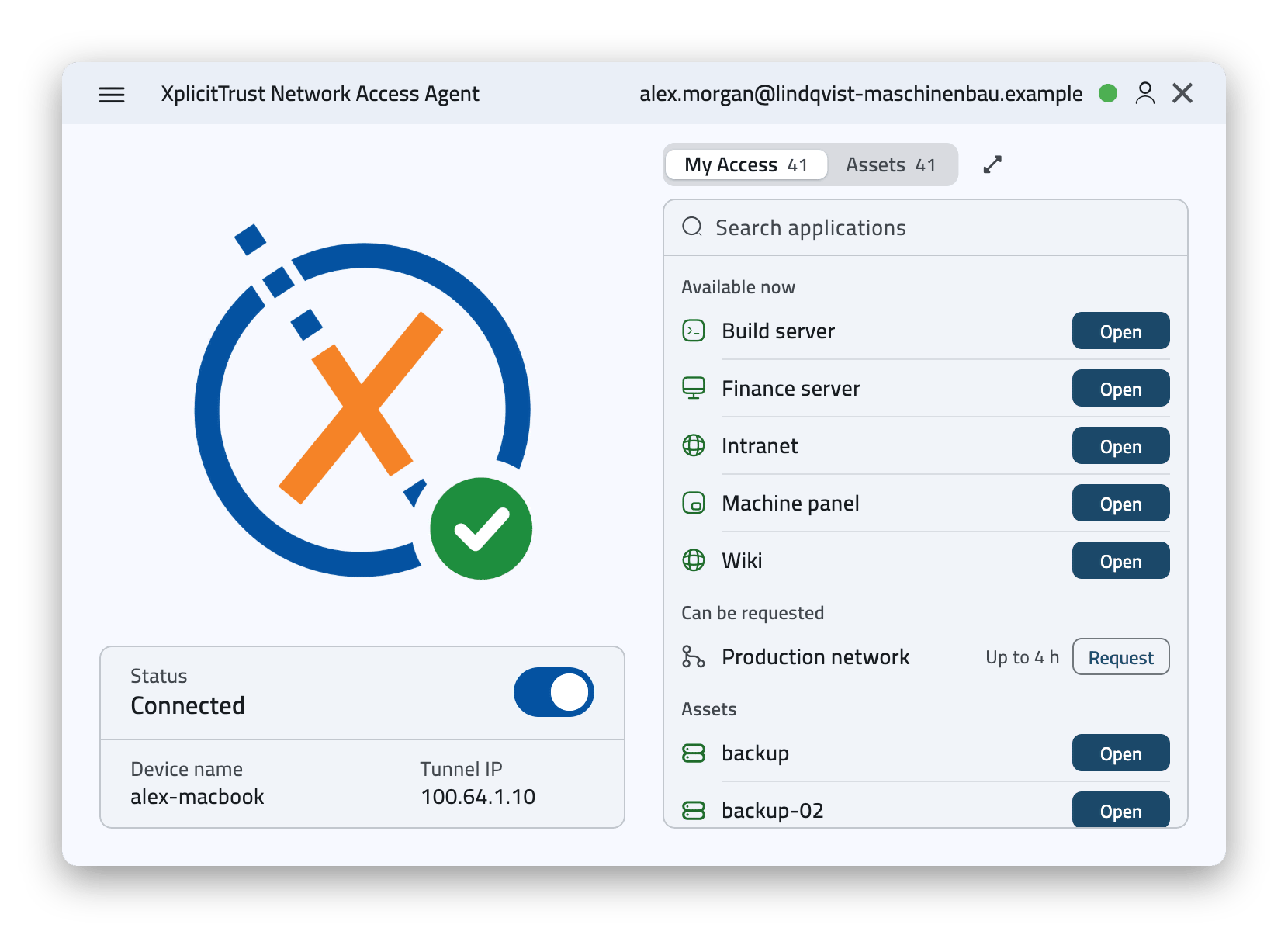
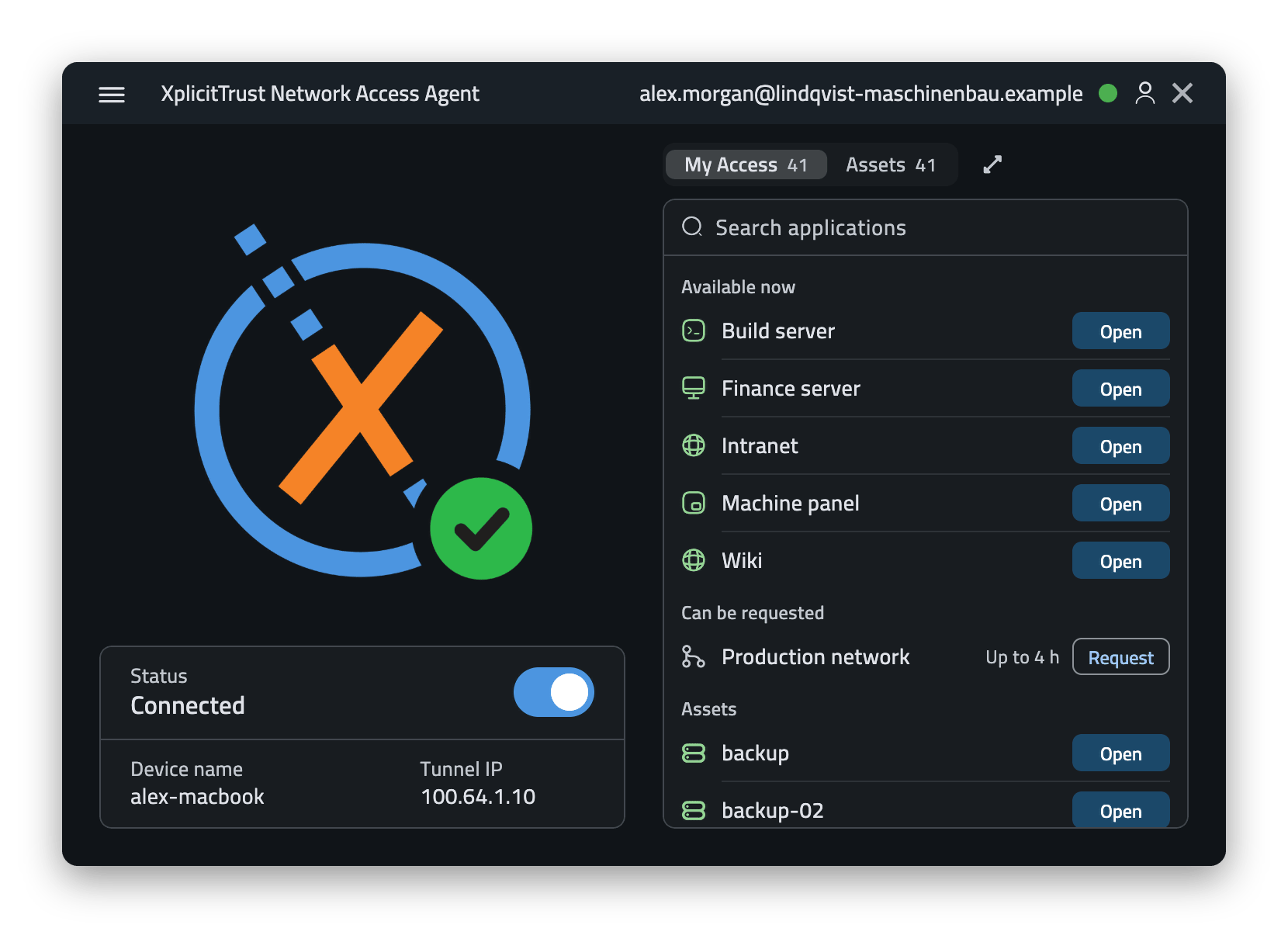
The window has a top bar and a side menu.
| Part | Meaning |
|---|---|
| Menu button (three lines) | Opens the side menu. |
| Title | XplicitTrust Network Access Agent. |
| Account and status dot | The account you are signed in with, and a dot showing the state. See Home. |
| Close button | Hides the window. |
The side menu lists the screens. An entry is missing when it does not apply or when an administrator took it out (see Agent appearance).
| Entry | Shown |
|---|---|
| Main | Always. This is the home screen. |
| My Access | When the computer's service can fetch the list. Not in Asset mode. |
| Accounts | Not in Asset mode. |
| Settings | Always, unless hidden. |
| Connections | Always, unless hidden. |
| Diagnostics | Always, unless hidden. |
| Help | Only when an administrator chose what the app shows. It then also holds Send Logs, About and every page the administrator took out of the menu. |
| Send Logs, About | Without an administrator's choice, as entries of their own. |
If the app cannot reach the XplicitTrust service on the computer, a red banner above the screen reads Cannot reach the XplicitTrust service and says it keeps retrying. Connecting and account changes do not work until the service answers. If the banner stays, see Repairing the Client Installation (a stopped service is one of the cases it covers).
Mobile
The app opens on the home screen. The menu button (three lines) at the top left opens a menu from the left edge, with the logo at the bottom:
| Entry | Meaning |
|---|---|
| Home | The home screen. |
| My Access | My Access. |
| Approvals | Only for people who decide access requests or new devices, or when something waits for a decision. A number shows how many wait. |
| Accounts | Your accounts. |
| Connections | Connections. |
| Diagnostics | Diagnostics. |
| Help | Only when an administrator set a helpdesk, a message or hid pages. A dot marks a message. It lists the hidden pages. |
| Send Logs | Sends the app's logs to XplicitTrust for support, and reports whether that worked. |
| About | The version of the app. |
Administrators can take My Access, Accounts, Connections and Diagnostics out of the menu. The option Stay connected in background is offered at sign-in.
On a tablet the menu is wider.
First start and sign-in
The first time the app starts without an account, it asks for your work email address. You need an account that your administrator created; see Quick Start Guide.
Desktop
The first screen reads Welcome to XplicitTrust Network Access! and asks for your company email address.
| Element | Meaning |
|---|---|
Your work email address. It must contain @. |
|
| Advanced | Shows the field Domain. You need it only when your administrator gave you a domain. |
| Cancel | Leaves the form. |
| Apply | Saves the account and takes you to the home screen. An address that is already saved is refused with Account already exists. |
The sign-in runs on your identity provider's page when you connect with the switch on the home screen. Which browser shows it depends on the system.
- On Linux the page always opens in your default browser.
- On Windows and macOS it opens in your default browser when Open login in external browser is switched on in Settings, and in a page inside the app otherwise.
While the page is open in your browser, the app shows Login opened in external browser with the text Complete the login process in your browser and return to this app. and the address of the page, which you can select and copy. The arrow at the top left cancels the sign-in and disconnects. When you finish in the browser, the app returns to the home screen with the status Connected.
For rolling out an account without typing it, see the Client Creation Token in the install pages above.
iOS and Android
The first screen reads Sign in with your work email and You'll continue on your company's sign-in page.
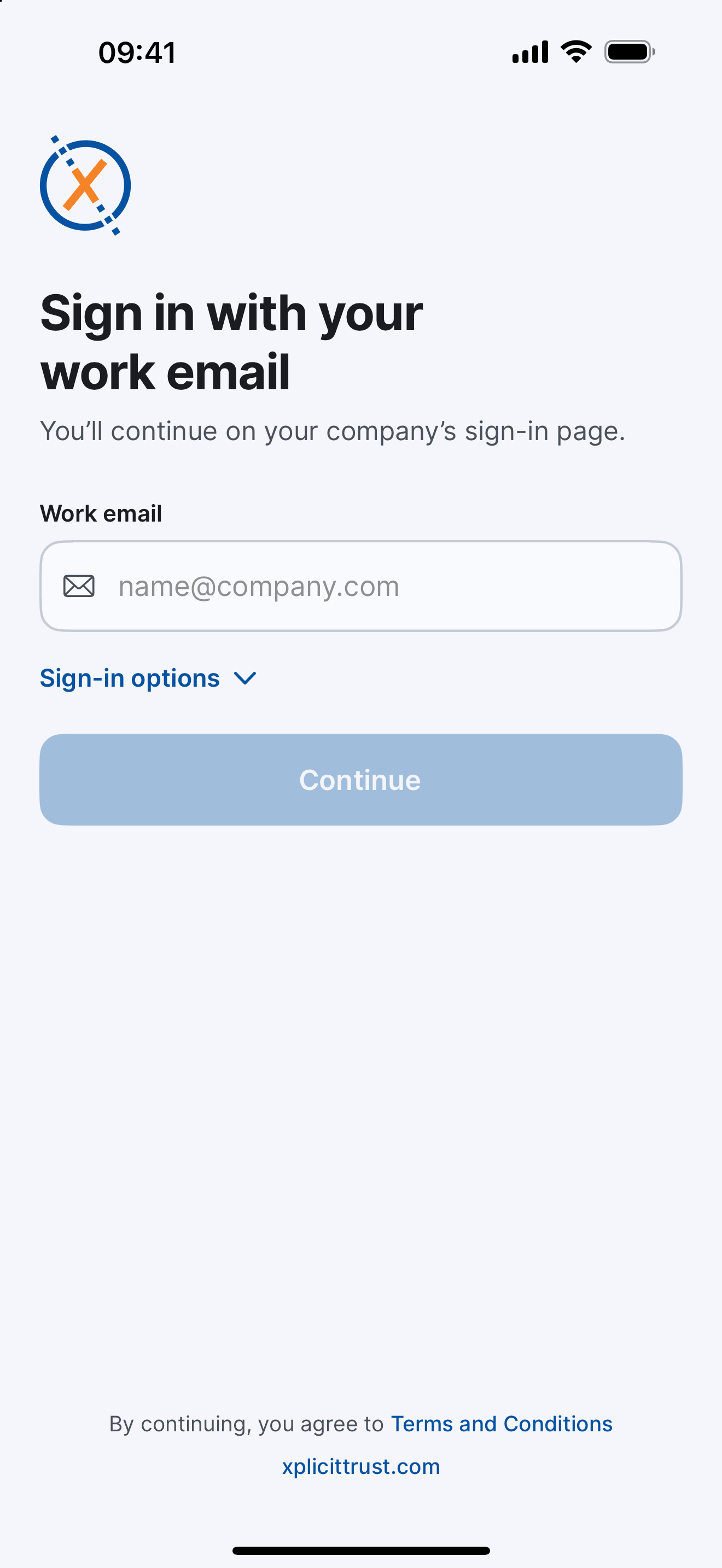
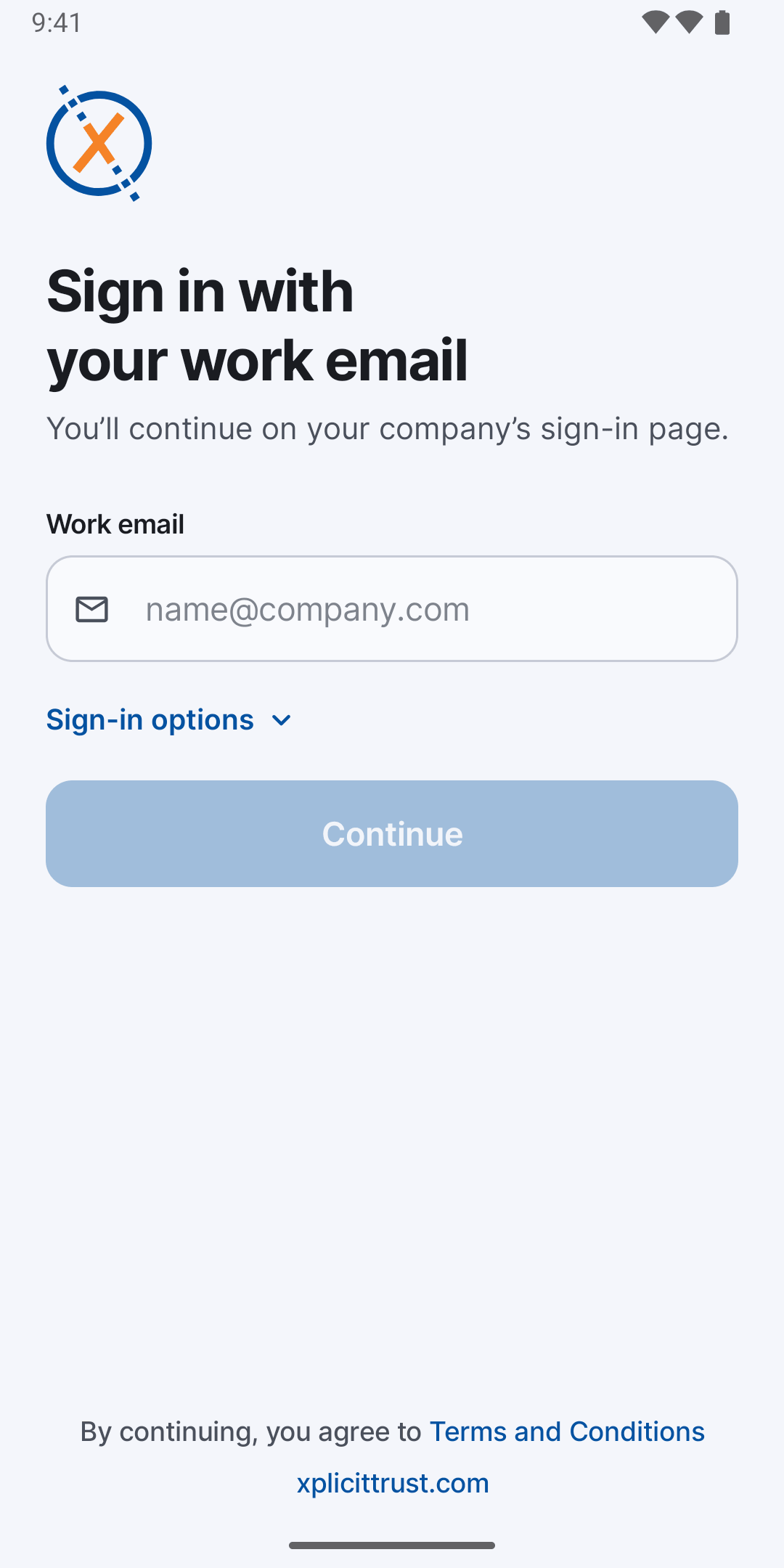
| Element | Meaning |
|---|---|
| Work email | Your work email address, for example name@company.com. A check mark shows when the address is valid. |
| Sign-in options | Opens more options: Company domain (optional, "Only needed if your administrator gave you one.") and Stay connected in background. |
| Stay connected in background | The device stays online with its device-level access, also after a restart, while nobody is signed in. Signing in is always started by you. It takes effect after the first sign-in on this device. |
| Continue | Available when the address is valid. Saves the account. |
| Terms and Conditions, xplicittrust.com | Links at the bottom of the screen. |
On iOS, Continue first shows Data Collection Consent, which lists the data the app sends to the XplicitTrust cloud controller. I Agree takes you to the home screen; Decline explains that the app cannot work without consent.
You then turn on the switch on the home screen. The sign-in page of your identity provider opens inside the app: in an in-app browser on iOS, in a browser tab (Custom Tab) on Android. While you sign in, the home screen says Finish signing in in the browser. On Android, when the app is not in front, a notification with Sign in brings you to the sign-in page. When you finish, you are back on the home screen with the status Connected.
Tray icon and menu bar icon
The icon lives in the system tray on Windows, in the menu bar on macOS and in the system tray on Linux. Its logo is always in colour; a badge at the lower right shows the state. The icon follows the light or dark taskbar or menu bar.
| Badge | State | Meaning |
|---|---|---|
| Green check mark | Connected | You are signed in and the tunnel is up. In Asset mode, the asset is online. |
| Blue dots | Signing in | You are signing in with your identity provider. The tunnel is not up yet. |
| Red minus | Not signed in | Nobody is signed in, or the app is starting. This covers Disconnected and Online (Disconnected). |
| Red exclamation mark | Error | Not connected, with an error. |
| Red blocked sign | Deactivated | An administrator deactivated the device. |
| Red person | Other user | The connection belongs to another user of this computer. |
On Windows and macOS the tooltip of the icon reads XplicitTrust: followed by the state, for example XplicitTrust: Connected, and for an error the message of the error. Linux has no tooltip.
Click and menu
| Action | What happens |
|---|---|
| Click the icon (Windows, macOS) | Shows the window, or hides it when it is in front. |
| Right-click the icon (Windows, macOS) | Opens the menu. |
| Click the icon (Linux) | Opens the menu. |
The menu has these lines:
| Line | Meaning |
|---|---|
| My Access | A submenu with what you can open. See below. Not shown in Asset mode or when an administrator switched My Access in the tray menu off. |
| Show window | Linux only. Shows or hides the window. |
| Quit | Closes the app and removes the icon. |
Note
Some Linux desktop environments do not display tray icons on their own. See Installation on Linux (Client Mode).
My Access submenu
The submenu lists what you can open now. It is built when you open the menu.
| Line | Meaning |
|---|---|
| Connect to see your access | You are not signed in. Choosing it connects. |
| Loading…, Could not load your access | The list is loading, or it failed. |
| Not connected. An entry connects first. | You are not connected and some entries need the tunnel. Choosing such an entry connects first. |
| Applications and Destinations | Two groups of entries. A destination with more than one service opens a submenu with one line per service. An entry whose access ends within a day shows the time left, for example (Remote desktop, 42 min left). |
| Nothing to open right now | There is nothing to open. |
| Recently opened | Submenu with the entries you opened last, newest first, at most five. It appears when the list is longer than the menu. |
| Show all… or Show all (n)… | Opens the My Access page in the window. |
| Request access… | Opens the page where you request access. |
The menu lists at most ten entries. When there are more, it shows ten by name, with access that ends within a day first, and the window has the rest.
For a destination with SSH, the menu offers the name SSH signs in with (SSH as followed by the name, or SSH with your account name) and a line to choose another name.
Asset mode
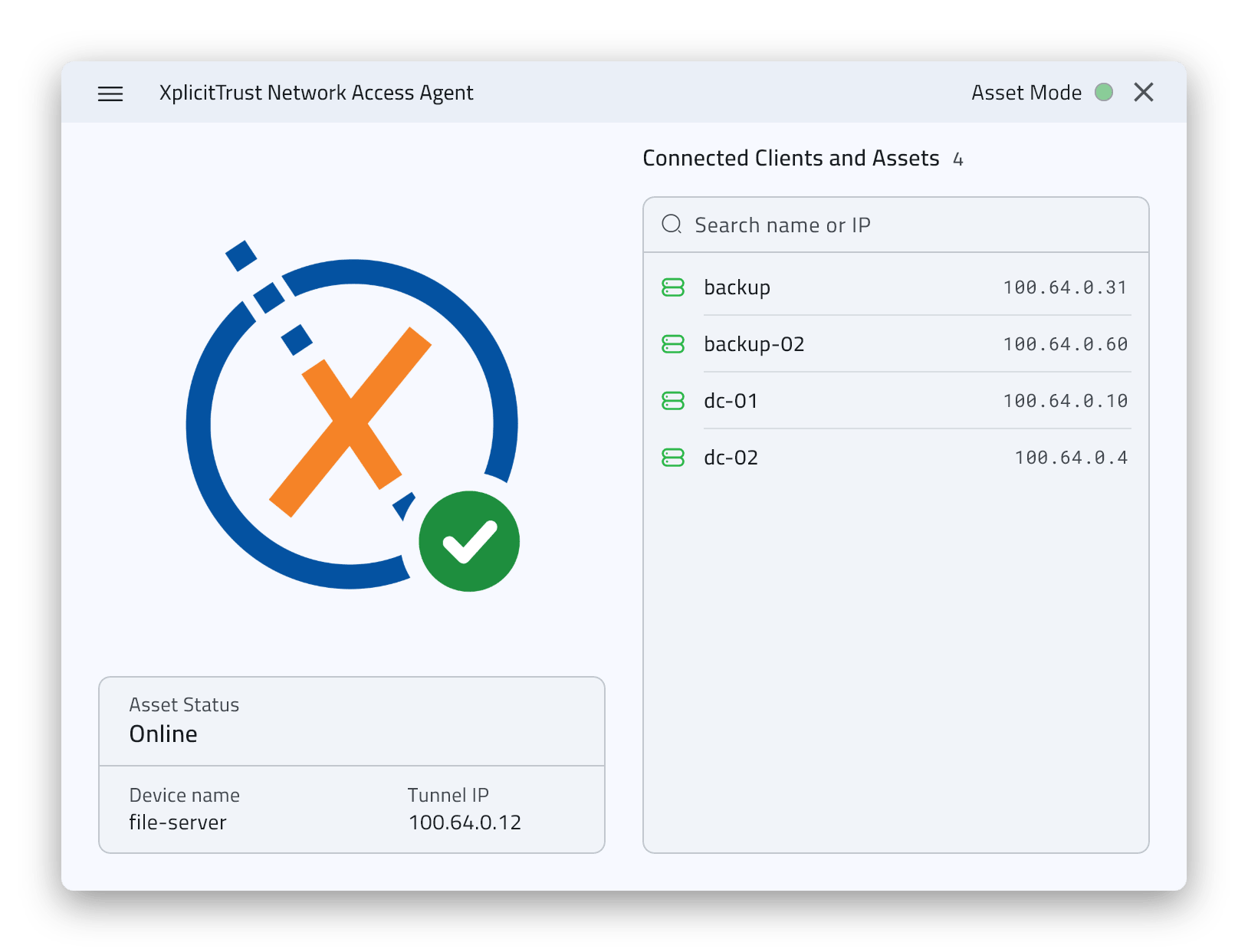
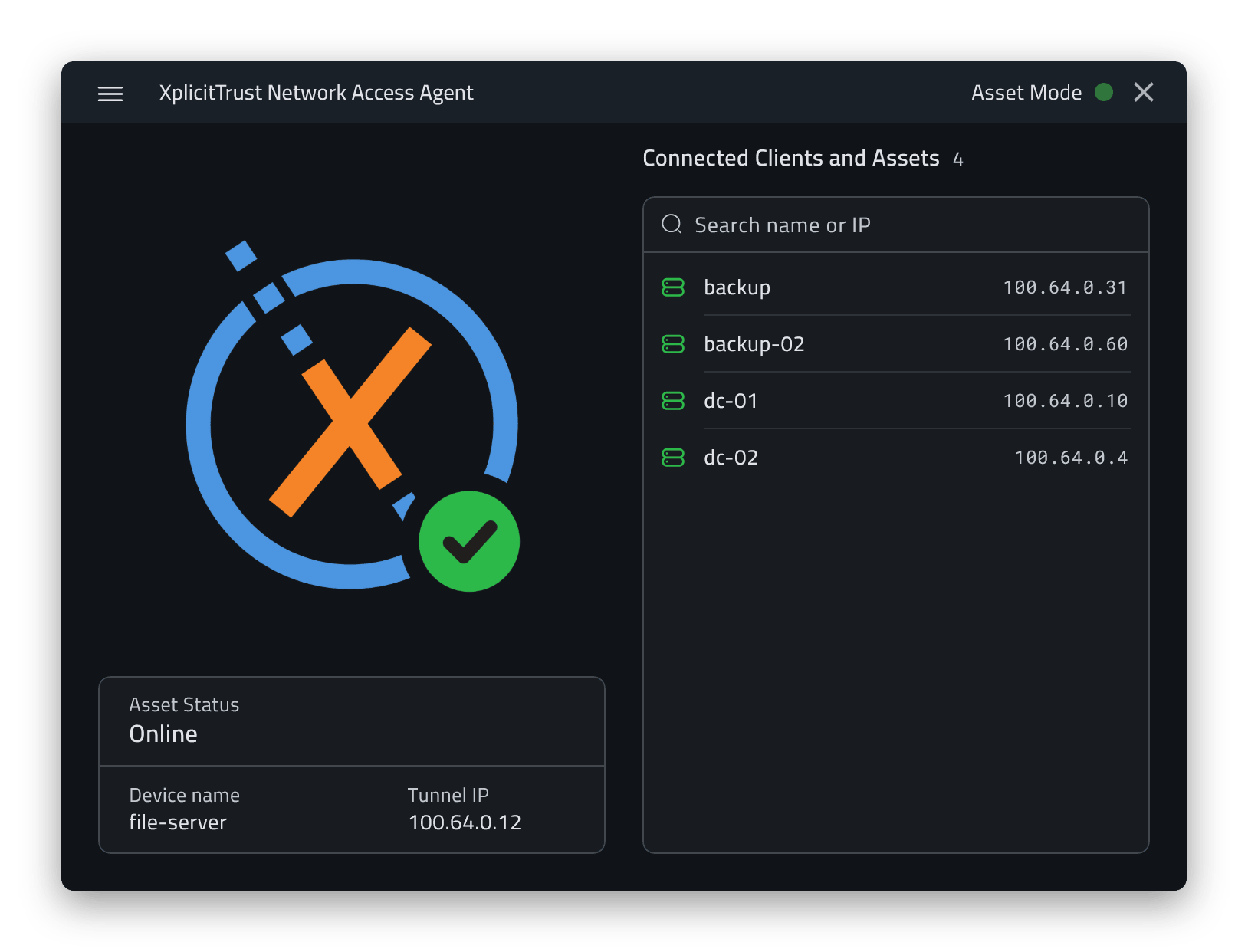
A desktop computer set up as an asset (Windows, macOS, Linux) runs the same app in Asset mode. Nobody signs in on it, so there is less to see.
| Screen | In Asset mode |
|---|---|
| Top bar | Shows Asset Mode and the status dot instead of an account. |
| Home | The card reads Asset Status with the status Online, and has no switch. It shows Device name and Tunnel IP. The list on the right is titled Connected Clients and Assets. |
| Side menu | No My Access and no Accounts. |
| Tray menu | No My Access submenu. |
| Welcome form | Not shown. |
See also
- Concept: Clients and Assets, Connection Paths and NAT
- Guide: Quick Start Guide, Verify Your Installation
- Reference: Agent appearance (what an administrator can show or hide), Troubleshooting