Access requests
Access requests lists the just-in-time access requests of your tenant: who asked for time-limited access to which destination, whether it was decided, and what happened during it. You find it in the side menu under Access requests. Users ask for access and approvers decide on the self-service page, see My access (web); this page is the administrators' view of all of them. For the idea behind it and the setup, see Just-in-Time Access.
In short
The administrators' view of every just-in-time access request: who asked, who decided, what ran. Users ask and approvers decide on My access (web).
Before you start
- A policy that requires approval, with an approver group, see Policies.
- Administrators can cancel and end, but decide only if they are also in the approver group, see Roles.
Common tasks
- Set up approvals: Give a contractor temporary access.
- Decide a request: Deciding.
- End an access early: Cancelling and ending.
- Read what happened during an access: Report.
The list
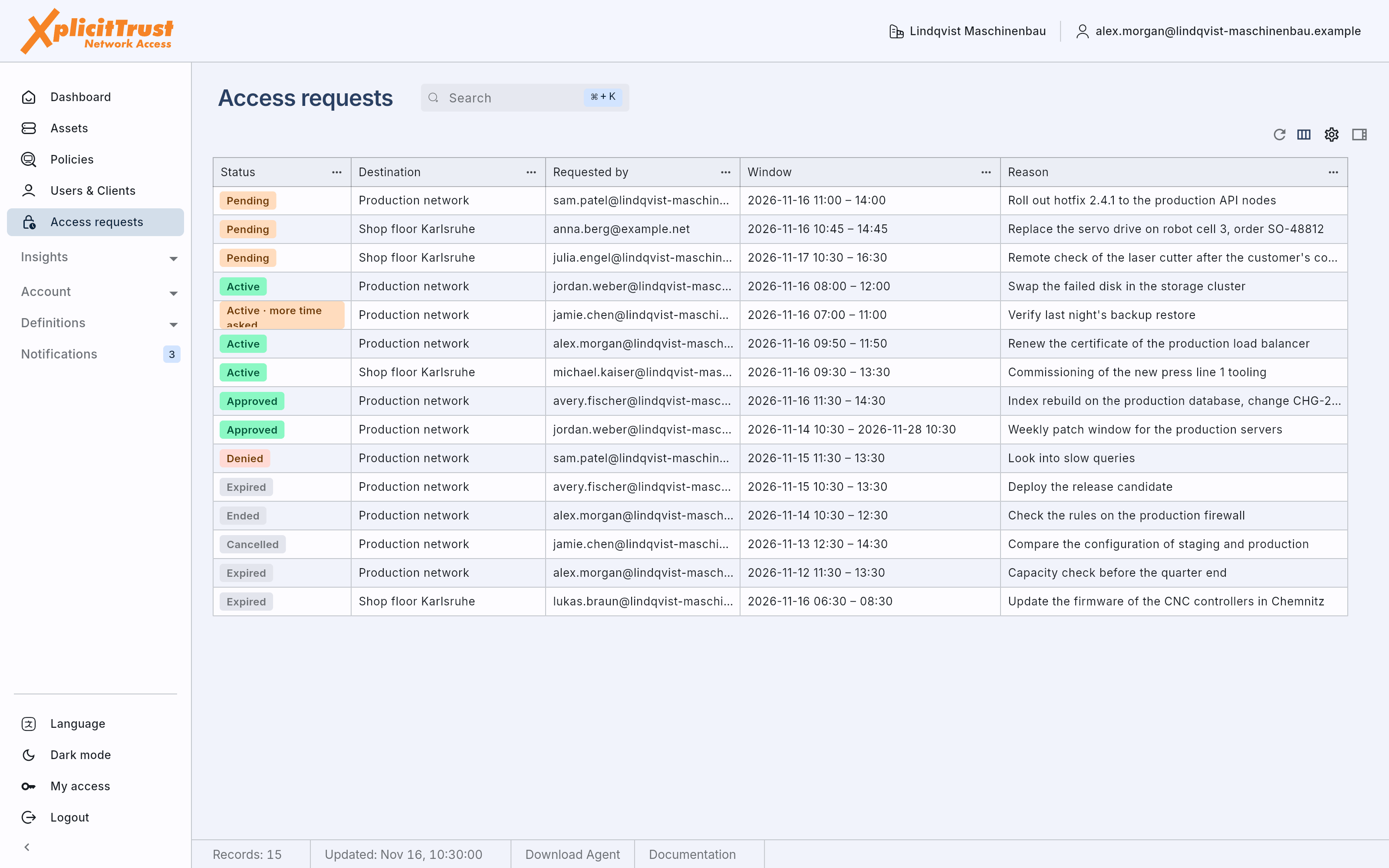
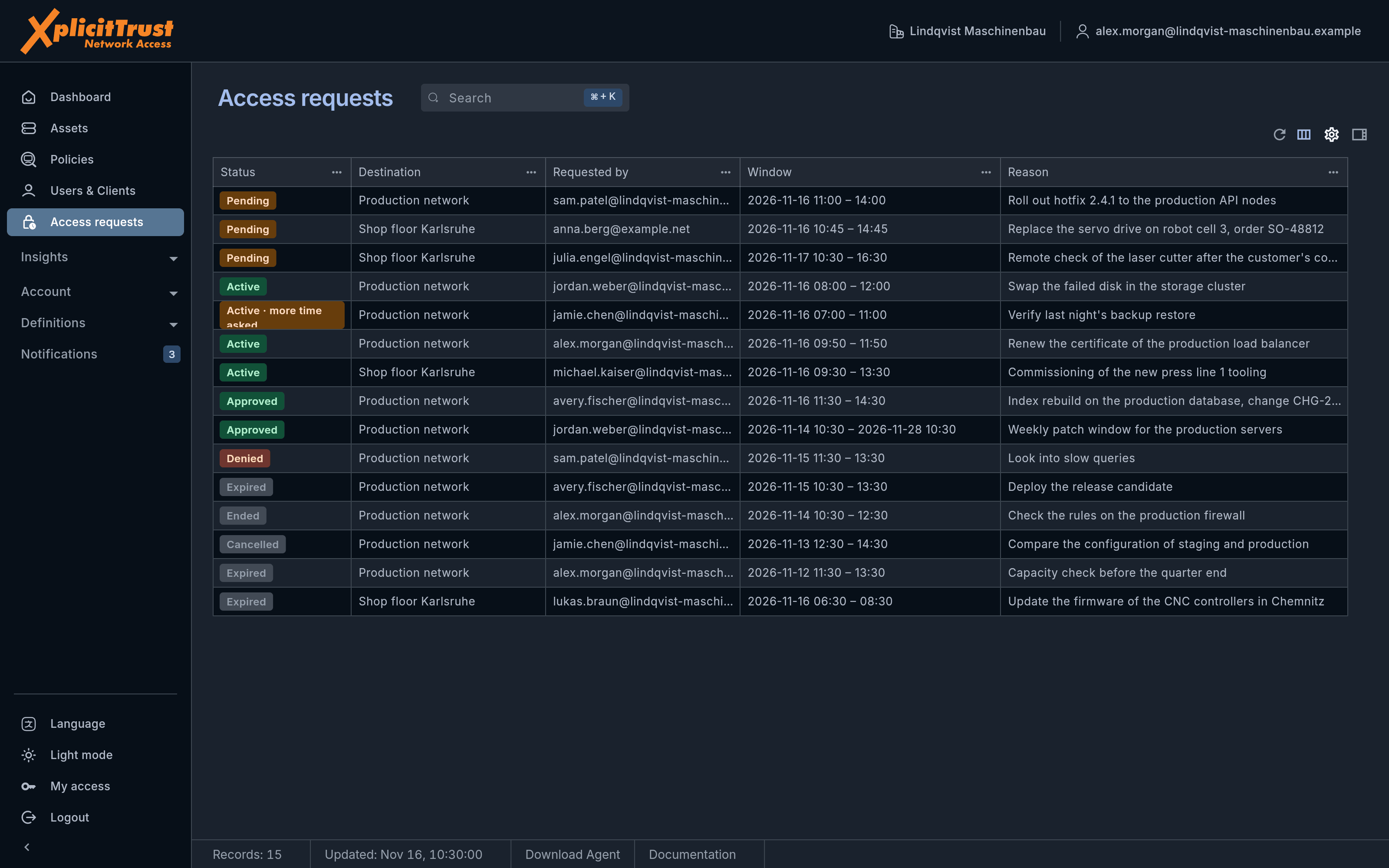
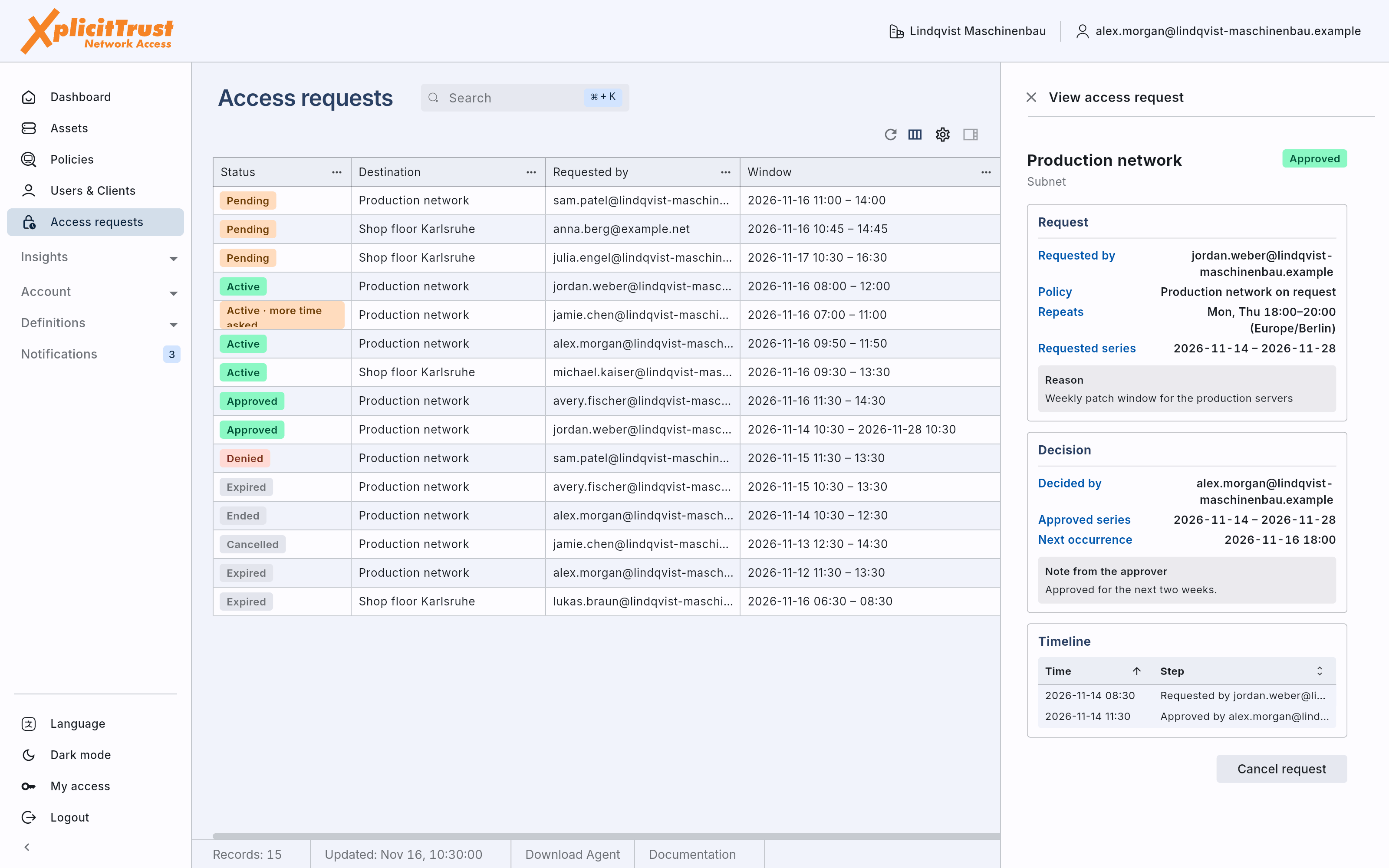
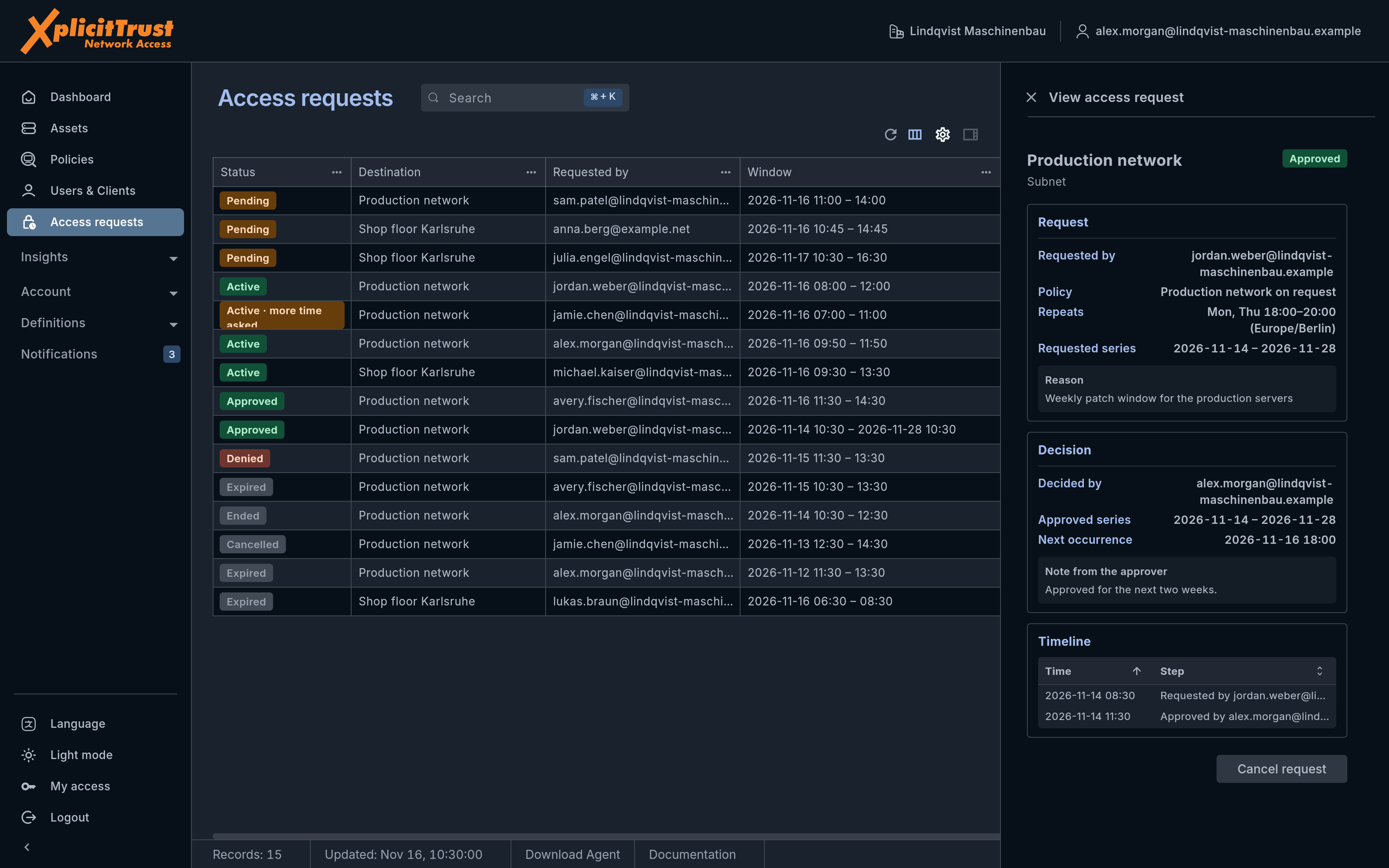
The list opens sorted by status: requests waiting for a decision first, then those running or about to start, then the closed ones. The icons above the table refresh the list, choose the visible columns and show or hide the information panel. The search field filters the rows.
| Column | Meaning |
|---|---|
| Status | The request's status. A request with an extension waiting for a decision reads, for example, Active · more time asked. The column menu filters by Open (pending, approved, active) or by one status. |
| Destination | The name of the destination. Hover over it for its type: Asset, Client, Subnet, Virtual asset, Machine group or Portal. |
| Requested by | The email address of the person who asked. |
| Window | The time the access is for, in your local time: the approved window once there is one, otherwise the requested window. The column menu filters by a date range. |
| Policy | The policy that makes the destination requestable. |
| Reason | What the requester gave as the reason. Hover over it for the full text. |
| Created | When the request was made. Hover over it for the time. |
Select a row to open the detail panel. Without a selection, the side panel explains the page and shows the address of the self-service page, with a button to copy it. Users sign in there to request access and decide.
Statuses
| Status | Meaning |
|---|---|
| Pending | Waiting for an approver. |
| Approved | Approved; the access has not started yet. |
| Active | The access is running. |
| Denied | An approver denied the request. |
| Cancelled | Withdrawn before the access started. A request nobody decided before the requested time ended is cancelled too, with the reason Nobody decided before the requested time ended. |
| Expired | The approved window is over. |
| Ended | The request was closed before its window ran out, for example with End access now or because the policy or destination was removed or changed. The detail panel names the reason in Ended because. |
Detail panel
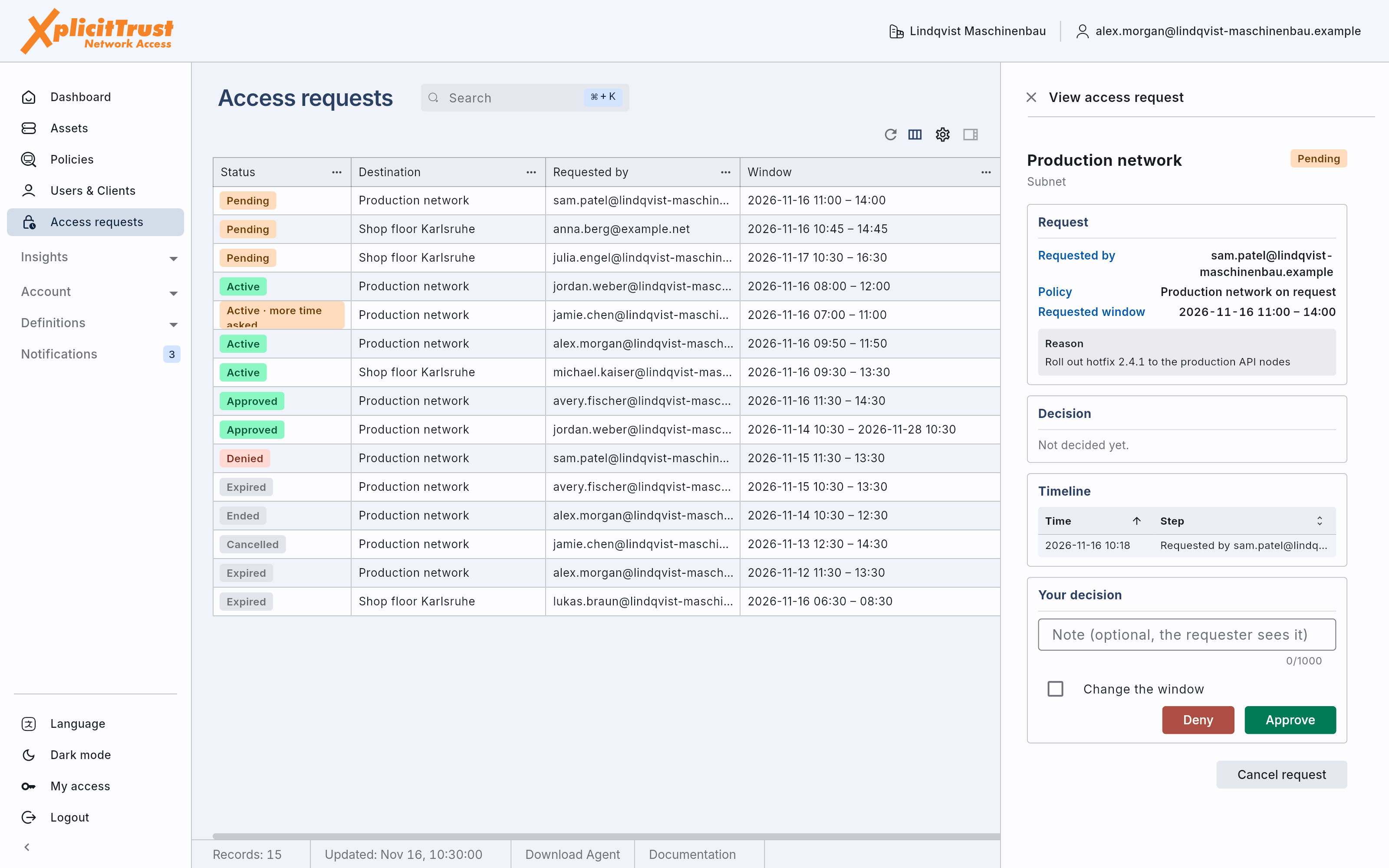
The panel View access request shows the request. At the top are the destination, its type and the status. Below, the panel is built from the same parts for every request; which of them appear depends on the request's state.
| Part | Content |
|---|---|
| Request | Requested by, Policy, Requested window (or Repeats and Requested series for a recurring request) and the Reason. |
| Decision | Not decided yet. while pending. Afterwards Decided by, Approved window (shown in a warning colour when the approver changed it), the number of Extensions, Ended because, Ended by and the Note from the approver. |
| Timeline | Time and step for each event: Requested by, Approved by or Denied by, Access started, More time asked, until, and Access ended, Access expired or Cancelled. Click the Time header to sort. |
| Decision controls | Only when you are allowed to decide, see Deciding. |
| Action buttons | Cancel request, End access now, Request more time and Withdraw extension, see Cancelling and ending. |
| Report | After the access has run, see Report. |
A request you may not see, or that no longer exists, shows "This request does not exist or you may not see it."
Pending request
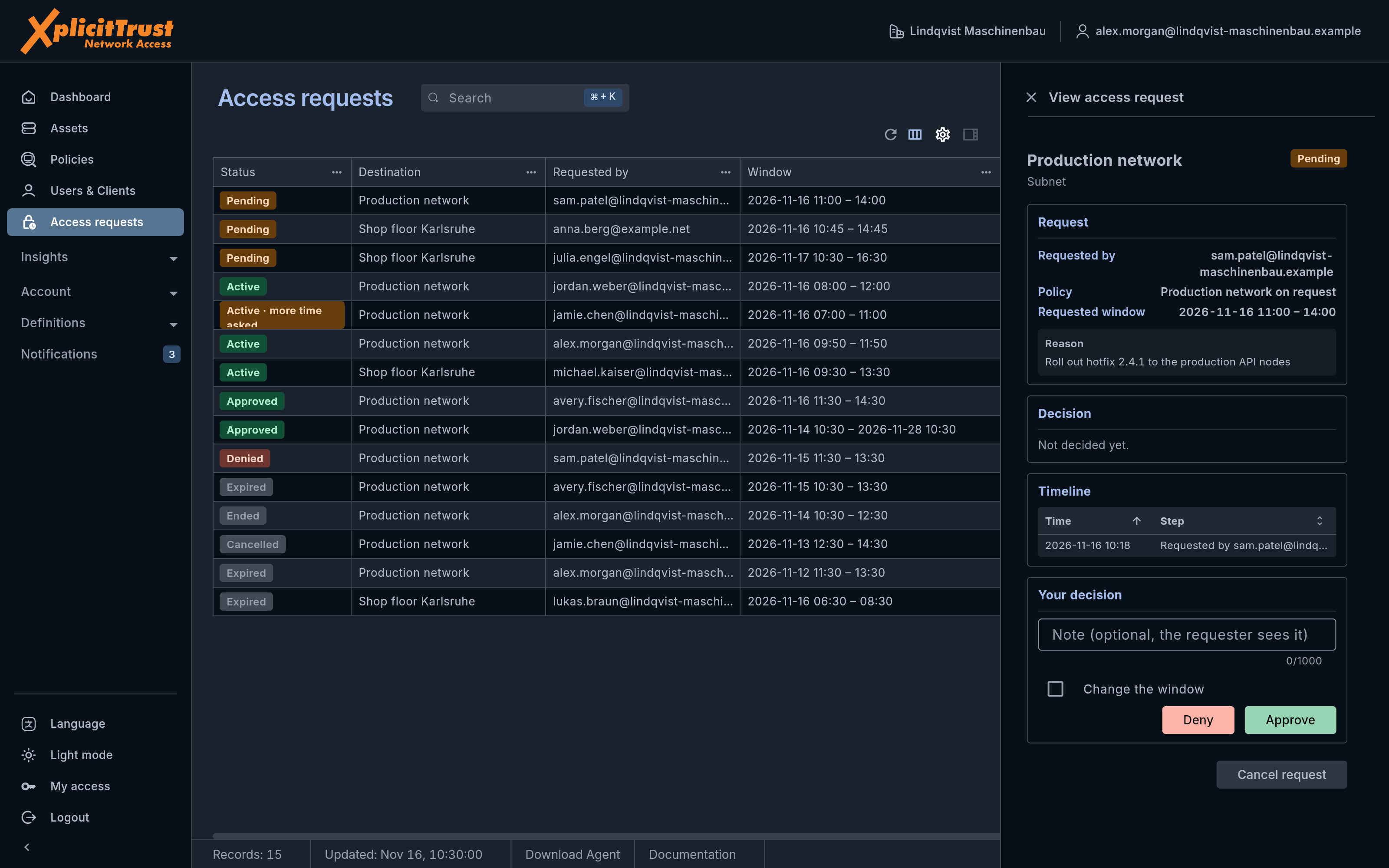
A pending request has no decision yet. If you are a member of the policy's approver group and not the requester, the part Your decision offers the decision controls. Otherwise only Cancel request is available.
Active request with more time asked
While a request is approved or active, the requester can ask to keep the access longer. The request then shows the status Active · more time asked; the part Decision shows the requested new end and the requester's reason, and the timeline an entry More time asked, until.
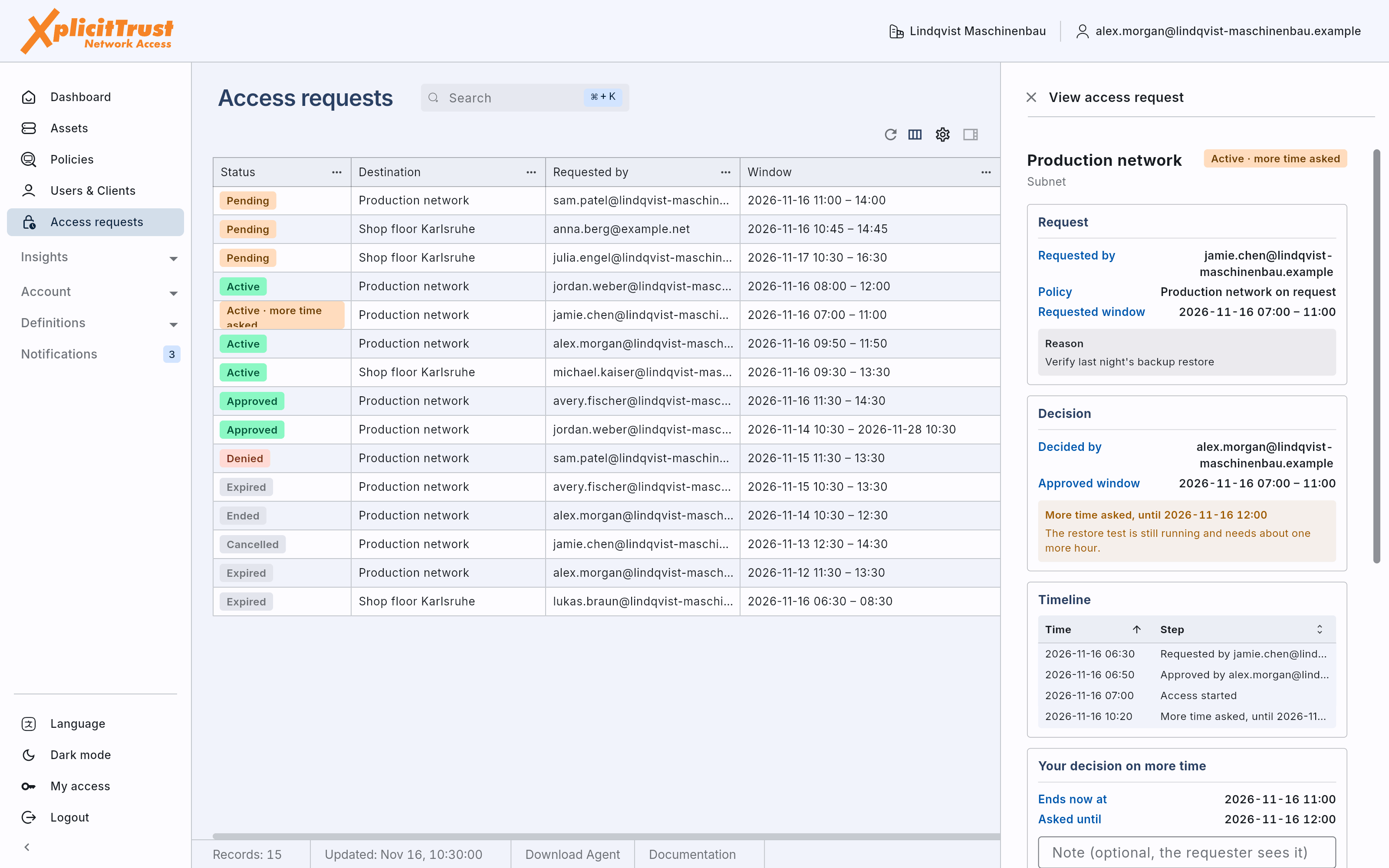
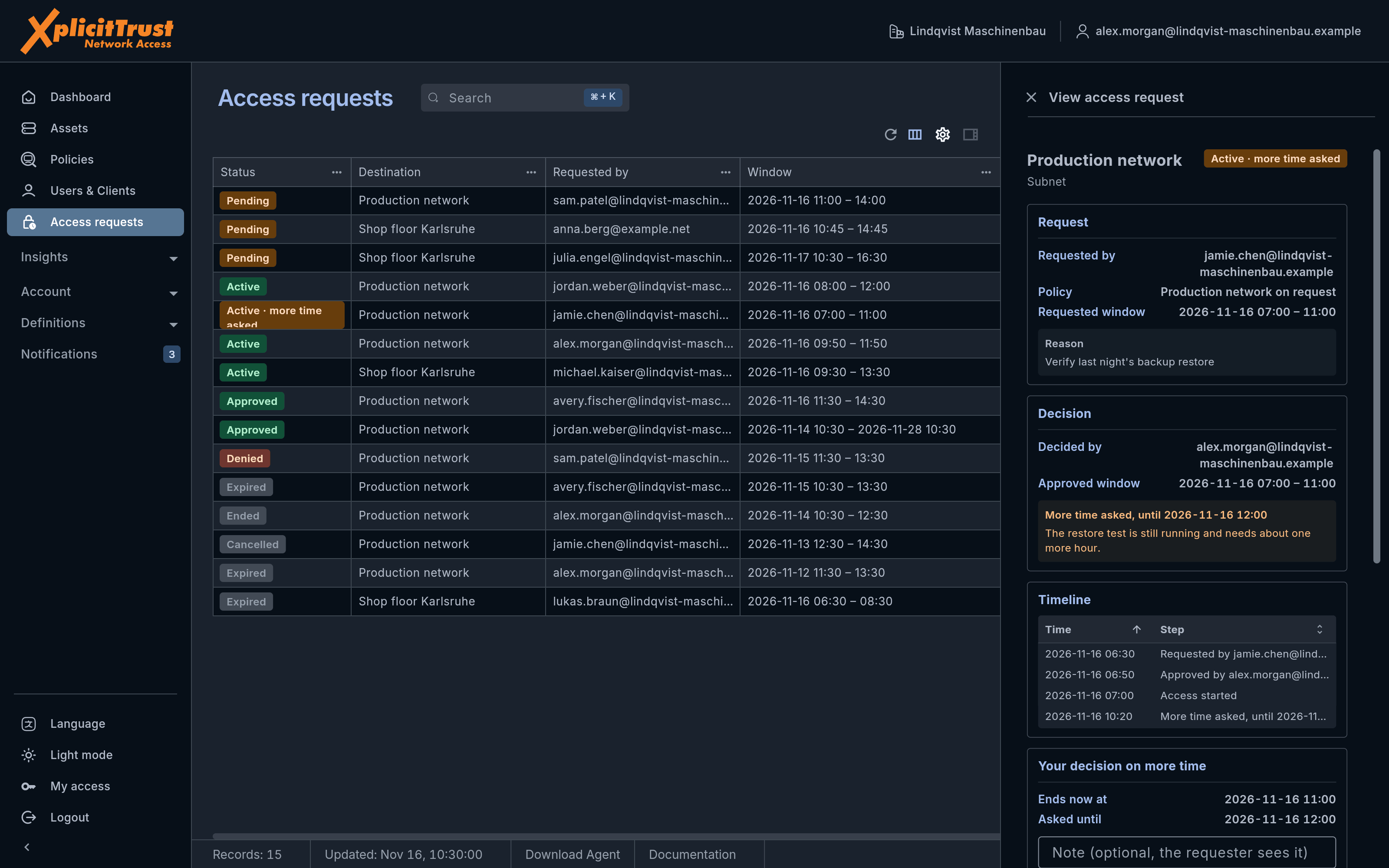
If you are an approver of the policy and not the requester, the part Your decision on more time appears below the timeline:
| Element | Meaning |
|---|---|
| Ends now at | The current end of the access. |
| Asked until | The end the requester asks for. |
| Note field | An optional note, up to 1000 characters, that the requester sees. |
| Grant less time | A check box, shown when a shorter extension is possible. Ticked, a list Add offers how much time to add, up to what was asked, and shows the resulting end ("until ..."). |
| Deny | Keeps the current end. |
| Approve | Grants the time asked, or the shorter time chosen with Grant less time. |
Until the extension is approved, the access keeps its current end. Nobody decides an extension of their own access.
Ended request with report
A request whose access is over shows Ended because, the closing step in the timeline and, if the access ran, the report.
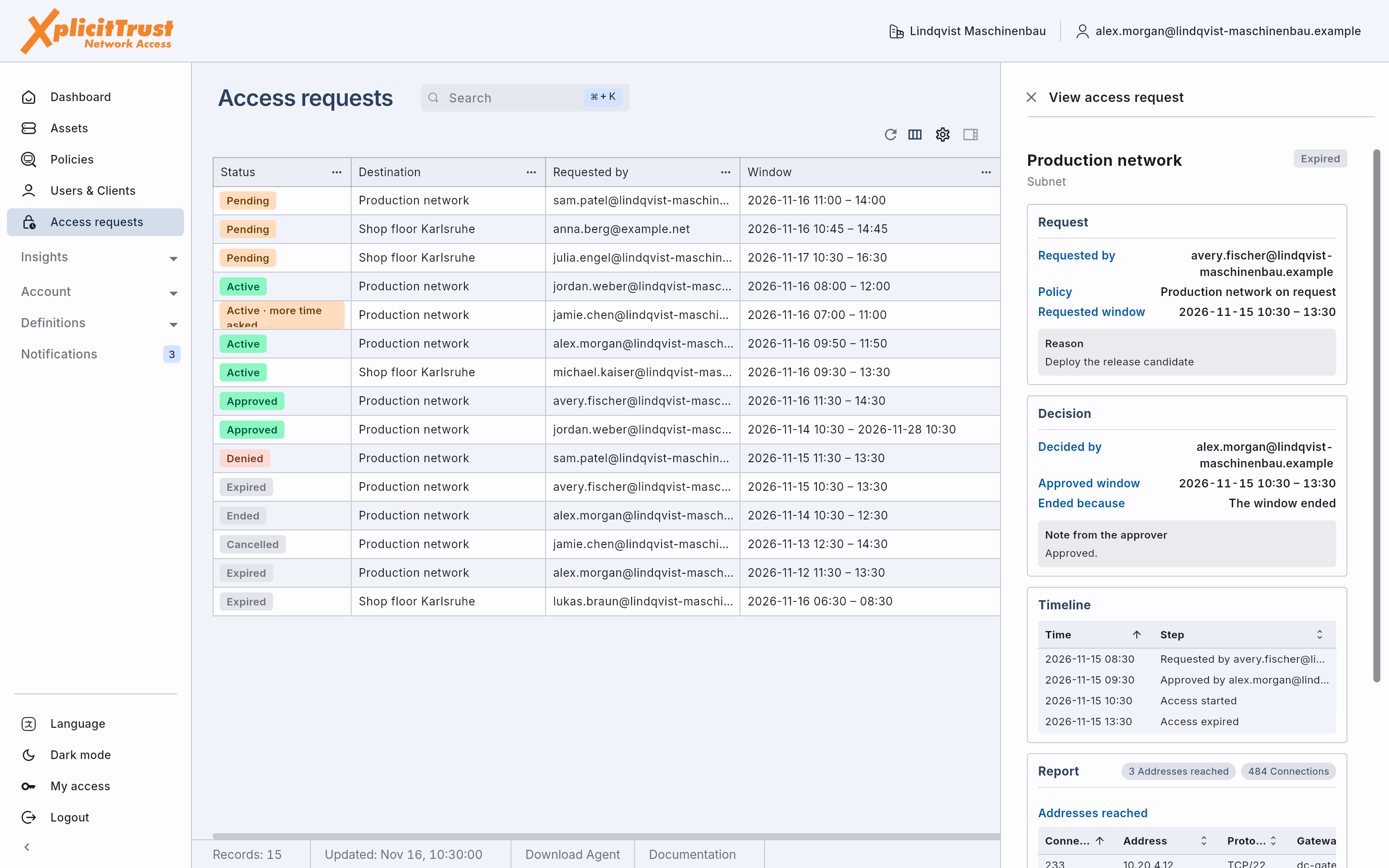
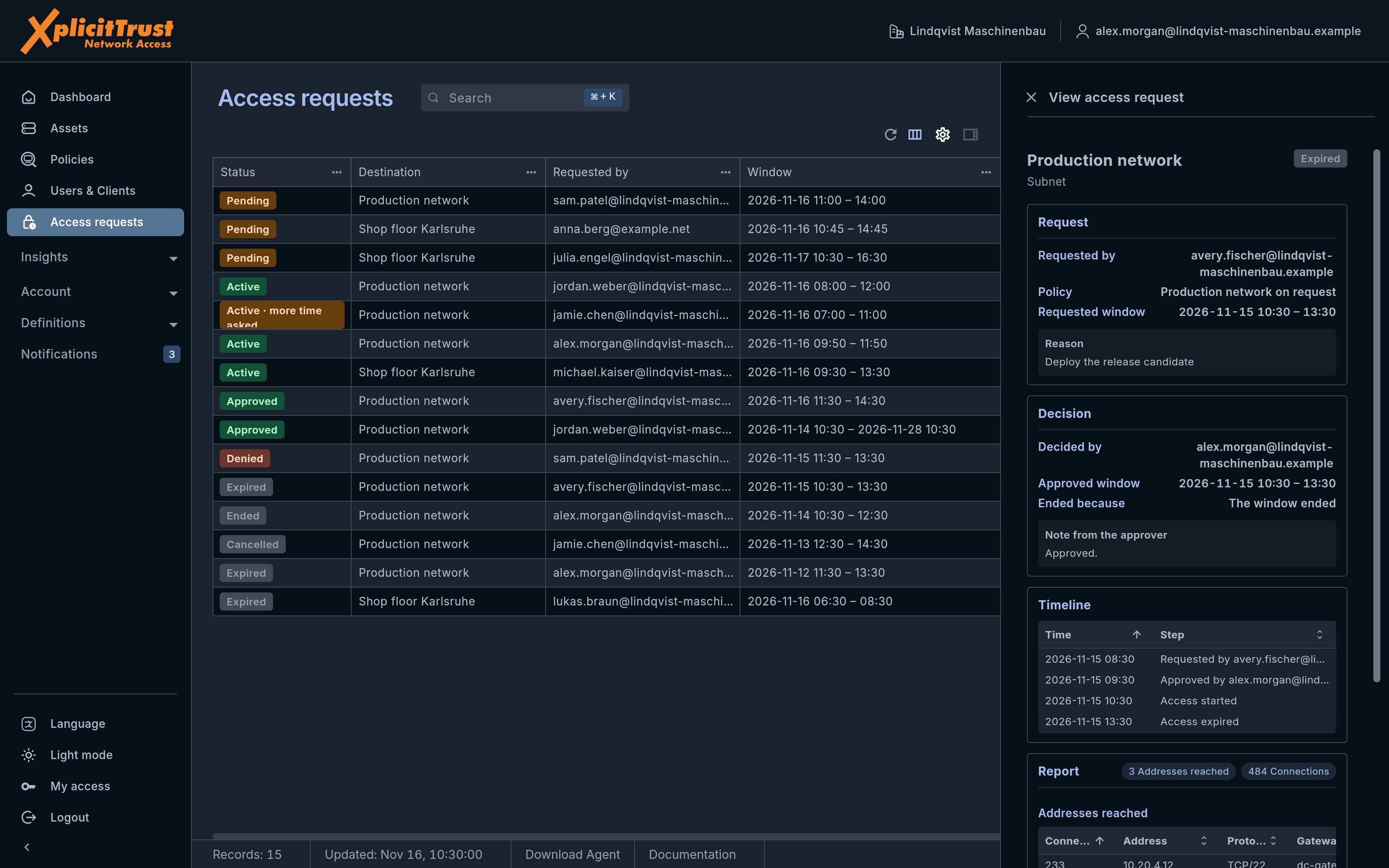
The reason in Ended because is one of:
| Reason | Meaning |
|---|---|
| The window ended | The approved time ran out. |
| Ended early | Someone used End access now; Ended by names them. |
| Cancelled | The request was withdrawn. |
| The policy was removed | The policy was deleted. |
| The policy no longer allows it | The policy was disabled or changed so that it no longer allows the access. |
| The destination was removed | The destination no longer exists. |
| Nobody decided before the requested time ended | No approver decided in time. |
Recurring request
A recurring request asks for the same hours on chosen days over a series of days, for example Mon, Thu 18:00-20:00 in a time zone, and is approved once for the whole series.
| Field | Meaning |
|---|---|
| Repeats | The weekdays, the hours and the time zone of the occurrences. |
| Requested series, Approved series | The first and the last day of the series. |
| This occurrence ends | While an occurrence is running, when it ends. |
| Next occurrence | When the next occurrence starts. |
A recurring series cannot be extended; for more, the requester sends a new series.
Deciding
If you are in the approver group of the request's policy, a pending request offers Your decision. Administrators who are not in the group see the request but cannot decide it. Nobody can decide their own request, even when they are in the approver group.
| Element | Meaning |
|---|---|
| Note | "Note (optional, the requester sees it)", up to 1000 characters. |
| Change the window | A check box: approve a different window than the one asked for. The fields for Start (Now or Later, with a date and time) and Duration appear; the duration is at most the policy's longest approval. For a recurring request the box reads "Shorten or move the series (the hours stay as requested)" and offers the first and the last day, at most as many days as the policy allows. |
| Deny | Denies the request; the requester sees the note. |
| Approve | Approves the request, with the changed window if you chose one. |
The result appears in the panel: "Request approved" or "Request denied". If the decision cannot be saved, the panel shows "Could not save the decision". A link in a message to approvers can open the request with Approve or Deny preselected; a dialog then asks you to confirm, for example "Approve the request of ... for access to ..., as it was asked?". Nothing happens until you confirm.
Cancelling and ending
| Button | Available | What it does |
|---|---|---|
| Cancel request | For a pending request (to its requester and to administrators) and for an approved request that has not started. | After you confirm "Cancel the request for access to ...?", the request is cancelled ("Request cancelled"). |
| End access now | For an active request. | After you confirm "End the access to ... now? Open connections are closed.", the access ends ("Access ended"). |
| Request more time | To the requester of an approved or active request that is not recurring, while no extension is waiting and the policy still exists. | Opens the dialog "More time for ..." with a list Add (how much time to add, shown as "until ...") and a required Reason, which the approvers see. Send request sends it. |
| Withdraw extension | While an extension is waiting, to its requester and to administrators. | After you confirm, the extension is withdrawn and the access keeps its current end. Approvers deny an extension rather than withdraw it. |
Report
For an access that has run, the panel ends with the Report. Two labels at the top count the Addresses reached and the Connections.
| Part | Content |
|---|---|
| Notice | "The destination reports no access tracking, so the report holds no network data." for a destination that does not report network activity; "Tracking data may still arrive for this access." while the report is not final. |
| Occurrences | For a recurring request, a choice between All and each occurrence (number and window). An occurrence whose report was sent carries a mail symbol. The tables below show the chosen occurrence. |
| Addresses reached | The most used first: Connections (number), Address, Protocol (for example TCP/22), Gateway (the gateway the traffic passed through), First and Last access. For all occurrences of a series, a column Occurrence is added. "Nothing reached yet." when empty. |
| Events | The event log entries of the access with Time and Event. "No events." when empty. |
Where the report is sent by email, see Report.
See also
- Concept: Just-in-Time Access.
- Guide: Give a contractor temporary access, A laptop is lost or an employee leaves
- Reference: My access (web), Settings, Roles.