Home
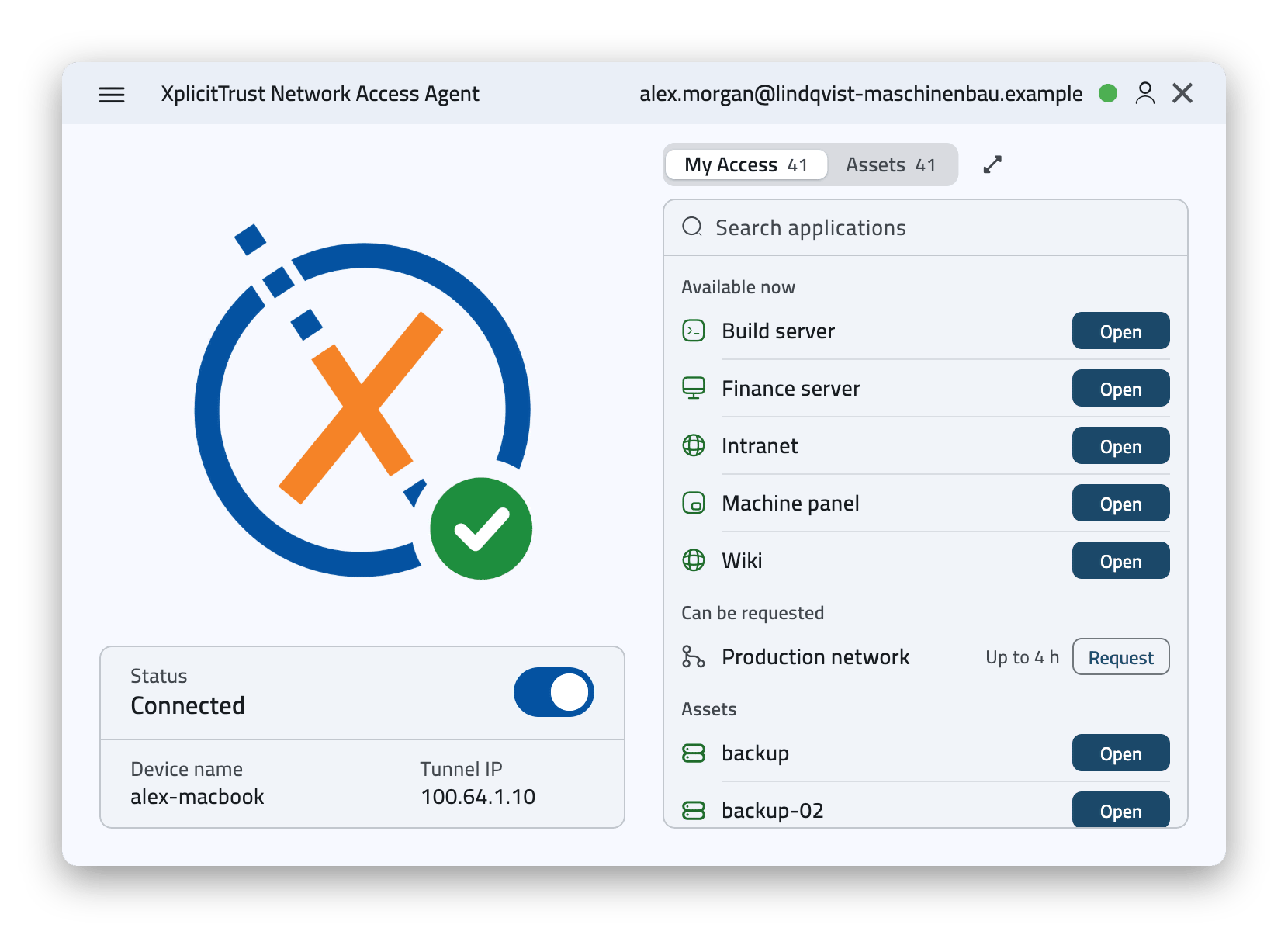
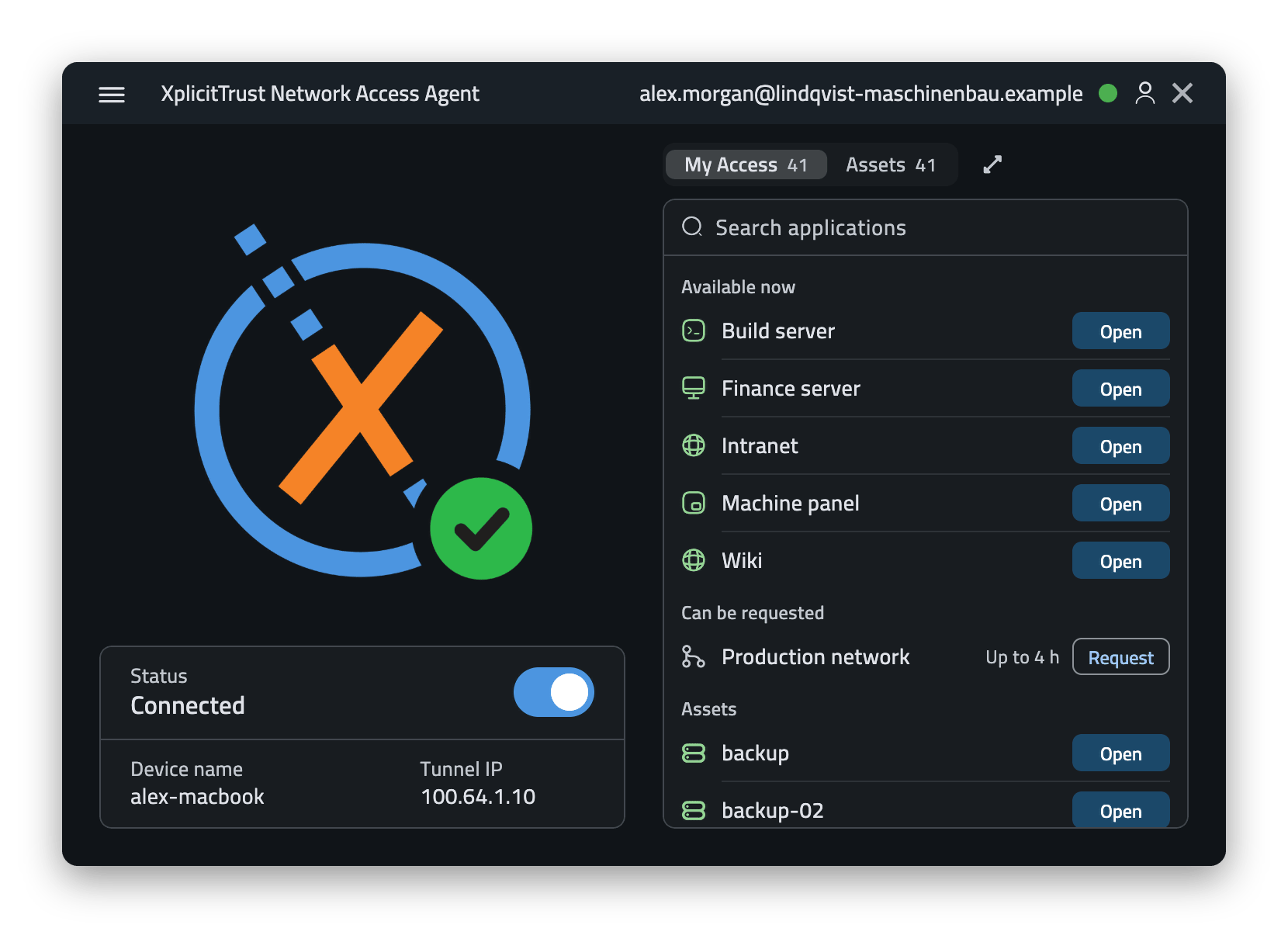
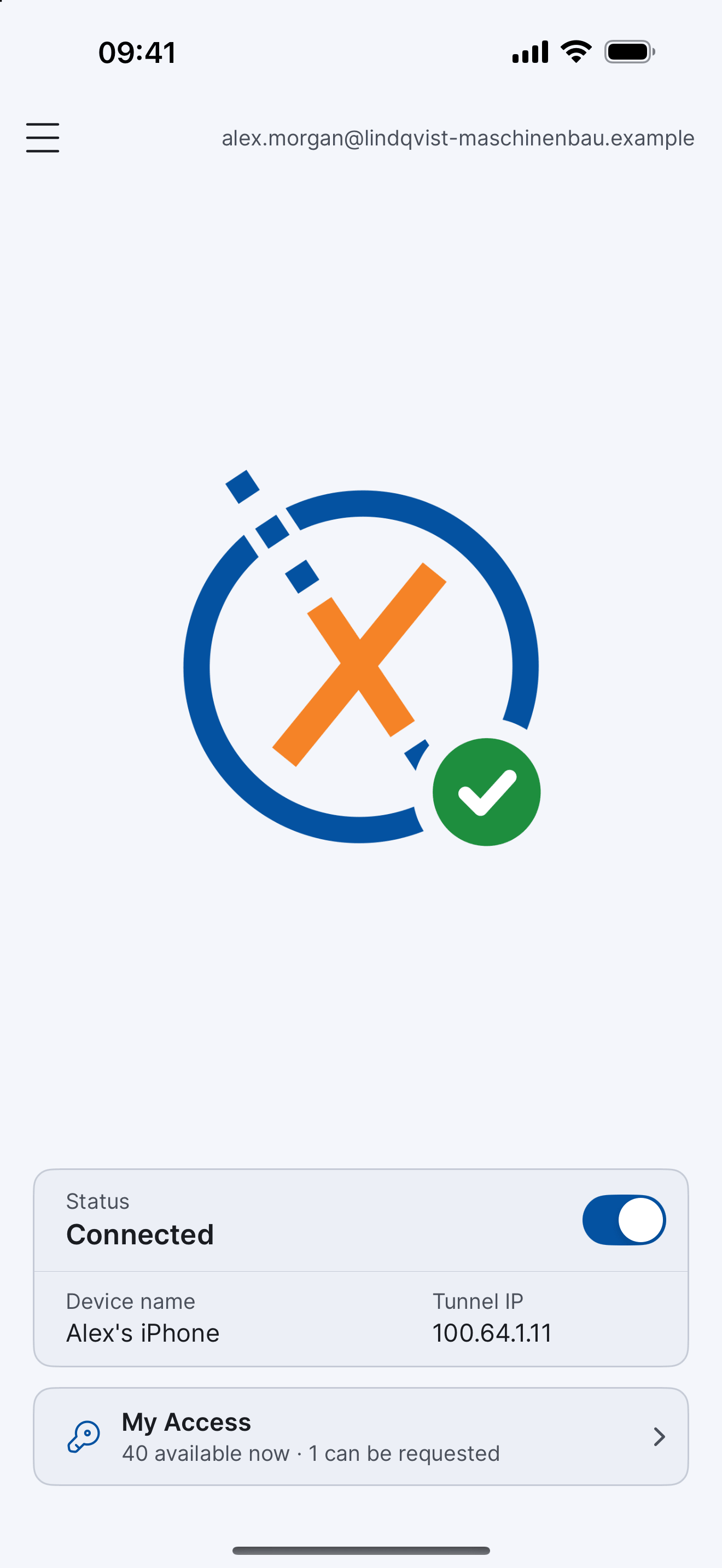
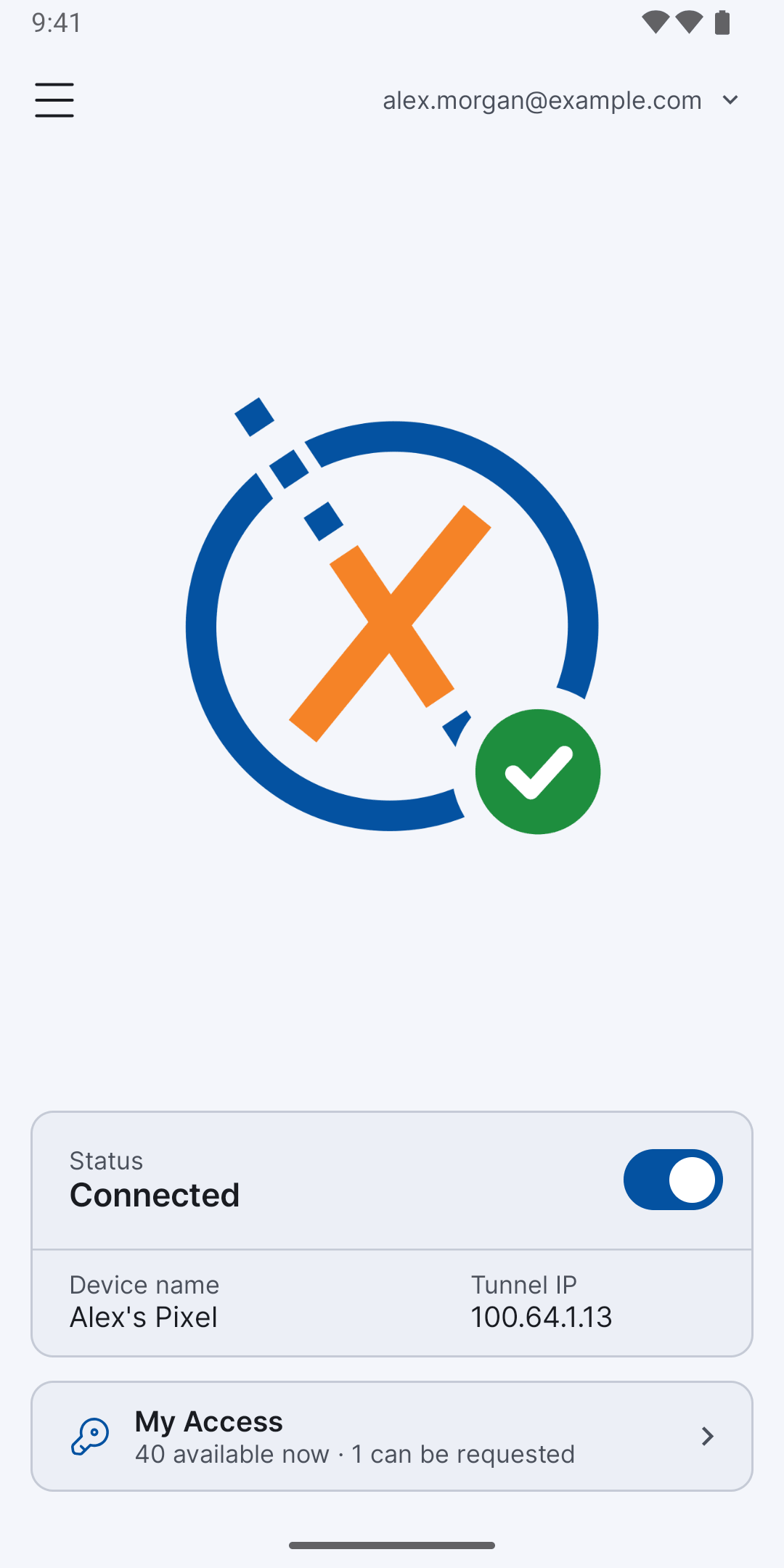
The home screen shows whether this device is connected, lets you connect and disconnect, and shows which device and tunnel address you are using. On the desktop it also lists what you can open. It is the first screen after sign-in: on the desktop it is Main in the side menu, on iOS and Android it is Home in the menu.
In short
Home shows the status, the connect switch, the device name and the tunnel address. On the desktop it also lists what you can open. The Statuses table below says what each status means and what to do about it.
Top bar
| Element | Meaning |
|---|---|
| Menu button | Opens the menu with the other screens. See XplicitTrust App. |
| Account | The account you are signed in with. On the desktop, a domain after a divider appears for guest accounts, and a coloured dot shows the state (see Status dot). While another user of the computer owns the connection, the desktop shows In use by another user on this computer instead of the account. |
| Account menu | On the desktop, the person icon next to the dot opens a menu with your accounts and Add Account. The icon is not shown while the device is deactivated or the status is Error. Accounts are described in Settings. On iOS and Android, tapping the account opens a menu with your accounts, Add account and Accounts. Choosing another account signs in with it. |
| Close | Desktop only. Hides the window; the app keeps running in the tray or menu bar. On Windows the button minimises the window. |
On iOS, an administrator who manages the account for the device with a device-management system fixes the account: the email is shown without a menu.
If an administrator removed the Accounts page from the menu, the account menu still lets you switch and add accounts, but has no Accounts entry on iOS and Android. See Agent appearance.
Status logo
The large logo shows the state at a glance. A badge at its lower right corner changes with the state and matches the tray or menu bar icon on the desktop. The badges are explained once, in Tray icon and menu bar icon. On iOS and Android the logo has every variant except the red person (another user of the computer); Ready to login shows the red minus.
Status card
The card under the logo shows the connection and has the connect switch.
| Element | Meaning |
|---|---|
| Status | The state in words. See Statuses. |
| Switch | Connects and disconnects. See The switch. |
| Device name | The name of this device. Before the app knows the name from the connection, it shows the name the system gives the device. |
| Tunnel IP | The address of this device in the XplicitTrust tunnel. It reads Not connected as long as there is none. After disconnecting it keeps showing the last address the device had. On desktop it can be selected and copied. |
The switch
The switch is on while the app is connected and while it is signing in. It is always shown; when a tap would do nothing, it is greyed out.
On the desktop the whole Status line is also a tap target. A tooltip names the action: Connect or Disconnect.
| Action | What happens |
|---|---|
| Turn on | The app signs you in. Your identity provider's sign-in page opens in your browser or, on some desktop systems, in the app. When sign-in finishes, the tunnel comes up and the status changes to Connected. See First start and sign-in. |
| Turn off | The app signs you out and closes the tunnel. |
| Turn off while signing in | Cancels the sign-in. |
The switch is held in these cases:
- Desktop: while the sign-in runs, the switch is on, a pulsing dot appears next to the status and the switch cannot be used. When the sign-in page opens in your browser, the app shows a page with a back arrow that cancels the sign-in.
- Desktop: the device is deactivated. The tooltip reads This device has been deactivated in the XplicitTrust administration. It reconnects on its own once it is activated again.
- Desktop: an administrator's policy forbids disconnecting. Tapping the switch shows Disconnect is disabled by administrator policy. and the connection stays up.
- Desktop: while the app switches to another account, a tap shows Switching account — try again in a moment.
- Desktop: the connection belongs to another user of the computer, or the app cannot reach the XplicitTrust service on the computer (a banner then reads Cannot reach the XplicitTrust service and says it is retrying).
- iOS and Android: the switch is greyed out in the states in which a tap would do nothing, such as a deactivated device.
On Android, a tap in the state Online (Disconnected) signs the account in on the already running tunnel instead of restarting it. The tile XplicitTrust in the quick settings of Android does the same as the switch.
Statuses
| Status | Meaning | What to do |
|---|---|---|
| Connected | You are signed in and the tunnel is up. | Nothing. |
| Online (Disconnected) | The device is online with its device-level access, but nobody is signed in. Only what your administrator allows before sign-in is reachable. On the desktop the badge is the red minus and the dot in the top bar is a faded green. | Turn the switch on to sign in. |
| Disconnected | Not connected. | Turn the switch on. |
| Ready to login | iOS and Android: the app is ready. | Turn the switch on to sign in. |
| Connecting... | The connection is being set up. On the desktop this also reads Connecting... before the service has answered. | Wait. If it stays, open Diagnostics. |
| Authenticating... | You are signing in with your identity provider. | Finish the sign-in in the browser. The switch (or the back arrow) cancels it. |
| Loading your connections… | iOS and Android: you are signed in and the app loads your configuration. | Wait. |
| Updating, Loading, Started Login, Started Logout | Android: steps on the way to connect or disconnect. | Wait. |
| Deactivated by administrator | An administrator deactivated this device. It reconnects on its own once the device is activated again. | Contact your IT or helpdesk (iOS and Android show Contact your helpdesk when one is set). |
| In use by another user on this computer | Desktop: another user of this computer has the connection. | Contact your IT if you need the connection yourself. |
| Error | Desktop: the service reports an error. The message appears at the top of the window with OK and stays until you close it. | Read the message, run Diagnostics, then use Send Logs (see Send Logs) and contact your IT. |
| Online | Desktop in Asset mode. See Asset mode. | Nothing. |
If the banner Cannot reach the XplicitTrust service is shown, see Layout of the app.
Below the logo on iOS and Android, a hint explains states that need action elsewhere: Finish signing in in the browser. while you sign in, and the deactivation text for a deactivated device.
Note
For Deactivated by administrator and for an error, iOS and Android show a button Contact your helpdesk (or Contact followed by the helpdesk name), when the administrator has set a helpdesk with a way to reach it. It opens Help.
Status dot
Desktop only: next to the account in the top bar, a dot shows the state.
| Dot | State |
|---|---|
| Green | Connected. |
| Faded green | Online (Disconnected). |
| Pale yellow | Authenticating.... |
| Red | Deactivated by administrator. |
| Yellow | Every other state. |
Cards below the status card
iOS and Android show up to three cards under the status card, in this order.
| Card | Shown when | What it does |
|---|---|---|
| From your organization | The administrator set a message in the help panel and it has not ended. | Shows the message (on Android up to three lines). Tap it to open Help. |
| Approvals | Something waits for your decision. | Shows how many requests wait and opens Approvals. |
| My Access | You have more than assets: applications, access you can request or similar. | Shows a summary such as 10 available now · 1 can be requested. Tap it to open My Access. On Android the card is hidden when an administrator took My Access out of the menu. |
The connections of an asset list are on Connections in the menu.
Right side of the desktop home screen
On the desktop, the right side of the window shows a list of what you can reach. It is Available Assets (the assets), or My Access, when the app offers it.
My Access or Assets
A switch over the list chooses between My Access and Assets. Each entry shows how many lines the list has.
- The switch appears when My Access has more to show than the assets do (for example applications, access you can request, or destinations you can switch on and off), or when you chose My Access in Settings.
- Otherwise the right side shows the assets alone, with the title Available Assets.
- The small Full view button at the right of the switch opens the page of the list shown: My Access or Connections.
The My Access list is the same list as on the My Access page, in a compact form.
Assets list
| Element | Meaning |
|---|---|
| Title | Available Assets with the number of entries. |
| Search field | Search name or IP. Narrows the list by name, address, parent or DNS name. It only appears when the list has entries. |
| Entries | One line per asset, subnet or similar, with the name. An entry with more DNS names opens to show them. Its icon colour shows the measured link quality; hover for details such as the address and the measured quality. |
| No connections available | The list is empty. |
| No matches | The search found nothing. |
The details of each entry are on Connections.
What an administrator can change
Administrators decide what the right side of the home screen shows (Automatic, Always My Access, Always the assets or the help panel only), whether users can switch between the lists, and which pages the menu has. This changes what is on the screen, not what you can reach. See Agent appearance. The help panel itself is described in Help.
See also
- Concept: Clients and Assets, Connection Paths and NAT
- Guide: Verify Your Installation, Troubleshooting: start here
- Reference: XplicitTrust App, Settings, Account and Help, Diagnostics