A laptop is lost or an employee leaves
Two things end access for a person or a device: the identity provider (IdP) stops letting the person sign in, and XplicitTrust stops letting the device connect. This guide has one short path for each case. Path A is for a laptop that is lost or stolen: you disable that one Client at once and check what it reached. Path B is for an employee who leaves: you start in the IdP, which is the source of truth, and then clean up in the Admin Console.
In short
Lost device: open Users & Clients, select the Client, Edit, switch it to Disabled, then look at Access Insights and Events for that Client. Leaver: disable the account in the IdP, remove the person from groups, disable their Clients, end open just-in-time access, and delete the user when you no longer need the record.
Before you start
- Administrator rights in the Admin Console.
- Know the Client or the user. Search by email address or host name in Users & Clients; a user's Clients are listed below the user.
- Know where roles and groups come from in your tenant: your IdP, see Roles and groups by IdP.
- Background: Clients and Assets and the Security Model.
A. A device is lost or stolen
A1. Disable the Client
Do this first, before you look at anything else.
- In the side menu, open Users & Clients.
- Click the arrow in front of the user to expand the row, and select the lost device.
- In the panel View Client, choose Edit. On the General tab, switch Enabled/Disabled to Disabled.
- Choose Apply. The console shows Client updated successfully.
Only this device is disabled. The user's other Clients keep working. See Edit a Client.
To disable several Clients at once, expand the user, tick the Clients and use Toggle Clients State in the Mass Action panel, then confirm. See Mass actions.
A2. Know what disabling does
- A disabled Client cannot reach any Asset. The console keeps it monitored while it is online.
- The server hands it an empty configuration: no peers and no policies. It also leaves a disabled Client out of the peer lists it builds for Assets.
- An online device learns this within seconds, when its agent next fetches its configuration. It stops the tunnel and removes its access rules, then waits and polls until the Client is enabled again. The agent reports the status Disabled.
- A device that is switched off, or offline, cannot be told. It is disabled in the console at once and for the Assets; the agent on the device learns it when it next reaches the controller.
- A host firewall with Isolation on is not lifted by disabling. A policy that is set to stay isolated stays in force on the device while it is disabled. See Isolation.
A3. Check what it reached
- Open the Client in Users & Clients and choose Access Insights in the header of the panel. The page opens filtered to this Client. Each row is one source, destination and service with Last Access. Look for destinations and times after the device was lost.
- Choose Events in the same panel. The events of this Client list logins, when it came online, access started or denied and configuration changes. Filter by Event Class, for example Authentication and Access Denied.
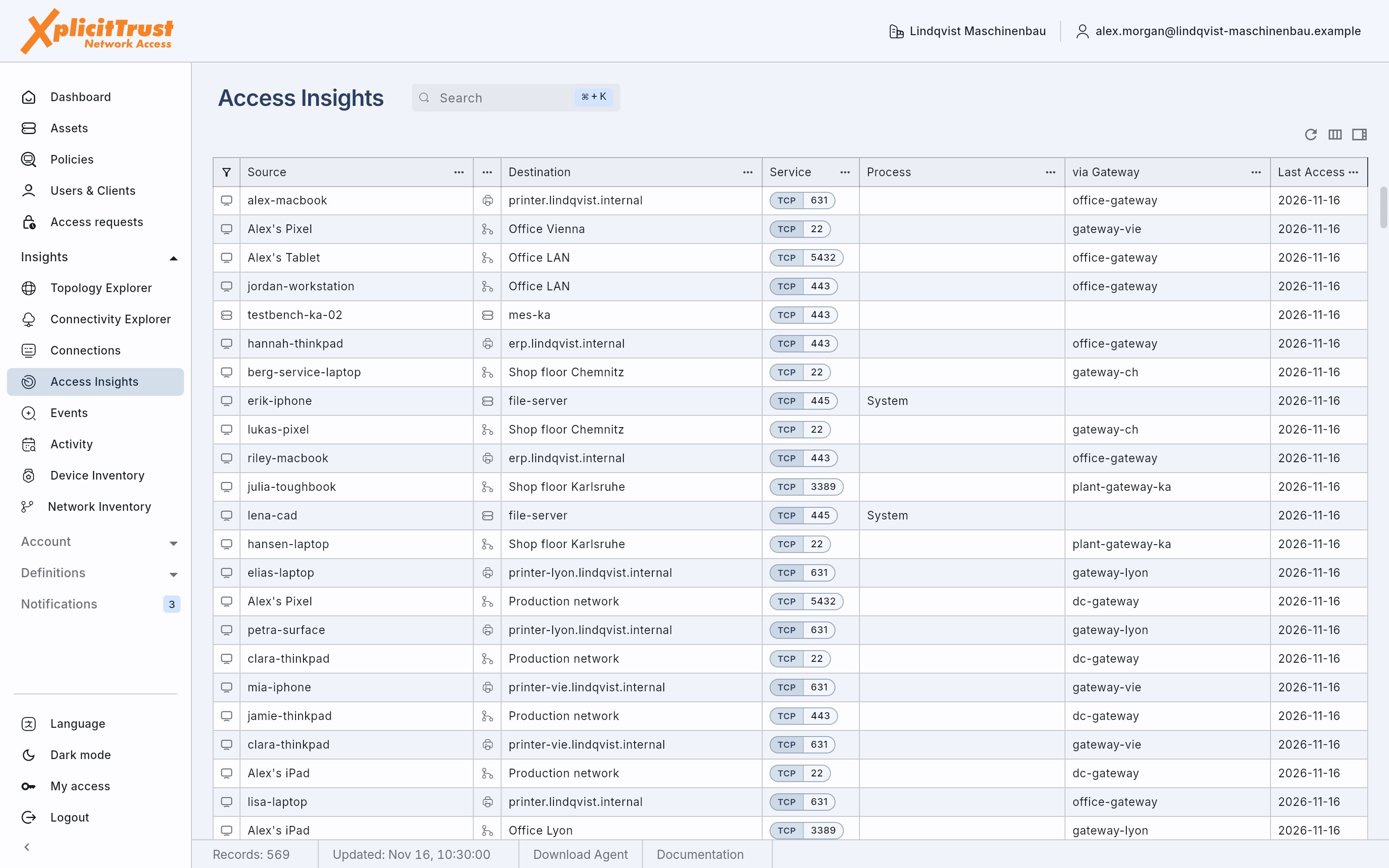
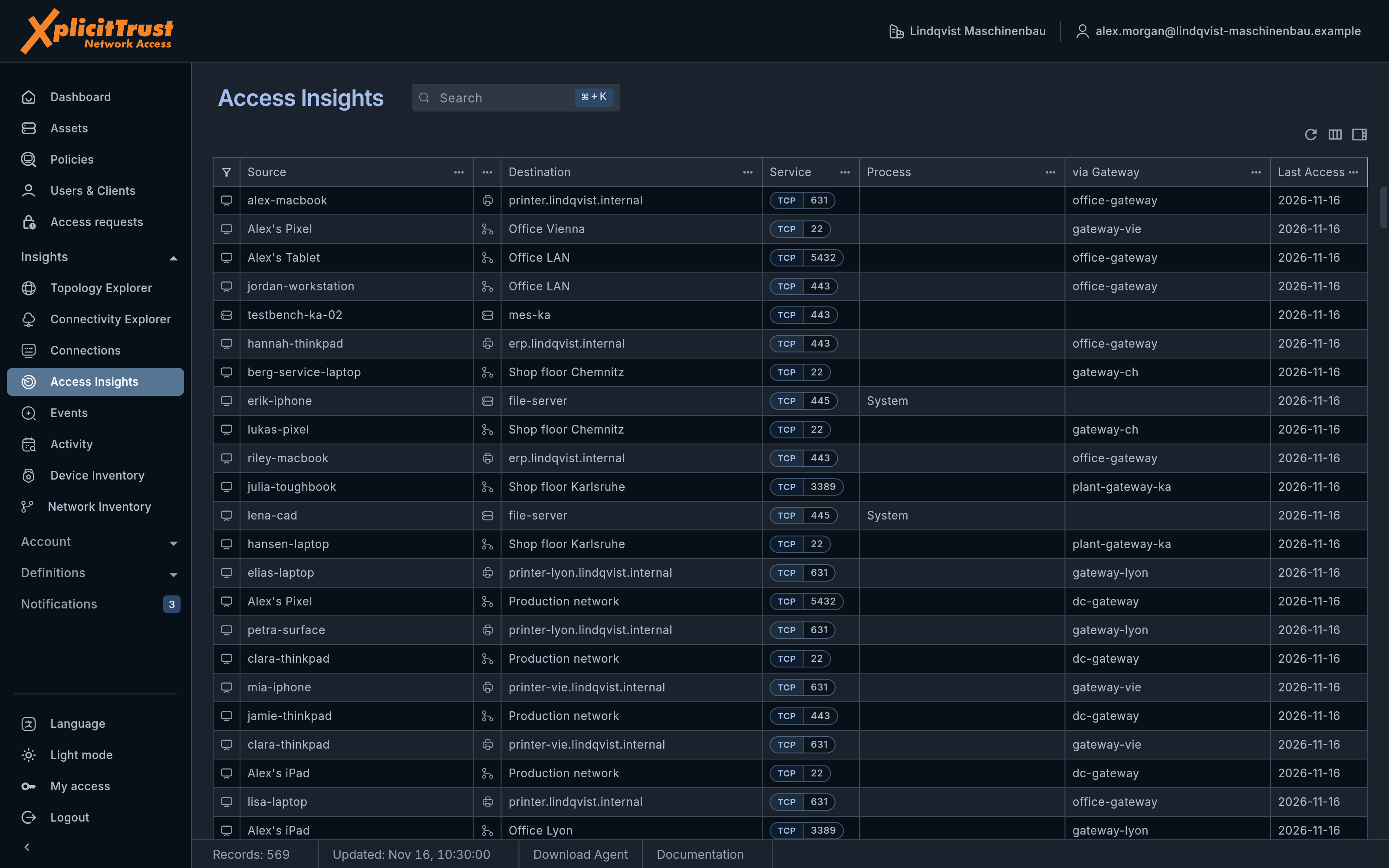
Access Insights is filled only for destinations with Access Tracking turned on. An empty list does not prove that nothing was reached; Events is the complete log. See Access Insights and Events. To keep a copy outside the console, send the events to your SIEM, see Event Forwarding.
Do this before you delete the Client: the Access Insights and Events actions open from the Client's panel.
A4. Sign-in and other accounts
Disabling the Client does not change the user's account. If the device held a signed-in session, or the user's password could be known to the finder, deal with that at your IdP: reset the password and revoke sessions there. XplicitTrust asks the IdP again when the session ends, see step B1.
A5. Isolation
Isolation is a setting of the device's host firewall, not a response to a loss. It blocks inbound access that does not arrive over XplicitTrust. It does not make a lost laptop safer, and it is not available for iOS and Android Clients. If the lost device is an Asset (a server or a gateway), disable it the same way on Assets and check whether Isolation is on: with When the agent stops set to Stays isolated, the firewall stays in place. See the Isolation tab and, for Clients, Edit a Client.
A6. When the device is found, or not
- Found and trusted: switch Enabled/Disabled back to Enabled and choose Apply. The agent polls while disabled, so it picks the change up by itself and restores its status.
- Not found: leave it disabled for as long as you want the record, or delete it: select the Client and choose Delete in the panel, then confirm Are you sure you want to delete the ... client?. The console logs the deletion as an event.
B. An employee leaves
B1. Disable the account in the IdP
Your IdP decides who may sign in; XplicitTrust does not keep passwords. Disable or delete the account there, as you do for other applications.
What this does in XplicitTrust:
- New sign-ins fail: the sign-in goes to the IdP, which refuses the account.
- A running session is renewed against the IdP (checked for Microsoft Entra ID and Google). If the IdP refuses the renewal, XplicitTrust logs the event
authentication.failed_refreshand denies it. - A sign-in session ends at the latest after the Authentication Enforcement Interval (30 minutes to 23.5 hours; the highest position means Never enforce password / MFA authentication), and the user has to sign in at the IdP again. See Authentication Settings.
- Whether the IdP stops renewals the moment you disable the account depends on the IdP. Until the session ends, the user's devices can keep working. That is why you also disable the Clients in step B3.
To close the gap at once without waiting, tick the user's Clients in Users & Clients and use Re-Authenticate Clients in the Mass Action panel. It forces the Clients to authenticate again; with the account disabled, the IdP should then refuse the sign-in.
B2. Remove the person from user groups
Groups that you imported are managed in the IdP, so remove the person from them there. In XplicitTrust, membership updates when the user authenticates; Definitions → User Groups → Sync brings the imported groups up to date without waiting. See Import and sync from the identity provider.
Groups that you created in XplicitTrust are edited in Definitions → User Groups. A person who is also in the Approver groups of a policy, or in the approver groups for new Clients, must leave those groups too: otherwise they remain an approver. See Roles.
B3. Disable the user's Clients
- Open Users & Clients and expand the user's row.
- Tick all of the user's Clients and choose Toggle Clients State in the Mass Action panel.
- Set the switch to Disabled, choose Apply and confirm Do you really want to change the state of the selected Clients?.
What disabling does is described in A2. To look back at what the Clients reached, see A3 and the user's Access Insights action in the user panel.
B4. End just-in-time access
Open Access requests and search for the person's email address; the Requested by column holds it. Filter the Status column by Open (pending, approved, active).
- A Pending or Approved request: choose Cancel request.
- An Active request: choose End access now. After you confirm, open connections are closed.
B5. Take away the admin role
The admin role is set in the IdP. If the person was an admin, remove the role or the group that carries it there; see Roles and groups by IdP. The role arrives with the next sign-in of the person. Disabling the account in step B1 stops that sign-in anyway.
B6. Delete the user
Do this when you no longer need the record.
- In Users & Clients, select the user and choose Delete in the panel.
- Confirm Are you sure you want to delete the ... user?.
Deleting a user also deletes their Clients. The console logs the deletion as an event.
Warning
A deleted user is created again when they next authenticate, unless strict role enforcement is enabled in the tenant settings. Do not use Delete instead of step B1. See Strict Role Enforcement.
Disable or delete
| Disable | Delete | |
|---|---|---|
| Works for | A Client. A user cannot be disabled in the console; the IdP does that. | A Client or a user. Deleting a user deletes their Clients. |
| Reversible | Yes: switch the Client back to Enabled. | No. A user returns on the next sign-in, with new Clients. |
| Logged as an event | Yes | Yes |
Verify
- In Users & Clients, the Client's status reads Disabled, or the status in the panel reads Disabled (see Client status).
- In Connections, the Client has no row. See Connections.
- For a leaver, Access requests shows no open request of the person.
- For a leaver, the Events of the user show failed sign-ins or
authentication.failed_refreshonce the IdP refuses the account. See the event reference.
If it doesn't work
- The Client still shows as online. An online agent learns about the change within seconds. Look again after a short while. A device that was offline stays Offline until it connects.
- The user can still sign in. The IdP account is not disabled, or the IdP still accepts the session. Check the IdP, then use Re-Authenticate Clients (step B1).
- A disabled Client came back as enabled. With Auto-Disable New Clients a newly registered Client waits for approval; enabling a held-back Client counts as approving it. Check who enabled it in Events.
- The user is back after deletion. They signed in again and the tenant has no strict role enforcement. Disable the account in the IdP, or turn on Strict Role Enforcement and remove the user role.
- Access Insights is empty. The destinations do not track access. Use Events.
Next
- Register the replacement laptop: Silent and MDM Deployment.
- Give the next person time-limited access instead of standing access: Give a contractor temporary access.
- Hold new devices back until someone approves them: Auto-Disable New Clients.
- Send the events to a SIEM: Event Forwarding.
See also
- Concept: Clients and Assets, Security Model, Just-in-Time Access
- Guide: Roles and groups by IdP, Overview and choosing an IdP
- Reference: Users & Clients, Insights, Access requests, Sign-in policy, Roles, Events