My Access
My Access lists the applications and destinations you can open, the requests you made and what you may still ask for. On the desktop (Windows, macOS, Linux) you reach it with My Access in the side menu, with the full-view button above the list on the home screen, or from a click on a notification about your access. On iOS and Android you reach it with My Access in the menu or with the My Access card on the home screen; the app names the page My Access on both. An administrator can move the page into Help, see Agent appearance. The page is for people who are signed in; it is not there for a device that runs as an Asset only.
In short
My Access lists what you can open now, what is scheduled, what waits for approval and what you can request. Opening an entry starts the program or the browser. Requests and approvals happen on the web page My access.
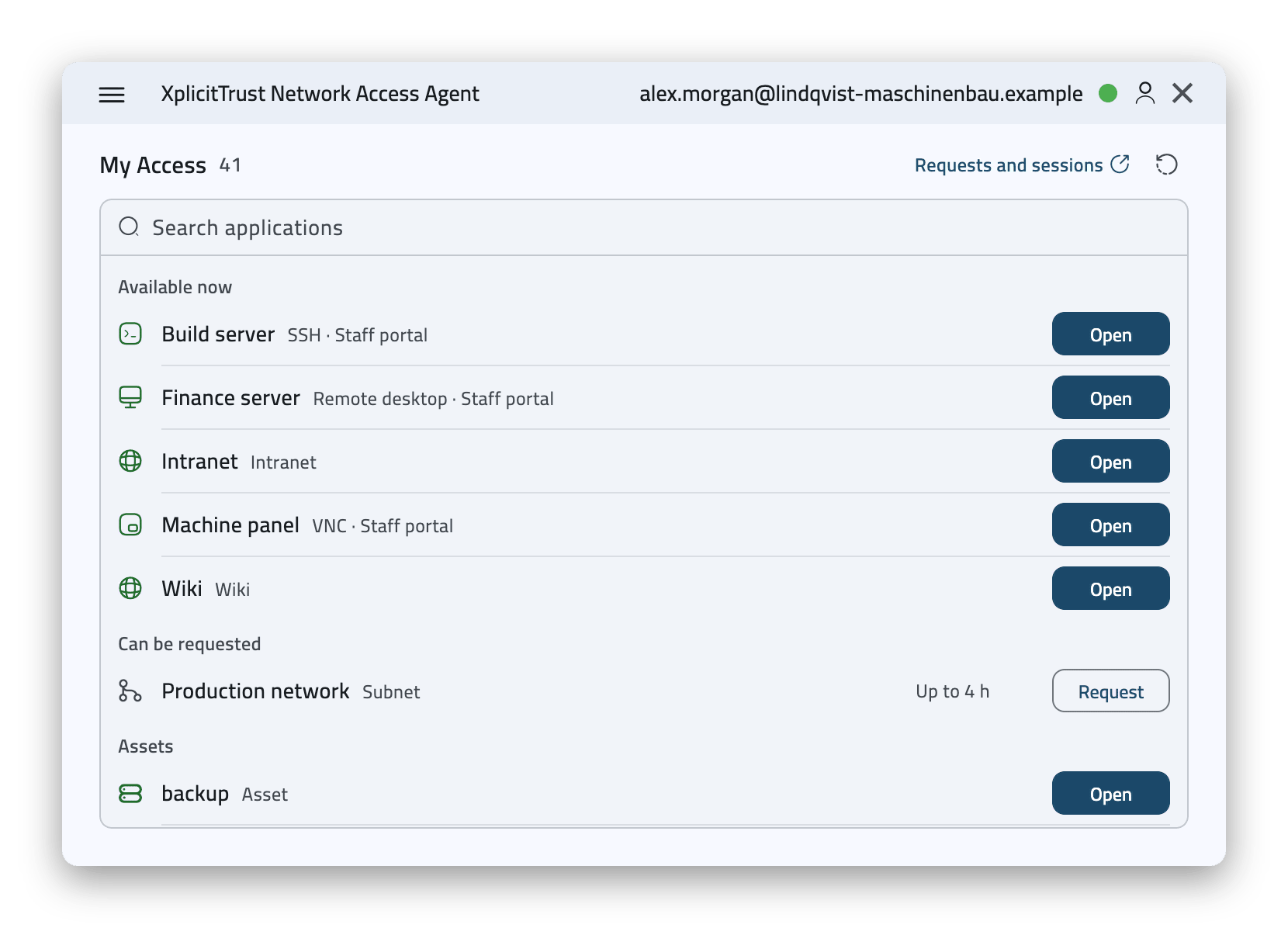
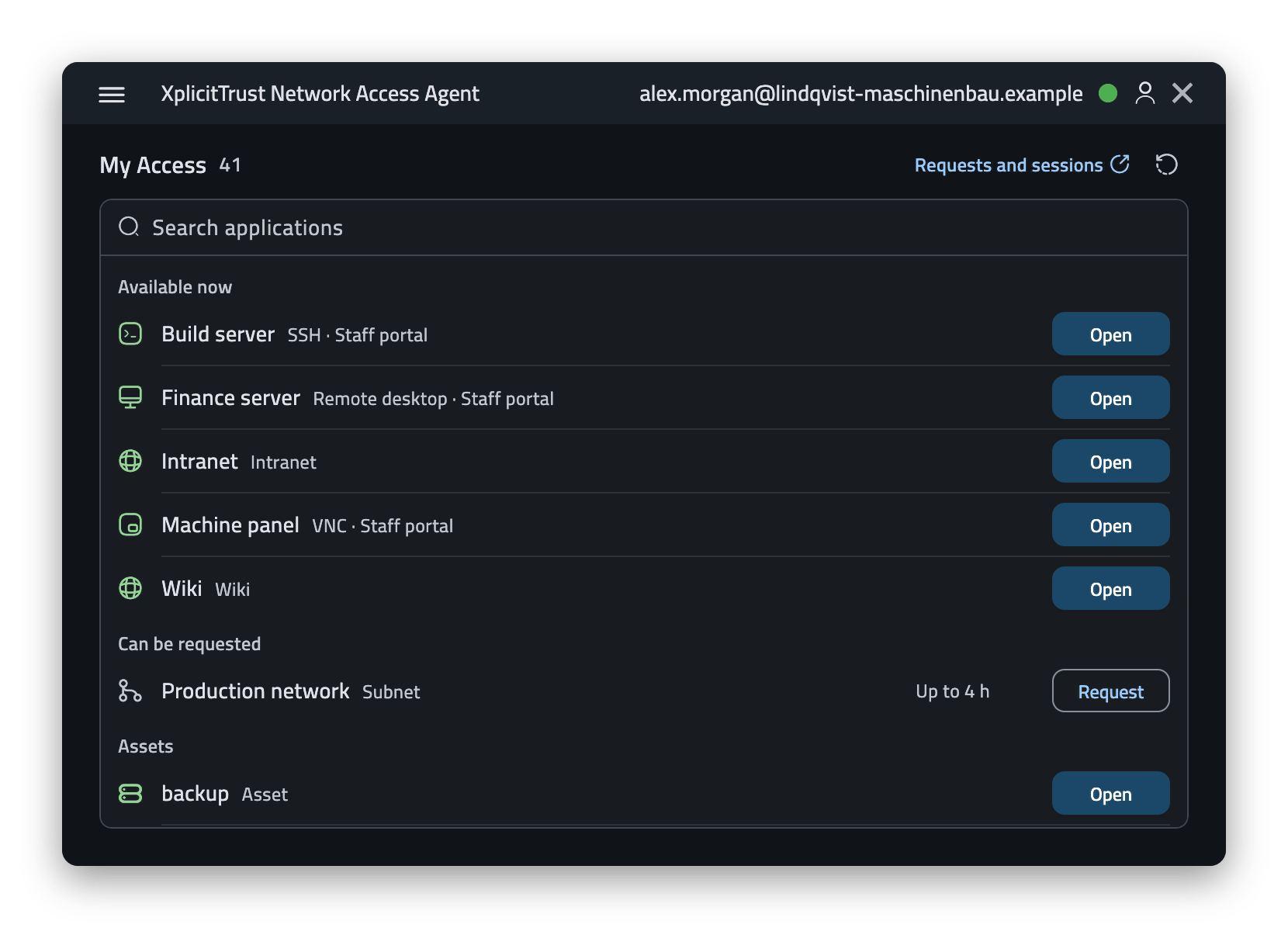
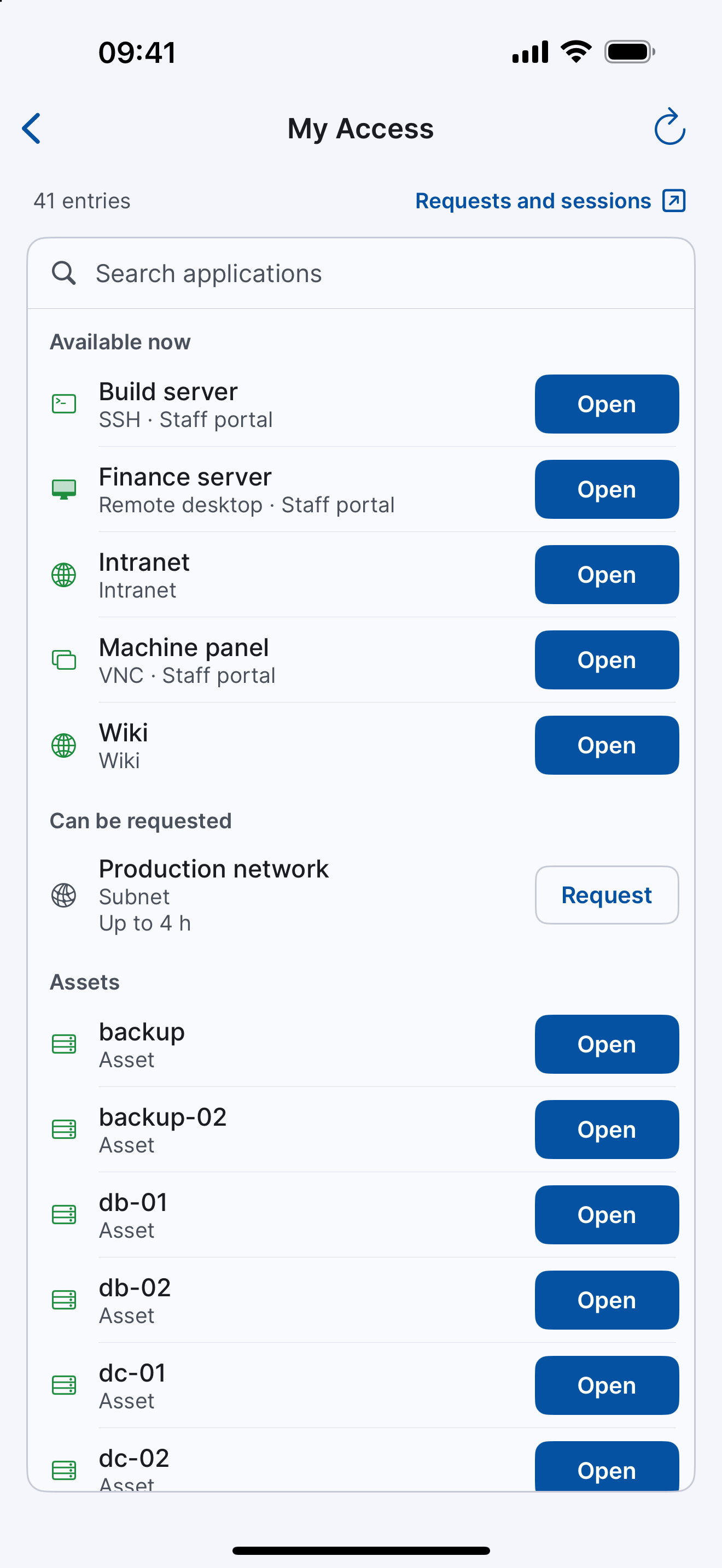
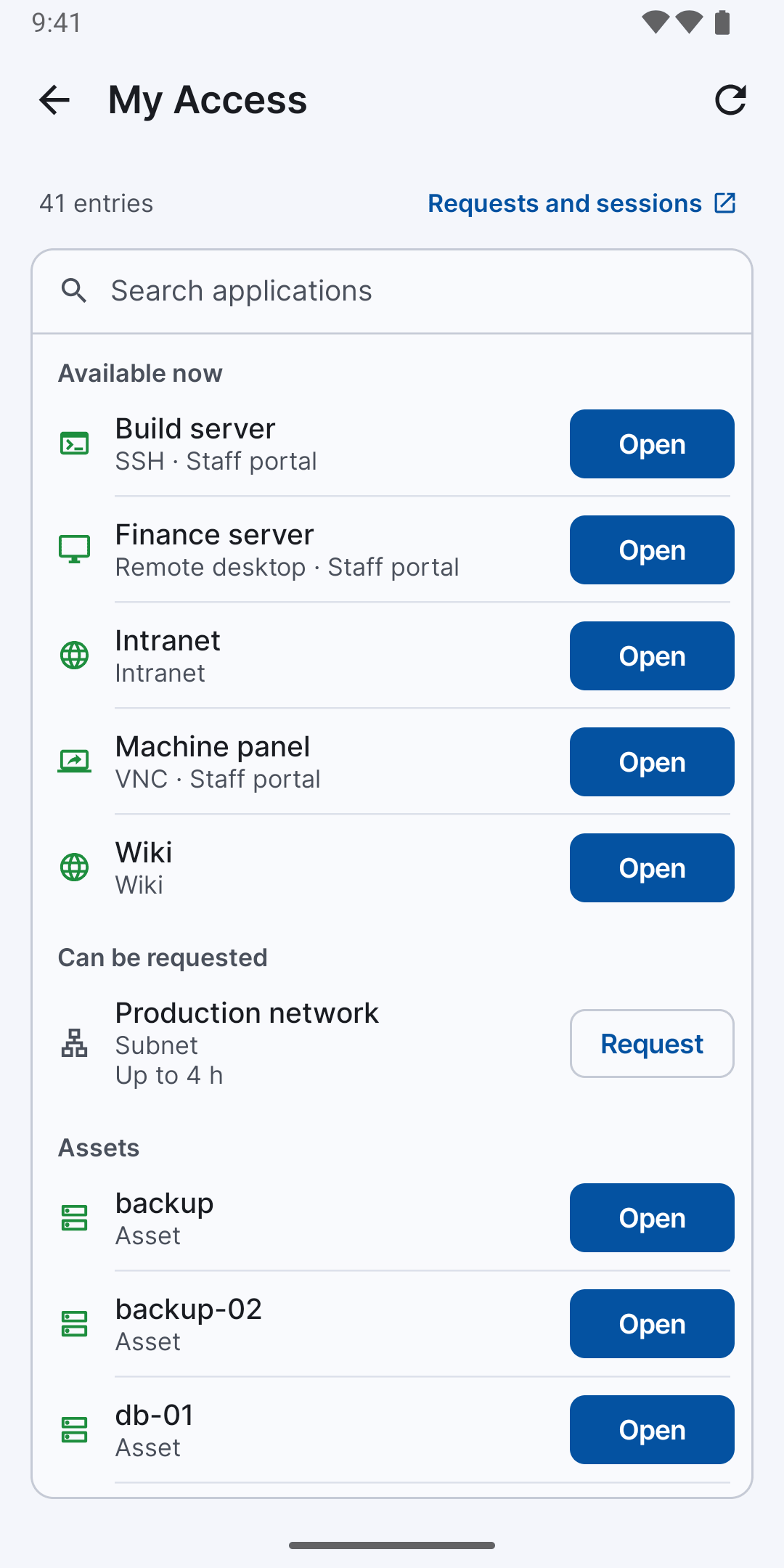
The page in the app is for looking at what you have and opening it. Requesting access, following a request, asking for more time, deciding as an approver and the portal sessions are on the web page My access, described in My access. The link Requests and sessions opens that page in your browser. For the background see Just-in-Time Access.
Header
| Element | Meaning |
|---|---|
| My Access with a number (desktop), n entries (iOS, Android) | How many entries the list holds. Not shown while the list is empty. On the desktop the destinations you can switch on and off count with the entries of the list, see Selectable destinations. |
| Requests and sessions | Opens the web page My access in your browser, where you request access, follow and decide requests and see your portal sessions. Shown when your organization's server gives the app that address. The app then reads the list more often for a while, so that it notices when your request is decided, see Notifications. |
| Refresh (circular arrow) | Reads the list again. While it reads, the arrow is replaced by a spinner. It is not available while you are not connected. On iOS and Android you can also pull the list down to refresh it. |
While the page is open, the app refreshes the list by itself.
Search
The field Search applications above the list narrows it while you type. It matches a part of the name, the portal's name, the address and, for a destination, the name of its services; for a host of a subnet also the subnet's name. It also matches the kind of a service and the address it goes to. There are no filters besides the search field.
The field is only there when the list holds entries. If nothing matches, the list says "No matches".
The list
The list has up to five sections, in this order. A section that has no entries is left out.
| Section | Holds |
|---|---|
| Available now | What you can open now: applications and destinations a policy always grants, and access you requested that is running. Assets are not listed here when a policy always grants them; see Assets. |
| Selectable destinations | Desktop only. Destinations you switch on and off yourself. Between Available now and Scheduled. |
| Scheduled | Access that was approved and starts later. |
| Awaiting approval | Requests that wait for a decision. |
| Can be requested | What you may request time-limited access to and have no request for. |
| Assets | Assets that a policy always grants. They come last, because there are many and they do not change. |
Each entry shows an icon for its kind, its name and a line with its kind and where it lives. Applications show their type (Remote desktop, SSH, VNC; a web application shows only its portal) and the portal's name. Destinations show Asset, Virtual asset, Subnet, Machine group, or Host in subnet with the subnet's name. A green icon marks an entry you can use now; a grey one an entry you cannot, for example one that is only requestable or not reachable.
On the desktop the state is written at the end of the row and the full text of a row is in a tooltip that appears when you rest the pointer on it. On iOS and Android the state is the third line under the name.
States
The section tells most of the state. A line adds what the section does not say:
| Text | Where | Meaning |
|---|---|---|
| Until 16:30, Until Nov 16 08:00 | Available now | A running access ends then. A time of today is shown without a date. |
| Until 16:30 · 1 h 12 min left | Available now | The same, in the last 24 hours before it ends. |
| Next: 08:00, Next: Nov 16 08:00 | Scheduled | When the access starts. |
| Next: 08:00 · repeats | Scheduled | The access repeats; this is its next occurrence. |
| Up to 4 h, Up to 4 h · can repeat | Can be requested | The longest time you may ask for, and whether a request may repeat. |
| Needs connection | Available now | The entry works only through the tunnel and you are not connected. |
| The portal is not reachable right now | Available now | An application whose portal does not serve it at the moment. |
| Not reachable | Available now | A destination whose machine is not connected. |
| nothing | Available now (always granted), Awaiting approval | The section says all there is. |
An entry in Available now that you cannot use at the moment is shown in grey and its button is switched off. It stays in the list.
Times and the "h" and "min" of a duration use your time format. The countdown is redrawn every 20 seconds.
Buttons
Each entry has one button at the end of its row. The buttons of a list have the same width.
| Button | Where | What it does |
|---|---|---|
| Open | An application in Available now or in Assets | Opens the application in your default browser. |
| Open | A destination with one service | Starts the program for the service, see Opening a destination. |
| Open with an arrow | A destination with several services | Opens a menu with the services. |
| Request | Can be requested | Opens the request form for this entry on the web page My access in your browser. |
| View | Scheduled and Awaiting approval | Opens the request on the web page My access in your browser. |
Request and View do not send anything from the app. You ask for the time, the start and the reason on the web page, see Request access. After you went there, the app reads the list more often for a while, and tells you with a notification when a request that waited is decided. A destination that has no service for a program, and no address, has no button: you reach it with whatever program you work with, through the tunnel.
A Remote desktop, SSH or VNC application of a portal opens its portal page in the browser, like a web application.
Opening a destination
A destination can offer services that a program on your device opens: a web page, a remote desktop, SSH, VNC or a file share. The button shows the kind of service. With two services of one kind, a button or a menu line adds the port, for example RDP :3390.
With one service, Open starts it at once. With several, the menu lists each service with what it is and where it goes, for example Web (Proxmox) above pve.example.com:8006. A choice starts that service.
| Service | What starts |
|---|---|
| Web | The default browser. |
| Remote desktop | Windows: the Remote Desktop Connection. macOS, Linux: the program that handles rdp:// addresses. iOS, Android: the app that handles the address. |
SSH |
Windows: a console window with ssh, which stays open when ssh ends. macOS: the program that handles ssh:// addresses. Linux: the program that handles ssh:// addresses, else a terminal window with ssh. iOS, Android: the app that handles the address. |
VNC |
The program or app that handles vnc:// addresses. |
| File share (Files on a button) | Windows: the File Explorer. macOS, Linux: the program that handles smb:// addresses, normally the file manager. iOS, Android: the app that handles the address. |
SSH user name
The first time you open an SSH service of a destination, a dialog titled for example SSH to db-01 asks for Sign in as. You can leave it empty: on the desktop the terminal then uses your account name on this computer, on iOS and Android the SSH app asks. The name is remembered for this destination on this device; no password is stored. The name may hold letters, digits, dot, dash and underscore only; otherwise the field says "Letters, digits, dot, dash and underscore only". On the desktop Cancel turns back without opening.
To change the name later:
- On the desktop, right-click a lone Open of an SSH service, or choose Sign in to SSH as someone else in the menu of a destination with several services (shown once a name is remembered).
- On iOS and Android, press and hold a lone Open of an SSH service, or choose Sign in to SSH as someone else in the menu (shown once a name is remembered).
No program for the service
If the device has no program for the service, a dialog shows its address, in the form ssh -p 2222 user@host for SSH and as an address for the others. Copy address copies it; the button then says Copied. The text says: "Paste it into a program of your choice. With a program for it installed on this computer, the button opens it directly." On iOS and Android it says "app" and "device". Close ends the dialog.
Selectable destinations (desktop only)
When your organization lets you switch some destinations on and off yourself, the desktop list has a section Selectable destinations. It is there while you are signed in. Each row shows the destination's name, its kind (Subnet, Virtual asset or Asset) and a switch.
| Element | Meaning |
|---|---|
| Switch | Switches the destination on or off for you. |
| Open or menu | The services of the destination, as described above. Greyed out while the destination is off, because there is no tunnel to it. |
| Not reachable | The destination is on, but its machine is not connected. |
| Hosts under a subnet | While a subnet is on, the named hosts of it are listed under its row, each with its own button. |
Switching a destination on can replace others that address the same network or DNS name. The dialog Replace destinations? then names the destination and lists the destinations it replaces ("Switching this destination on replaces:"). Switch on confirms; Cancel leaves everything as it is.
The search finds a selectable destination by its name or by the name of one of its lines, and then shows all its lines.
Not connected
The list is kept while you are disconnected, so you can see what there is. Behind it:
| Case | What you see |
|---|---|
| Not connected, the list is there | A band over the list: "Not connected. Opening an entry that goes through this agent connects first." (desktop) or "Not connected. Opening an entry that goes through this app connects first." (iOS, Android), with Connect. On iOS and Android the button is only there when the app can start a connection. |
| Not connected, no list yet | "Connect to see what you can open and request." with Connect. |
An entry that needs the tunnel can be opened while disconnected: its row says Connects first, and Open connects and then opens the entry. While it connects, the row says Connecting…, or on the full page "Connecting, then opening service…". If the connection is not there after three minutes, the entry is not opened. Connect in the band signs you in with the account you used last, as the switch on the home screen does.
On iOS and Android the row says Connects first and, while it connects, "Connecting, then opening service…". Only when the app cannot start a connection itself, Open of such an entry is switched off and the row says Needs connection. Applications that need no tunnel can always be opened.
When the list cannot be shown
| Text | Meaning |
|---|---|
| a spinner | The first answer is on its way. |
| "Could not load your access" with Try again | The list could not be read and there is none to show. Try again reads it again; it is switched off while it reads. |
| A band "The list could not be refreshed. This is the last one that arrived." with Try again | A refresh failed; the list shown is the last one that arrived. |
| "Your organization's XplicitTrust server does not provide this list yet." | The server is too old to send the list. |
| "Nothing to show yet: no application or destination is available to you or can be requested." | The list is empty. |
| "In use by another user on this computer" | Desktop. The selected identity belongs to another account on this computer; the page shows nothing of it. |
Browser permission on Android 17
On Android 17 and later, while you are connected and an application is available, a band says: "A page does not open? On Android 17 and later, allow "Nearby devices" for your browser: it needs that to reach applications through this app." Browser settings opens the app settings of the browser. The cross closes the band for good (Do not show again).
Notifications
The app tells you when it knows something about your access, also while the window is closed or the app is in the background. On the desktop a click on the notification opens My Access.
| Title | Text |
|---|---|
| Access approved | "You can open name now." |
| Access approved | "Your request for name was approved. My Access shows when it starts." |
| Access request closed | "Your request for name did not lead to access: it was declined, withdrawn or not decided in time." |
| Access ends soon | "Access to name ends in n min. If you need longer, ask for more time in My Access." |
The text of the last one points to the web page, where you request more time.
See also
- Concept: Just-in-Time Access
- Guide: Give a Contractor Temporary Access
- Reference: My access (web page), Home, Agent appearance