Gateway objects
Virtual Assets, Subnets, Managed Subnets, Exit Nodes and Portals are the objects a gateway asset makes available to your clients and to people in a browser. They live on the Assets page: each gateway asset in the table has groups below it for its objects, and you create all of them from the Create menu at the top of the page. This page describes what the objects share. What is specific to one kind is on a page of its own.
In short
A gateway asset is an asset that makes something else reachable: one device (Virtual Asset), a network range (Subnet), a range with a DHCP server (Managed Subnet), the internet (Exit Node) or web applications under one hostname (Portal). All five are created and edited on the Assets page, open in the side panel with the same icons, and are granted to users by policies.
Before you start
- A gateway asset: a Linux or Windows asset that is online (Linux only for Portals, and Linux with a second network interface for Managed Subnets). Without an asset the form says No Assets deployed. Install one first, see Assets.
- A policy that grants the object to users or groups; the form can add it for you on the Access tab.
- The Admin Console is for administrators, see Roles.
Common tasks
- Reach a printer, NAS or camera: Reach a printer, NAS or camera.
- Reach an office network: Reach an office network.
- Hand out addresses on a segment: Hand out addresses on a segment.
- Send internet traffic through a site: Send internet traffic through a site.
- Publish an application in the browser: Publish a web application.
- Decide what a gateway asset can carry, and what happens when it fails: Sizing the gateway asset and Failover.
The five kinds
| Kind | Reaches | Page |
|---|---|---|
| Virtual Asset | One device without an agent, by address or hostname. | Virtual Assets |
| Subnet | A network range. | Subnets |
| Managed Subnet | A network range for which the gateway asset also runs DHCP on an extra interface. | Managed Subnets |
| Exit Node | The default route for internet traffic, IPv4 and IPv6. | Exit Nodes |
| Portal | Web applications and remote desktops under one hostname, opened in a browser. | Portals |
For the concepts behind these objects see Gateway Assets.
The list
Gateway objects are listed on the Assets page, in the groups below their gateway asset. Selecting an entry opens its detail panel on the right of the table. The table itself, its columns and its filters are described on Assets.
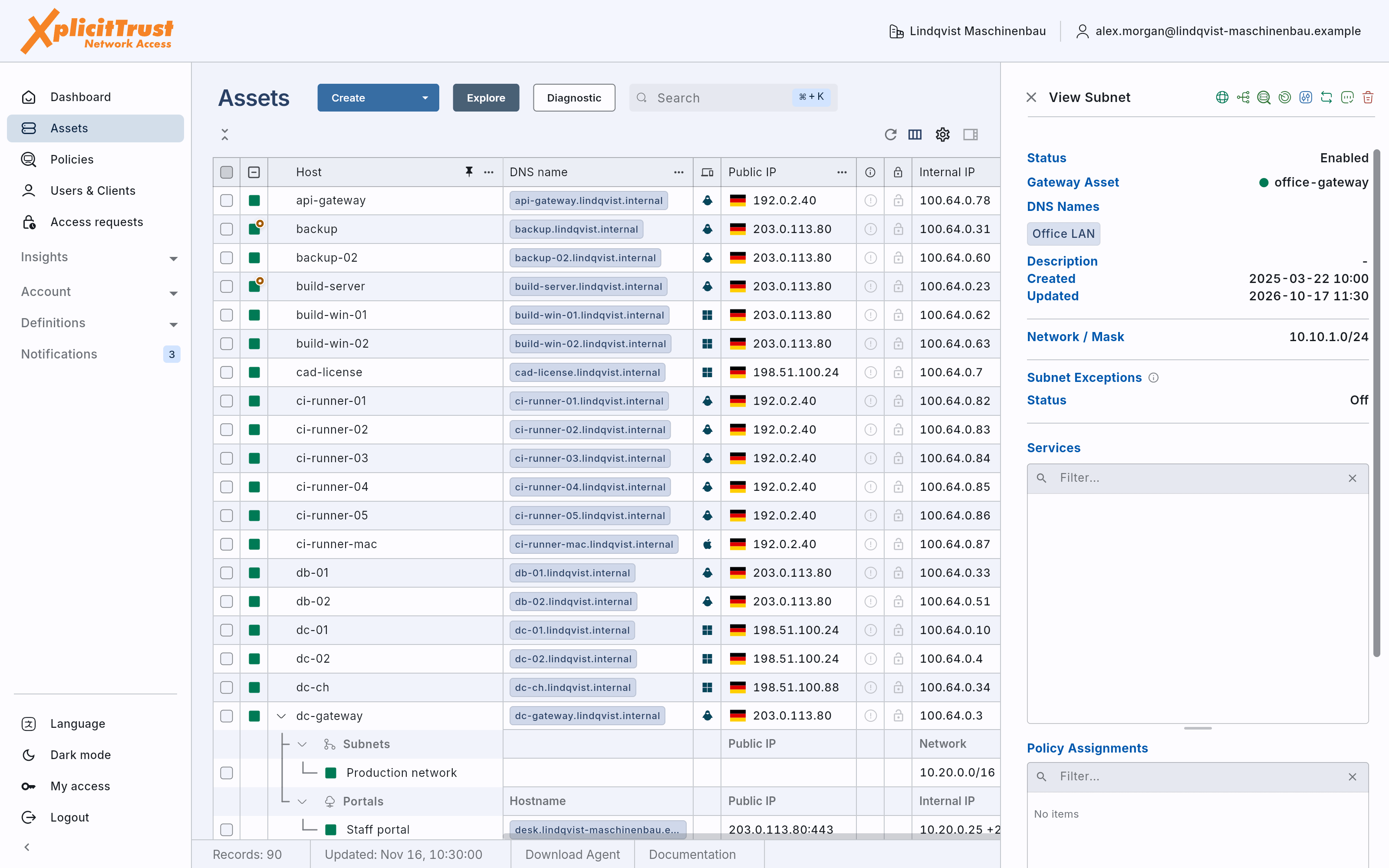
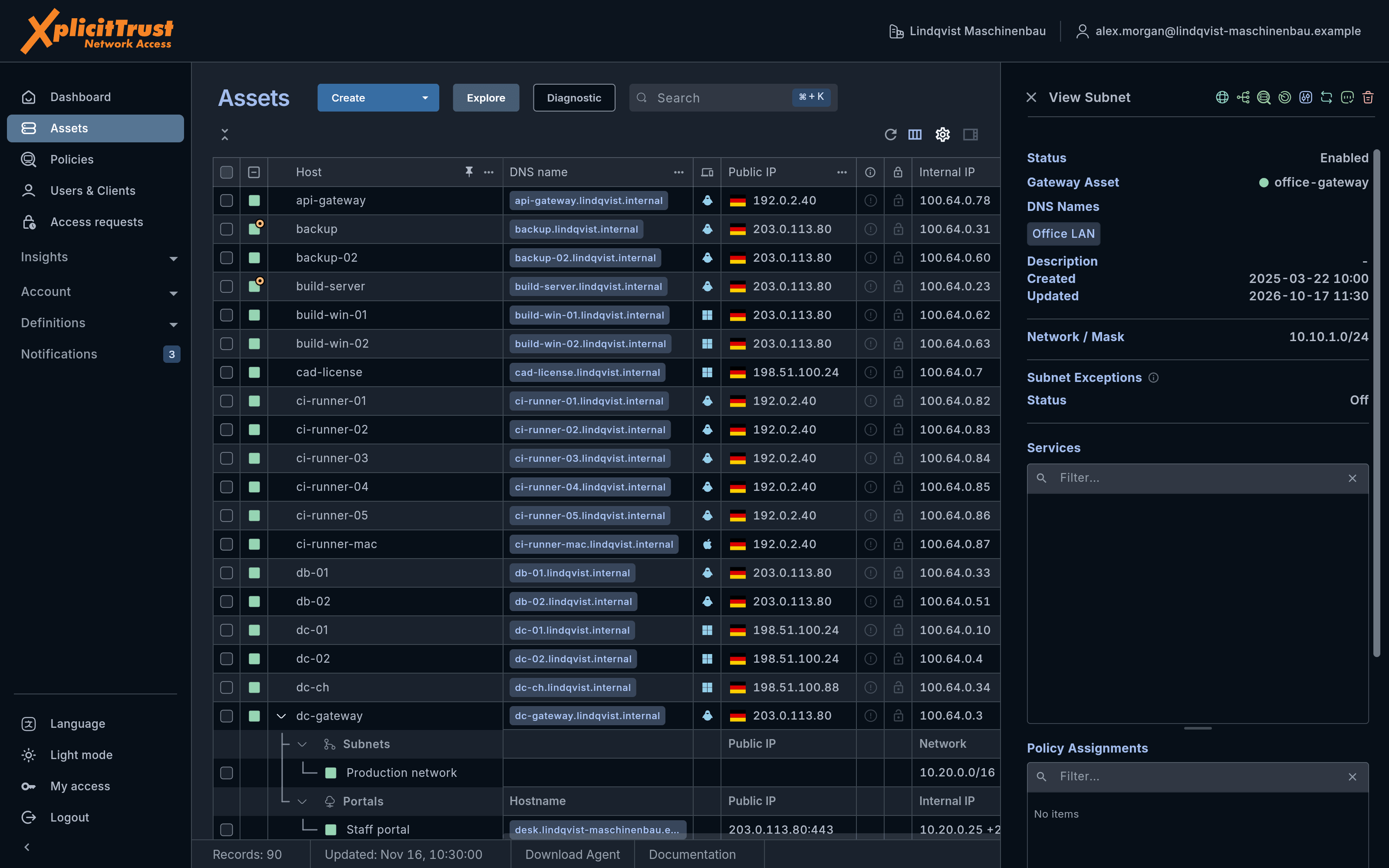
In the table, the groups below a gateway asset show these columns:
| Group | Columns shown for its entries |
|---|---|
| Virtual Assets | Resolution (the address the gateway asset reaches the device at) and Internal IP (the tunnel IP) |
| Subnets, Managed Subnets, Exit Nodes | Public IP (empty) and Network (e.g. 10.10.1.0/24) |
| Portals | Hostname, Public IP (the gateway asset's address and port, e.g. 198.51.100.24:443; Tunnel only for a Portal whose applications are all at the tunnel level) and Internal IP |
Detail panel
This is the detail panel of a Virtual Asset, Subnet, Managed Subnet and Exit Node. Portals have a panel of their own, see Portals.
The detail panel is headed View Virtual Asset, View Subnet, View Managed Subnet or View Exit Node. The icons at the top right are:
| Icon (tooltip) | Meaning |
|---|---|
| Open in Topology | Opens the topology canvas with this object selected. |
| Policy Assistant | Opens the Subnet Policy Assistant (for a Subnet or Managed Subnet) or the Policy Assistant of the Virtual Asset. Not shown for an Exit Node. |
| Access Insights | Opens the tracking page filtered to this object as the destination. Not shown for an Exit Node. |
| Insights | Opens the insight panel. |
| Edit | Opens the edit form. |
| Clone | Opens the create form pre-filled with the settings of this object, including its services and policy assignments. For a Subnet or Managed Subnet the Name is selected so you can type a new one; for a Virtual Asset the Name is emptied and it gets a new tunnel IP. Not shown for an Exit Node. |
| Access Diagnostic | Opens the access diagnostic for this object as the destination. |
| Delete | Asks you to confirm, then deletes the object. |
The panel shows, from top to bottom:
| Field | Meaning |
|---|---|
| Notifications | Notifications about this object, if there are any. |
| Status | Enabled or Disabled. |
| Gateway Asset | The gateway asset, with a dot showing whether it is online. |
| DNS Names | The DNS names of the object. A Subnet shows its name here. |
| Description | The description, or - when empty. |
| Created / Updated | When the object was created and last changed. |
| Kind-specific fields | See the pages of the kinds, listed under The five kinds. |
| Services | The service definitions available on the object, in a list you can filter. |
| Policy Assignments | The policies that grant access to the object, with the services they grant. Read-only here; change it on the Access tab of the form. |
| Tags | The tags of the object. |
If the gateway asset runs Windows, the panel and the form show a notice with the badge NEW: Windows assets are available as a public beta, and for high-traffic applications a Linux asset is the better gateway asset.
Insight
The Insights icon opens Insight Virtual Asset, Insight Subnet or Insight Exit Node. The panel shows who can reach the object. It starts with the name of the object, followed by Authorized Sources by Policy: a drop-down that lists All Asset Policies and each policy that has the object as a destination (with a switch showing whether the policy is enabled), and below it a list of the sources the chosen policies authorize, grouped (e.g. Clients) with a dot showing whether they are online. How the panel works (filter field, drop-down, arrows) is described once under Insight panel. Pictures: Virtual Asset and Subnet.
Create and edit
The form is headed Create Virtual Asset, Create Subnet, Create Exit Node and so on, or Edit ... for an existing object. It is organised in tabs, shown as chips below the header. The icon at the right of the chips switches between Single view (all tabs one below the other) and Tabbed view; the console remembers your choice. In tabbed view the arrow button next to Cancel moves to the next tab, and a second arrow appears to go back.
| Tab | Shown for |
|---|---|
| General | All kinds. |
| Access | All kinds. |
| Exceptions | Subnets and Exit Nodes. |
| Advanced | Subnets. |
| DHCP | Managed Subnets, in place of Exceptions and Advanced; see Managed Subnets. |
The buttons at the bottom are Cancel, which discards your changes and returns to the assets page, and Apply, which validates the form and saves. Apply is disabled while the save runs. After a successful save the console shows a confirmation and opens the detail panel of the object. If a field is invalid, Apply does nothing and the field shows its error.
General tab
Fields every form has on the General tab:
| Field | Meaning |
|---|---|
| Enabled/Disabled | Switch, on by default. A disabled object is not available. |
| Gateway Asset | The asset that provides the object. Required. The list offers Linux and Windows assets (Linux only for Portals, and only assets that support it for Managed Subnets), sorted by name, with a dot showing which are online. On create, the gateway asset you last looked at is pre-selected. If your tenant has no asset, the form says No Assets deployed. |
| Name | Required for a Subnet and an Exit Node (Please enter a valid name). Optional for a Virtual Asset. |
| Description | Free text. |
| Tags | Tags to organise and filter objects. Not on the Managed Subnet form. |
Access tab
| Element | Meaning |
|---|---|
| Services | The service definitions that are available on the object. The green plus next to the header opens the form to create a new service definition. Not shown for an Exit Node. If you select none, the predefined All service definition applies; an Exit Node always has it. |
| Policy Assignments | A tree of all policies. Under each policy the services you selected are listed; select the entries to add the object to that policy with that service. Policies change when you press Apply. |
If saving an existing object would remove services from policies that still use them, the console lists what is affected and asks you to confirm before it saves. If a policy cannot be updated, the object is saved and the console reports which policy failed. When you create an object, the selected policy assignments are applied right after it is created.
Fields specific to a kind are on its page: Virtual Assets, Subnets, Managed Subnets, Exit Nodes. The form of a Portal has other tabs, see Portals.
Mass actions
Check Virtual Assets and Subnets in the Assets table to change their services, gateway asset or tags, switch them on or off, or delete them in one go. See Mass actions.