Subscription, Billing and Support
The Account group in the side menu holds the commercial and support side of your tenant: Subscription shows what you have bought, Billing shows your invoices and how they are paid, and Support is where you open and follow tickets with the XplicitTrust support team. The group also contains Settings and Authentication, which have their own pages: Settings and Sign-in policy.
In short
Subscription shows what you bought, Billing the invoices and payment, Support the tickets with the XplicitTrust support team. Billing is only present for tenants that XplicitTrust bills directly.
Before you start
- You are an administrator, see Roles.
- For a ticket: the tenant and the problem; attach logs if you can, see Logs and Diagnostics.
Common tasks
- Check what you have bought: Subscription.
- Download an invoice or change the billing contact: Billing.
- Open a ticket: Creating a ticket.
Subscription
Account → Subscription shows the subscription of your tenant.
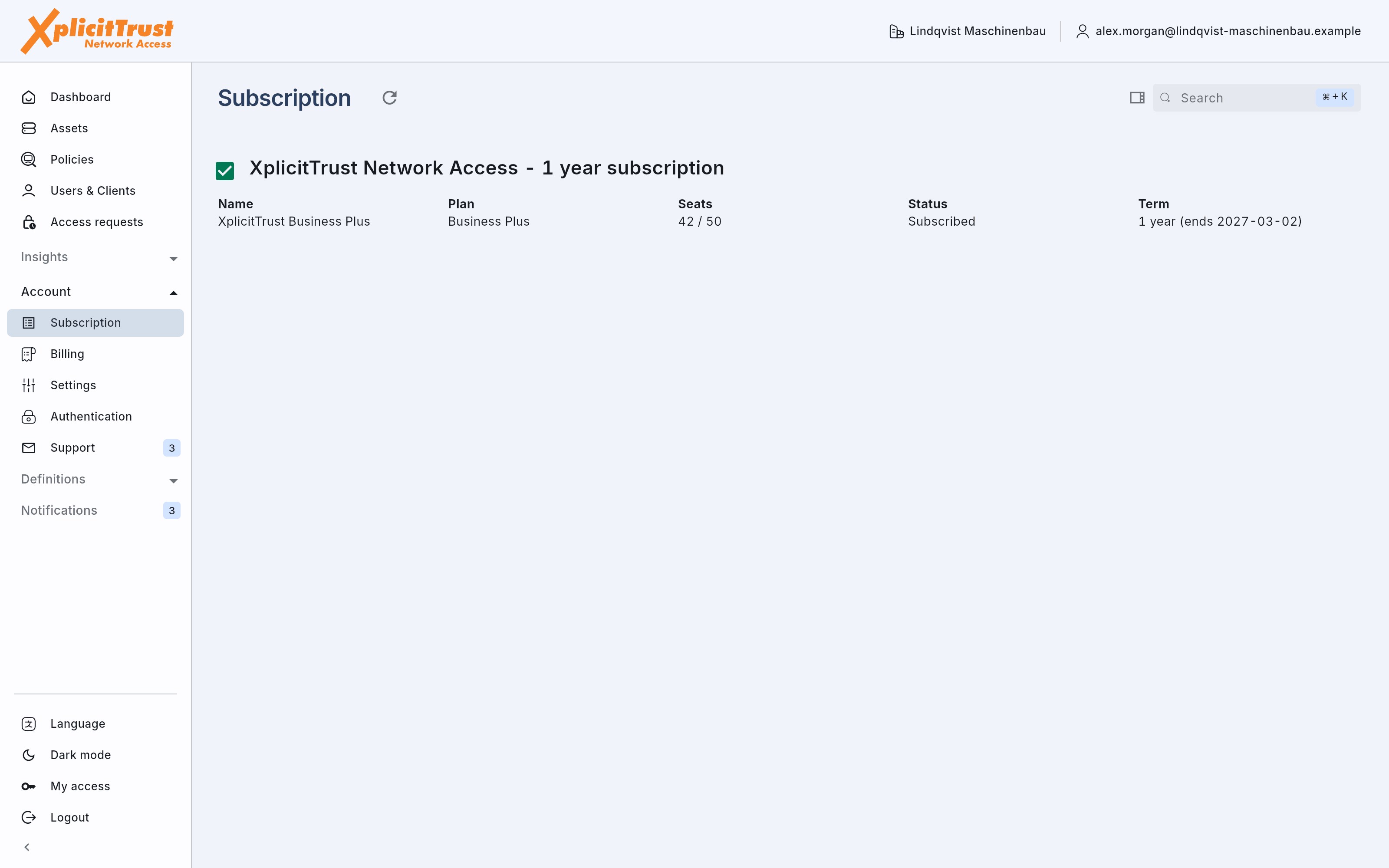
Each subscription is shown as a heading, XplicitTrust Network Access - {term} subscription, followed by a row of details. A green check mark in front of the heading means the subscription has not reached its end date; a red mark means it has ended. The search field above the page filters the list, and the icon next to it shows or hides the info panel, which explains that the price per user depends on the total number of users and that plan or seat changes go through your partner.
| Column | Meaning |
|---|---|
| Name | The name of the subscription, e.g. XplicitTrust Business Plus. |
| Plan | The plan the subscription is on. For subscriptions bought through the Microsoft marketplace, a Manage subscription link below the plan opens the Microsoft Azure portal, where you manage the subscription. |
| Seats | The number of users in use compared with the number of seats bought, e.g. 9 / 10. For monthly subscriptions the number of users is shown with (pay per use), because the price follows the actual number of users. |
| Status | The state of the subscription, see below. |
| Term | The length of the term and its end date, e.g. 1 year (ends 2027-03-02). Terms are Monthly, 1 year, 2 years and 3 years. |
The Status is derived from the end date and the state of the subscription:
| Status | Meaning |
|---|---|
| Subscribed | The subscription is active. |
| Up for renewal | A paid subscription ends within 90 days. |
| In-Trial | The subscription is a trial. |
| Suspended, Trial (Suspended) | The subscription has been suspended and has not ended yet. |
| Expired, Trial (Expired) | The end date has passed. This is checked first. |
To change the plan or the number of seats, contact your partner. The console does not change subscriptions.
Billing
Account → Billing lists your invoices and holds the billing contact and the payment method.
When Billing appears
The Billing entry is only in the menu for tenants that are billed directly by XplicitTrust. If your tenant is billed by a partner, you do not see it, and your invoices come from your partner.
Invoices
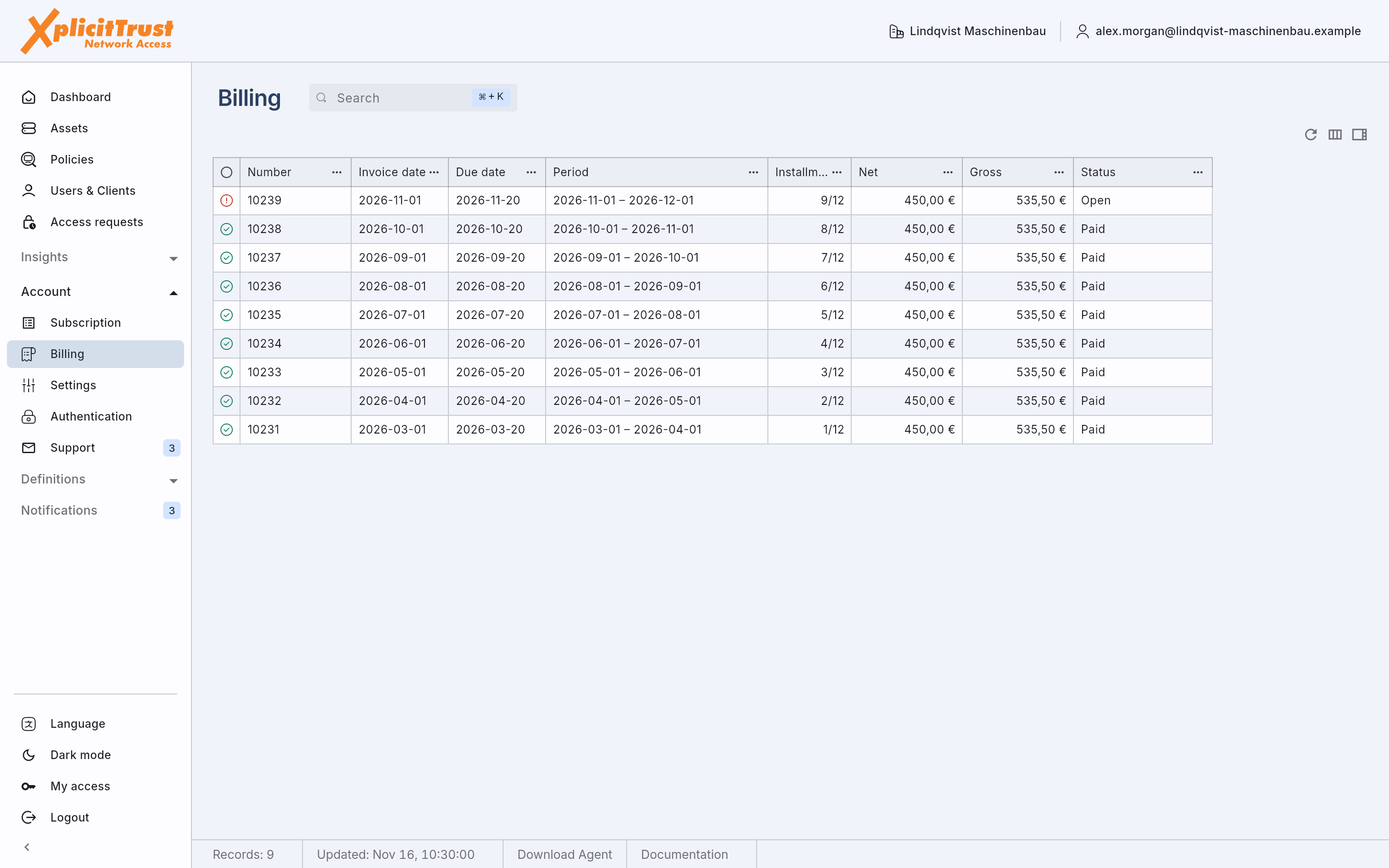
The table lists every invoice of your tenant. The search field above the table filters it, and the status column can be filtered by status. Clicking an invoice opens its details on the right.
| Column | Meaning |
|---|---|
| Status icon (first column) | A symbol for the invoice status. The same filter as in the Status column is available in its header. |
| Number | The invoice number. Empty while an invoice has no number yet. |
| Invoice date | The date of the invoice. This column can be filtered by a date range. |
| Due date | The date by which the invoice is due. |
| Period | The billing period the invoice covers. |
| Installment | For invoices paid in instalments, the position in the plan, e.g. 9/12 for the ninth of twelve. Empty for other invoices. |
| Net | The amount without sales tax. |
| Gross | The amount including sales tax. Empty when no gross amount is known. |
| Status | The status of the invoice, see below. |
| Status | Meaning |
|---|---|
| Scheduled | The invoice has been created, but its invoice date is still in the future. It cannot be paid yet; it is opened and mailed on that date. |
| Open | The invoice is waiting for payment. |
| Payment confirmation pending | A payment has been made and is not confirmed yet. |
| Paid | The invoice is paid. |
| Error | A payment attempt failed. |
| Canceled | The invoice was canceled. |
| Unknown | A status that this version of the console does not know. |
The details of an invoice show its number, invoice date, due date, period, instalment, status, the date the payment was received, the number of users, and the net and gross amounts. The download icon in the header of the details saves the invoice as a PDF (not offered for canceled invoices). For a Scheduled invoice the details tell you the date from which it can be paid. For an Open or Error invoice a Pay Invoice button opens the payment page in a new browser tab.
Billing contact
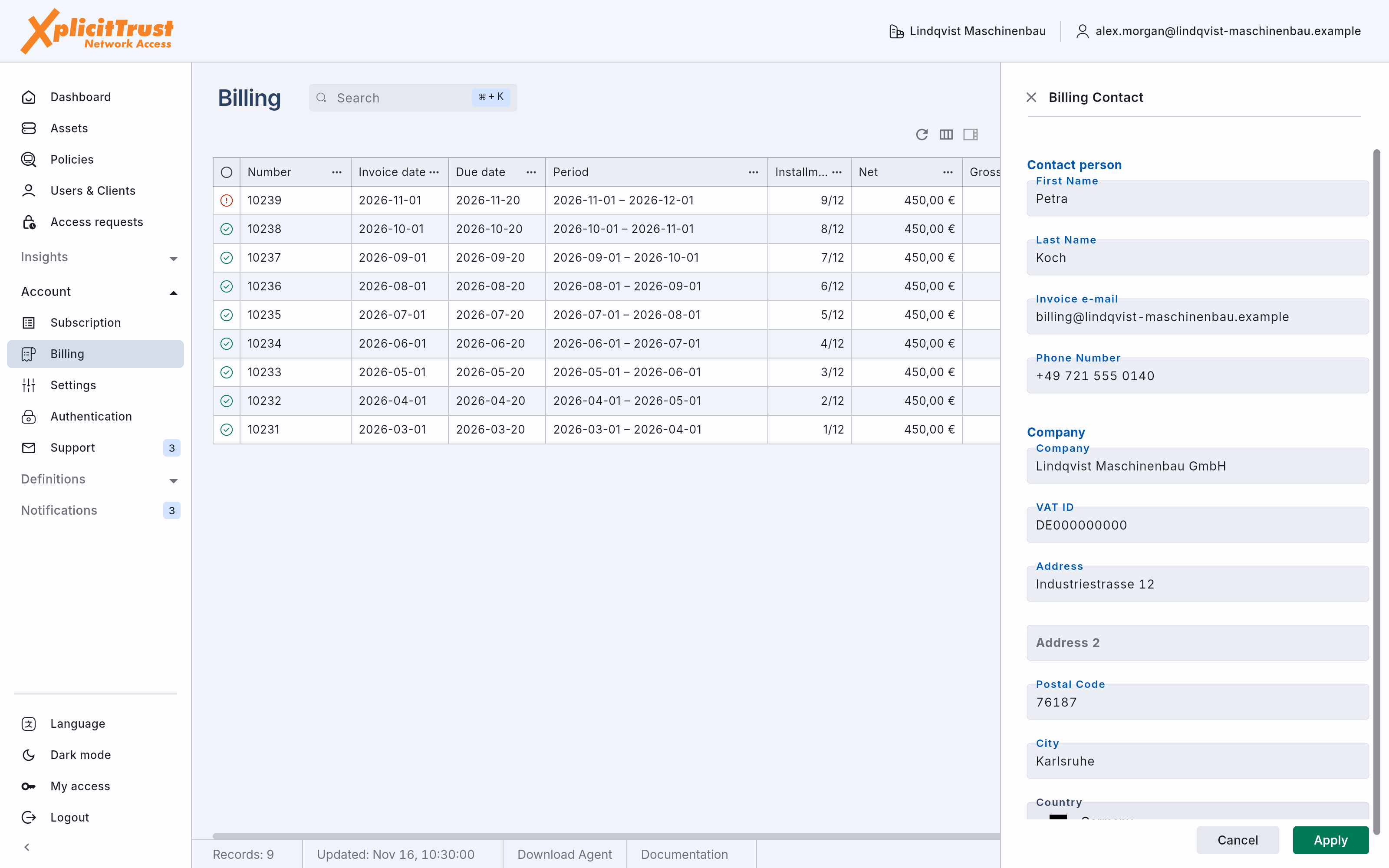
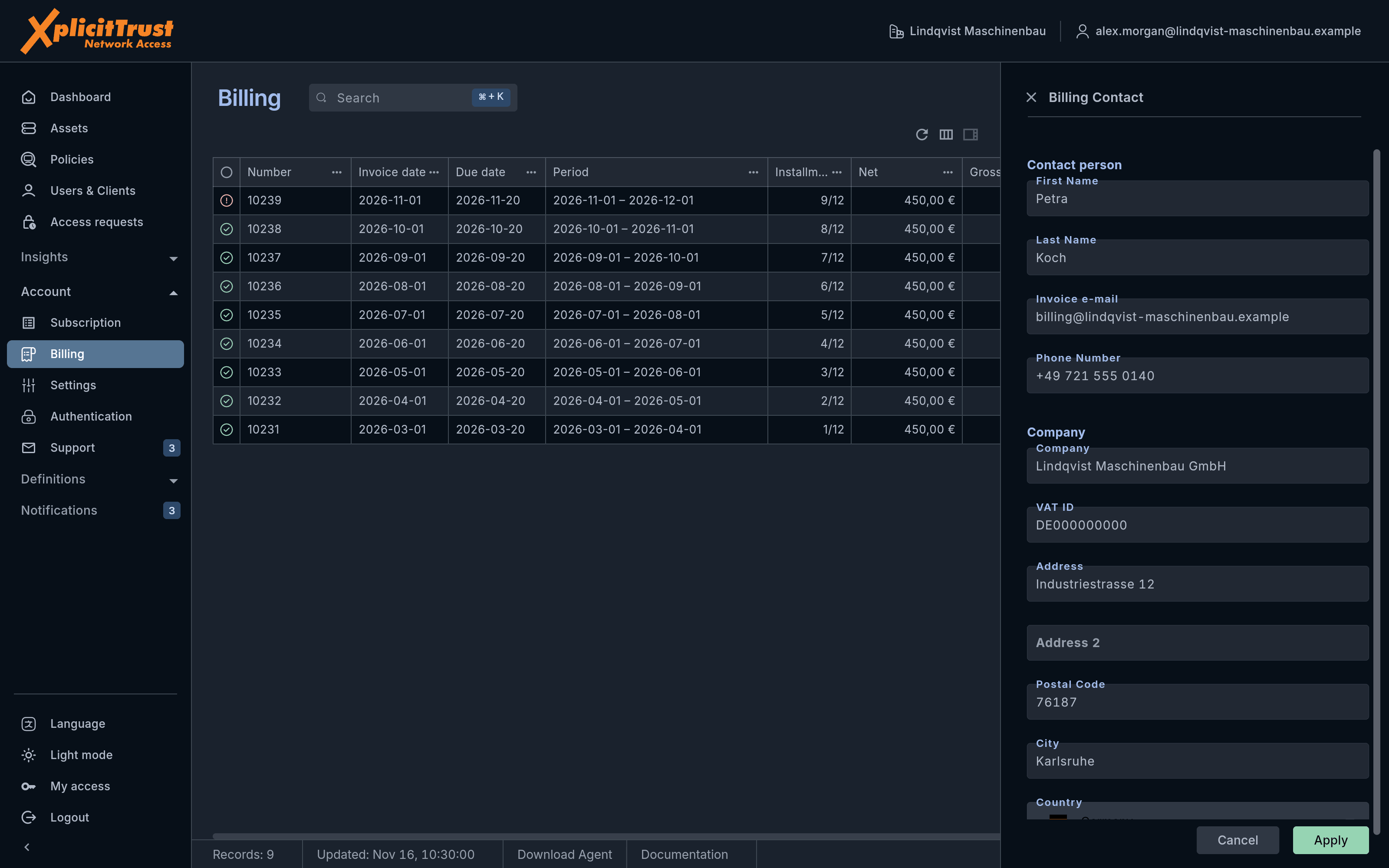
When no invoice is selected, the right side shows the billing contact and the payment method. The billing contact is the address your invoices are made out to. Until one is set, the panel asks you to add one. The button Add (or Edit, once a contact exists) opens the form.
| Field | Meaning |
|---|---|
| First Name, Last Name | The contact person. Required. |
| Invoice e-mail | The address that receives the invoices. Required, must be an email address. |
| Phone Number | Optional. |
| Company | The company name on the invoice. Required. |
| VAT ID | Optional. |
| Address, Address 2 | The street address. Address is required, Address 2 is optional. |
| Postal Code, City | Required. |
| Country | Chosen from a list. A new contact starts with Germany selected. |
Apply saves the contact and returns to the panel; Cancel discards your changes.
Payment method
Below the contact, the panel shows the card or SEPA direct debit stored for your tenant. With a payment method stored, due invoices are charged to it automatically. Without one, open invoices are paid by link or bank transfer.
Add Payment Method (or Update Payment Method, when one exists) opens the payment provider's page in a new browser tab, where you enter the card or mandate. When you come back, the console checks for about three minutes whether the method has arrived and then shows it.
Support
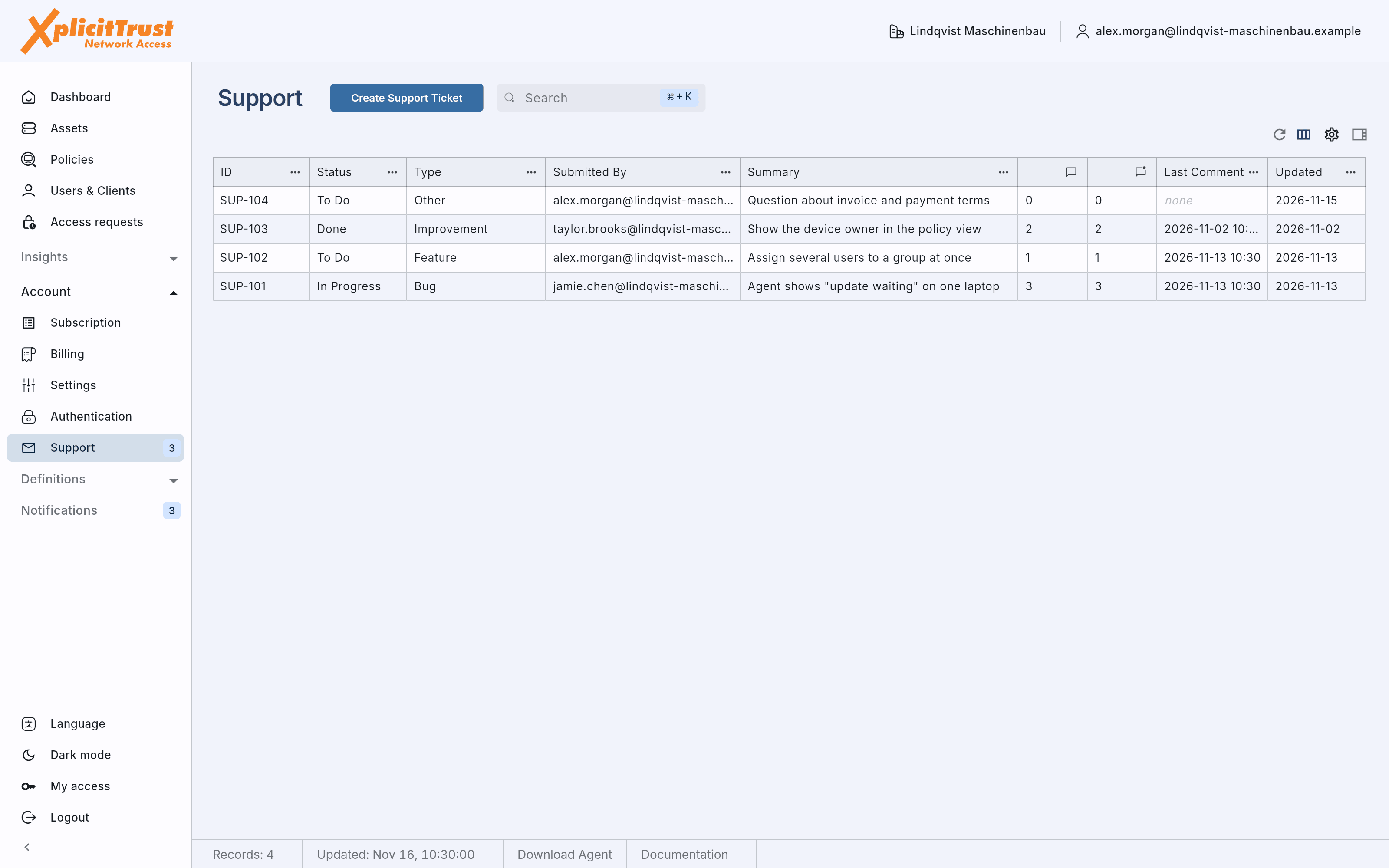
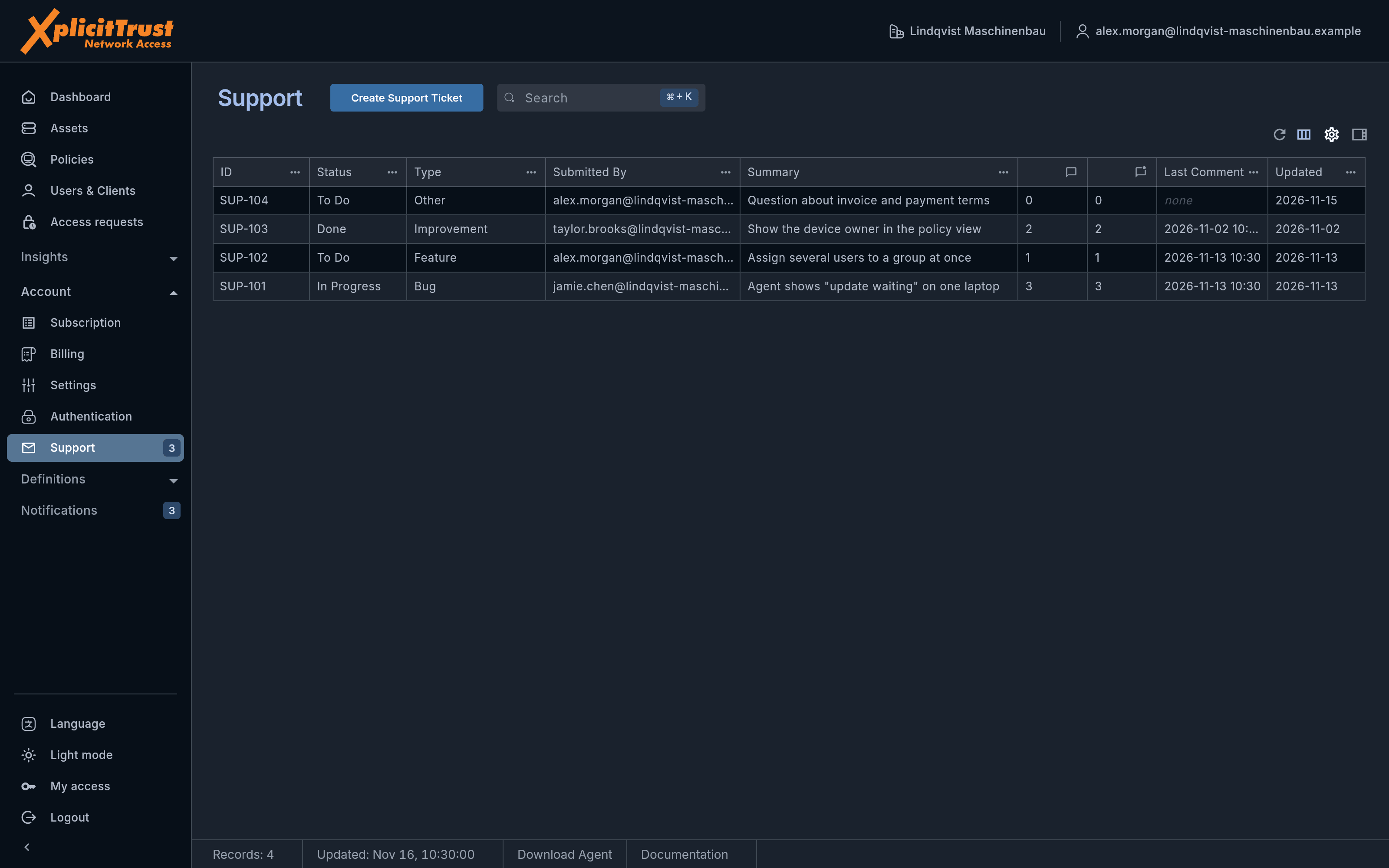
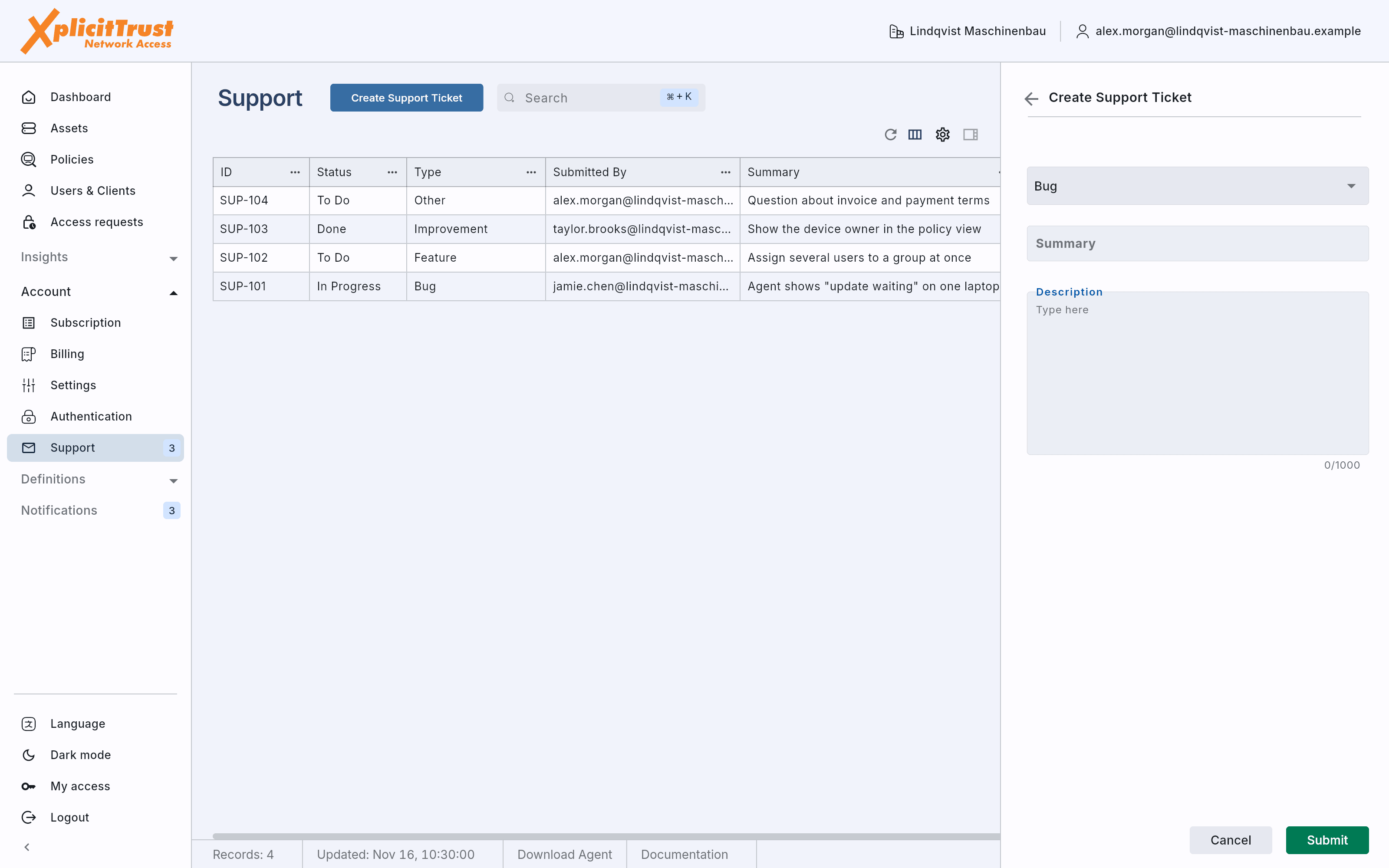
Account → Support lists the support tickets of your tenant and lets you open new ones. The number next to the menu entry is the number of tickets with comments you have not read yet. The info panel names the support email address, support@xplicittrust.com, which you can also write to.
Tickets
Every column except the two comment counters has a menu with a filter.
| Column | Meaning |
|---|---|
| ID | The key of the ticket, e.g. SUP-101. Sorted by its number. |
| Status | Where the ticket stands in the support team's process, e.g. To Do, In Progress or Done. |
| Type | Bug, Feature, Improvement or Other. |
| Submitted By | The email address of the person who created the ticket (the user name if no address is known). |
| Summary | The one-line summary. |
| Description | The start of the description, cut off after 140 characters. |
| Comment icon | The number of comments on the ticket. |
| Unread comment icon | The number of comments that are newer than the last time you opened the ticket. A ticket you have never opened counts all its comments as unread. Opening a ticket marks it as read. The read state is kept in your browser, so another browser shows its own. |
| Last Comment | Date and time of the newest comment; empty while the ticket has no comments. Can be filtered by a date range. |
| Created | The date when the ticket was created. |
| Updated | The date when the ticket was last changed. |
Clicking a ticket opens it on the right: its ID, type, status, summary, description, attachments and the comments with their authors and dates.
- Add a comment with the Add Comment field. It must have at least 10 characters. Apply posts it; Cancel clears the field.
- Add under Attachments uploads a file. Allowed are
png,jpg,jpeg,txt,log,csvandjson, up to 10 MiB per file. Images show a preview that opens enlarged on click; other files show as a chip with name and size, and clicking an attachment downloads it. The cross on an attachment deletes it (you confirm first; it cannot be undone). For full debug logs, use Send Logs on the detail view of an asset or client instead. - The icon at the top of the ticket closes it (Close Ticket). A form lets you add an optional closing comment (up to 1000 characters); Close Ticket in the form closes the ticket and returns to the list. A closed ticket (status
Done) takes no new comments or attachments, and the same icon position then offers Reopen Ticket, with an optional reason.
Creating a ticket
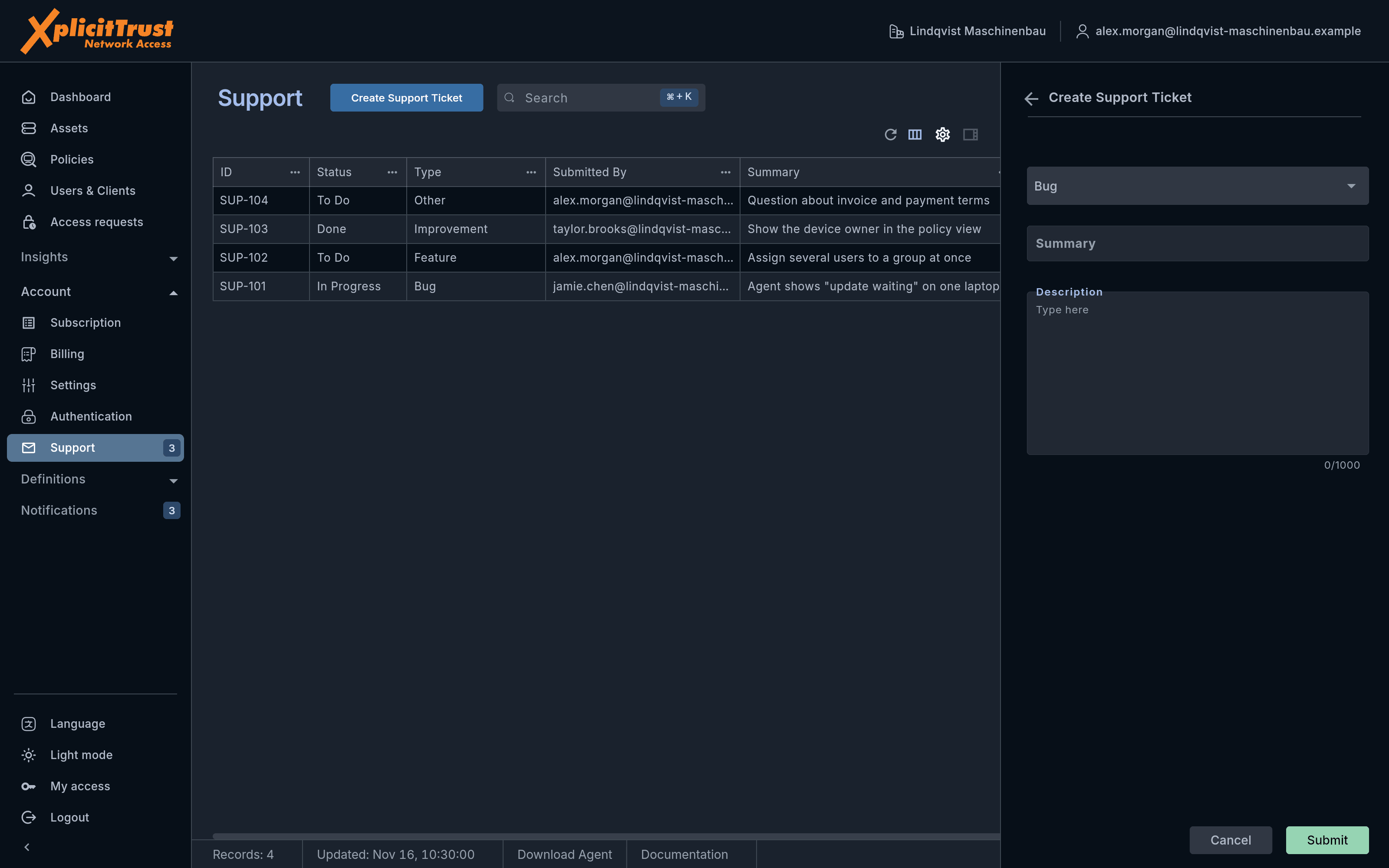
Create Support Ticket above the table opens the form on the right.
| Field | Meaning |
|---|---|
| Type (dropdown at the top) | Bug, Feature, Improvement or Other. Bug is preselected. |
| Summary | At least 8 characters. |
| Description | At least 10 and at most 1000 characters. |
Submit creates the ticket and returns to the list, which refreshes a few seconds later so that the new ticket shows up. Cancel closes the form without creating anything. Attachments are added afterwards, from the ticket.
See also
- Concept: How XplicitTrust works.
- Guide: Logs and Diagnostics and Troubleshooting.
- Reference: Settings, Limits.