Policies
Policies decide who may reach which applications and services, and under which conditions. You find them in the side menu under Policies. For what a policy is and how its parts work together, see Services and Policies.
In short
A policy names sources (user groups, machine groups, assets), destinations with services, and optional conditions. Without a policy that grants it, nothing is reachable. Use this page to create and edit policies, read the policy diagram and find which users or objects a policy reaches.
Before you start
- The destinations and services the policy should grant exist: assets, gateway objects and service definitions.
- The sources exist: user groups (import them from your identity provider if needed, see Import user groups) or machine groups.
- For a policy with approval: an approver group, see Roles.
- You are an administrator, see Roles.
Common tasks
- Give a team access to a server: Reach a server.
- Give a contractor temporary access: Give a contractor temporary access, setting Requires approval on the Advanced tab.
- Allow only compliant Windows devices: Allow only compliant Windows devices, see the Conditions tab.
- Give support staff access to all laptops: Remote support for laptops.
- Test why one user does not match: Access Diagnostic and the client insight.
Policies decide who may reach which applications and services, and under which conditions. You find them in the side menu under Policies. For what a policy is and how its parts work together, see Services and Policies.
The list
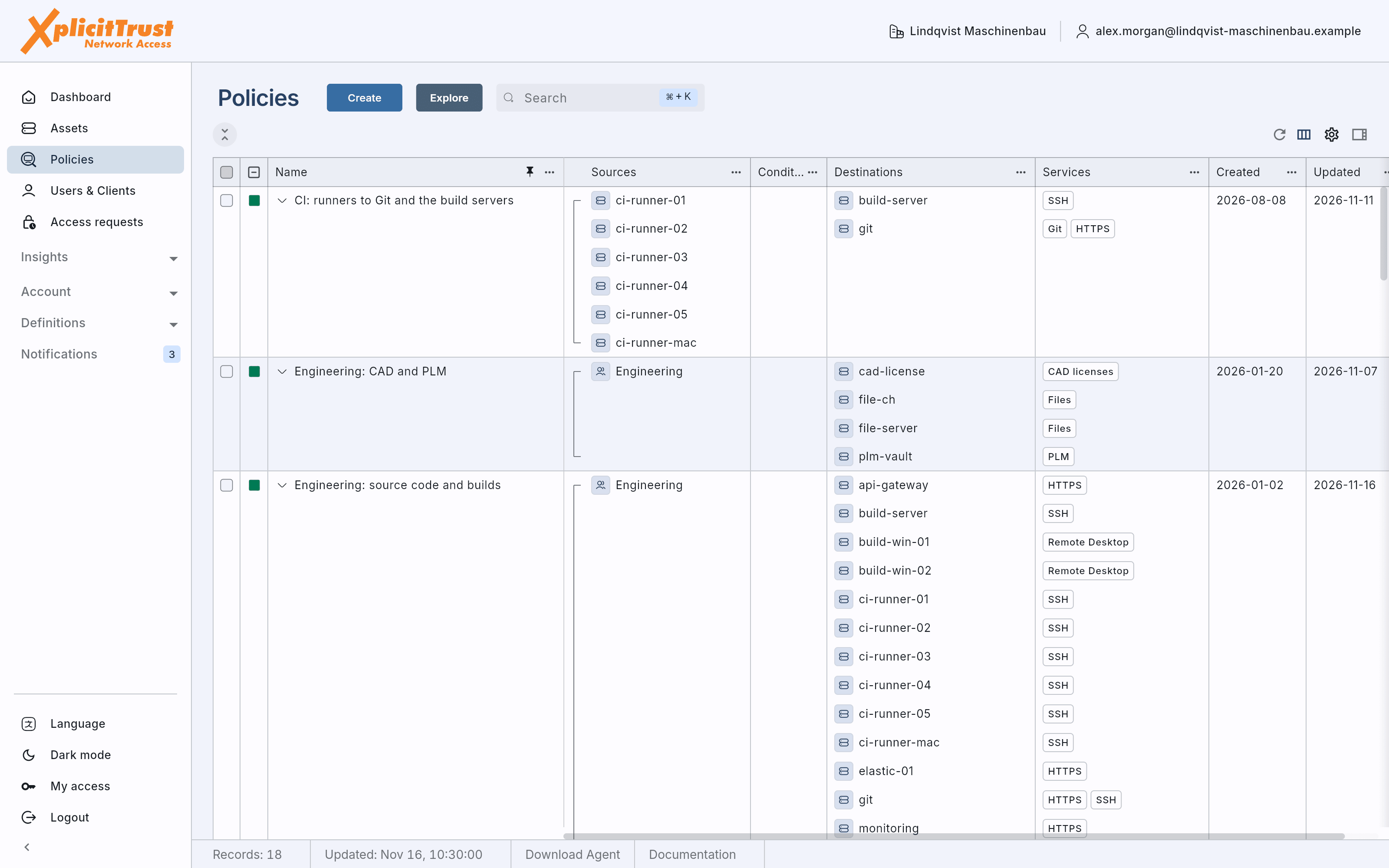
The list shows one row per policy. Next to the title are the buttons Create (opens the create form), Explore (opens the topology view) and the search field. Above the table, the arrow icon at the left expands or collapses all policies at once, and the icons at the right refresh the list, choose the visible columns and show or hide the information panel.
A policy that has more than one source or destination has an arrow in front of its name. Expanded, it shows further rows that continue both lists: row n shows the n-th source and the n-th destination with its services, so you can see which services belong to which destination. There are as many rows as the longer of the two lists. The first row always shows the first source, the first destination and the policy's conditions. Sources and destinations are listed by kind, then by name.
| Column | Meaning |
|---|---|
| Check box | Selects the policy for a mass action. The box in the header selects all policies. |
| Status | A filled green square for an enabled policy, an empty one with a dash for a disabled policy. A small warning dot marks a policy with a notification. Hover over the symbol for Enabled or Disabled and the note Notification. The column menu filters by Enabled, Disabled or Has notification. |
| Name | The policy's name. A policy that requires approval carries an Approval badge; its tooltip reads: "Requires approval: grants nothing by itself, its sources may request access". See Access requests. |
| Sources | The User Groups, Assets and Machine Groups that receive access. |
| Conditions | One small icon for each condition type the policy has: pre-authentication access, recurring time, time window, source countries (a flag), sites, and operating system. A number on an icon is the count of entries of that type; a site condition that is negated carries a red ! (before the number). Click an icon for the details. |
| Destinations | The Assets, Virtual Assets, Subnets, Machine Groups and Portals the policy makes available. |
| Services | The services granted on the destination in the same row. For a Portal it is the portal's address. A Subnet or Virtual Asset without selected services has the predefined All service. |
| Tags | The policy's tags. |
| Created, Updated | When the policy was created and last changed. |
Most columns can be hidden with the column chooser. Each column header has a menu to filter and sort; the date columns also filter by a date range. Selecting a row opens the detail panel and the diagram; the X of the panel closes them.
The side panel of the list itself, shown when no policy is selected, holds the help text of the page.
Mass actions
Ticking the box of one or more policies opens the Mass Action panel with the selection ("3 Policies selected") and the policies listed. The actions are icons in the panel header; hover over an icon for its name:
| Icon | What it does |
|---|---|
| Update Destinations | Two lists. Add Destinations adds the destinations you select to all selected policies; Remove Destinations removes from all selected policies the destinations you deselect in its list. Apply asks "Apply changes?" and states: "Do you really want to change the destinations of the selected Policies?" |
| Update Tags | The field Add / Remove Tags starts with the tags of all selected policies together. Apply gives every selected policy exactly the tags in the field: a tag you remove is removed from all of them, and each policy gets every tag that remains. There is no further confirmation. |
| Toggle State | Enables or disables all selected policies with the switch Enabled/Disabled. Apply asks "Apply changes?" and states: "Do you really want to change the state of the selected Policies?" |
| Delete Selected | Deletes all selected policies after you confirm "Are you sure you want to delete N policies?". |
Policy diagram
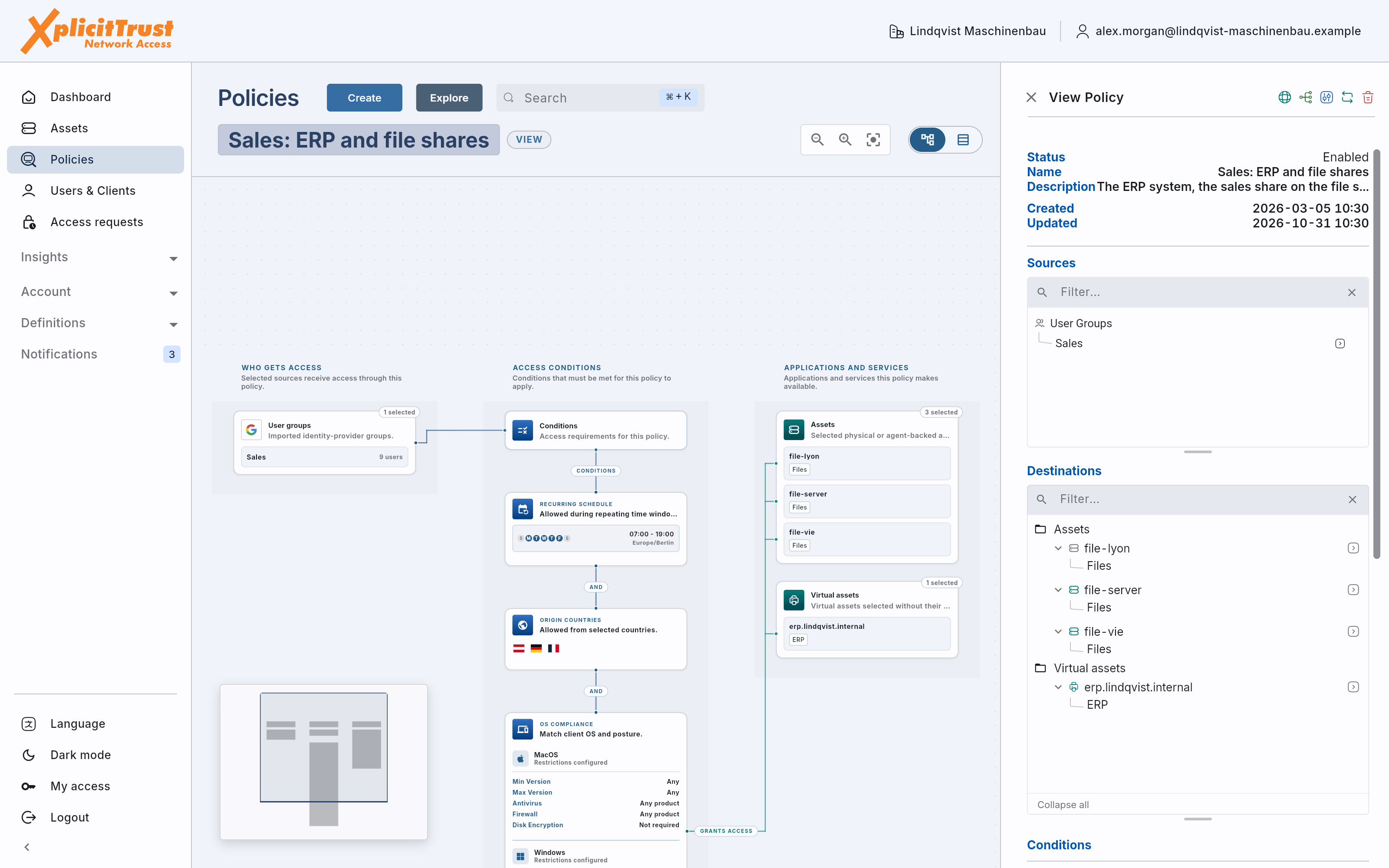
Opening a policy, creating one or editing one replaces the list with a diagram of the policy. It reads from left to right:
| Column | Meaning |
|---|---|
| Who gets access | "Selected sources receive access through this policy." The sources by kind: User groups (imported identity-provider groups), Local user groups, Source assets, Clients and Machine Groups. A user group row shows how many users the group has. |
| Access conditions | "Conditions that must be met for this policy to apply." The Conditions node ("Access requirements for this policy.") is followed, joined by an edge labelled conditions, by one box per kind of condition the policy has: Pre-Authentication Access, Recurring schedule, Date Range, Origin Countries, Origin Sites (Blocked Sites when the site condition is negated) and OS Compliance. An edge labelled and joins the boxes; the last one leads, by an edge labelled condition fails, to "Rejected if an access condition fails". A policy without conditions shows the Conditions node alone. |
| Applications and services | "Applications and services this policy makes available." The destinations by kind (Assets, Virtual assets, Subnets, Portals, User clients, Machine Groups), each with its services. The edge grants access joins the conditions (or, without any, the Conditions node) to the destinations. |
Every box states how many entries are selected ("1 selected", "2 selected" or "None"); a long list shows the first entries and "+N more".
The controls above the diagram:
| Control | What it does |
|---|---|
| Title and badge | The policy's name (unnamed policy while new) and a badge VIEW, EDIT, NEW or CLONE. |
| Magnifier icons | Zoom Out, Zoom In and Reset View. |
| Canvas / Table switch | Two icons that switch between the diagram and the policy list while the panel stays open. The console remembers your choice. |
The small overview in the lower left corner shows which part of the diagram you see.
Detail panel
The panel View Policy opens at the right when you select a policy.
| Field | Meaning |
|---|---|
| Status | Enabled or Disabled. |
| Name, Description | As entered. |
| Created, Updated | Date and time. |
| Notification | A notice at the top of the panel when the policy has one. |
| Pre-Authentication Access | Shown, as Enabled, only when the policy uses it. |
| User-switchable access | Shown only when it is on, with the Initial state (On or Off). |
| Just-in-time access | Shown only for a policy that requires approval: Requires approval, the Approver groups, the Longest approval and Allow recurring requests. A warning lists other policies that already give the same access without approval. |
| Sources | A filterable tree of the User Groups, Assets, clients and Machine Groups of the policy. The arrow beside an entry opens it. |
| Destinations | A filterable tree of the destinations with their services. Collapse all folds the tree. |
| Conditions | The operating system, Recurring Time Windows, Non-recurring Time Windows, Source Countries and Policy Source Sites (with Negate Source Sites as Enabled when set) of the policy. Without any it reads "No limiting conditions configured". |
| Tags | The policy's tags. |
The icons in the panel header:
| Icon | What it does |
|---|---|
| Globe, Open in Topology | Opens the topology view with the policy selected. |
| Insights | Opens the insight panel. |
| Edit | Opens the edit form. |
| Clone | Opens the form with a copy of the policy, named Copy Of followed by the name. Applying creates a new policy; the original stays. |
| Delete | Deletes the policy after you confirm. |
Create and edit
Create opens the form Create Policy at the right, with the diagram of the new, still empty policy at its left. The diagram follows what you enter.
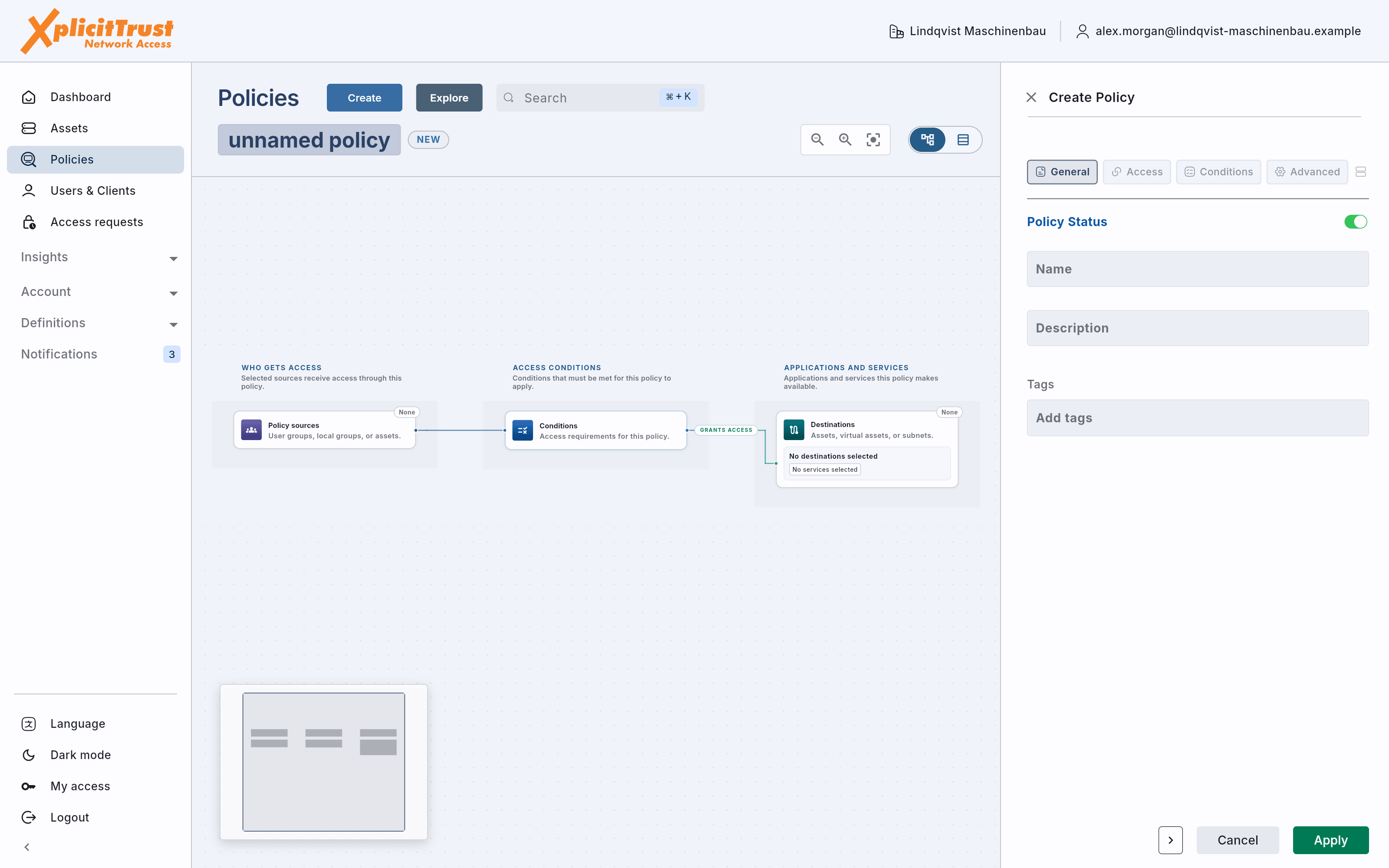
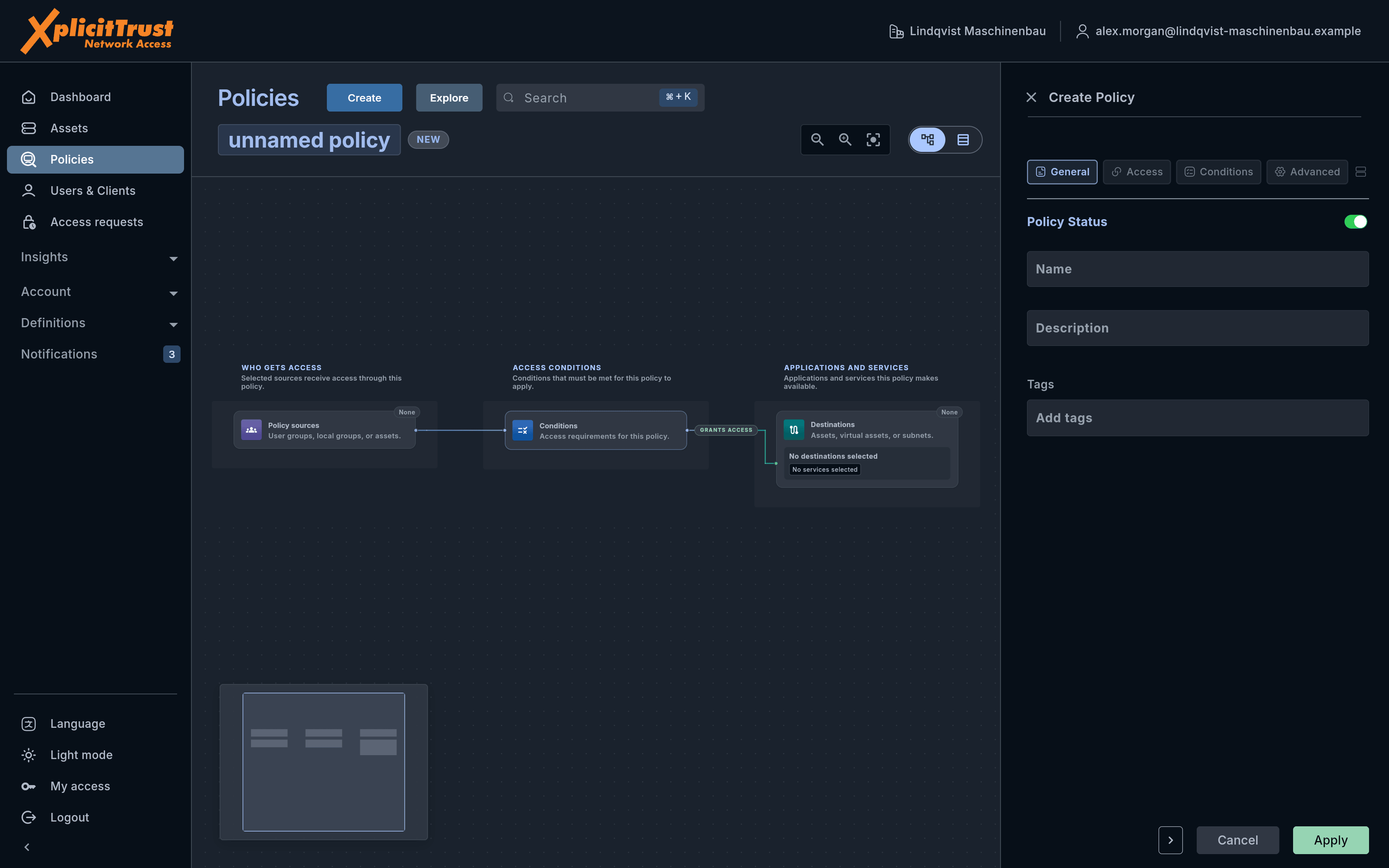
The form has four tabs: General, Access, Conditions and Advanced. The arrow buttons at the bottom, next to Cancel and Apply, go to the next and the previous tab. The small icon at the right of the tab row shows all four sections one below the other instead of in tabs; the console remembers the setting.
Apply saves the policy ("Policy created successfully") and opens it in the detail panel. Cancel closes the form (for a new policy it returns to the list). If something is missing, a message "Missing fields" with "Please check your input" appears and nothing is saved.
General tab
| Field | Meaning |
|---|---|
| Policy Status | Switch; on by default for a new policy. |
| Name | Required, at least 3 characters (blanks at the ends do not count). |
| Description | Free text. |
| Tags | Tags (hint Add tags). They are suggested from the tags already in use; only the allowed characters are accepted. |
Access tab
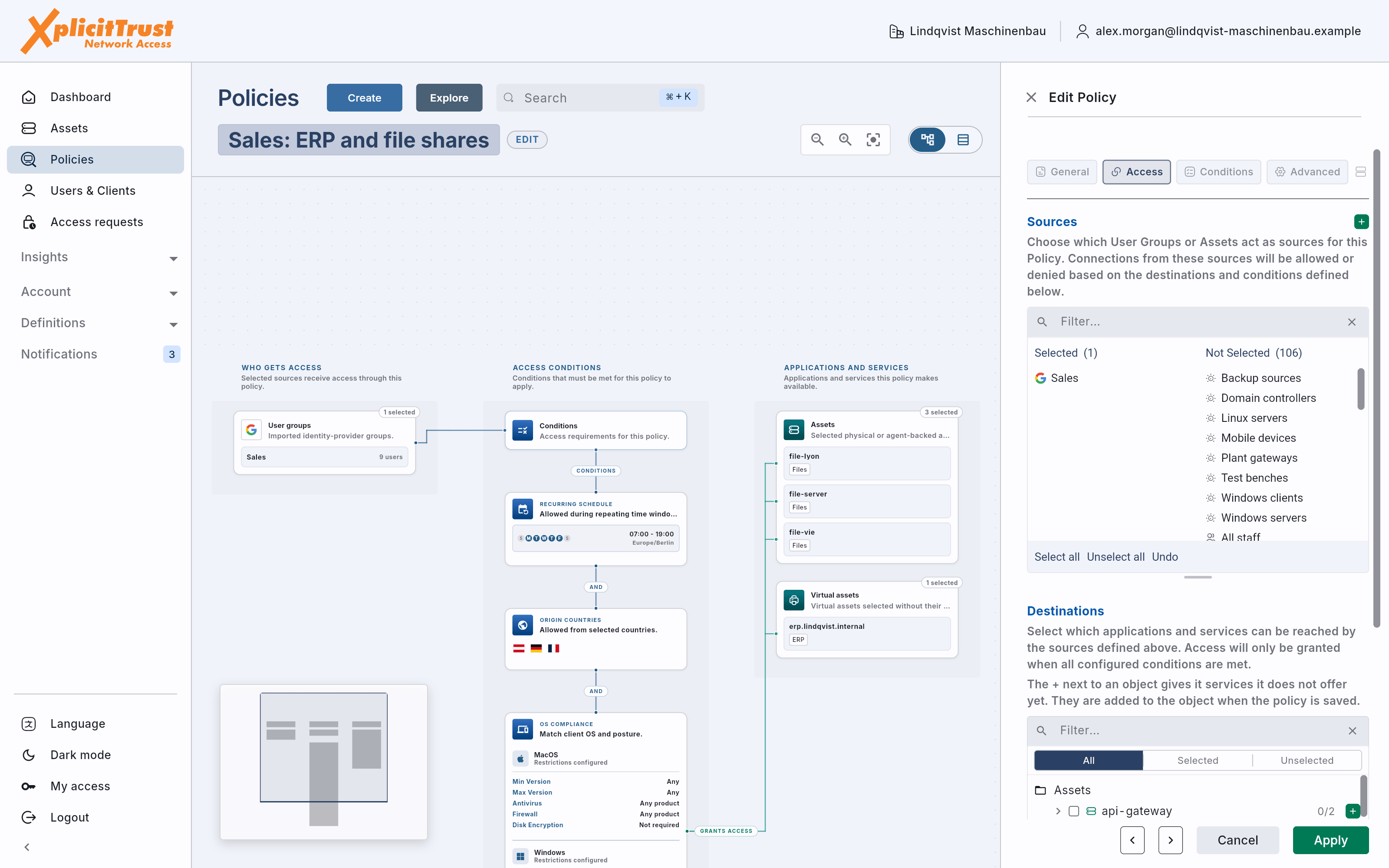
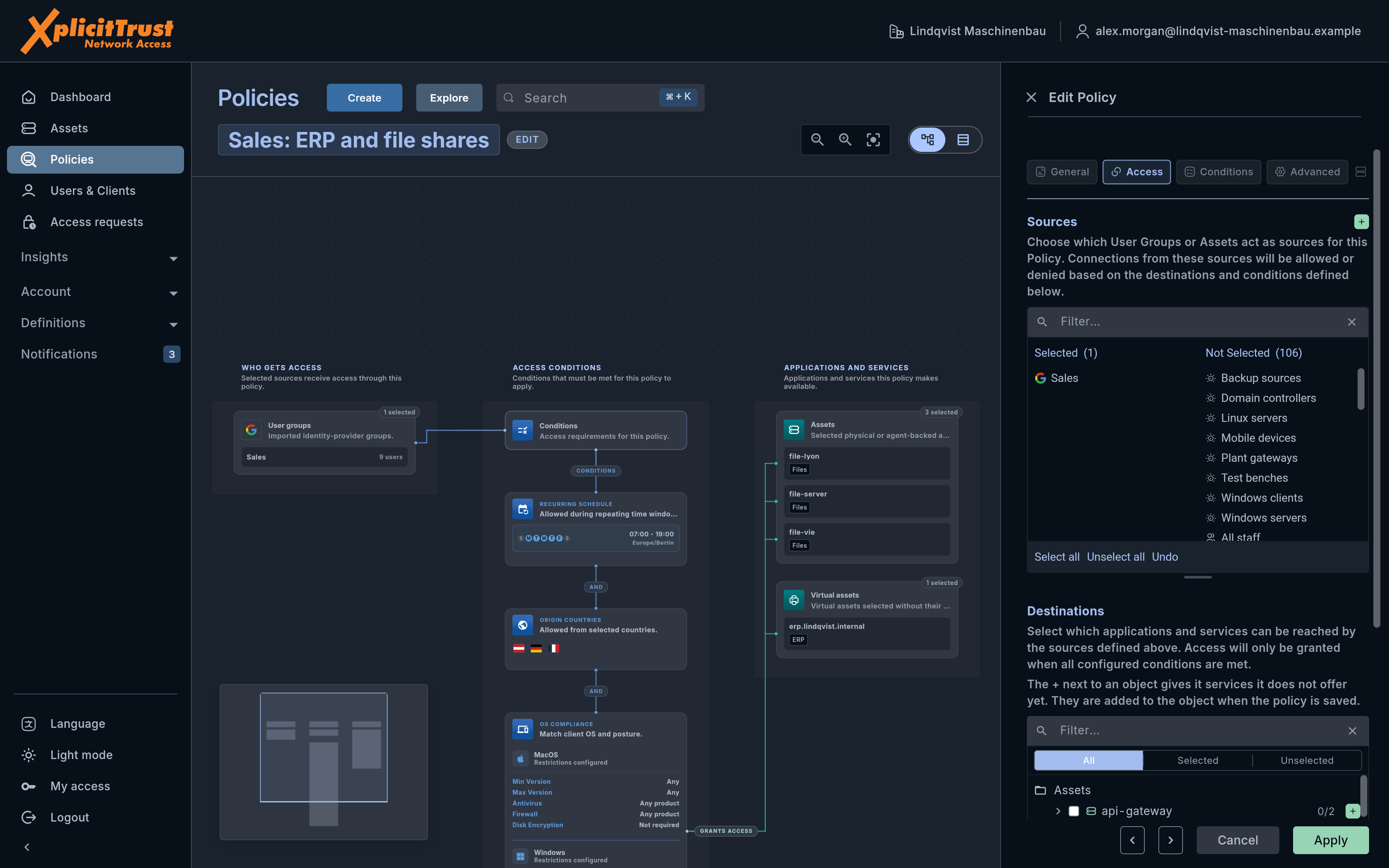
| Field | Meaning |
|---|---|
| Sources | "Choose which User Groups or Assets act as sources for this Policy. Connections from these sources will be allowed or denied based on the destinations and conditions defined below." The selection list offers user groups (imported and local), assets and machine groups. The green + next to the heading (tooltip Import User Groups) opens the import of user groups. |
| Destinations | "Select which applications and services can be reached by the sources defined above. Access will only be granted when all configured conditions are met." A tree of the Assets, Virtual Assets, Subnets, Machine Groups and Portals; you tick the objects and the services to grant. |
The + beside a destination (tooltip Add services) opens a list of services the object does not offer yet. The ones you pick are ticked for this policy and added to the object when the policy is saved. New service creates a service definition in place: a name and at least one protocol and port; the name must not exist yet. If adding the services fails, the policy is not saved. The arrow beside a destination opens the object itself. See User Groups and Machine Groups for groups as sources and destinations.
Conditions tab
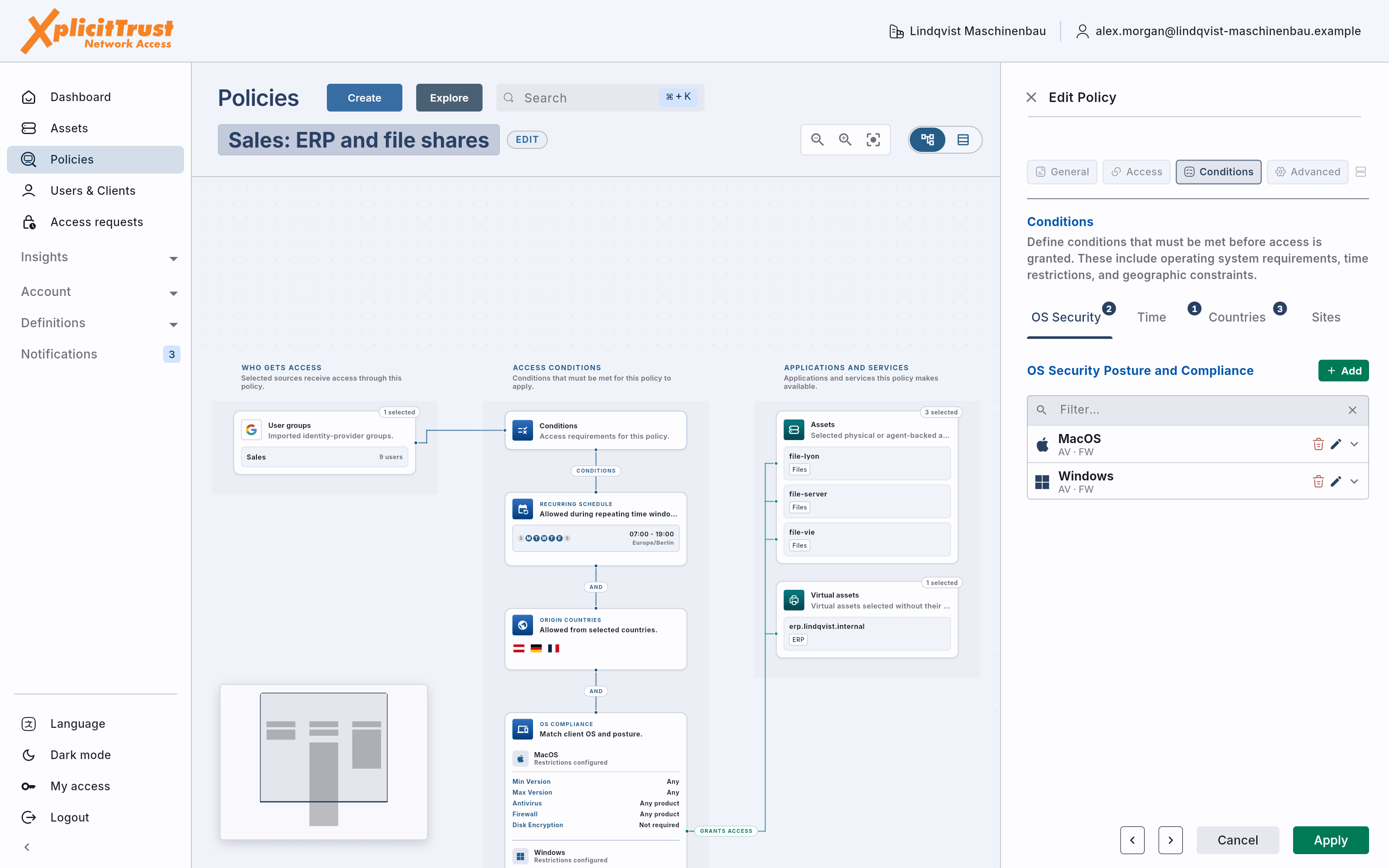
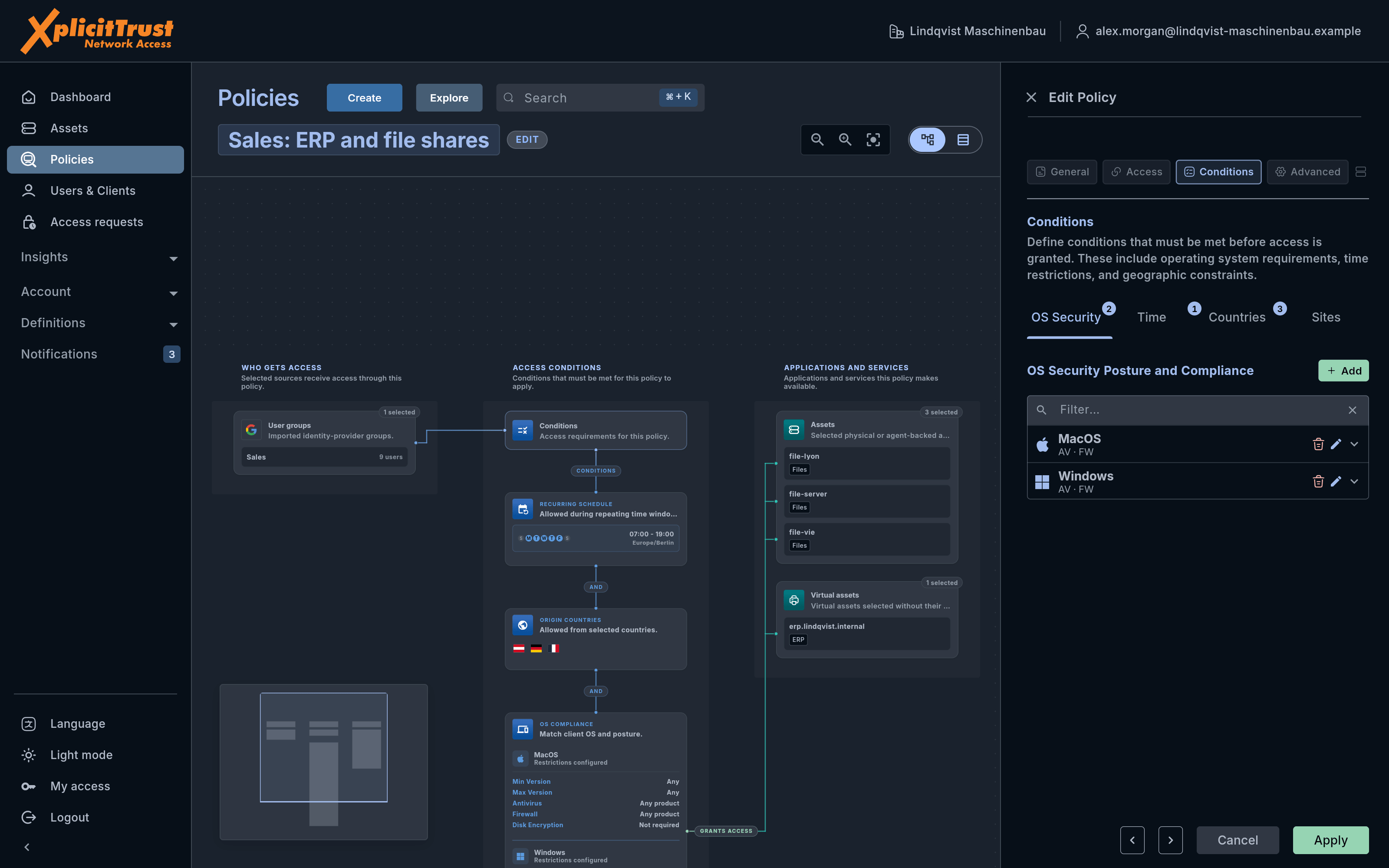
"Define conditions that must be met before access is granted. These include operating system requirements, time restrictions, and geographic constraints." The tab has four sub-tabs; a number on a sub-tab counts its entries.
| Sub-tab | Content |
|---|---|
| OS Security | Operating system conditions. Add (it turns into Close) opens a form with Cancel and Save. You choose the system (Windows, macOS, Linux and others the list offers), for Linux the platform, and the lowest (Min Version) and highest (Max Version) version, each Any by default. Further requirements depend on the system: on Windows Verify Antivirus Status, Verify Firewall Status, Verify Active Directory Domain, Verify Entra ID Domain, Verify Intune Managed and Require a device certificate (with an Issuing CA, Any trusted CA by default); on macOS Verify Antivirus Status, Verify Firewall Status, Require Gatekeeper and Require System Integrity Protection (SIP). On Windows and macOS also Require Disk Encryption and Require OS Updates; with the latter ticked you choose Max updates behind (1 to 6) and may tick Reject End-of-Life OS versions. An entry can be edited (Edit OS Condition) or deleted (Delete OS Condition). For the device certificate, see Device certificates. |
| Time | Recurring Time Windows: weekdays (choose days by their initials), a start and an end time (Set From, Set To) and a time zone. Non-recurring Time Windows: a date range with Set From and Set To. Each has an Add button (it turns into Close) and Save and Cancel in its form. |
| Countries | Source Countries: the countries access is allowed from. |
| Sites | Policy Source Sites: the Sites the clients must connect from. The + (tooltip Create Site) creates a site on the spot. The switch Negate Source Sites turns the condition around: "Apply Policy to clients not connecting from selected Sites." |
Access is granted only when all configured conditions are met. See Conditions.
Advanced tab
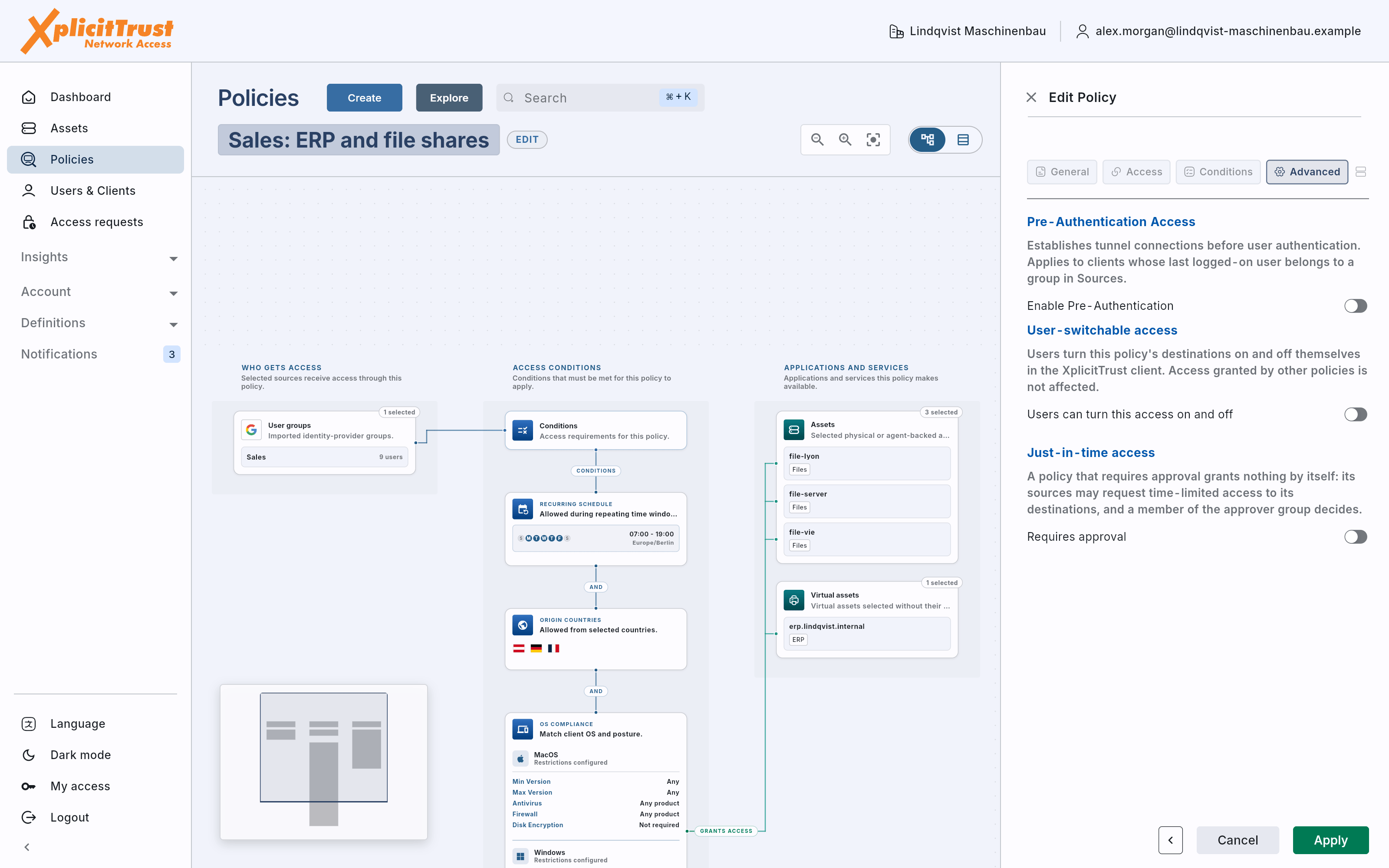
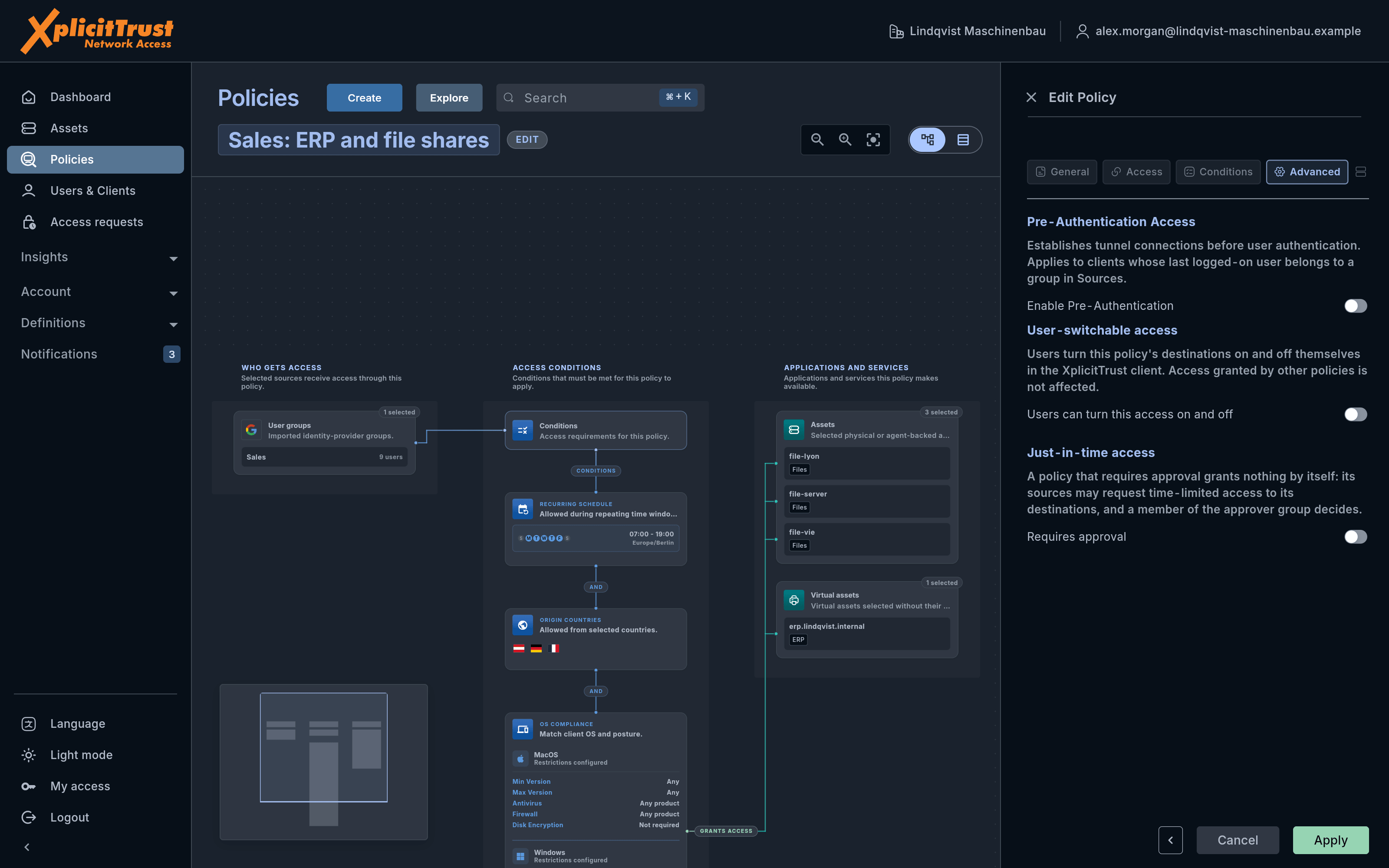
| Section | Meaning |
|---|---|
| Pre-Authentication Access | The switch Enable Pre-Authentication "establishes tunnel connections before user authentication. Applies to clients whose last logged-on user belongs to a group in Sources." See Pre-authentication Access. |
| User-switchable access | The switch Users can turn this access on and off: users turn the destinations of this policy on and off themselves in the client; access granted by other policies is not affected. With it on, a second switch Initial state sets whether the access starts On or Off. Destinations with the same address range or DNS name are mutually exclusive: turning one on turns the others off. |
| Just-in-time access | The switch Requires approval turns the policy into one that grants nothing by itself: its sources may request time-limited access to its destinations, and a member of an approver group decides. See Just-in-Time Access. With the switch on, the section shows the fields below. |
Fields of Just-in-time access:
| Field | Meaning |
|---|---|
| Approver groups | The User Groups whose members decide requests. Required; a member of any of them may decide. All Users is not offered as an approver group: a policy saved with it earlier asks for another group when you edit it. |
| Longest approval | Required. A duration from the list (30 minutes up to 7 days) or Custom with a number of Minutes from 5 to 10080. |
| Allow recurring requests | Switch. Users may ask for the same hours on chosen days over a series of days, approved once. Each occurrence lasts at most the longest approval. |
| Longest series (days) | Shown with the switch on; 1 to 180 days, 28 when you switch it on. |
The policy cannot be saved while a required field of an approval policy is empty or out of range.
Edit a policy
Edit in the detail panel opens the form Edit Policy with the current values; the fields are those of the create form.
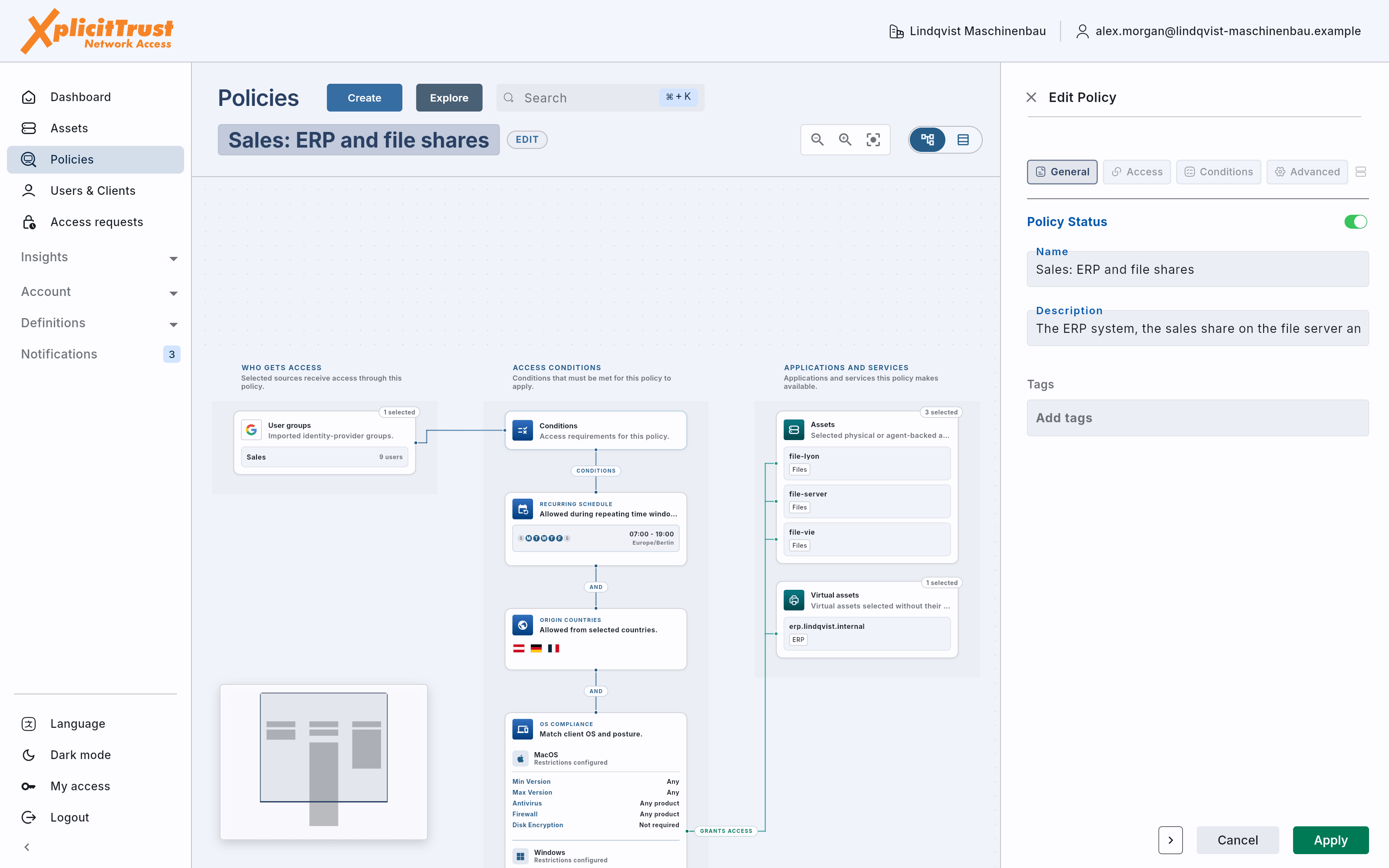
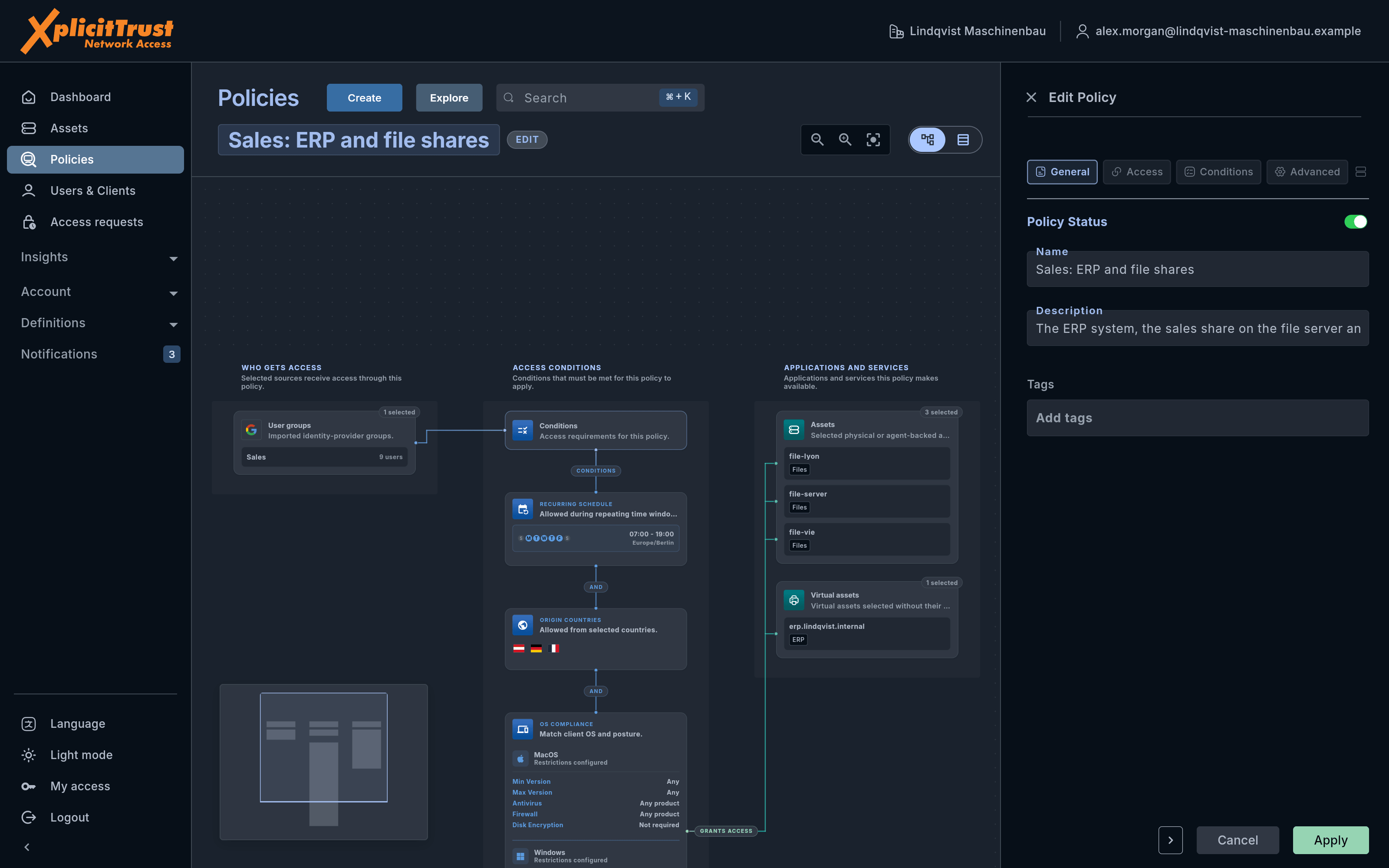
Apply saves and returns to the detail panel ("Policy updated successfully"); Cancel returns without saving. A source of the policy that the selection list does not offer is kept when you save.
Insight
The Insights icon in the detail panel opens the panel Insight for the policy. How the panel works is described once under Insight panel.
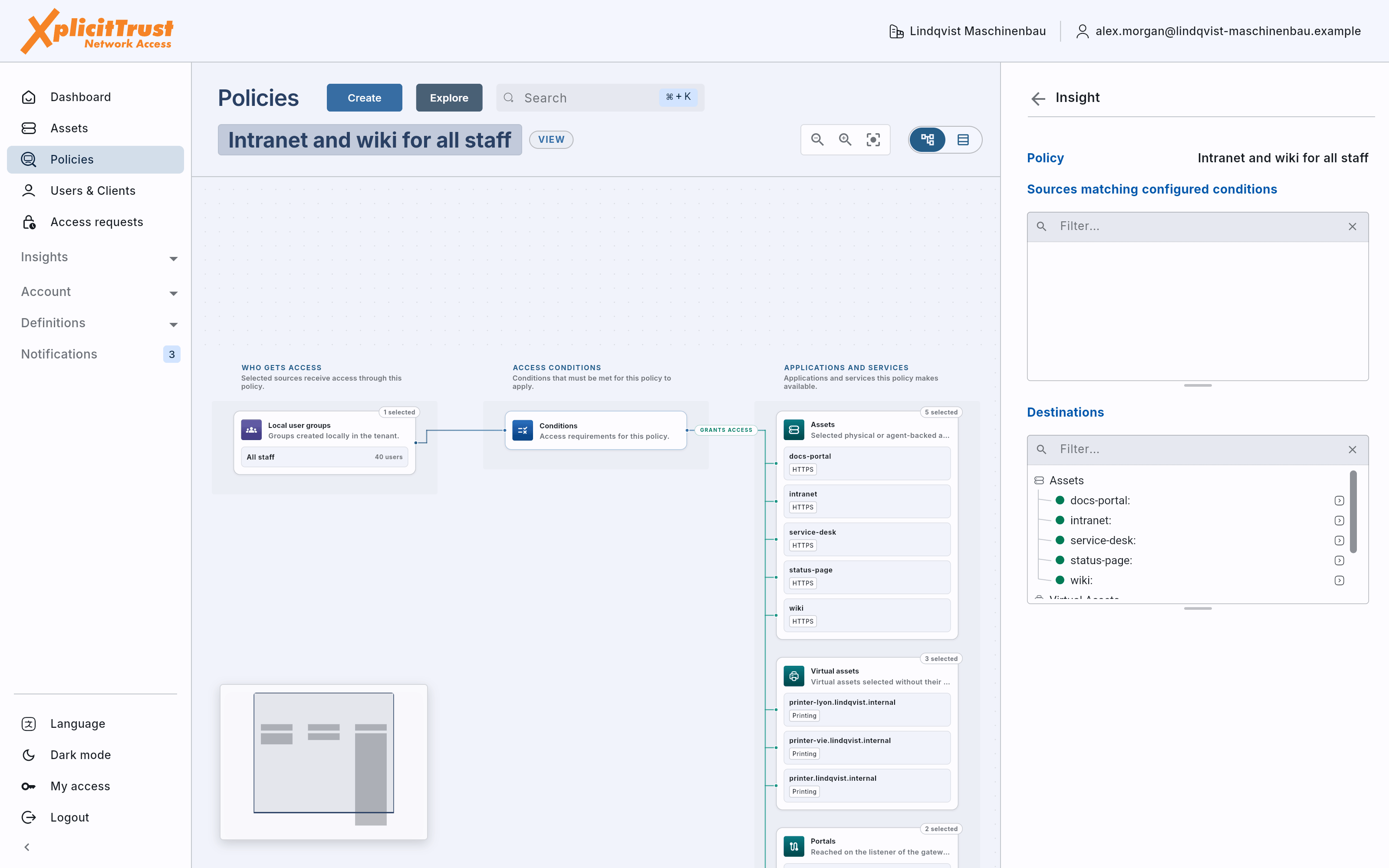
| Field | Meaning |
|---|---|
| Policy | The policy's name. |
| Sources matching configured conditions | The sources that meet the policy's conditions. |
| Destinations | The destinations of the policy with a status dot for each. |
Import user groups
The panel Import User Groups loads the groups of your identity provider so you can use them as sources. You reach it from the + next to Sources on the Access tab. The form stays open behind it.
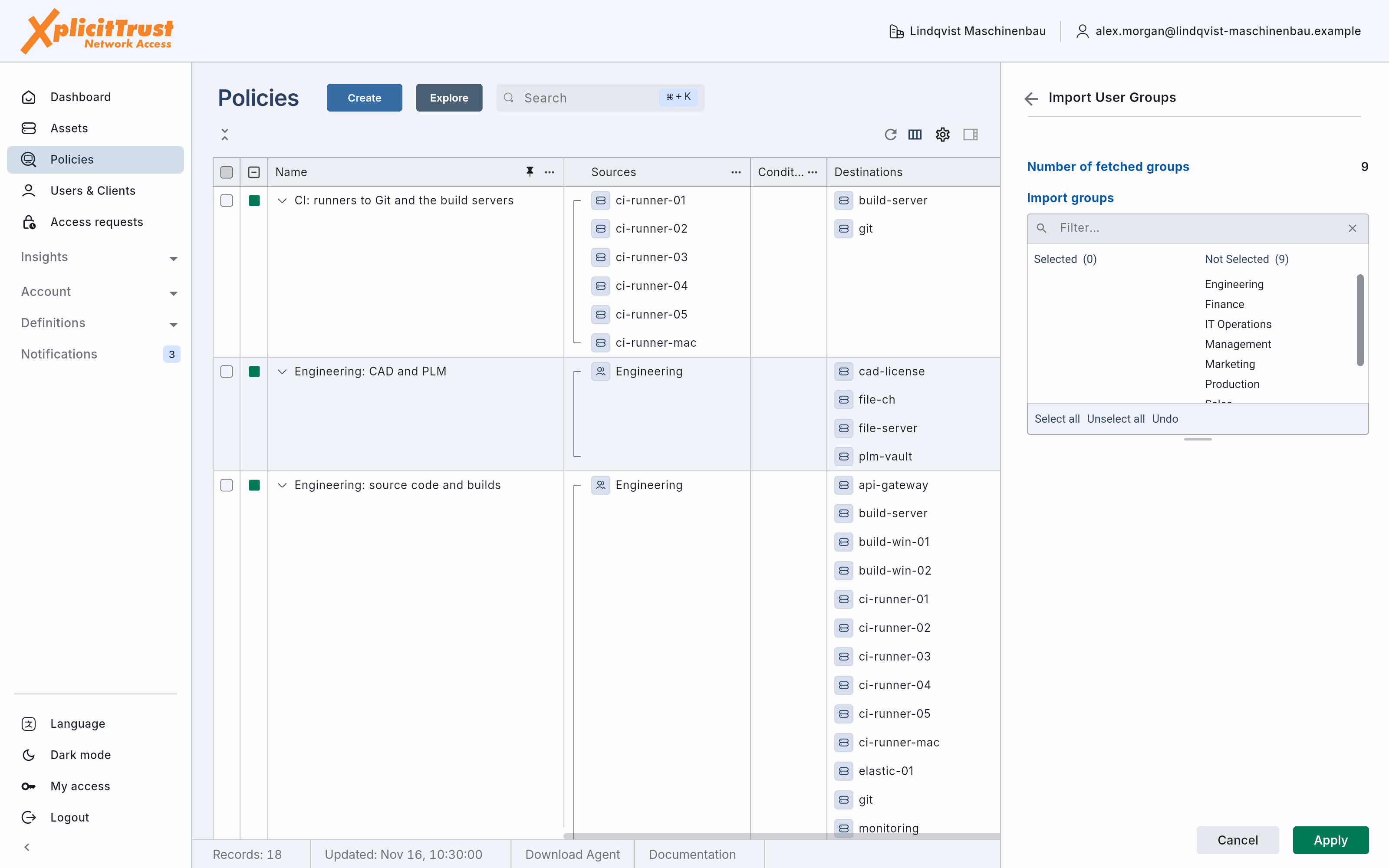
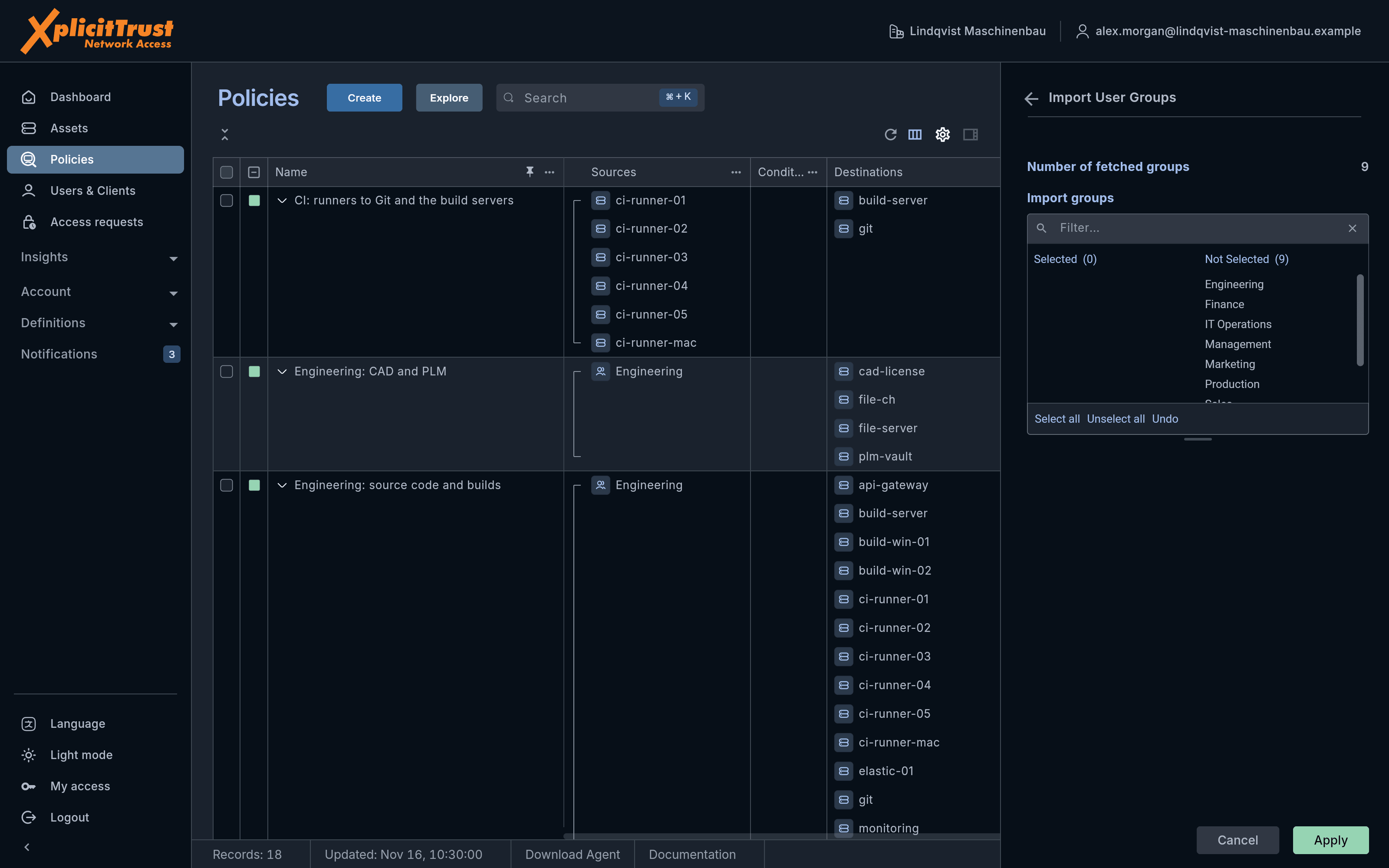
| Element | Meaning |
|---|---|
| Number of fetched groups | How many groups the identity provider returned. |
| Import groups | A list with two columns, Selected (n) and Not Selected (n), and a filter field. Select all, Unselect all and Undo work on the list. |
| Apply | Imports the selected groups. "Import was completed" confirms it and the panel closes; the groups are then available as sources. |
| Cancel / back arrow | Closes the panel without importing. |
With Microsoft Entra ID as identity provider and no admin consent granted yet, the panel shows Admin Consent Required: "Please go to the Tenant Authentication Settings and grant Admin Consent in Microsoft Entra ID." Go to Settings closes the panel. See Grant Admin Consent for the identity provider setup.
See also
- Concept: Services and Policies and Just-in-Time Access.
- Guide: Reach a server and Give a contractor temporary access.
- Reference: Definitions, Access Diagnostic, Limits.