Users & Clients
Users & Clients lists the people who sign in to your tenant and, below each of them, the devices (Clients) they use. You find it in the side menu as Users & Clients. Users and Clients are created automatically when someone signs in with the agent; you use this area to see their state, change their settings and remove them. For what a Client is, see Clients and Assets.
In short
Users appear when someone signs in with the agent, and their devices (Clients) with them. You use this page to find a user or device, see its state, change tags, logging and isolation, send logs, and see what the policies give it. You rarely create users by hand.
Before you start
- Users and Clients register themselves when someone signs in with the agent: install it first, see Windows, macOS or Linux.
- Roles come from your identity provider, see Roles. With strict role enforcement a user without the user role cannot connect.
- To hold new clients back until approved: Auto-Disable New Clients.
Common tasks
- Find out why a user cannot reach something: Access Diagnostic and Insight.
- Put devices into a group for policies: Machine groups.
- Collect logs from a device: Send logs and Logs and Diagnostics.
- Disable or remove a lost device: Edit a Client and Mass actions.
- Roll out the agent to many laptops: Silent and MDM Deployment.
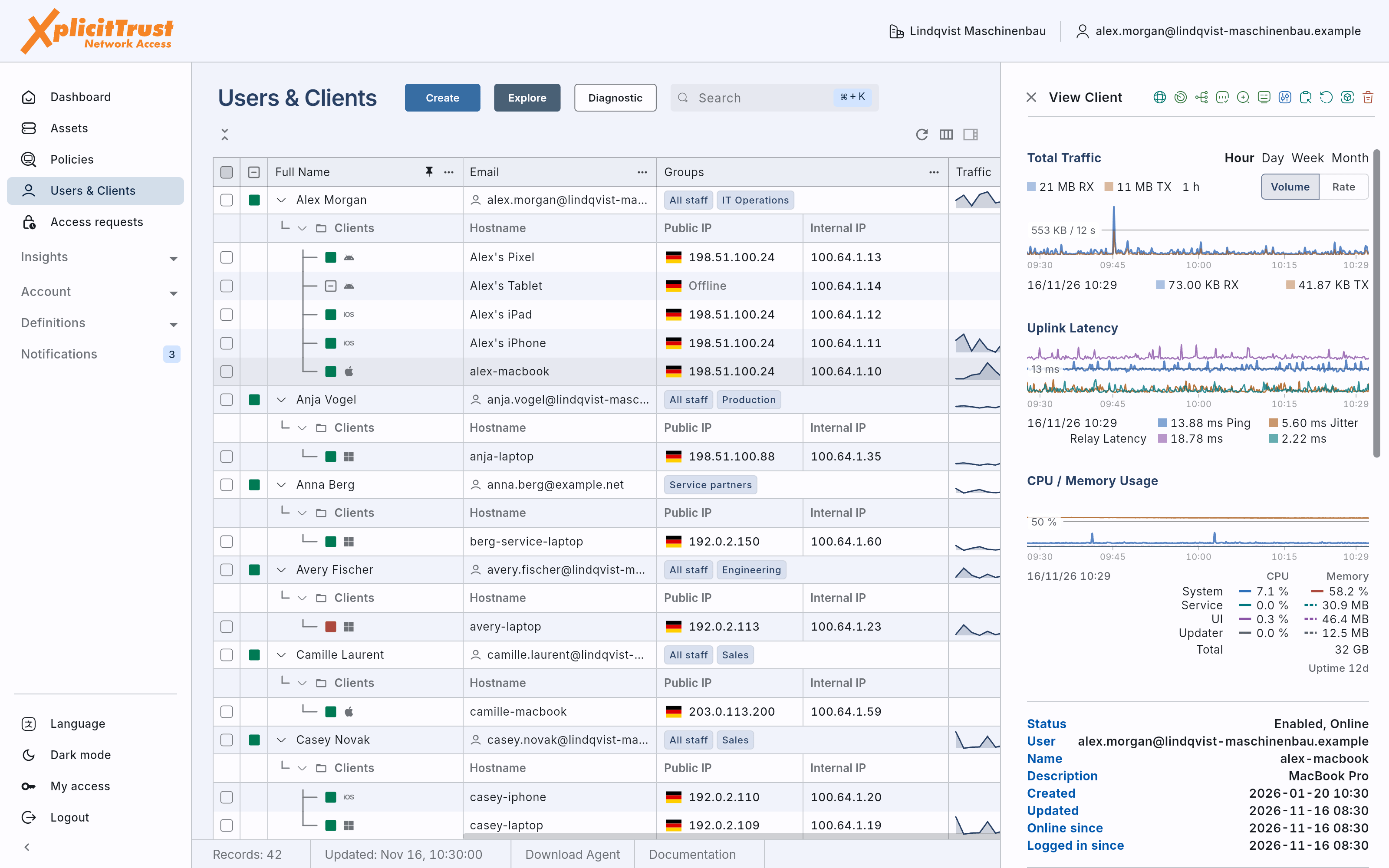
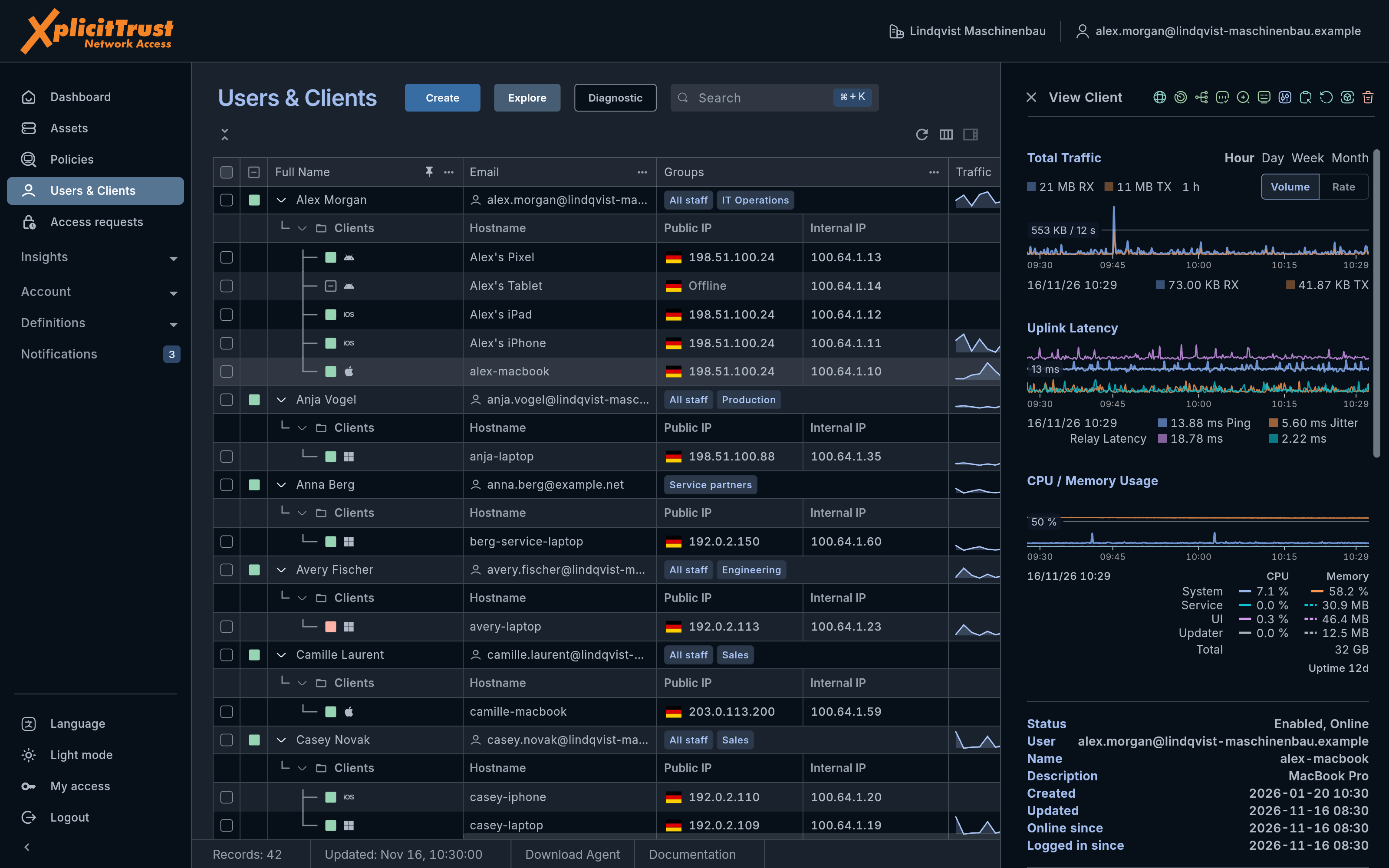
The list
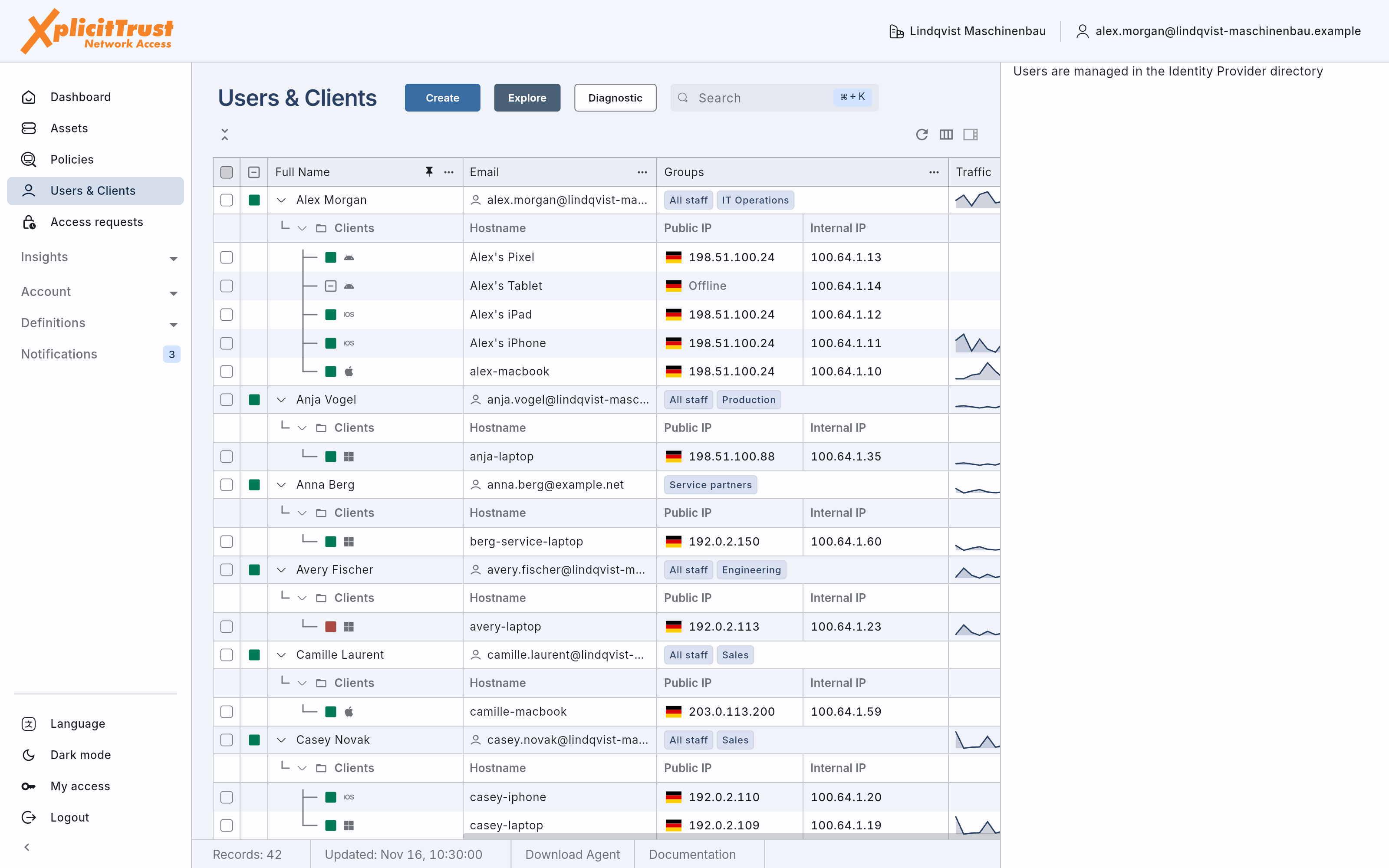
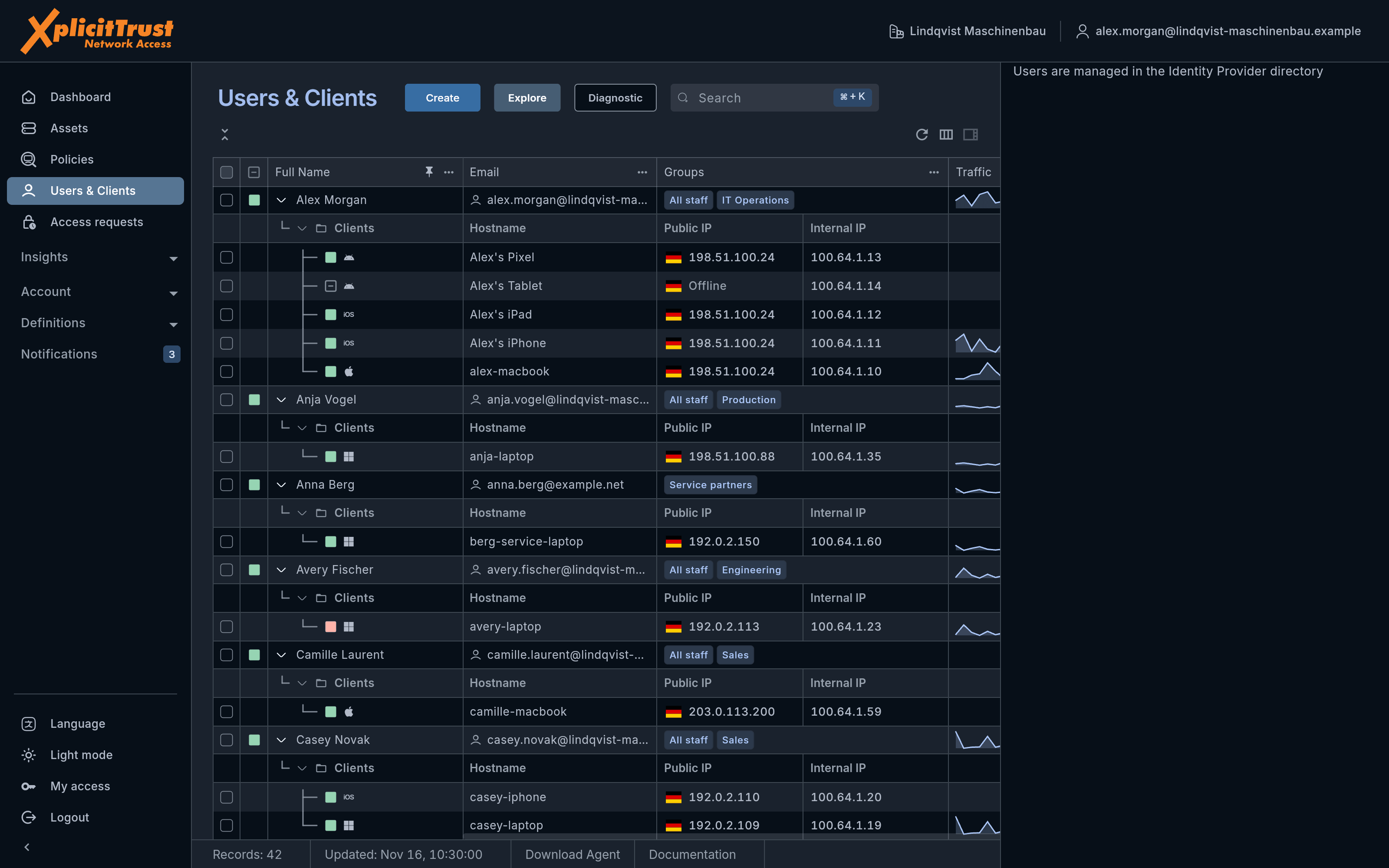
The list shows one row per user. Click the arrow in front of a user to expand it: the user's Clients appear below it, with their own column headings (Hostname, Public IP, Internal IP) in a sub-header row. Click a row to open its detail panel on the right. Tick the checkbox of one or more rows to act on several at once, see Several users or Clients at once.
Above the list:
| Button | What it does |
|---|---|
| Create | Opens the help for installing the agent on a new device, because Clients register themselves, see Windows, macOS and Linux; the help also covers iOS and Android. On tenants that use a Google personal account (Gmail) as identity provider it is a menu with User (opens Create a user) and Client (the install help). |
| Explore | Opens the topology view with the Users and Clients columns. |
| Diagnostic | Opens the Access Diagnostic. |
| Search | Filters the list as you type. Ctrl/Cmd + K jumps into the field. |
The icons above the table refresh the list, choose which columns are shown and show or hide the side panel. With nothing selected, the side panel shows a short help text: users are created when someone authenticates with the agent, and Clients when a user logs in on a device.
Columns
| Column | Meaning |
|---|---|
| (checkbox) | Selects the row for actions on several rows. |
| (status) | For a user row: online or offline, with the time of the last contact in the tooltip. The column menu filters by Online, Offline and Disabled; Disabled matches Client rows only. For a Client row the status symbol is shown in front of the operating system icon in the Full Name column, see Client status. |
| Full Name | The user's name. On Client rows this column holds the status and the operating system symbol. Fixed in place when you scroll sideways. |
| The user's email address. On Client rows the column is headed Hostname and shows the device's host name (Never online if the Client has not connected yet, Unknown host if it reports none). | |
| Groups | The User Groups the user is a member of, as chips; more than fit are summed up as +n with the names in the tooltip. On Client rows this space is split in Public IP (with the country flag; Offline while the Client is offline, Unknown if it never connected) and Internal IP (the tunnel address of the Client). |
| Traffic | A small graph of the traffic of the user or Client. |
| Isolation | On Client rows a shield: filled when Isolation is on (Isolation: ON), faint when off. Empty for mobile Clients (iOS, Android), which have no host firewall. The column menu filters by Isolated and Not isolated. |
| Tags | The tags of the user or Client. |
| Last Online | When the user was last online: the latest contact of any of the user's Clients. Empty on Client rows. |
| Created | When the user was created. Empty on Client rows. |
| Updated | When the user was last changed. Empty on Client rows. |
Every column can be sorted and filtered from its menu (the ... in the header). The list is sorted by Full Name by default.
Client status
The symbol in front of a Client's operating system describes its state; the tooltip gives the exact words.
| State | Shown when |
|---|---|
| Disabled | The Client was disabled in its edit form. |
| Offline, last seen ... | The Client is not connected. |
| Online (pre-authenticated) | The Client is connected, but nobody is signed in on it yet. See Pre-authentication Access. |
| Online (another user is signed in) | The Client is connected and a different user holds the session on the machine. |
| Online since ... | The Client is connected and its user is signed in. |
If the antivirus product of a Windows Client reports a poor state, the symbol turns red and the tooltip adds Check the anti virus product status!.
Detail panel
The panel for a user and the panel for a Client are described below.
User detail panel
Click a user to open View User.
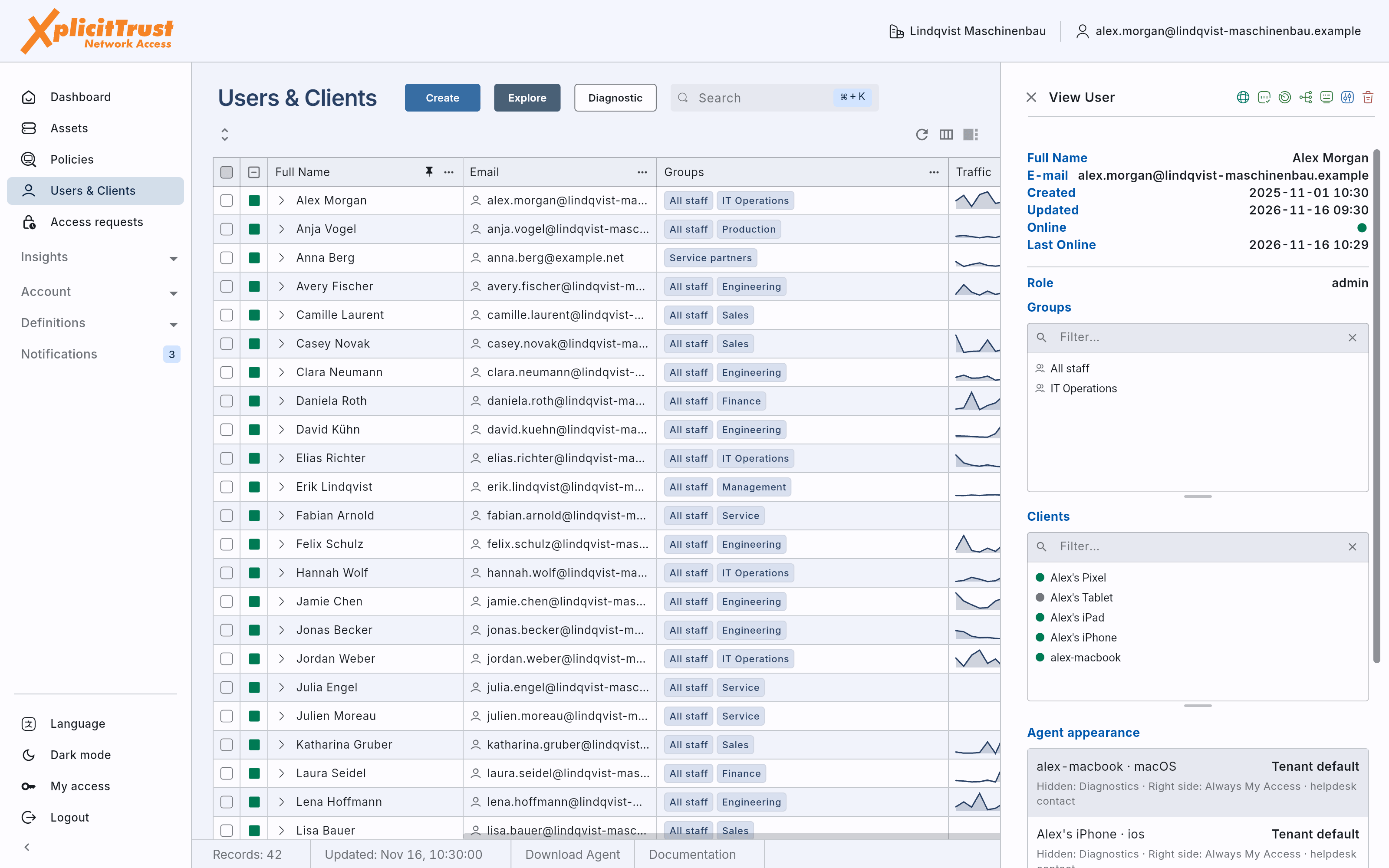
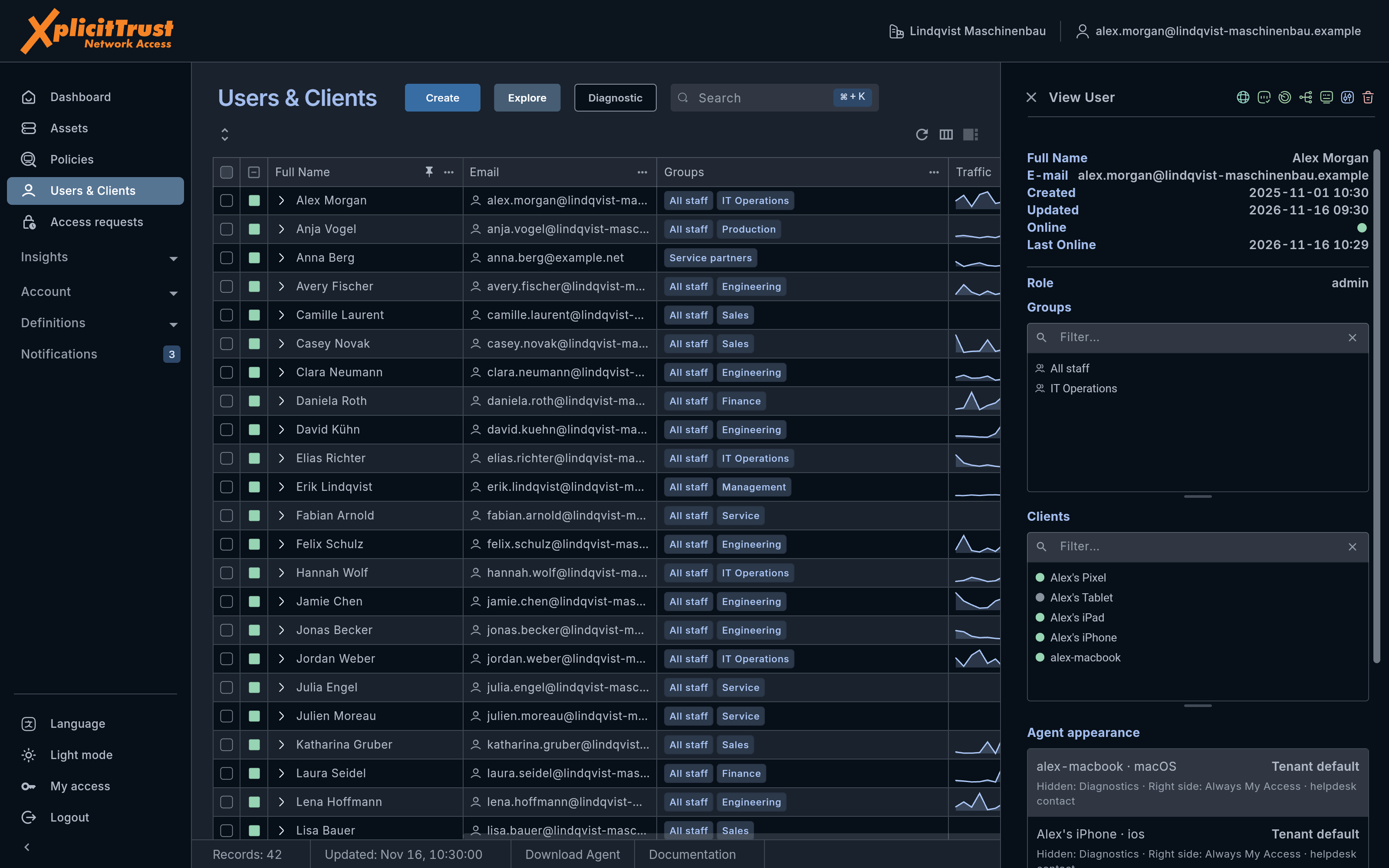
| Field | Meaning |
|---|---|
| Full Name, E-mail | Name and address of the user, as delivered by the identity provider. |
| Directory OID | The user's identifier in the identity provider's directory. Only shown for users that come from a directory. |
| Created, Updated | When the user was created and last changed. |
| Online, Last Online | Whether the user is online now, and when the user was last online. Last Online is only shown when the user has Clients. |
| Role | The user's role, e.g. admin or user. |
| Groups | The User Groups the user belongs to. The list has a filter field. See User Groups. |
| Clients | The user's Clients with a status dot (green online, grey offline). The list has a filter field. |
| Agent appearance | For each of the user's desktop devices: which agent appearance profile applies (or Tenant default), why (via user group, device tag or operating system), further profiles that also match but come later in the order, and a one-line result such as Hidden: Diagnostics · Right side: Always My Access · helpdesk contact. Shows No desktop device signed in yet. if there is none. |
| Tags | The tags of the user. |
Preview
The Agent appearance section is available to a limited audience.
The icons in the header of the panel:
| Icon (tooltip) | What it does |
|---|---|
| Open in Topology | Opens the topology view with this user selected. |
| Access Diagnostic | Opens the Access Diagnostic for this user. |
| Access Insights | Opens Access Insights, filtered to this user. |
| Insights | Opens the user insight panel. |
| Connections | Opens the Connections page, filtered to this user. |
| Edit | Opens the edit form. |
| Delete | Asks Are you sure you want to delete the ... user? and deletes the user. |
Warning
A deleted user is created again when they next authenticate, unless strict role enforcement is enabled in the tenant settings. Deleting a user also deletes their Clients.
Client detail panel
Expand a user and click a Client to open View Client. The picture shows the header and the graphs; select it for the whole panel.
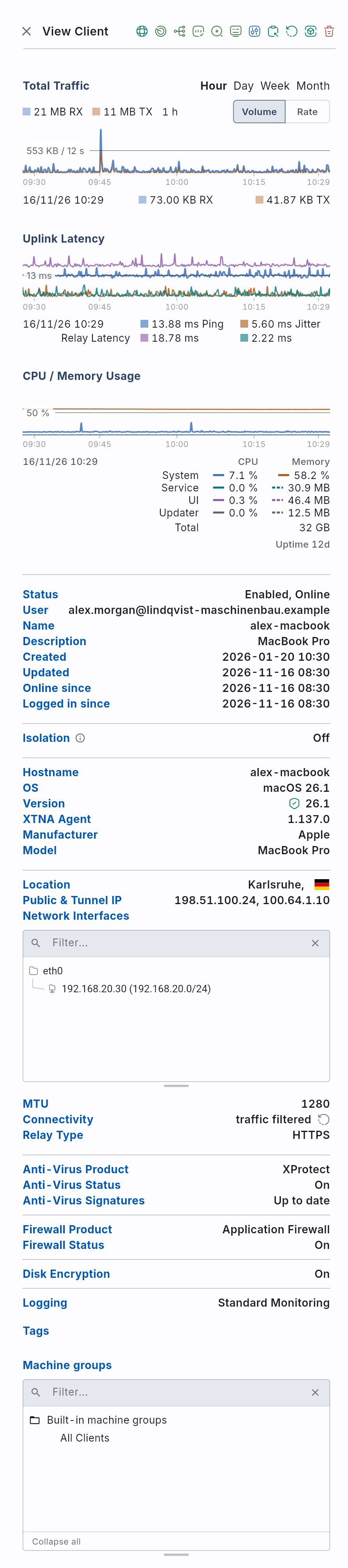
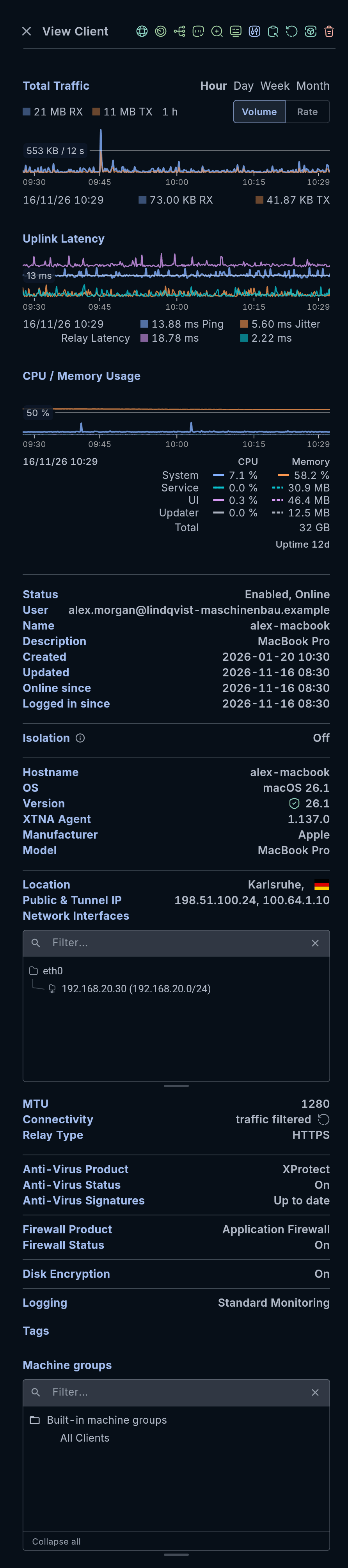
The top of the panel shows graphs for the Client, all on the same time window which you choose with Hour, Day, Week or Month:
- Total Traffic: received and sent traffic, switchable between volume and rate.
- Uplink Latency: ping, jitter and relay latency (not on mobile Clients).
- CPU / Memory Usage: system, service, UI and updater, with the total memory and the uptime (not on mobile Clients).
Below the graphs, the facts about the Client, in groups separated by lines in the panel:
State
| Field | Meaning |
|---|---|
| Status | Enabled or Disabled, and Online, Pre-Authenticated or Offline. The tooltip tells since when. |
| Waiting for approval | Only shown while the Client is held back because new Clients are disabled automatically. The buttons Deny and Approve below it decide on the Client. |
| User | The email address of the Client's user. |
| Name, Description | The Client's name and the description you gave it (- if empty). |
| Created, Updated | When the Client was registered and last changed. |
| Online since / Last online | While online, since when; while offline, when it was last seen. |
| Logged in since / Last time logged in | While online: since when the user is signed in, or when the last sign-in was if nobody is signed in now. |
| Isolation | On or Off, with an info symbol that explains the feature. While on: When the agent stops (Isolation lifted or Stays isolated) and the Exceptions that are let through. Not shown for mobile Clients. |
System and network
| Field | Meaning |
|---|---|
| Hostname, OS, Version | Host name, operating system and its version. The symbol next to the version shows whether the system is up to date or out of support. |
| XTNA Agent | The version of the agent. If an update is held back, a line Waiting update below shows its version, with an action to install it now. |
| Manufacturer, Model, Serial Number | Hardware data, shown when the device reports them. |
| Location, Network, ASN | Where the public IP address of the Client is located and which provider owns it. Network and ASN are only shown when the provider is known. |
| Public & Tunnel IP | The public address and the tunnel address of the Client. |
| Network Interfaces | The network interfaces and addresses the Client reports. |
| MTU | The MTU of the tunnel. |
| Connectivity | How the Client reaches the network, e.g. direct connection, collaborative NAT, half-collaborative NAT, non-collaborative NAT, symmetric NAT, UDP traffic filtered, traffic filtered, sending error or unclassified. The refresh symbol next to it opens the panel to reclassify the Client's NAT. |
| Relay Type | HTTPS, or HTTPS + UDP if a UDP relay is used. Hover for the relays and their ping. |
Security
The picture shows a macOS Client.
| Field | Meaning |
|---|---|
| Operating system section | Windows: domain membership, Microsoft Entra ID join, security products and the device certificate. macOS: the security products. iOS and Android: the managed app configuration. |
| Disk Encryption | The state of the disk encryption (Windows and macOS). |
Logging, tags and groups
| Field | Meaning |
|---|---|
| Logging | The log level of the agent. |
| Tags | The tags of the Client. |
| Machine groups | The Machine Groups the Client is a member of. |
The icons in the header:
| Icon (tooltip) | What it does |
|---|---|
| Open in Topology | Opens the topology view with this Client selected. |
| Access Insights | Opens Access Insights, filtered to this Client. |
| Insights | Opens the client insight panel. |
| Access Diagnostic | Opens the Access Diagnostic for this Client. |
| Events | Opens the events of this Client. |
| Connections | Opens the Connections page, filtered to this Client. |
| Edit | Opens the edit form. |
| Send Logs | Opens Send Logs. |
| Reclassify NAT | Asks for confirmation, then asks the agent to run the NAT classification again. The agent briefly re-establishes its tunnel; the new result appears under Connectivity once the classification is done. |
| Delete | Asks Are you sure you want to delete the ... client? and deletes the Client. |
Send logs
Send Logs asks the Client to send its log files to the XplicitTrust support team.
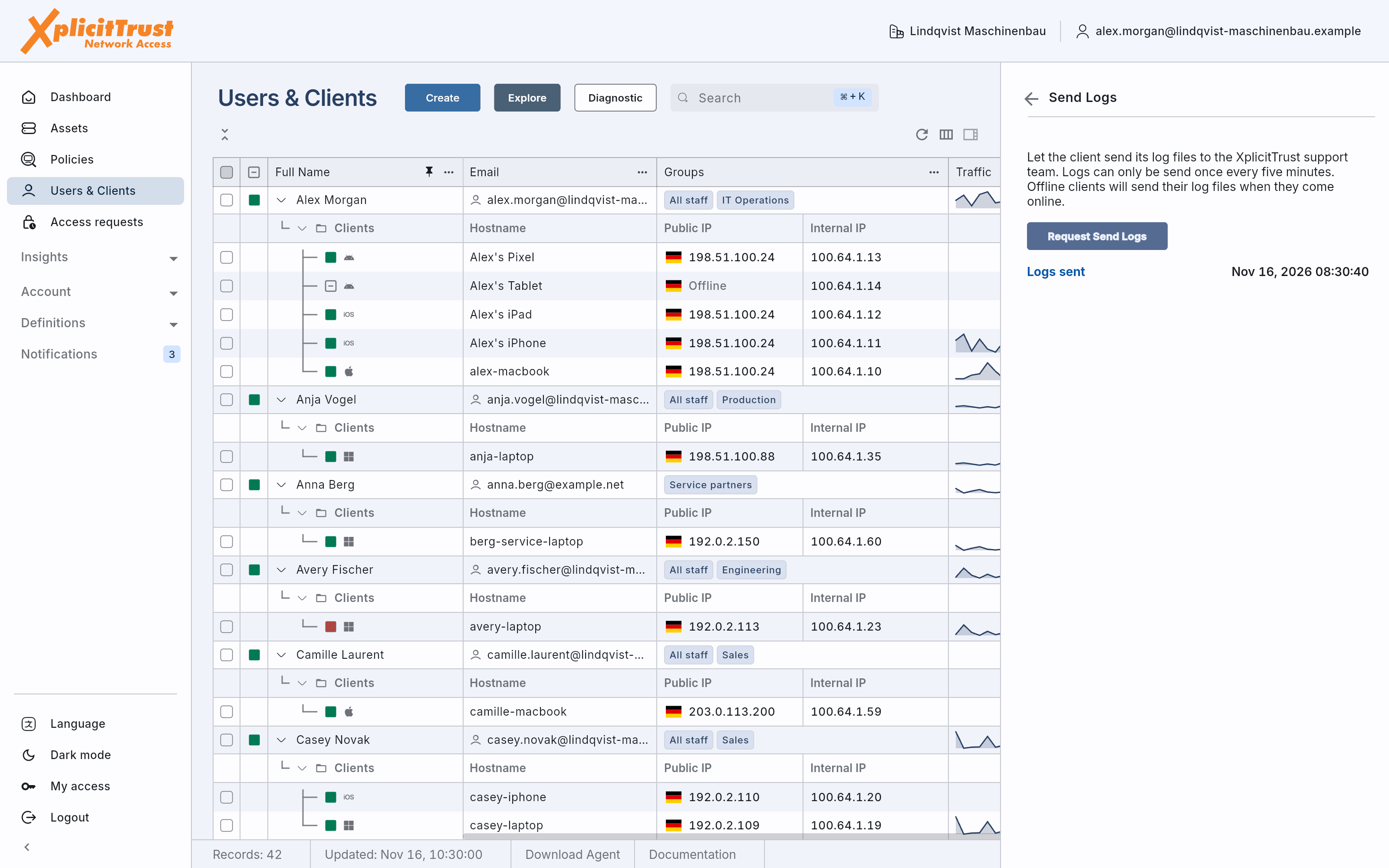
Request Send Logs sends the request and shows Logs requested successfully. Logs can be requested once every five minutes; the button is dimmed during that time. The panel then shows Logs requested with the time, and Logs sent once the Client has delivered them. A Client that is offline sends its logs when it comes online again; the panel says so.
Create and edit
Create a user
Users normally appear when they sign in for the first time. Whether you can add one by hand depends on the identity provider of the tenant (see Authentication):
- With a directory as identity provider (e.g. Microsoft Entra ID, Google Workspace, Okta, Keycloak) users are managed in the directory. The form then only shows Users are managed in the Identity Provider directory.
- With a Google personal account (Gmail) or AuthN by IDEE the Create button offers User, and the form is titled Create Gmail user or Create Idee user. On AuthN by IDEE the form also has the Role.
- On other tenants the Create button only opens the agent install help.
| Field | Meaning |
|---|---|
Required; must be a valid address (name@domain.tld, no spaces). The error is Please enter a valid email address. |
|
| Full Name | Required; the error is Please enter a valid Full Name. |
| Tags | Optional. Tags may only contain the characters the tag field accepts; the field tells you when a character is not allowed. |
Apply creates the user, shows User created successfully and opens the new user's detail panel. Apply is disabled while the request runs. Cancel closes the panel.
Edit a user
Edit in the user panel opens Edit user.
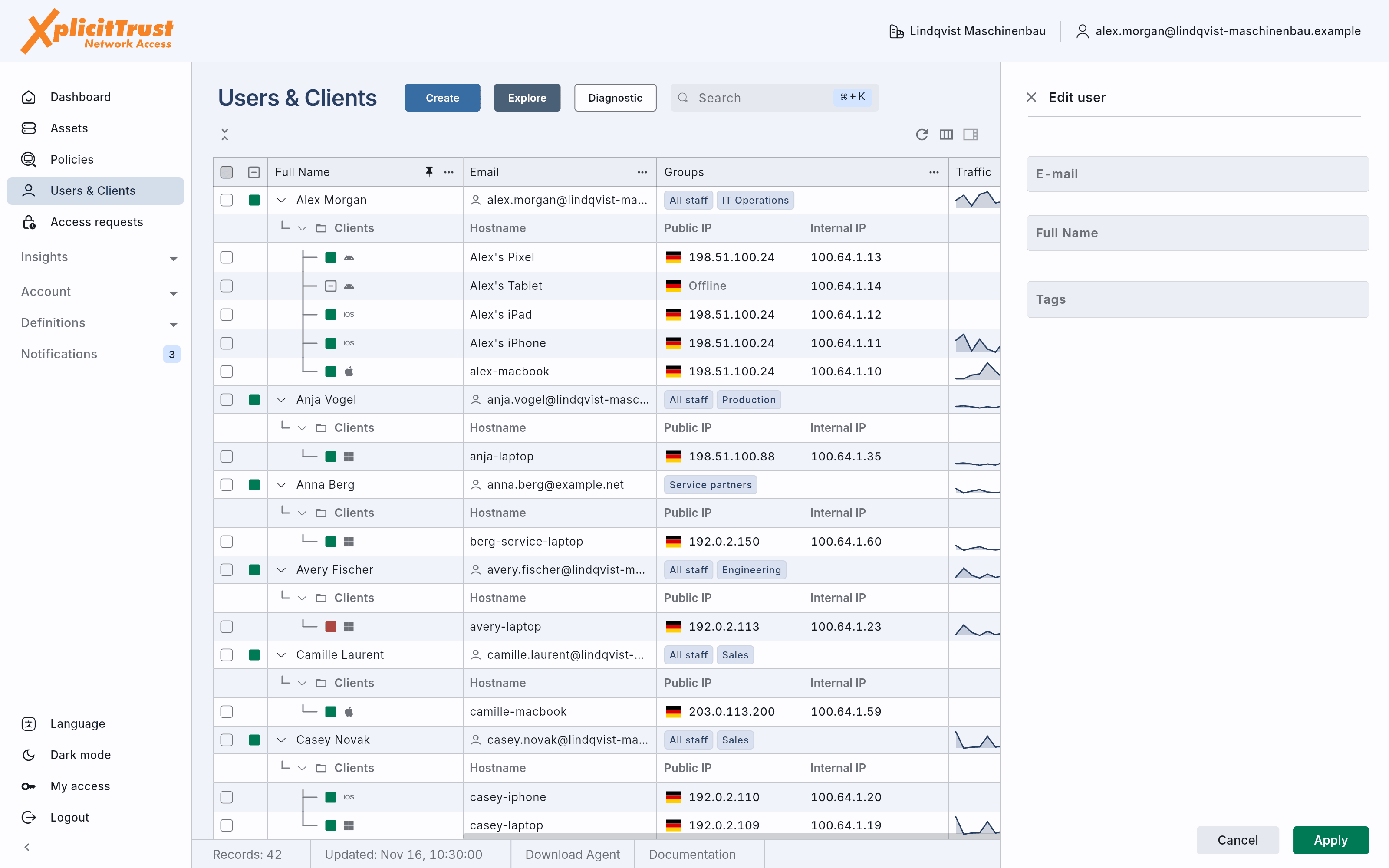
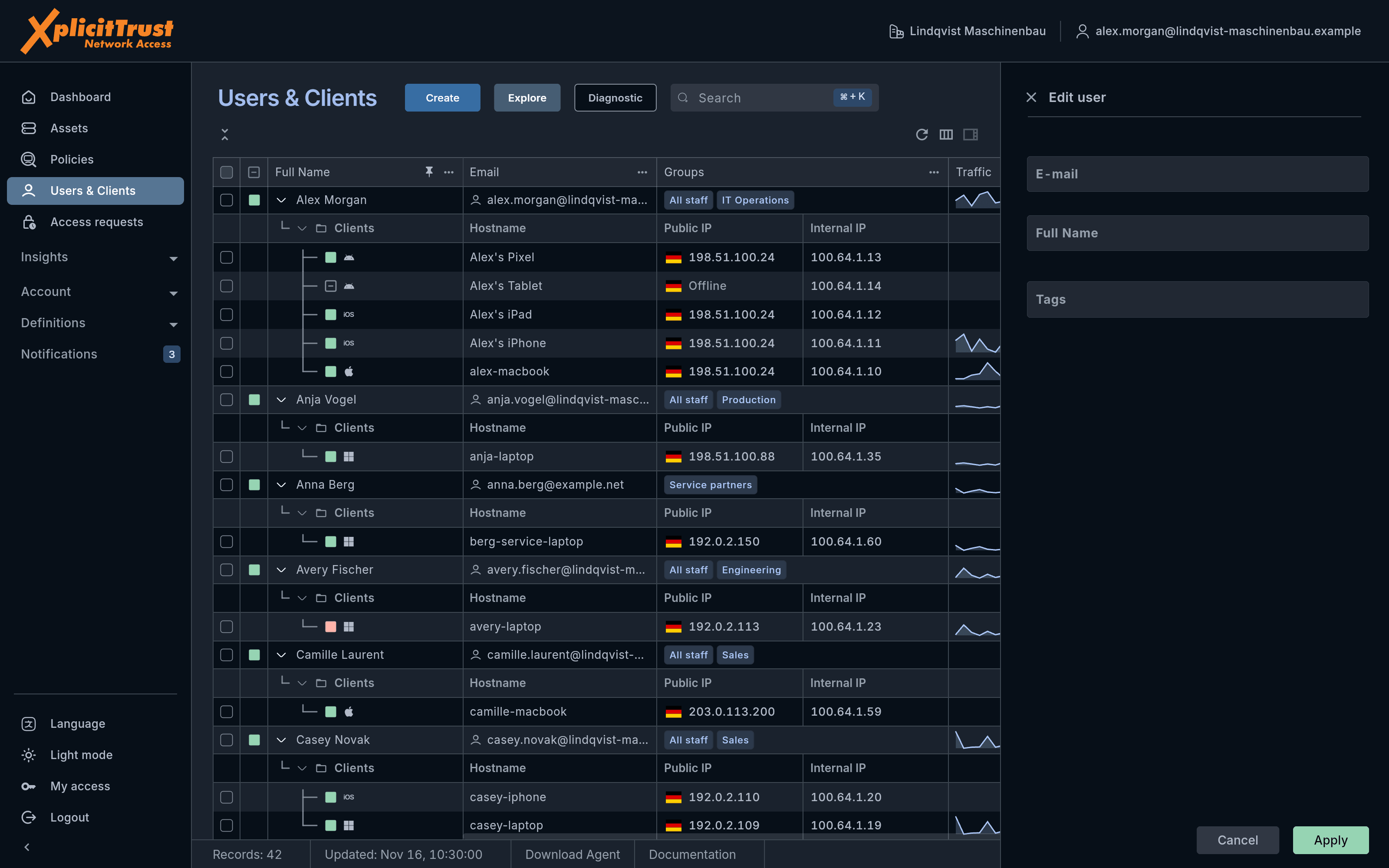
E-mail and Full Name are shown but cannot be changed: they belong to the identity provider. You can change the Tags and, on tenants with AuthN by IDEE, the Role (User or Admin). Apply saves, shows User edited successfully and, after a moment, returns to the detail panel; Cancel returns without saving.
Edit a Client
Edit in the Client panel opens Edit Client with the tabs General and Isolation. Isolation is missing for mobile Clients.
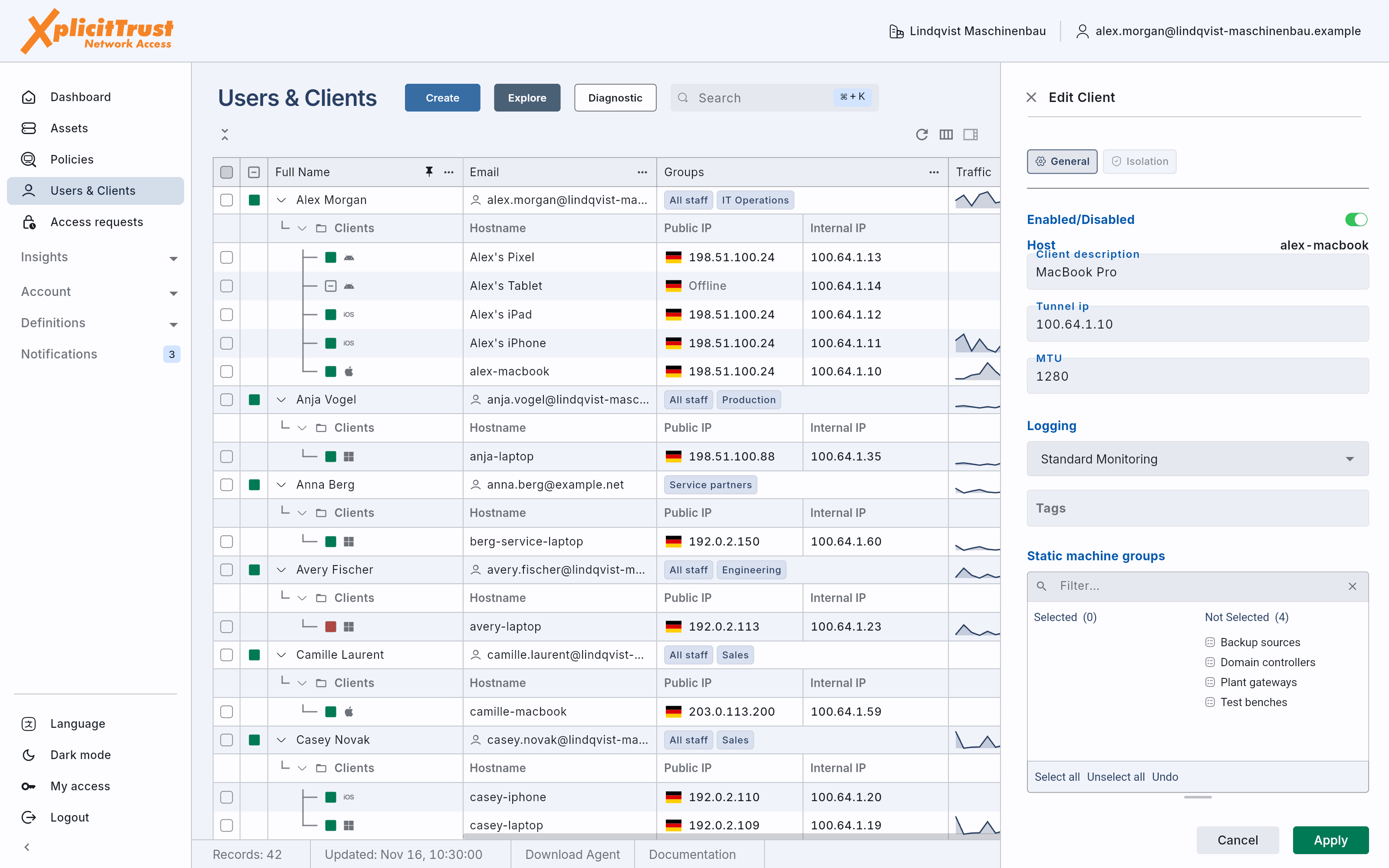
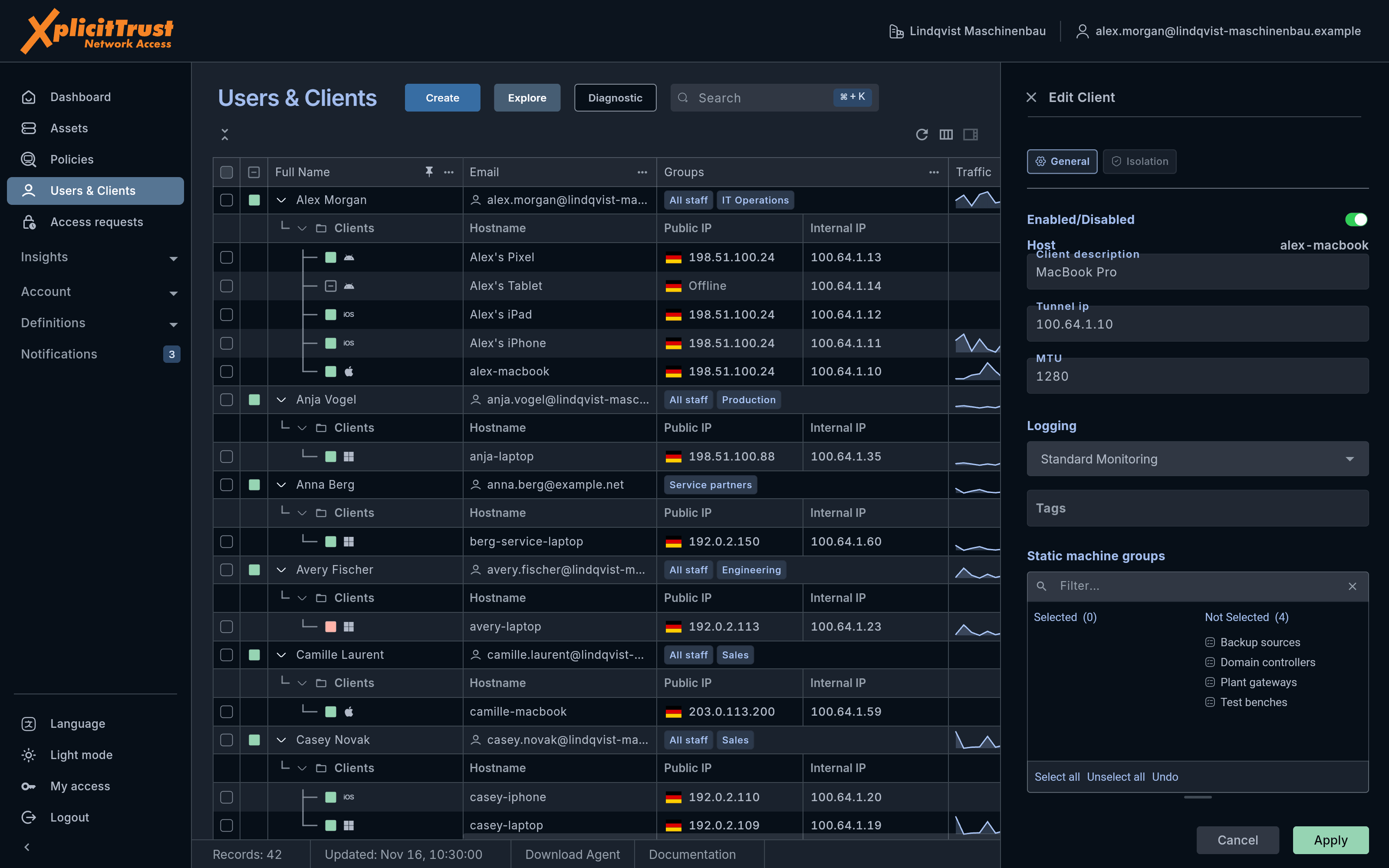
General
| Field | Meaning |
|---|---|
| Enabled/Disabled | A disabled Client cannot reach any Asset. It stays monitored while it is online. |
| Host | The host name of the Client, shown for information. |
| Client description | Free text. |
| Tunnel ip | The tunnel address of the Client; you can change it. |
| MTU | Whole number; the hint reads Recommended MTU is 1280. The form accepts 1000 to 1420 and otherwise says Supported MTU range is 1000 to 1420. |
| Logging | Standard Monitoring (default), Detailed Troubleshooting or Errors Only. |
| Tags | Tags of the Client. |
| Static machine groups | The static Machine Groups the Client is a member of. Move groups between Selected and Not Selected to join or leave them; dynamic groups follow their conditions and are not listed. |
Isolation holds the host-firewall rules for the Client.
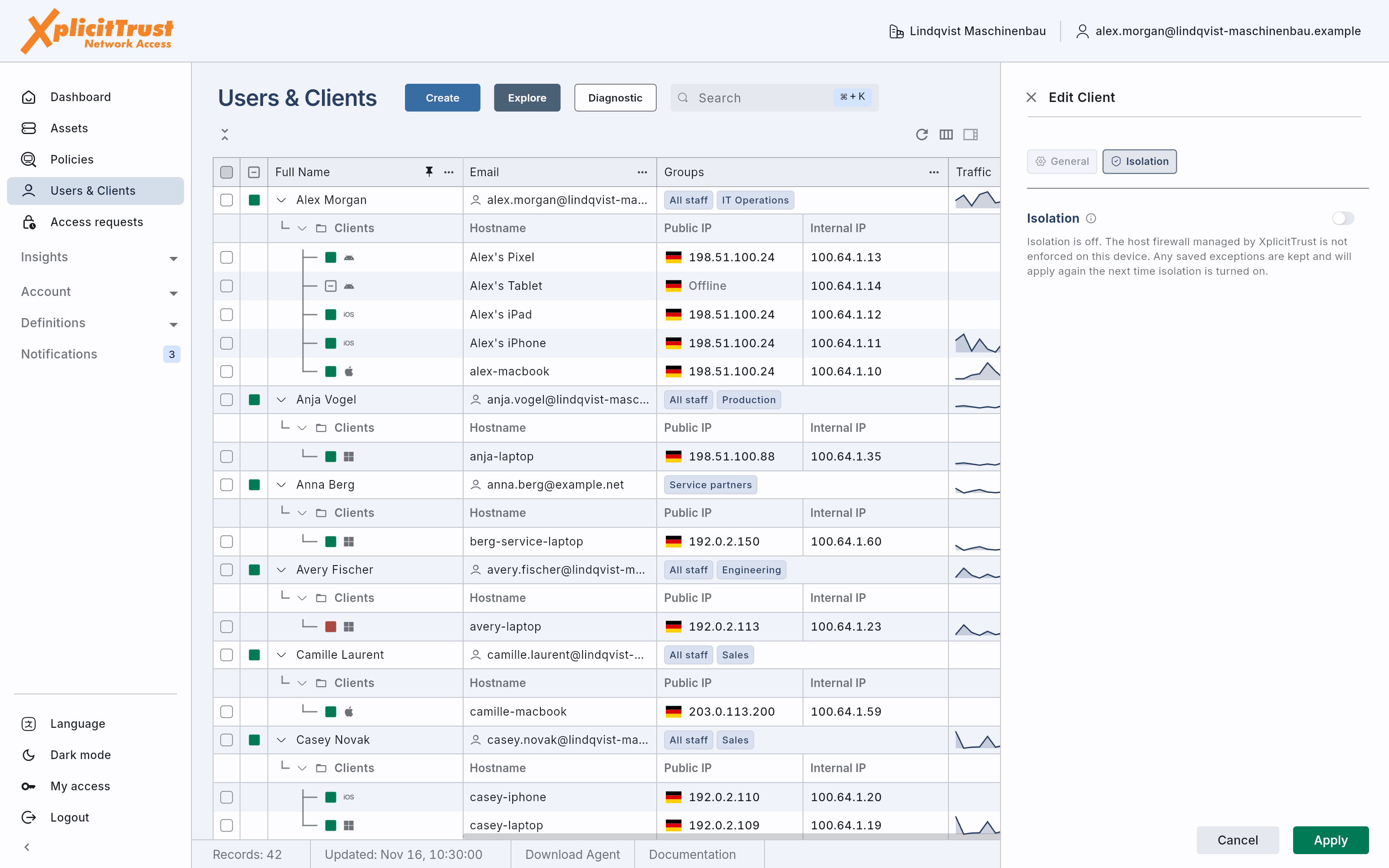
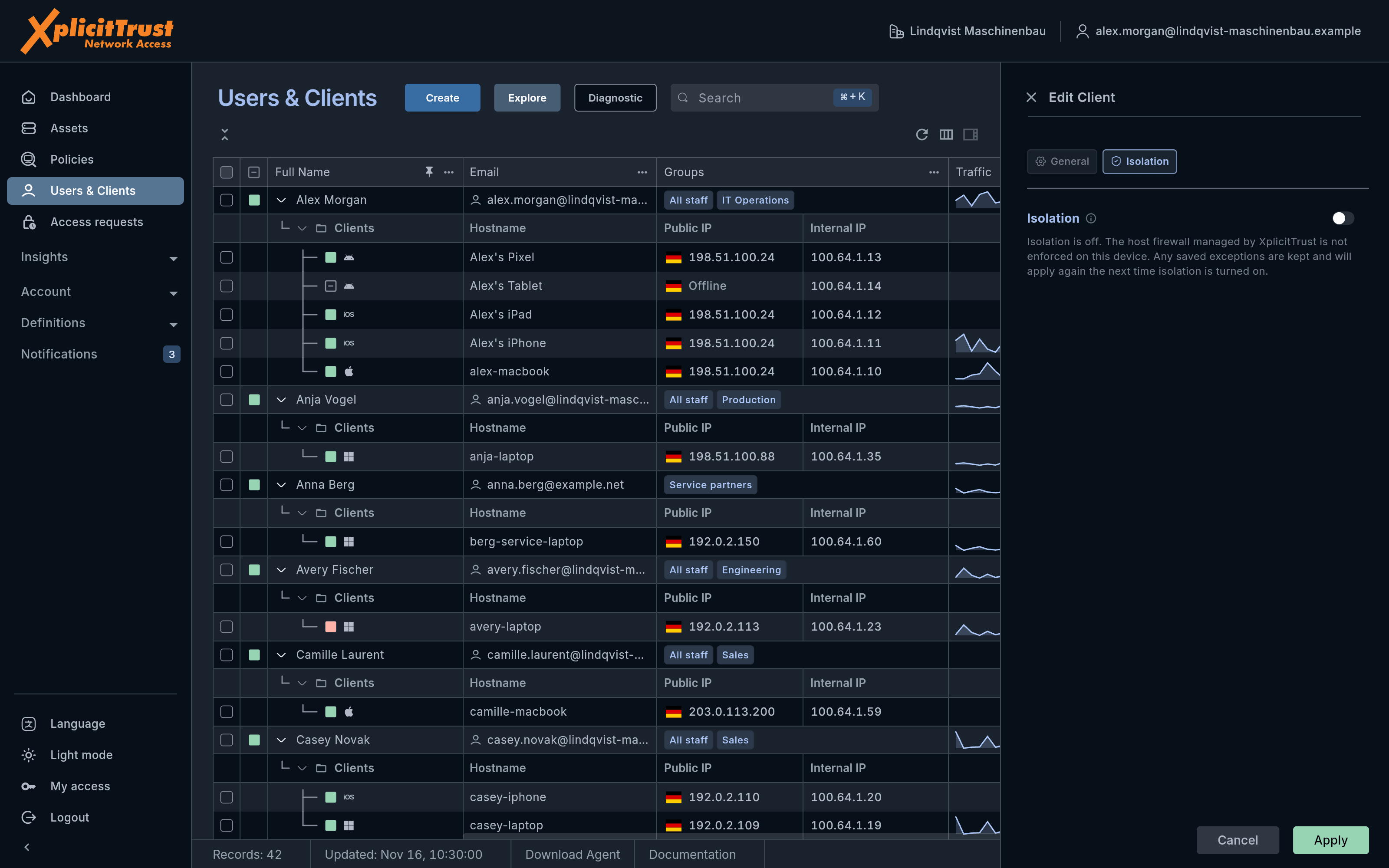
Apply saves the Client, then the isolation rules, then the machine group memberships, and shows Client updated successfully. If the isolation rules cannot be saved you get Client updated, but isolation policy could not be saved.; if group memberships fail, the error lists the groups. Cancel closes the form without saving and shows the help panel of the list.
Mass actions
Tick several rows: the panel changes to Mass Action and shows how many users and Clients are selected. Its icons act on all of them:
| Icon (tooltip) | What it does |
|---|---|
| Re-Authenticate Clients | Opens a panel that lists the selected Clients. Its Re-Authenticate button forces them to authenticate again, after you confirm Do you really want to force re-authentication of the selected Clients? |
| Update Tags | Opens Update Tags, where you add or remove tags (Add / Remove Tags) on the selected users and Clients. |
| Toggle Clients State | Opens a panel with the Enabled/Disabled switch for the selected Clients. Apply sets the state after you confirm Do you really want to change the state of the selected Clients? |
| Update agents now | Only shown when a selected Client holds back an agent update; lists those Clients. |
| Delete Selected | Deletes the selected users and Clients. Deleting users also deletes their Clients. |
| Update Logging Level | Sets the log level of the selected users' and Clients' agents (Update log level for the selected users/clients). |
| Update Isolation | Only shown when a non-mobile Client is selected itself. Sets the isolation rules for these Clients. |
| Update machine groups | Only shown when a Client is selected itself. Changes the static Machine Group membership of the Clients. |
Insight
The Insights icon of a user or Client opens the panel Insight. How the panel works is described once under Insight panel.
User insight
The Insights icon in the user panel opens Insight: what the policies of the tenant give this user.
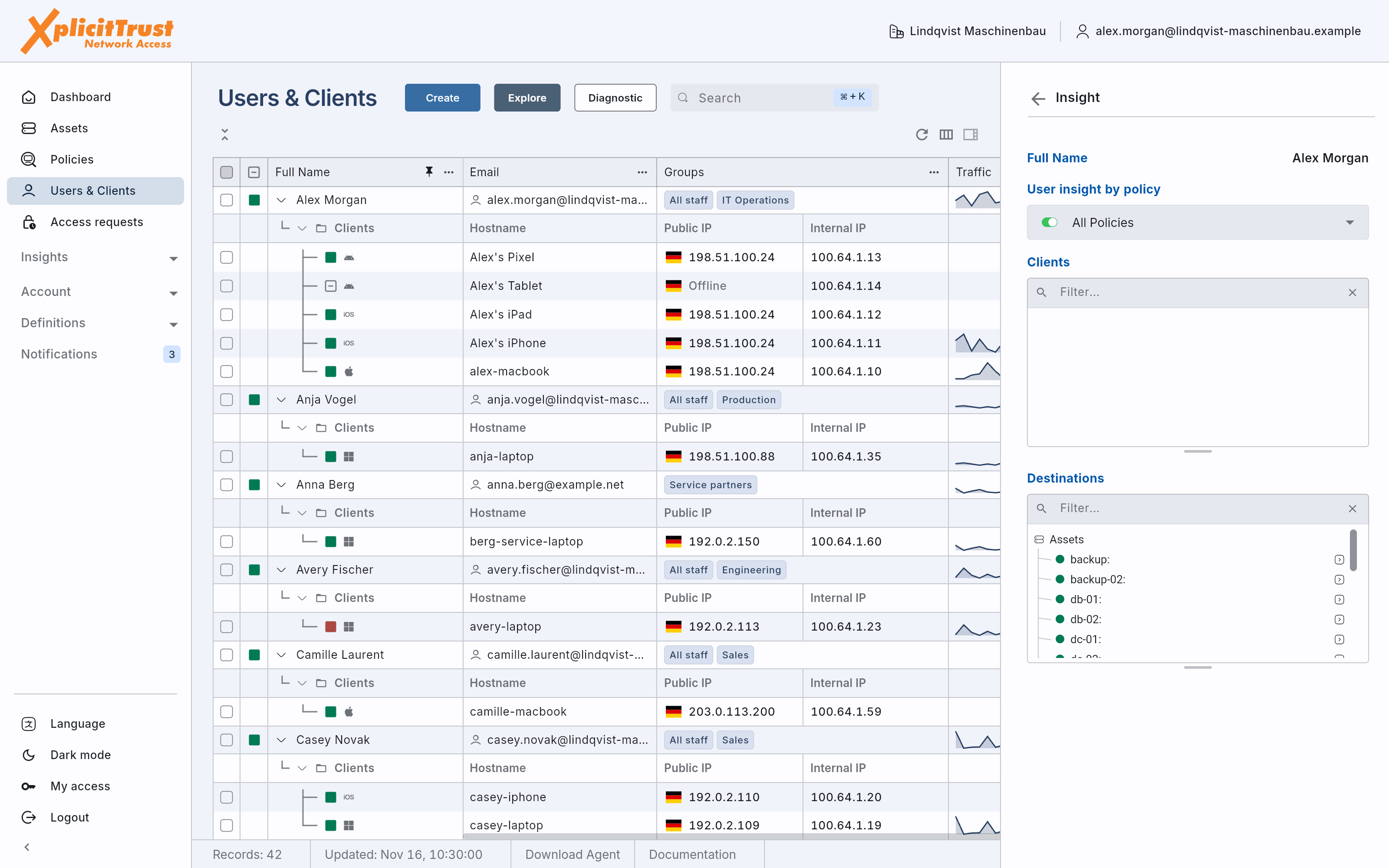
| Element | Meaning |
|---|---|
| Full Name | The user. |
| User insight by policy | A drop-down with All Policies and every Services and Policies that applies to the user. Your choice limits the two lists below. |
| Clients | The user's Clients that the selected policies apply to. |
| Destinations | The Assets and other destinations the selected policies grant access to. |
The arrow in the header returns to the user panel.
Client insight
Insights in the Client panel opens Insight: which policies reach this Client and why a policy does not.
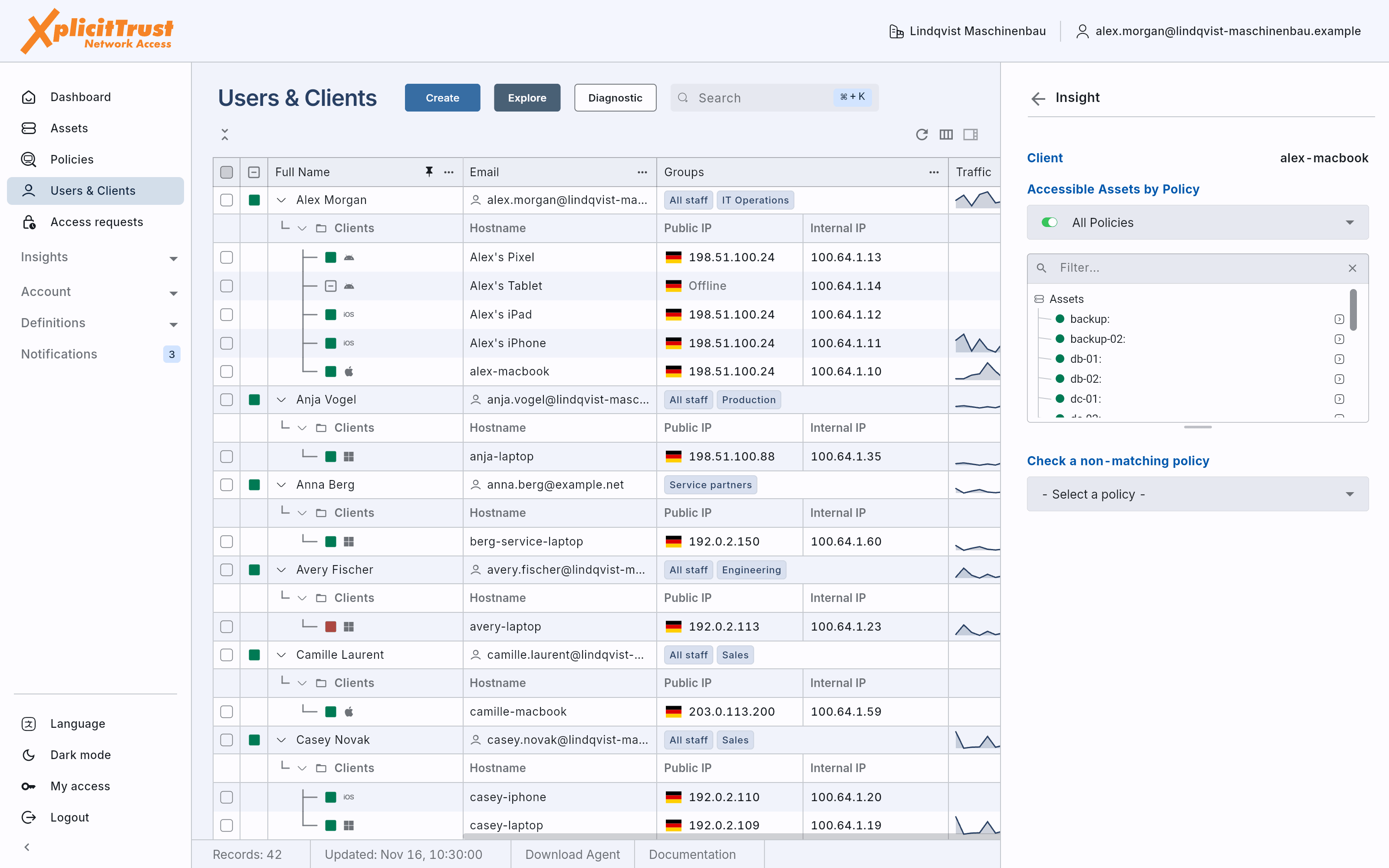
| Element | Meaning |
|---|---|
| Client | The Client. |
| Accessible Assets by Policy | A drop-down with All Asset Policies and each policy that currently applies to the Client, followed by the list of destinations those policies reach. |
| Check a non-matching policy | Pick one of the policies that does not apply to the Client (the drop-down has a search field; a dot shows whether the policy is enabled). The panel then says No violations - client currently matches this policy or lists each condition that fails, together with the Client's own value: its location, public IP, operating system and security posture, the current time against the policy's time windows, the policy's sources, or the sites. A disabled policy is reported first as Policy disabled: This policy is disabled and is not enforced. |
For the conditions see Services and Policies.