Virtual Assets
A Virtual Asset makes a device without an agent, such as a printer, a NAS or an IP camera, reachable through a gateway asset. This page lists what is specific to Virtual Assets in the Admin Console. Everything the five gateway objects share is on Gateway objects.
In short
A Virtual Asset is one device with one address behind a gateway asset. Clients reach it by its DNS names and its tunnel IP, as policies allow. You create it from Assets → Create → Virtual Asset. Use a Subnet when you want a whole network range instead of single devices.
Before you start
- A gateway asset that is online: a Linux or Windows asset (Windows is a public beta, see Gateway objects).
- An address of the device that the gateway asset can reach, usually on the same local network, or a hostname the gateway asset can resolve.
- The service definitions the device offers, and a policy that grants them. Both can be created while you create the Virtual Asset.
- The Admin Console is for administrators, see Roles.
Common tasks
- Make a printer, NAS or camera reachable: Reach a printer, NAS or camera.
- Give clients a name for it: Names and DNS and Set up split DNS.
- Create Virtual Assets from devices the gateway asset found on its network: Network Discovery of the gateway asset.
- Create one from traffic that clients already sent into a Subnet: the Subnet Policy Assistant.
- Check why a user can or cannot reach it: Access Diagnostic.
The list
Virtual Assets are listed below their gateway asset on the Assets page. The group row shows Resolution (the address the gateway asset reaches the device at) and Internal IP (the tunnel IP). See The list.
Detail panel
The panel is headed View Virtual Asset. The icons and the fields every gateway object has are described under Detail panel. Besides these, it shows:
| Field | Meaning |
|---|---|
| Static IP | The address of the device, when its Resolution Mode is Static IP. |
| DNS name and Resolved Address | The hostname the gateway asset resolves, and the address it currently resolves to (unresolved if it does not), when the Resolution Mode is DNS. |
| Tunnel IP | The address of the Virtual Asset in the tunnel network. |
The Clone icon opens the create form with the settings of this Virtual Asset. Its Name is emptied and it gets a new tunnel IP.
Insight
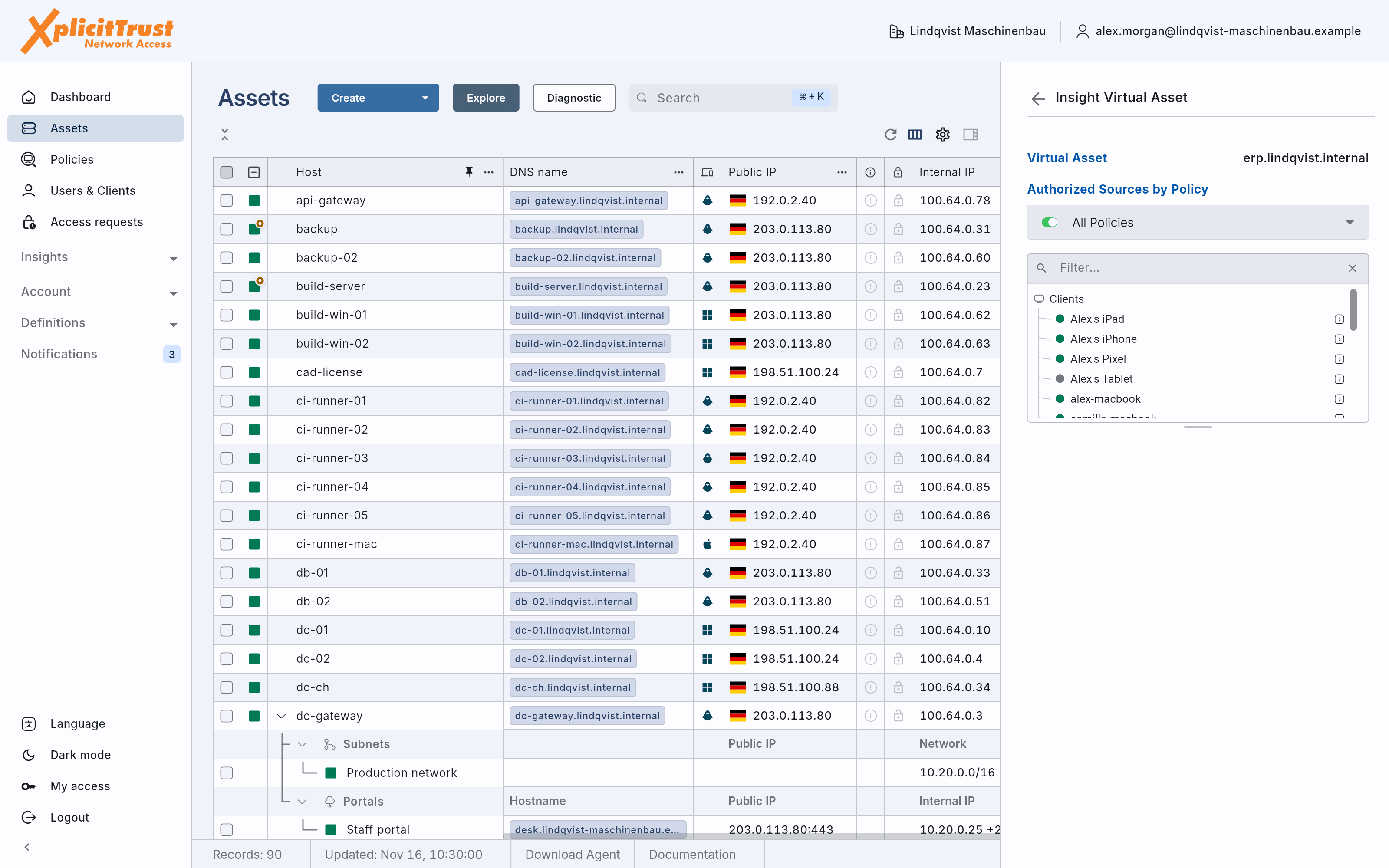
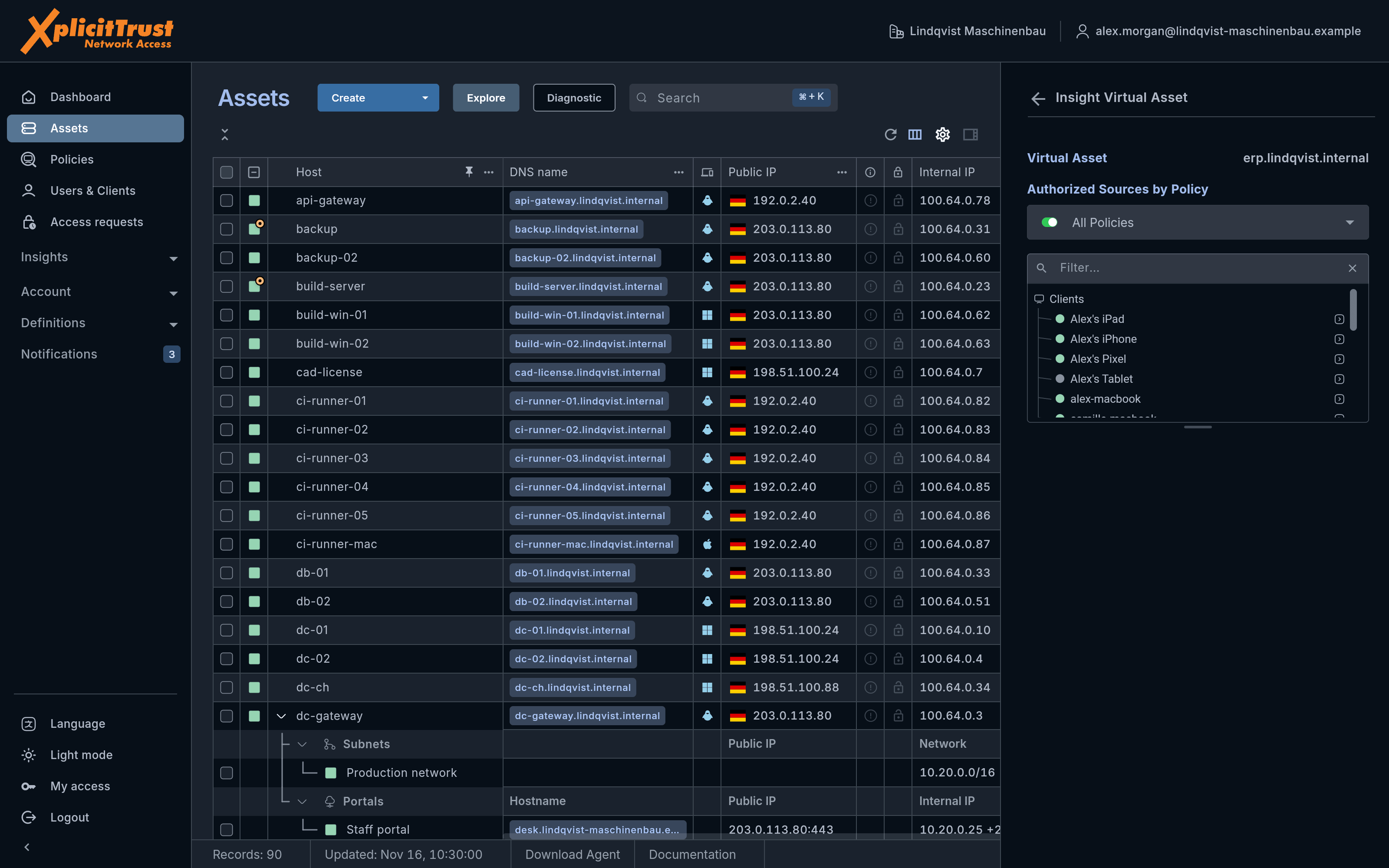
The Insights icon opens Insight Virtual Asset: who can reach the Virtual Asset, by policy. How the panel works is described once under Insight panel; for the sections of a gateway object see Insight.
Create and edit
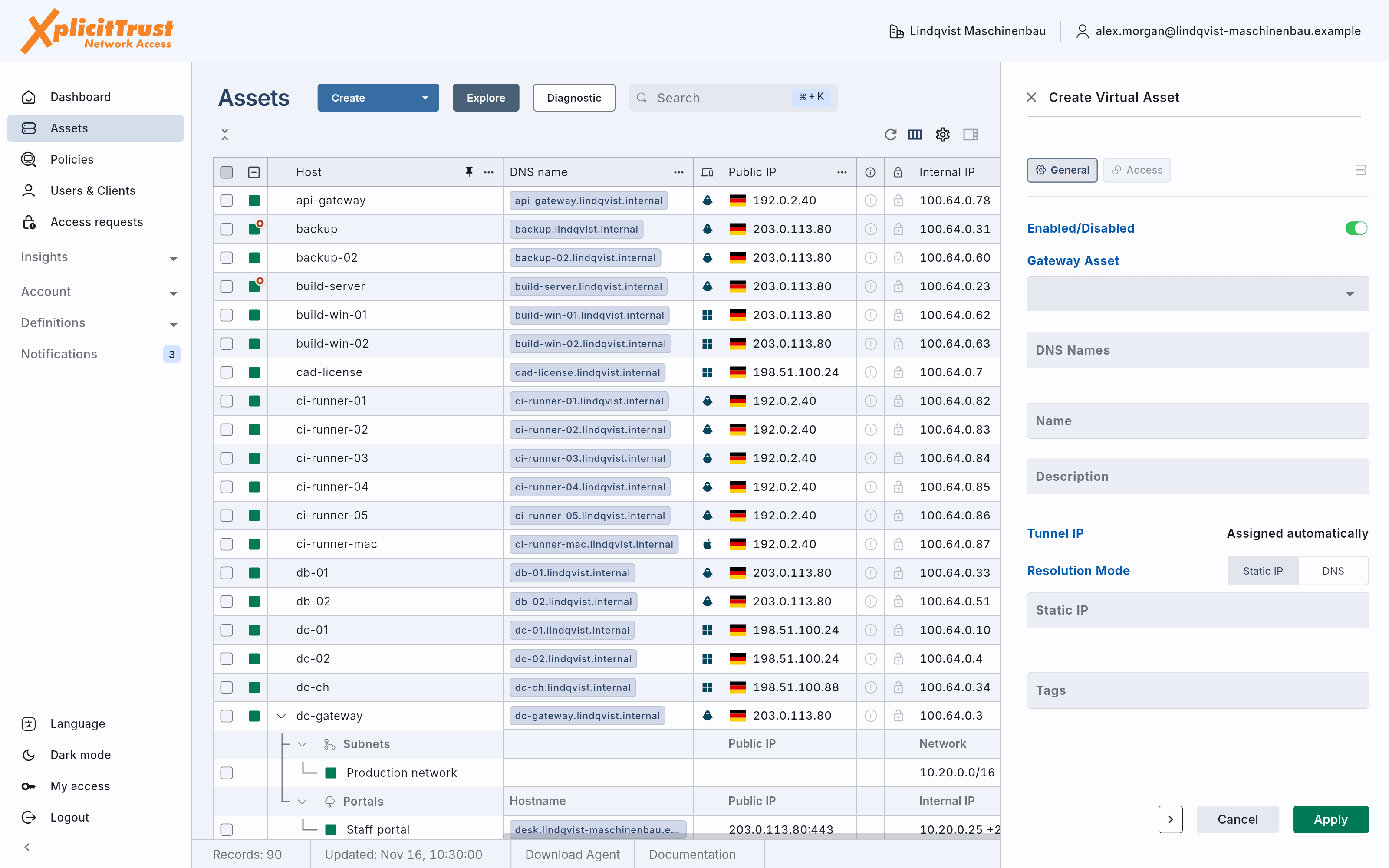
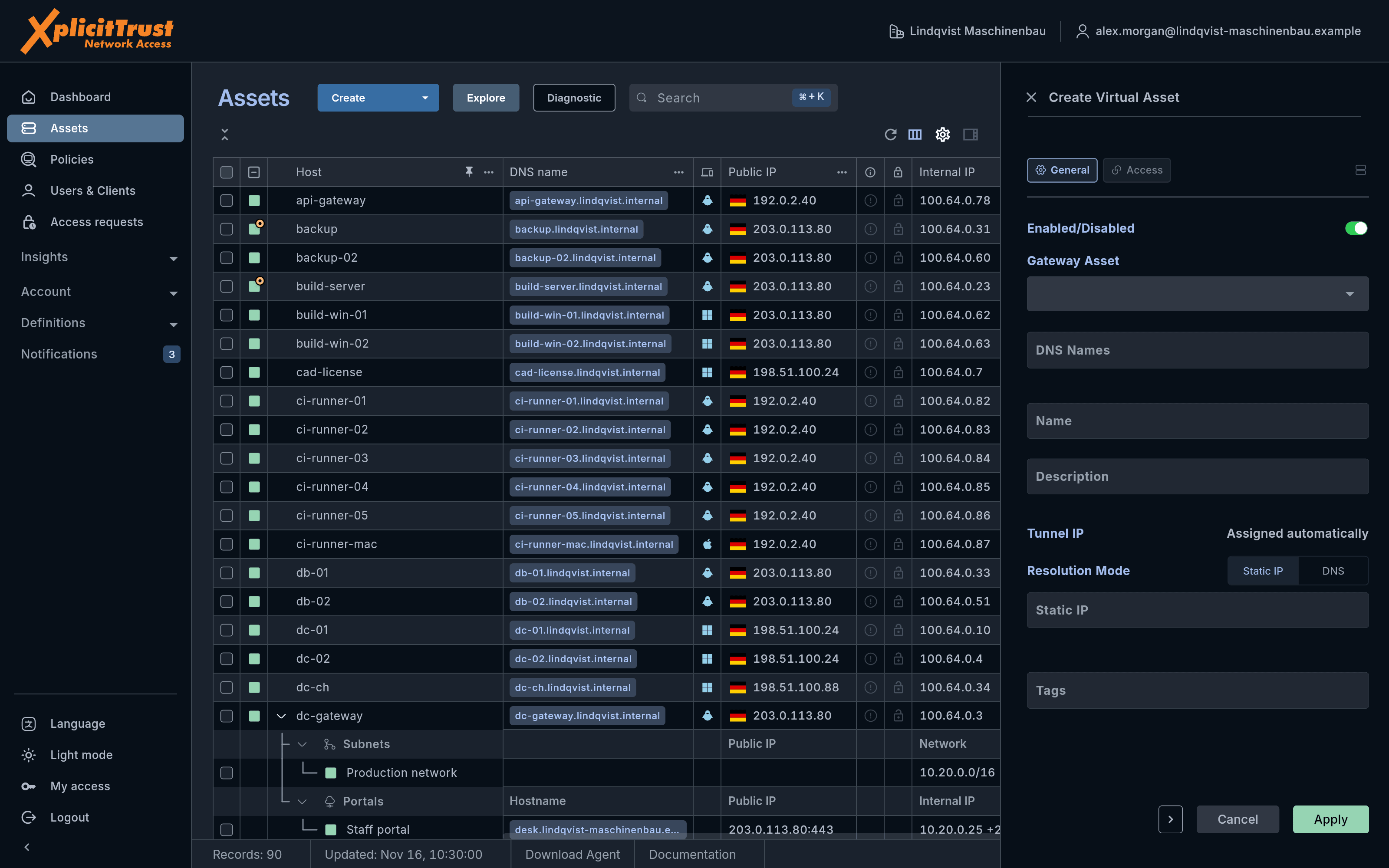
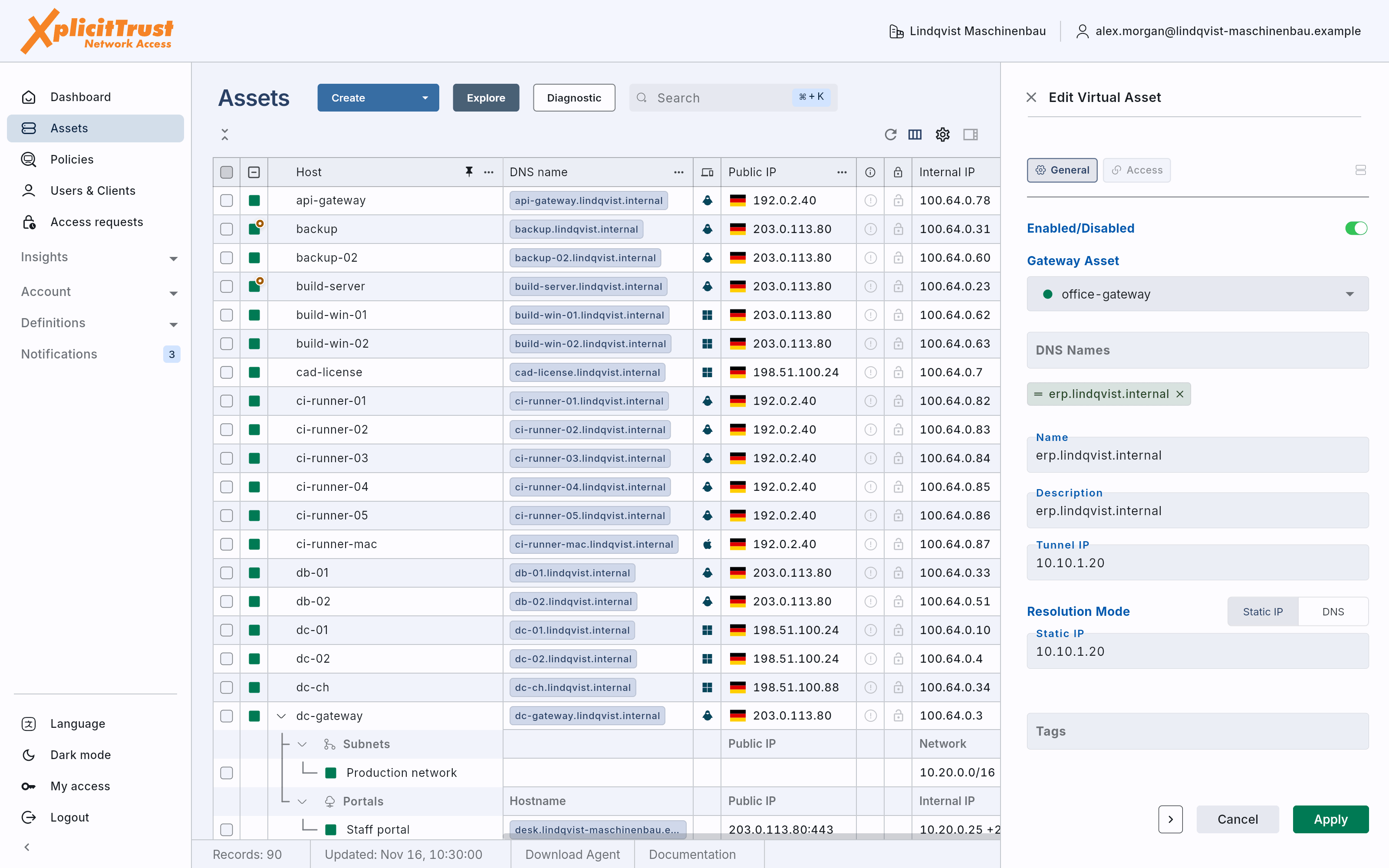
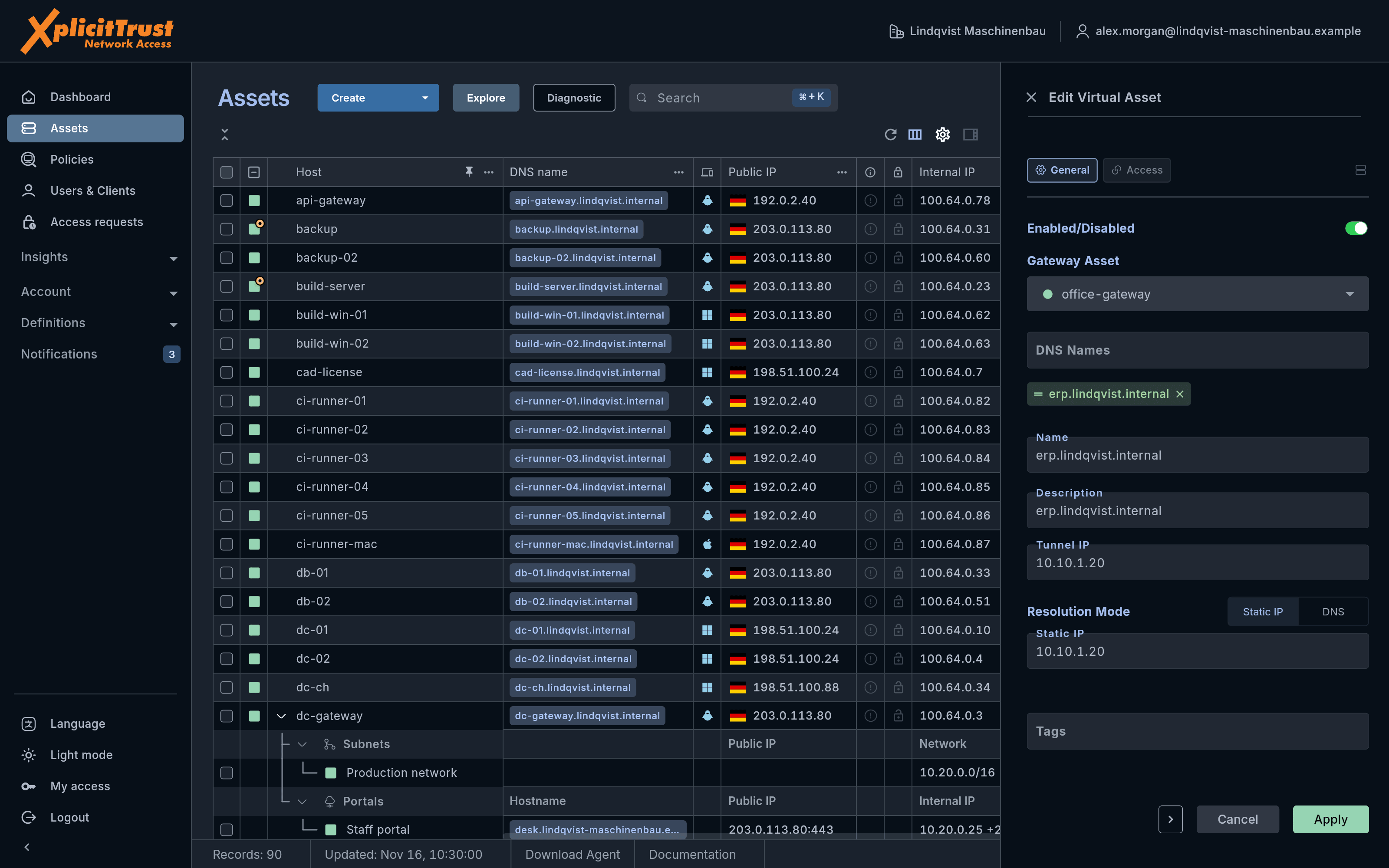
The form has the tabs General and Access. How the form works (tabs, Apply, Cancel, single and tabbed view) is described under Create and edit.
General tab
The General tab has the fields every gateway object has and these:
| Field | Meaning |
|---|---|
| DNS Names | One or more names clients use to reach the Virtual Asset. At least one is required. Only letters, digits and the characters allowed in DNS names are accepted. |
| Name | Optional display name. |
| Tunnel IP | When you create the object it reads Assigned automatically (from the range of the tunnel network). When you edit it, you can change it; it must be a valid IPv4 address. |
| Resolution Mode | Static IP or DNS. Switching clears the field of the other mode. |
| Static IP | In Static IP mode: the IPv4 address of the device as the gateway asset reaches it. Required, four numbers between 0 and 255. |
| DNS name | In DNS mode: the hostname the gateway asset resolves. Required, must be a valid hostname. |
Access tab
Services and Policy Assignments, as described under Access tab.
Mass actions
Virtual Assets are checked in the Assets table like any other row. Update Services, Change Gateway Asset, Update Tags, Toggle State and Delete Selected apply to them; see Mass actions.
See also
- Concept: Gateway Assets and Names and DNS.
- Guide: Reach a printer, NAS or camera.
- Reference: Gateway objects, Assets, Policies, Access Diagnostic.