Watch your network's devices
This guide turns on Network Discovery on a gateway asset, shows the devices it finds in the Network Inventory and lets you watch the ones that matter, such as a firewall, a NAS or a camera. The asset checks a watched device every minute. When it stops answering, you get a notification in the console, an event for your SIEM and, if you set recipients, an email.
In short
Turn on Network Discovery for the tenant in Settings and for a gateway asset on its Advanced tab. When the asset has scanned its network, open a device in the Network Inventory, enter up to four TCP ports and choose Watch this device. Notifications, events and emails tell you when it stops answering and when it is back.
Available from release 1.138.
Before you start
- A gateway asset on Linux or Windows in the network you want to watch, showing Online. The asset runs the scans and the checks, so it must be online and on a recent agent. See Gateway Assets.
- Administrator rights in the Admin Console.
- The devices must be on a network the asset is connected to: the asset reaches them from its own interface. An asset only sees the networks it is connected to, so you need one on each segment you want to cover. Discovery is for assets only, not for user clients.
- Optional: the email addresses that should hear about devices that go down.
1. Turn on Network Discovery for the tenant
- Open Settings and find the card Network Discovery. See Network Discovery in the Settings reference.
- Turn on the switch in the card header.
- Under Full scan every, choose how often each asset scans its network completely: 1, 4, 8, 12 or 24 hours, or 3 days.
- Optional: under Alerts, enter the addresses in Alert recipients (one email per line). They get an email about new devices and about watched devices that stop or start answering, at most once every 15 minutes. Without recipients you are told in the console only.
- Choose Apply.
Scan exclusions, the digest email and the handling of randomized MAC addresses are in the same card, see the reference. Watches ignore the exclusions: a watch is a request for that one device.
2. Turn it on for a gateway asset
- Open Assets, select the gateway asset and choose edit.
- Open the Advanced tab. In the Network Discovery section turn on the switch.
- Under Interfaces, tick the network interface that is connected to the devices you want to see. At least one must be ticked.
- Choose Apply.
The first scan of a newly ticked interface starts within a minute, then the interval from step 1 applies. If the tenant switch is still off, the console says so: your changes are saved, but nothing is scanned until you turn it on. See the Advanced tab.
You can also scan once by hand: select the asset and choose its Network Discovery icon, see Network Discovery.
3. See the devices in the Network Inventory
Open Insights → Network Inventory. The table lists every device the scans found, once each, together with devices known from DHCP leases and Managed Subnets.
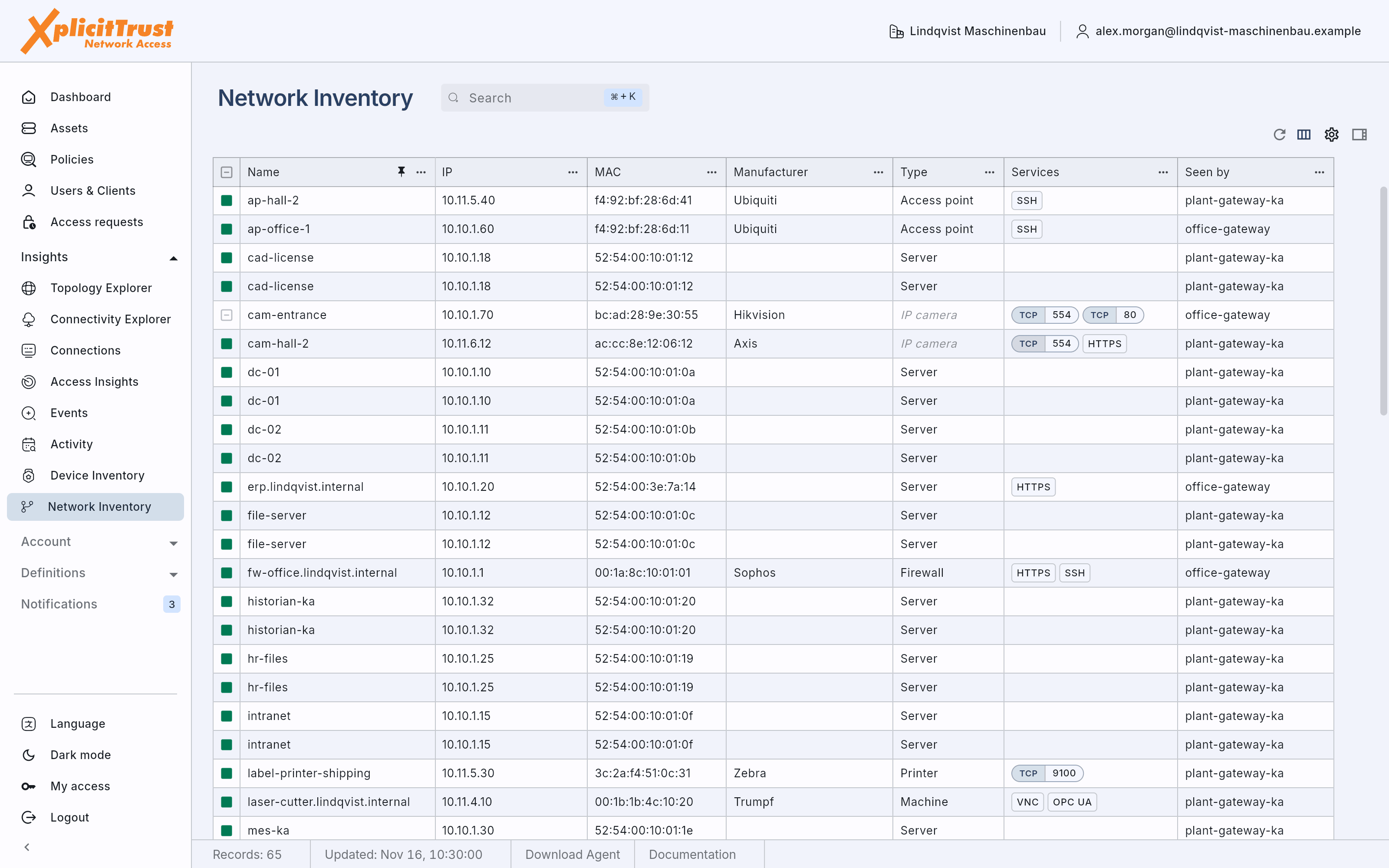
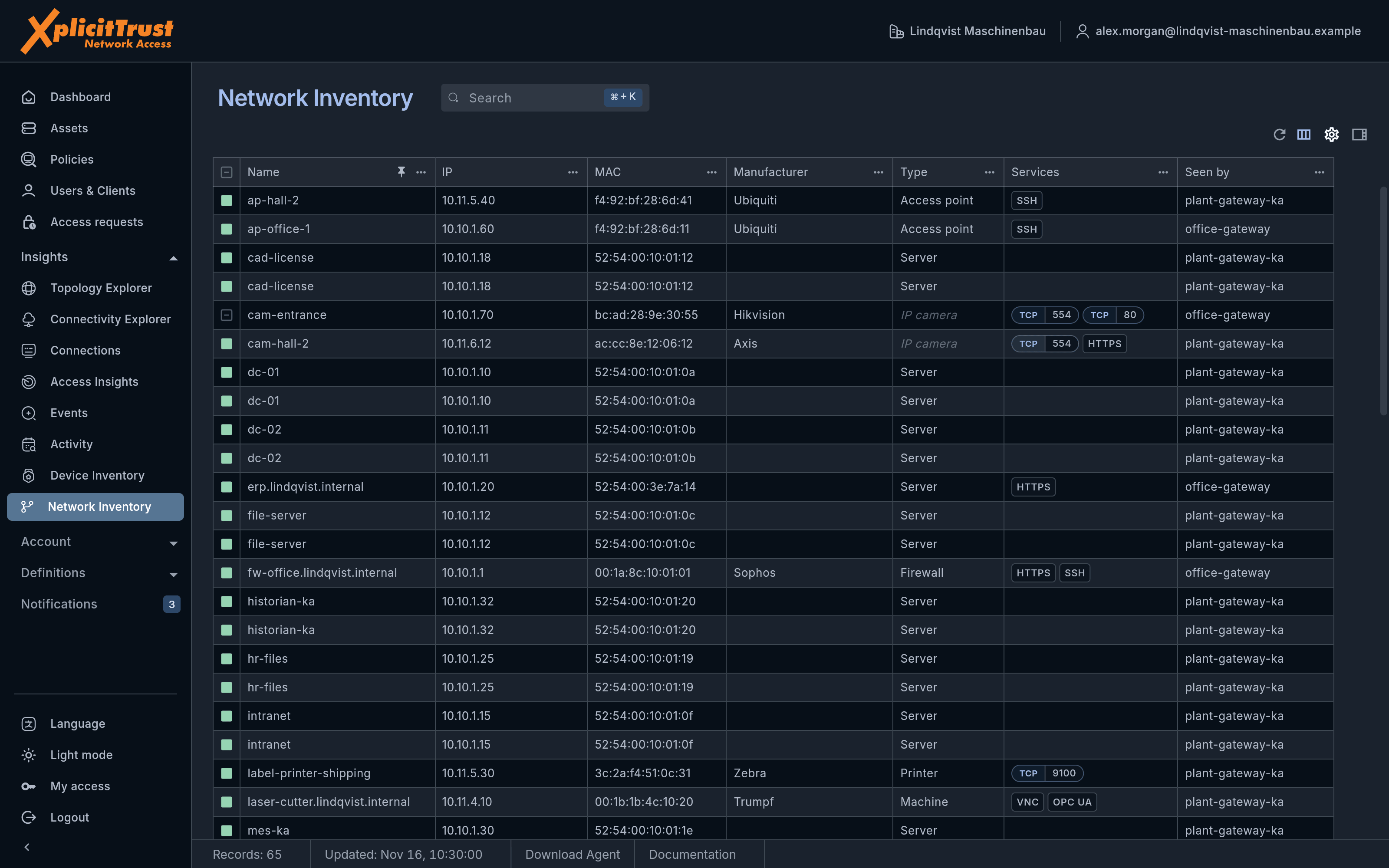
The columns are described under Network Inventory. The first scan of a new interface can take a while on a large network.
4. Watch a device
- In the Network Inventory, click the device. View Device opens in the side panel.
- In the block Reachability watch, check TCP ports to check. The field starts with up to two open TCP ports the scan found. Enter at most four ports between 1 and 65535, separated by commas, for example
443, 9100. - Choose Watch this device.
What happens next:
- The asset that found the device checks it every minute with a ping (ICMP echo) and a TCP connection to each port, all at once. The panel names it: Checked by the asset on the interface.
- The device counts as answering when any one of them gets a reply. A refused connection also counts, because something answered.
- A device that blocks ping needs at least one port. With no port the check is a ping only. A device with an IPv6 address needs at least one port, because the ping is IPv4 only.
- You change the ports later in the same panel: edit the field and choose Apply.
Only devices that a scan found can be watched, because only the asset that found a device on its network can reach it. A device known only from a DHCP lease, a Managed Subnet or your configuration has no Reachability watch block. A device is watched by the asset that saw it, once per address. A tenant can watch up to 500 devices.
5. Know what the state means
The panel shows the Reachability of a watched device, with the round-trip time when it answers and the time of the Last checked.
| State | Meaning |
|---|---|
| Answering (up) | The last check got a reply. |
| Not answering (down) | Three checks in a row, about three minutes, got no reply from the ping or any port. One lost packet is not an alert. |
| Not checked yet (unknown) | The asset has not reported a result yet, or has not for ten minutes: it is offline, or its agent does not do the checks. The console never shows an old Answering for a device behind an asset that has gone quiet. |
A watch also stays unknown when the asset has no way to check it, for example a device with an IPv6 address and no port on an asset without a ping socket.
Watches run only while Network Discovery is on for the tenant.
6. Get told when a device is down
| Where | What you get |
|---|---|
| Console | A notification Watched device unreachable of the type network_device_down in the Notifications popup. Click it to open the Network Inventory. It clears itself when the device answers again. See Notifications. |
| Events and SIEM | network_discovery.device_down when it goes down and network_discovery.device_up when it answers again, with watch_id, interface_name, ip, mac and display_name. A watch that goes from Not checked yet to Answering is not reported. A forwarder filter with the entries Network Discovery: watched device down and Network Discovery: watched device up selects them. See the event reference and Event Forwarding. |
| To the Alert recipients from step 1: devices that went down or came back, in one email at most every 15 minutes. |
The notification raised for a new device on the network is a separate type, network_new_device. Notify about new devices in the same card switches it on. It is not raised for the first scan of an interface.
7. Stop watching
Either:
- Open the device in the Network Inventory and choose Stop watching.
- Or open Settings, the card Network Discovery, and in Watched devices choose the cross next to the device. The list shows the devices that do not answer first.
Stopping takes effect at once and does not need Apply. A notification for the device that is still down is removed.
Verify
- In the Network Inventory, open a device you watch. Reachability reads Answering with a time in milliseconds, and Last checked is less than a minute old. It reads Not checked yet for the first minute or so.
- Switch the device off or unplug it. After about three minutes the state reads Not answering, the Notifications entry shows a new notification and the Events page shows
network_discovery.device_down. - Switch it on again. The state returns to Answering, the notification disappears and
network_discovery.device_upappears.
If it doesn't work
- The device is not in the Network Inventory. The asset has not scanned yet, the interface is not ticked, or the tenant switch is off. Check steps 1 and 2. An address on the scan exclusions list is not probed. A scan of a network larger than
/24does not find every device. - There is no Reachability watch block. The device was not found by a scan (Source does not list Network Discovery), or Network Discovery is not on for your tenant.
- The state stays Not checked yet. The asset is offline or its agent is old. Check the asset in Assets and its agent version.
- The device is reported down but works. It may drop ping and the ports are empty or wrong. Enter a port the device really listens on, then choose Apply.
- The panel shows an error when you save. The message from the server is shown after Could not save the watch, for example more than four ports.
- No email arrives. Alert recipients is empty, or the last email went out less than 15 minutes ago.
Next
- Reach a printer, NAS or camera: turn a discovered device into a Virtual Asset.
- Events and SIEM: send the events to your SIEM.
See also
- Concept: Gateway Assets
- Guide: Reach a printer, NAS or camera, Events and SIEM
- Reference: Network Inventory, Network Discovery panel, Network Discovery settings, Events