Using a Portal
This page shows a portal the way the people who use it see it in their browser: the list of applications, a remote desktop, a terminal or a remote screen from the first click to the end of the session, and what to do on a phone or a tablet. It helps you write instructions for your users and understand what they report.
In short
People open https://<hostname>/, sign in at your identity provider
unless they come through the agent, and pick an application from the
list. A remote desktop, terminal or screen runs in the browser tab until
the person disconnects or the access ends. When the portal turns someone
away, it shows a message; see Portal messages and
troubleshooting.
How to set the applications up is described in Agentless Access, Publish a remote desktop and Remote desktop settings.
The list of applications
At https://<hostname>/_xt/apps, and at https://<hostname>/ as long as no
application has the path prefix /, the portal lists the applications the
person may open. Someone who is not signed in yet is sent to your identity
provider first and comes back to the list.
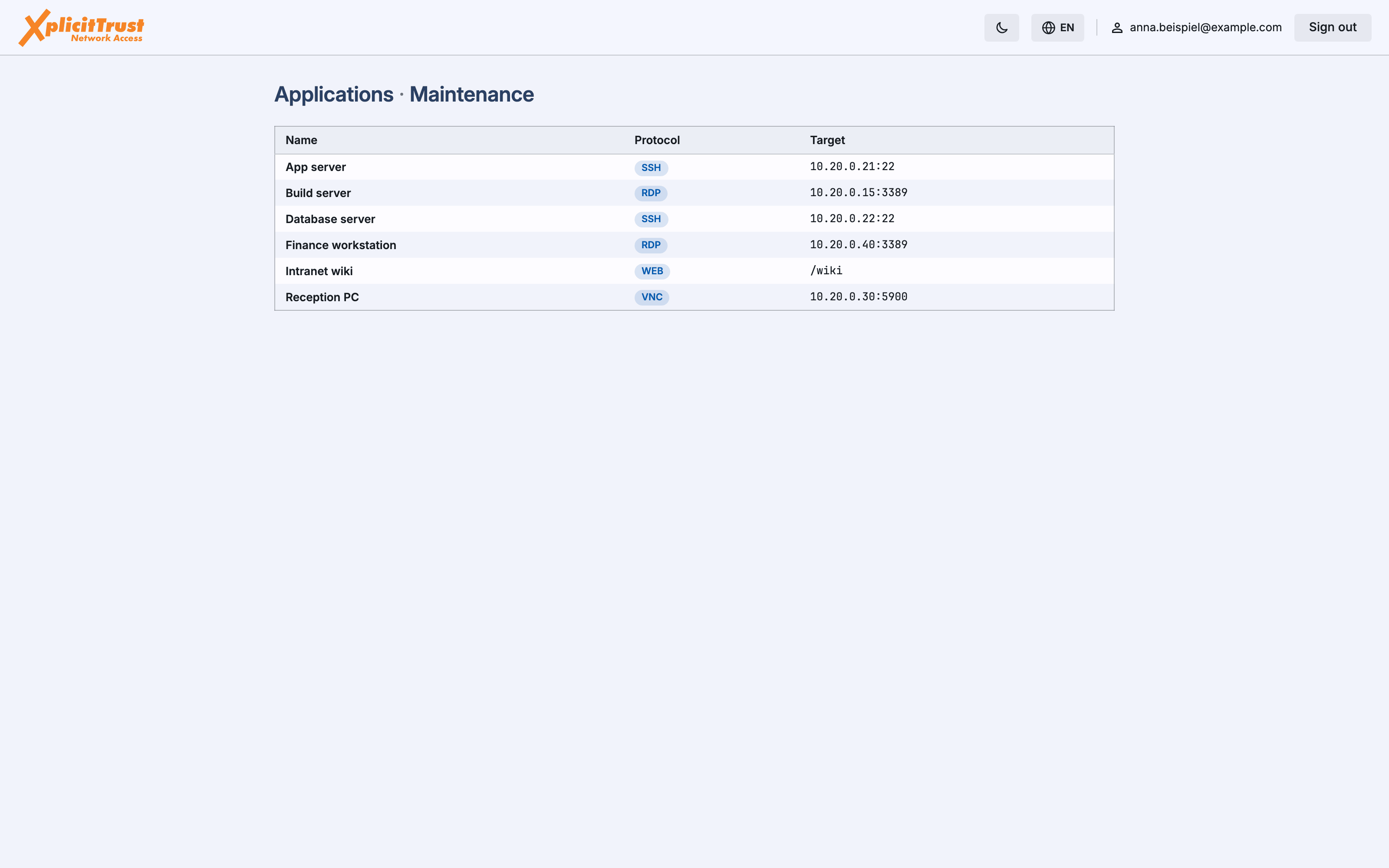
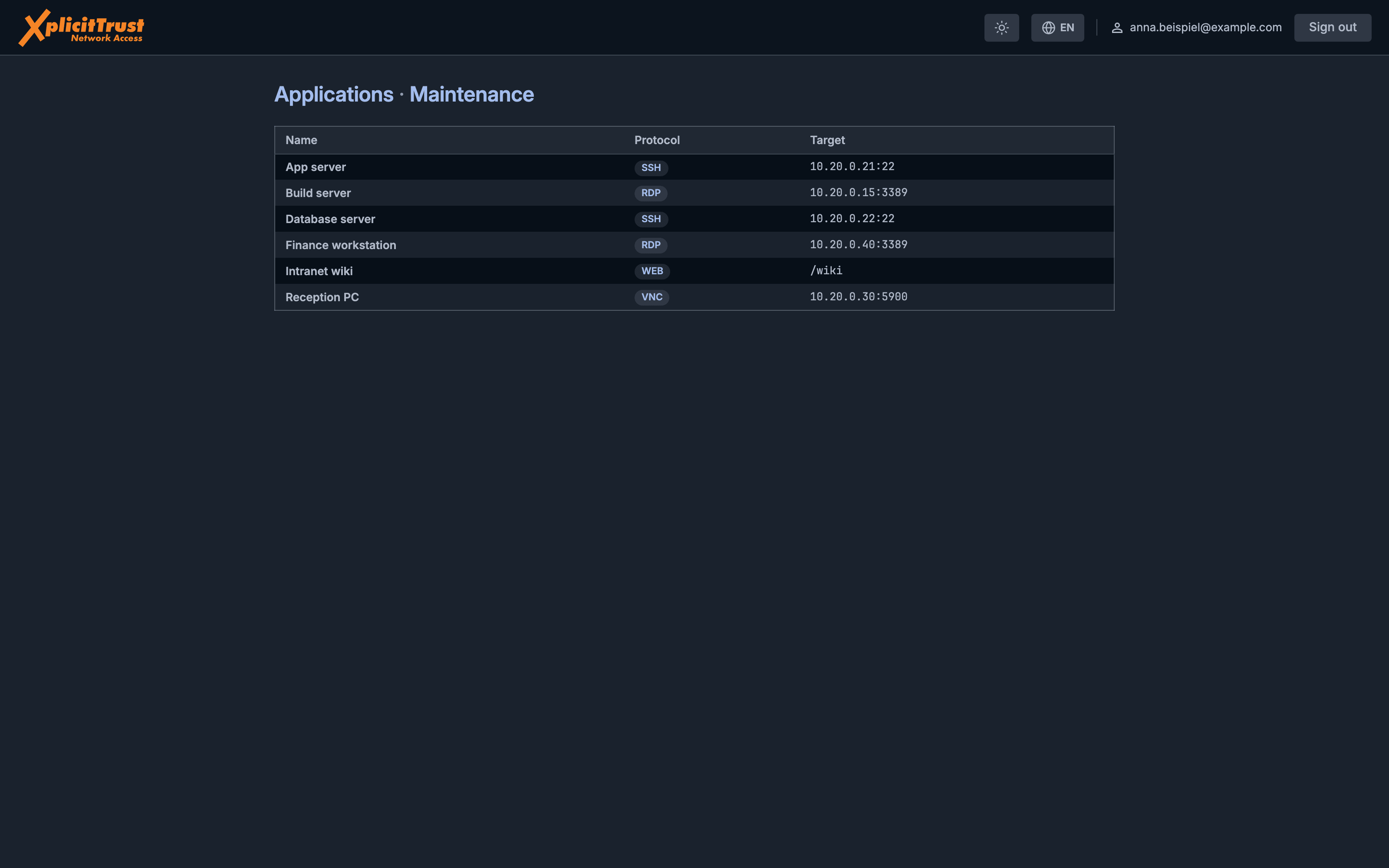
The title is Applications and the portal's name. The table has one line per application:
| Column | Meaning |
|---|---|
| Name | The application's name, which opens it. Without a name, the target of a desktop or the path of a web application stands here. |
| Protocol | RDP, SSH, VNC or WEB. |
| Target | The machine and port of a desktop, or the path of a web application. Left empty when the name already is the target. The address a web application is forwarded to is never shown. |
Without anything to open, the page says "No application here is available to you. Ask your administrator if you need one." Which applications are listed, and why one is missing, is described in Several applications in one portal.
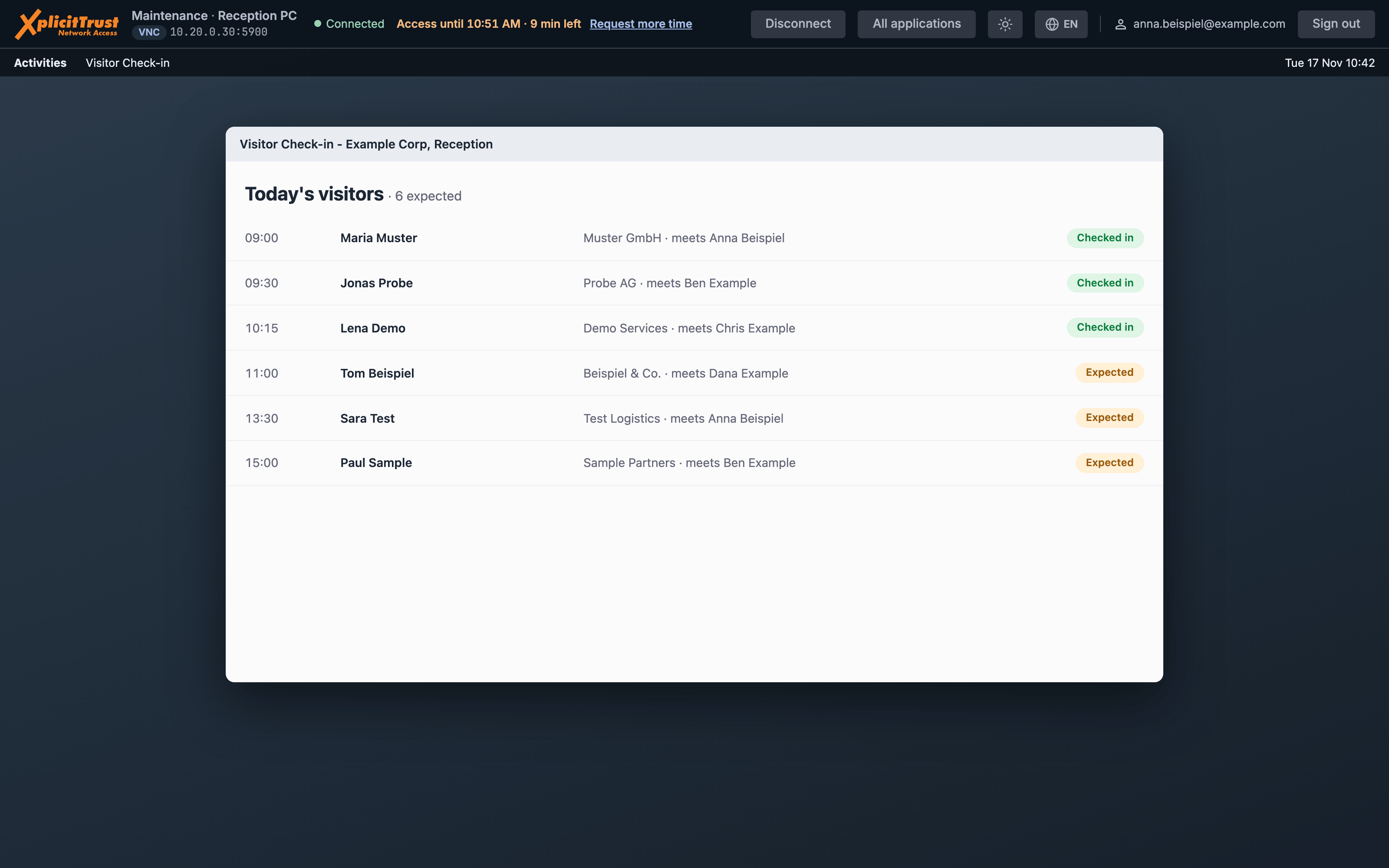
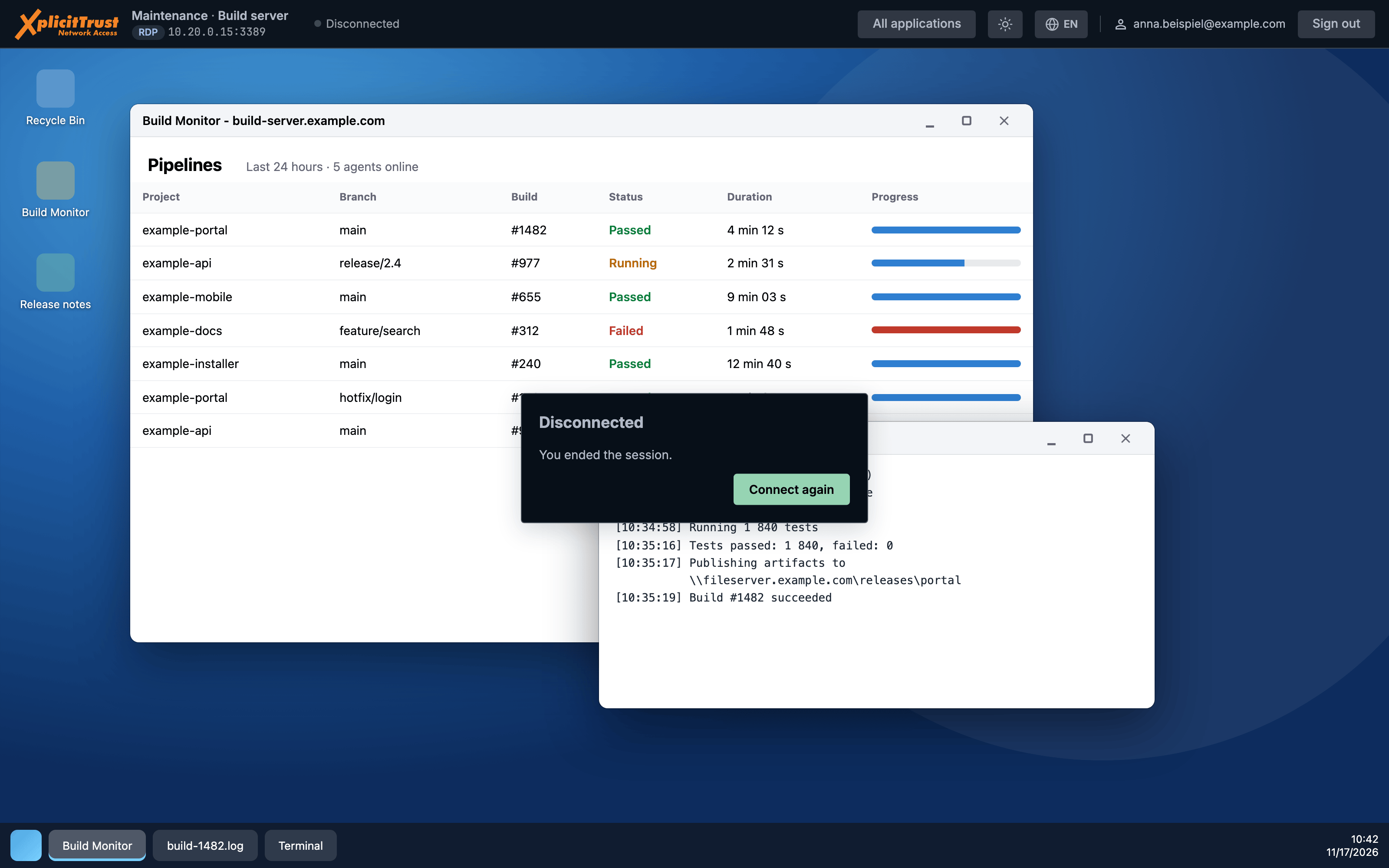
The bar at the top has the button for the light or dark appearance, the language menu (EN, DE and the other languages of the agent), the signed-in person and Sign out. A person who comes through the agent is not signed in to the portal and has no Sign out. A choice of language or appearance applies to every page of this portal in this browser; see Language and appearance.
Several applications in one portal
A portal can have as many remote desktop applications as you need, for example two Windows servers and two Linux servers, each under its own path prefix. Each one has its own page, and the portal also lists them, together with its web applications:
- at
https://<hostname>/_xt/apps, always; - at
https://<hostname>/too, as long as no application has the path prefix/.
Hand out that one address instead of one per desktop. The list shows each
application's Name (or, without one, the target of a desktop or the path
of a web application; a web application at / goes by the portal's name)
and the protocol (rdp, ssh, vnc or web), and links to it. A desktop's page
links back to the list when the person may open more than that one.
The list only shows what the person may open: the policy grants the portal,
the application's Allowed user groups take them, their network is in the
application's Allowed networks, and a tunnel application only shows on a
device with the agent connected. Applications with the trust level public
are not listed, as anyone can open them already. Someone who is not signed
in yet is sent to your identity provider first, as for an identity
application, and comes back to the list. One sign-in opens every application
the list shows, including those restricted to user groups.
Opening a remote desktop
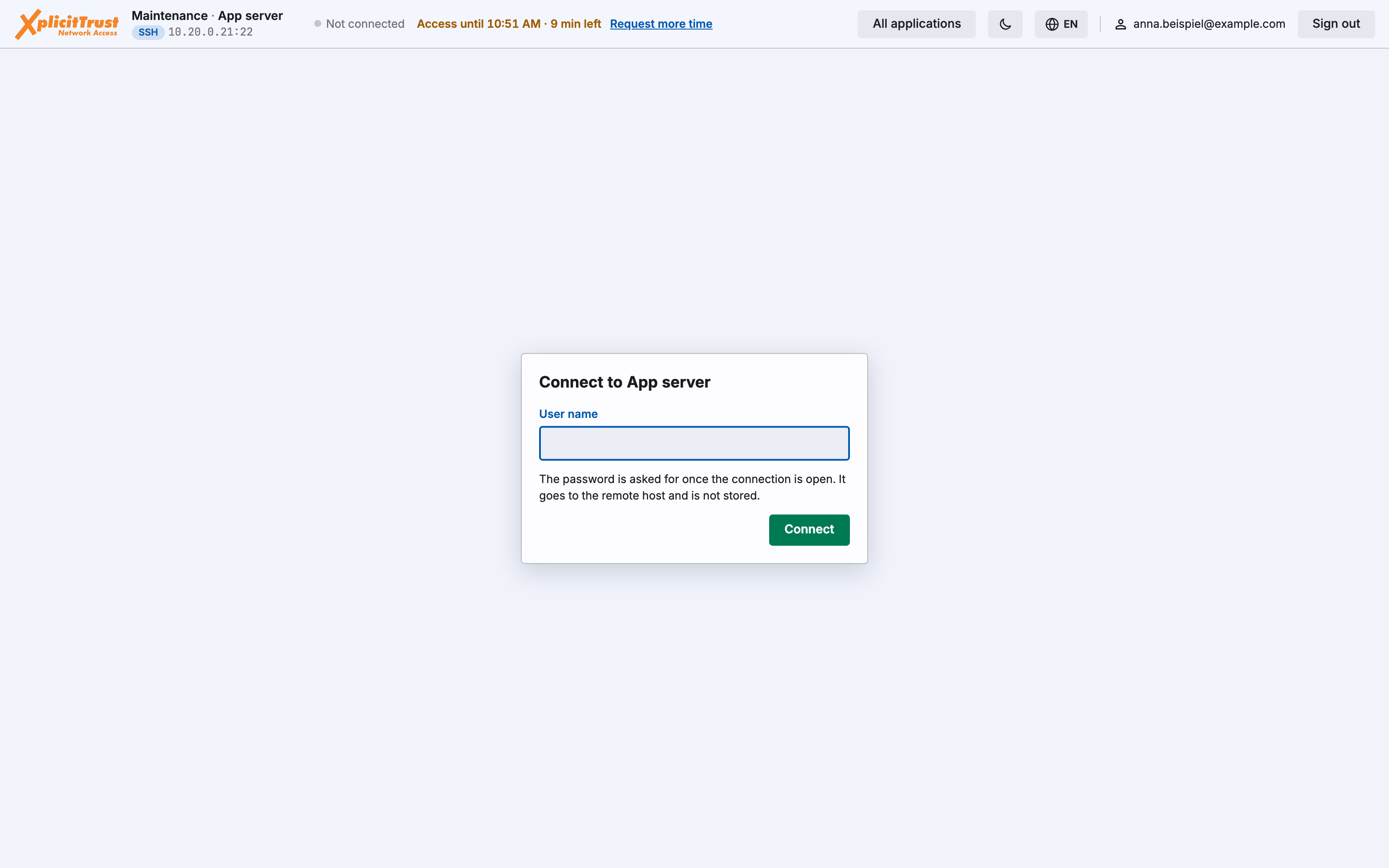
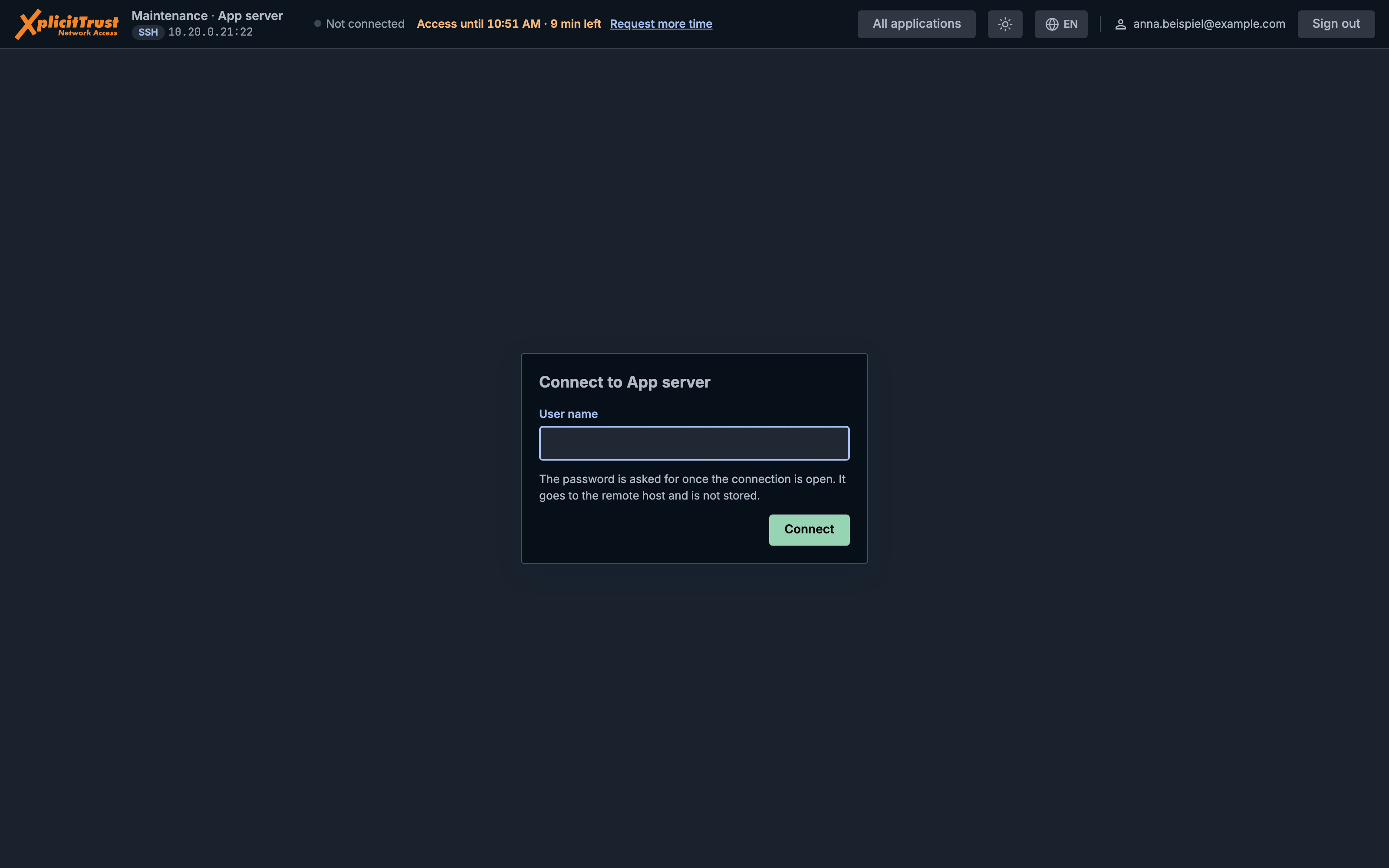
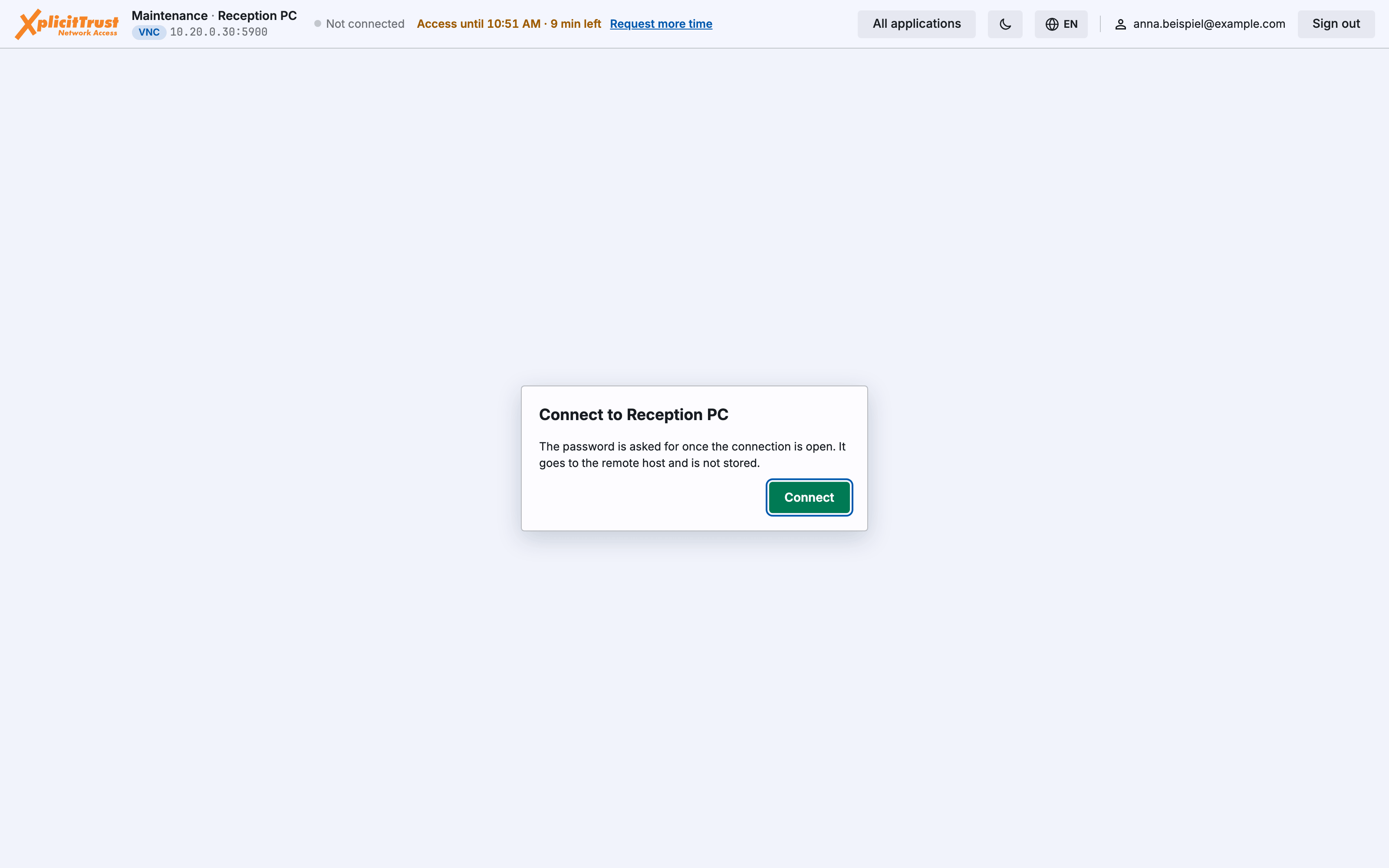
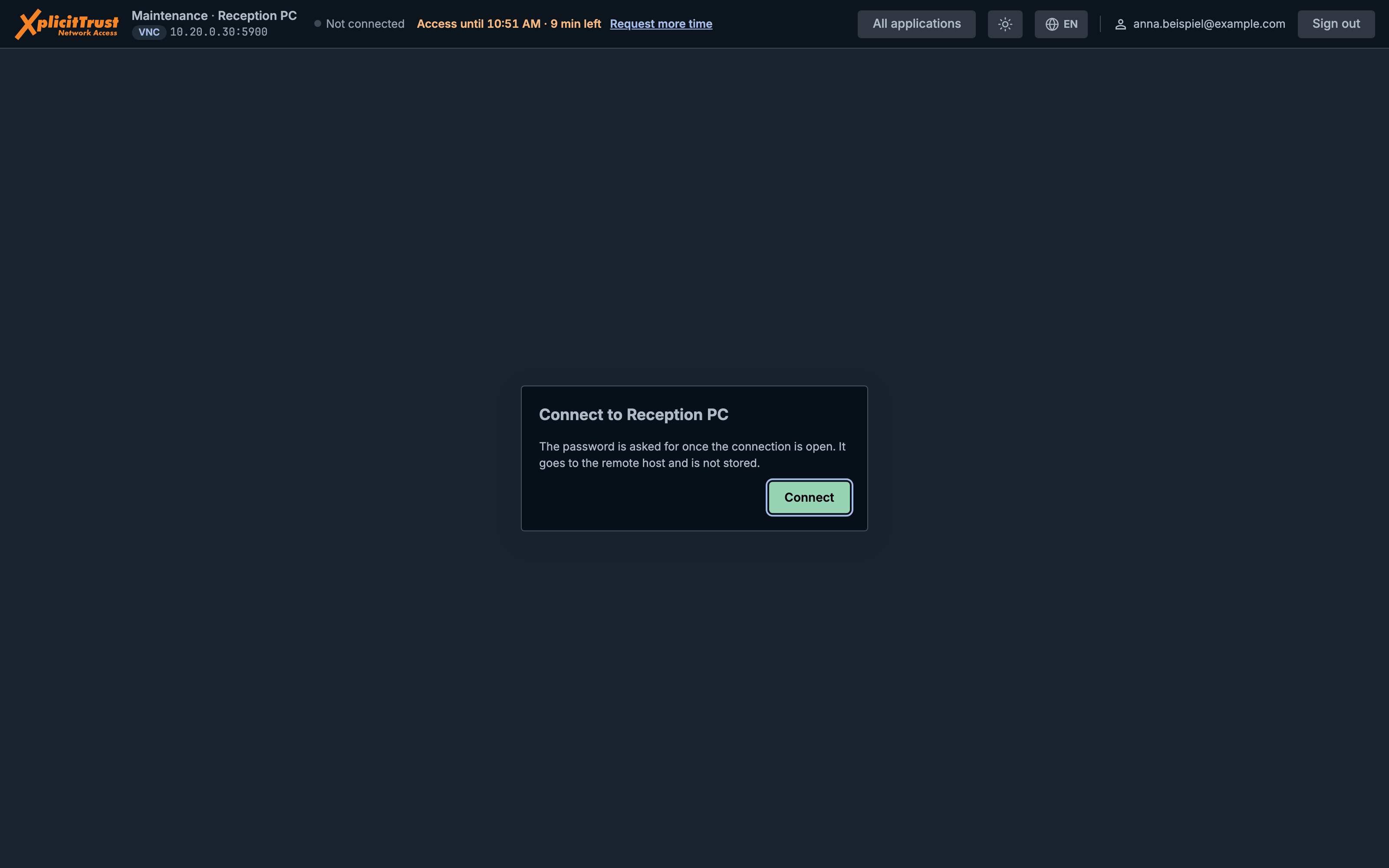
A desktop's page opens with a card Connect to and the application's name. Nothing is connected yet: the bar says Not connected.
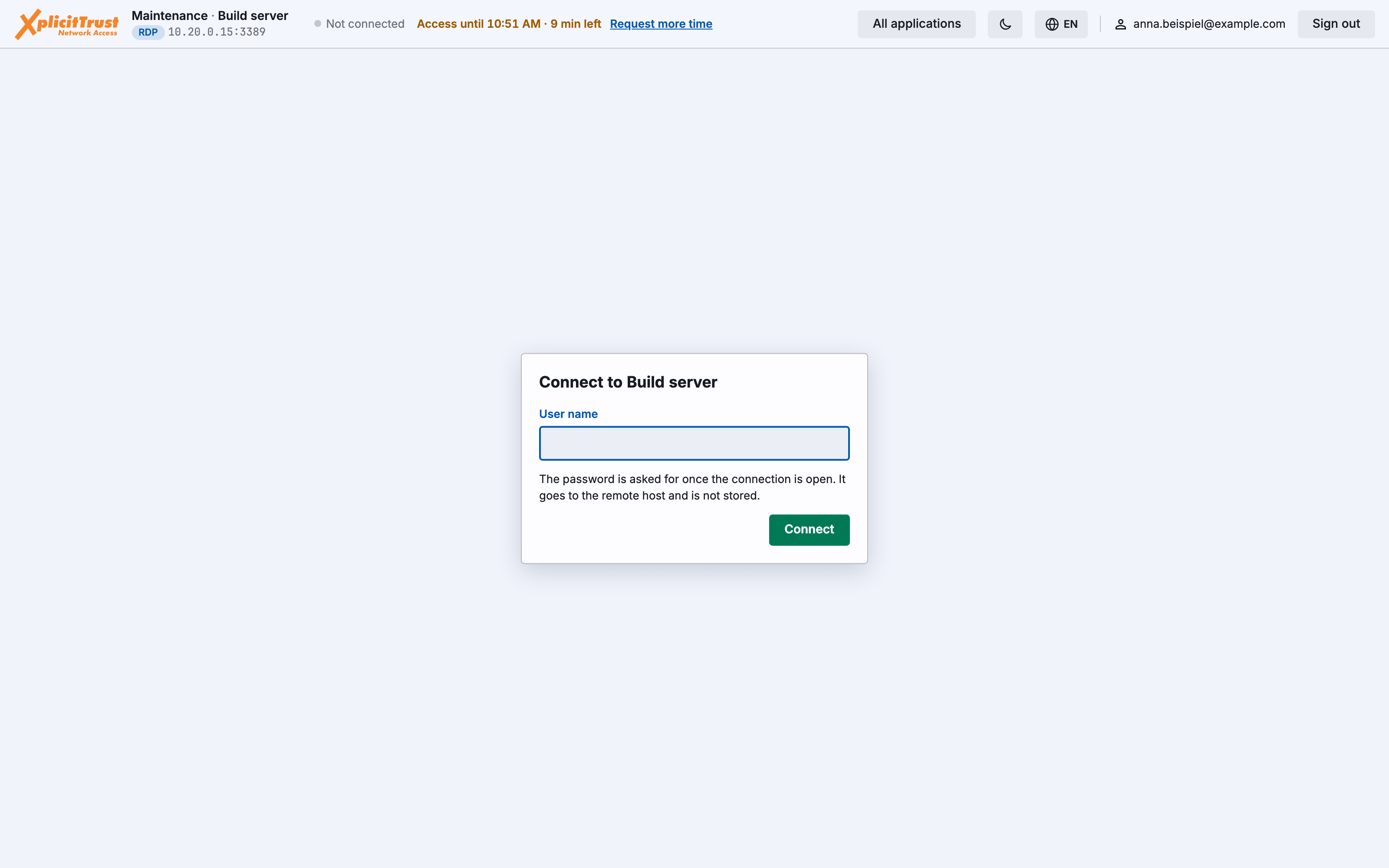
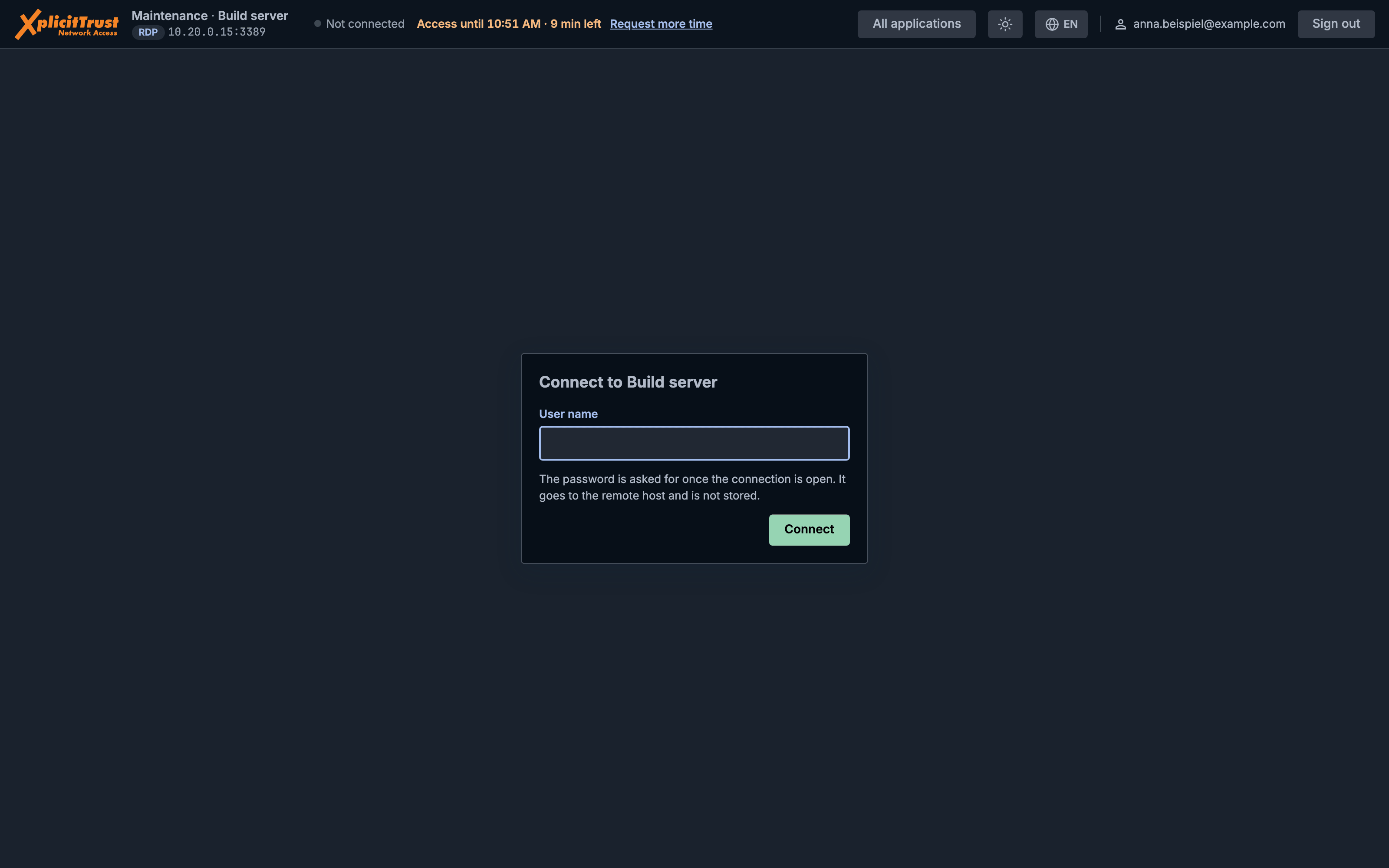
What the card asks depends on the application:
- The application stores no account (RDP or SSH): a field User name, and the note "The password is asked for once the connection is open. It goes to the remote host and is not stored."
- The application signs in by itself (stored credentials, or an SSH certificate): no field, only "The gateway signs in with the account configured for this desktop."
- VNC: no field, as the server asks for what it needs; the card shows the note about the password.
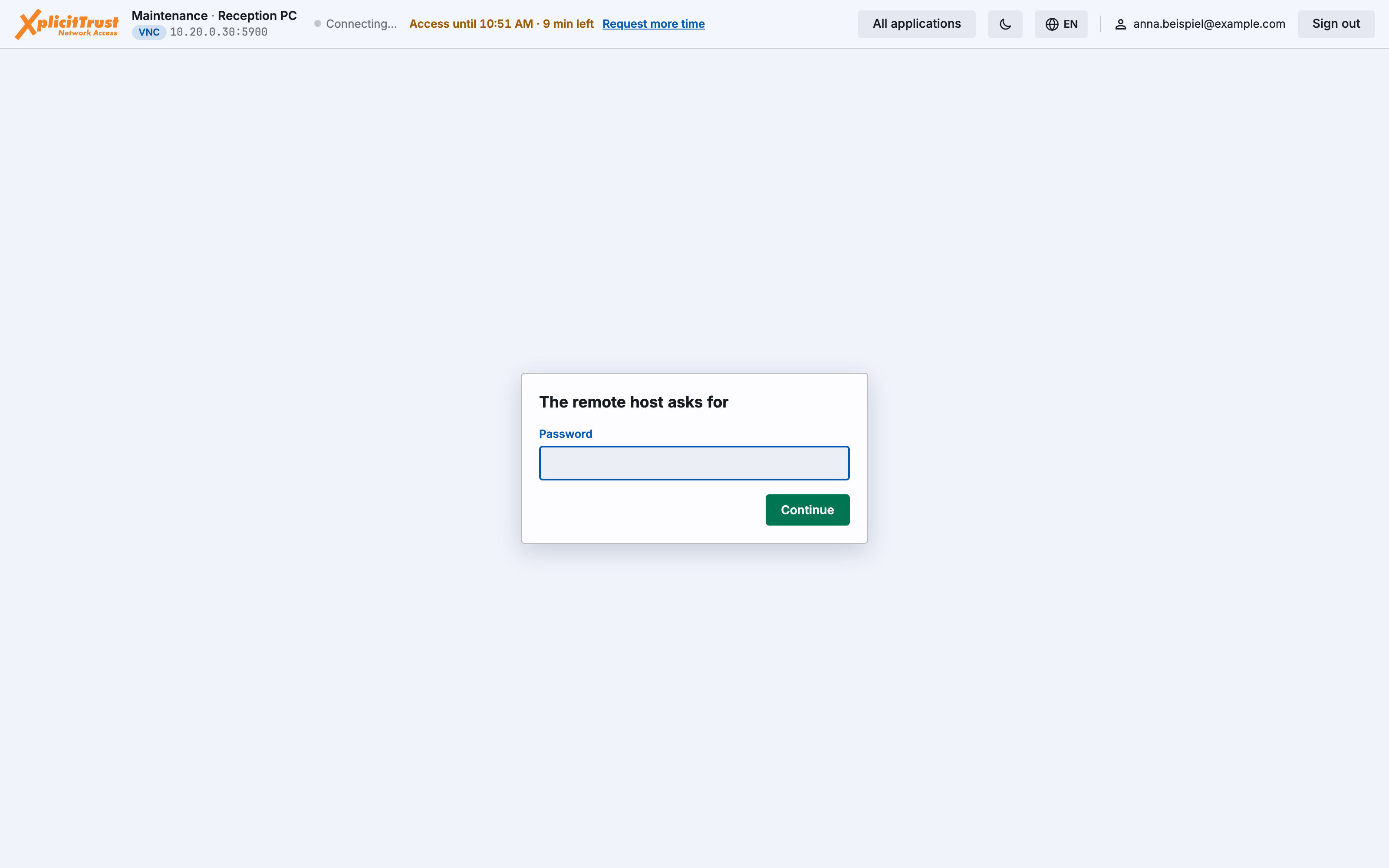
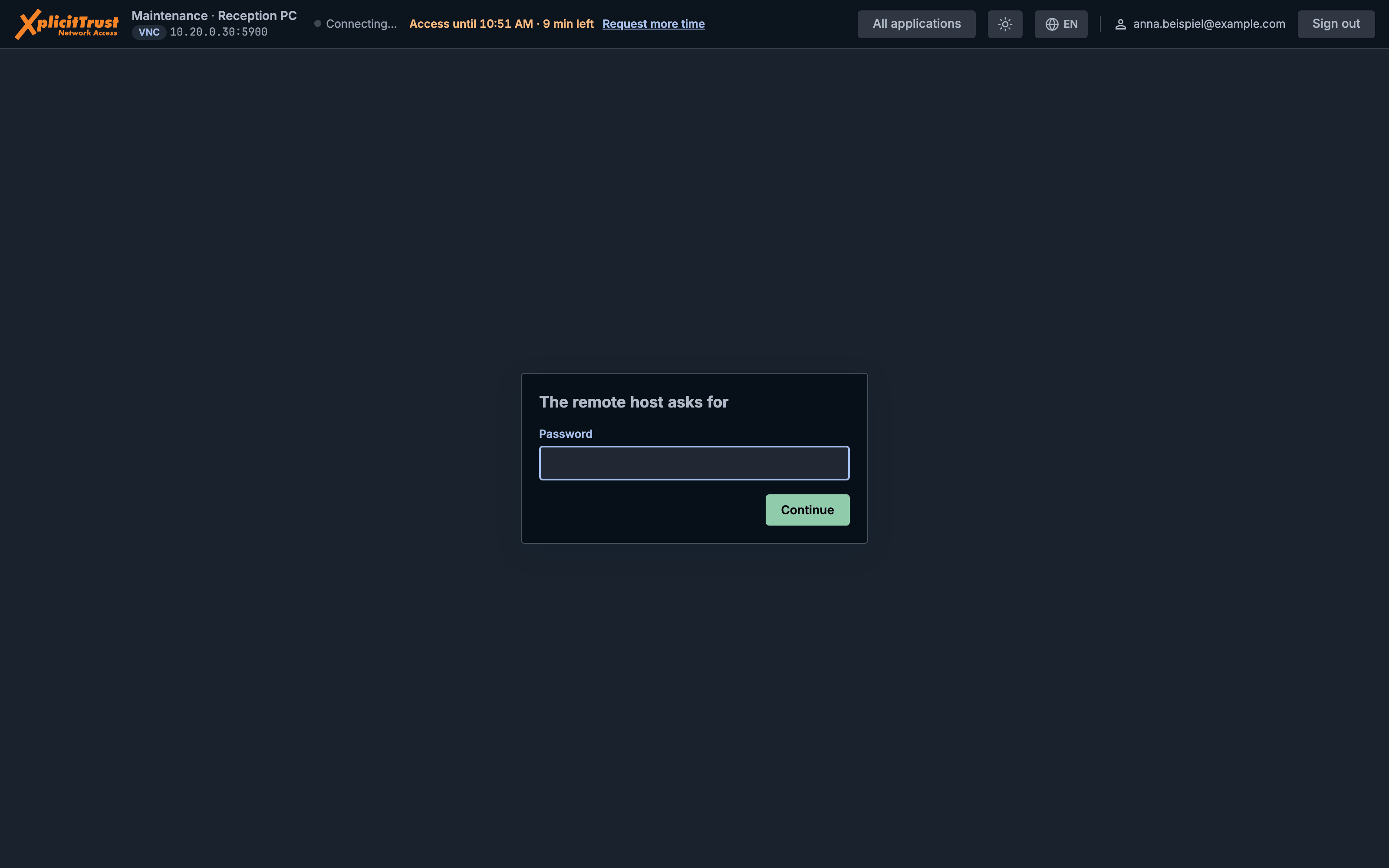
Connect opens the session. The bar then says Connecting….
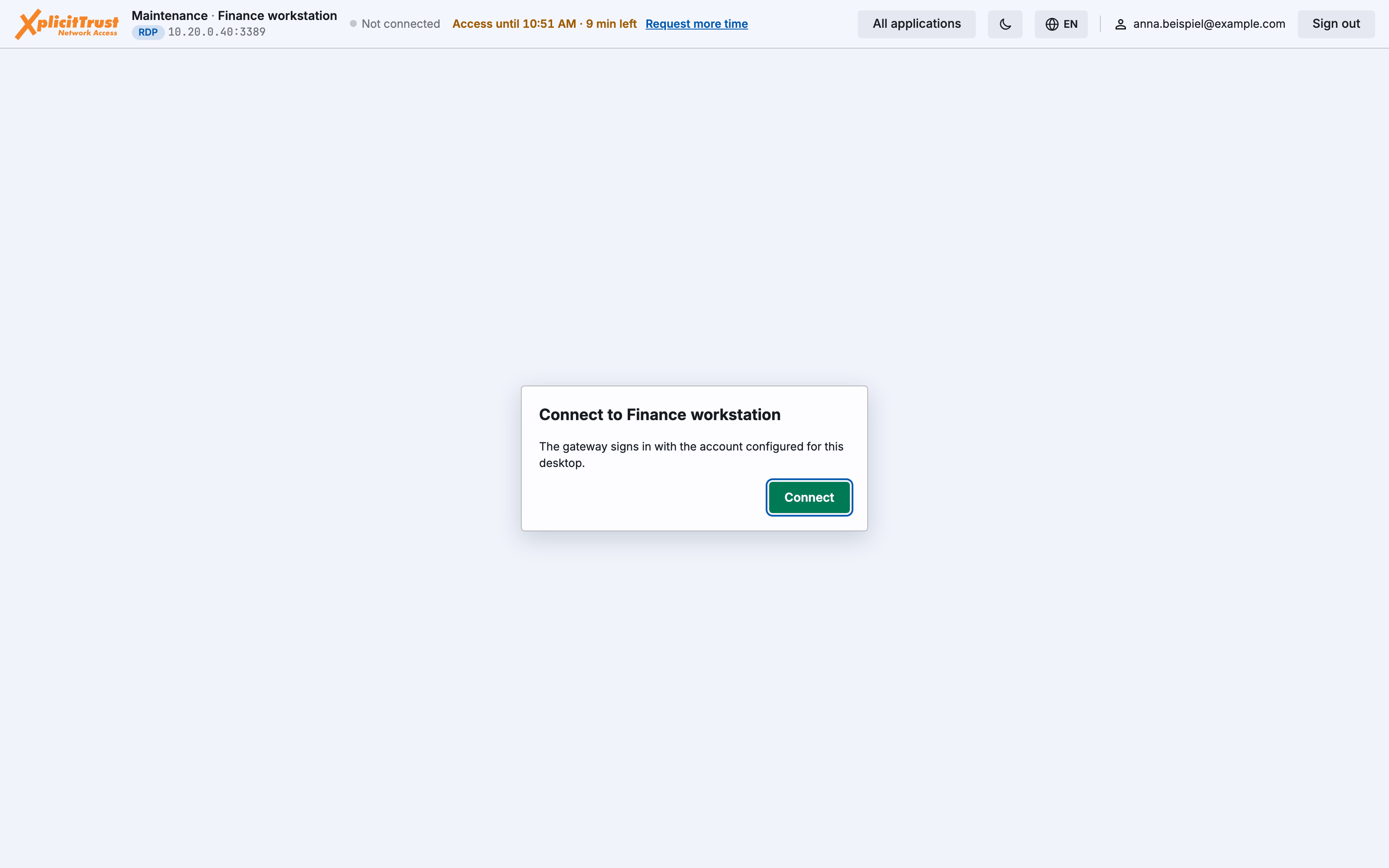
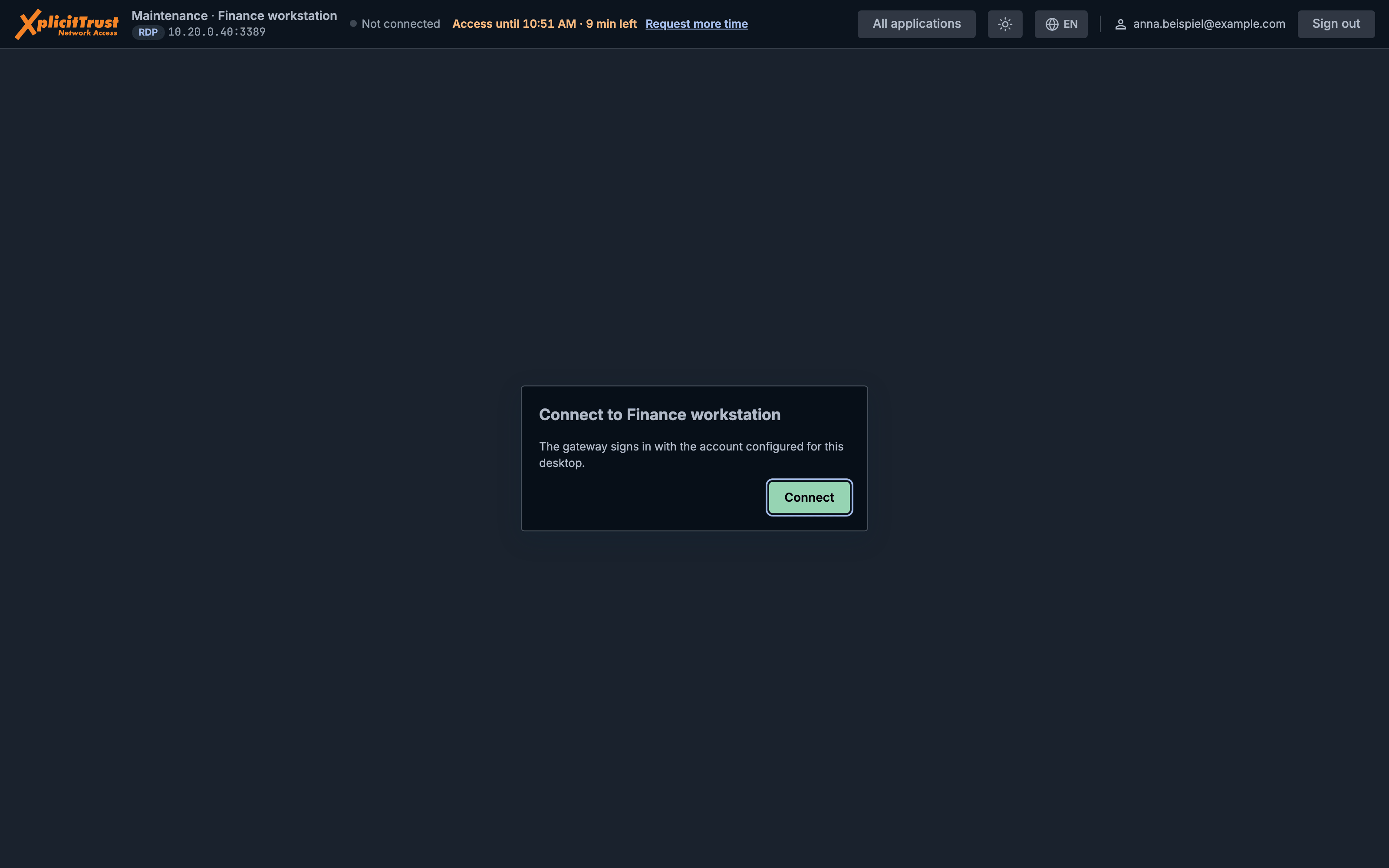
Opened from My Access in the desktop agent, the page connects at once, without the card, unless it needs a user name. A reload and Connect again show the card as usual.
What the target asks for
When the target needs more than the page sent, typically the password, the card The remote host asks for shows exactly the fields it asks for: User name, Password, Domain or, for an SSH key, Passphrase. A user name typed on the first card is filled in already. Continue sends the values to the target through the gateway; they are not stored anywhere.
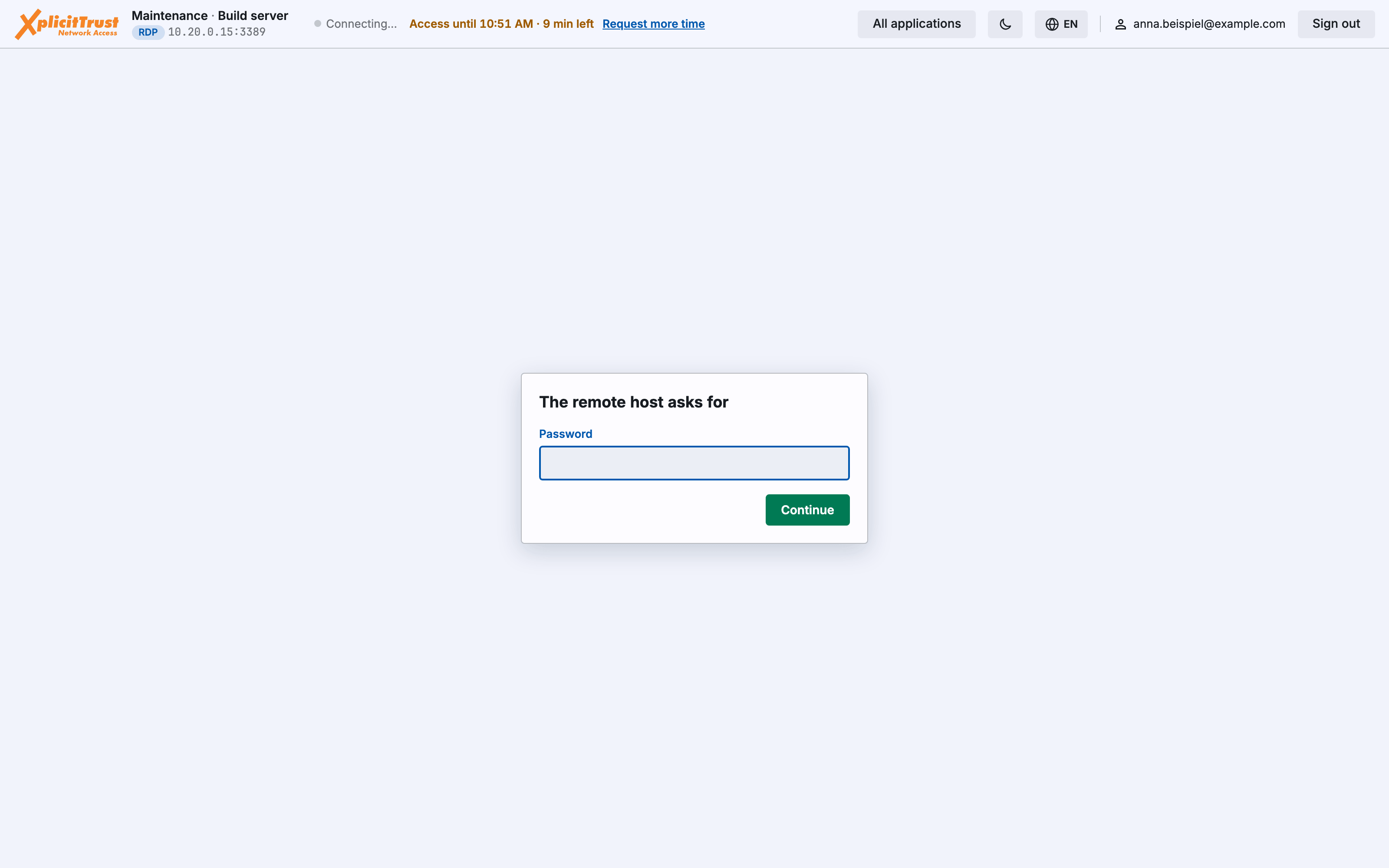
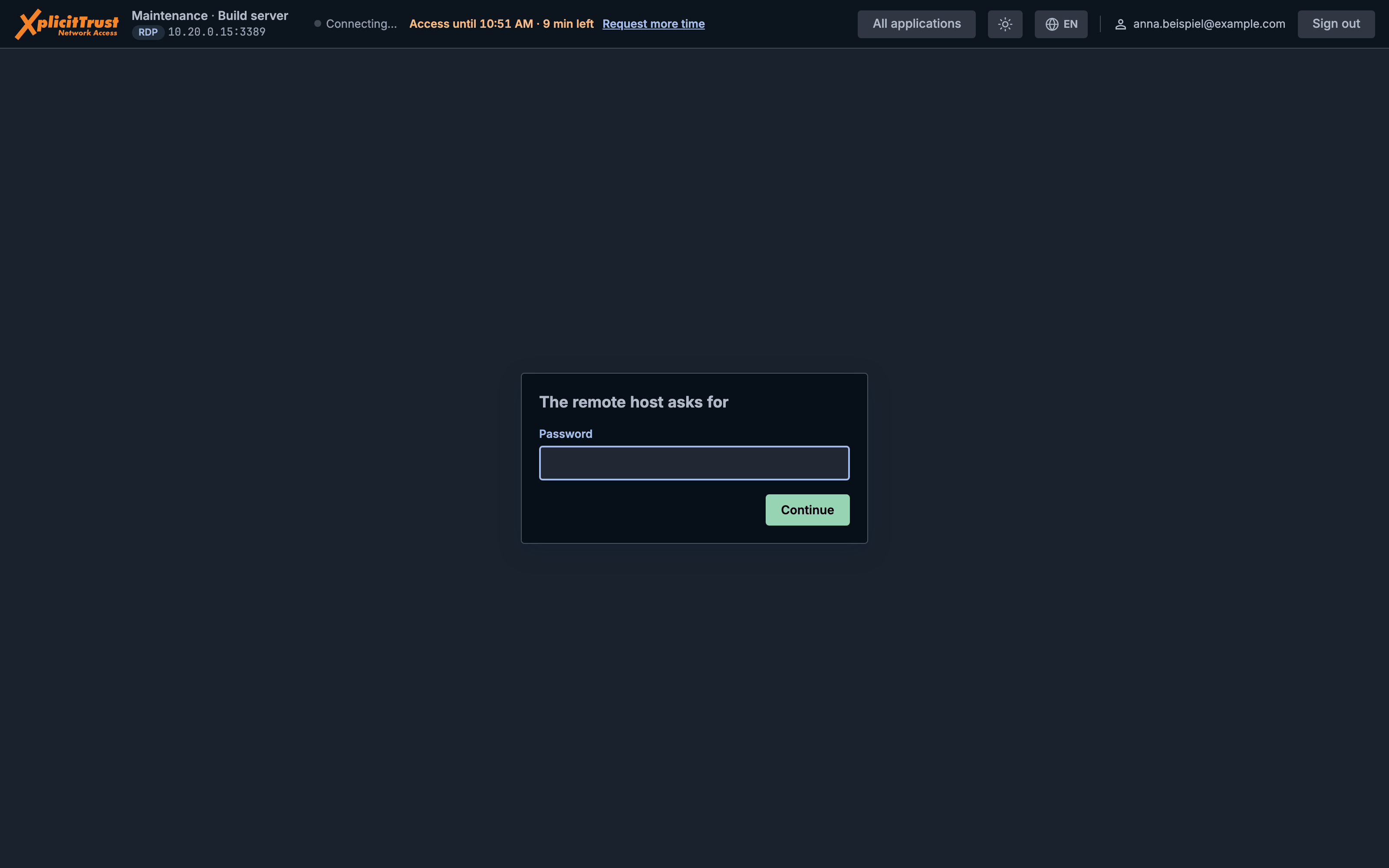
A wrong password is the target's business: Windows shows its own sign-in screen again, an SSH server asks again in the terminal.
The session
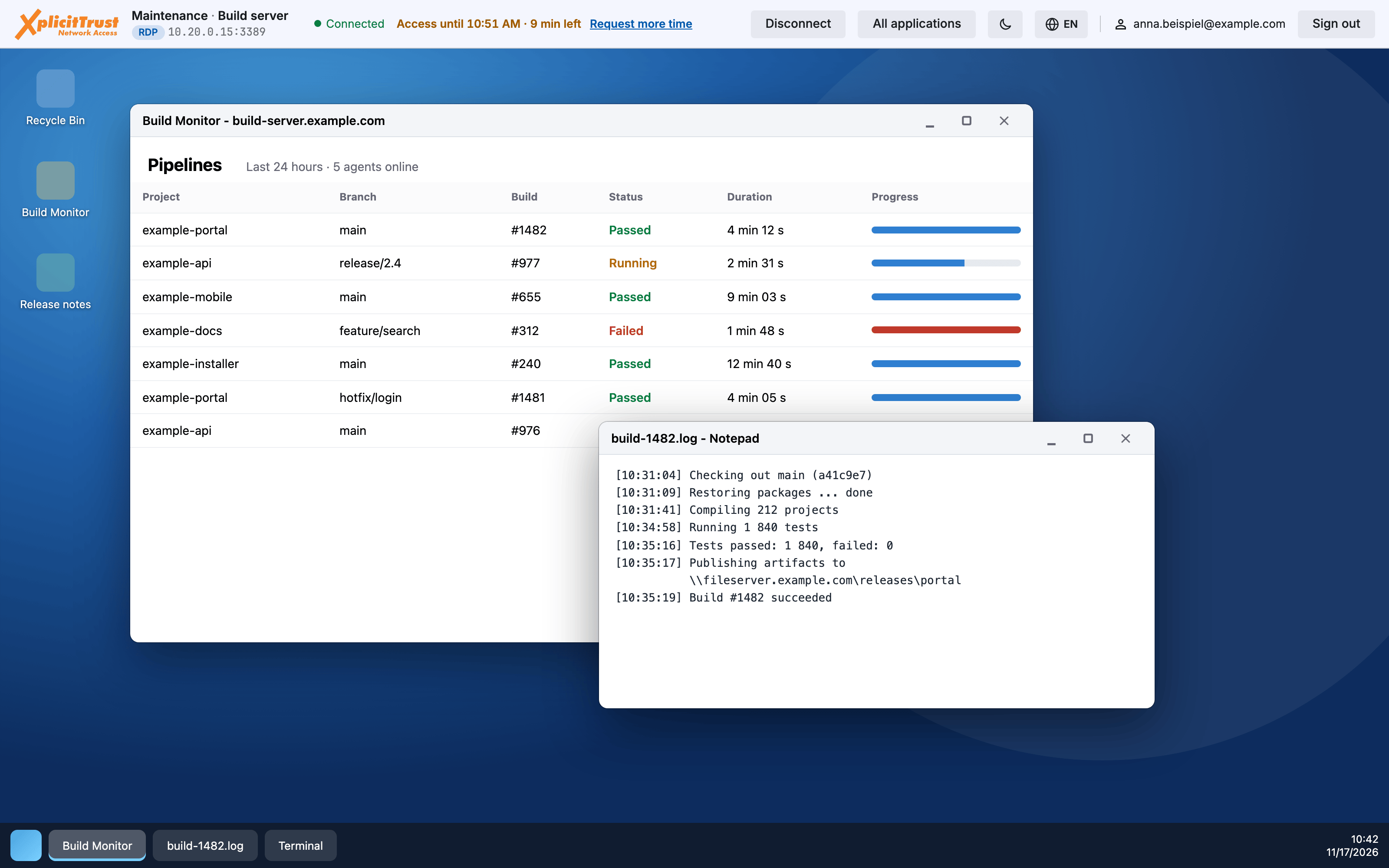
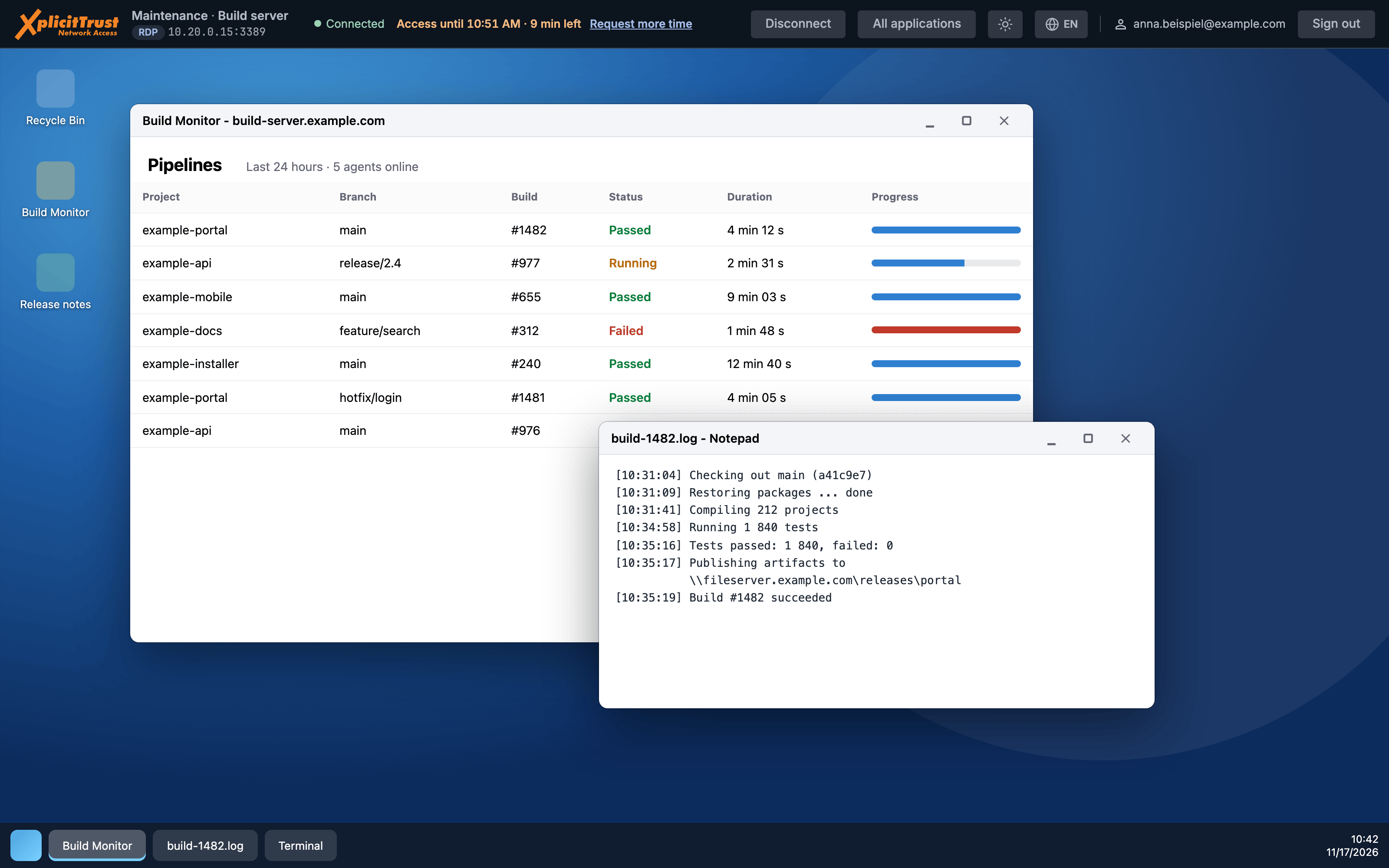
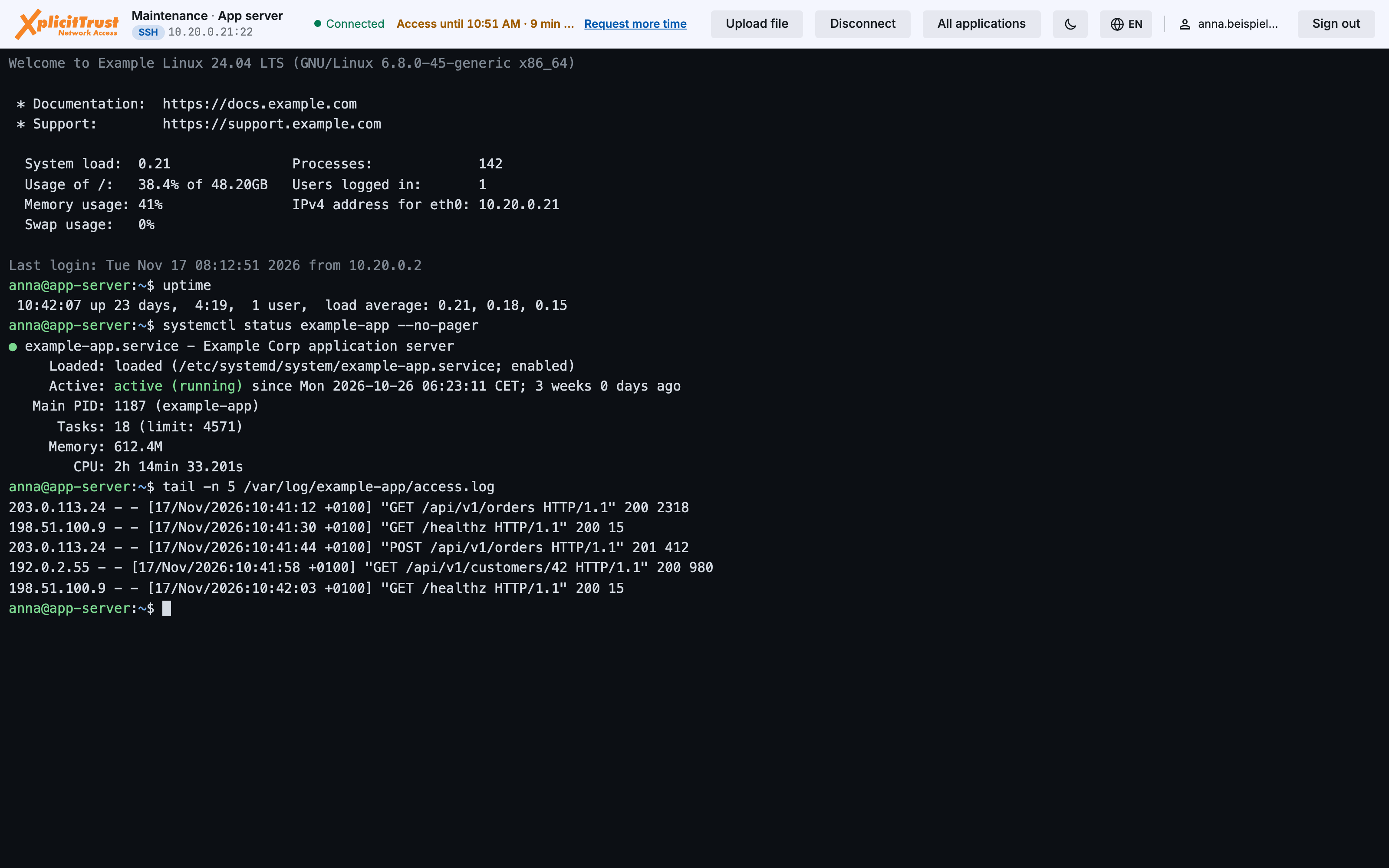
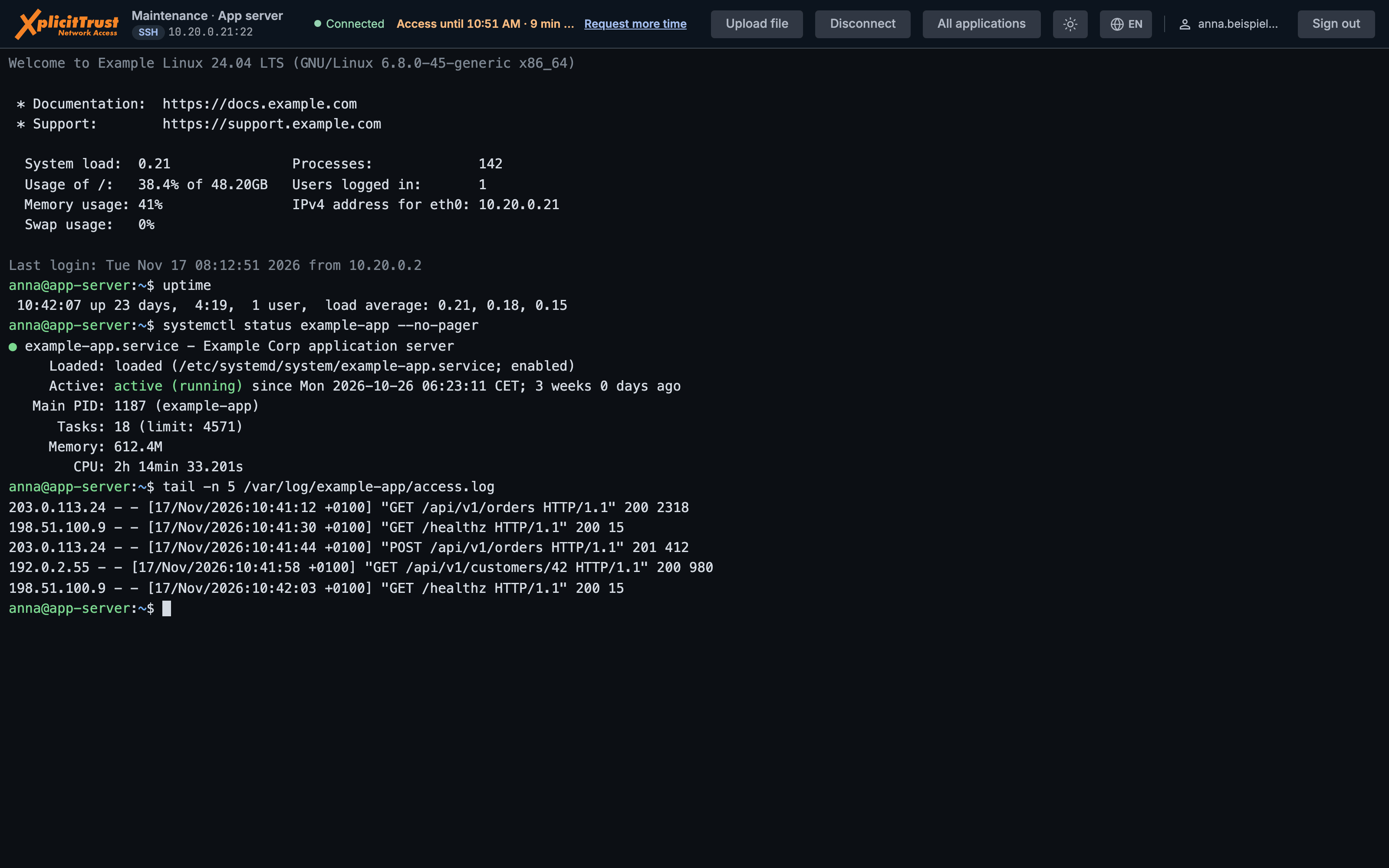
Once the target has accepted the sign-in, the bar says Connected and the screen fills the window. It follows the size of the browser window, with the sharpness of the device's display.
The bar
From left to right:
| Element | Meaning |
|---|---|
| Name | The portal's name and the application's name; below them the protocol (RDP, SSH, VNC) and the target. |
| Status | Not connected, Connecting…, Connected (green), Disconnected, or Error (red) when the session failed or was ended. |
| Access until | Only with just-in-time access: when it ends, see below. |
| … is watching this session | Only while an administrator watches, see below. |
| Transfer | While a file moves: Downloading or Uploading with the file's name and progress. |
| Upload file | Only when the application allows uploads. Sends files into the session, see Files. |
| Keyboard | Only on a device with a touchscreen. Opens the device's on-screen keyboard; see Phones and tablets. |
| Disconnect | Ends the session. |
| All applications | Only when the person may open more than this application. Opens the list in a new tab. |
| Appearance, language | As on the list. The appearance changes at once; a new language reloads the page, which reconnects the session, so the page asks first: "Changing the language reloads the page, which reconnects the session. Continue?" |
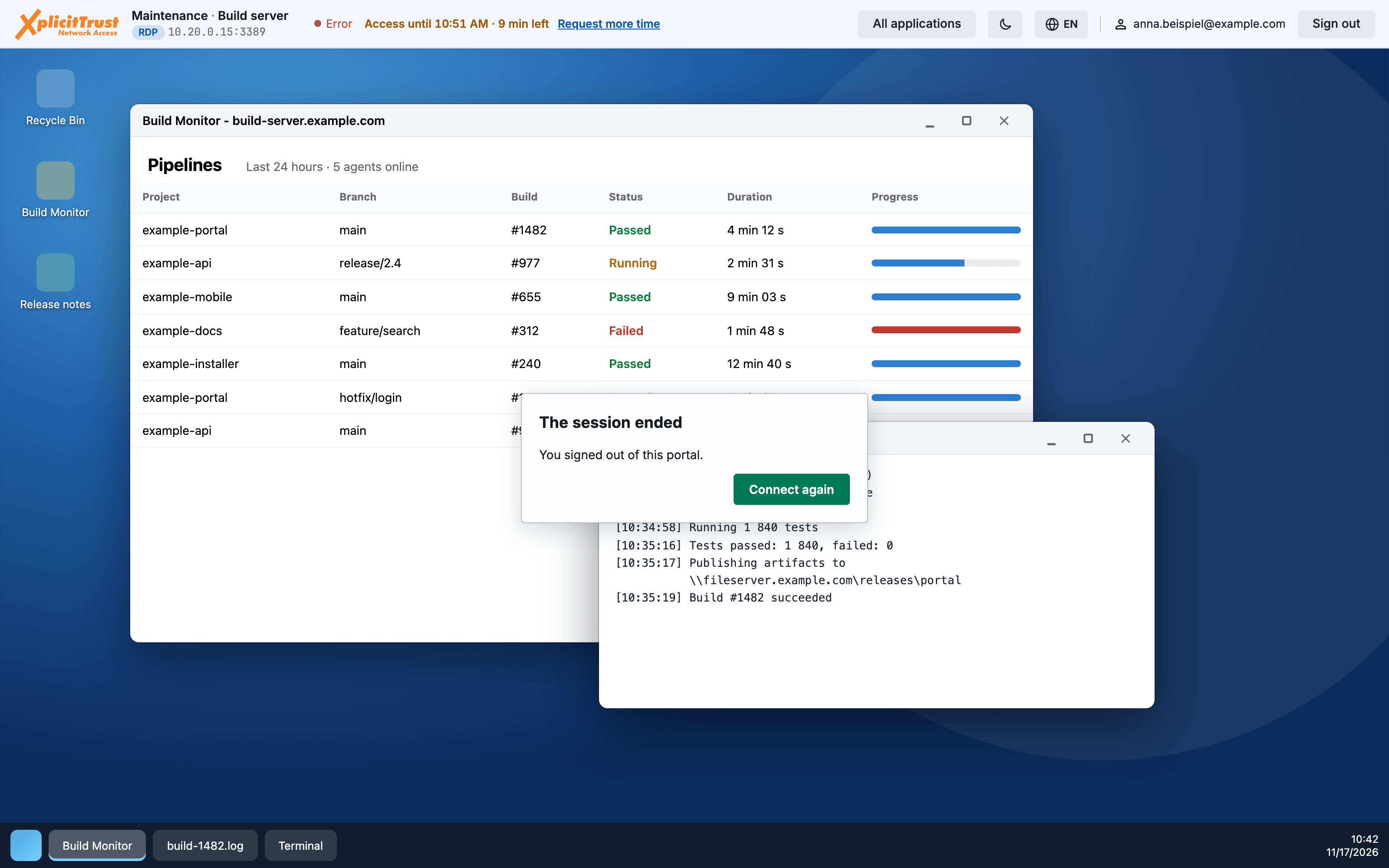
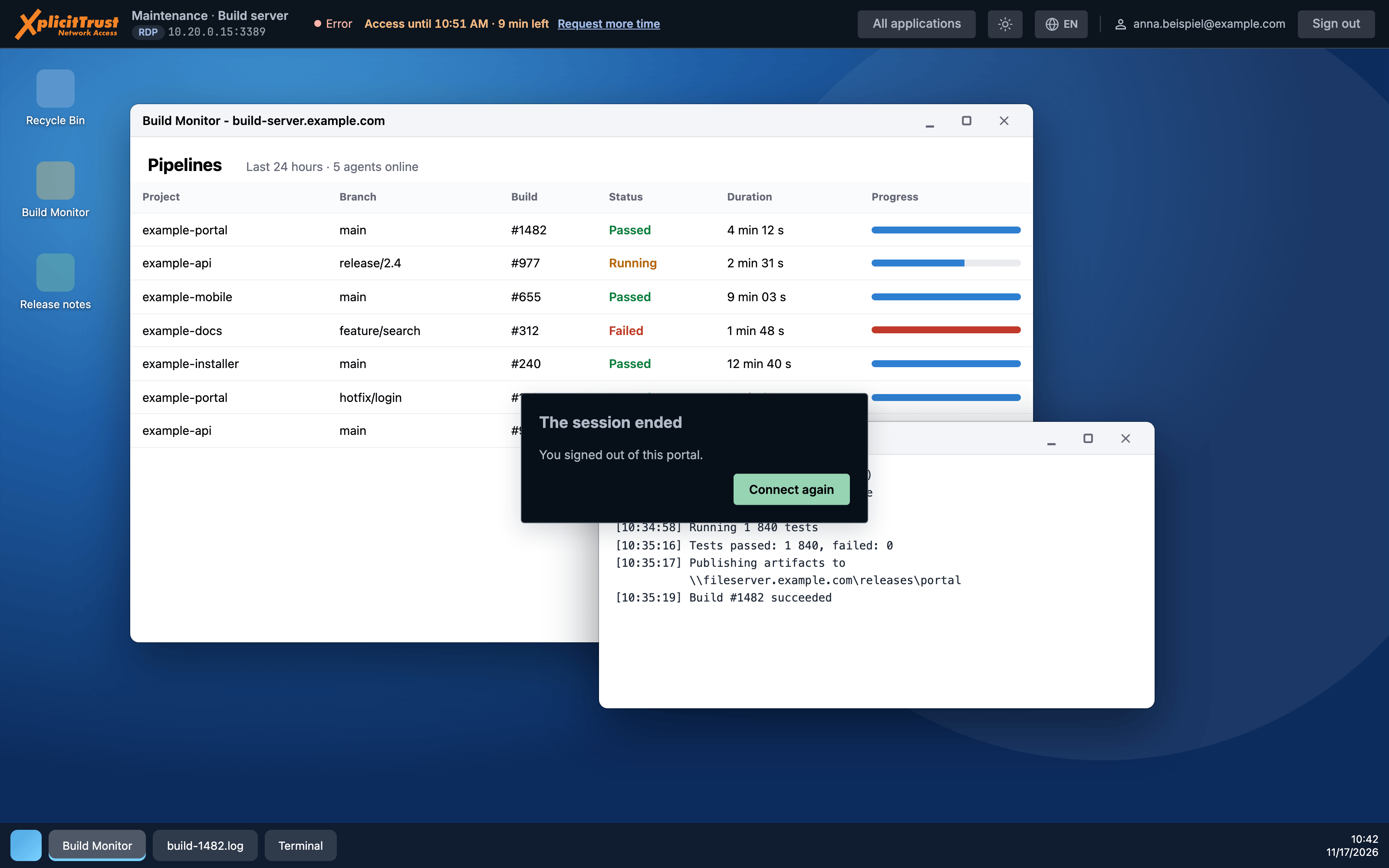
| Person, Sign out | Who is signed in to the portal. Sign out ends the sign-in in this browser and leaves the page. The sessions this browser opened in other tabs end within seconds with "You signed out of this portal." The person's other browsers and devices stay signed in; Sign out on the console's My access page ends them all. |
Keyboard shortcuts go to the session, not to the browser, while the session has the focus. The clipboard works as described in Clipboard and files.
The end of the access
With access that an approver granted for a time, the bar shows Access until and the time, with the day when it is not today. In the last hour the minutes left follow, less than a minute left at the very end, and the last ten minutes are highlighted. Request more time opens the request on the console's self-service page, where the person asks for an extension; an approved extension moves the time in the bar within half a minute, and the session runs on.




Access that a policy always grants has no end, and the bar shows no time:


At the end the session closes with "Your access to this remote desktop has ended.", also when the page was not looked at. How the gateway enforces the end is described in Just-in-time access.
When an administrator watches
While an administrator looks at the session in the live view, the bar names them: "name is watching this session", or "An administrator is watching this session" when the view was opened through the API. The notice goes away when the last of them stops watching. There is no way to watch without it.


The administrator sees the screen only. They cannot type or click, and they see nothing of the clipboard, the files moved or the credentials asked for.
Files
When the application allows it (File upload, File download; RDP and SSH only), the bar has Upload file:
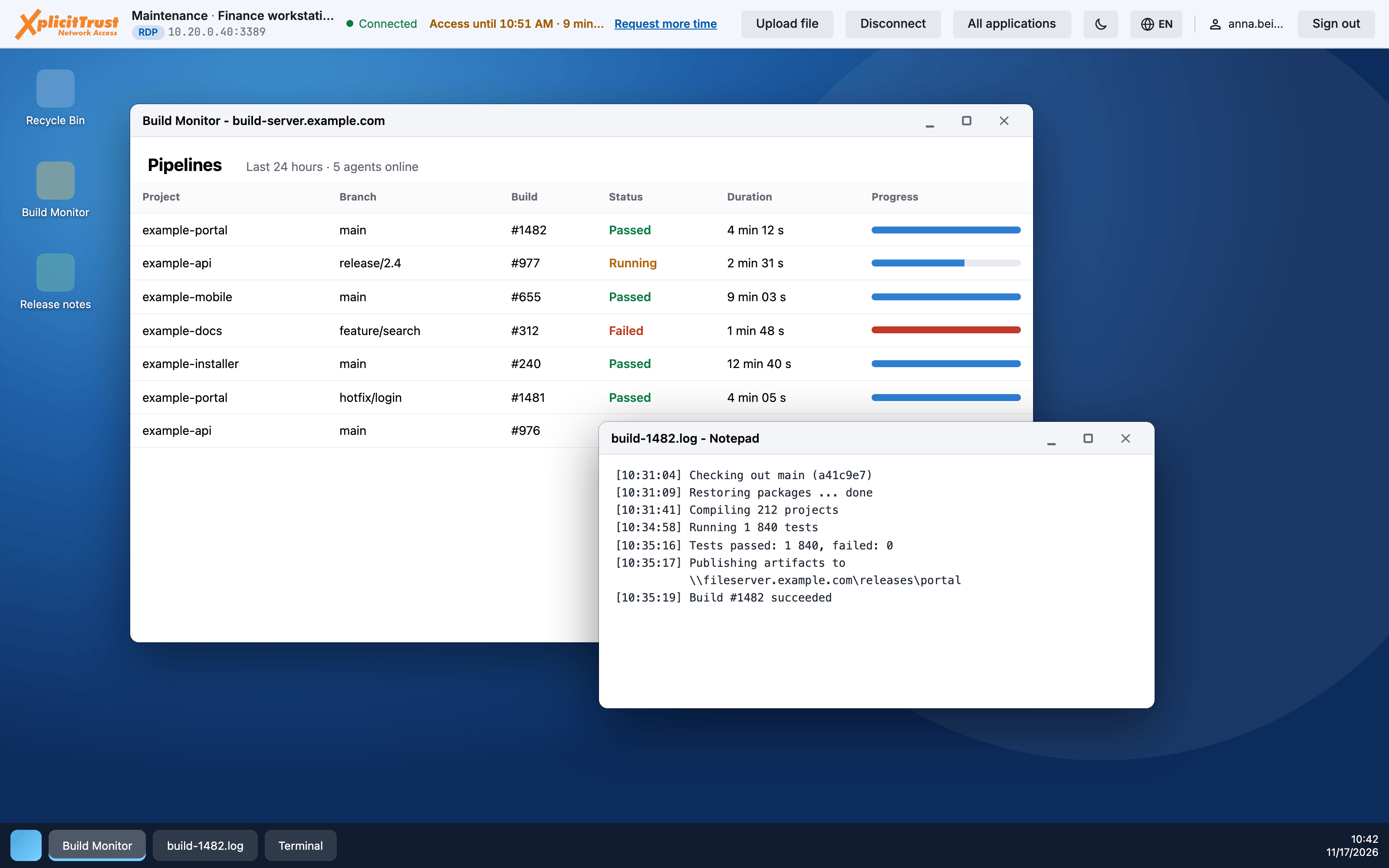
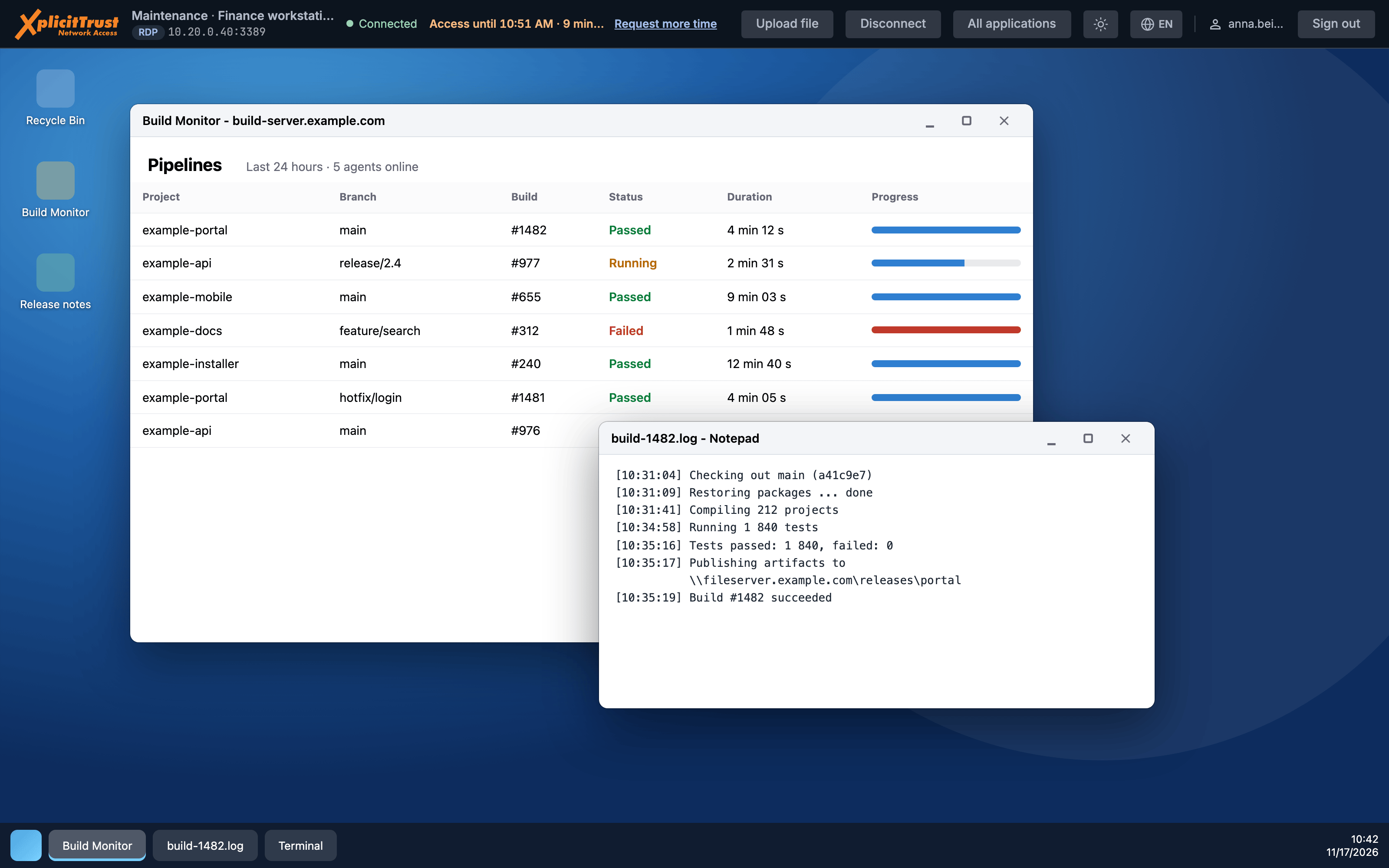
- Upload: Upload file picks one or more files; dropping files onto the session does the same. On RDP they land on the drive XplicitTrust in the session's file explorer, on SSH in the account's home directory. The bar shows "Uploading file (n %)", and "Upload of file failed:" with the reason when the target refuses it.
- Download: on RDP, a file put into the Download folder of the
XplicitTrust drive; on SSH,
guacctl --download <file>in the terminal. The bar shows "Downloading file (n KiB)" while it arrives, then the browser saves it like any download.




The XplicitTrust drive belongs to this one session: it is empty at the start and removed at the end.
A terminal (SSH)
An SSH application opens the same way. Without a stored account the card asks for the user name, and the password follows when the server asks for it; with a stored account or a certificate the card has Connect only.
The session is a terminal in the window, with the same bar as a remote desktop.
Typing exit ends the session; the card then says Disconnected.
A remote screen (VNC)
A VNC application shows no user name field: the server asks for what it needs once the connection is open, usually the VNC password alone, and Apple's Screen Sharing a user name and a password.
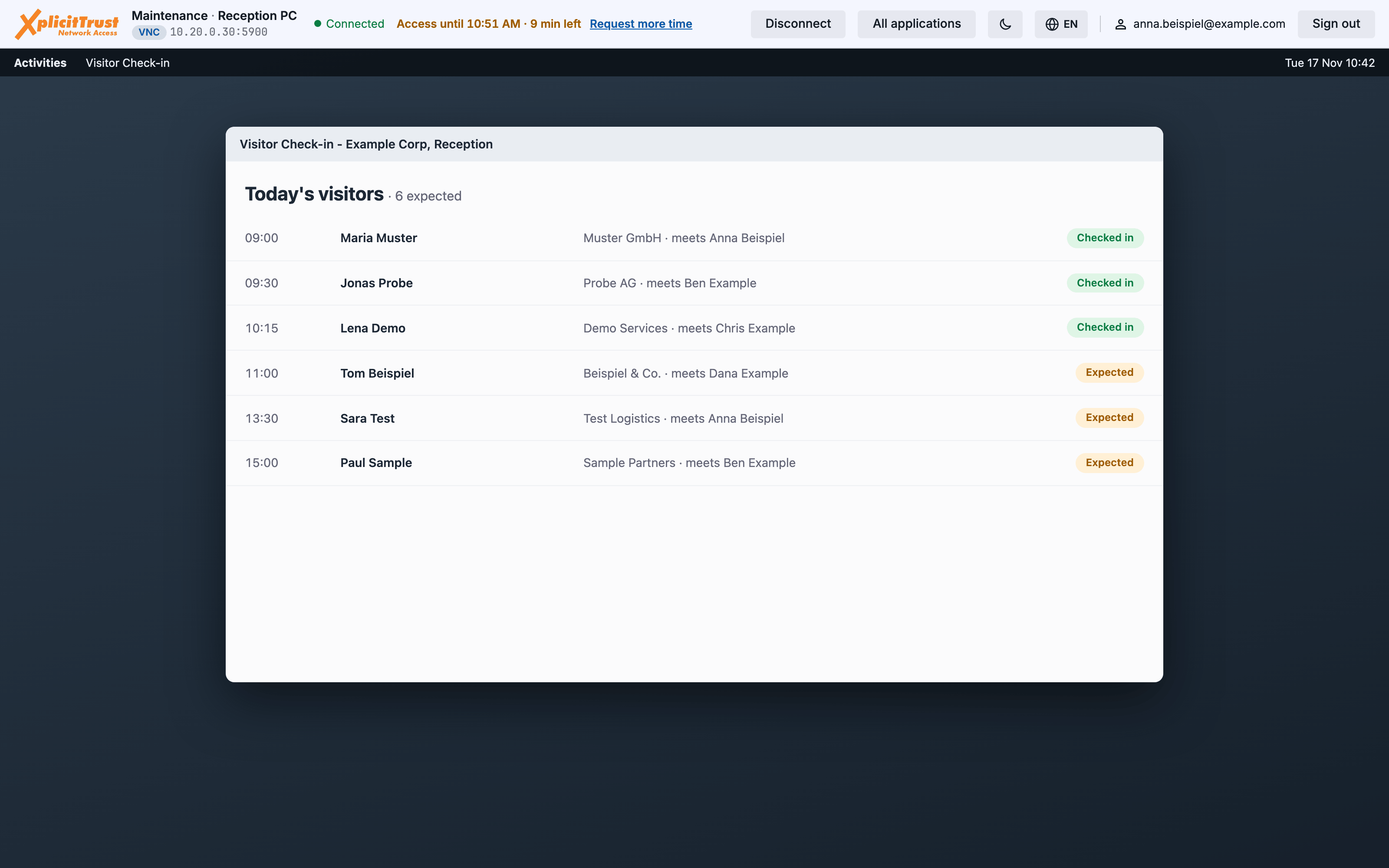
A VNC session shows the machine's own screen, at the size the machine has: the page scales it to fit the window. There is no Upload file.
How a session ends
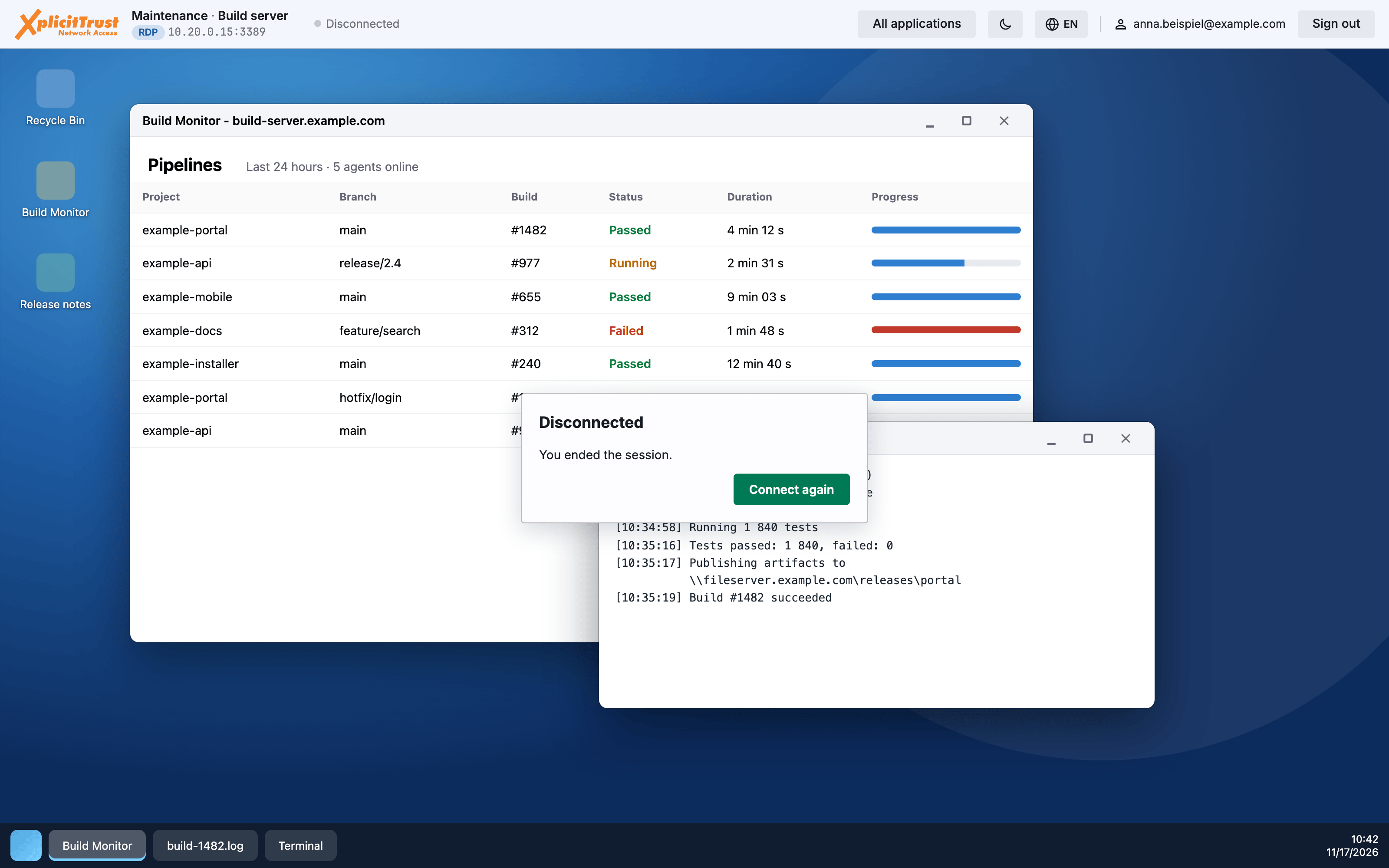
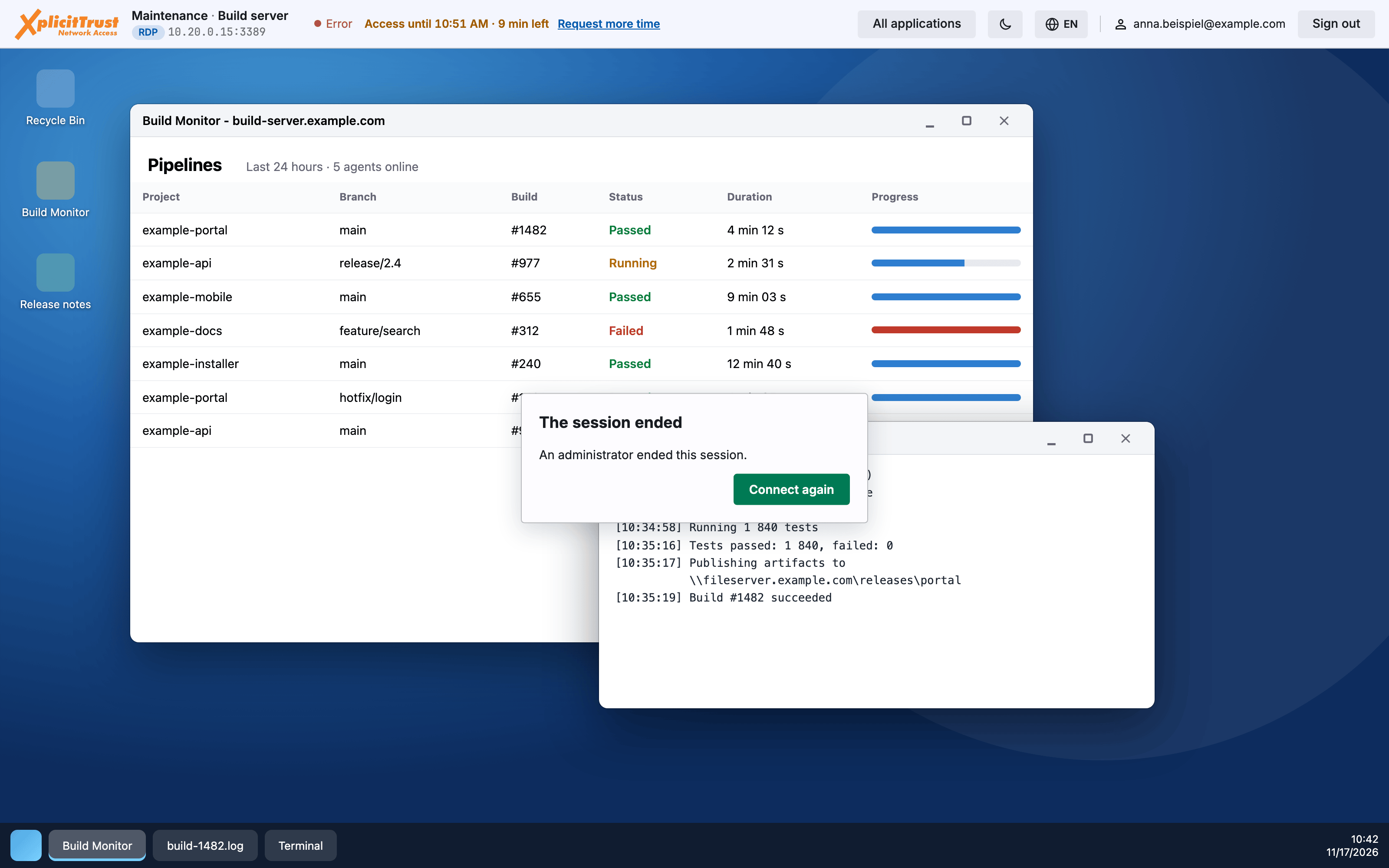
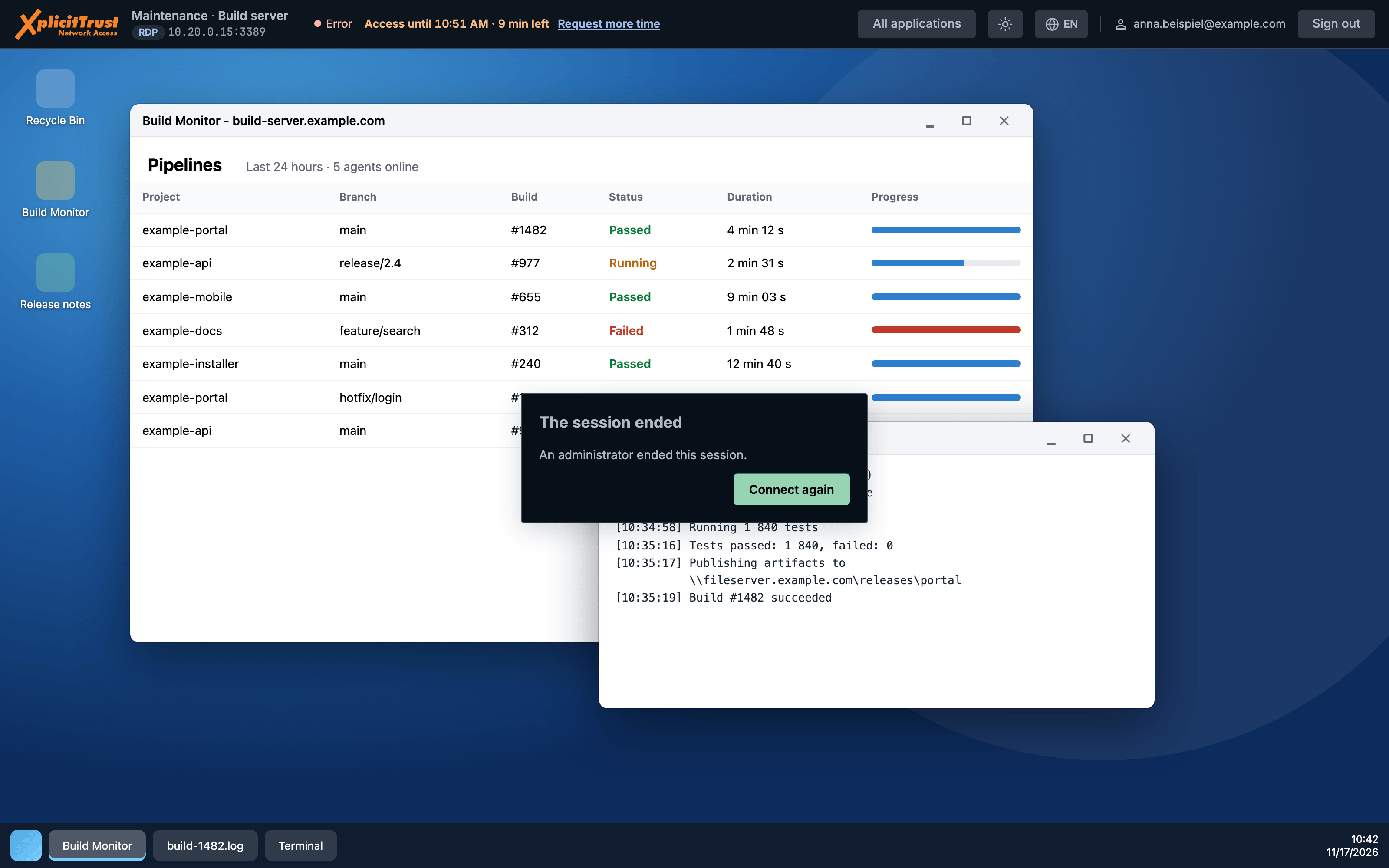
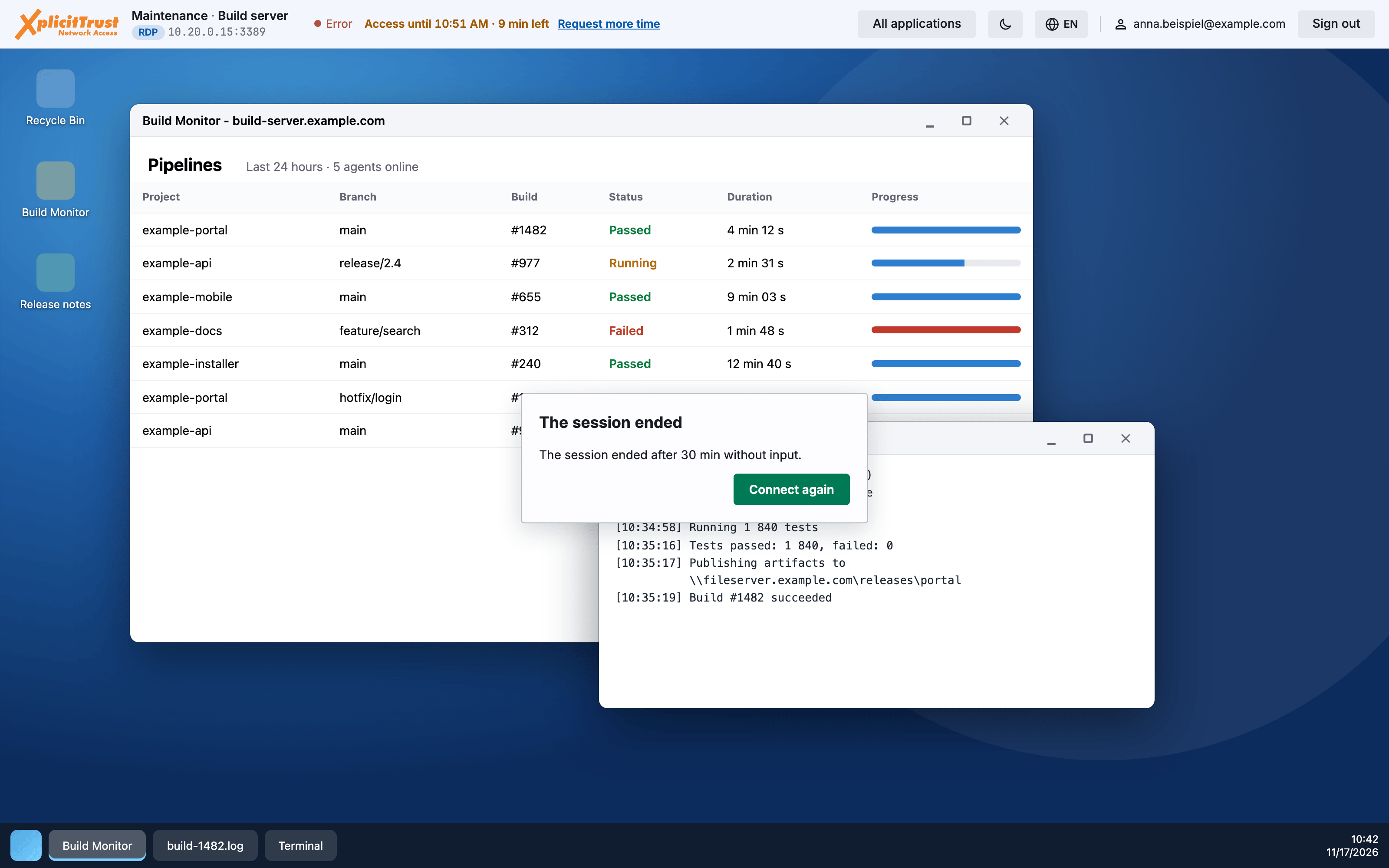
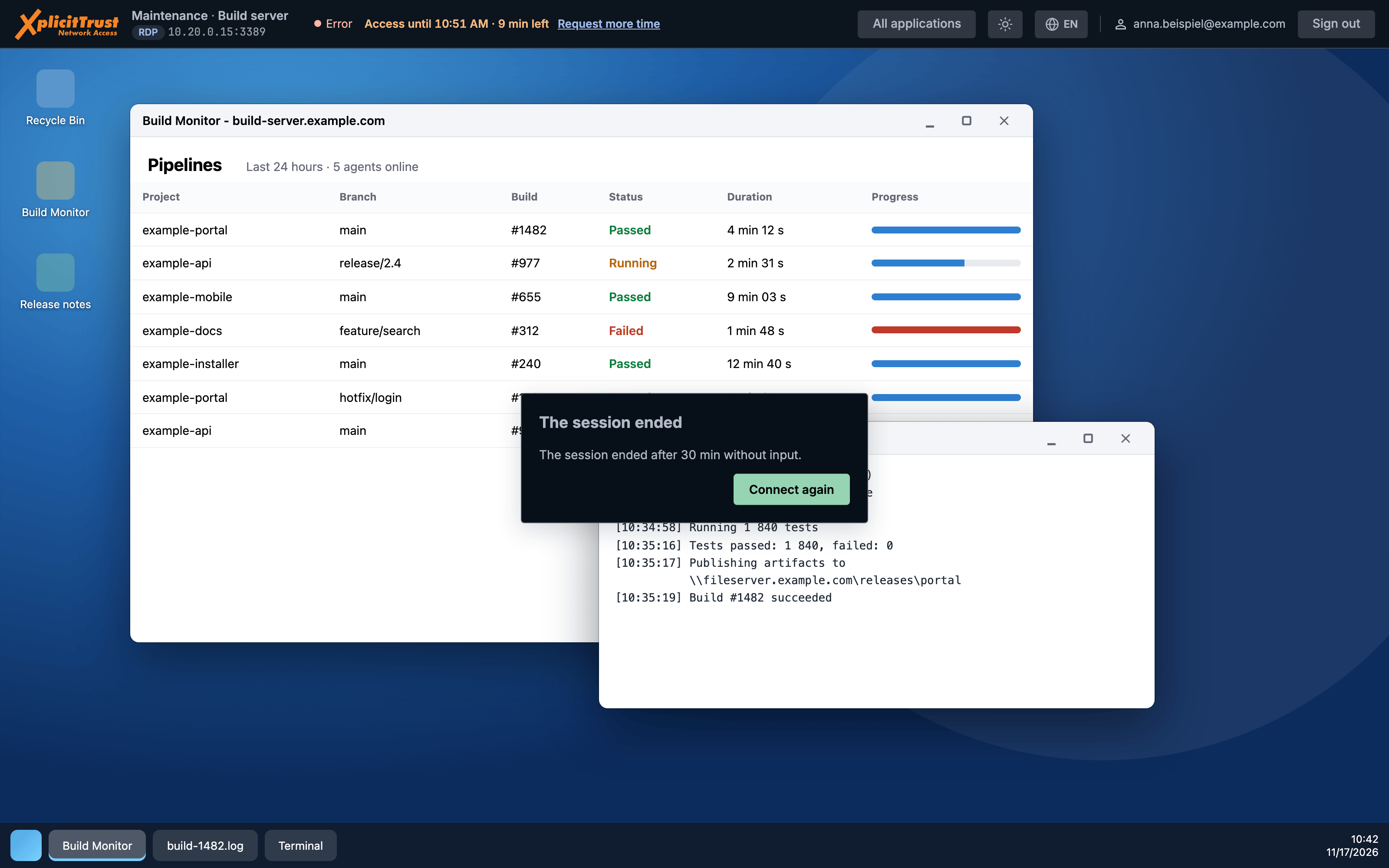
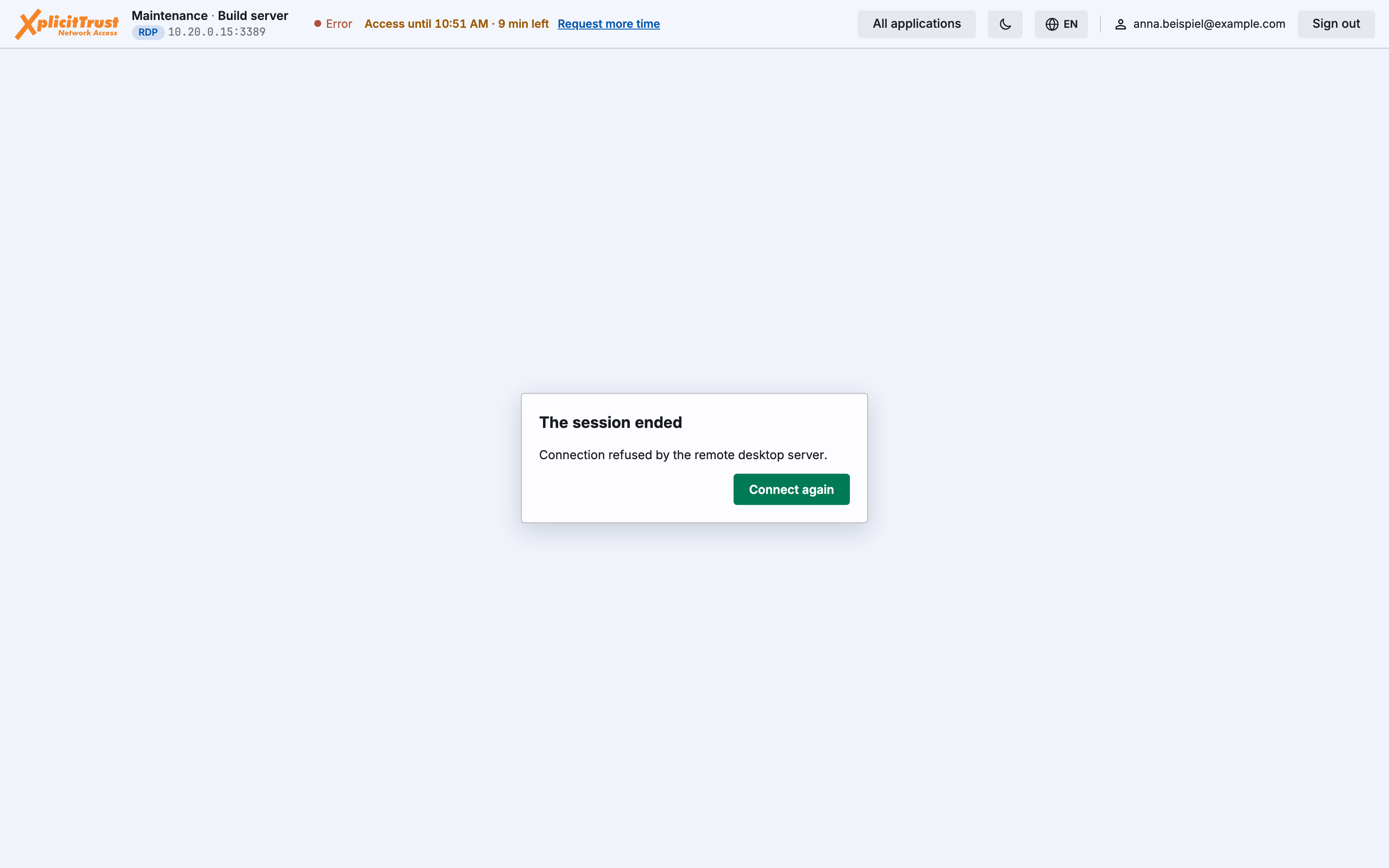
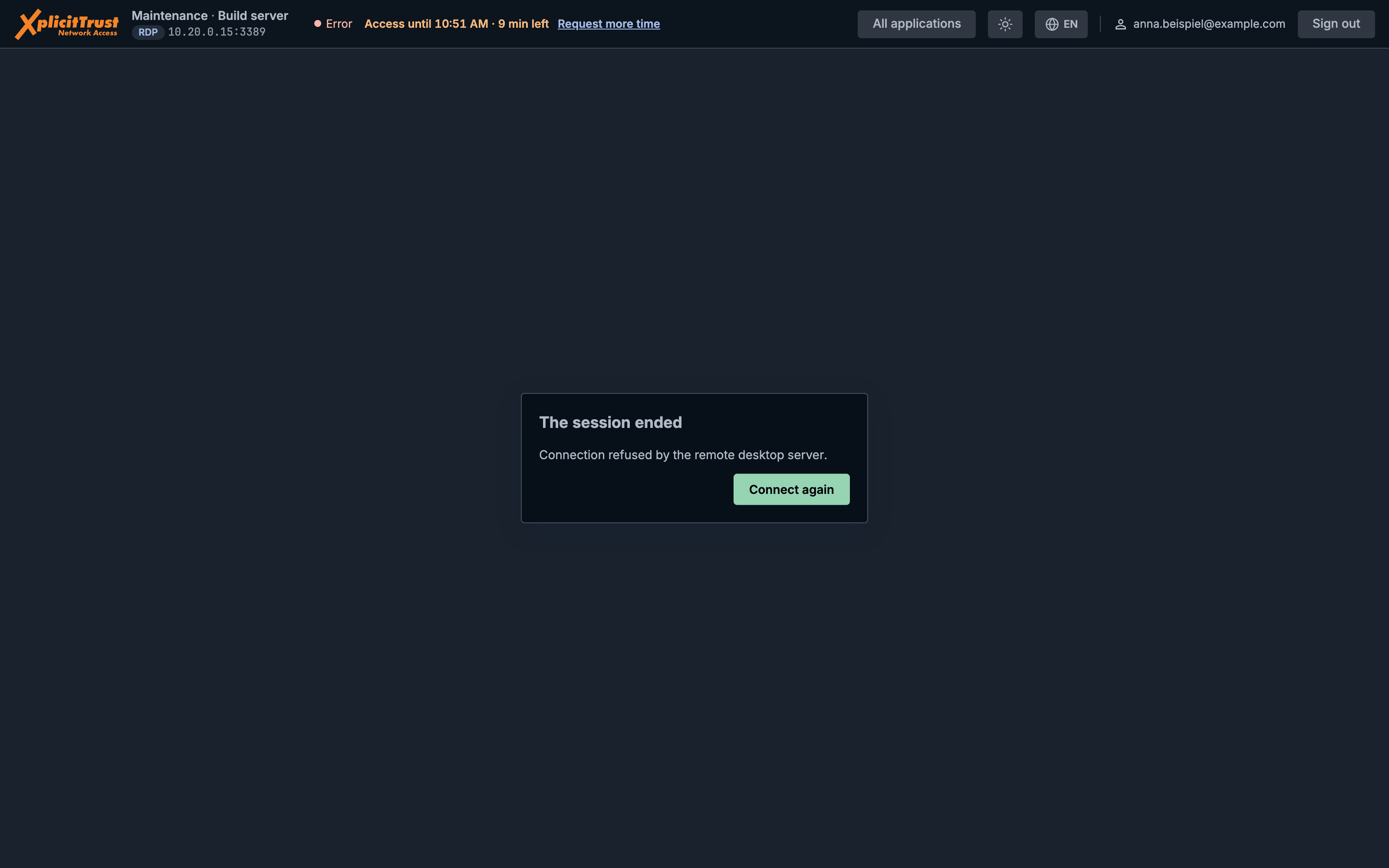
However a session ends, a card says why, and the bar loses the buttons only a running session uses. Connect again shows the connect card; the person signs in to the target again. The gateway's reasons come in the page's language; a reason the target gives, such as a refused connection, comes as the target gave it.
| What happened | Card | Text | Bar |
|---|---|---|---|
| The person chose Disconnect | Disconnected | "You ended the session." | Disconnected |
The person signed out of the target (Windows Sign out, exit in the terminal) |
Disconnected | "The session has ended." | Disconnected |
| The connection to the gateway closed without a reason, for example when the gateway restarted | The session ended | "The session has ended." | Disconnected |
| The access ended: the end of a just-in-time access, Sign Out Everyone, the end of the sign-in's lifetime, a removed policy or a change to the application | The session ended | "Your access to this remote desktop has ended." | Error |
| The person signed out: Sign out in the bar of another tab of this browser, or Sign out on the console's My access page | The session ended | "You signed out of this portal." | Error |
| An administrator ended the session in the console | The session ended | "An administrator ended this session." | Error |
| Nobody typed, clicked or touched the screen for the idle timeout | The session ended | "The session ended after 30 min without input.", with the idle timeout in minutes | Error |
| The session could not be opened, or failed | The session ended | The reason, for example "Connection refused by the remote desktop server." The gateway's own reasons are listed under Troubleshooting. | Error |
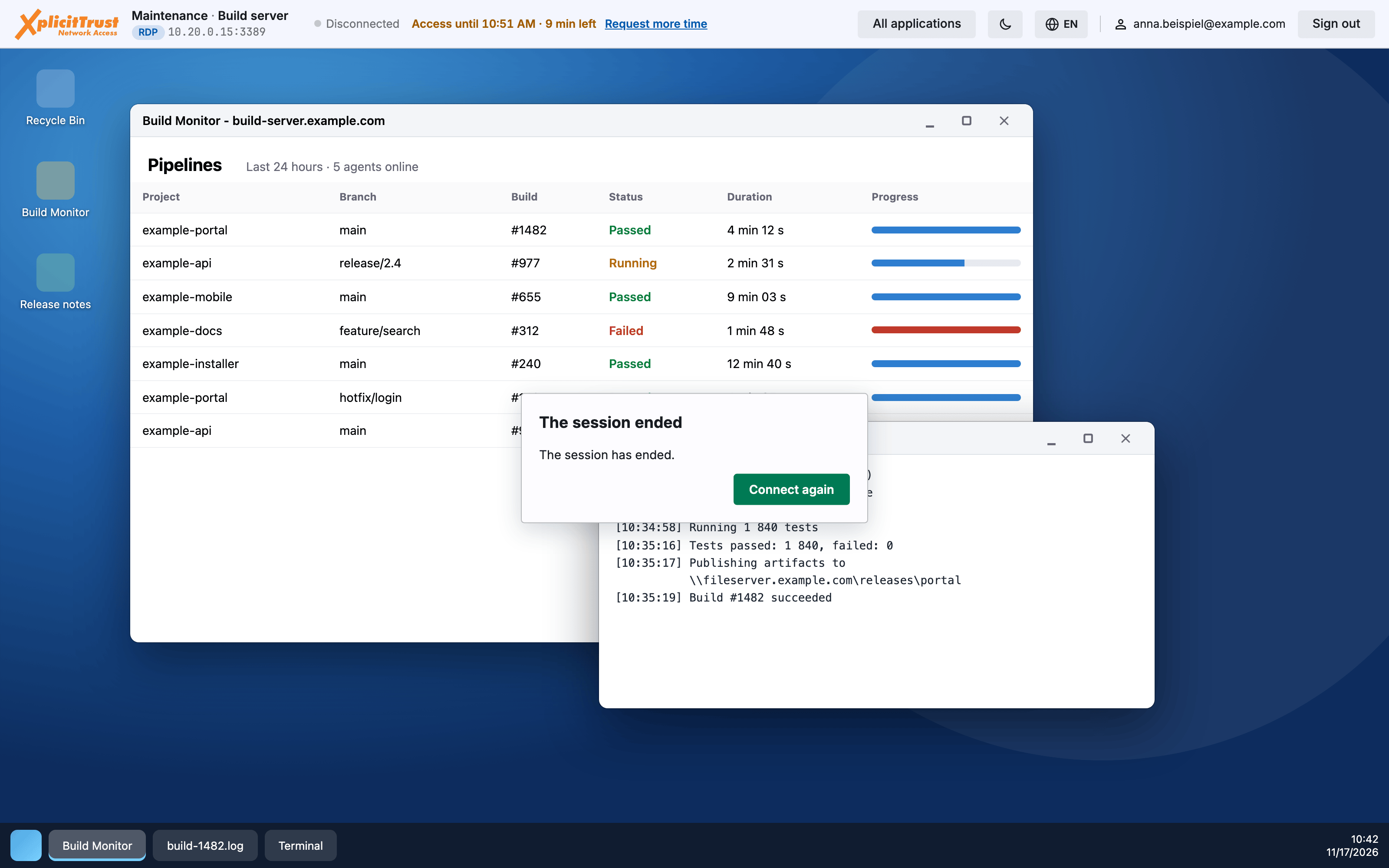
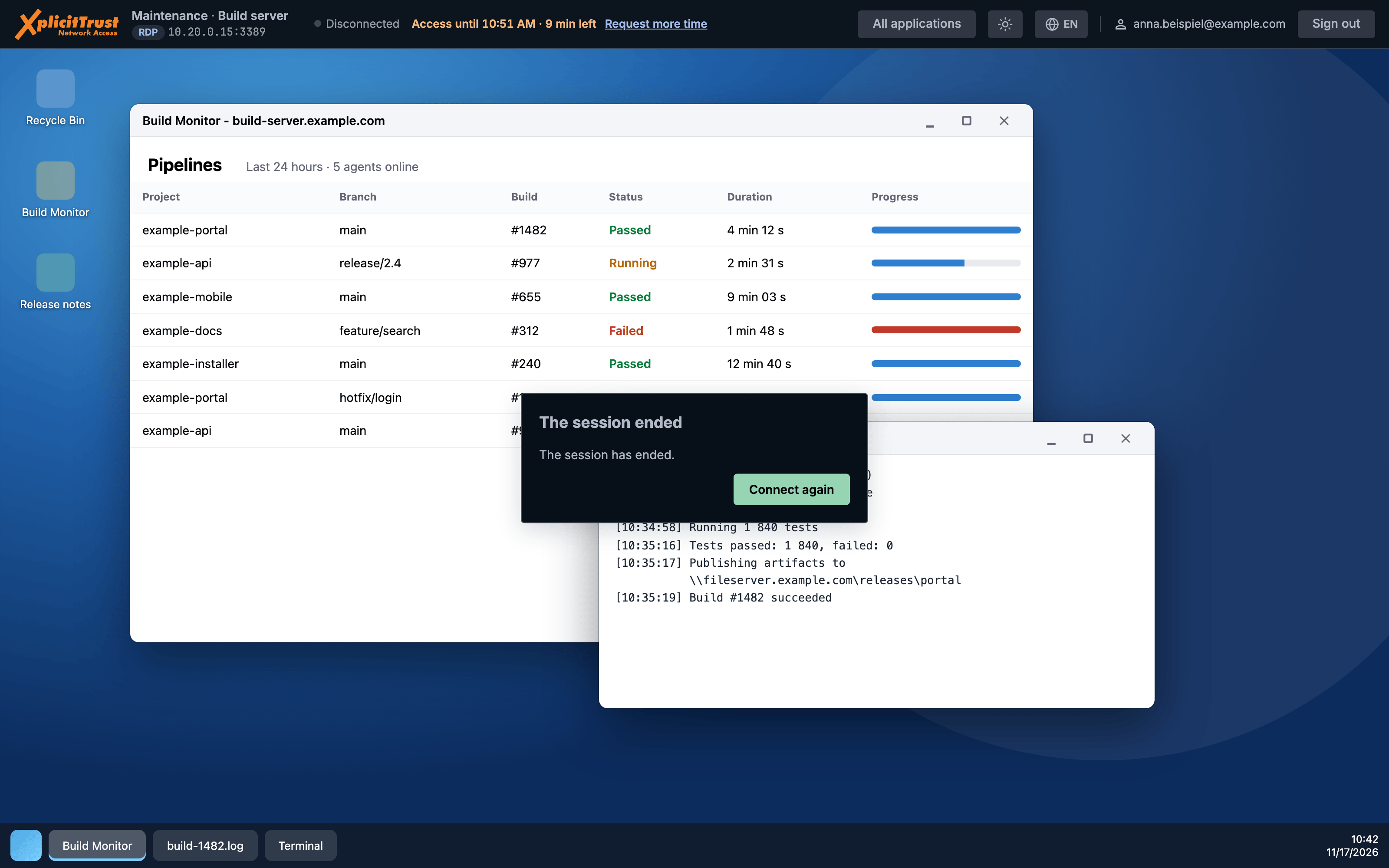
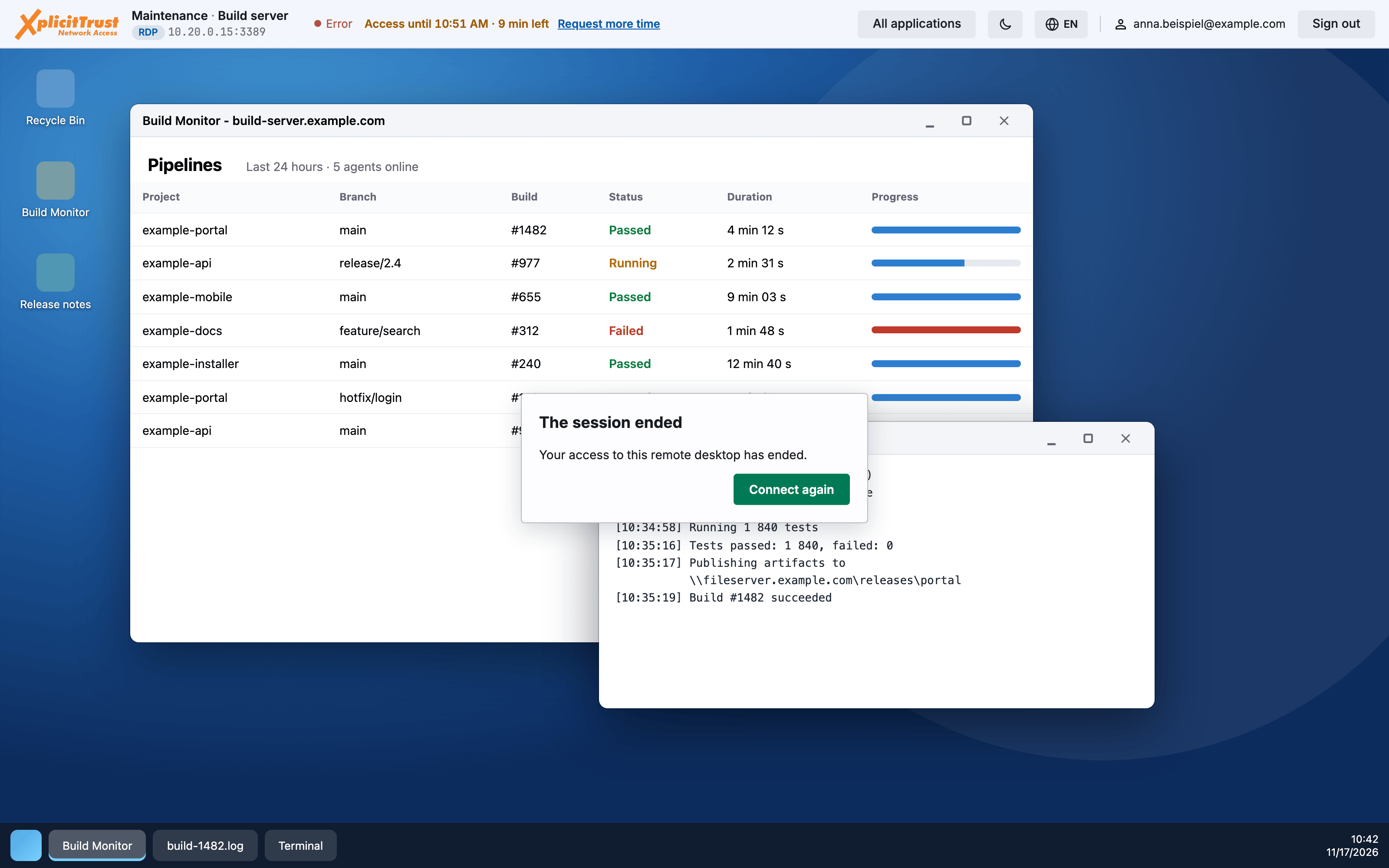
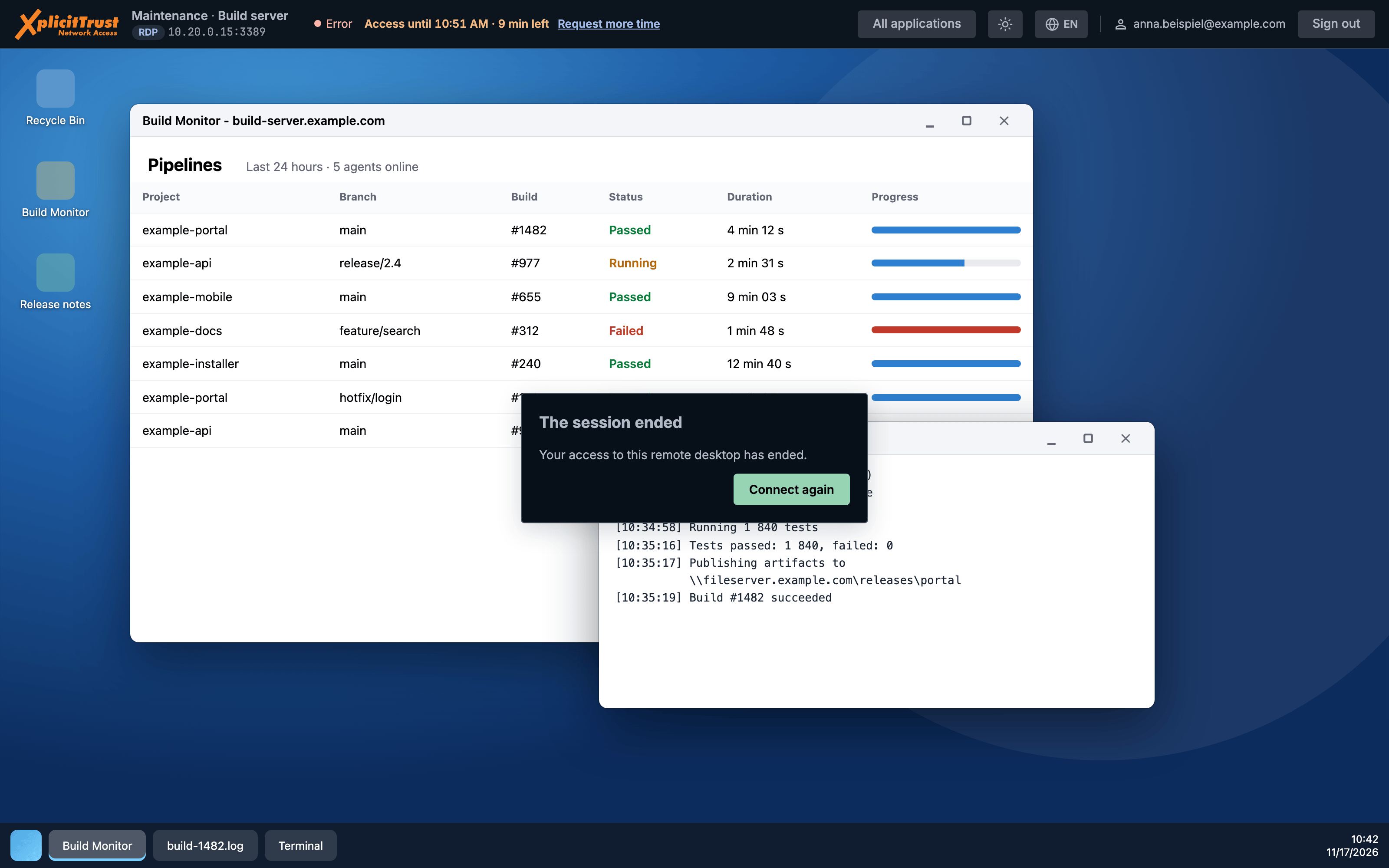
Closing the tab or the browser ends the session too. A session is never kept open for the person to come back to: every Connect opens a new one.
Phones and tablets
The page works with a finger as well as with a mouse:
| On the screen | In the session |
|---|---|
| Tap | Click |
| Long press | Right-click |
| Tap, then drag right away | Drag, for example a window or a text selection |
| Two fingers up or down | Scroll |
A swipe with one finger and no tap before it does nothing, so a stray finger does not move anything in the session. The browser does not zoom or move the page under a finger on the session either.
On a device with a touchscreen, the bar shows Keyboard once the session is connected. It opens the device's on-screen keyboard, and what is typed goes to the session; tapping into the session keeps the keyboard open. Tap Keyboard again to close it. The session's screen follows the size of the browser window, so it changes when the device is turned.
Touch needs a current agent version on the gateway asset. With an older one, the page ignores touches; a mouse or a keyboard connected to the tablet still works.
Language and appearance
The remote desktop page and the list of a portal's applications
(/_xt/apps) have a language menu and a button that switches between the
light and the dark appearance. Until a person chooses, the pages follow the
browser's language and the device's appearance. A choice is kept for a year
in a cookie of the portal's host, so it applies to every application of that
portal in that browser, and not to other portals.
Messages
When the portal turns someone away, it answers with a page of its own instead of the application: a card with a title and what to do, in the browser's language. Every message, with its cause and what helps, is in Portal messages and troubleshooting.
See also
- Concept: Agentless Access
- Guide: Publish a remote desktop
- Reference: Portal messages and troubleshooting, Remote desktop settings, Sessions and recording