Settings
Settings holds the configuration of your tenant: time zone and agent updates, what the agent shows, network details, enrollment tokens, device certificates and where events are sent. You find it under Account → Settings.
In short
Tenant-wide configuration in tabs of cards: time zone and agent updates, what the agent shows, DNS and tunnel network, enrollment tokens, device certificates and event forwarders. Changes apply to the whole tenant at once.
Before you start
- You are an administrator, see Roles.
- For a change of the tunnel network: plan for all clients to reconnect, see Tunnel network and Limits.
- Some cards are marked Preview and available to a limited audience, see Preview features.
Common tasks
- Choose when agents update: Agent updates.
- Set up split DNS: DNS servers and Set up split DNS.
- Enroll assets without a login: Asset Creation Tokens and Registration Methods.
- Require a device certificate: Device certificates and Allow only compliant Windows devices.
- Send events to a SIEM: Event Forwarders.
The page is split into tabs: General, Agent, Network, Enrollment, Device trust and SIEM. Each tab holds one or more cards. The icon next to the refresh button at the top right shows an info panel that summarises each tab.
Warning
Changes take effect immediately. Changing the tunnel network makes all tunnels reconnect.
Most cards save with Apply and discard your edits with Cancel. Where a card works differently, for example by saving a list entry on its own, this is said below.
General
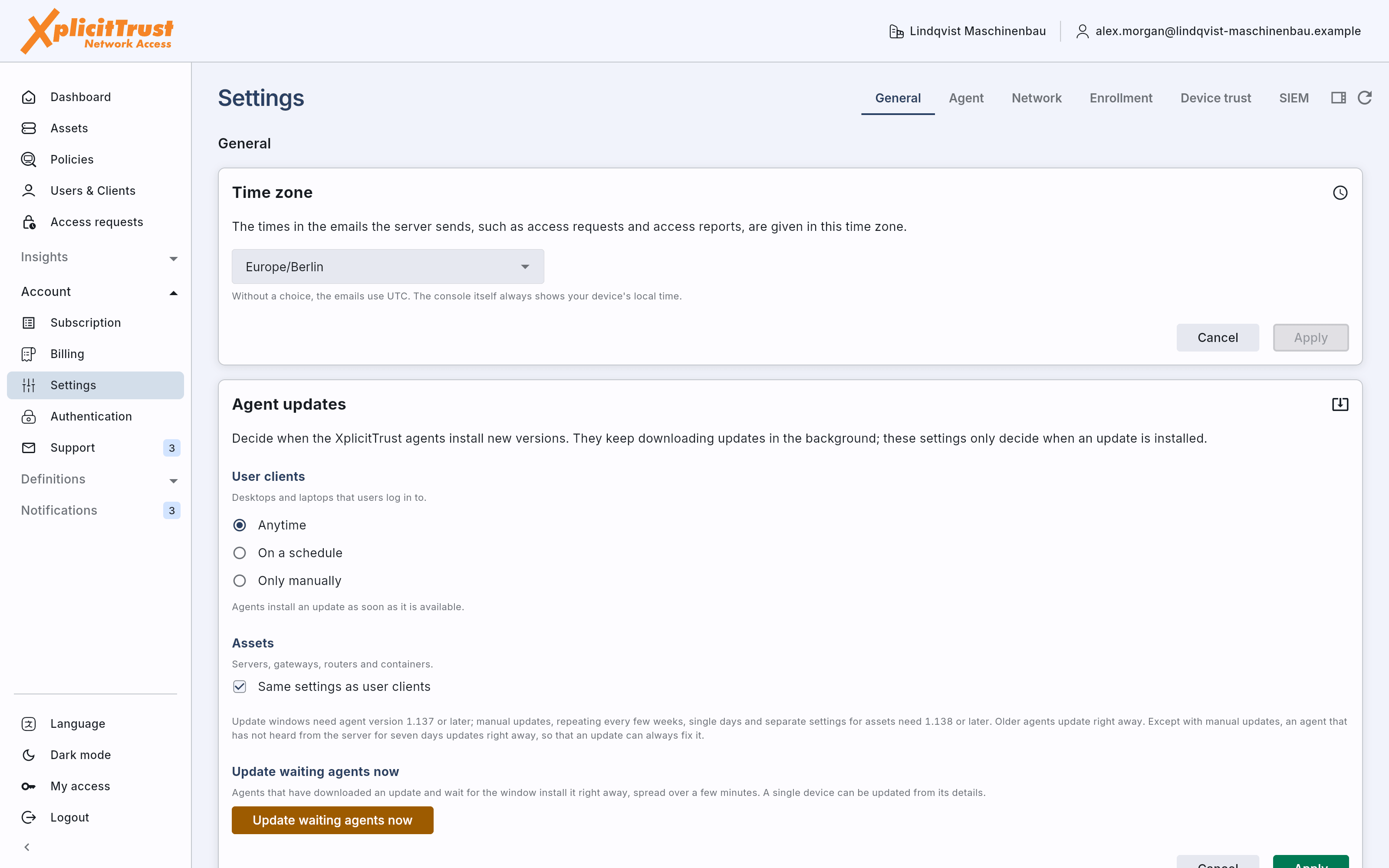
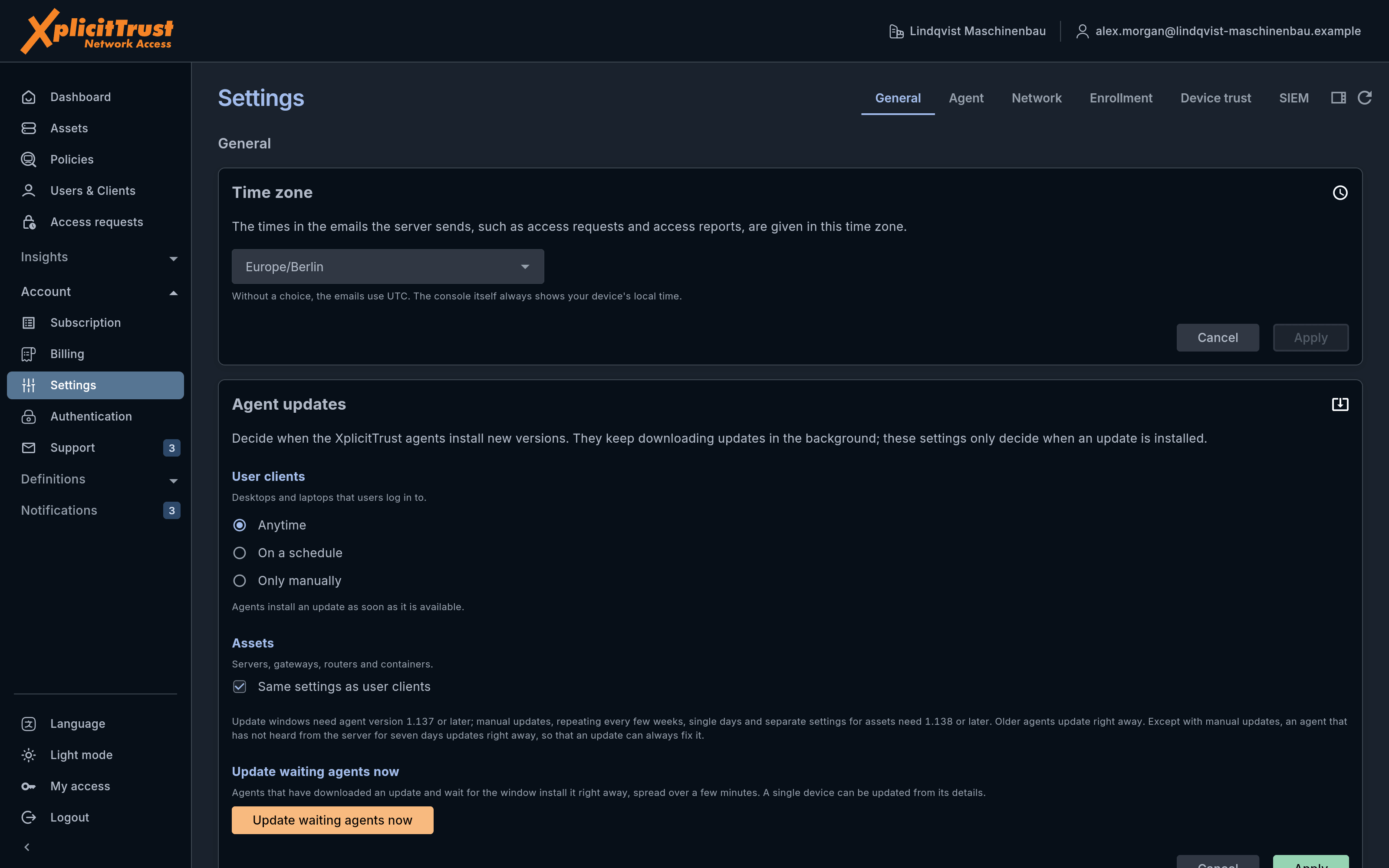
Time zone
The time zone for the times in the emails the server sends, such as access requests and access reports. Without a choice, the emails use UTC. The console itself always shows the local time of your device.
| Field | Meaning |
|---|---|
| Time zone dropdown | A searchable list of time zones, UTC first, then the zones such as Europe/Berlin. |
Apply is available once you have chosen a zone other than the saved one.
Agent updates
Decides when the XplicitTrust agents install new versions. Agents keep downloading updates in the background; this card only decides when an update is installed. See Updating the Agent for the update process itself.
| Field | Meaning |
|---|---|
| Install updates only within a time window | Switches the window on. Without a window, agents install updates right away. |
| Days | The weekdays on which the window opens (Monday to Sunday). With no day selected, the window opens every day. |
| From, Until | Start and end of the window, in steps of 30 minutes. A new window starts at 22:00 and ends at 04:00. A window that ends before it starts runs past midnight and belongs to the day it starts on. Start and end must differ. |
| Time zone dropdown | The time zone of the window. A new window uses the tenant time zone. |
The window applies to all devices. Agents spread their updates over the first half of the window, at most one hour. A device that misses the window for three weeks, for example because it is switched off on the window's days, installs its waiting update at the next opportunity. An agent that has not heard from the server for seven days updates right away. The window needs agent version 1.137 or later; older agents keep updating right away.
Update waiting agents now asks you to confirm and then makes every agent that has downloaded an update and is waiting for the window install it right away, spread over a few minutes. Each agent loses its connection for a minute or two while it installs. Offline agents install the update as soon as they are back online. A notification tells you for how many agents the update was requested. A single device can be updated from its own details.
Access report email
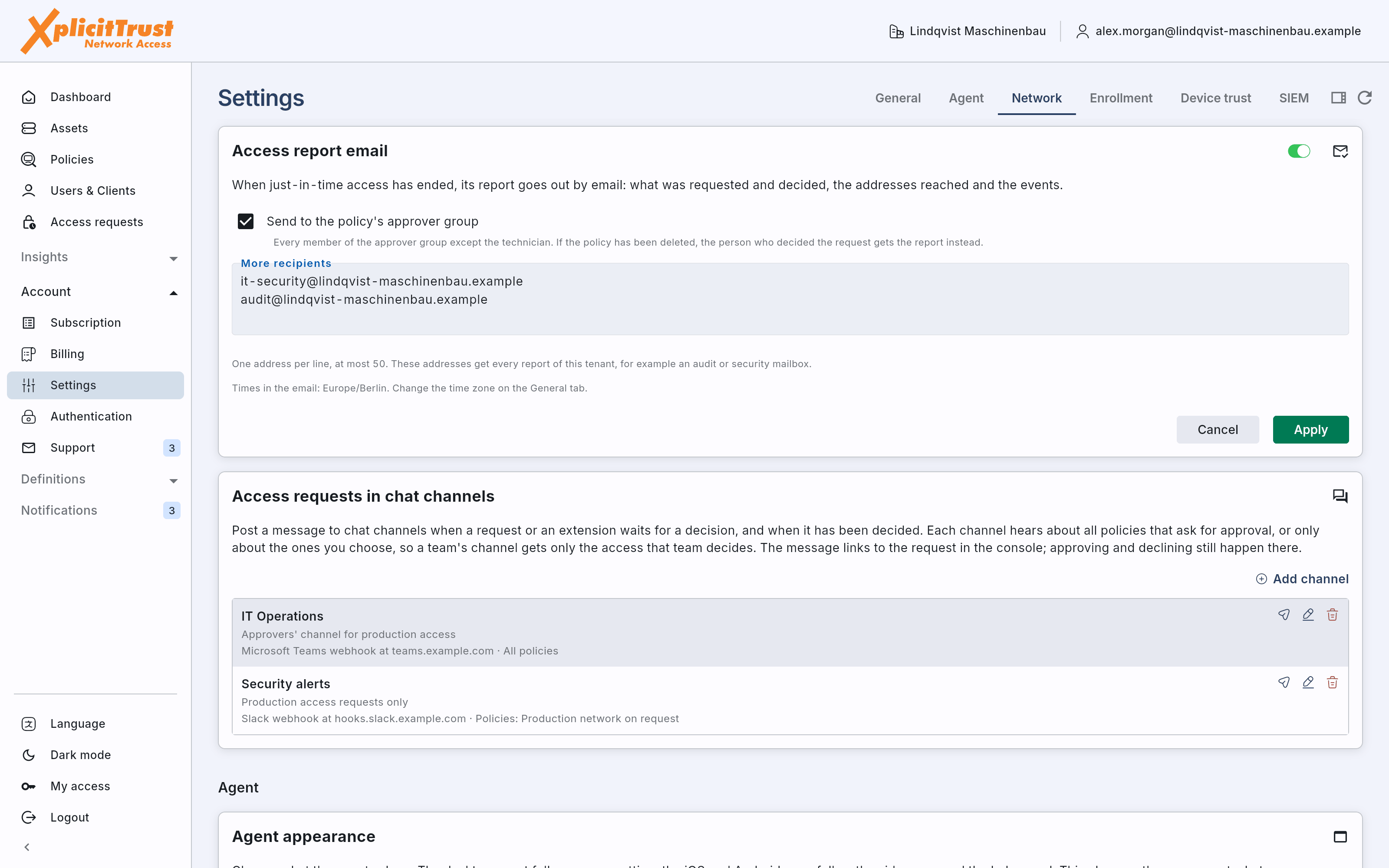
A card for just-in-time access. The switch in the card header turns the report email on or off. When a just-in-time access has ended, its report goes out by email: what was requested and decided, the addresses reached and the events. With the switch off, no email is sent; reports stay available on the Access requests page, and the events still reach the event log and your event forwarders.
| Field | Meaning |
|---|---|
| Send to the policy's approver group | Sends the report to every member of the approver group except the technician. If the policy has been deleted, the person who decided the request gets it instead. |
| More recipients | Further email addresses, one per line, at most 50. They get every report of this tenant, for example an audit mailbox. |
Apply is not available while an address is invalid or while the report would reach nobody. The card also shows the time zone used in the email; change it on this tab under Time zone.
Access requests in chat channels
Posts a message to a chat channel when an access request or an extension waits for a decision and when it has been decided. The message links to the request in the console; approving and declining still happen there. Each channel is notified about all policies that ask for approval or only about those you choose, so a team's channel only hears about the access that team decides.
Add channel opens a form above the list; the pencil on a channel opens the same form below it:
| Field | Meaning |
|---|---|
| Name | The name of the channel in the list. Required, at most 128 characters. |
| Description | Optional, at most 1024 characters. |
| Webhook address | The address of a Teams workflow that posts to a channel when a webhook request arrives, or the incoming webhook of a Slack channel or a Google Chat space. Must start with https://. When you edit a channel, the stored address is not shown; leave the field empty to keep it. |
| Message format | Detect from the address (offered for a new address), or one of Microsoft Teams, Slack or Google Chat. A channel that already has a stored address keeps its format unless you enter a new address. |
| Announces requests under | All policies that ask for approval, or Only these policies with a list of policies to tick (a filter field appears above eight policies). At least one policy must be chosen. |
The paper-plane icon (Send a test message) on a channel posts a test message and shows below the channel whether the webhook accepted it. A channel that names only policies that no longer ask for approval gets no messages and says so. Channels can be edited and deleted (deleting asks you to confirm).
Agent
Agent appearance
Preview
Agent appearance is available to a limited audience.
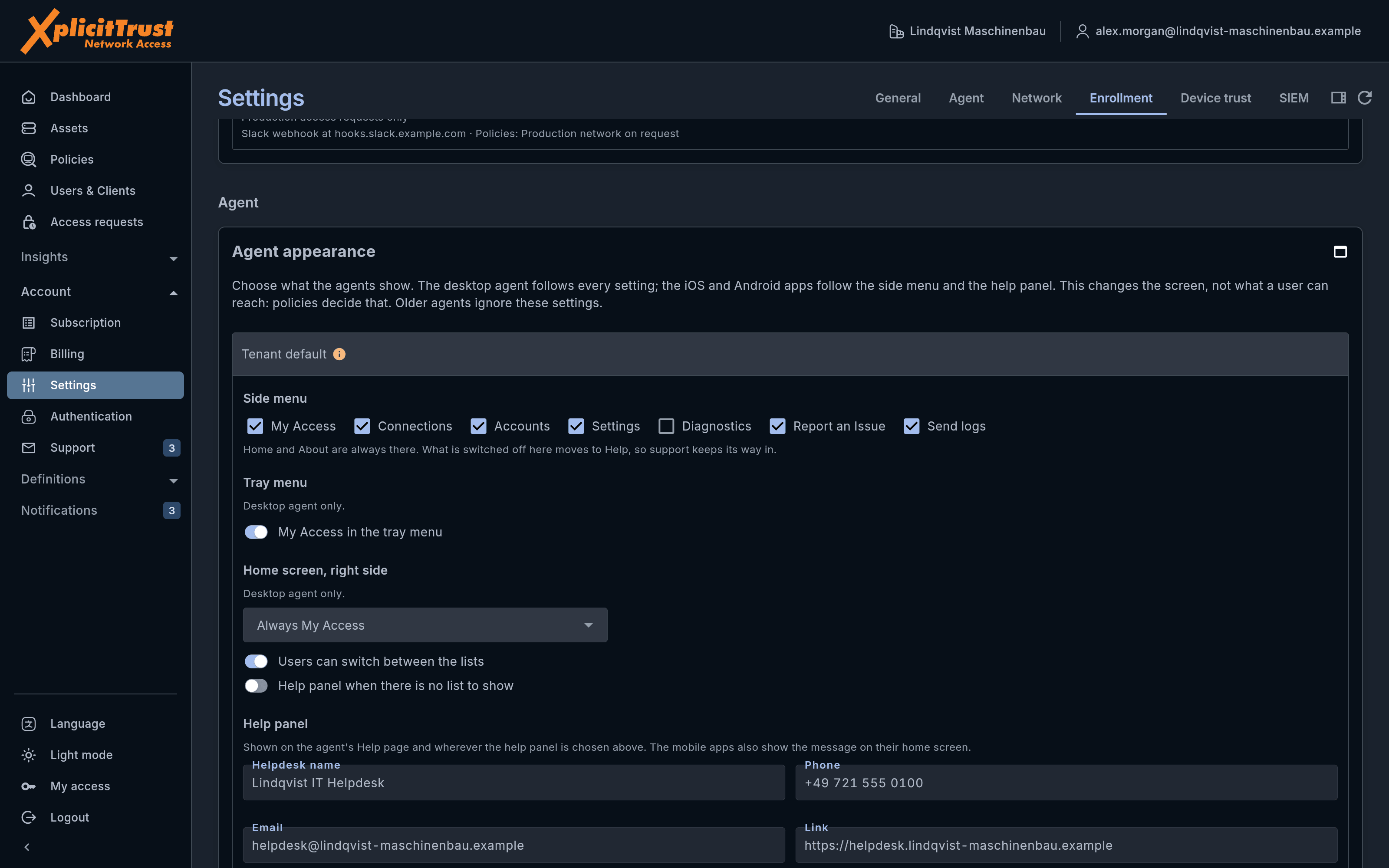
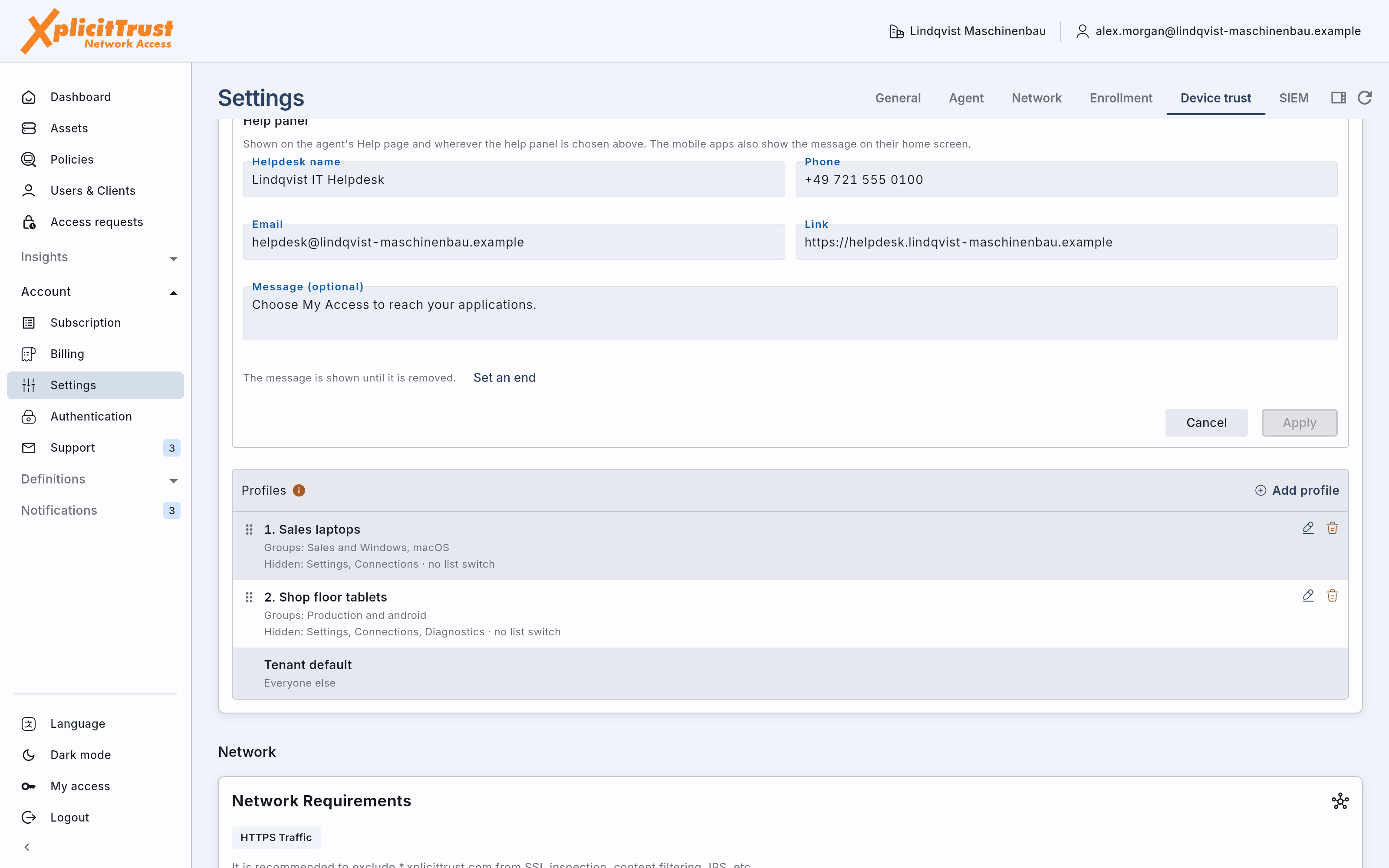
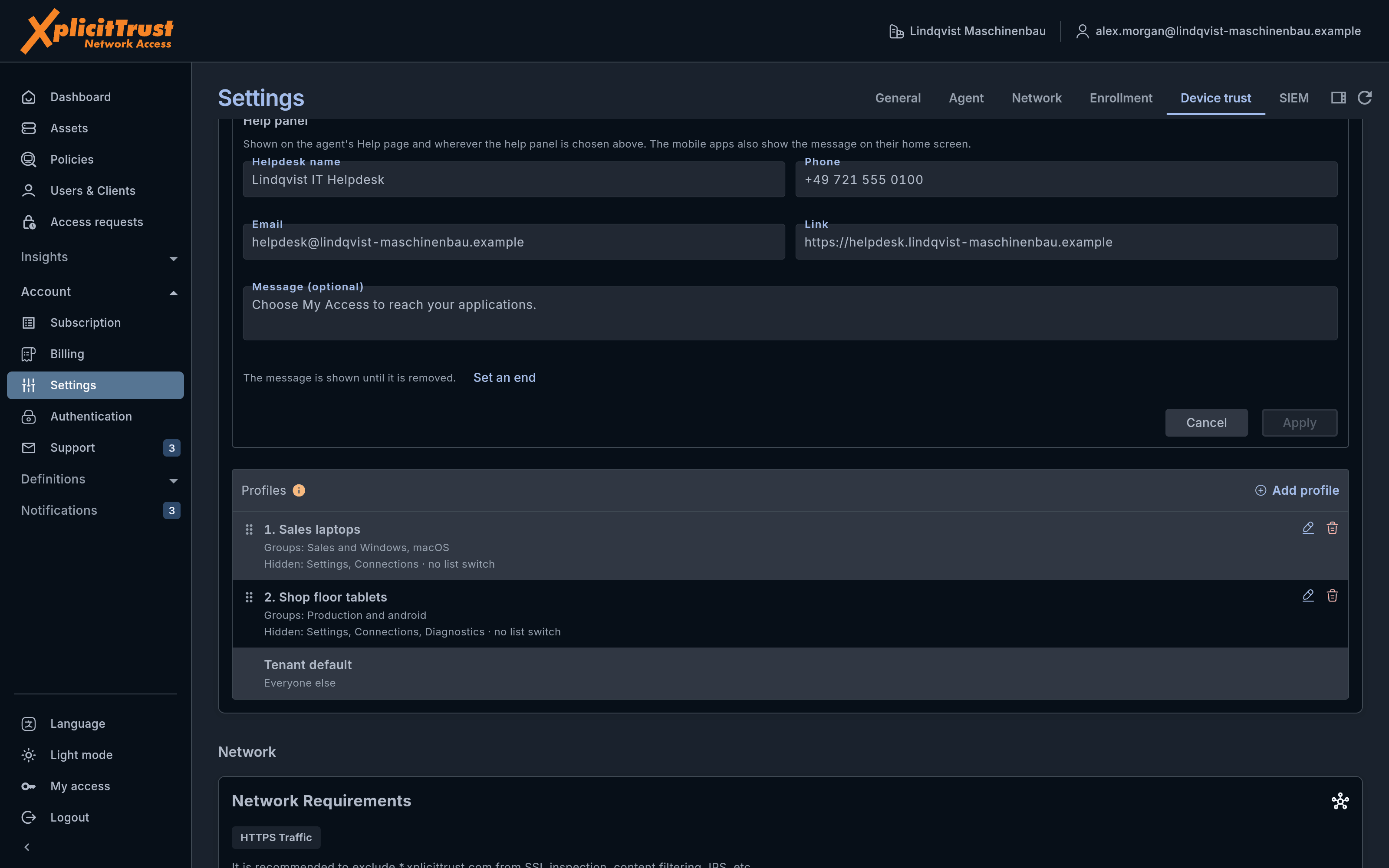
Controls what the agents show their users. The desktop agent follows every setting; the iOS and Android apps follow the side menu and the help panel. The settings change what is on the screen, not what a user can reach: policies decide that. Older agents ignore these settings.
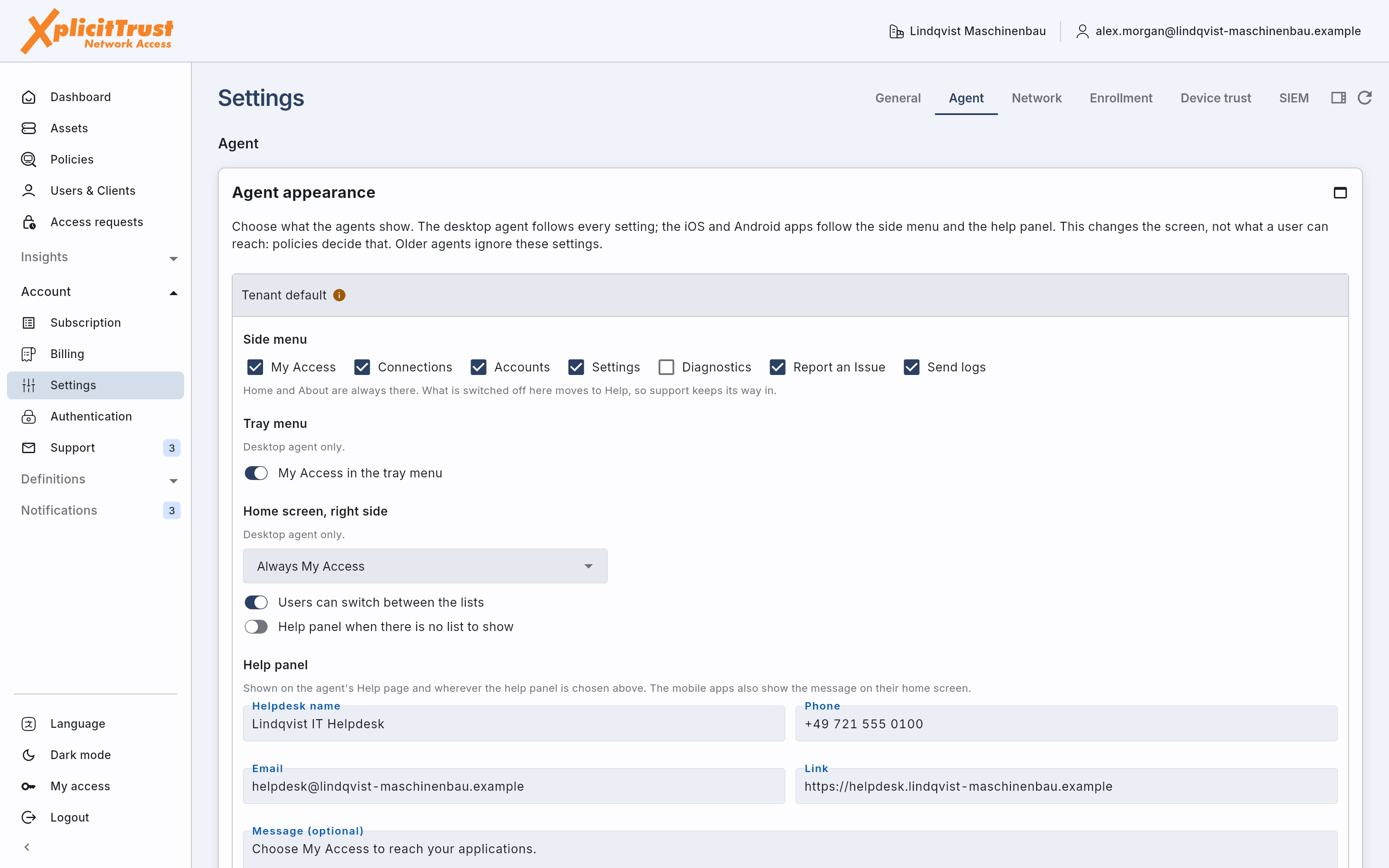
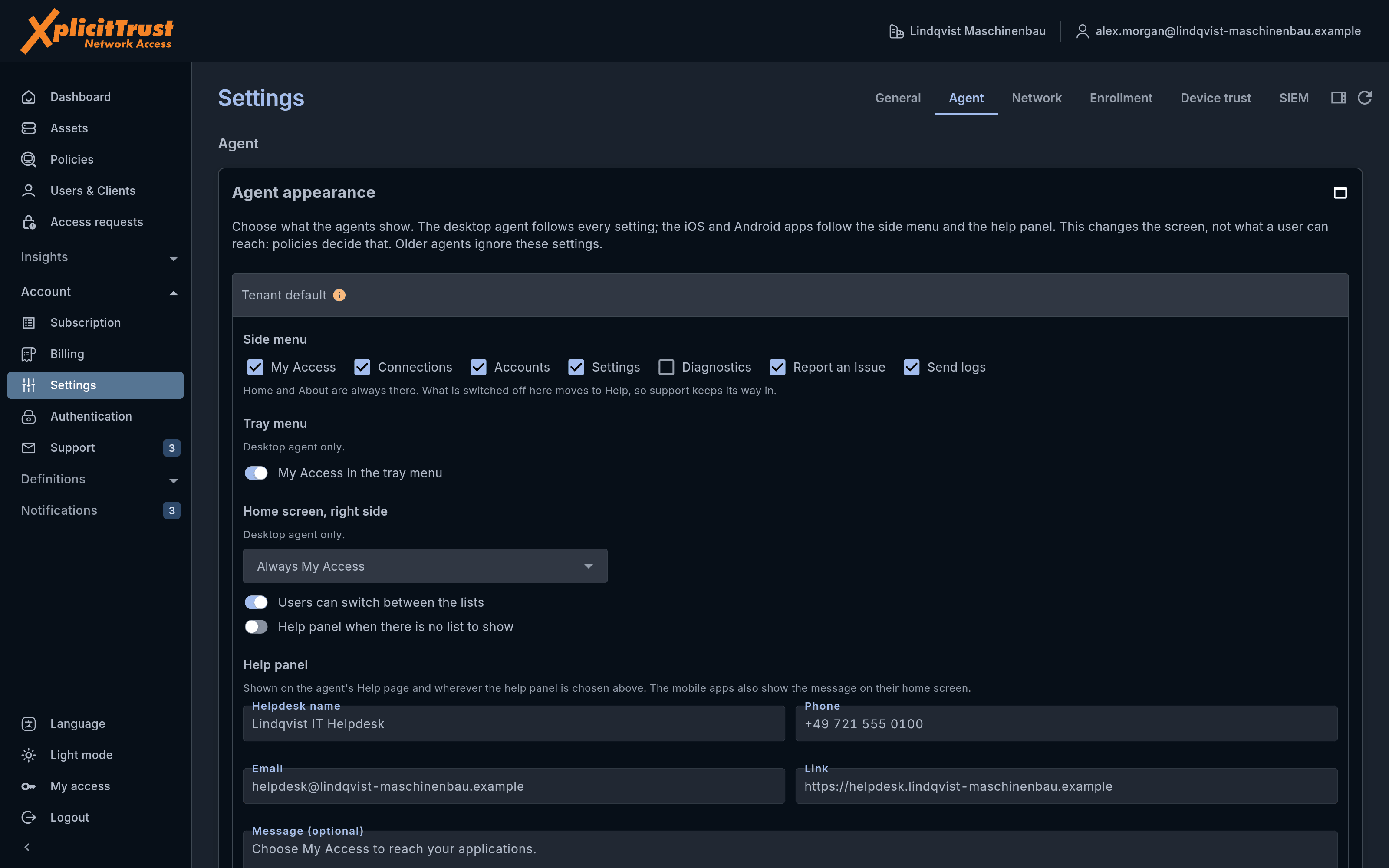
The card has two parts: the Tenant default, which applies to every user and device that no profile matches, and the Profiles, which change some settings for some users and devices.
The default and every profile use the same four settings:
| Setting | Meaning |
|---|---|
| Side menu | One check box per page: My Access, Accounts, Connections, Settings and Diagnostics. A page that is switched off moves into Help, together with Send logs and About, so that support keeps its way in. Help itself is always there, and Send logs cannot be switched off. The iOS and Android apps have no Settings page, so that box changes nothing there. |
| Tray menu | Desktop agent only. The switch My Access in the tray menu shows or hides My Access in the tray menu. |
| Home screen, right side | Desktop agent only. What the right side of the home screen shows: Automatic (My Access when it has more than the assets, otherwise the assets), Always My Access, Always the assets or Help panel only. Users can switch between the lists lets users change it themselves; Help panel when there is no list to show shows the help panel instead of an empty list. Both switches are unavailable with Help panel only. |
| Help panel | The contact shown on the agent's help page and wherever the help panel is chosen: Helpdesk name, Phone, Email (a plain address) and Link (an https:// link), plus an optional Message. Set an end picks a date and time, at most a year ahead, until which the message is shown (an end in the past is refused); No end removes the end. The mobile apps also show the message on their home screen. |
Apply saves the default; it is available once you have changed something, and Cancel discards the changes.
Profiles
A profile applies to users and devices that match it. The first profile that matches wins; the list shows the order, and you change it by dragging a profile by its handle. The last line, Tenant default with Everyone else, is what remains. Each profile shows its number and name, what it applies to and a summary of what it changes. The pencil edits a profile in place, the bin deletes it after a confirmation (its users and devices then get the next matching profile or the tenant default).
Add profile in the header of the Profiles box opens the form of a new profile above the list; the pencil opens the same form below the profile:
| Field | Meaning |
|---|---|
| Name | Required, at most 128 characters. |
| Description | Optional. |
| Users in these groups | A selection of user groups. |
| Devices with these tags | A selection of device tags. |
| Operating systems | Windows, macOS, Linux. |
| What this profile changes | The four settings above. Each has a check box in its title: ticked (Changed here) the profile sets its own value, unticked (As the default) the setting comes from the tenant default and is greyed out. |
A profile applies to a user in one of the groups, on a device with one of the tags, running one of the systems. A list left empty does not narrow the profile, but at least one group, tag or operating system must be chosen.
Network
Network requirements
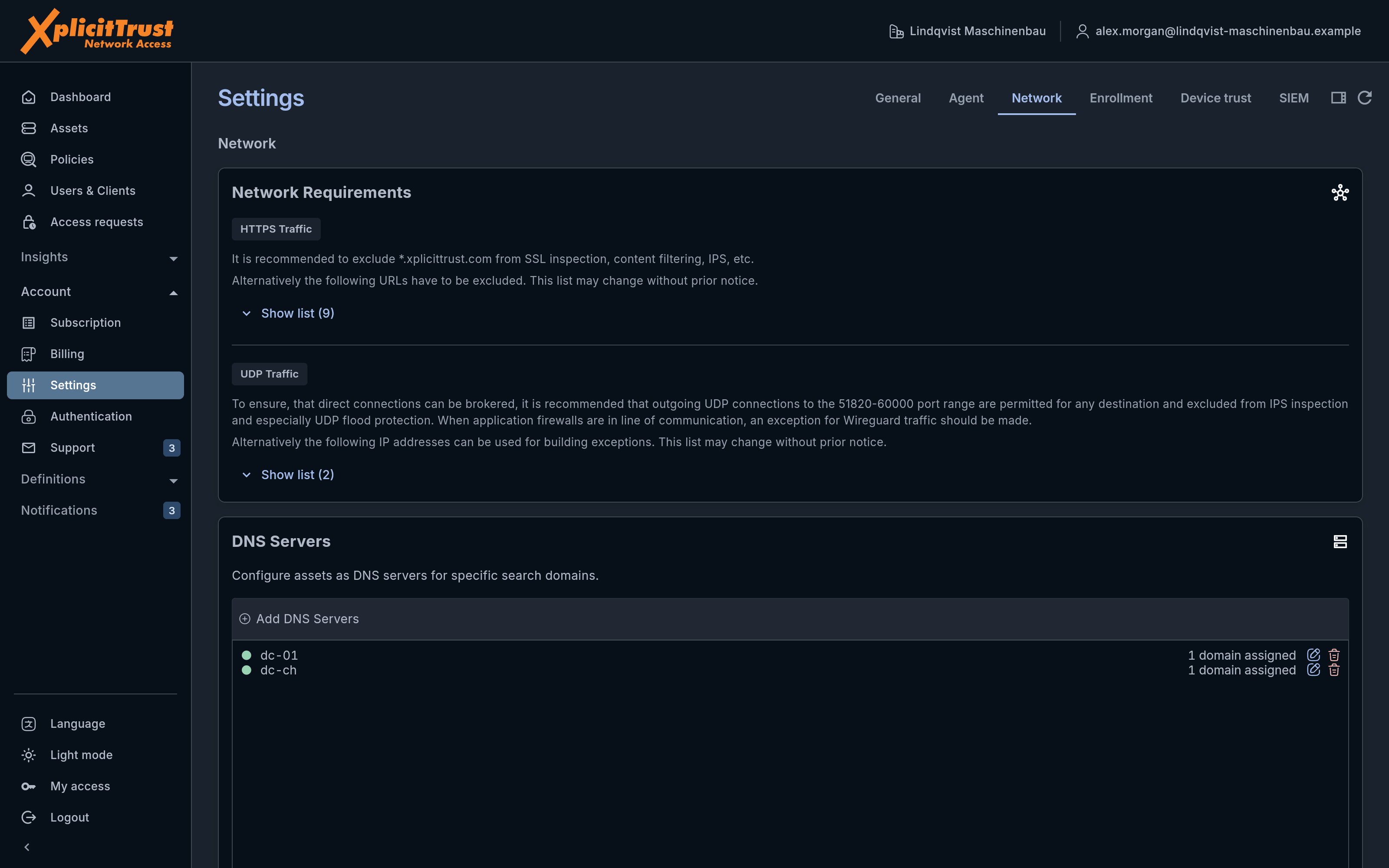
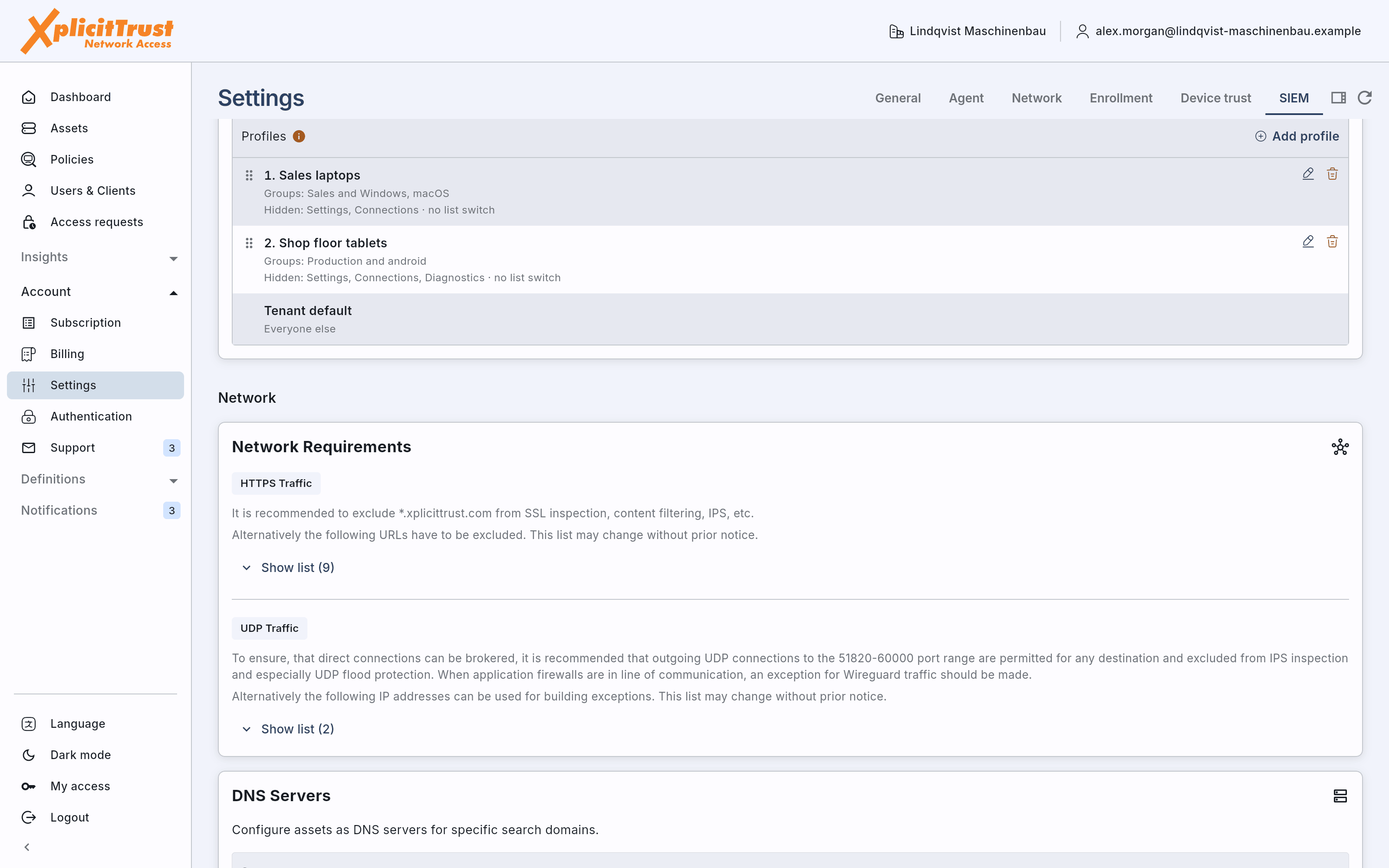
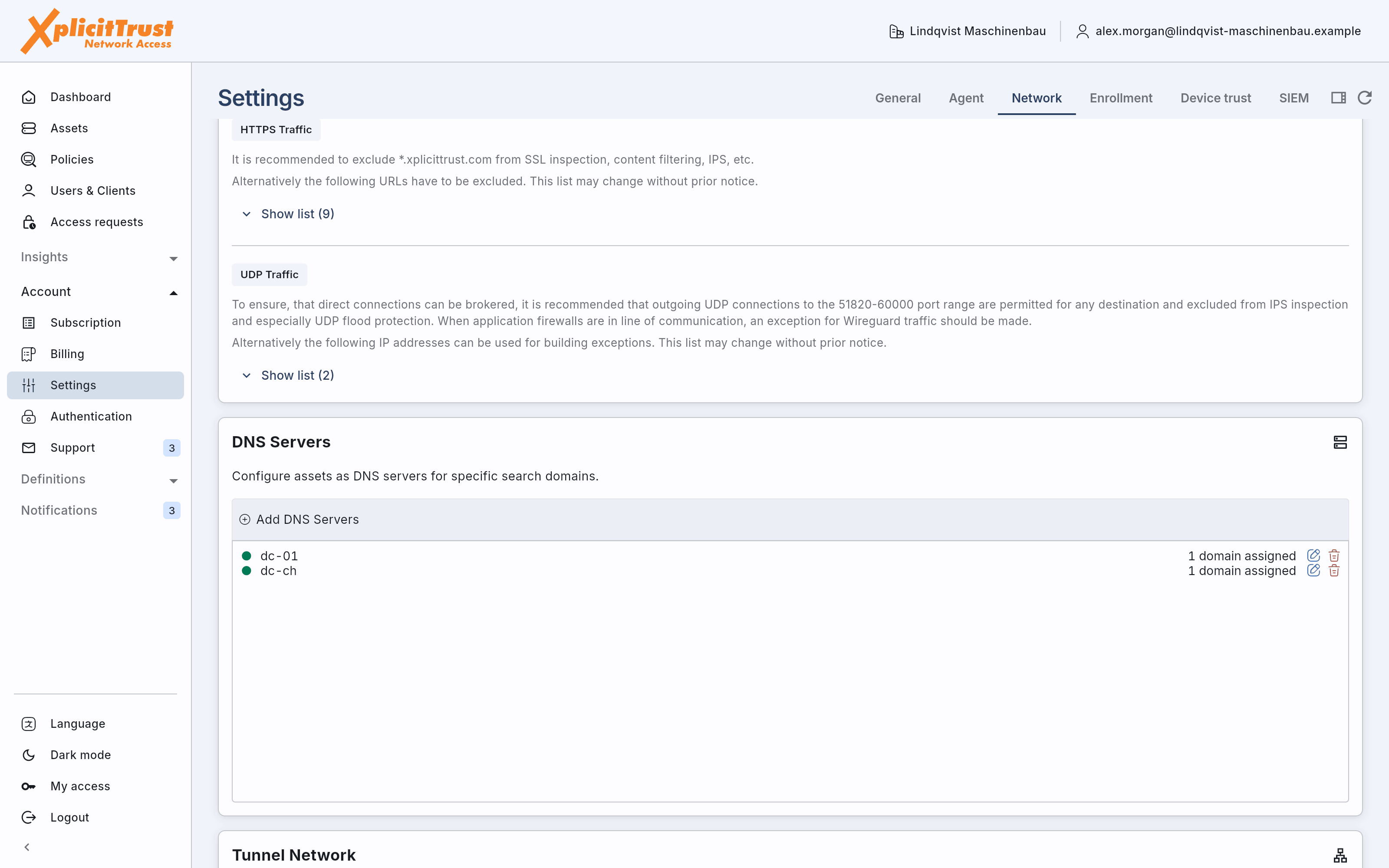
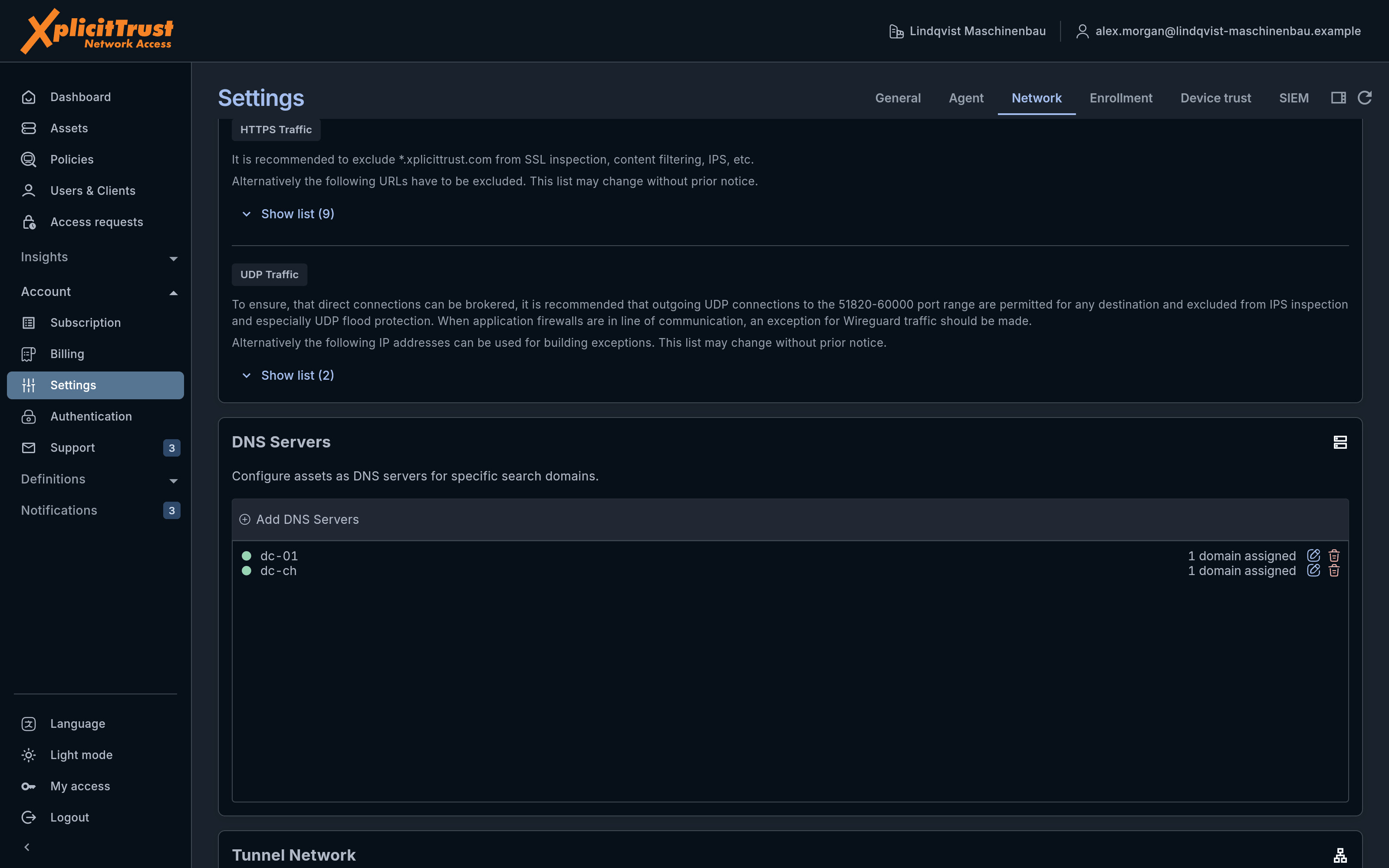
Lists what your firewalls must allow so that agents, assets and the console can reach XplicitTrust. The card is read-only.
- HTTPS Traffic: the recommendation is to exclude
*.xplicittrust.comfrom SSL inspection, content filtering and IPS. Alternatively, Show list shows the individual hostnames with the service each one belongs to (service discovery, API, orchestration, relay, update service and log service). The list may change without notice. - UDP Traffic: to allow direct connections, outgoing UDP to ports
51820-60000should be permitted for any destination and excluded from IPS inspection and UDP flood protection. Where application firewalls are in the path, make an exception for WireGuard traffic. Alternatively, Show list shows the current IP addresses (IPv4 first, then IPv6) of the orchestration and relay servers. If a name cannot be resolved, the list says DNS resolution failed.
DNS servers
Uses assets as DNS servers for your clients. See Names and DNS for how DNS resolution works with XplicitTrust.
Add DNS Servers is a search field; choose an asset (or Virtual Asset) from the list to add it. Assets that have never connected are not offered. Each server in the list shows its status, its name, and either Global or the number of domains assigned, with a pencil to edit and a bin to remove it.
For each server you can:
- Add search domains with Add Domains. A domain must be a valid DNS name (RFC 1123). The server then answers queries for these domains.
- Tick Global DNS server instead, which sends all DNS queries of the connected client to this asset while the tunnel is up. The checkbox is only offered while the server has no domains, and a global server cannot have domains. The device's previous resolver is kept as a fallback, so the asset must also be able to resolve public names.
Changes are applied with Apply. A server that is not global needs at least one domain; until then Apply is replaced by the hint Add at least one domain before applying. Cancel discards the changes.
Tunnel network
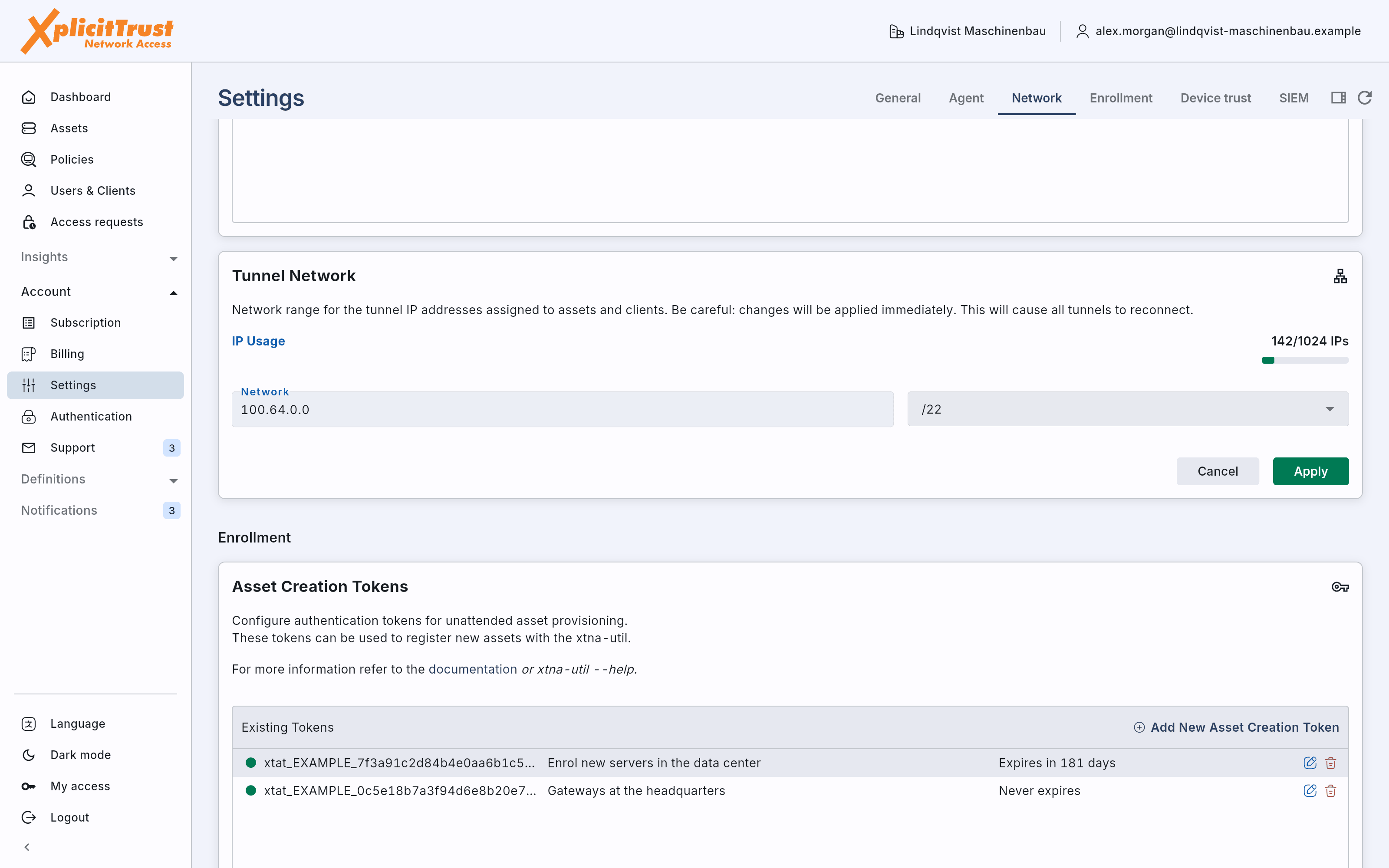
The IP range from which assets and clients get their tunnel addresses. The card shows how many addresses of the range are in use.
| Field | Meaning |
|---|---|
| Network | The network address as four numbers, e.g. 100.64.0.0. |
| Prefix dropdown | The prefix length, /20 to /24. |
The prefix must leave enough addresses for the ones already in use. If you change the network address, all clients get new tunnel addresses and their tunnels reconnect; Apply then asks you to confirm.
Enrollment
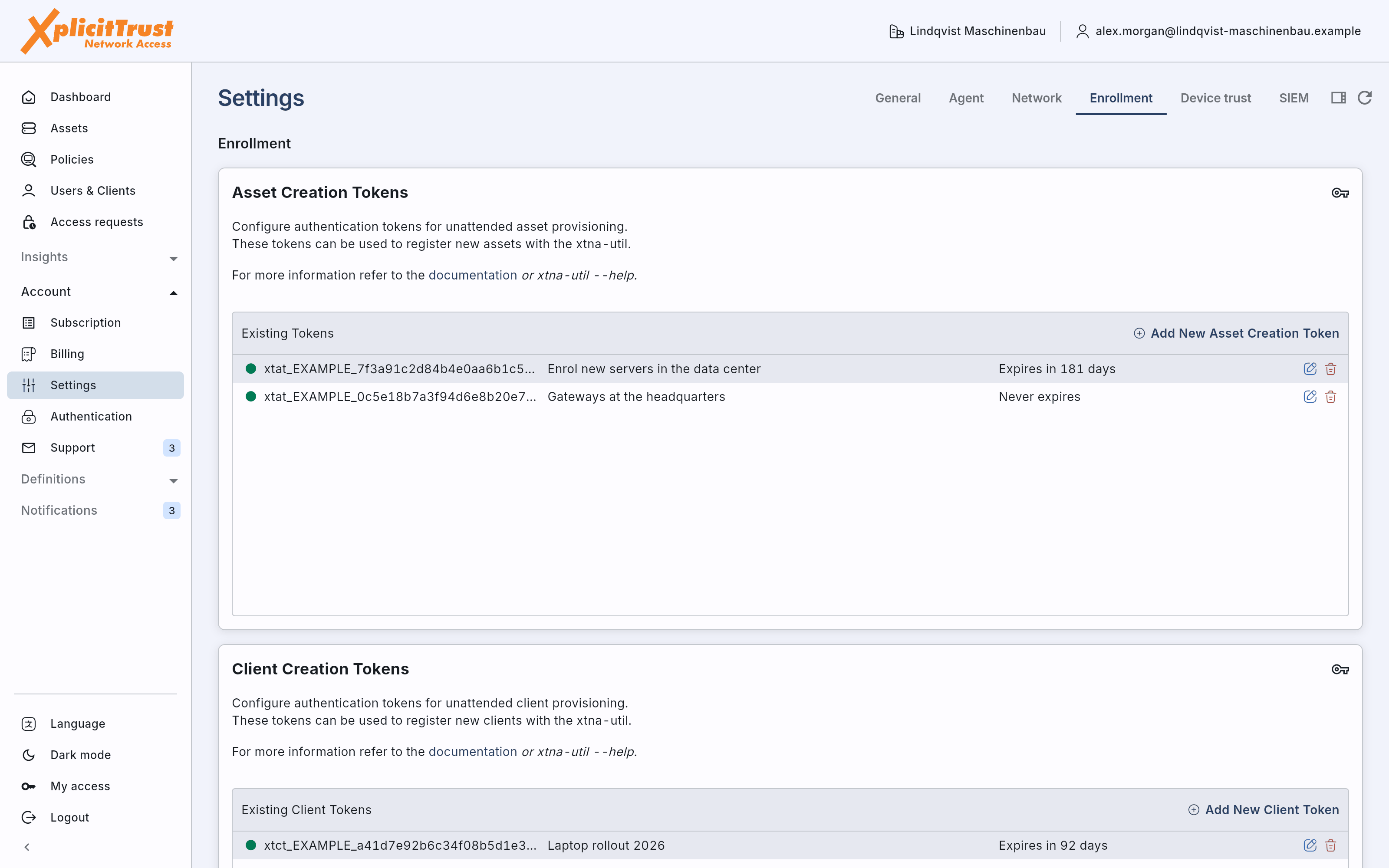
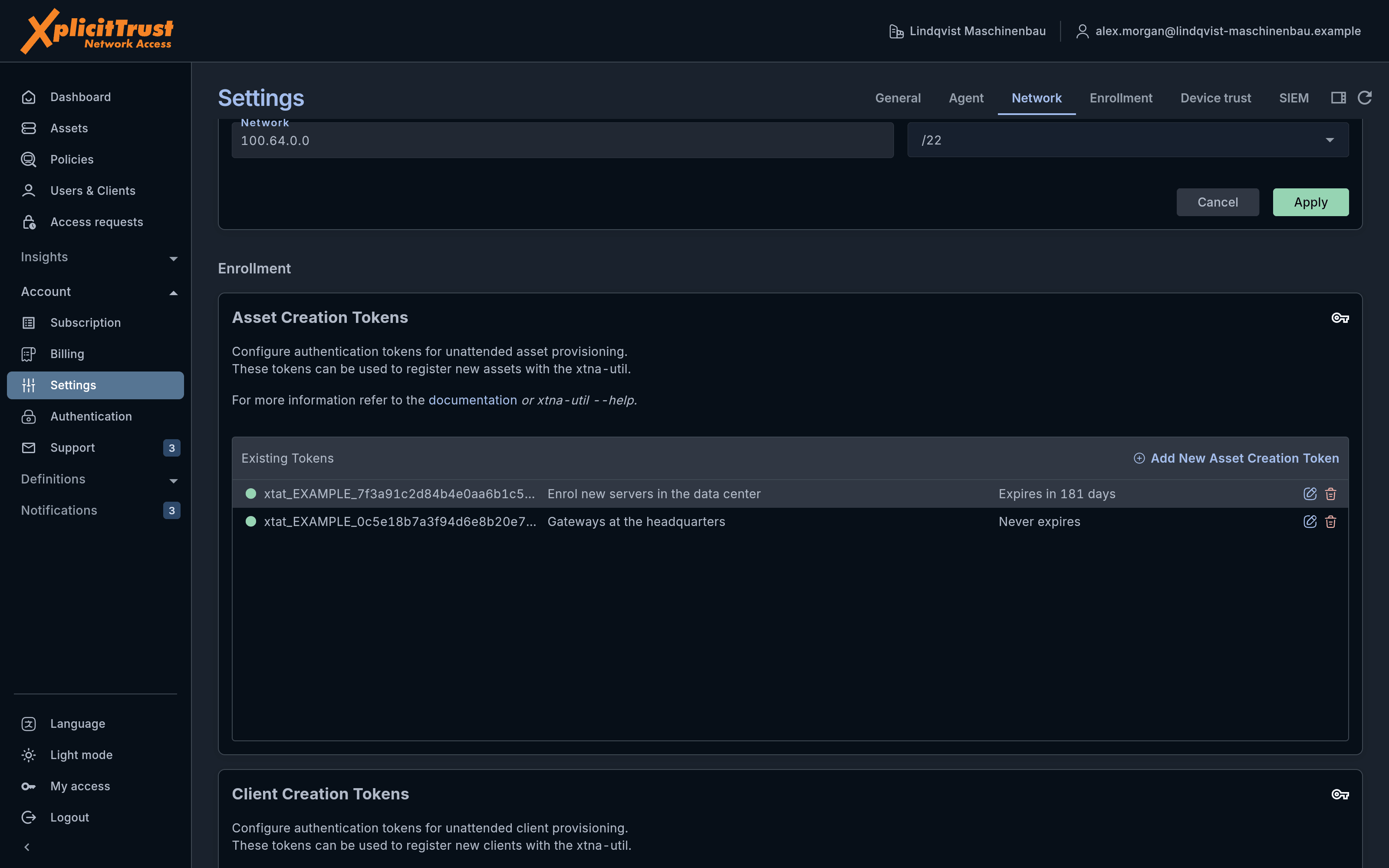
Tokens let you register assets and clients without anyone signing in, with xtna-util. See the xtna-util reference for how to use them.
Asset Creation Tokens
The list Existing Tokens shows each token (shortened), its description and when it expires (Expires in {n} days, Expires tomorrow at …, Expires today at …, Never expires or Expired), with a pencil to edit and a bin to delete it after a confirmation.
Add New Asset Creation Token (and the pencil) open a form:
| Field | Meaning |
|---|---|
| Description | A short description. |
| Assets are registered in enabled state | When off, new assets are created disabled. |
| Token expires | Switch for an expiry. When on, Token is valid until sets the date and time (the default is one day from now). When off, the token never expires. |
| Assets are assigned as Source in these Policies | Policies in which a newly registered asset becomes a source. |
| Assets are assigned as Destination in these Policies | Policies in which a newly registered asset becomes a destination. |
| Assets receive these Tags | Tags that a newly registered asset gets. |
When you create a token, a dialog shows it once: copy it and store it in a safe place, it cannot be displayed again.
Client Creation Tokens
The same list and form for clients. The form has Name, Clients are registered in enabled state and Token expires / Token is valid until, with the same meaning as above. The token is shown once on creation, too.
Device trust
Device certificates
Windows agents prove that the machine holds a certificate issued by one of your trusted CAs, together with its private key. The server checks the chain and the signature, and an OS condition in a policy can then require a device certificate. See Device Certificates for the concept.
Trusted certificate authorities
Upload your root CA or an issuing CA. With the root, every certificate issued below it passes; with an issuing CA, only that CA's certificates. Public CAs, expired CAs and certificates that are not a CA are refused. At most 20 CAs can be stored. Each entry shows the CA's name, subject, expiry date and the number of machines verified through it.
Add CA opens a form:
| Field | Meaning |
|---|---|
| Name (optional) | Defaults to the certificate's common name. |
| CA certificate (PEM) | Exactly one CA certificate, Base-64 encoded, starting with -----BEGIN CERTIFICATE-----. Only the public certificate, never a private key. |
Apply adds the CA, Cancel closes the form.
The bin deletes a CA after a confirmation. Machines verified through it fail the device certificate condition at once, and a policy that names the CA must be changed first.
Blocked certificates
Revocation lists and OCSP are not checked, so a certificate revoked on your CA keeps passing until you block it here or from the machine's own view. Block by thumbprint opens a form:
| Field | Meaning |
|---|---|
| SHA-256 thumbprint | 64 hexadecimal characters; spaces, colons and dashes are ignored. The thumbprint shown by the Windows certificate dialog is SHA-1 and does not fit. |
| Reason (optional) | Shown in the list. |
Block blocks the certificate, Cancel closes the form.
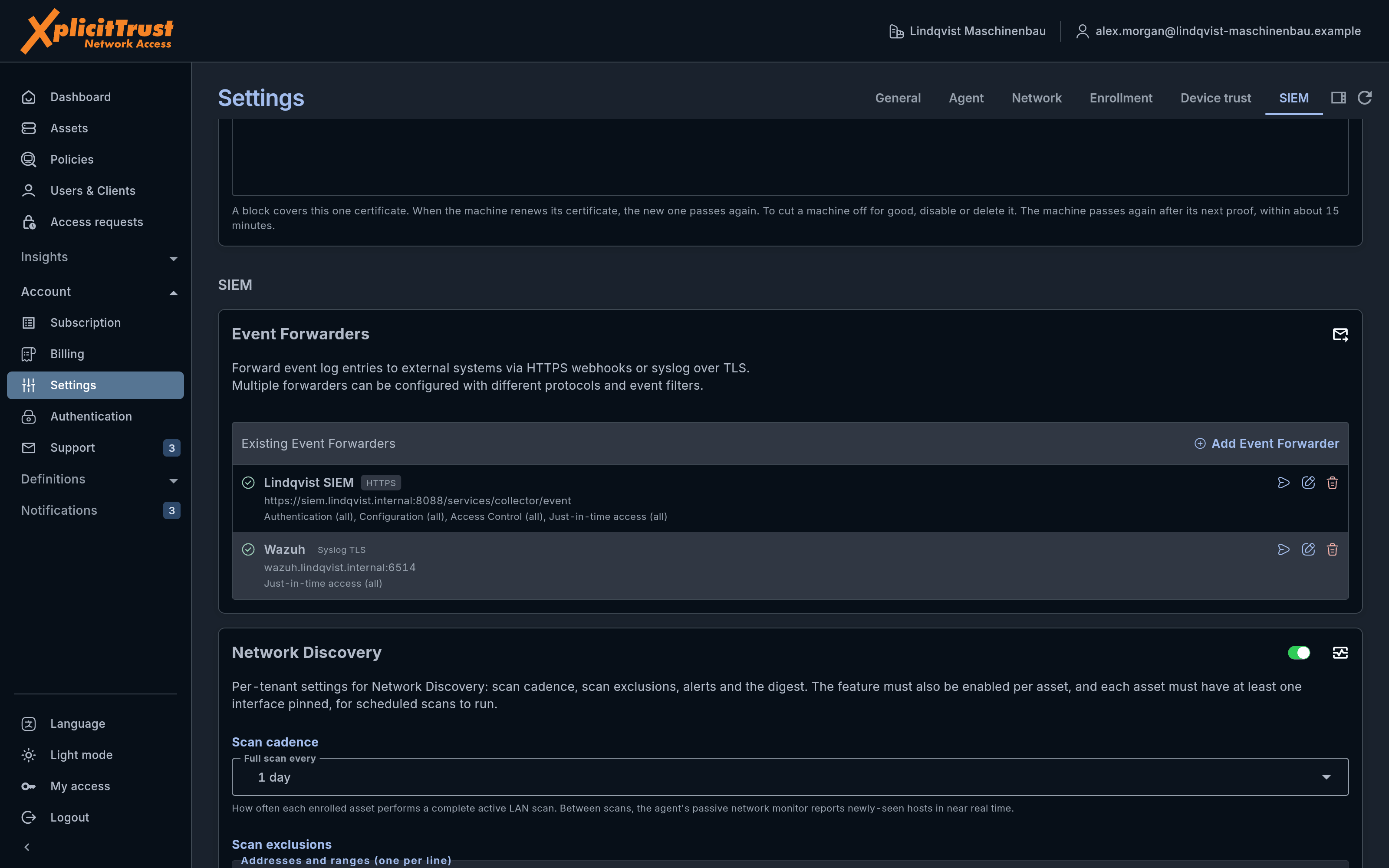
Each entry shows the subject (or thumbprint), issuer, expiry, who blocked it and when, and the reason. The unlock icon unblocks the certificate; the machine passes again after its next proof, within about 15 minutes. A block covers one certificate only: when the machine renews its certificate, the new one passes again. To cut a machine off for good, disable or delete it.
SIEM
Event Forwarders
Forwards the entries of the event log to external systems. Several forwarders can exist, each with its own protocol and event filter. See Event Forwarding for the setup, and the pages on HTTPS Webhook, Syslog over TLS, Microsoft Sentinel and Wazuh for specific receivers.
Each forwarder in Existing Event Forwarders shows a status icon (delivering, disabled or failing), its name and protocol, the destination, a summary of its event filter, and a state line with the number of events waiting and the time of the last delivery. A failing forwarder shows since when it fails, the number of failed deliveries, when the next attempt is made and the last error. The icons on the right send a test event (a notification tells you whether it was delivered), edit and delete the forwarder.
Add Event Forwarder opens a form:
| Field | Meaning |
|---|---|
| Name | Required. |
| Enabled | Switches delivery on or off. A new forwarder starts switched off. |
| Protocol | HTTPS Webhook sends events as signed JSON payloads by HTTP POST. Syslog over TLS sends RFC 5424 syslog messages over a TLS connection, compatible with Wazuh, Splunk, QRadar, Graylog and rsyslog. |
| URL | Required. For HTTPS, a URL such as https://siem.example.com/api/events; for syslog, a host and port such as siem.example.com:6514. |
| Secret (HMAC signing key) | HTTPS only. Required for a new forwarder; the payload is signed with HMAC-SHA256. When editing, leave empty to keep the current secret. |
| Authorization Header (optional) | HTTPS only. A bearer token value. When editing, leave empty to keep the current one. |
| Framing | Syslog only. Octet counting (RFC 5425) for spec-compliant receivers such as rsyslog, syslog-ng and Wazuh; Newline-delimited for receivers such as Splunk, Graylog and Logstash that treat TLS syslog as plain TCP syslog. |
| Event Filters | Two lists, Selected and Not Selected, with a filter field and Select all / Unselect all. Click an entry to move it to the other list. Leave empty to forward all events. |
A new forwarder is saved with Create, an existing one with Apply; Cancel closes the form. Name and URL are required.
Network Discovery
Network Discovery was called Network Monitoring before.
Sets how often enrolled assets scan their LAN, which addresses the scans leave alone, who hears about new and unreachable devices, and when the digest email goes out. The switch in the card header turns scheduled discovery on or off for the tenant. Scheduled scans only run on assets where Network Discovery is enabled and at least one interface is pinned.
| Field | Meaning |
|---|---|
| Full scan every | How often each asset performs a complete active scan of each pinned interface: 1, 4, 8, 12 or 24 hours, or 3 days. A newly pinned interface is scanned within about a minute. Between scans, the agent's passive monitor reports newly seen hosts in near real time. |
| Scan exclusions | IP addresses and CIDR ranges, one per line, up to 256. Discovery never probes them: no port scan, no service detection, no sweep, in scheduled and manual scans alike. Devices there still appear in the Network Inventory when they talk on the network, without ports. Meant for fragile equipment such as OT, medical devices or old printers. Watched devices are checked regardless. |
| Notify about new devices | Raises a notification in the console for each device that appears on a scanned network and is neither an Asset nor a Virtual Asset. The first scan of a newly pinned interface raises none, since every device is new there. A notification nobody acts on goes away after 14 days. On by default. |
| Alert recipients (one email per line) | Who gets an email about new devices and about watched devices that stop or start answering. It is sent within minutes, at most once every 15 minutes. Leave empty for notifications in the console only. |
| Digest hour | The hour at which the digest email is sent, in your local time. |
| Digest weekday | Daily, or one weekday for a weekly digest. |
| Recipients (one email per line) | Who gets the digest. Leave empty to send no email; the entries still reach your event forwarders. While Network Discovery is on, a banner warns when there are no recipients. |
| Email subject (optional) | Leave blank for an automatic subject. |
| Randomized-MAC devices | How to treat phones and laptops that rotate their address on each connection: Always report, Report after grace period (only devices that stay on the network past the grace window) or Never report. They always remain in the live inventory. |
Below Apply, Watched devices lists every device with a reachability watch: its name, IP address, the TCP ports checked and whether it is Answering, Not answering or Not checked yet, devices that do not answer first. The cross stops watching a device at once; it does not wait for Apply.
See also
- Concept: Names and DNS, Device Certificates and Just-in-Time Access.
- Guide: Set up split DNS, Events and SIEM and Silent and MDM Deployment, Watch your network's devices
- Reference: Limits, Preview features, Sign-in policy.