Definitions
Definitions is a group in the side menu with four entries: Services, Sites, Machine Groups and User Groups. They hold reusable building blocks that Services and Policies refer to, so that the same service, location or set of machines or people is defined once and used everywhere.
In short
Four lists of reusable building blocks for policies: Services (protocols and ports), Sites (where clients connect from), Machine Groups (sets of devices) and User Groups (sets of people). Define once, use in many policies.
Before you start
- For User Groups from a directory: the identity provider is connected, see Sign-in policy and Roles and Groups by IdP.
- For Sites: the assets whose public IP addresses define the site, see Assets.
- You are an administrator, see Roles.
Common tasks
- Offer a service on an asset: Services, then Assets.
- Group laptops for remote support: Remote support for laptops and Machine groups.
- Import groups from your identity provider: Import and sync from the identity provider.
- Allow access only from the office: Sites and the Conditions tab of a policy.
- Name approvers of access requests: User Groups and Roles.
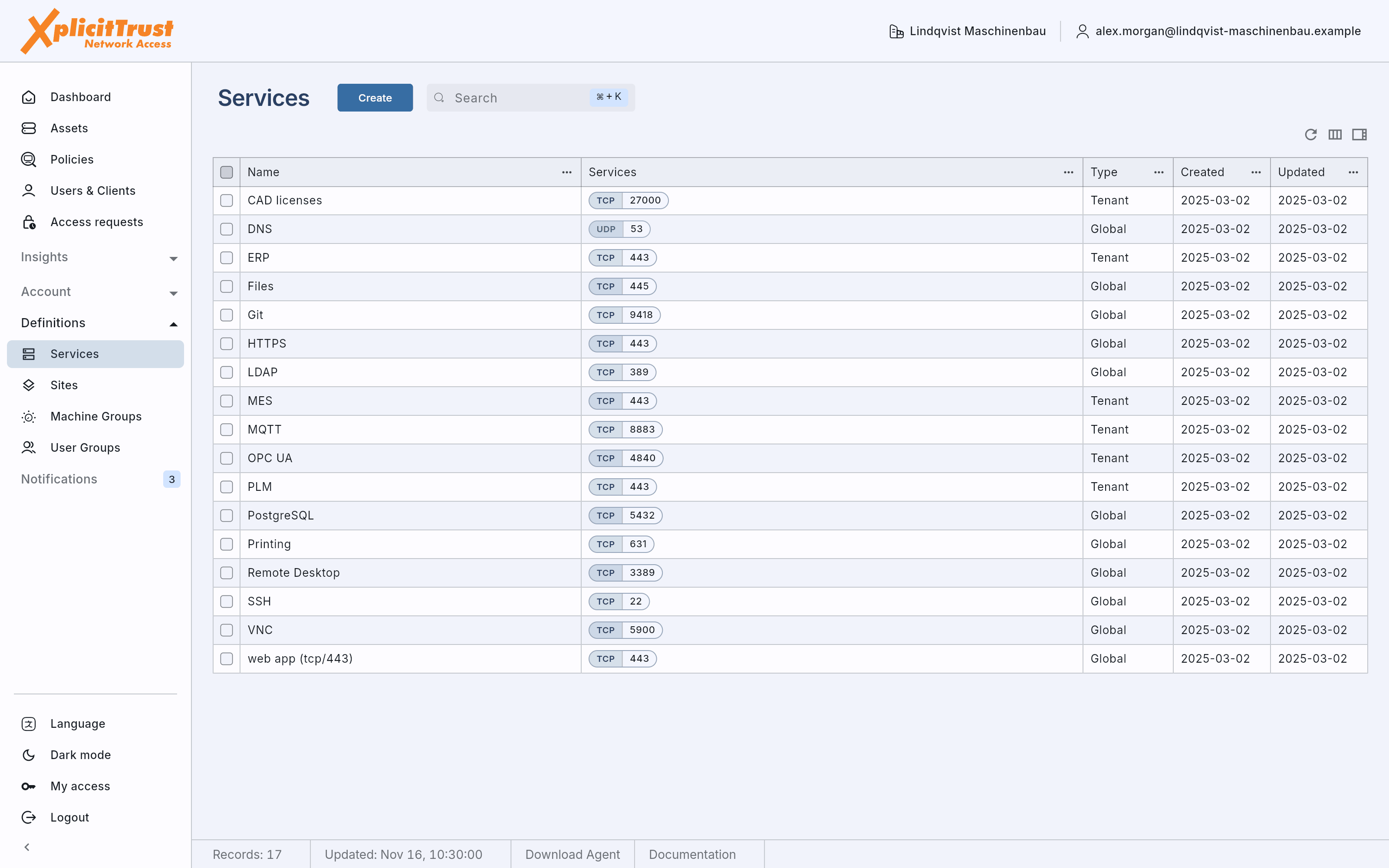
All four lists work the same way: click a row to open its detail panel on the right; use the ... in a column header to sort and filter (and, where the column allows it, hide the column); the icons above the table refresh the list, choose the columns and show or hide the side panel. With nothing selected, the side panel shows a short help text for the entry. Only Services and User Groups have a checkbox column to act on several rows at once.
Services
Definitions → Services lists the Service definitions: named sets of protocols and ports, e.g. SSH for TCP 22, that you offer on Assets and Machine Groups and select in policies. The page is titled Services. The help text of the panel says that predefined definitions can be used but not edited or deleted, and that you create your own as needed.
The list
| Column | Meaning |
|---|---|
| (checkbox) | Selects the row. |
| Name | The name of the definition. |
| Services | The protocol and port of each service in the definition, as chips such as TCP with 443; more than fit are summed up as +n. |
| Type | Global for the predefined definitions, Tenant for the ones created in your tenant. Filter by type from the column menu. |
| Created, Updated | When the definition was created and last changed. |
Create opens the create form.
Detail panel
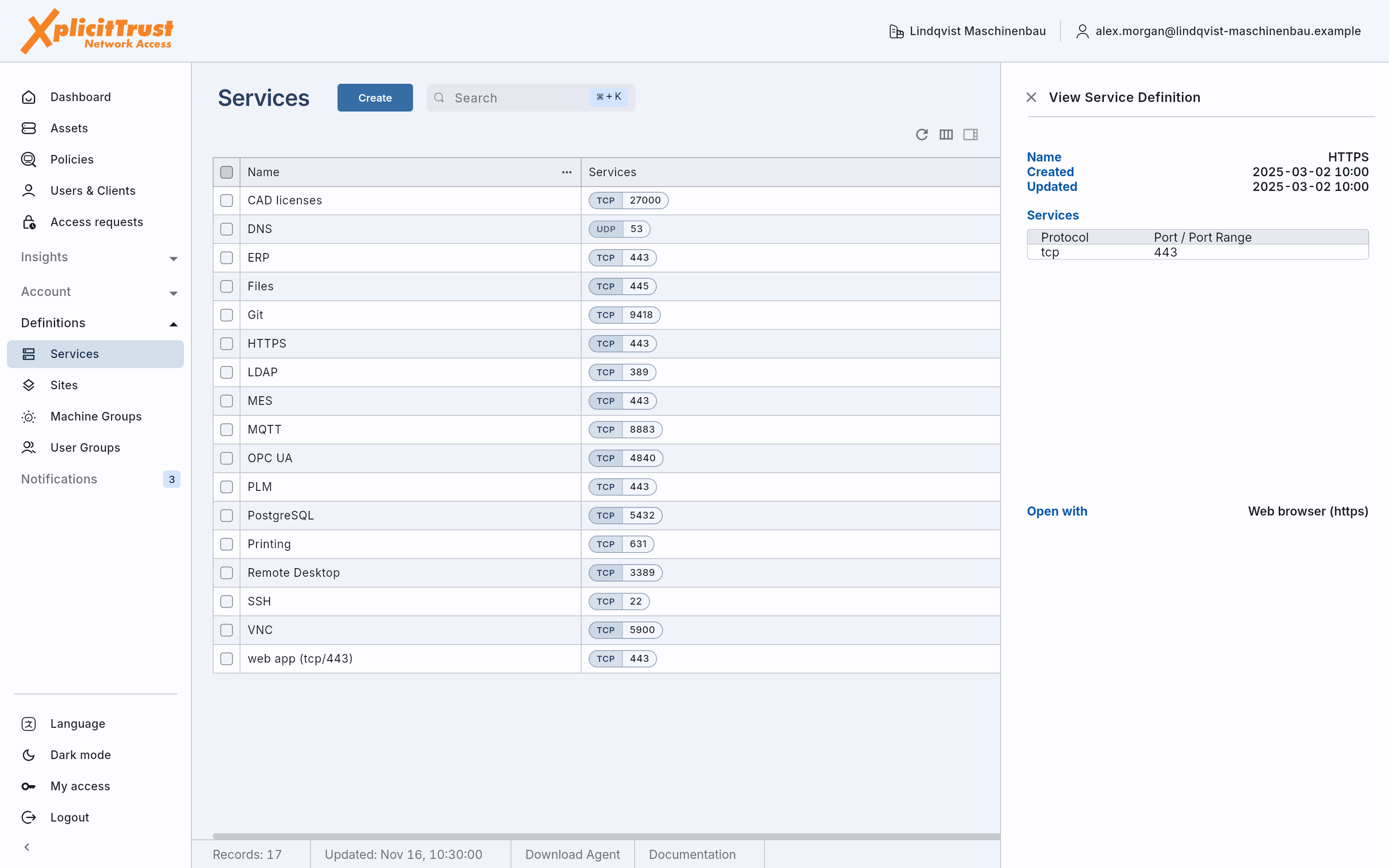
View Service Definition shows the Name, Created and Updated, the Services as a table of Protocol and Port / Port Range (- where there is no port), and Open with (for the automatic choice with its result, e.g. Automatic: Web browser (https)). The Edit and Delete icons appear only for definitions you can change; predefined (Global) definitions have none. Delete asks Are you sure you want to delete the ... Service Definition?.
Create and edit
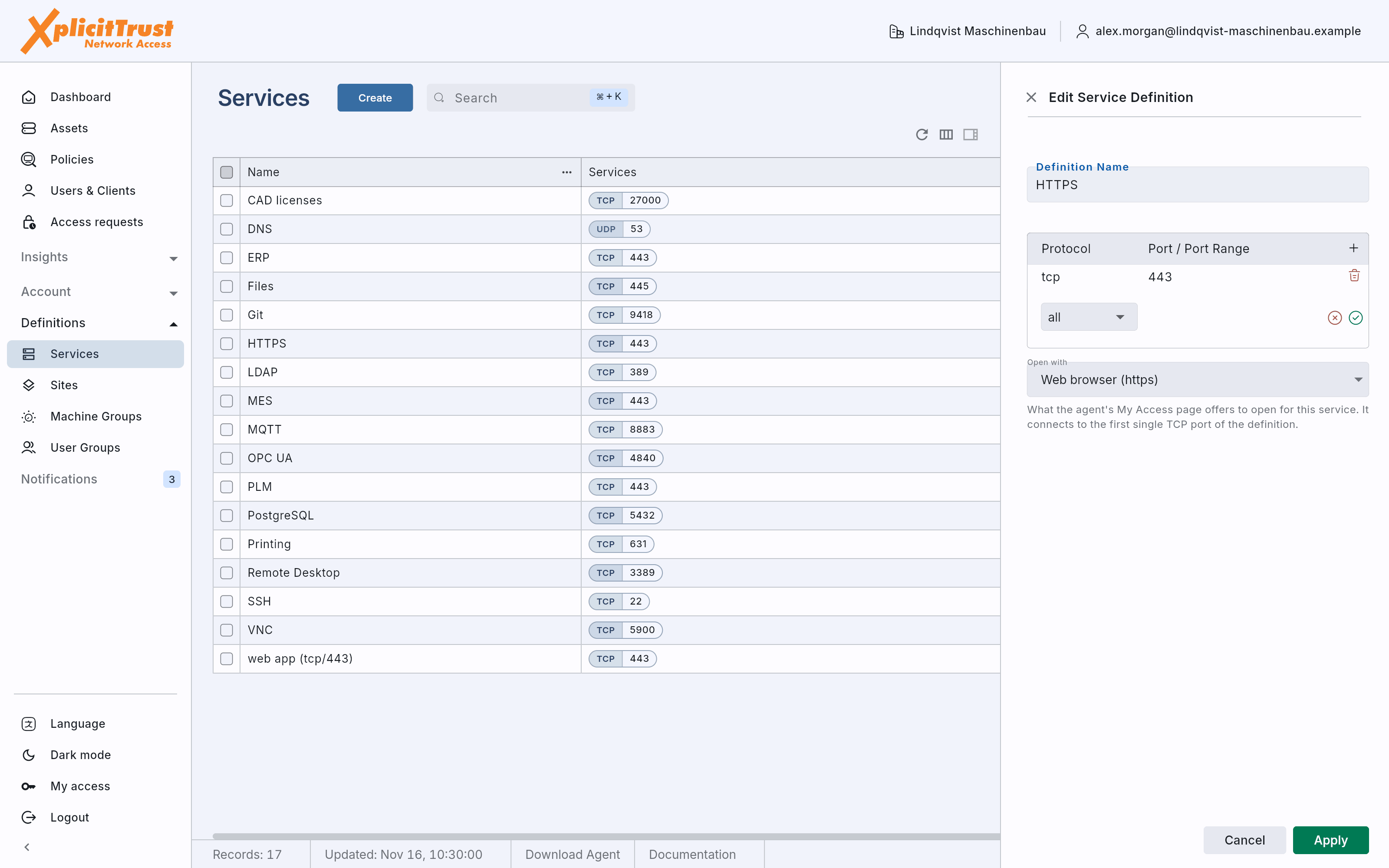
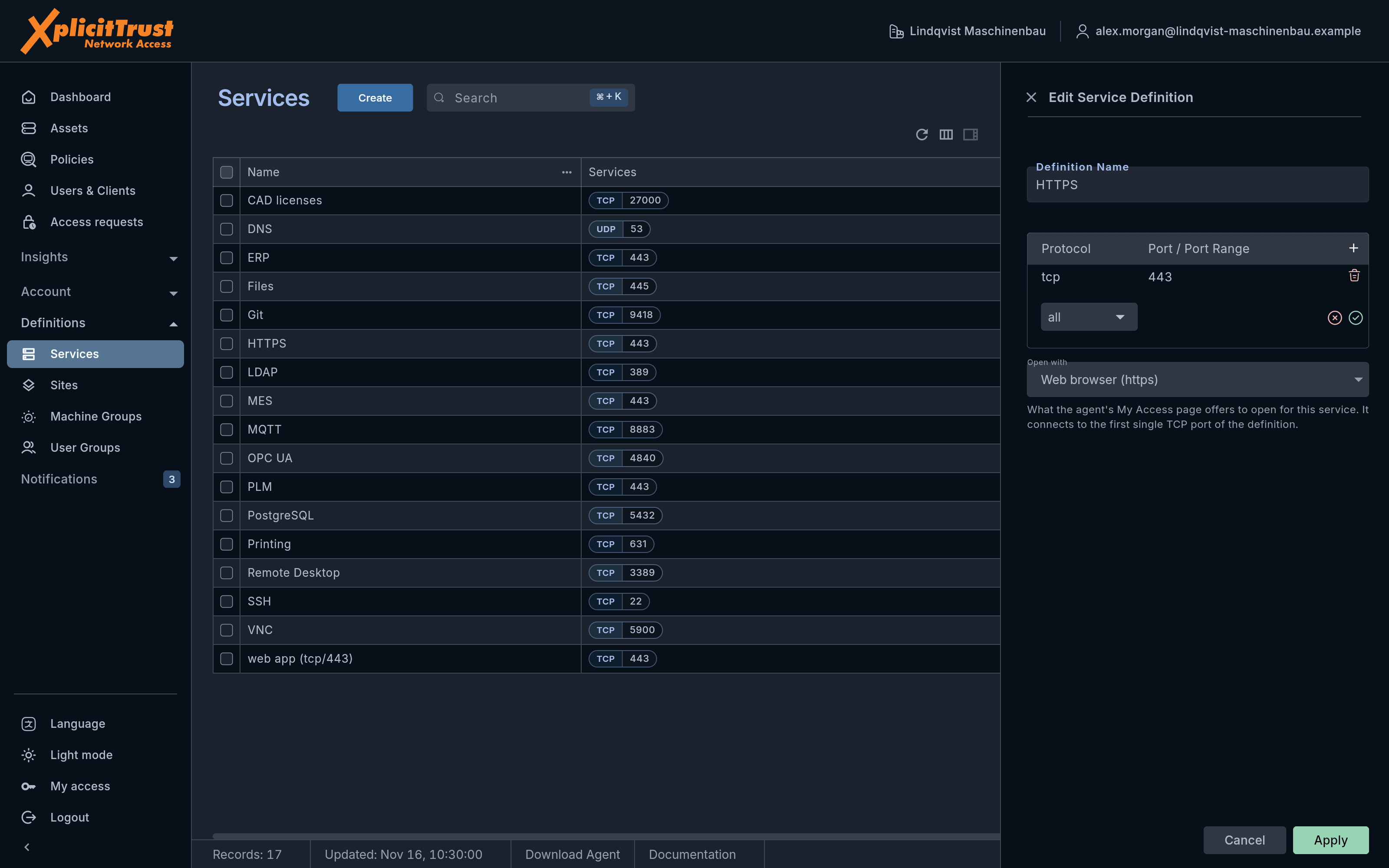
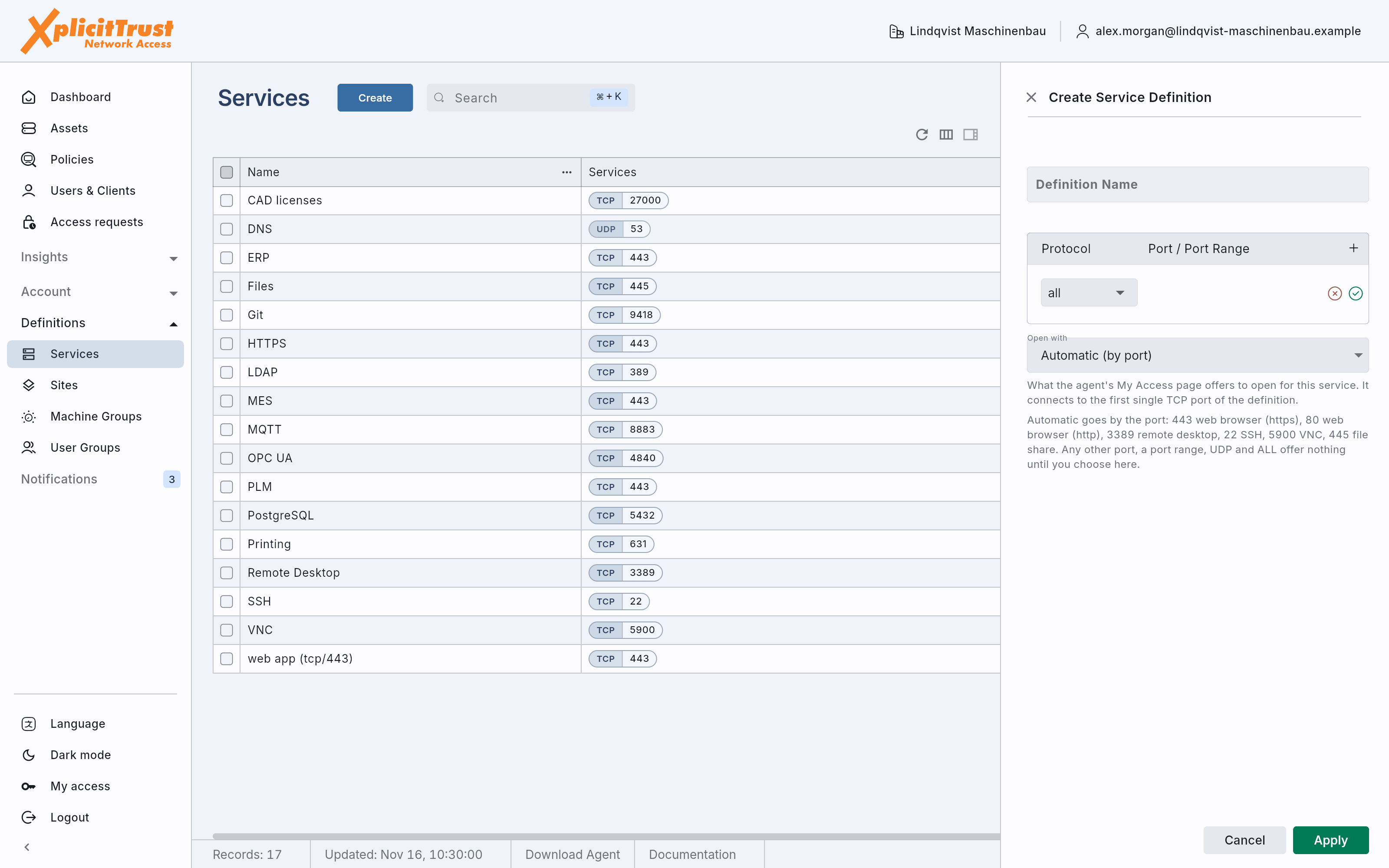
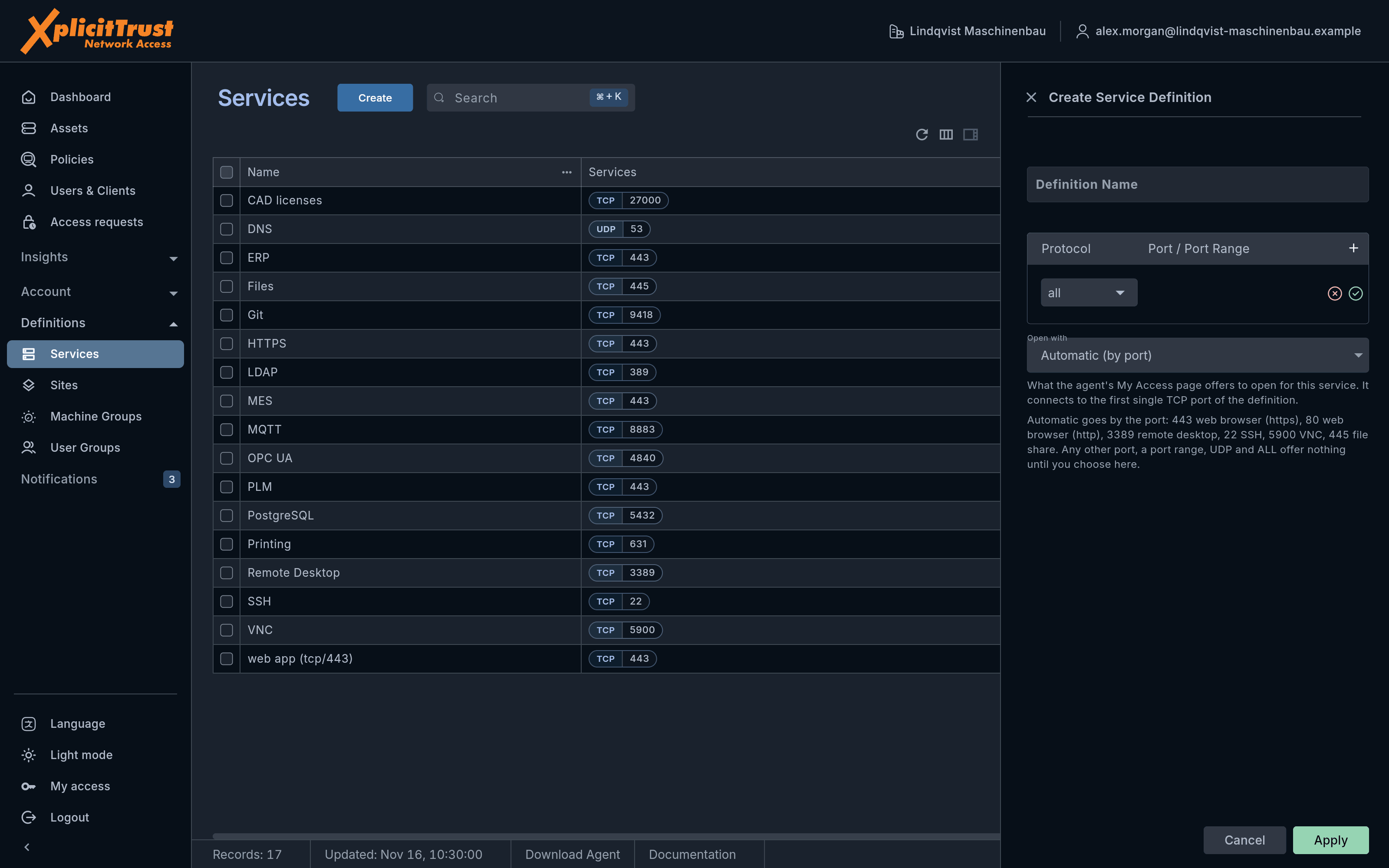
Create Service Definition and Edit Service Definition have the same fields.
| Field | Meaning |
|---|---|
| Definition Name | Required; the error is Please enter a valid Name. |
| Protocol / Port / Port Range | The services of the definition. The + in the table header adds a row; click a row to change it; the trash icon removes it. Choose tcp, udp, icmp or all. For tcp and udp a port is required: a number from 1 to 65535, or a range written from:to (both 1 to 65535, the first smaller than the second). A wrong entry marks the field red. icmp and all have no port. Confirm a row with the check mark, discard it with the cross. |
| Open with | What the agent's My Access page offers to open for this service: Automatic (by port) (default), Web browser (https), Web browser (http), Remote desktop (RDP), Terminal (SSH), Remote screen (VNC), File share (SMB) or Nothing. It connects to the first single TCP port of the definition. Automatic goes by the port: 443 https, 80 http, 3389 RDP, 22 SSH, 5900 VNC, 445 SMB. Any other port, a port range, UDP and all offer nothing until you choose here. |
| Listening on this asset | Only when the form is opened from an Asset: the services the Asset listens on, with a search field. The + next to an entry adds it to the definition and, if the name is still empty, names the definition after it. |
Apply saves and shows Service Definition created (also after an edit), then opens the definition; Cancel closes the form.
Mass actions
With several rows ticked the panel is Mass Action. Its only icon, Delete Selected, deletes the selected definitions after a confirmation.
Sites
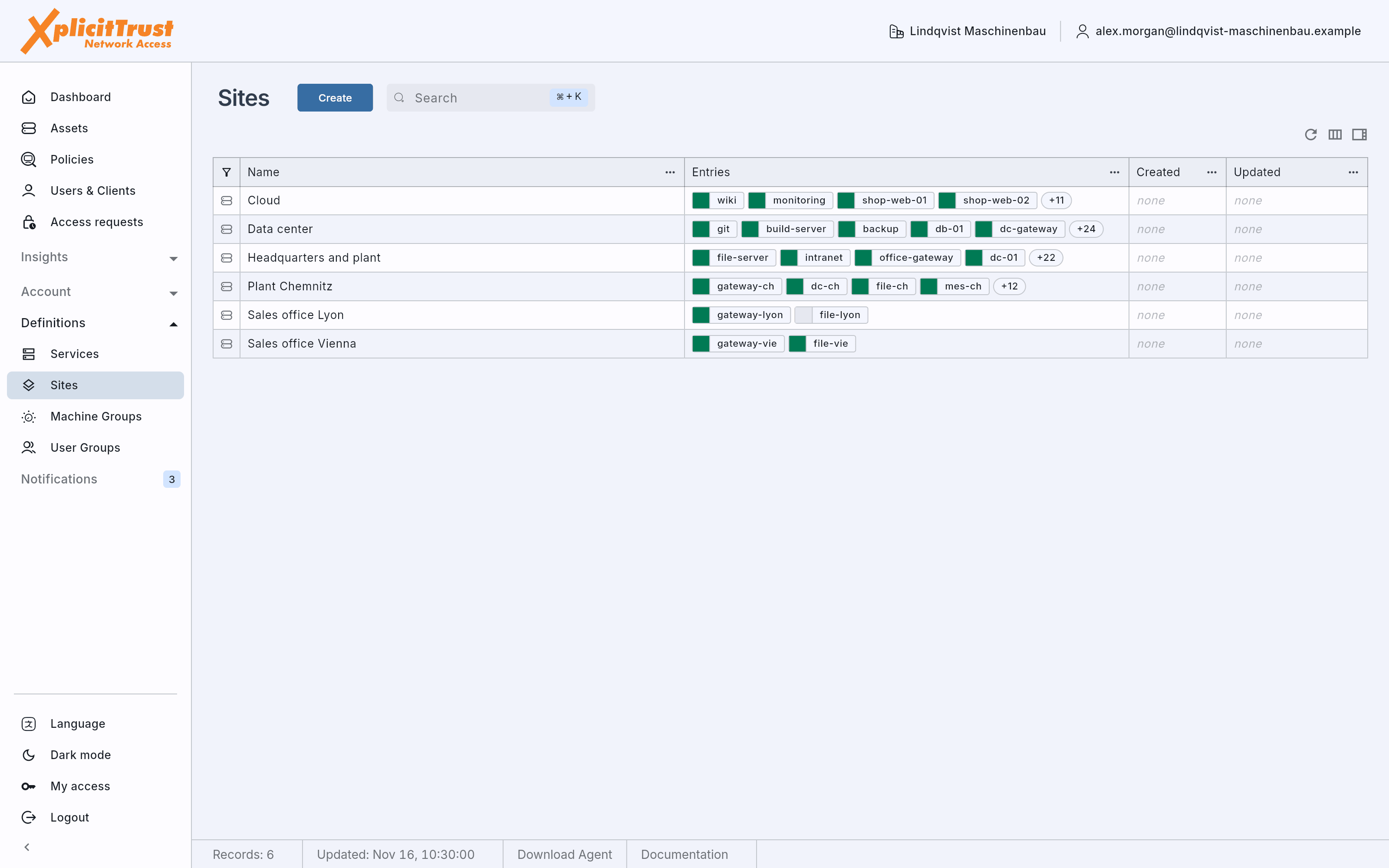
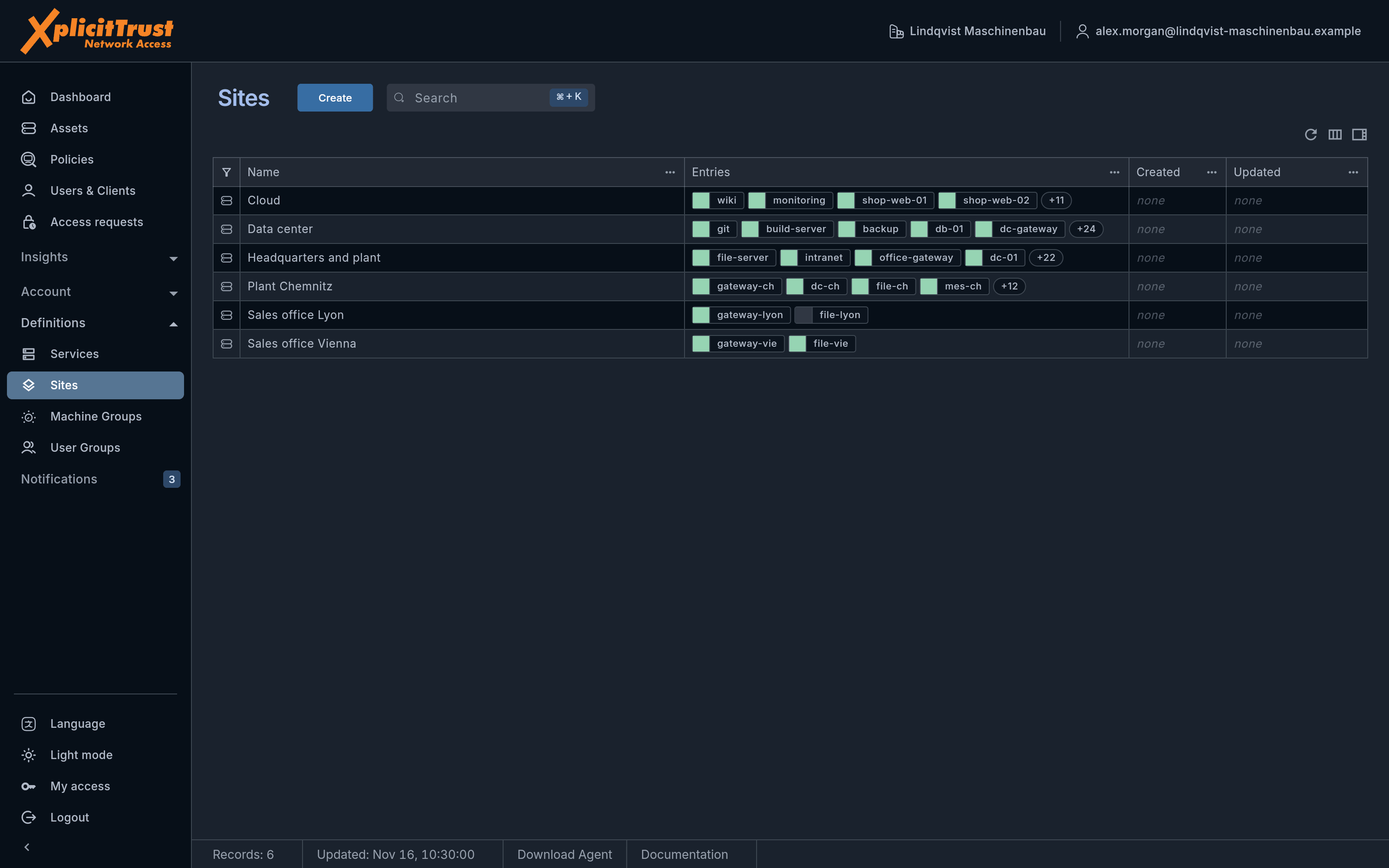
Definitions → Sites lists the physical or logical locations of your organisation, such as headquarters, branch offices or home offices. A Site is identified by one or more public IP addresses, fixed ones or those of its stationary Assets. Use Sites in the Conditions of a Services and Policies: the policy then applies when Clients connect from one of the selected Sites or, negated, when they do not.
The list
| Column | Meaning |
|---|---|
| (type symbol) | Whether the Site is built from Assets or from Static IPs. The header filters by these two types. |
| Name | The name of the Site. |
| Entries | The Assets (with their online state) or IP addresses of the Site, as chips; more than fit are summed up as +n with the rest in the tooltip. Hover over a chip for details of the Asset or address. |
| Created, Updated | When the Site was created and last changed. |
Detail panel
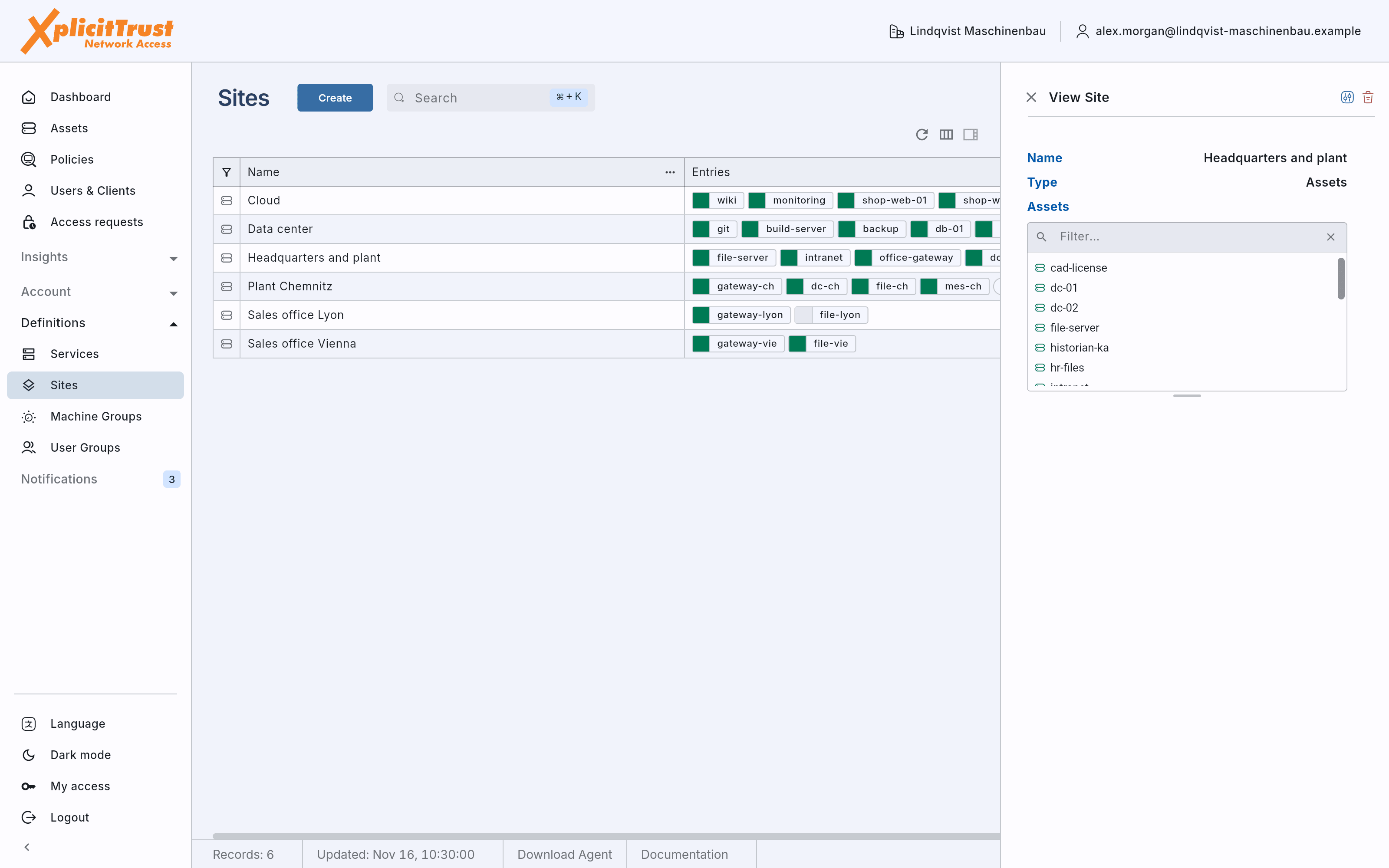
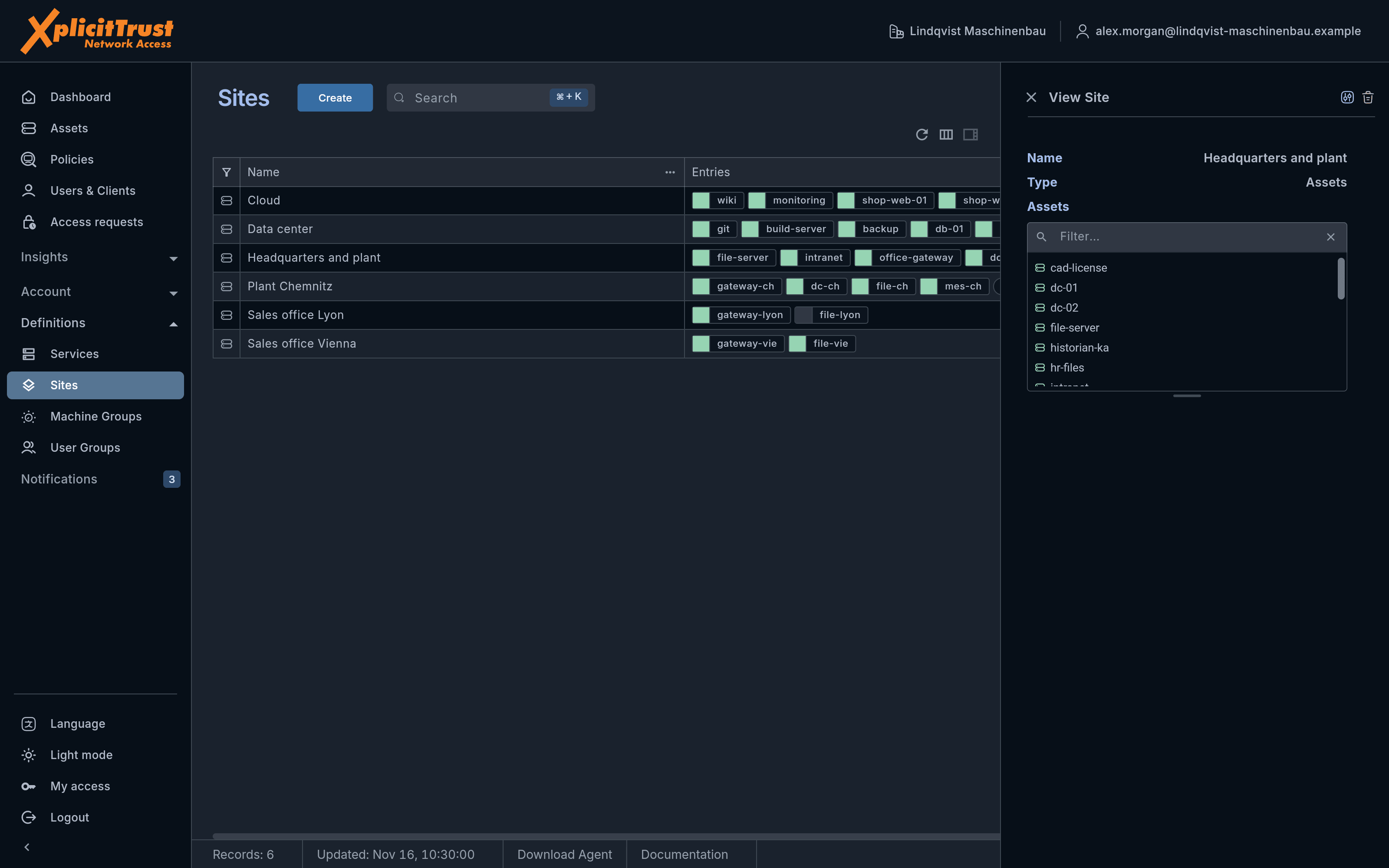
View Site shows the Name, the Type (Assets or Static IPs) and the entries (No assets defined / No IPs defined if empty). Edit and Delete are in the header; Delete asks Are you sure you want to delete the ... Site?.
Create and edit
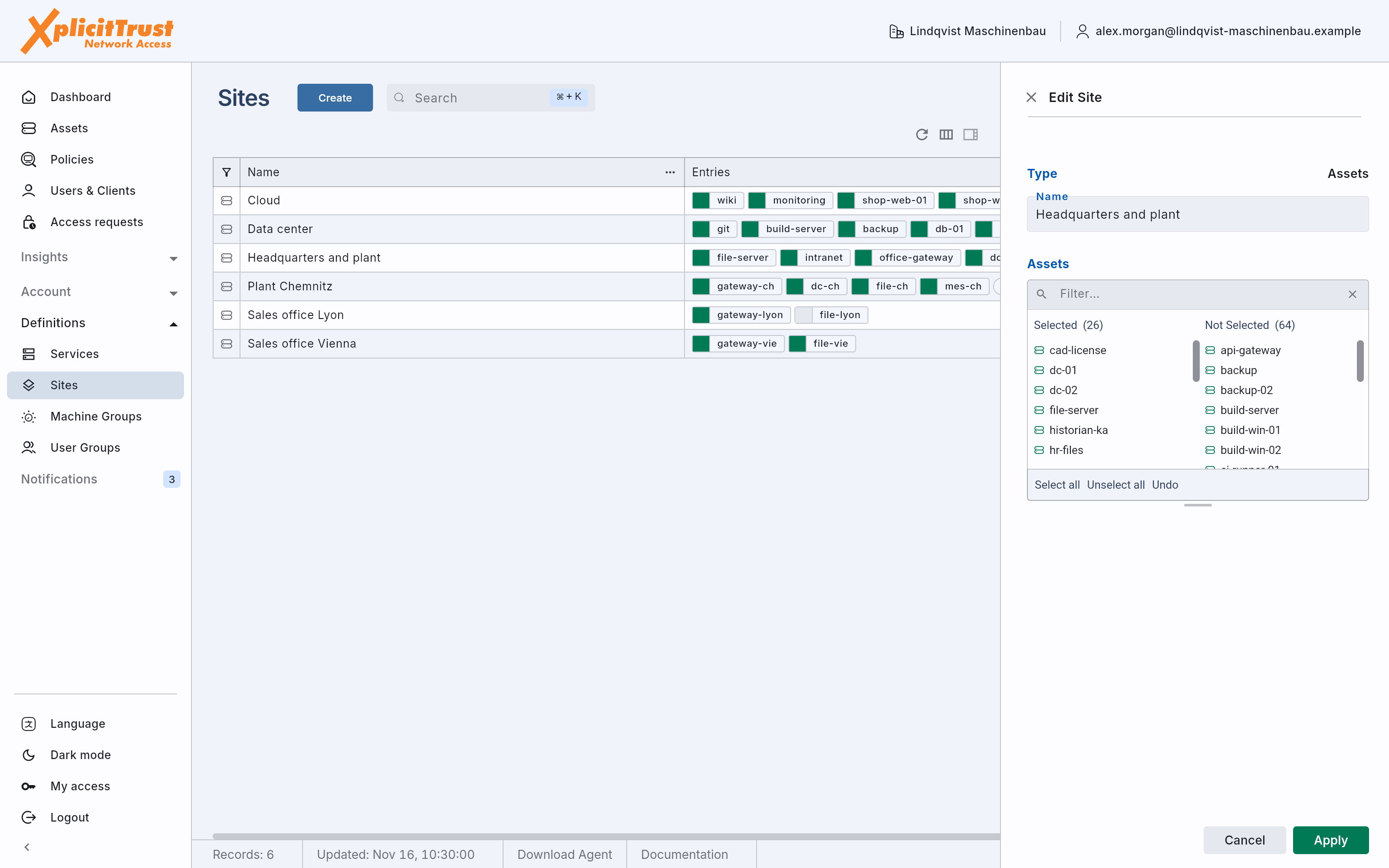
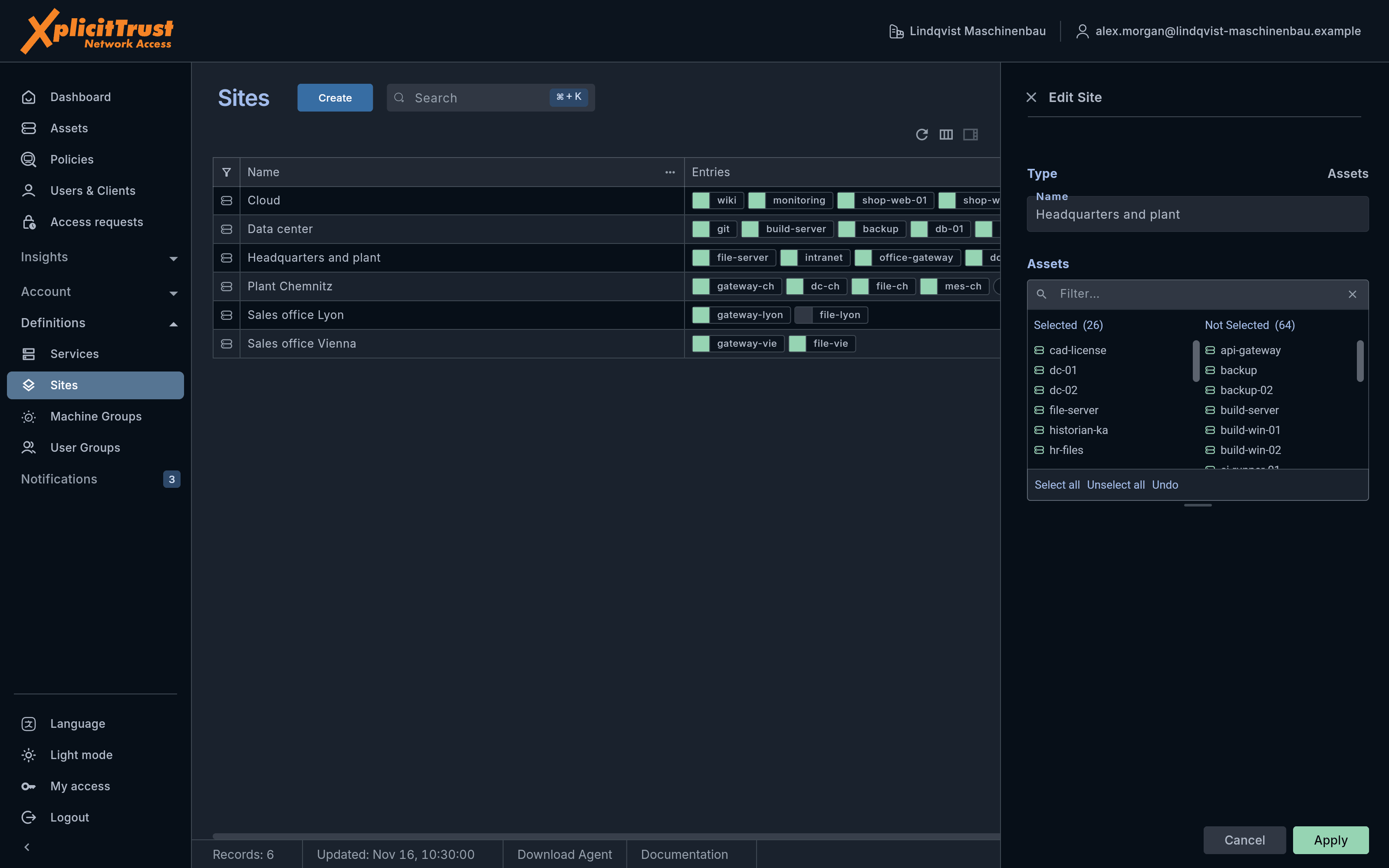
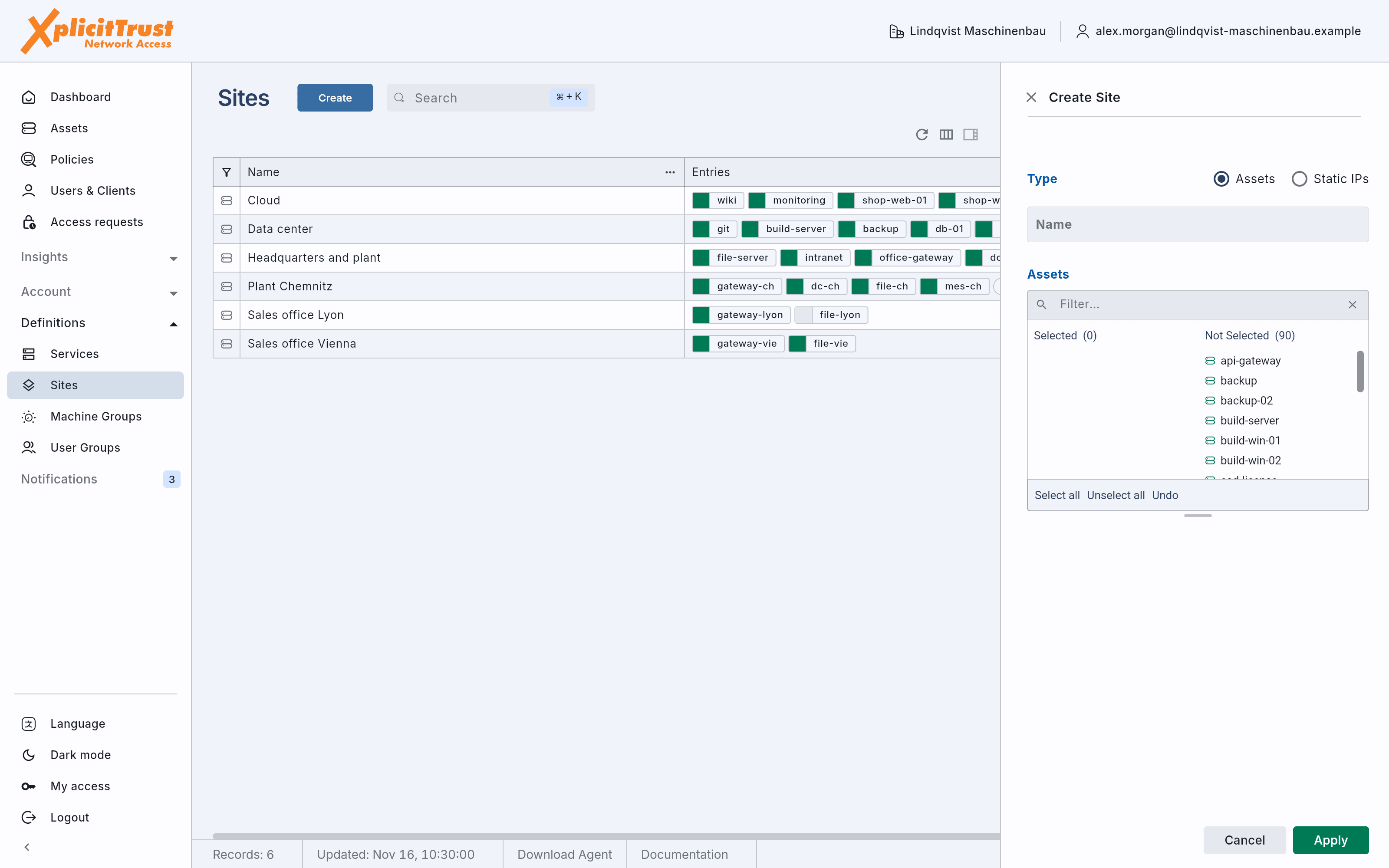
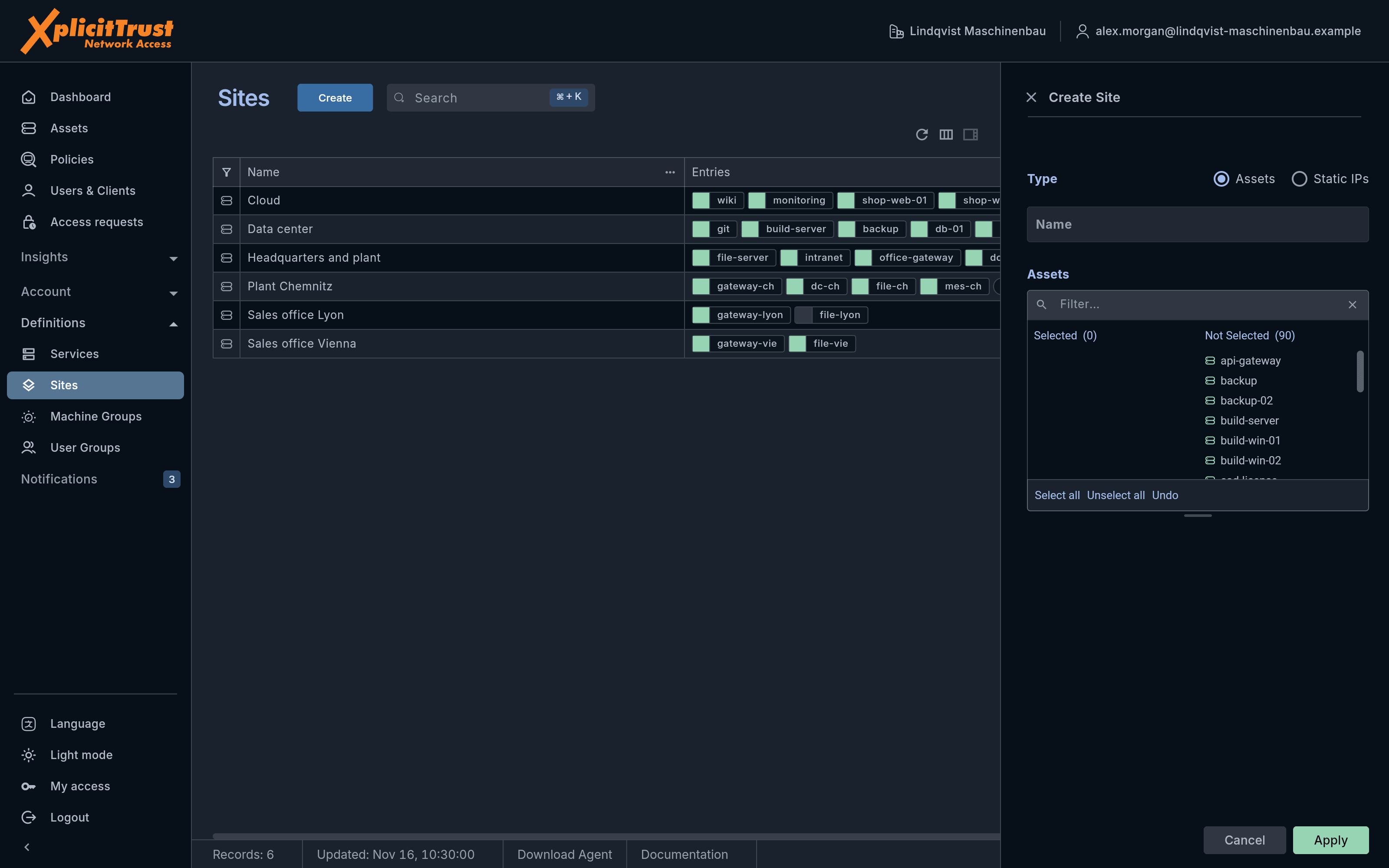
Create Site and Edit Site:
| Field | Meaning |
|---|---|
| Type | A choice between Assets (default) and Static IPs. Chosen when you create the Site; shown as text when you edit it. |
| Name | Required; the error is Please enter a valid Name. |
| Assets | For type Assets: select the Assets of the Site. At least one is required (Please select at least one Asset). The Site covers the public IP addresses of these Assets. |
| Static IPs | For type Static IPs: type an IPv4 address into the field Add IP address (hint e.g. 203.0.113.10) and press Enter or the +. Only valid IPv4 addresses are accepted and an address can be added once. The field suggests the public addresses of your Assets. Added addresses are listed below (No IPs added yet while empty) and can be removed. |
Apply shows Site created or Site updated; Cancel closes the form.
Machine Groups
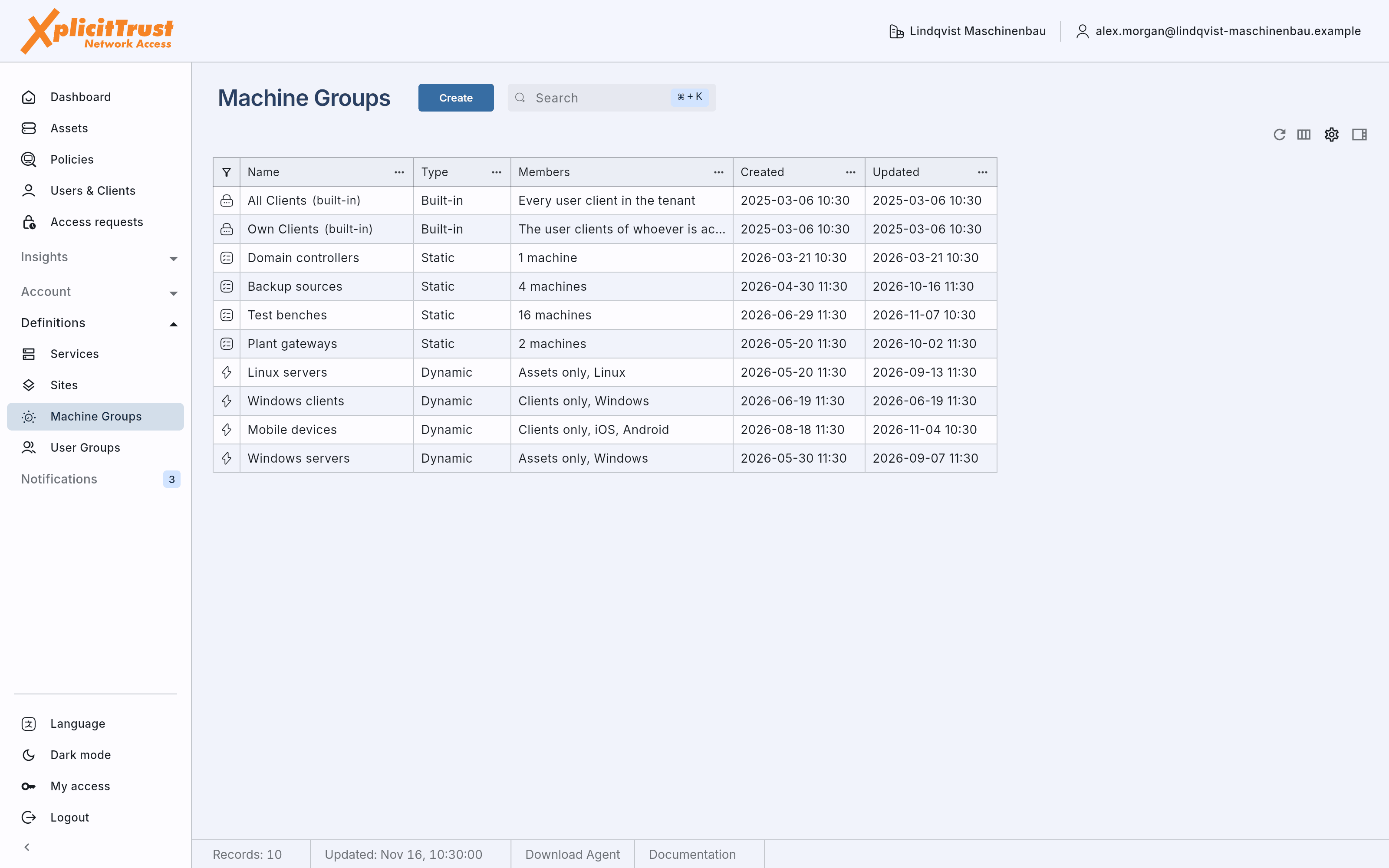
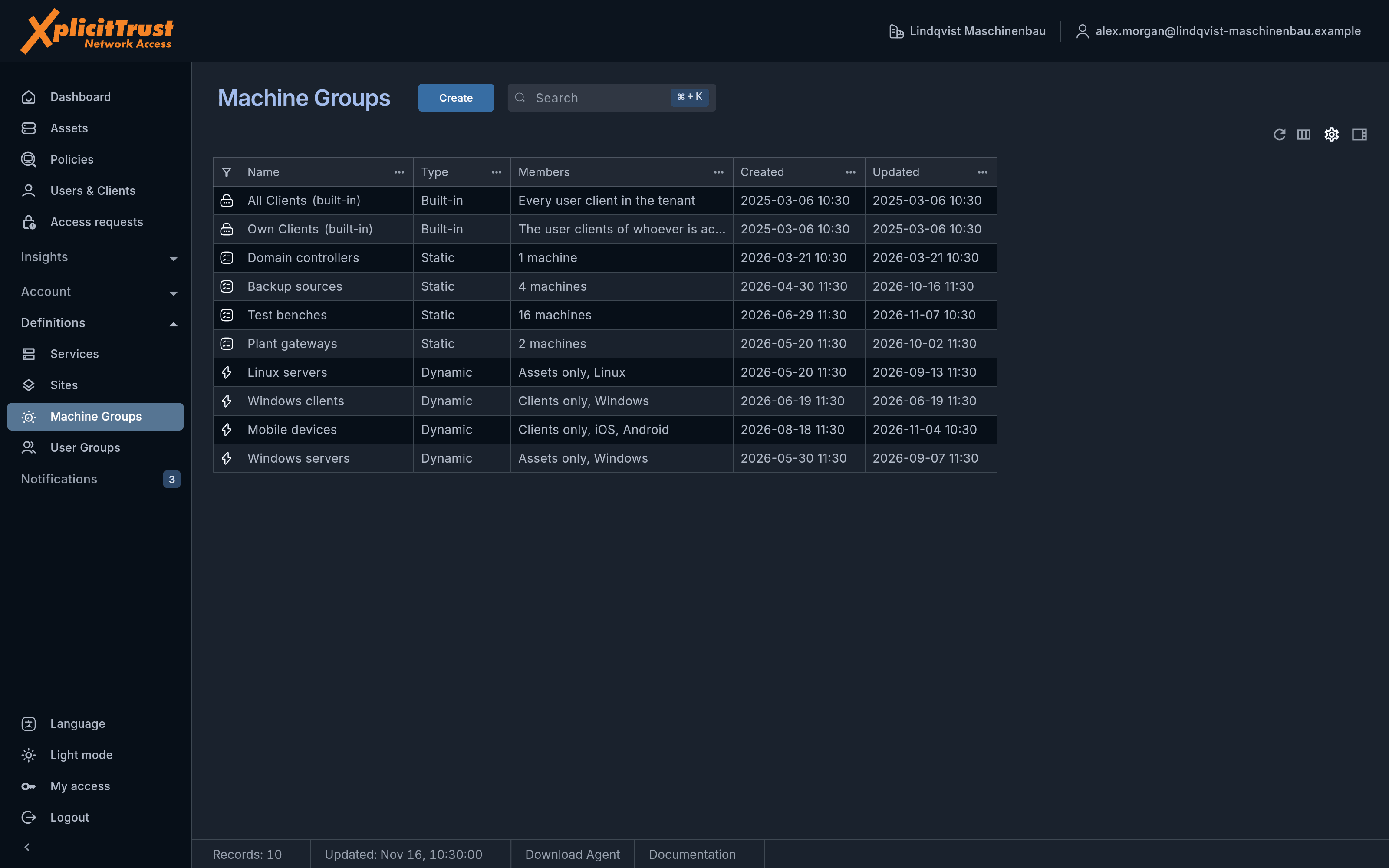
Definitions → Machine Groups lists the groups of machines (Assets and Clients) that policies can target as a whole. What Machine Groups are for, the kinds (static, dynamic, built-in) and how they behave in policies is explained in User Groups and Machine Groups; this section describes the screens.
The list
| Column | Meaning |
|---|---|
| (kind symbol) | A lock for built-in, a list for static and a bolt for dynamic groups. The header filters by Built-in, Static and Dynamic. |
| Name | The name; the built-in groups carry (built-in): All Clients and Own Clients. |
| Type | Built-in, Static or Dynamic. |
| Members | For a static group the number of machines (4 machines). For a dynamic group its conditions, e.g. Clients only, Windows (No selector: matches nothing if it has none). For the built-in groups a one-line description. Hover for the details. |
| Created, Updated | When the group was created and last changed. |
Detail panel
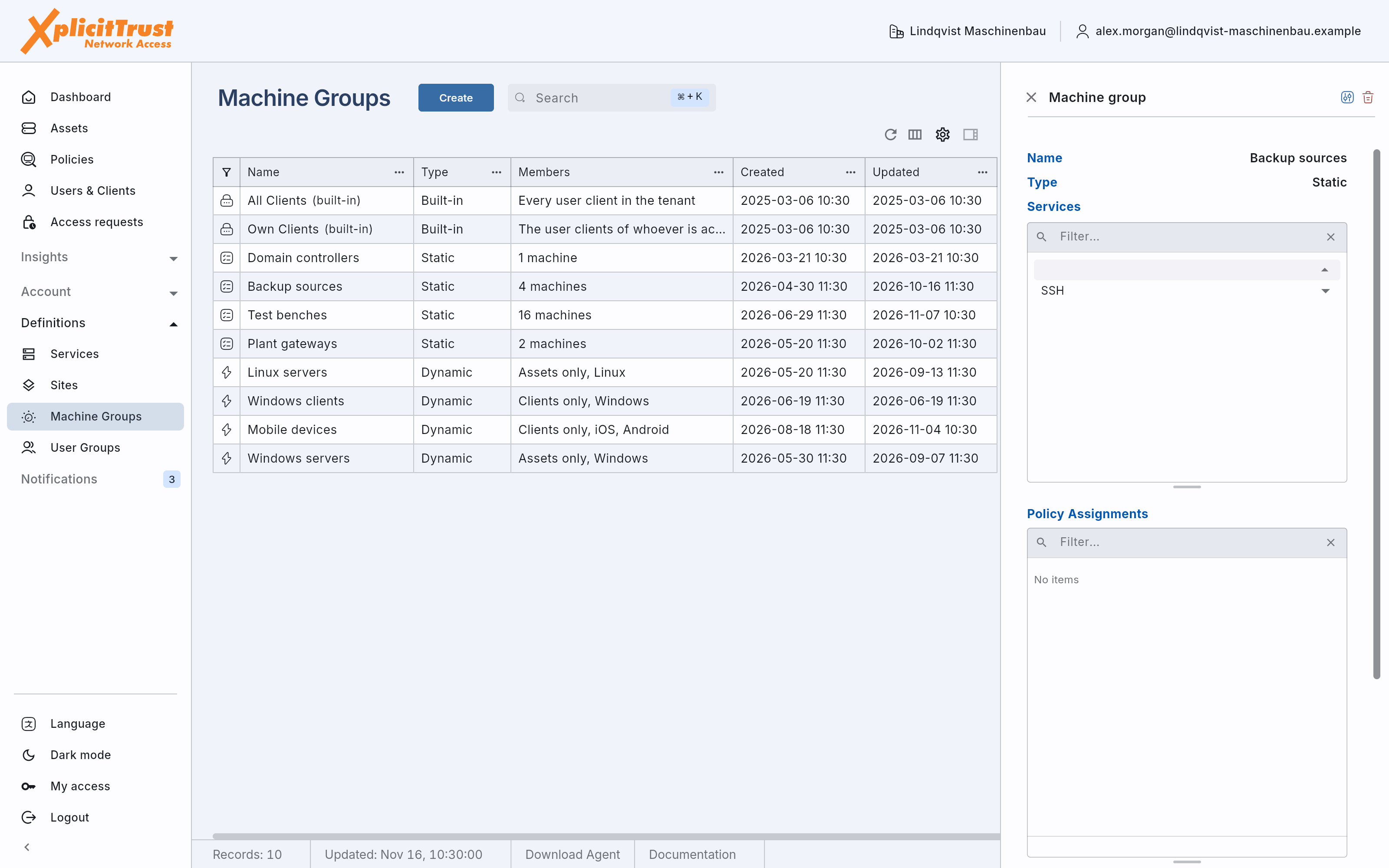
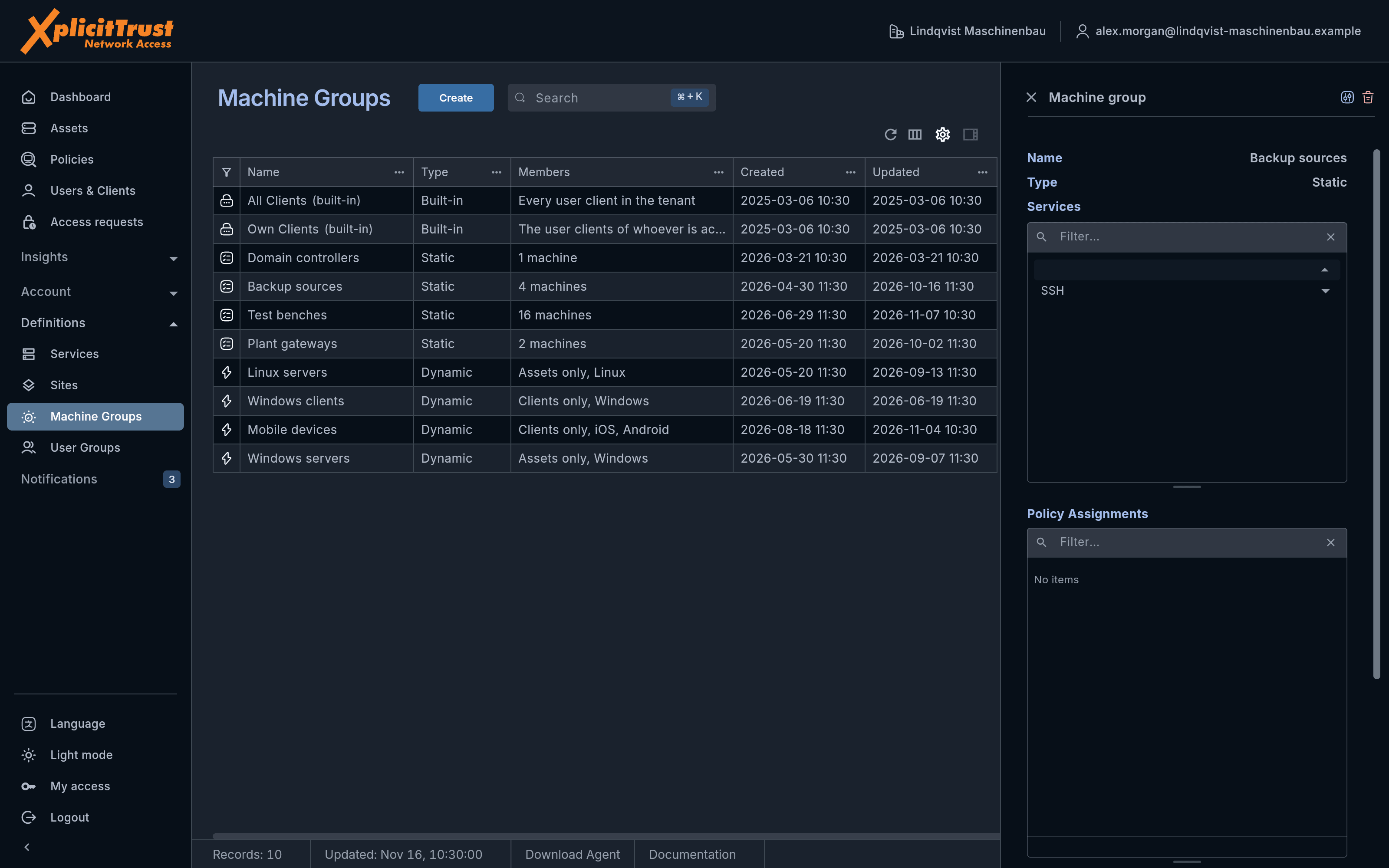
Machine group shows:
| Section | Meaning |
|---|---|
| Name, Type | Name and kind of the group. |
| Services | The services the group offers, with the protocols and ports behind each. A group without a service says A group that offers no service cannot be used as a policy destination. |
| Policy Assignments | The policies that use the group as a destination, per service. |
| Machines | Static groups: the machines in the group. |
| Matching machines | Dynamic groups: the machines that match now, with their count. |
| Machine Type, Operating System, Machine Tags, User Groups | Dynamic groups: the conditions of the group. |
For the two built-in groups the panel explains what they contain and offers no Edit or Delete. For the others the header has Edit and Delete; Delete asks Delete the machine group "..."? Policies that use it must be changed first.
Create and edit
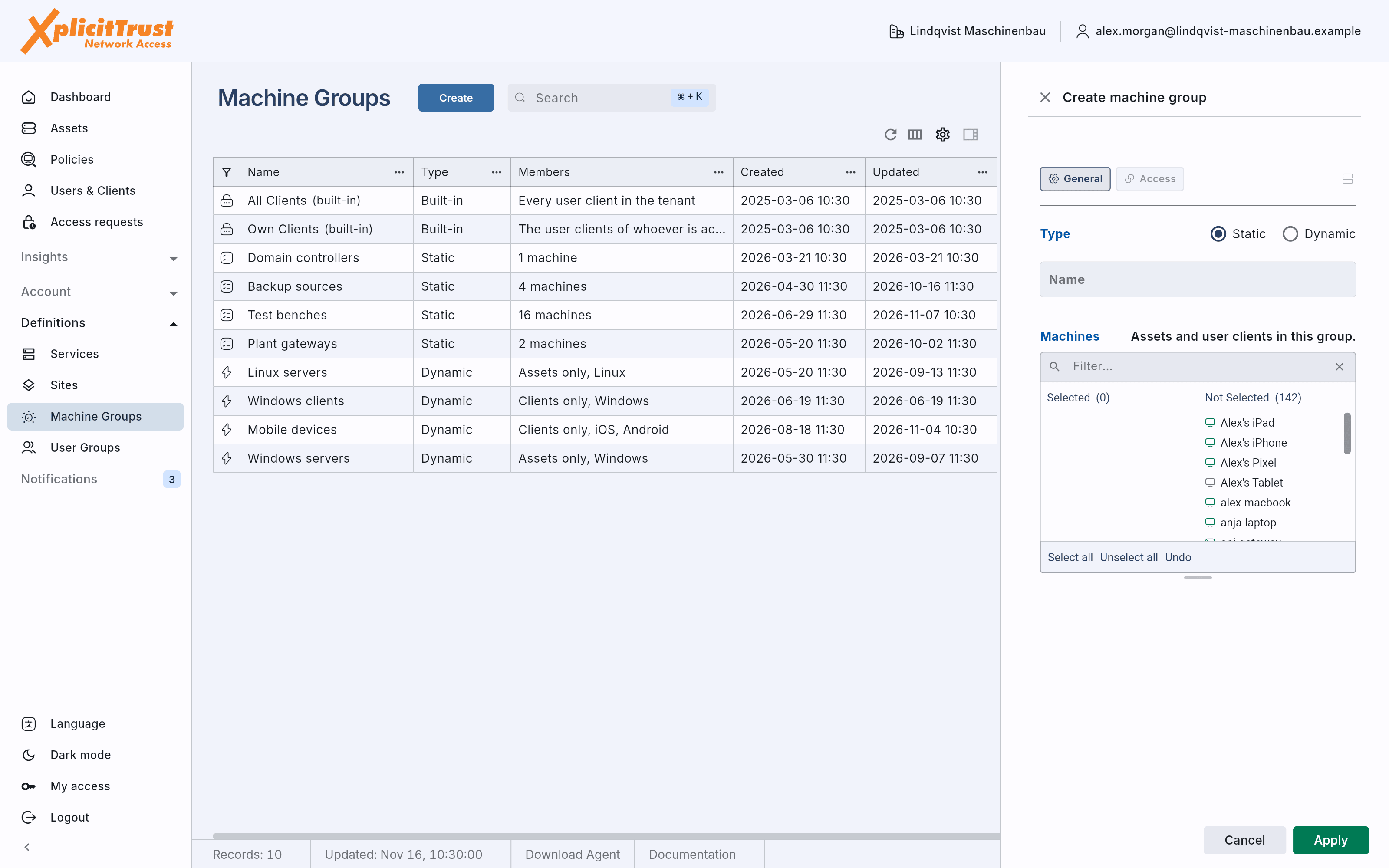
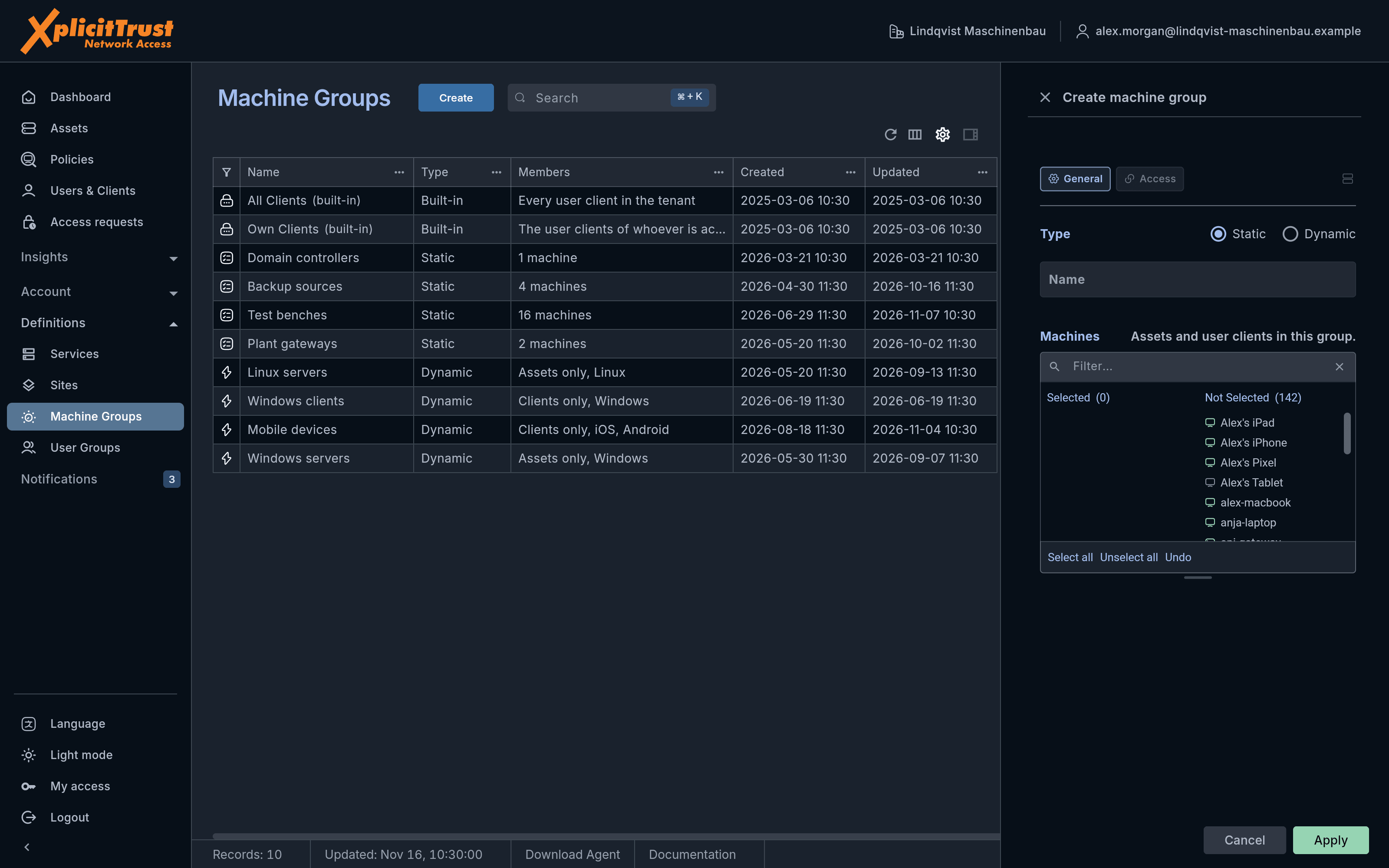
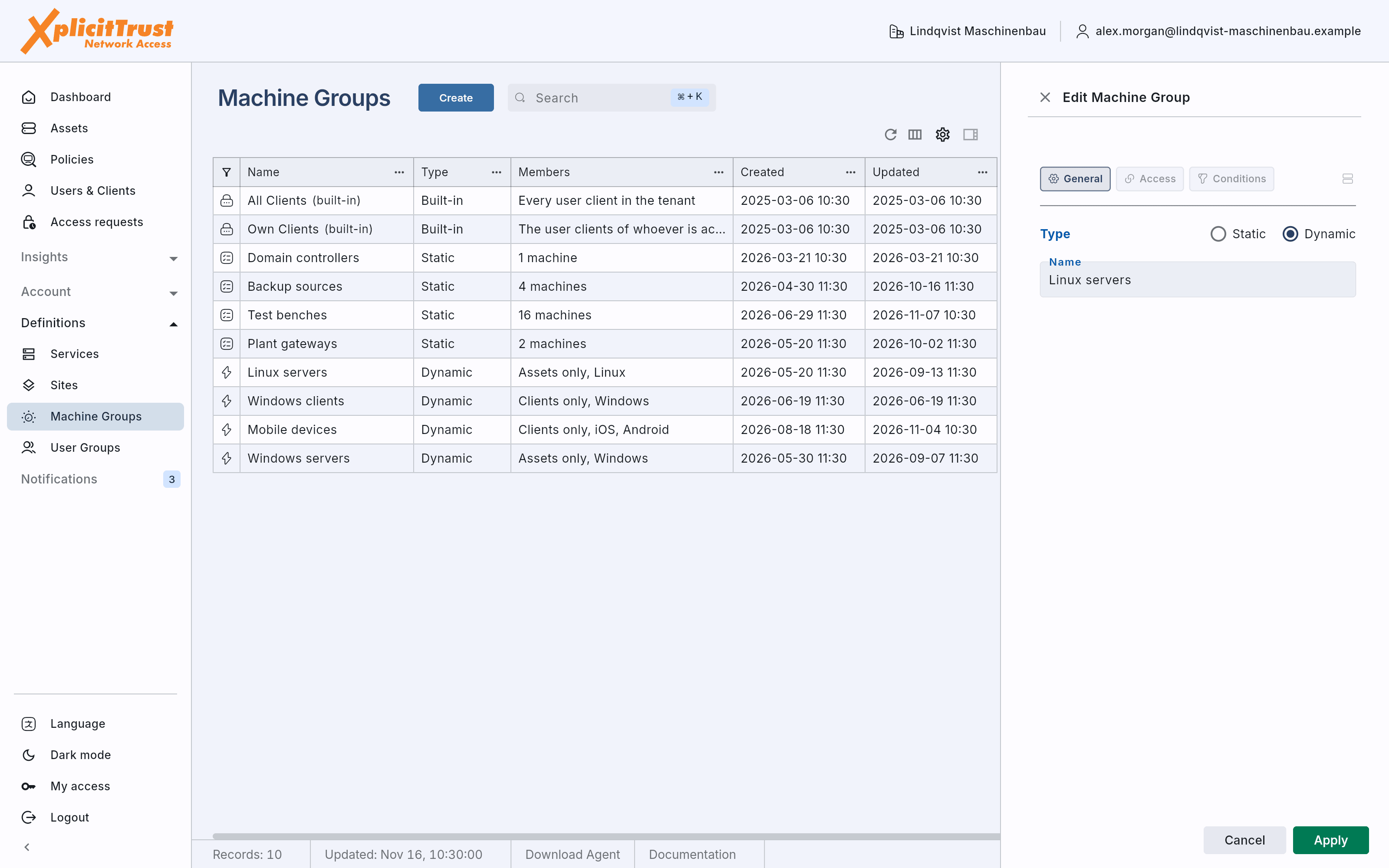
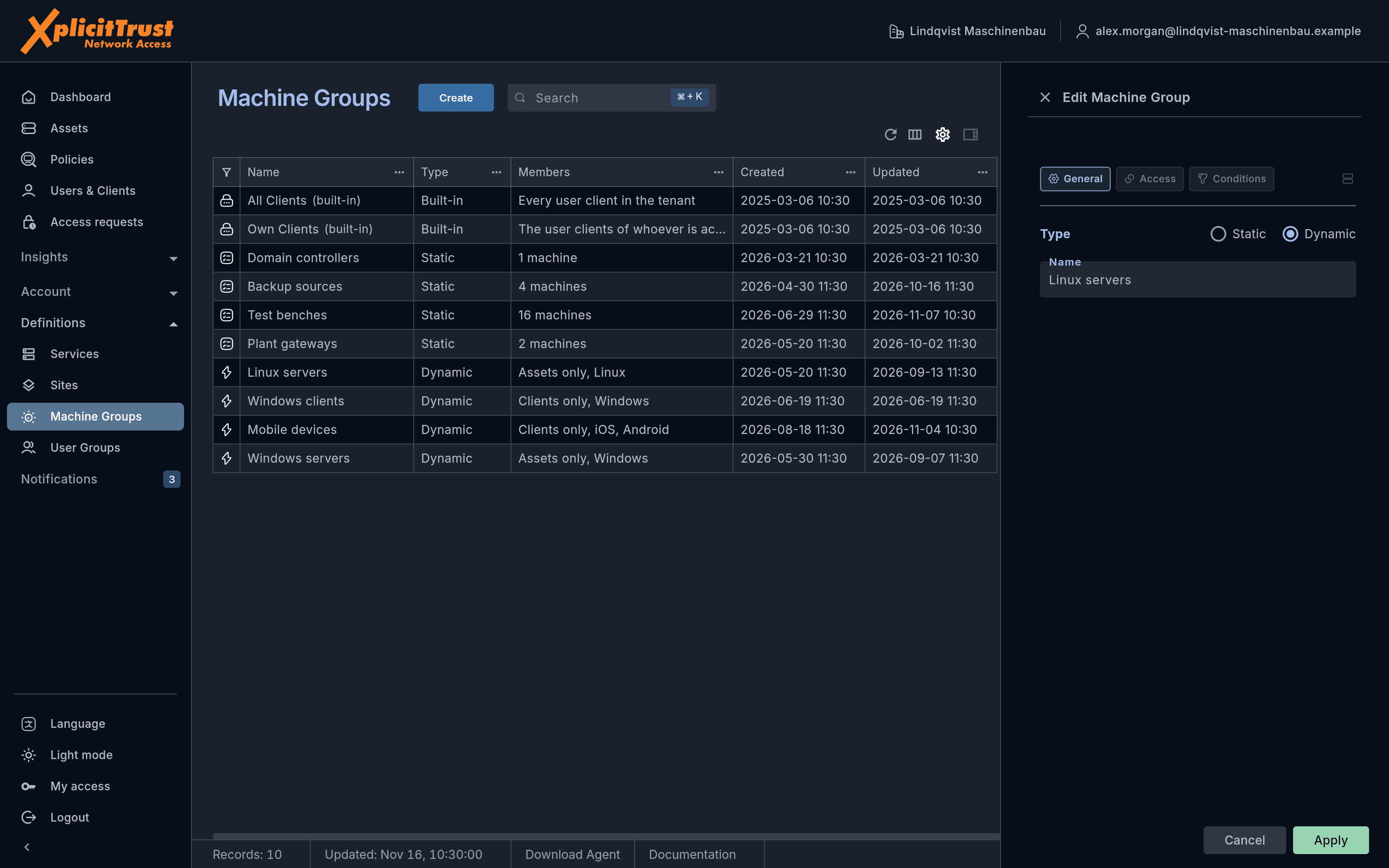
Create machine group and Edit Machine Group use tabs: General, Access and, only for a dynamic group, Conditions. The icon at the right of the tab bar shows all tabs one below the other instead; the console remembers the choice.
General
| Field | Meaning |
|---|---|
| Type | Static (default) or Dynamic. |
| Name | Required; the error is Enter a name. |
| Machines | Static groups: select the Assets and Clients in the group (Assets and user clients in this group.). At least one is required (Select at least one machine). |
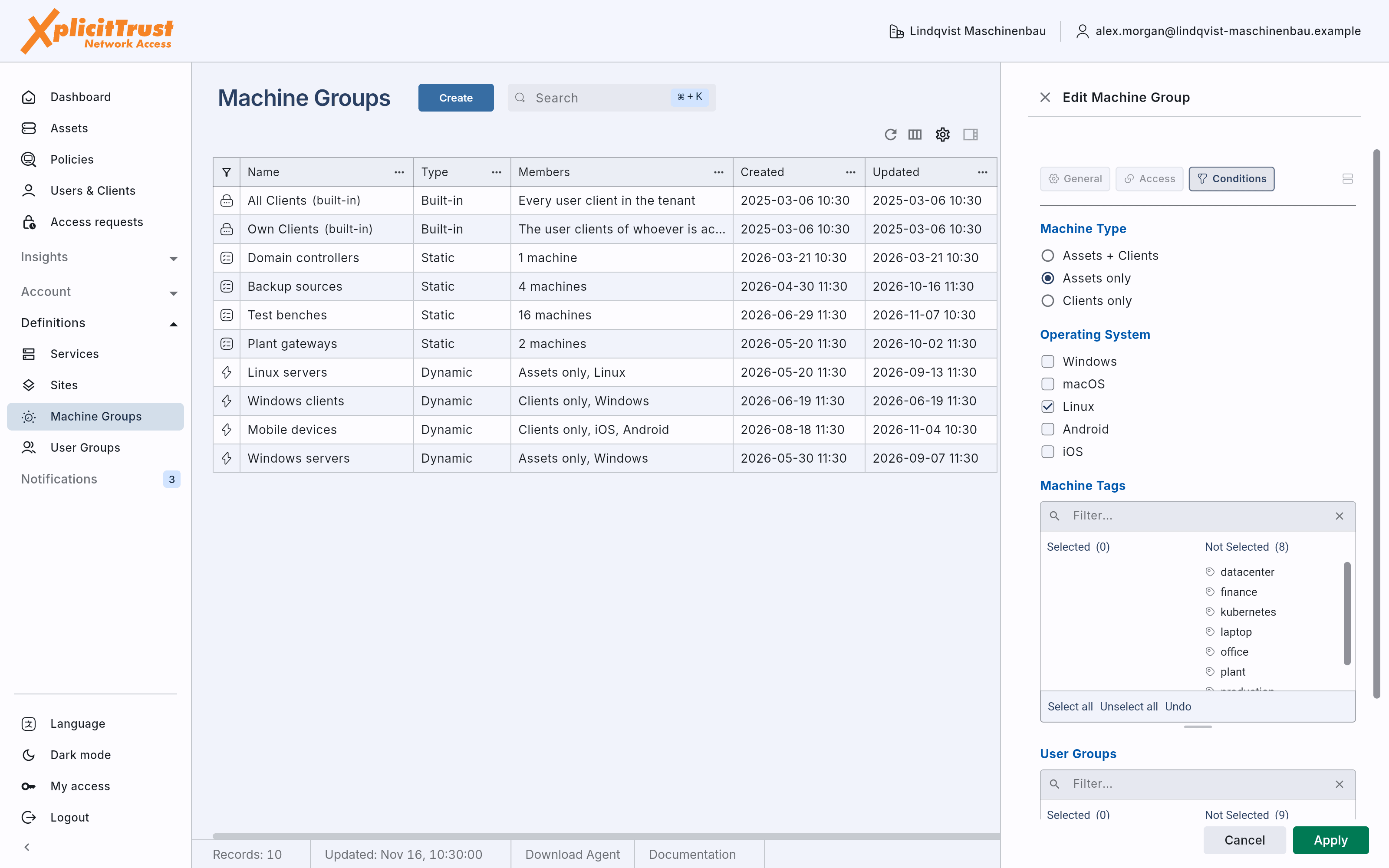
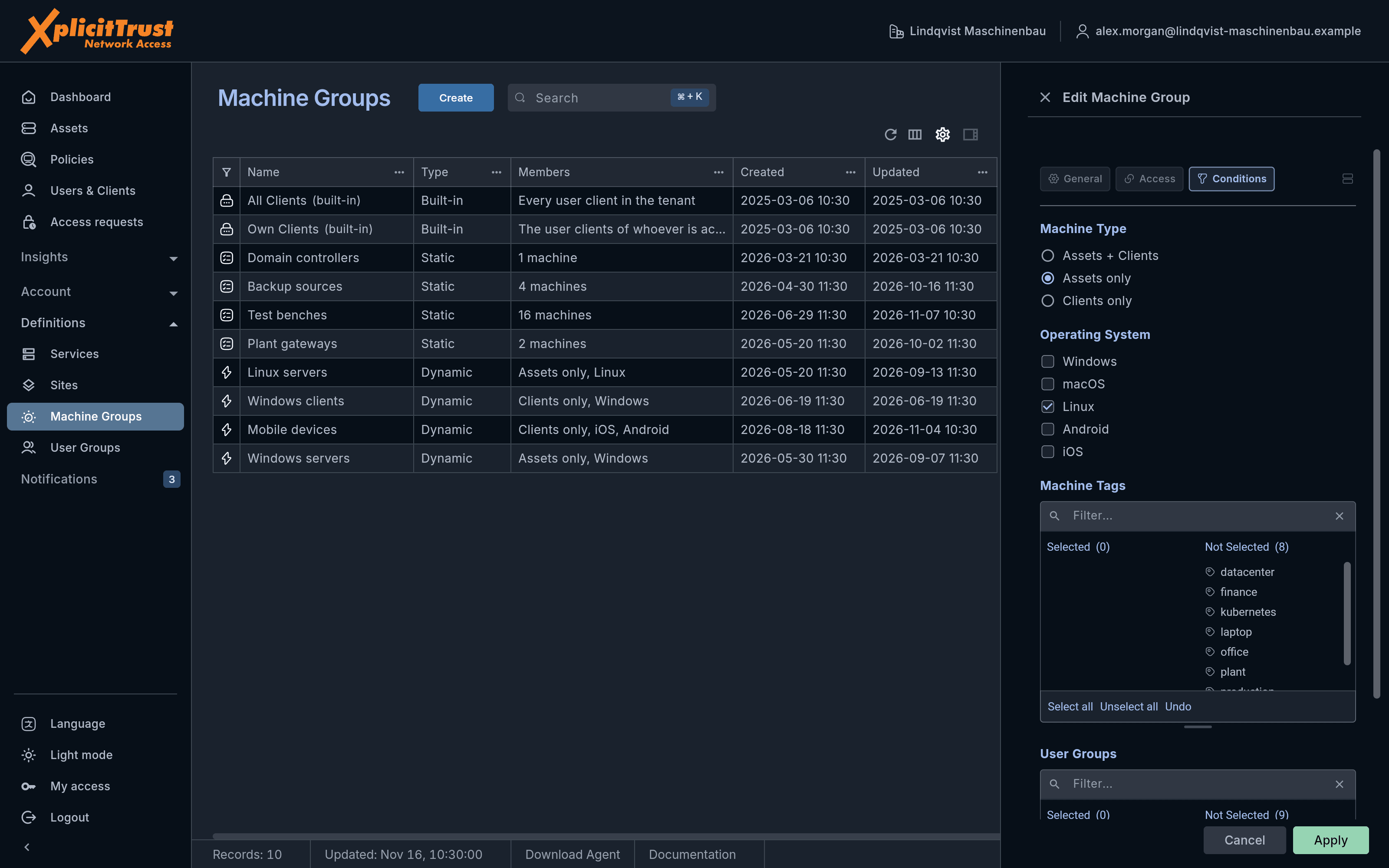
Conditions (dynamic groups)
| Field | Meaning |
|---|---|
| Machine Type | Assets + Clients (default), Assets only or Clients only. |
| Operating System | Any of Windows, macOS, Linux, Android, iOS. |
| Machine Tags | Machines carrying one of the selected tags. |
| User Groups | Machines on which a member of one of the selected User Groups is signed in. |
At least one condition is required; the Machine Type counts as one when it is set to Assets only or Clients only. Otherwise saving fails with Choose at least one condition (A dynamic group with no condition matches no machines.). How the conditions combine is explained in Machine Groups.
Access
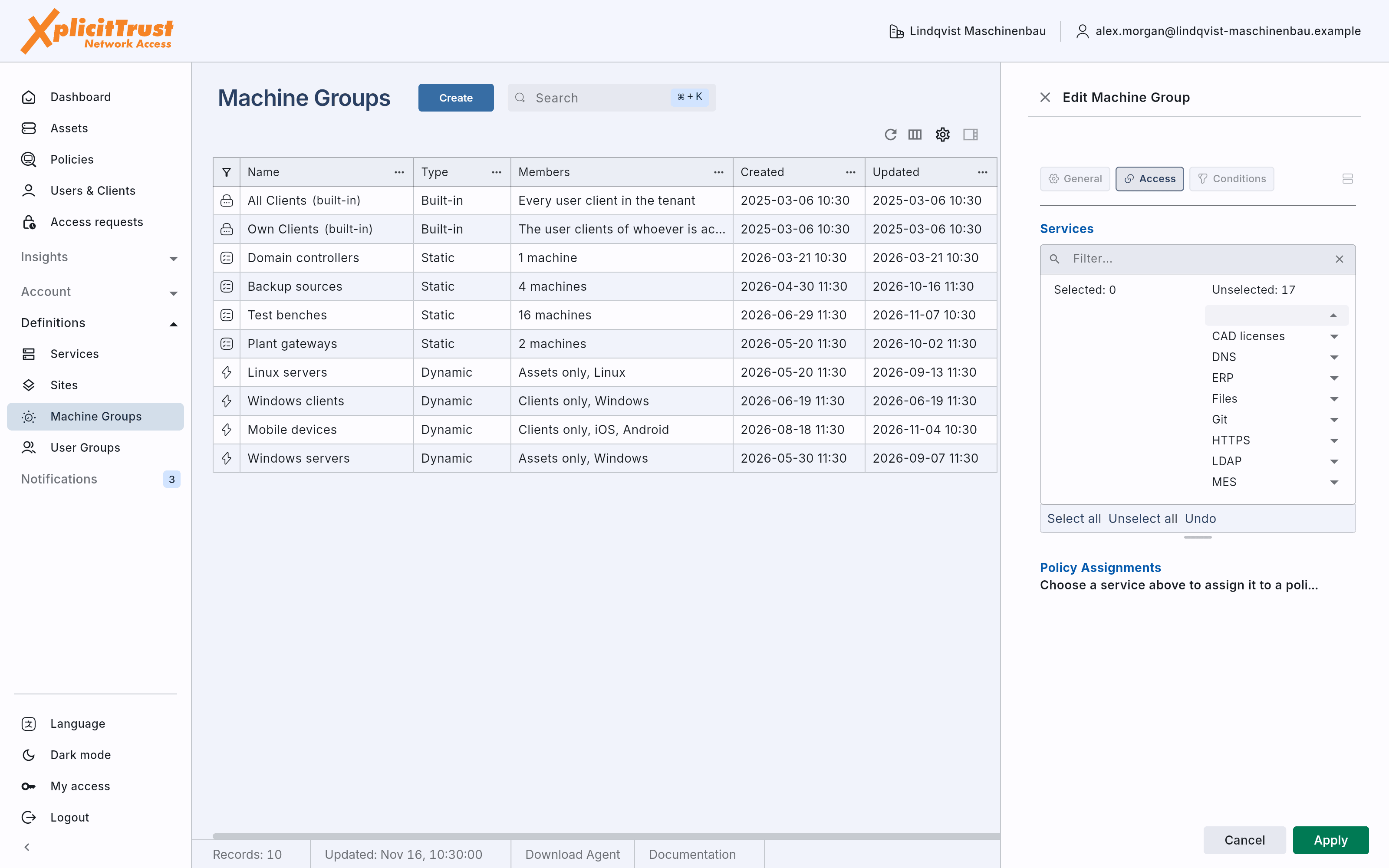
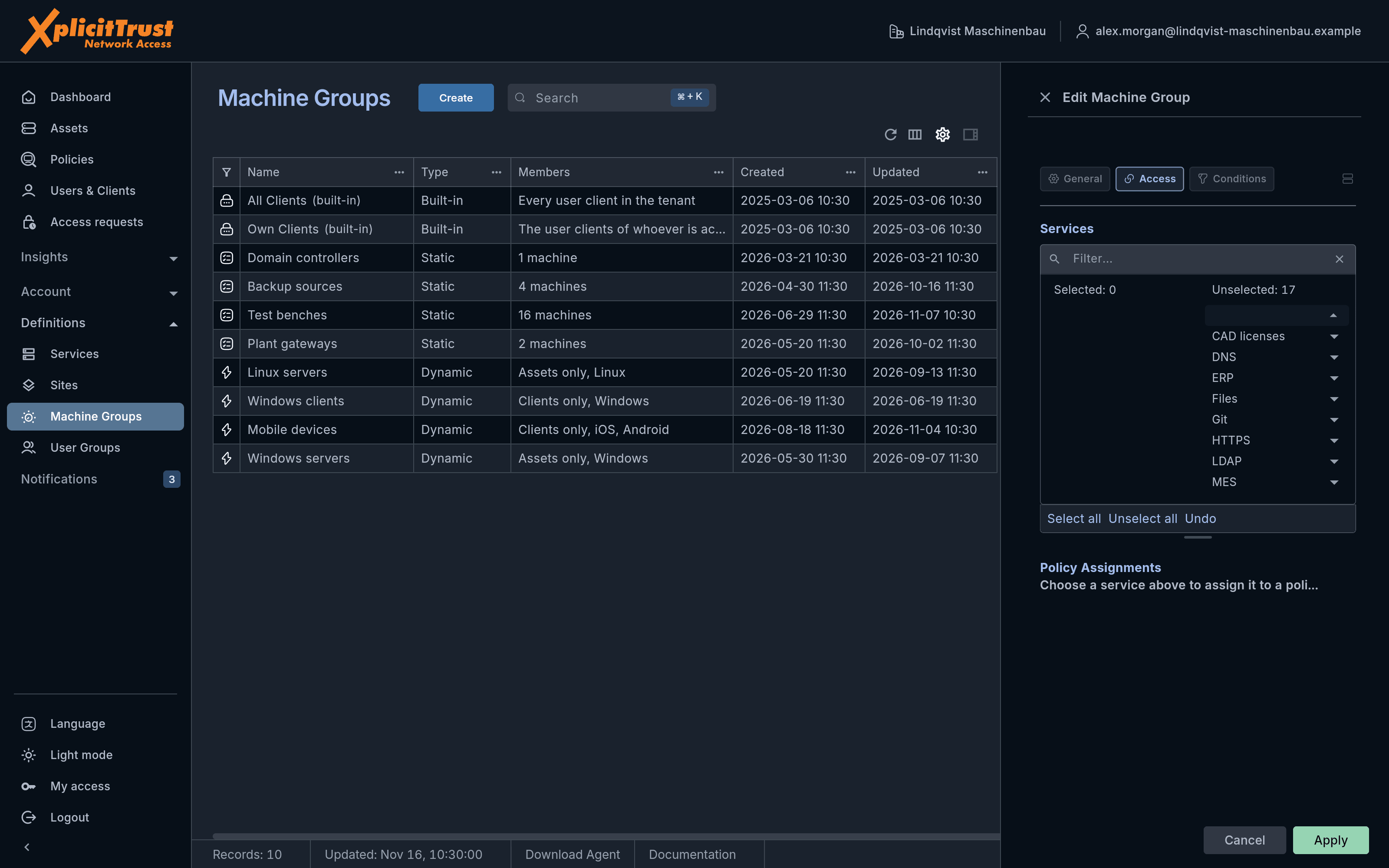
| Field | Meaning |
|---|---|
| Services | The Service definitions the group offers. At least one is required (Choose at least one service). |
| Policy Assignments | After you chose a service (Choose a service above to assign it to a policy.): add the group as a destination to existing policies right here. The assignments are applied when you save. |
Apply saves and shows Machine group created or Machine group saved. If a machine group is saved but a policy assignment fails, the console reports that separately. Cancel closes the form. In the edit form you can also change the Type.
A built-in group opened for editing shows Built in, cannot be edited or deleted.
User Groups
Definitions → User Groups lists the groups of users that policies use as sources, whether imported from your identity provider or created in the console. What User Groups mean for access is explained in Services and Policies; the identity providers are described under Authentication.
Which actions the page offers depends on the identity provider of the tenant. The help text in the side panel names it. On Microsoft Entra ID, Microsoft ADFS, Google Identity, Okta, Bare.ID and Keycloak, groups are imported from the directory and the page has Import and Sync. On Gmail personal accounts, AuthN by IDEE and generic OIDC tenants there is no import; local groups are managed here. With OIDC, directory groups are created by name instead, see Create and edit.
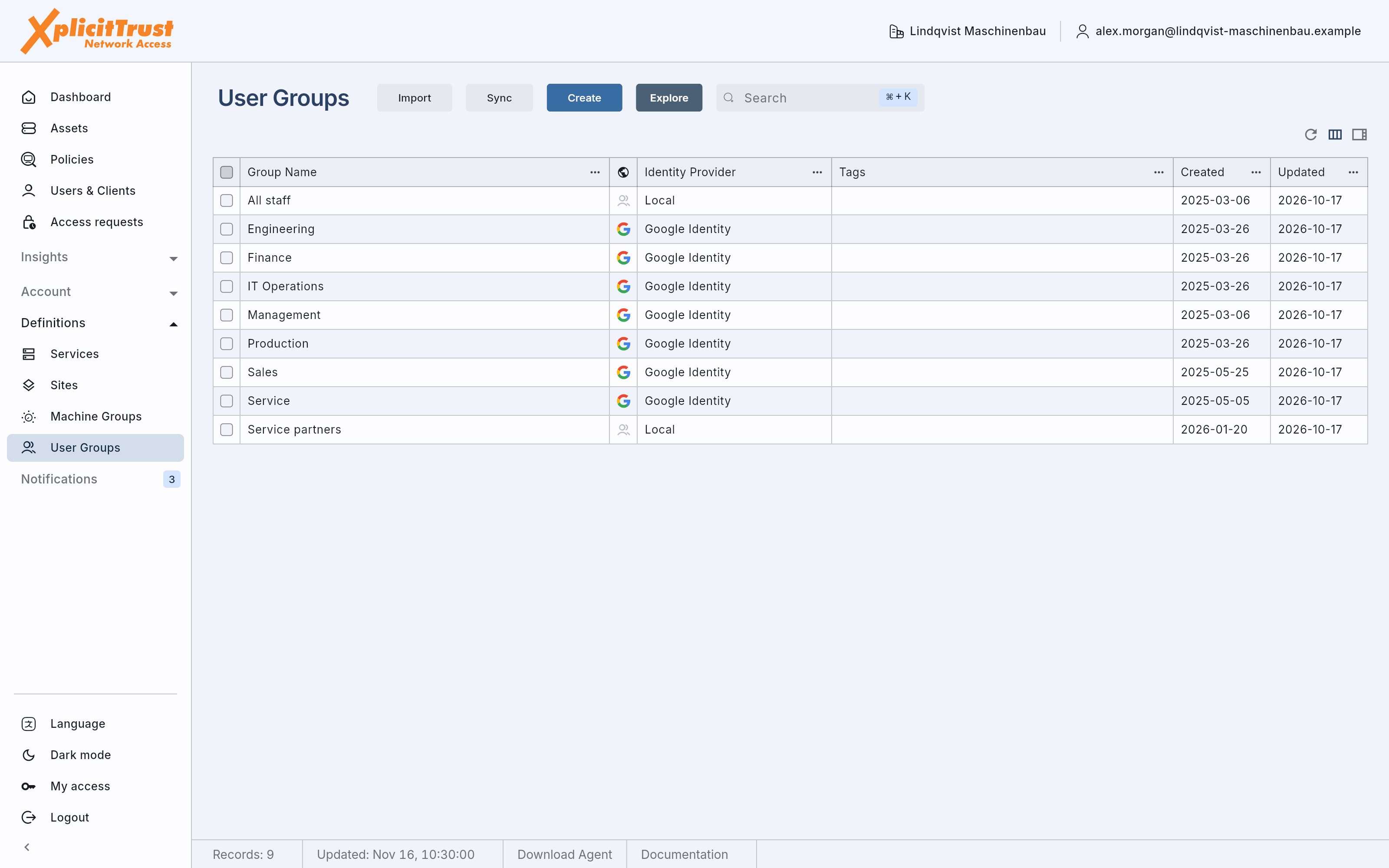
Buttons above the list:
| Button | What it does |
|---|---|
| Import | Only for tenants with a directory that supports import. Opens Import User Groups. |
| Sync | Same tenants. Synchronises the imported groups with the directory and shows User Groups synced successfully; if it fails, the console says Could not sync User Groups. |
| Create | Opens the create form. |
| Explore | Opens the topology view. |
The list
| Column | Meaning |
|---|---|
| (checkbox) | Selects the row. |
| Group Name | The name of the group. |
| Description | The description. Not part of the default view; add it with the column picker. |
| IDP | The logo of the identity provider the group comes from; a people symbol for local groups. The header filters by provider. |
| Identity Provider | The provider by name, e.g. Google Identity, or Local. |
| Tags | The tags of the group. |
| Created, Updated | When the group was created and last changed. |
Detail panel
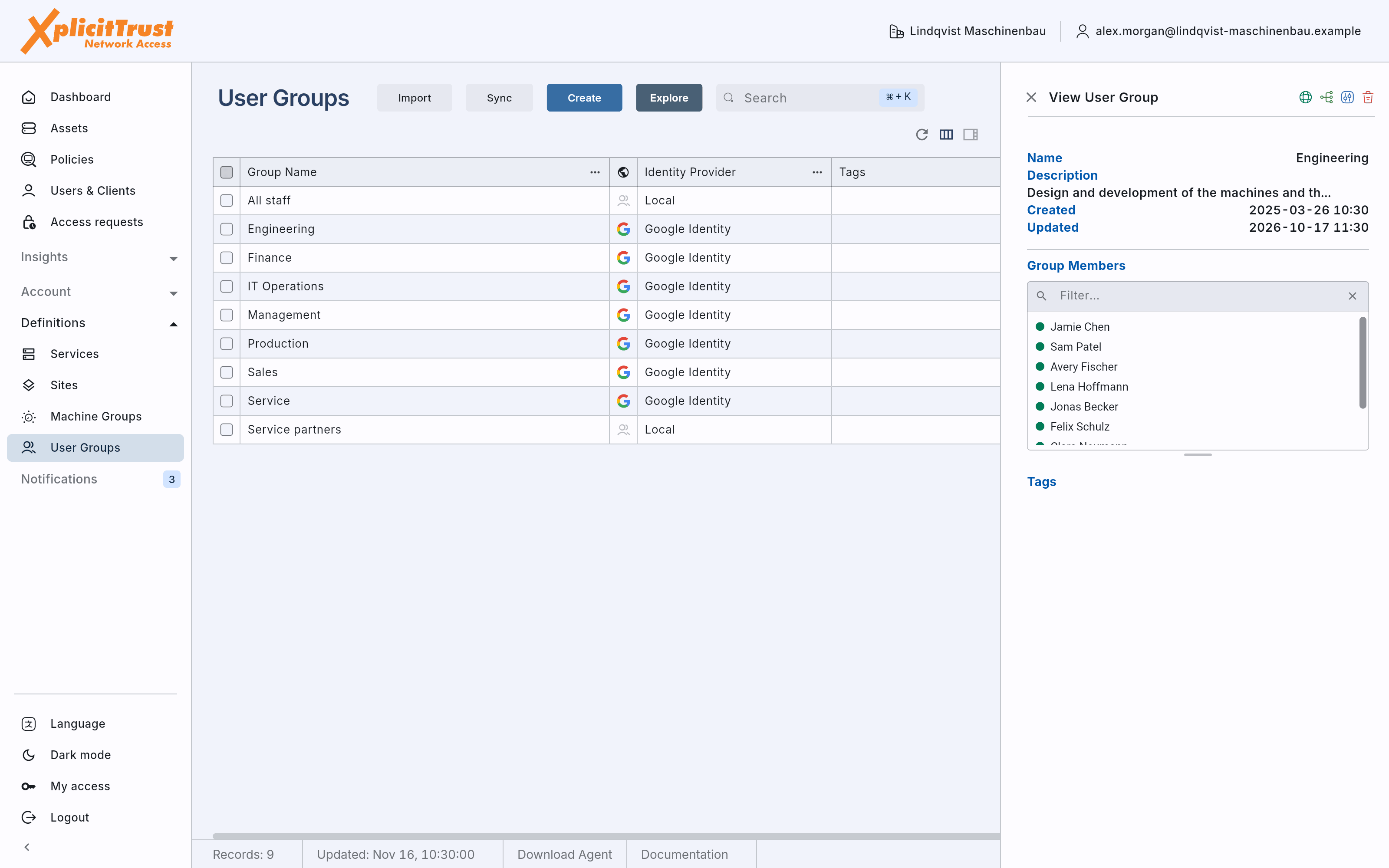
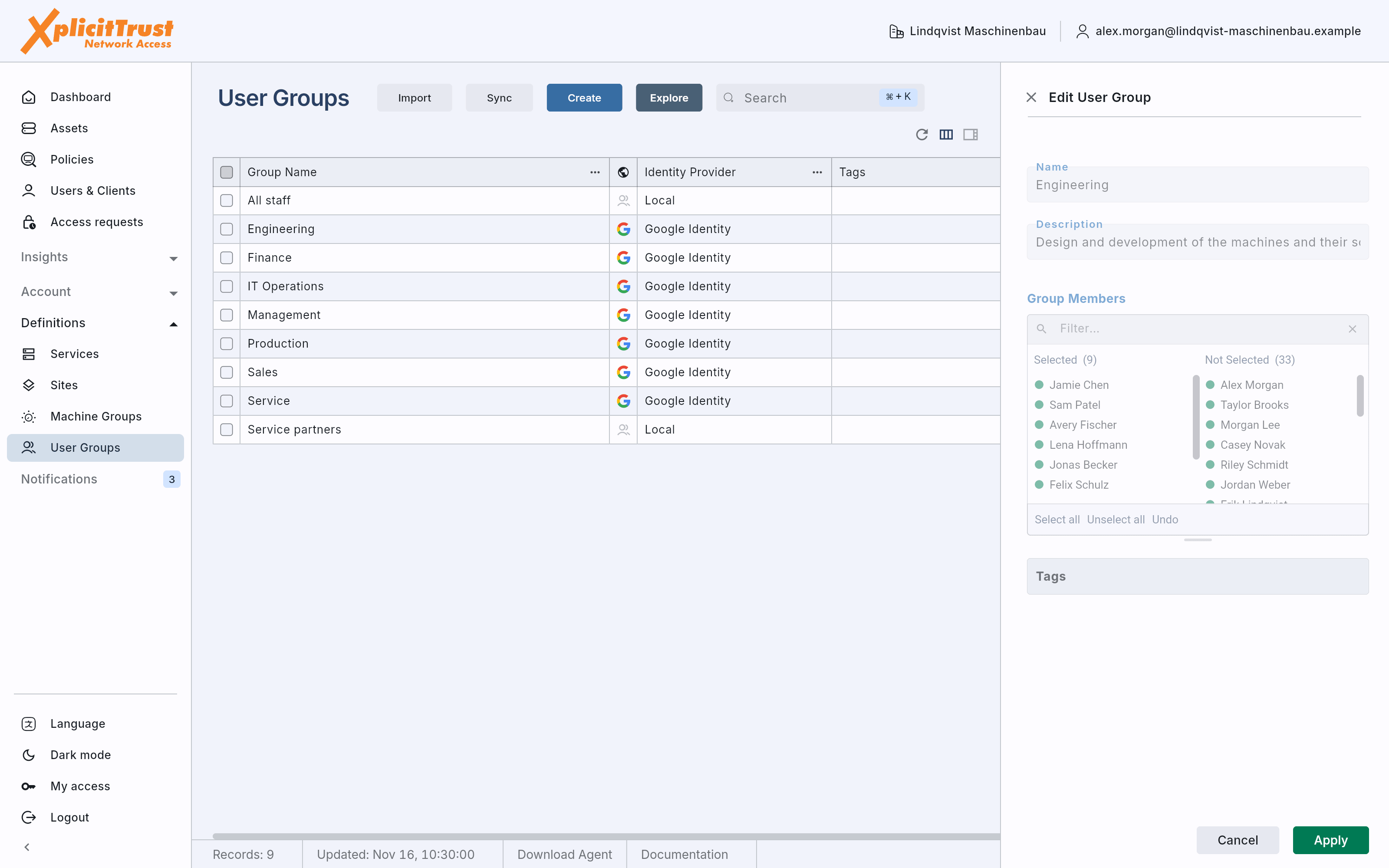
View User Group shows the Name, Description, Directory OID (for imported groups), Created and Updated, the Group Members and the Tags. Only users who have logged in before are shown as members.
The header offers Open in Topology, Insights, Edit and Delete (Are you sure you want to delete the ... user group?). The built-in group All Users has only Open in Topology.
Create and edit
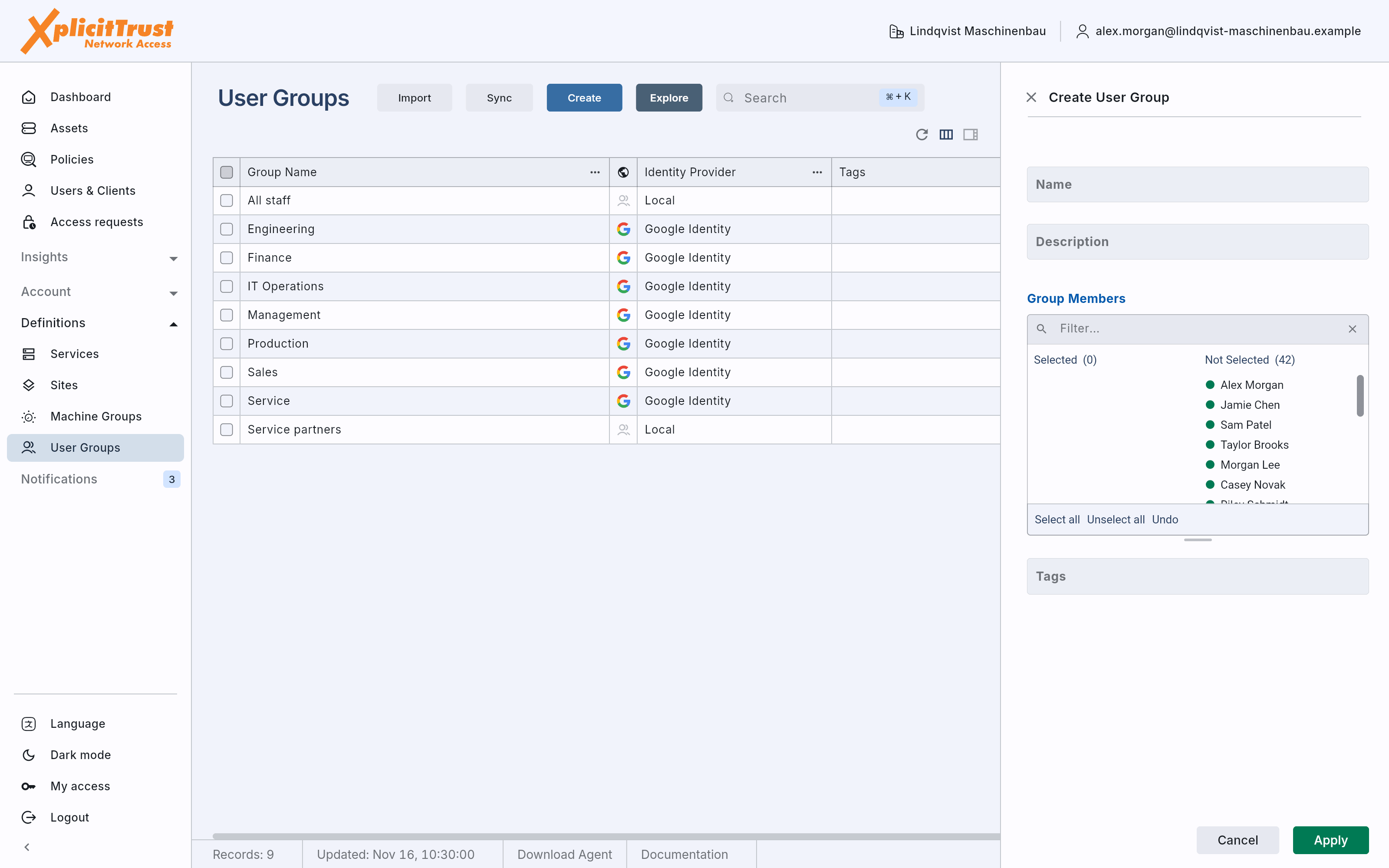
Create User Group and Edit User Group:
| Field | Meaning |
|---|---|
| Name | Required (Name can not be empty). |
| Description | Optional. |
| IdP Group | Only on the create form of OIDC tenants. A switch for a directory group: its membership comes from the identity provider's groups claim when users log in. The info symbol lists the accepted forms: GroupName, /GroupName, CN=GroupName,OU=Groups,DC=example,DC=com. |
| External ID (groups claim value) | With IdP Group on: the group exactly as the identity provider sends it. Required (Required). The member list is then not shown. |
| Group Members | The users in the group. Only users that logged in before can be selected. |
| Tags | Optional tags. |
Apply saves and shows User Group created successfully or User Group updated successfully, then opens the group. For a group imported from the directory the Name, Description and Group Members are shown dimmed and cannot be changed, because the directory manages them; you can still change the Tags.
Import and sync from the identity provider
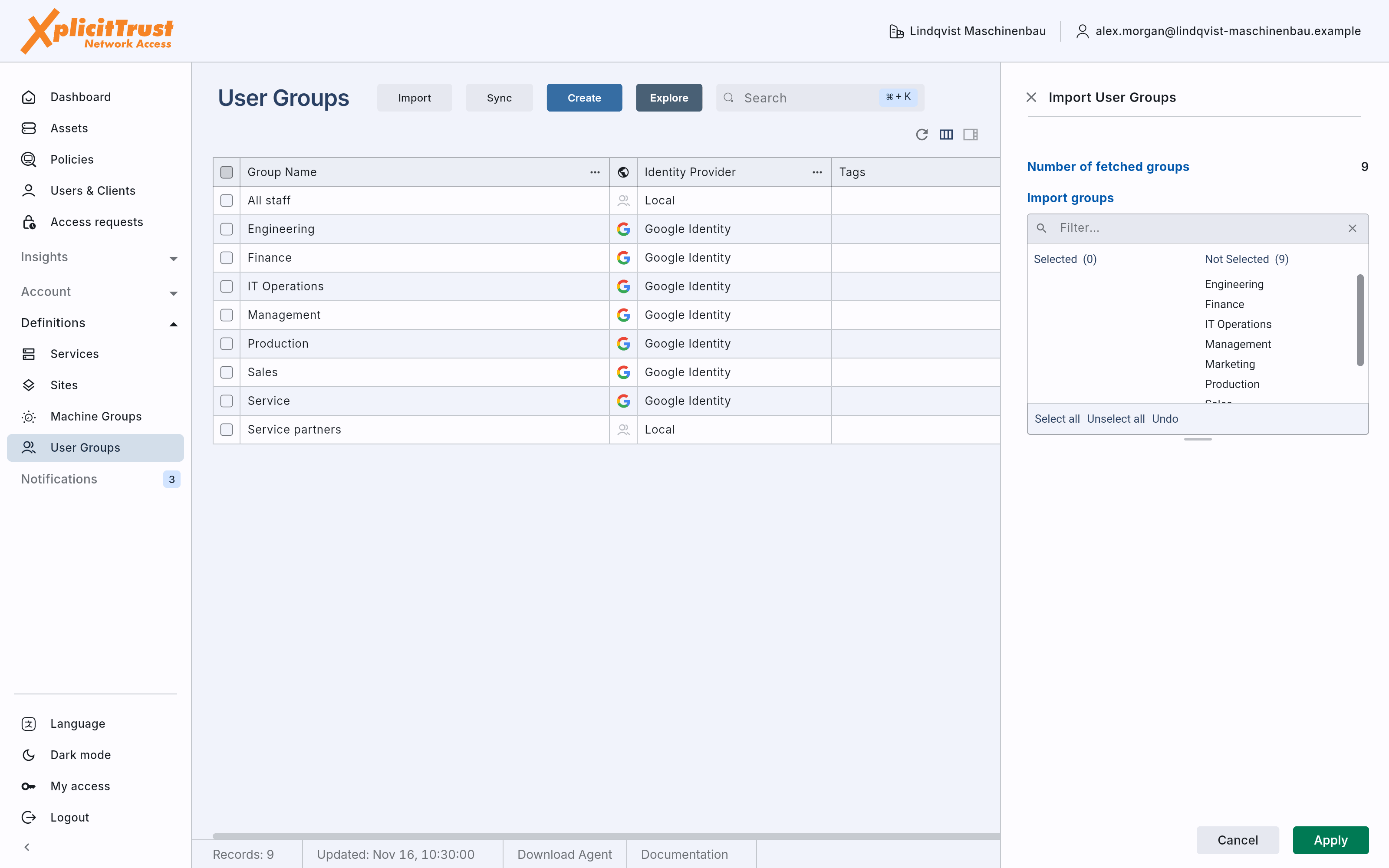
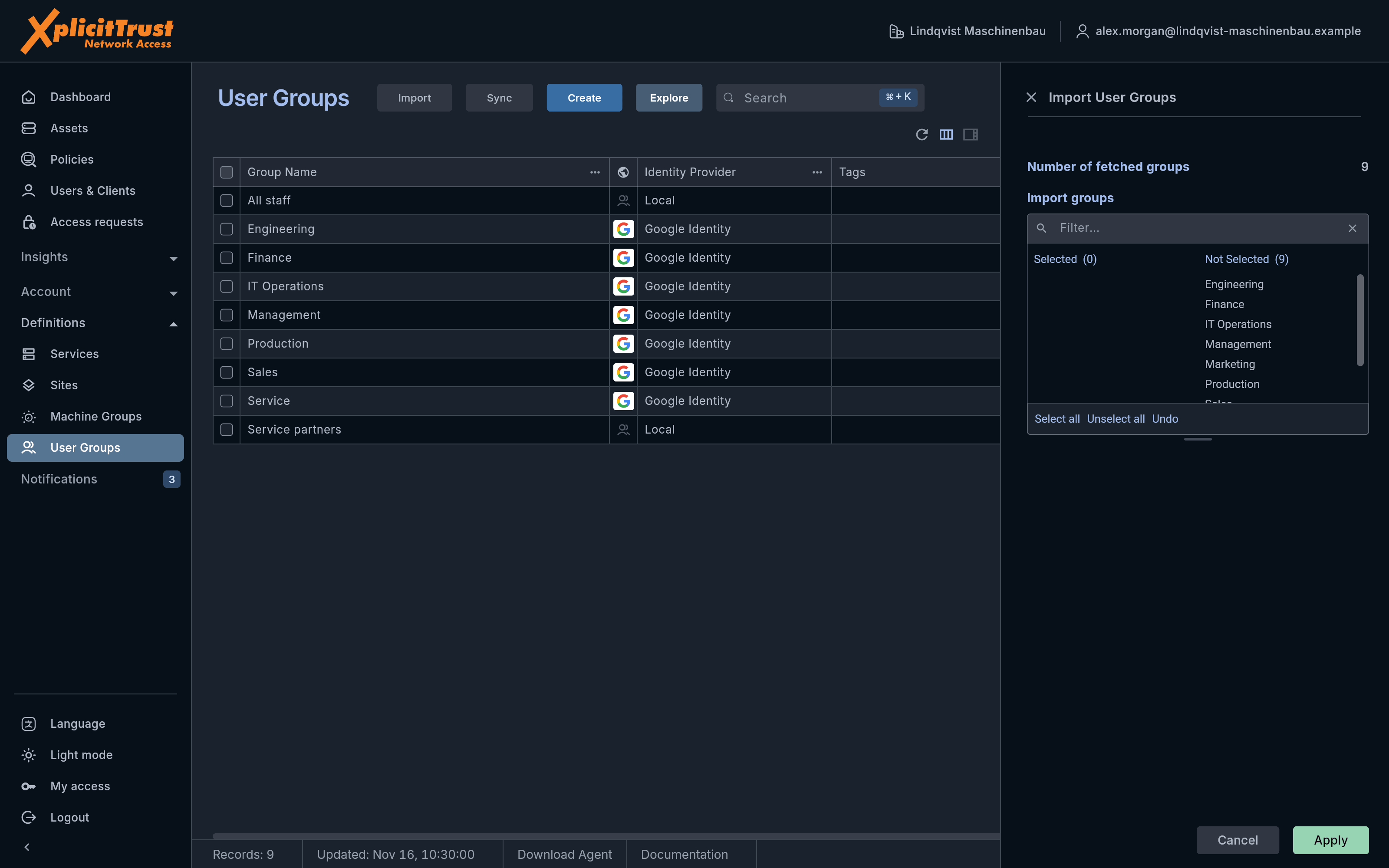
Import opens Import User Groups. The console fetches the groups of the directory and shows Number of fetched groups and the list Import groups with Selected and Not Selected columns, a filter field and Select all, Unselect all and Undo. Select the groups you want and press Apply; the console shows Import was completed. Importing again is safe and does not change configurations that already use a group.
On Microsoft Entra ID tenants that have not yet given admin consent, the panel instead shows Admin Consent Required with the button Go to Authentication Settings, which opens the authentication settings of the tenant.
Imported groups are managed in the directory and can only be deleted in the console. Membership updates when users authenticate. Sync on the list brings the imported groups up to date without choosing again.
Insight
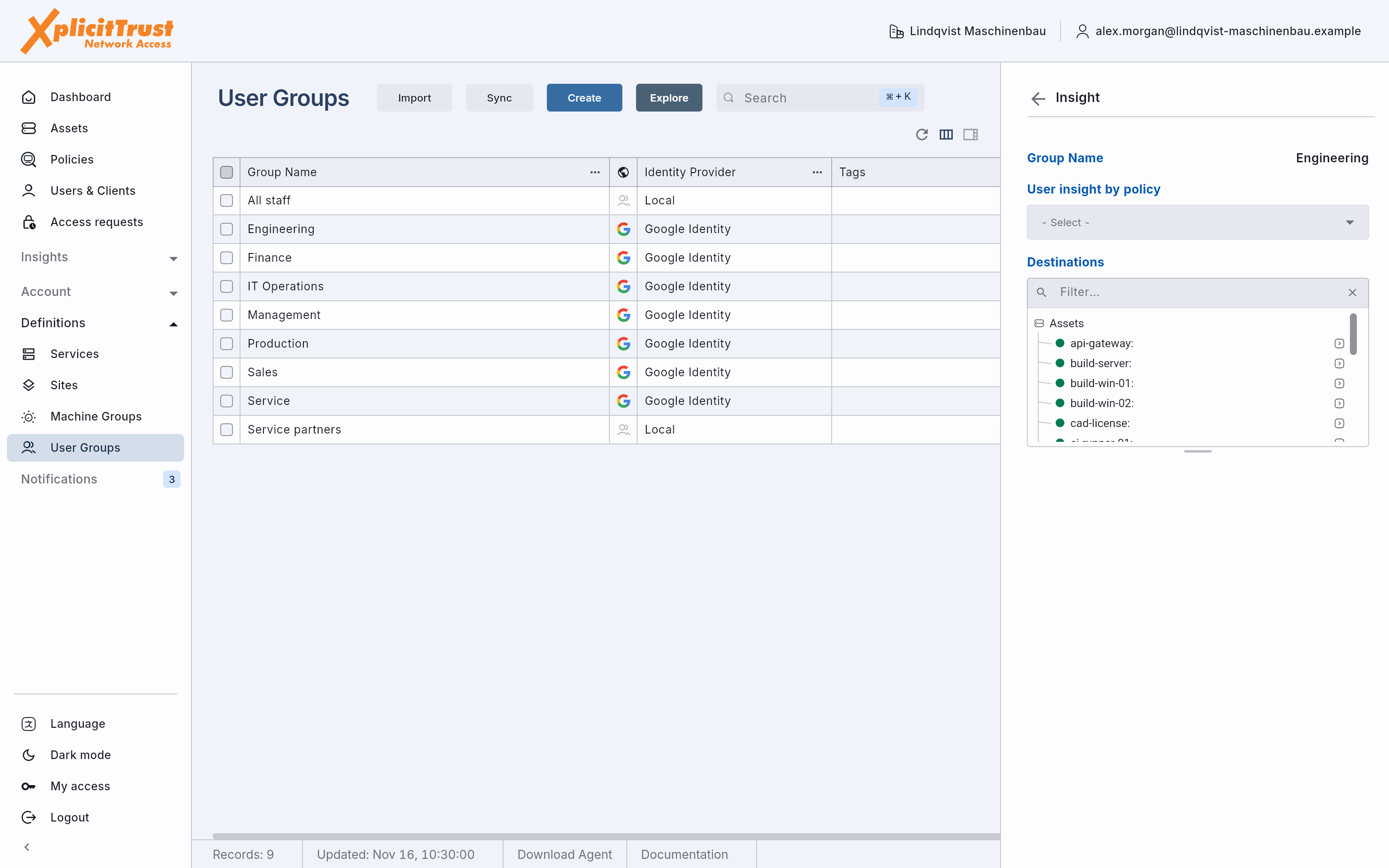
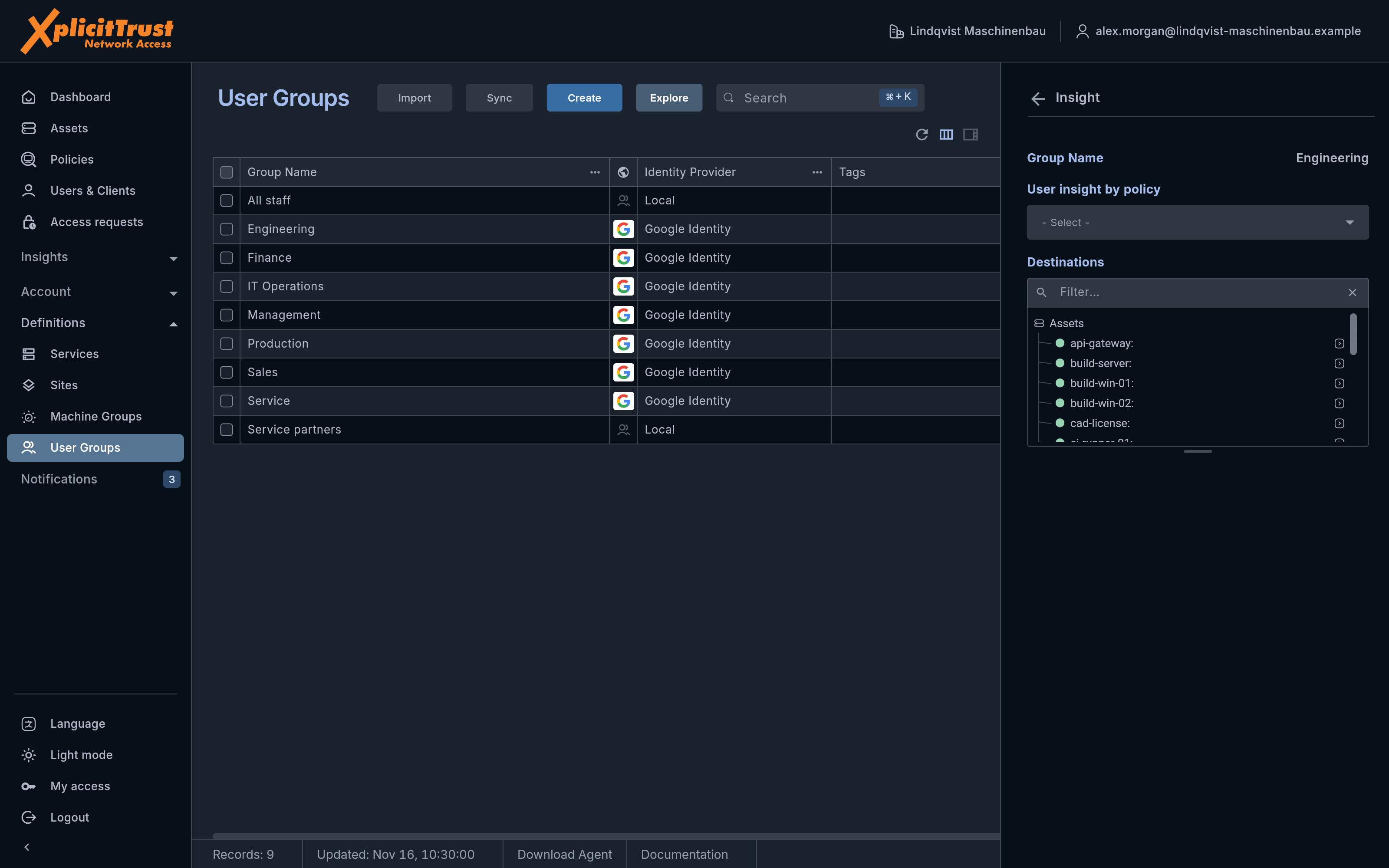
The Insights icon opens Insight: what the policies give the members of this group. How the panel works is described once under Insight panel. The panel shows the group (under the heading Group Name), the drop-down User insight by policy (All Policies or one policy that has the group as a source) and the Destinations those policies reach.
Mass actions
With several rows ticked the panel is Mass Action: Update Tags changes the tags of all selected groups and Delete Selected deletes them after a confirmation.
See also
- Concept: User Groups and Machine Groups and Services and Policies.
- Guide: Remote support for laptops.
- Reference: Policies, Users & Clients, Roles.