Settings, Account and Help
This page covers the screens that belong to you rather than to a connection: Settings, Accounts, Help, About and Send Logs.
In short
Settings (desktop only) holds your own choices: theme, language, the home list and where the sign-in opens. Accounts switches accounts and disconnects. Help shows your organization's message and helpdesk contact, with Diagnostics and Send Logs. Send Logs sends the app's logs to XplicitTrust support.
On the desktop agent (Windows, macOS, Linux) you open all of them from the side menu: the menu button at the top left of the window opens it. On iOS and Android the same menu slides in from the left of the home screen; the mobile apps have no Settings screen, and Accounts also holds the one device option there is.
| Screen | Desktop | iOS | Android |
|---|---|---|---|
| Settings | Yes | No | No |
| Accounts | Yes (not for an asset) | Yes | Yes |
| Help | Yes, when your organization configured it | Yes, when your organization configured it | Yes, when your organization configured it |
| About | Yes | Yes | Yes |
| Send Logs | A page | A menu entry that sends at once | A menu entry that sends at once |
What your organization decides
An administrator can take Settings, Accounts and other pages out of the side menu and add a help panel. Taken-out pages are not gone: they move into Help. See Agent appearance in the Admin Console reference.
Settings
Settings holds the few choices that are yours alone and stay on this computer. The page is called Advanced Settings. It exists on the desktop agent only.
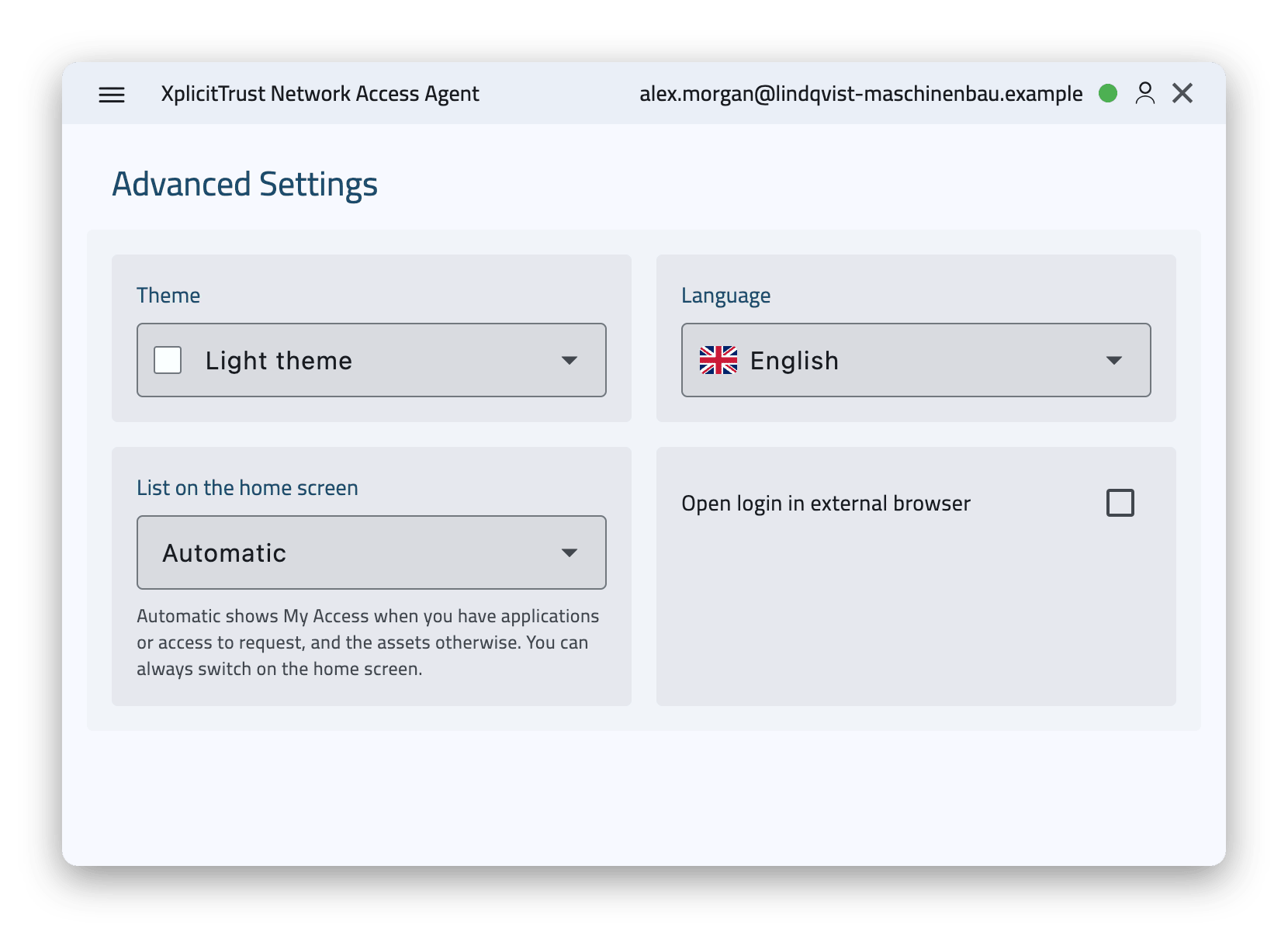
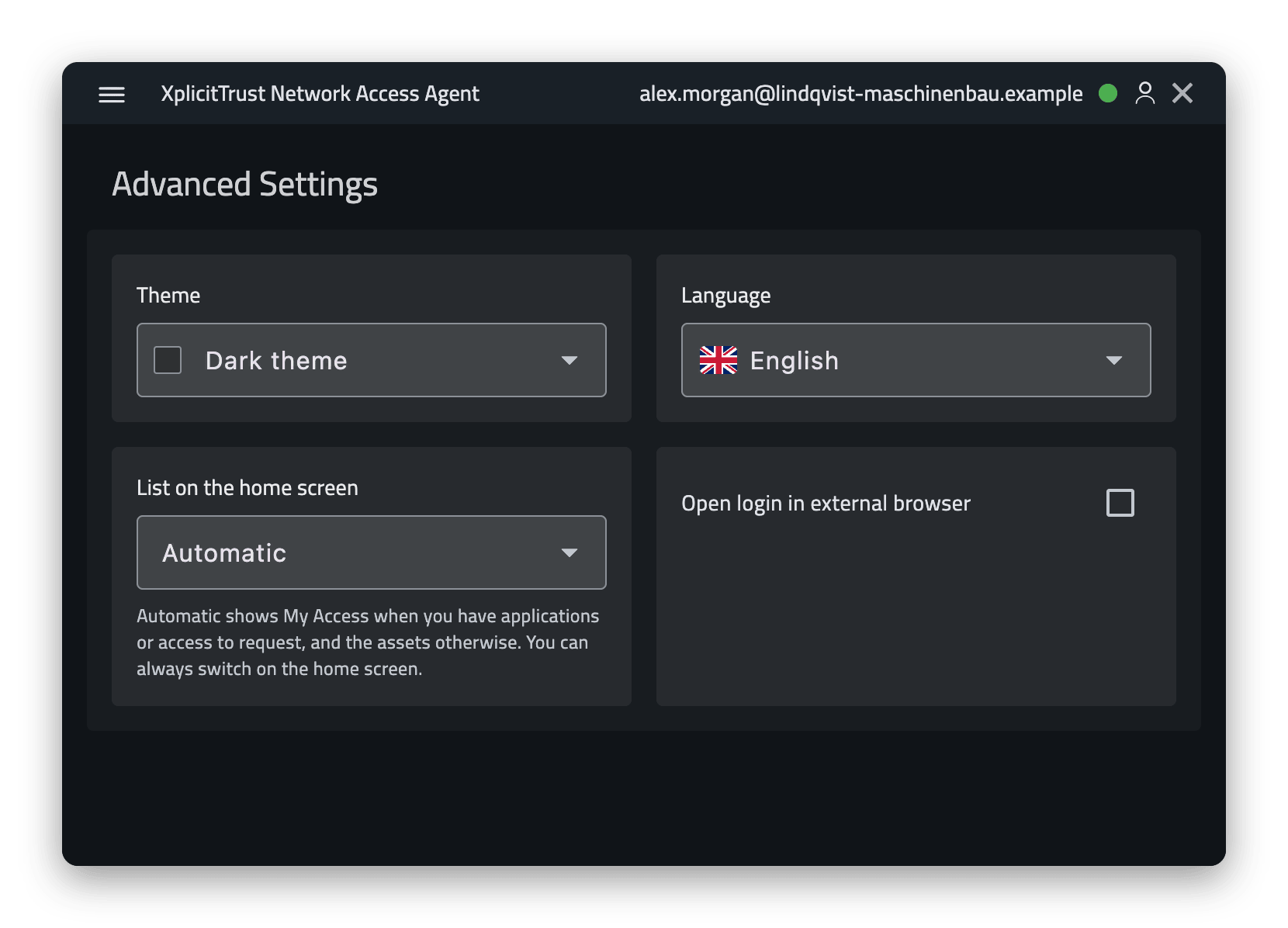
Each choice sits in its own box. A change takes effect as soon as you make it; there is no Apply button.
| Setting | Choices | Default | Meaning |
|---|---|---|---|
| Theme | Light theme, Dark theme, System theme | System theme | How the app looks. System theme follows the light or dark mode of your operating system. The closed list shows a small swatch of the chosen theme. |
| Language | System language, English, German, French, Italian, Spanish, Dutch | System language | The language of the app. Each entry has a flag. System language follows the language of your operating system. |
| List on the home screen | Automatic, My Access, Assets | Automatic | Which list the right side of the home screen shows. See below. |
| Open login in external browser | Check box | Off | Where the sign-in page opens. Off: in a window of the app. On: in your default browser; the app then shows that the login was opened in the browser and waits until you finish there. Not shown on Linux, where the sign-in always opens in the browser. |
Linux: the sign-in always opens in your default browser, whatever this check box says.
List on the home screen
This box is shown only when the home screen can show your access: not for an asset, and not when the local service of the agent cannot fetch your access list. Otherwise the box is missing and Open login in external browser has the left half of the row to itself.
- Automatic shows My Access when you have applications or access to request, and the assets otherwise.
- My Access and Assets always show that list.
You can always switch the list on the home screen itself; the setting here is what the home screen starts with. A hint under the list says so.
Your organization can fix the list. Then the list is greyed out, it shows what the organization chose, and the hint reads Your organization chose what the home screen shows. Your own choice is kept and applies again when the organization lets go. When the organization shows the help panel instead of a list, the box shows Help, greyed out.
Accounts
Accounts is the list of the accounts (a work email, optionally with a domain) that you can sign in with on this device. It is also where you switch between them and where you disconnect. The desktop agent calls the page Accounts; it is not offered when the agent runs as an asset.
Accounts on the desktop
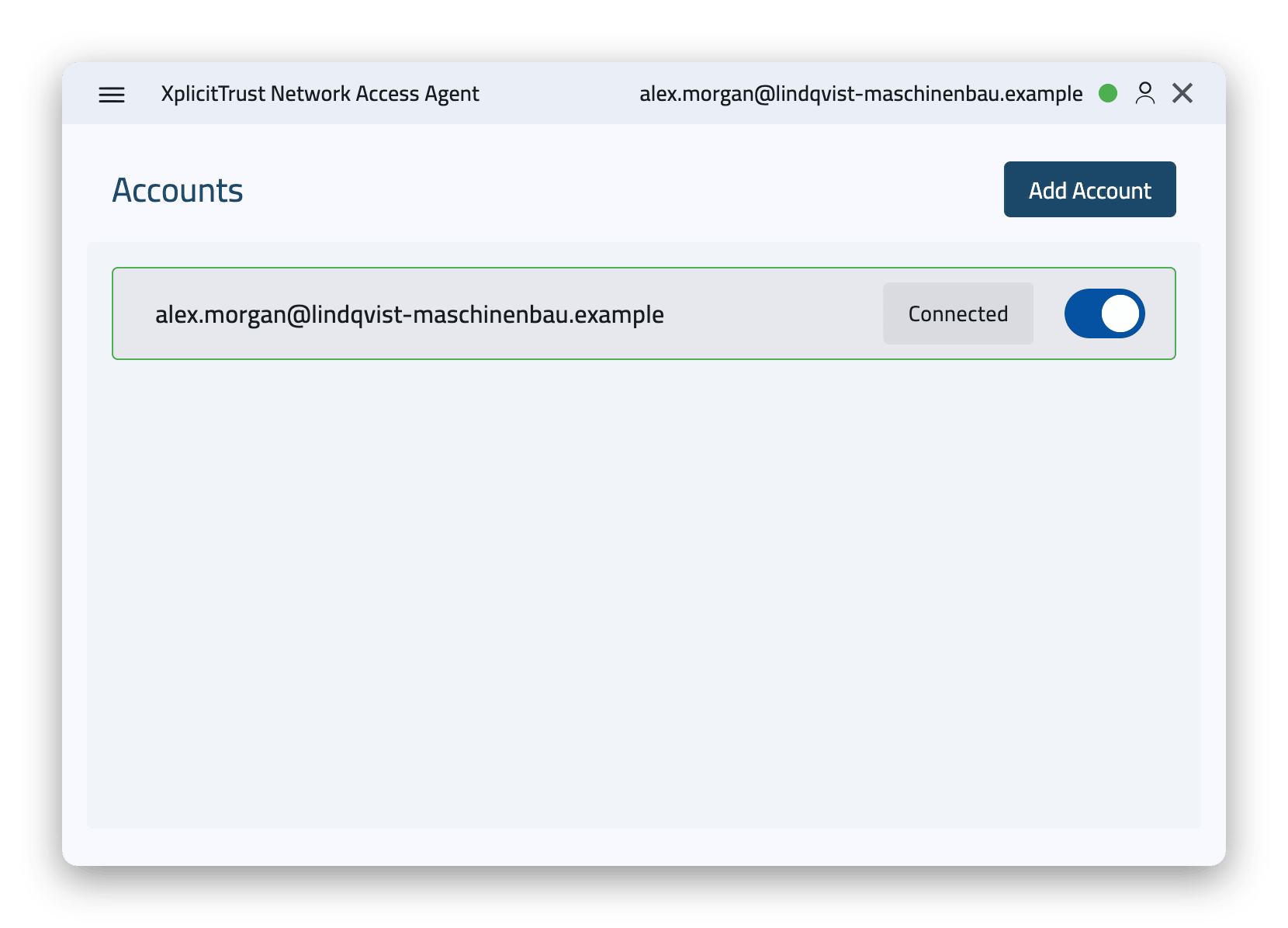
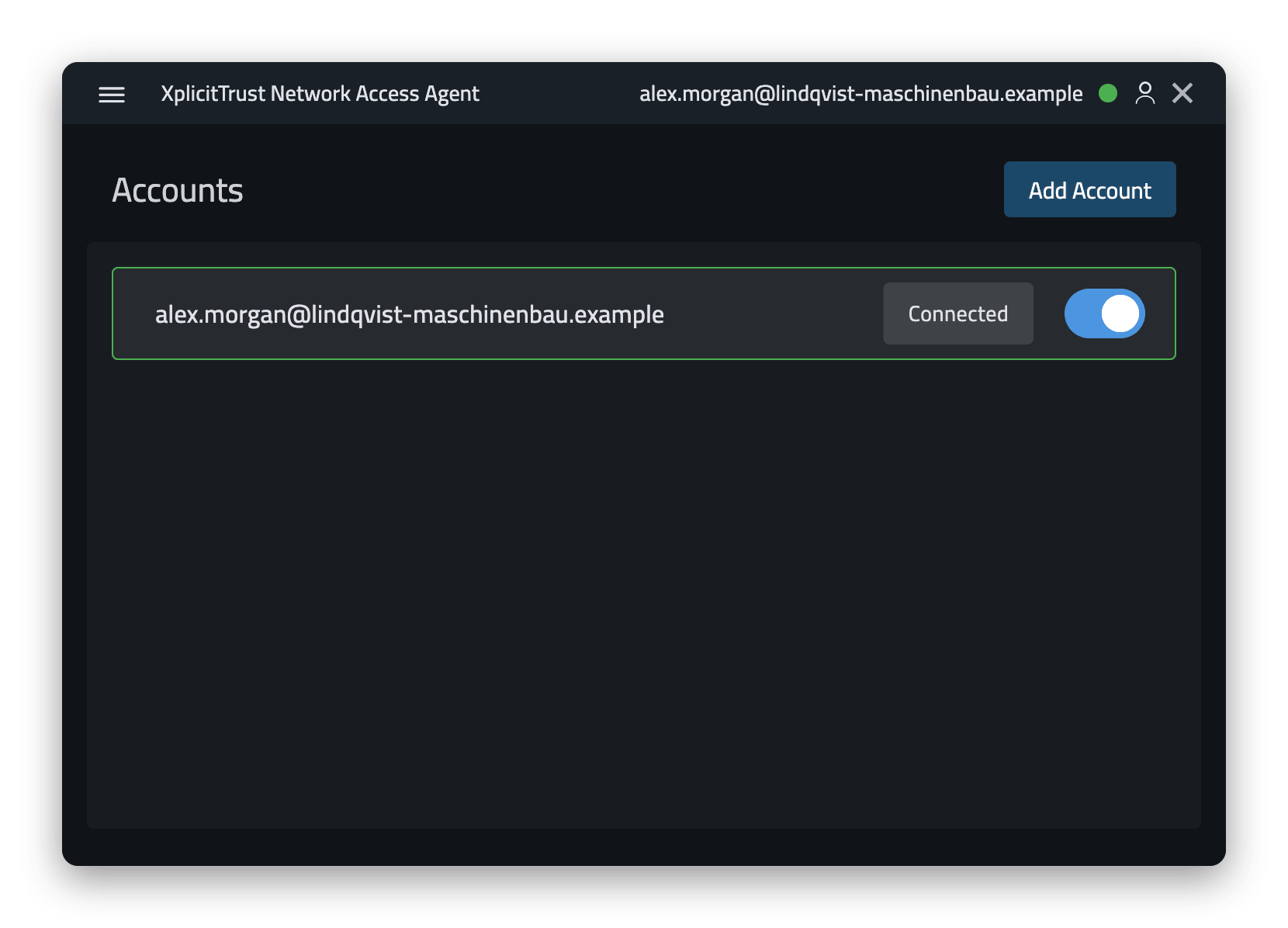
Each account is one row.
| Element | Meaning |
|---|---|
| Email, and below it the domain | The account. The domain line appears only when the account has a domain. |
| Green frame | This is the account the agent currently uses: it is online, signing in or connected. |
| Status label | Only on the current account. Online: selected, not signed in. Authenticating...: the sign-in is running. Connected: signed in. |
| Switch | On for the account that is signed in or signing in. Turning it on for another account switches to that account and starts its sign-in. Turning it on for an account that is selected but not signed in signs in. Turning off the connected account disconnects it, and the agent does not sign it in again by itself at the next start. |
| Lock on the switch | Your administrator does not allow you to disconnect. Tapping the switch shows Disconnect is disabled by administrator policy. |
| Pencil (Edit) and bin (Delete) | Only on accounts that are not the current one. |
While a sign-in runs, the switch of the current account is held. Disconnecting is also refused while the agent switches between accounts.
Add Account at the top right opens the account form (see below).
Delete asks Are you sure you want to delete the account: followed by the email, with Cancel and Delete. The account leaves the list. Only accounts that are not in use can be deleted.
When the list is empty the page says No accounts configured. Add an account to get started. The back arrow then does not leave the page and shows At least one account required.
The account in the title bar
The title bar of the desktop window shows who is signed in and where the connection stands.
| Element | Meaning |
|---|---|
| Email, and after a divider the domain | The account the agent uses. If another person on the same computer is using the agent, the bar says In use by another user on this computer instead of showing the email. On an asset, the bar says Asset Mode. |
| Coloured dot | Green: signed in. Pale green with a ring: online but not signed in. Yellow: the sign-in is running. Red: the device was deactivated. |
| Person icon | Opens a menu with all accounts, each with its switch as on the Accounts page, and Add Account. The menu closes when the pointer leaves it. |
| Cross | Hides the window. On Windows it minimizes it, on macOS and Linux it hides it to the menu bar or tray; the agent keeps running. See the install pages for Windows, macOS and Linux. |
The account form
Add Account and the pencil open the same form. Its title is Add Account or Edit Account; the very first time, when there is no account yet, it is Welcome to XplicitTrust Network Access! with the line Please enter your company email address.
| Element | Meaning |
|---|---|
Required, and it must contain an @; otherwise Please enter a valid email. |
|
| Advanced switch (top right) | Shows the Domain field. It is on already when you edit an account that has a domain. |
| Domain | Optional. Only needed if your administrator gave you one (for guest users). |
| Cancel | Back to Accounts, nothing saved. |
| Apply | Saves. A new account is switched to at once, and the app goes to the home screen to sign in. An edited account returns to Accounts. If the same email and domain already exist, nothing is saved and Account already exists appears. |
Accounts on iOS and Android
Accounts is in the side menu. It is built like the desktop page, in one card.
| Element | Meaning |
|---|---|
| Email, and below it the domain and, for the current account only, its state: Connected, Authenticating... or Disconnected | The account. The state says which account is the current one even when nothing is connected. |
| Switch | On for the current account while it is connected or signing in. Turned on for another account, the app switches to it and signs in. Turned off for the current account, it disconnects. Turned off for another account, nothing changes. |
| Three dots | Edit, and Delete for every account but the current one. Deleting asks to confirm with Are you sure you want to delete the account: and the email. |
| Add account | Opens the account form: Company email and, behind the Advanced switch, Domain; Save and Cancel. A new account is switched to at once. If the account exists, Account already exists appears. |
| Stay connected in background | A device option at the bottom of the page, see below. |
When your organization manages the app with a device-management profile (MDM) that sets the account, that account is the app's only account: the page has no Add account button and no Edit, and the email and domain are locked in the form and on the sign-in screen. Android says so under the email (Your organization manages this account.) and also locks the domain when the MDM sets only the email; iOS locks only the fields the MDM sets.
Stay connected in background
A switch on the Accounts page of the mobile apps. It belongs to the device, not to one account, and applies at once, also to a running tunnel. When it is on and nobody is signed in, the device stays online with its device-level access (on Android also after a restart); signing in is always up to you. The option takes effect only after you have signed in once on this device; until then the text under the switch says so (Takes effect once you have signed in on this device. on iOS, Takes effect after the first sign-in on this device. on Android). You can already choose it on the sign-in screen. It is off by default.
Help
Help gathers what your organization wants you to know and the ways the app helps itself. It is in the side menu only when your organization set up the agent's appearance (a help panel, or pages taken out of the menu). When your organization set up nothing, the menu has Send Logs and About directly and no Help.
The help panel
The panel has up to three parts, from top to bottom.
| Part | Meaning |
|---|---|
| From your organization | A notice your administrator wrote, for example planned maintenance. It disappears at the end date the administrator set. You can select the text to copy it. On iOS and Android, a dot next to Help in the menu shows that a message is there. |
| The helpdesk | The name of the helpdesk (Your helpdesk if none is set) with its phone number, email address and web page, each as a link. If none of them is set, Ask your IT team for help. |
| Something not working? | Two buttons: Diagnostics and Send Logs. |
On the desktop, a phone number, email address or web page opens in the matching app. A copy icon next to each line copies it, and the tooltip then says Copied. If the system cannot open the link, the text is copied instead. On the mobile apps each line has a button (Call, Write an email, Open); if the phone cannot do it, the text is copied and the app shows Copied: and the text.
The administrator sets all of this in the Admin Console: Agent appearance. The home screen shows the same panel on the desktop when the administrator chose Help panel only (see Home).
On the desktop
Help is a page of its own. It shows the help panel, then, under Also here, a link to every page your organization took out of the side menu (My Access, Accounts, Settings, Connections, Diagnostics), and always About. The right side of the home screen shows the same panel when your organization chose Help panel only, or when there is no list to show and the organization asked for the panel in that case.
On iOS and Android
Help is a page opened from the menu. It shows the notice, the helpdesk card and Something not working? with Diagnostics and Send Logs, then Also here with the taken-out pages (My Access, Accounts, Connections) and About. Diagnostics has its own button on this page, so it is not listed under Also here.
About
About shows the version of the app and the legal links.
| Element | Meaning |
|---|---|
| Logo | The XplicitTrust logo. |
| Visit our website / Visit | A link to xplicittrust.com. |
| Terms and Conditions | Opens the terms of use in your browser. |
| Version | The version of the installed app. On the desktop the line stays empty if the version cannot be read. |
| Settings from your organization: followed by a name | The profile of your organization's appearance settings that applies to you. It is there so you can tell support which one you have. Shown only when a profile applies. |
| Copyright line | The copyright notice of XplicitTrust with the current year. |
On the desktop the page also shows a short description of XplicitTrust under the logo. The page has no list of open-source licences.
Send Logs
Send Logs sends the log files of this installation to XplicitTrust, so that support can look at a problem. It asks you nothing beforehand and has no options: one tap sends. What is sent is the agent's own logs; the desktop page says Only XplicitTrust Agent logs will be sent.
On the desktop
The page is Send Logs in the side menu, and a button on Help.
| Element | Meaning |
|---|---|
| Description | Here you can send the logs of this installation to XplicitTrust for support. Only XplicitTrust Agent logs will be sent. If you want to send the logs, please click the button below. |
| Send Logs | Starts. The app writes its own latest log lines to disk first; then the local service of the agent collects all log files and uploads them. |
| Status | Ready to send logs before and while sending, Logs sent to server when it worked, Error sending logs when it did not. |
| Output | A scrolling log of the steps: Preparing to collect logs., then a line that counts down from 120 seconds while the upload runs, then Logs sent successfully! with the time, or Failed to send logs to server with the reason. The text can be selected. |
Pressing Send Logs again sends again; the output keeps the earlier lines. For what the logs contain and the other ways to send them, see Logs and Diagnostics.
On iOS and Android
Send Logs in the side menu, and a button on Help, send at once; there is no page. The result is shown as a short message:
- iOS: The logs have been sent, or The logs haven't been sent. The app can send only while the tunnel is running; without a running tunnel there is nothing to collect and it reports that nothing was sent.
- Android: The logs have been sent, or The logs could not be sent.
See also
- Concept: Clients and Assets
- Guide: Logs and Diagnostics, Troubleshooting: start here
- Reference: Agent appearance, Home, Diagnostics