My access (web)
This is the web page
This page describes My access in the browser, which every user can open. It is not the My Access list inside the XplicitTrust app: that one only shows what you have and opens it, see My Access in the app. Requesting access, following a request, asking for more time, deciding as an approver and the portal sessions are on the web page.
My access (web) is the self-service page of every user. It shows the applications and destinations you can open, lets you request time-limited access, follows your requests, lists the requests you decide as an approver and shows your portal sessions. In the console you reach it with My access in the lower part of the side menu; everyone else opens it directly at the console address followed by #/access (the page Access requests shows the full address) and signs in with their email address and their identity provider. The page does not show the Admin Console, and a self-service sign-in reaches nothing else.
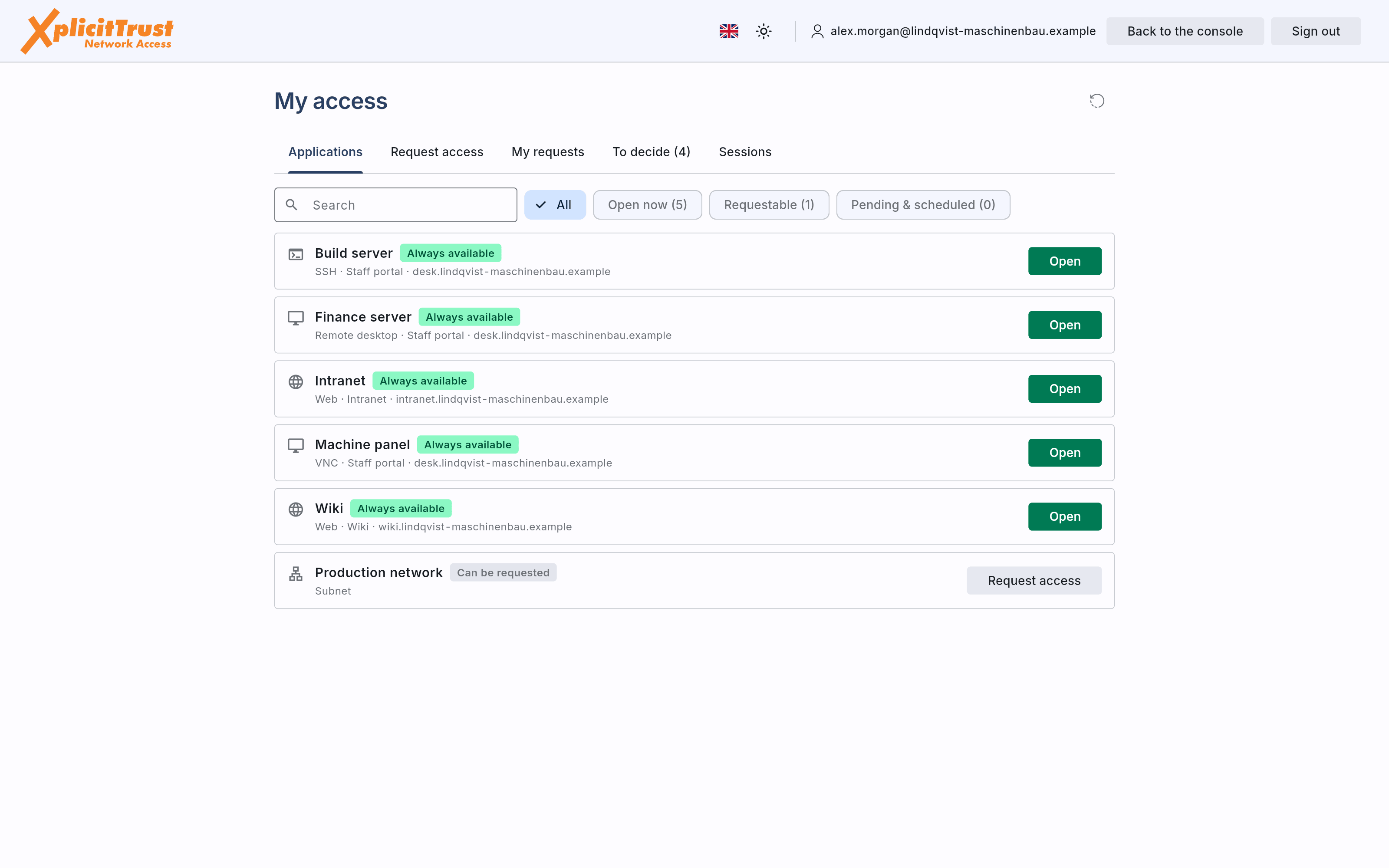
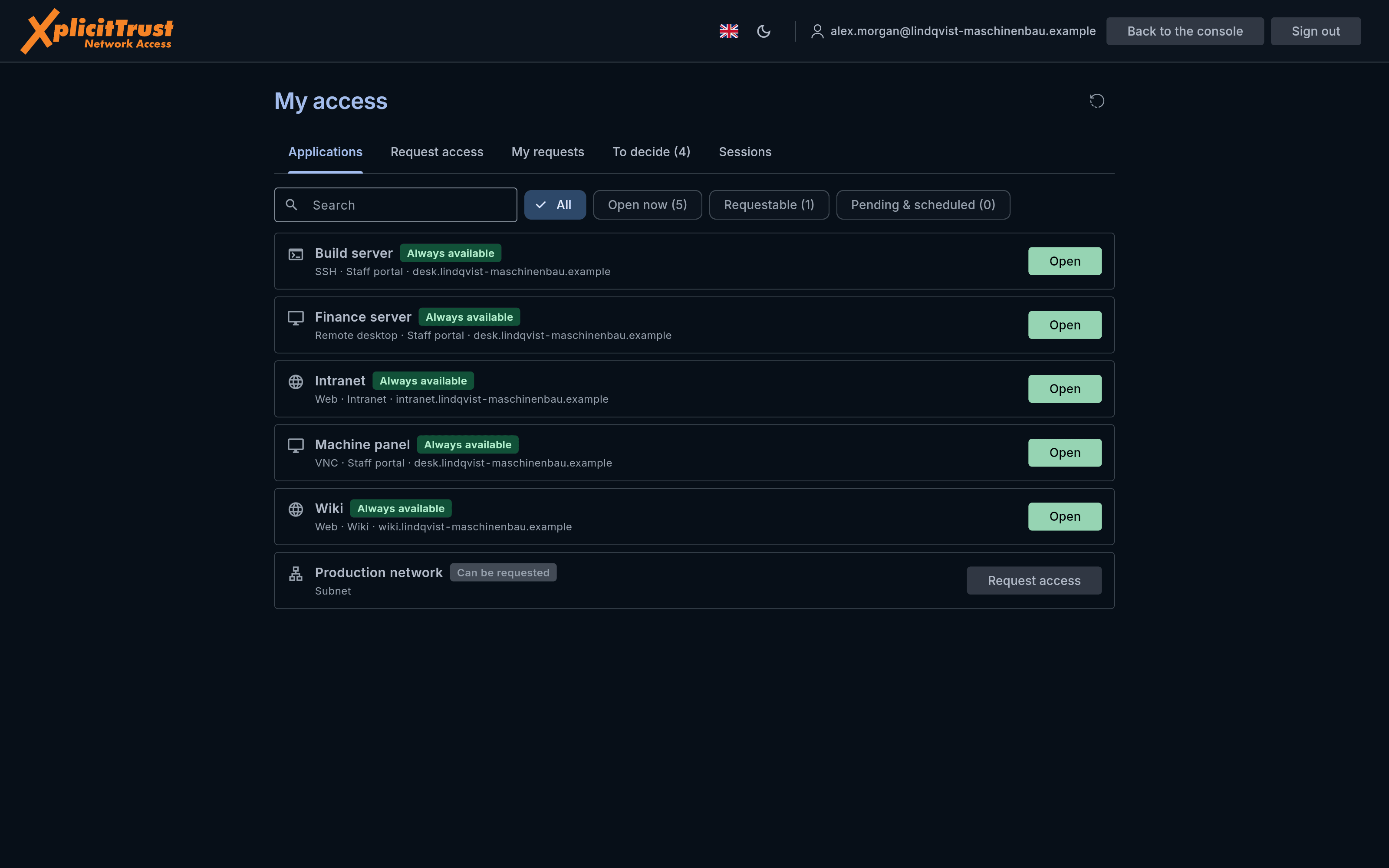
The bar at the top has the language and appearance buttons and your sign-in name. Back to the console appears when you came from the Admin Console and returns to it. Sign out ends the session. The circular arrow next to the title (Refresh) reads everything again, for example after a request was decided in the meantime.
The links in emails about a request open that request directly, see A request's page. For the background see Just-in-Time Access.
In short
Every user, approver and administrator opens it at the console address followed by #/access. Users see what they can open, request time-limited access and follow their requests. Approvers also decide requests and approve held-back clients. Everyone sees their portal sessions.
Before you start
- An account at your identity provider; you sign in with your email address. No administrator rights are needed, see Roles.
- To request access: a policy that requires approval and names you or your groups as its source, see Just-in-Time Access.
- To decide: you are a member of an approver group of such a policy, or of an approver group for held-back clients (Approvers in Sign-in policy).
Common tasks
- Ask for time-limited access: Request access.
- Ask for more time or follow a request: My requests and A request's page.
- Approve or deny: To decide and Deciding.
- Set up approvals as an administrator: Give a contractor temporary access and Access requests.
- Sign out of a portal: Sessions.
Applications
The tab Applications lists what you have, will have, have asked for or may request. Above the list, the field Search filters by name, portal, address or type. The chips filter by state; all but All show how many entries they hold:
| Chip | Shows |
|---|---|
| All | Everything. |
| Open now | What you can open now. |
| Requestable | What you may request and have not asked for. |
| Pending & scheduled | Requests waiting for a decision, and approved requests that have not started. |
Each entry shows an icon for its kind, its name and a coloured label for its state, then a line with its kind (Web, Remote desktop, SSH, VNC, or for other destinations Asset, Subnet and so on), the portal and the address. A line with Until and the end of a running access, Next: and the time of the next occurrence of a recurring access, and its weekdays follows where it applies.
| State | Meaning |
|---|---|
| Access granted | An approved request is running. |
| Always available | A policy grants it without approval. |
| Scheduled | Approved for a later time. |
| Awaiting approval | Your request waits for a decision. |
| Can be requested | A policy lets you request it, and you have no request for it. |
A note under an entry can say Needs the agent on this device (for an entry you can open now that works through the tunnel, not in the browser) or The portal is not reachable right now (for an application whose portal is not reachable).
The buttons of an entry:
| Button | When and what it does |
|---|---|
| Open | For an application you can use now and that is reachable. Opens it in a new browser tab. |
| More time | For a running access with a request. Opens the request, where you can ask for more time. |
| View request | For a pending or scheduled request, and for a running recurring access. Opens the request. |
| Request access | For an entry that Can be requested. Opens the tab Request access with this destination chosen. |
Without anything to show, the tab says "Nothing to show yet: no application or destination is available to you or can be requested."; if the search finds nothing, "Nothing matches the search and filter."
Request access
The tab Request access asks for time-limited access to a destination of a policy that requires approval. Your inputs stay while you look at the other tabs. A destination chosen with Request access on the first tab starts the form afresh.
| Field | Meaning |
|---|---|
| Destination | Required. Every destination you may request, shown as name, type and policy. With only one choice it is preselected. A destination that does not report network activity shows the warning "This destination reports no access tracking: the report of the access will hold no network data." |
| Repeat weekly | Shown only when the policy allows recurring requests. "The same hours on chosen days, approved once for the whole series" |
| Start | Now or Later with a date and time. |
| Duration | At most the policy's longest approval. A new request starts with one hour when the policy allows it, else with the longest approval. |
| Days, Hours, Time zone, From, Until | With Repeat weekly instead of Start and Duration: the weekdays, the hours of each occurrence, the time zone, and the first and last day of the series. Below, the form shows the number of occurrences and the next one, and "At most N days under this policy". It points out problems, for example "Choose at least one day.", "The end must be after the start on the same day." or "Each occurrence lasts at most ... under this policy." |
| Reason | Required, up to 1000 characters. "Why do you need access? The approver sees this." |
Send request sends the request and opens its page. A missing destination or reason is reported at the field. If no policy lets you request access, the tab says so: "No policy lets you request access. An administrator can make a policy that requires approval and names you or your groups as its source."
My requests
The tab My requests lists your own requests as a table; a click on a row opens the request.
| Column | Meaning |
|---|---|
| Status | Pending, Approved, Active, Denied, Cancelled, Expired or Ended, with · more time asked while an extension waits. See Statuses. |
| Destination | The destination and its type. |
| Window | The approved window, or the requested one before a decision. |
| Policy | The policy the request falls under. |
The list starts with pending requests, then active and approved ones, then the closed ones. "You have not requested access yet." appears while it is empty.
To decide
The tab To decide is for approvers: members of the approver group of a policy. Its title carries the number of requests and held-back clients waiting for you, for example To decide (2). It lists the requests of the policies you approve for, those you can decide first, in the same table as My requests with the additional column Requested by. Opening a row shows the request with the decision controls, see Deciding. Without any, the tab says "There are no requests for you to decide."
Clients held back until an approver releases them are listed above the requests.
Sessions
The tab Sessions shows your sign-ins to portals and the remote desktop and SSH sessions running through them. Signing out ends the portal sessions; devices with the agent stay connected.
| Element | Meaning |
|---|---|
| Sign out everywhere | Ends every browser sign-in and closes every running remote desktop and SSH session within seconds, after you confirm "Sign out of every portal?". You can sign in again at once. |
| Portal card | The portal's name, its address and, if you signed out before, Last signed out with the time. |
| Sign out | Signs you out of this portal and ends its sessions. It is not available when the portal's gateway runs an older agent that cannot end sessions on a sign-out; the card then says so, and the sessions last until they expire. |
| Session line | The kind (Browser sign-in, Remote desktop, SSH or VNC), the route and, for a remote desktop or SSH session, its target; for those also how it runs (In the browser or Through the agent); the device and address; and Since the start with, if there is one, when it expires. |
"You have no portal sessions." appears while there are none.
A request's page
Selecting a request in one of the tabs, or following a link in an email, opens the request's own page. Back to the overview returns to the tabs.
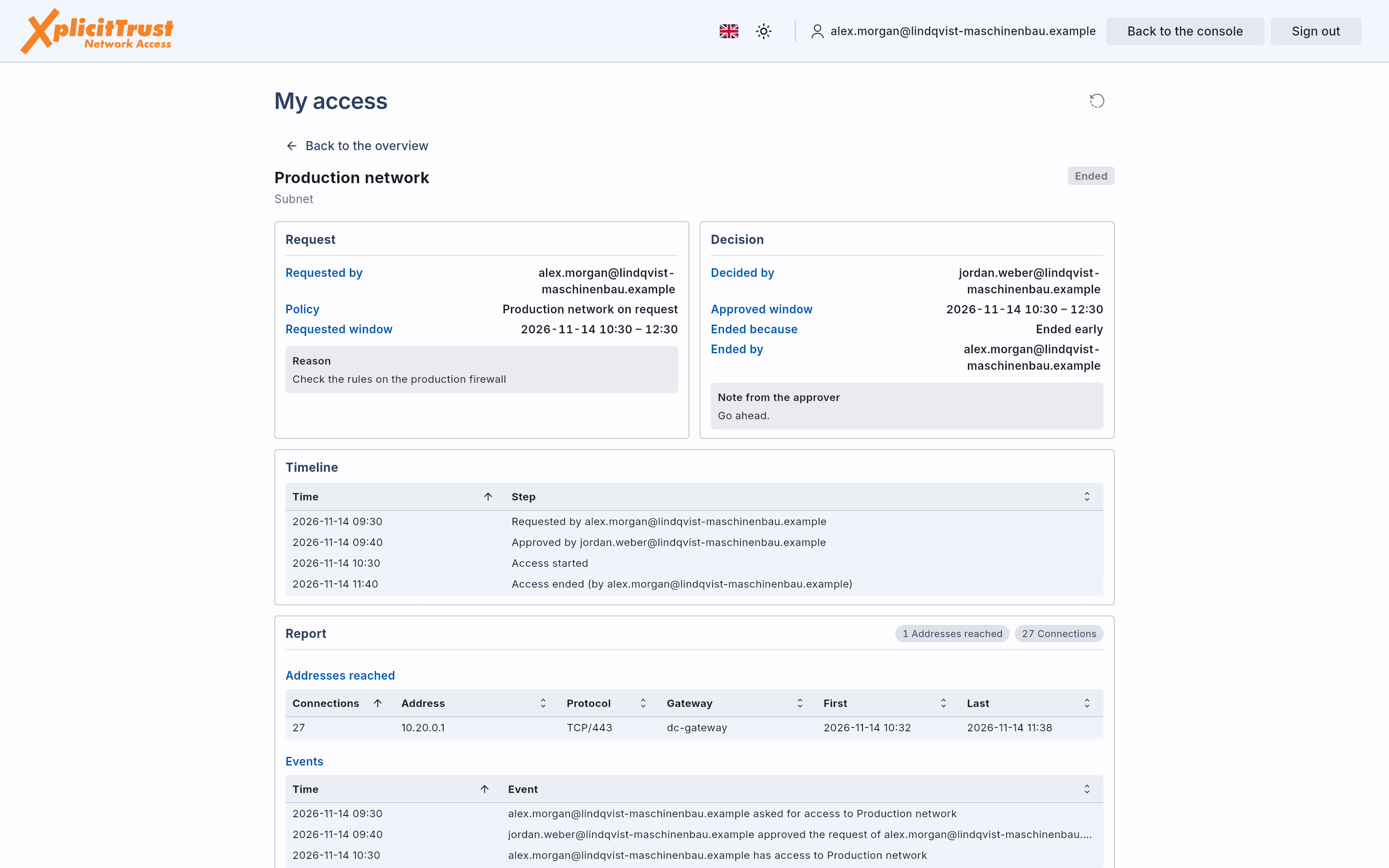
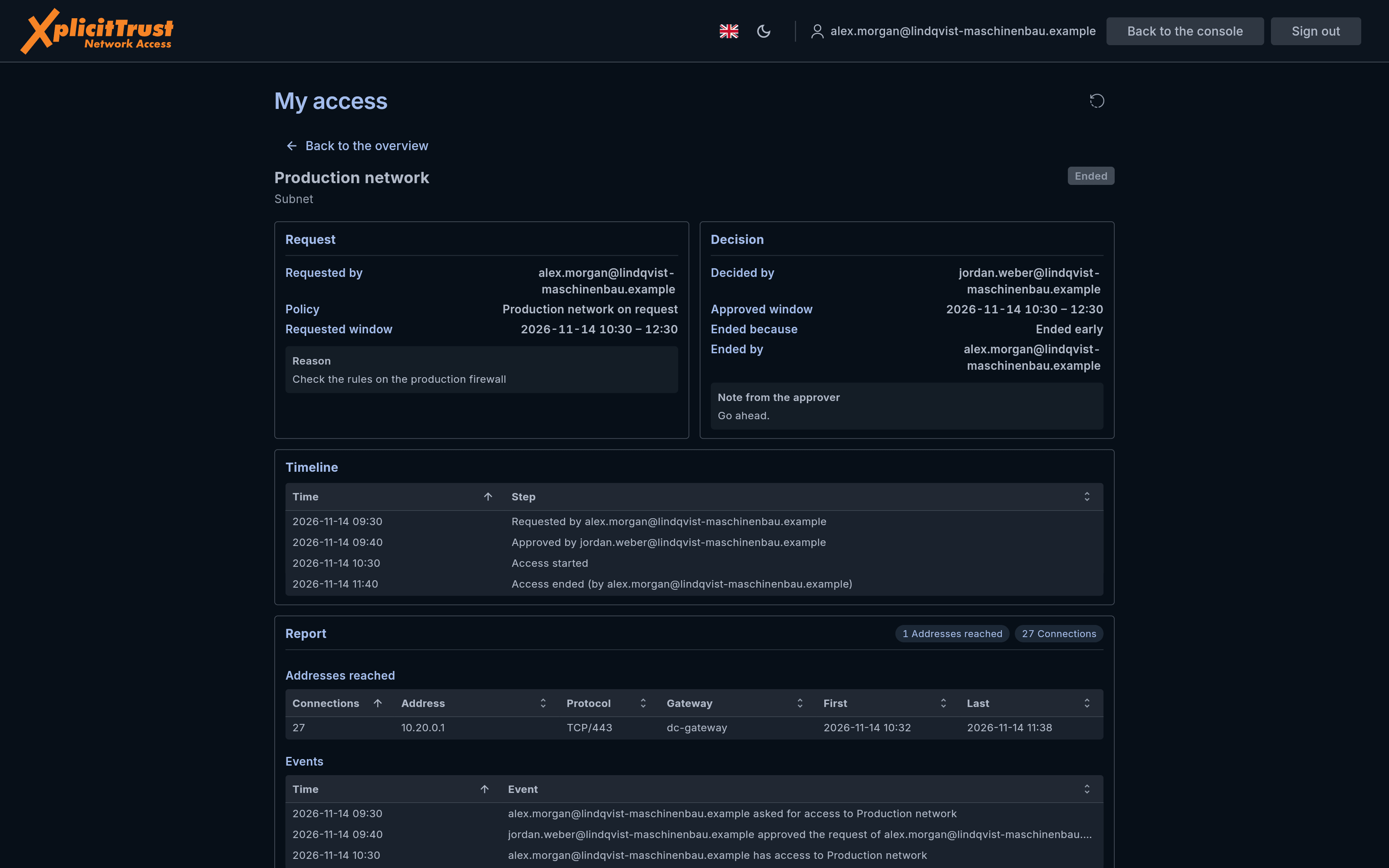
The page shows the destination with its type and status, then the parts Request and Decision, the Timeline and, after the access ran, the Report. They are the same as in the Admin Console, described in Detail panel and Report: Requested by, Policy, Requested window, Reason, Decided by, Approved window, Ended because, Ended by, the Note from the approver, the timeline of steps, the Addresses reached with Connections, Address, Protocol, Gateway, First and Last access, and the Events. All times are in your local time.
What you can do on the page depends on your role in the request:
| Button | For whom and what it does |
|---|---|
| Approve, Deny | In Your decision, for an approver of a pending request who is not its requester; the fields are described under Deciding. |
| Request more time | For the requester of an approved or running request that is not recurring. A dialog asks how much to add (shown as "until ...") and for a Reason ("Why do you need more time? The approver sees it."). "Your access keeps its current end until the extension is approved." Send request sends it. |
| Withdraw extension | For the requester while an extension waits for a decision. |
| Your decision on more time | For an approver while an extension waits; see Active request with more time asked. |
| Cancel request | For the requester of a pending request, and for an approved request that has not started. |
| End access now | For a running access. Asks "End the access to ... now? Open connections are closed." |
See also
- Concept: Just-in-Time Access.
- Guide: Give a contractor temporary access and Using a Portal.
- Reference: Access requests (the administrators' view), My Access in the app and Roles.