Diagnostics
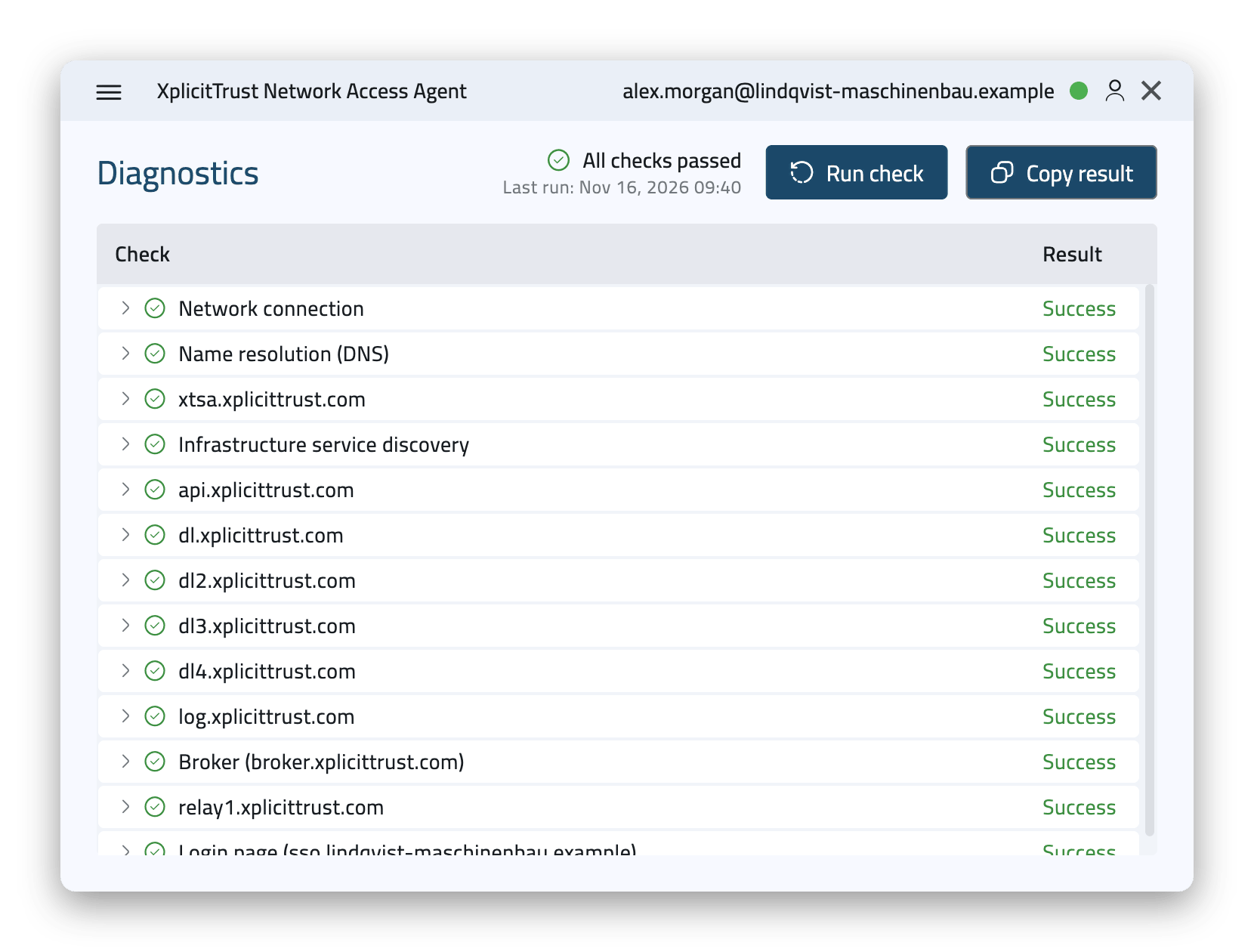
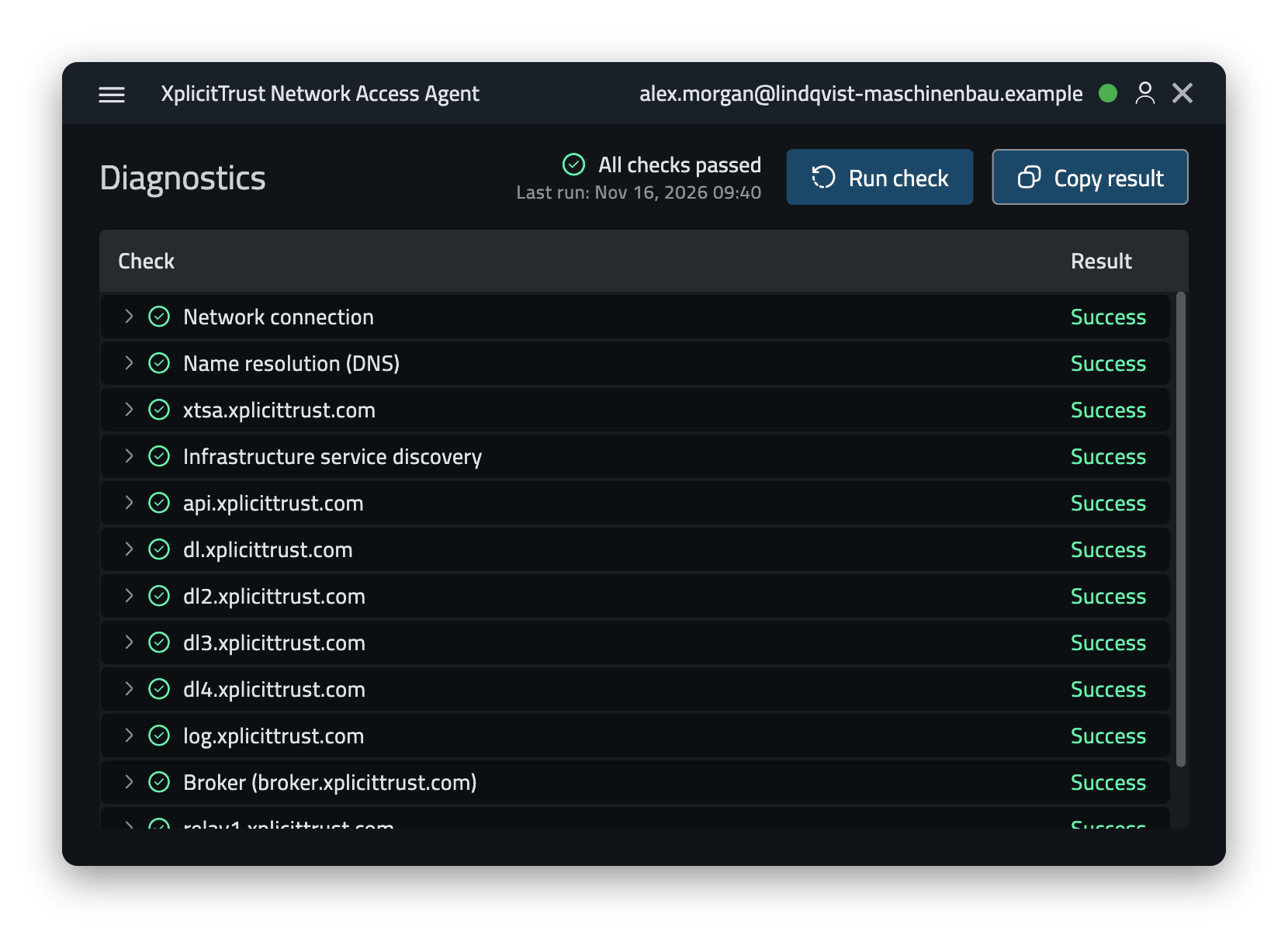
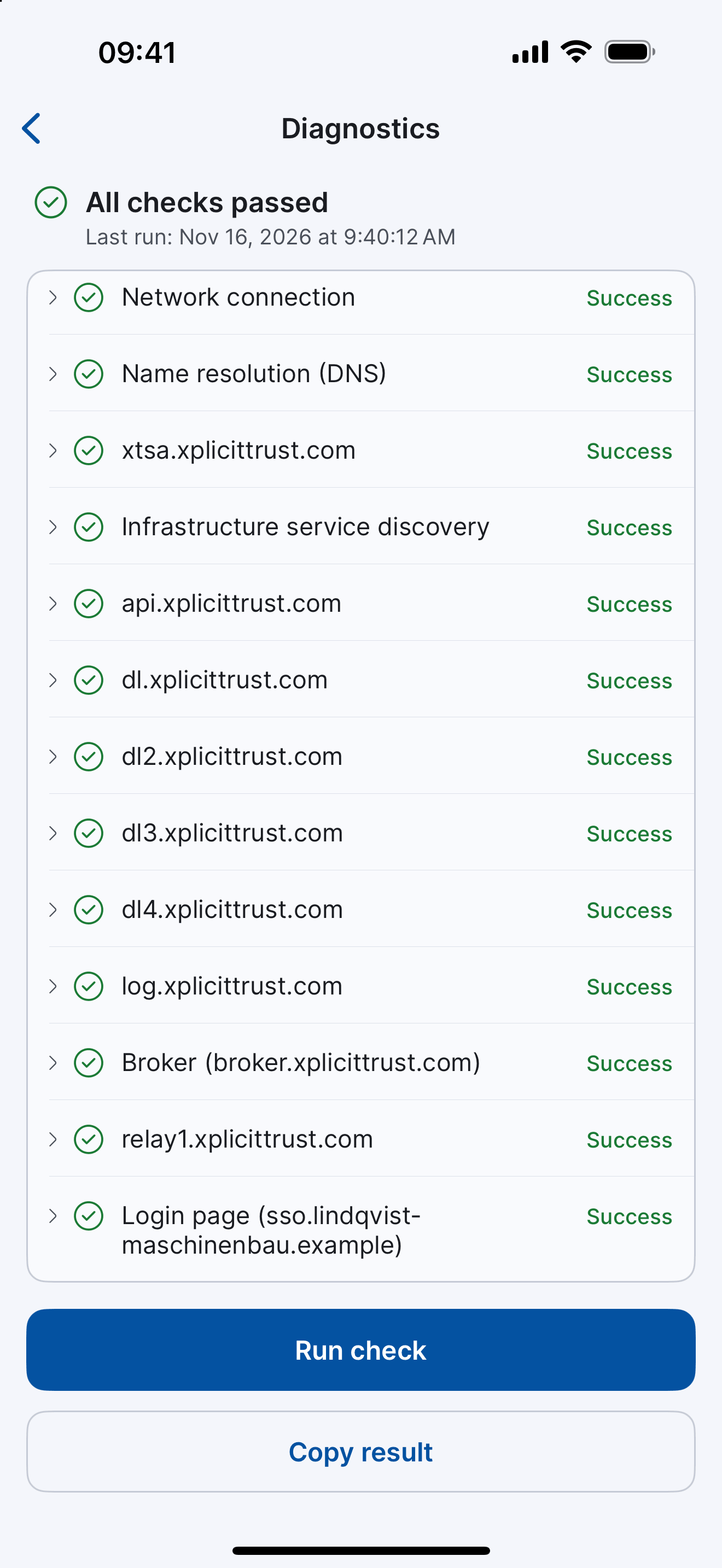
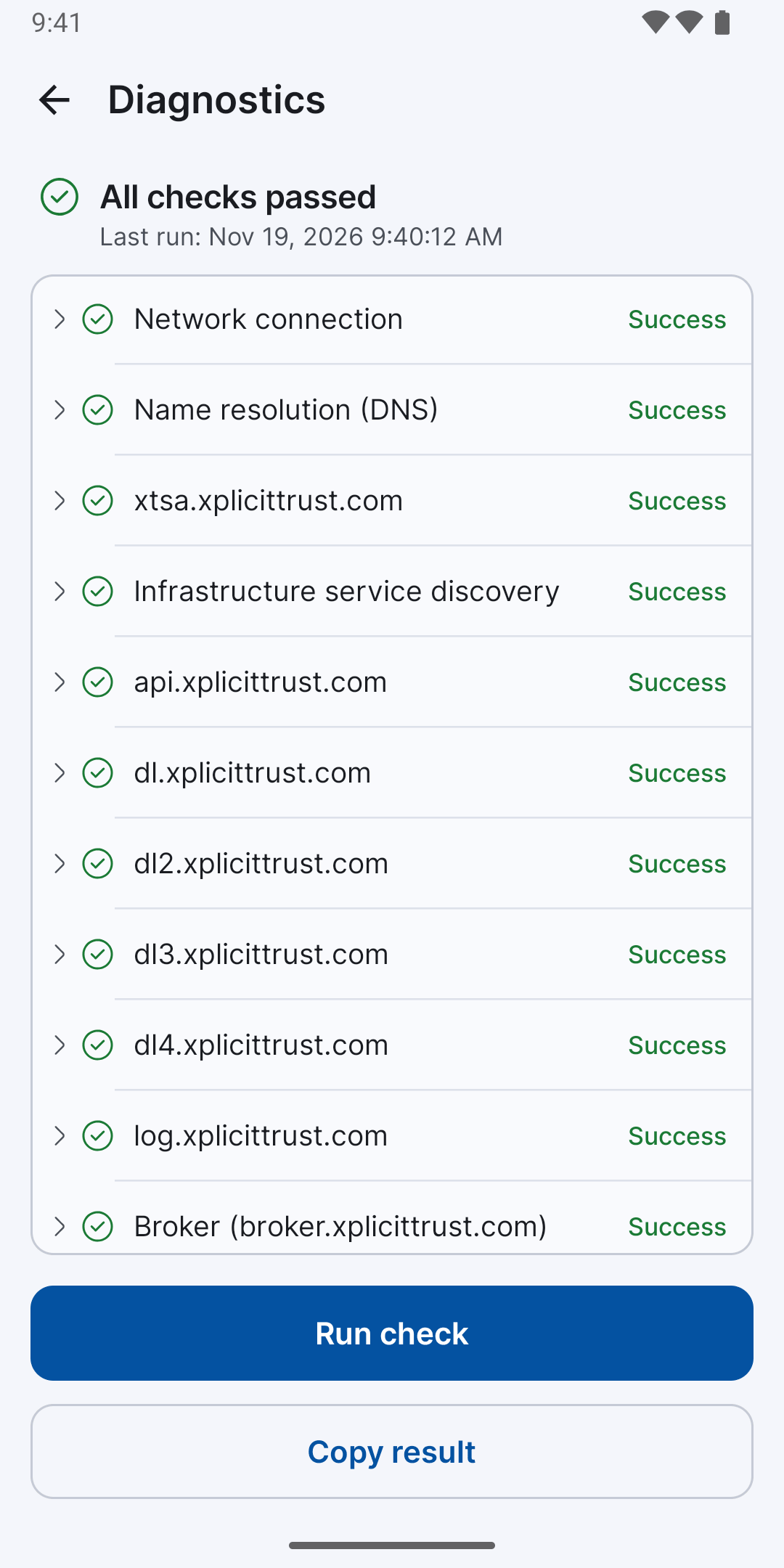
Diagnostics checks whether this device can reach what the app needs to work: the internet, name resolution, the XplicitTrust services, your broker and relay servers, and your sign-in page. Each check has its own result, and failures show what went wrong.
In short
Open Diagnostics when the app does not connect or a destination is unreachable. It runs about a dozen checks, one row each. Copy the result with Copy result and send it to your IT or to support. The tables below say what each check does and what to try when it fails.
On the desktop, open Diagnostics from the side menu. On iOS and Android, open the menu and choose Diagnostics; when an administrator has moved the page into Help, it is listed there under the ways the app helps itself (Agent appearance).
The checks run by themselves the first time you open the page. When you come back later, the page shows the previous run instead of starting a new one. On iOS, opening the page after you signed in with a different account runs the checks again.
Summary and buttons
| Element | Meaning |
|---|---|
| Summary | While the checks run: Check running with a spinner. Afterwards All checks passed, or Some checks failed when at least one check has the result Failed. Warnings and skipped checks do not count as failures. |
| Last run | Date and time the last run finished. |
| Run check | Starts all checks again. While they run, the button is disabled and reads Check running (Check running... on desktop). |
| Copy result | Copies the whole result as text to the clipboard, ready to paste into a support ticket: one line per check with a symbol for its result (a check mark for success, ! for a warning, a cross for failed, - for skipped), followed by its details. The button is disabled while there is nothing to copy or while the checks run. The app confirms with Result copied to clipboard: a message on desktop, the button label for two seconds on iOS and Android. |
On desktop the summary and Last run sit next to the two buttons at the top right; on iOS and Android they are above the list and the buttons below it.
Each check and a summary of the run are also written to the app's log, so sent logs carry them.
The list of checks
The list fills up while the checks run, and it follows the newest result until you scroll up. On desktop the columns are Check and Result. Each row shows the result as an icon and a word:
| Result | Meaning |
|---|---|
| Success (green) | The check passed. |
| Warning (orange on desktop, amber on mobile) | Part of the check passed. |
| Failed (red) | The check did not pass. |
| Skipped (grey) | The check was not run; its details say why. |
A row with details has an arrow at its left. Click or tap the row to open or close its details. Rows with the result Failed or Warning open on their own; the others stay closed. The details are technical lines in English, shown in a fixed-width font, so they can be passed on as they are. On desktop you can select and copy text from them.
Checks, in the order they run
| Check | What it does | What to try when it fails |
|---|---|---|
| Network connection | Tries to open a connection to port 443 of 1.1.1.1, 8.8.8.8 and 9.9.9.9, one after the other. Success as soon as one answers; Failed when none does. These are addresses, not names, so a broken name resolution does not fail this check. |
Check that the device is online and that no firewall or proxy blocks outgoing port 443. Then run Run check again. |
| Name resolution (DNS) | Looks up xtsa.xplicittrust.com and xplicittrust.com. Success when both resolve, Warning when one does, Failed when none does. The details show the address of each name. |
Check the DNS server of the network you are in. |
xtsa.xplicittrust.com |
The service discovery server. Tests name resolution, a connection to port 443, the TLS certificate and an HTTPS request (see Server checks). | Follow the failing step in Server checks. |
| Infrastructure service discovery | Asks the discovery server for the address of your tenant's API. It uses the tenant of the running app; without one, the company domain of your account; without that, your email address. Skipped when no tenant and no account are known yet (the check then continues with api.xplicittrust.com) and when the discovery server is not reachable. Failed when neither xtsa.xplicittrust.com nor xtsa2.xplicittrust.com returns an API address. |
Fix the check above it first. Check that the email address or domain of the account is right. |
The API server, for example api.xplicittrust.com |
The API address found by the previous check, or api.xplicittrust.com if there is none. Full server check, including an HTTPS request. |
Follow the failing step in Server checks. |
dl.xplicittrust.com |
The update server. Full server check, including an HTTPS request for the agent manifest. | Follow the failing step in Server checks. A blocked update server keeps the app from updating. |
dl2.xplicittrust.com, dl3.xplicittrust.com, dl4.xplicittrust.com, log.xplicittrust.com |
Further update and log servers. Server check without the HTTPS request. | Follow the failing step in Server checks. |
| Broker (with its host name) | The broker your tenant's app connects to. Server check without the HTTPS request, plus a test that a server really answers behind the connection. Skipped with the note no broker reported yet - connect first until the app has been connected and knows its broker. | When skipped, connect first and run the check again. When failed, ask your administrator to check the firewall against Network requirements. |
| One row per relay server | The relay servers the app reports. Server check without the HTTPS request. There is no row when the app reports no relays. | As for the broker. |
| Login page (with its host name) | The sign-in page of your identity provider. Server check with an HTTPS request, but any certificate issuer and any answer other than a server error pass. Skipped when the app does not know the address yet; it remembers it from the next sign-in. | Check that the sign-in page opens in a browser on this device. If it does not, contact your IT. |
If Network connection fails, the run stops after the name resolution check with Infrastructure service discovery Skipped (no network connection), because every other check would only time out.
Server checks
A server check runs these steps in order and stops at the first one that fails. Each step that ran is listed in the details; the failing step is named in the error line.
- DNS: the server name resolves. Failure: DNS resolution failed.
- TCP: a connection to port 443 opens. Failure: Network unreachable or blocked by firewall.
- TLS: the TLS handshake completes and the server presents a certificate. Failure: tls: handshake failed or no server certificates found.
- TLS issuer: the certificate comes from Let's Encrypt. Failure: unexpected SSL issuer, with the issuer found. The login page does not require this.
- HTTPS (only for the checks marked above): the server answers the request with status 200. Failure: HTTPS error with the status, or HTTP request failed.
Each step times out after five seconds.
| Failing step | What to try |
|---|---|
| DNS | Check the DNS server of the network you are in. |
| TCP | A firewall blocks outgoing port 443. See Firewalls, Proxies and TLS Inspection. |
| TLS, TLS issuer | Something changes the TLS traffic, usually a proxy or TLS inspection. Ask your administrator to exclude *.xplicittrust.com from inspection. See Firewalls, Proxies and TLS Inspection. |
| HTTPS | Run Run check again, then send the copied result to support. |
If a check fails
A failure on xplicittrust.com hosts usually means that something between the device and the internet blocks or changes the traffic: a firewall, a proxy, or inspection of TLS traffic. Your administrator can find what the firewall has to allow under Network requirements. Send the copied result with your support request.
Assets and scripts can run a connectivity check on the command line with xtna-util -connectivity; see xtna-util.
See also
- Concept: Connection Paths and NAT
- Guide: Troubleshooting: start here, Logs and Diagnostics
- Reference: xtna-util, Network requirements