Sessions and Recording
A remote desktop, terminal or remote screen that someone opens through a portal is a session. This page covers what you can do with running sessions (limit, end, watch), how access is checked while they run, and how they are recorded.
In short
A gateway asset runs at most 64 sessions at once and 8 for each person; you can change both. An administrator can end a session or watch it read-only, and every session of an application can be recorded, on the gateway asset or in your own S3-compatible bucket. Every step is an event.
Open sessions and session limits
The portal's detail page shows under Remote desktop sessions how many sessions run on the gateway asset, against its limits, and lists the sessions of this portal that run now: who holds each one, the application, the target and the account, since when it runs, and from which device or address. The list refreshes every 30 seconds. A gateway asset that is offline lists no sessions: it reports its list while sessions run, and a list older than 15 minutes is no longer shown.
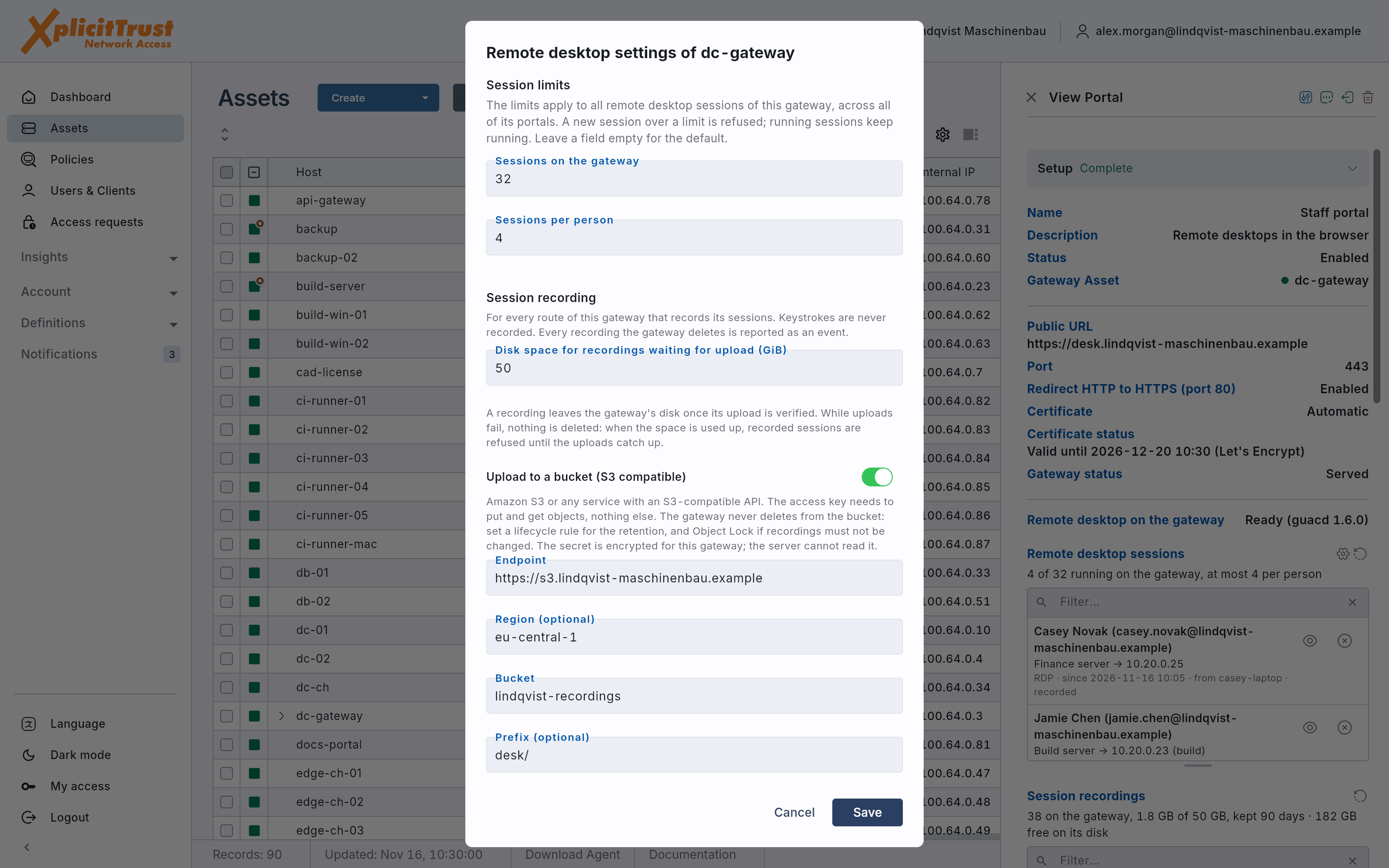
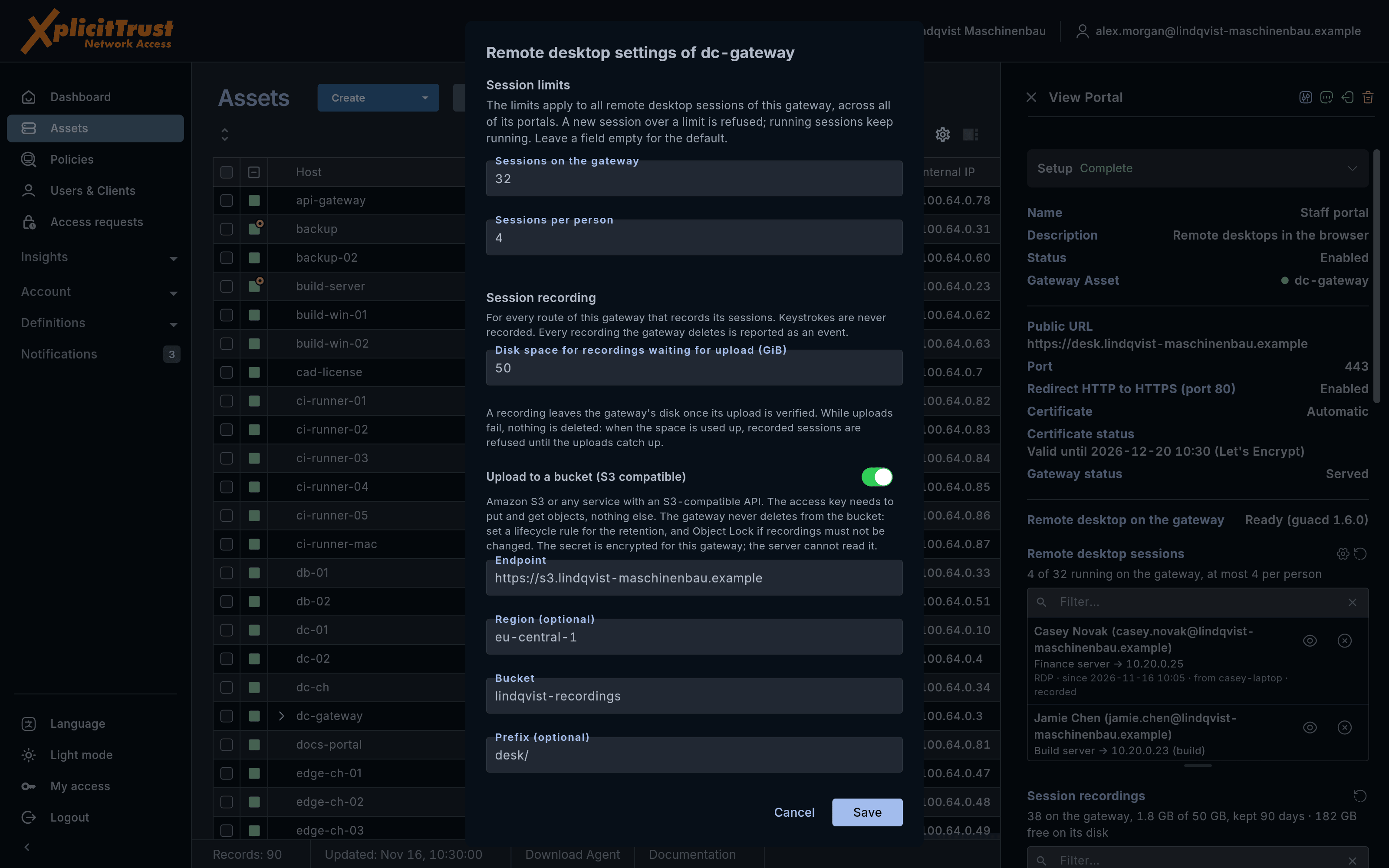
A gateway asset runs at most 64 remote desktop sessions at once, and at most 8 for each person. Both limits belong to the gateway asset and count the sessions of all of its portals. To change them, choose the settings icon next to Remote desktop sessions:
- Sessions on the gateway: 1 to 256.
- Sessions per person: 1 to 256, and no more than the sessions on the gateway.
An empty field is the default. The gateway asset picks up a change within a few seconds. A new session over a limit is refused; sessions that run keep running, also when a lower limit leaves more open than it allows. What a session costs the gateway asset, and which limits suit its CPU and memory, is in Sizing the Gateway Asset.
Ending a session
End the session on a session's line disconnects it. The person sees An administrator ended this session. within about 20 seconds, and the event log records who ended it. Only that one session ends: the person stays signed in, keeps their access and can connect again. To keep someone out, remove their access as well, for example with Sign Out Everyone or in the policy.
Watching a session
Watch the session on a session's line shows its screen as it is now, in a new tab. The console first says what that means and asks to continue; the view then opens once, within two minutes.
- Read-only. You cannot type, click or paste in the session. What is copied or transferred in it is not shown to you either: the view carries the screen and nothing else.
- Never hidden. For as long as someone watches, the session shows a banner … is watching this session with the administrator's email address, and the event log records who opened the view (see Using a Portal).
- The view runs until you close it or the session ends. To watch again, for example after reloading the tab, choose Watch the session again. At most four views of one session are open at a time.
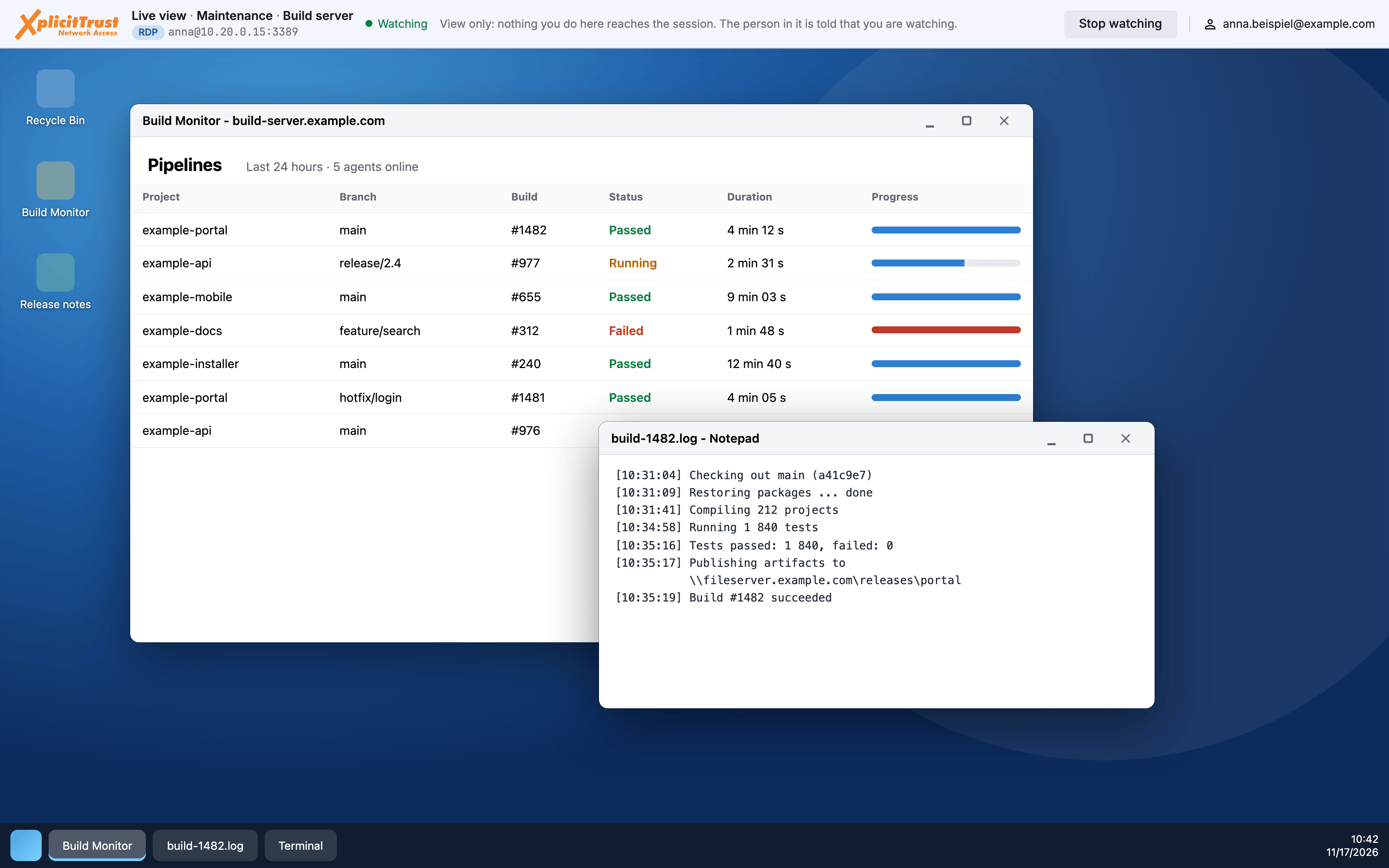
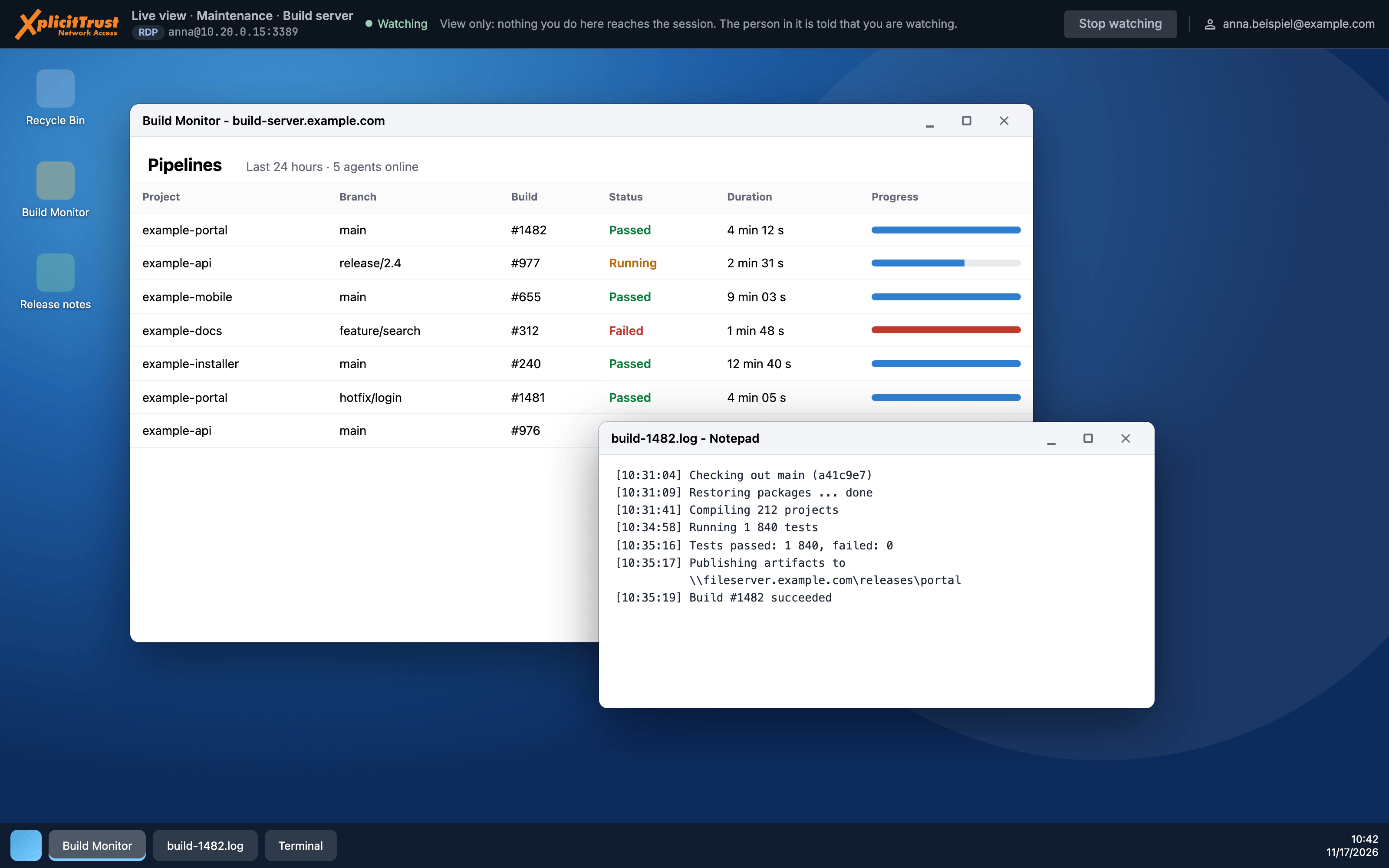
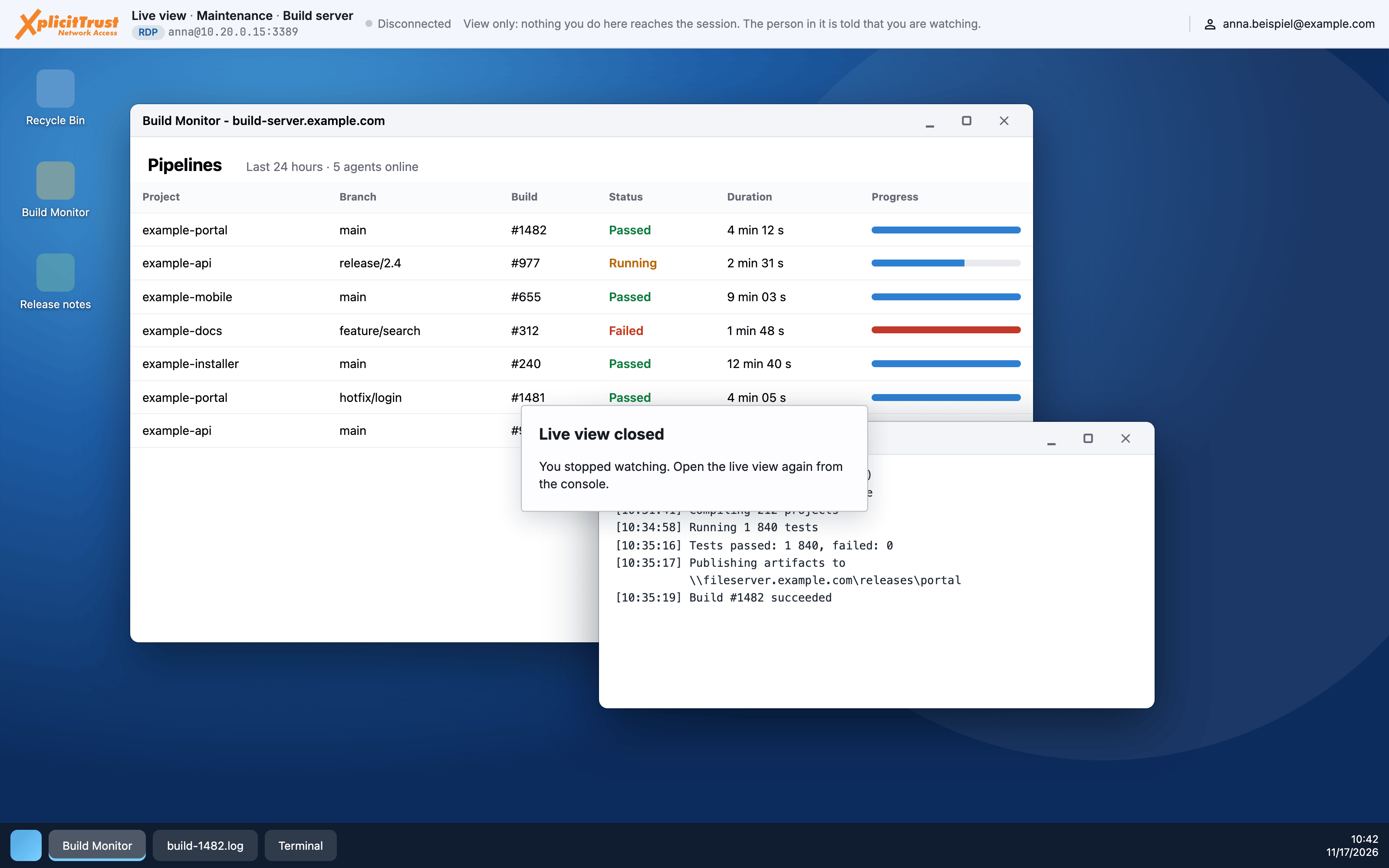
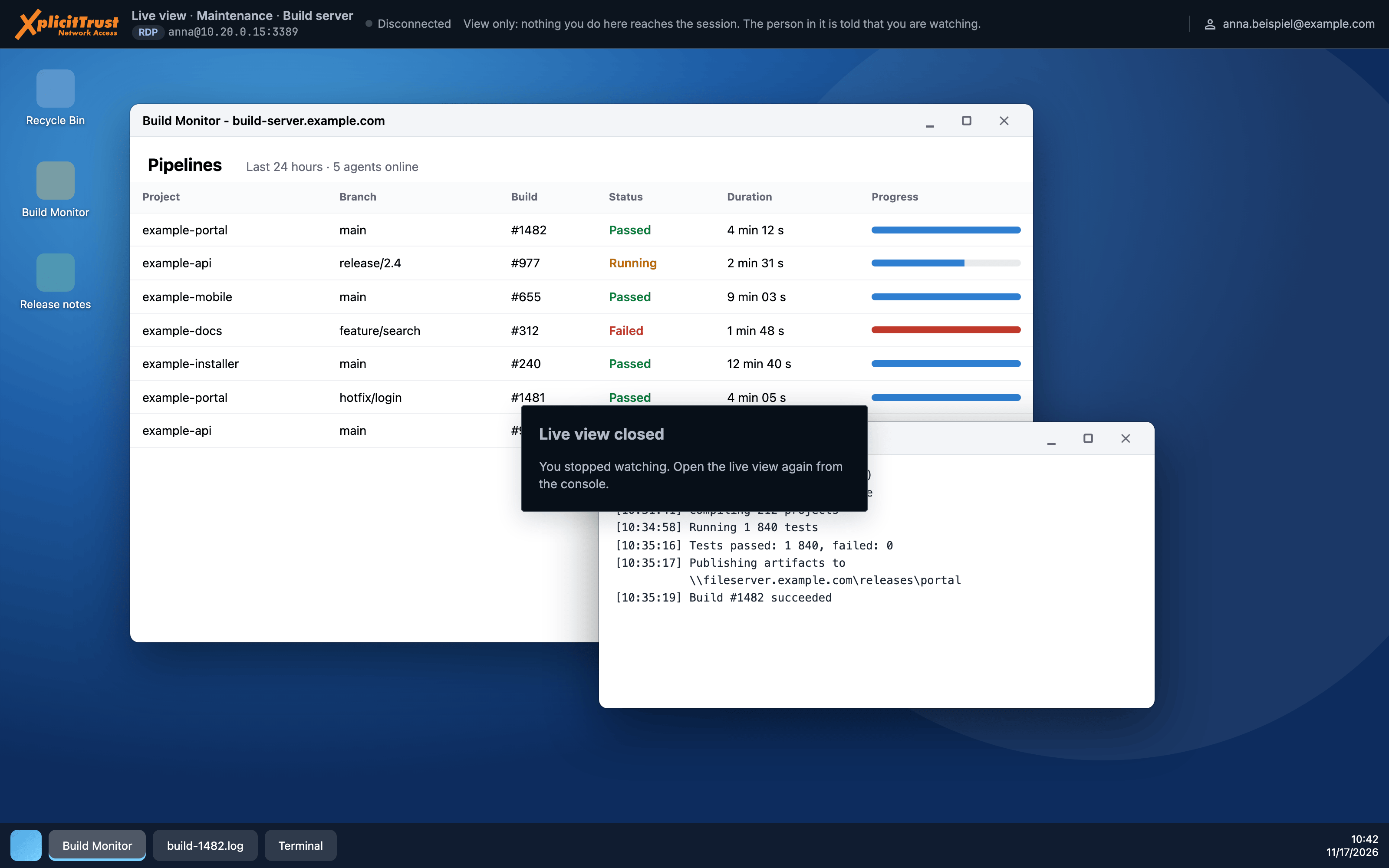
The view's bar shows Live view, the application, the account and target, and Stop watching. Stop watching closes the view ("Live view closed"); when the session ends, the view says "The session has ended.". A link that was used already or is older than two minutes says "This link to a live view is no longer valid. Open the live view again from the console.", and a fifth view "This session already has as many live views as the gateway shows at once."
Ending and watching need the Admin role, or a partner user who may change the tenant, and a current agent on the gateway asset. With an older one, the console says that the gateway's agent cannot end or show sessions yet.
Session recording
With Record sessions on, the gateway asset records every session of the application: what the browser showed, so it can be watched again later like a video. Keystrokes are not recorded, because they include passwords. A session that cannot be recorded does not start: a recorded application never runs unrecorded.
Where the recordings go
The settings belong to the gateway asset and apply to all of its recorded applications. Choose the settings icon next to Remote desktop sessions on the portal's detail page:
- Keep recordings for (days): 30 by default, up to 3650.
- Disk space for recordings (GiB): 4 by default, up to 10240.
- Upload to a bucket (S3 compatible): off by default.
Without a bucket, the recordings stay on the gateway asset's disk, in
/etc/XplicitTrust/recordings (for the container, in its volume). The
gateway asset deletes a recording at the end of the retention period, and
the oldest ones when the disk space for recordings is used up.
With a bucket, the gateway asset uploads every recording once the session has ended, and removes its own copy when the bucket has confirmed the upload. While uploads fail, nothing is deleted: the recordings wait on the gateway asset, and once they fill the disk space for recordings, recorded sessions are refused until the uploads catch up. The gateway asset never deletes anything from the bucket; set a lifecycle rule on the bucket for the retention, and Object Lock if recordings must not be changed or deleted early. Amazon S3 and other services with an S3-compatible API work:
| Setting | |
|---|---|
| Endpoint | The service's address, for example https://s3.eu-central-1.amazonaws.com. |
| Region | The bucket's region; empty is us-east-1. |
| Bucket | The bucket's name. |
| Prefix | Optional, ending with /. The recordings go to <prefix><portal id>/<recording>.guac. |
| Path-style requests | On for an endpoint given as an IP address, for a bucket name with dots, and for most self-hosted services. |
| Access key ID, Secret access key | An access key that may write and read objects in the bucket (s3:PutObject, s3:GetObject), nothing more. |
| CA certificate | Optional: the PEM certificate of your own CA, when the endpoint's certificate comes from it. |
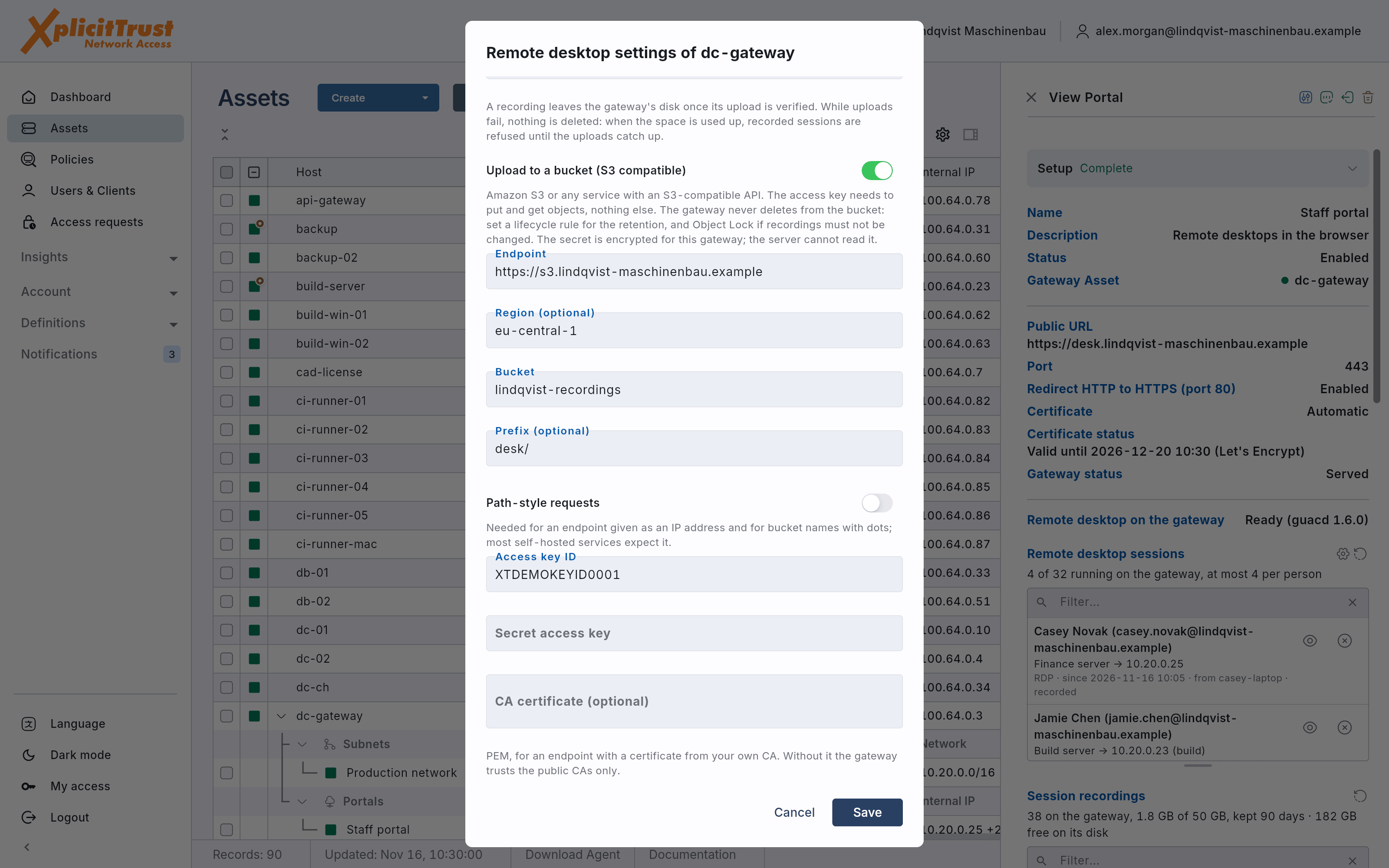
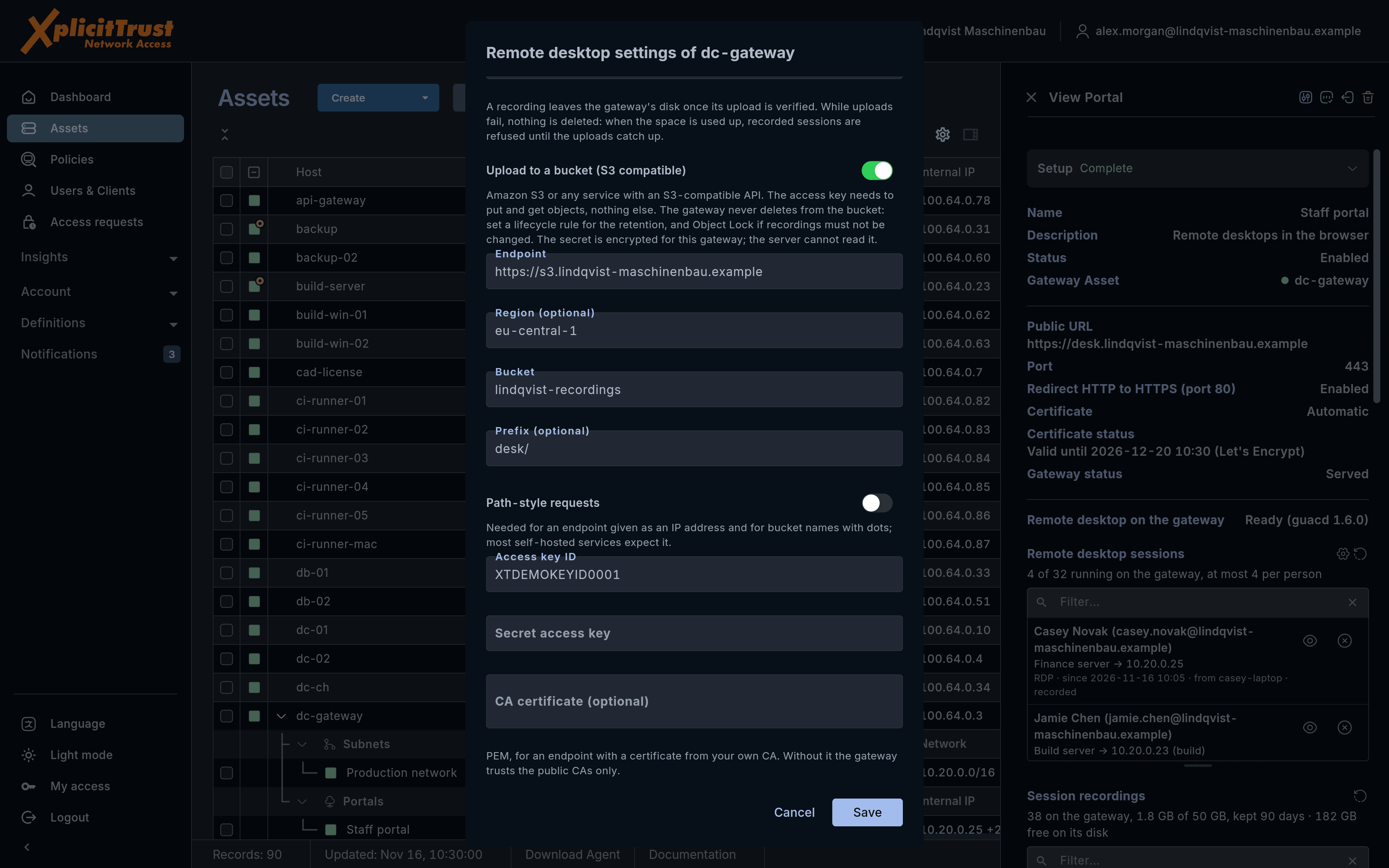
The secret access key is encrypted for the gateway asset: neither the server nor the console can read it again, and the field stays empty after saving. Leave it empty to keep it. Uploading needs a current agent on the gateway asset; an older one keeps the recordings on its disk for 30 days, up to 4 GiB.
Whatever happens to a recording is an event: complete, uploaded, an upload that failed, deleted and why, and every playback. A recording therefore never disappears without a trace, and the events reach your event forwarders like all others (Events).
Watching a recording
The portal's detail page lists the recordings under Session recordings, newest first, with who held the session, the application and the target, when and how long, the size, and where the recording is now. The line above the list shows the gateway asset's recording storage and warns when it refuses recorded sessions or when uploads fail.
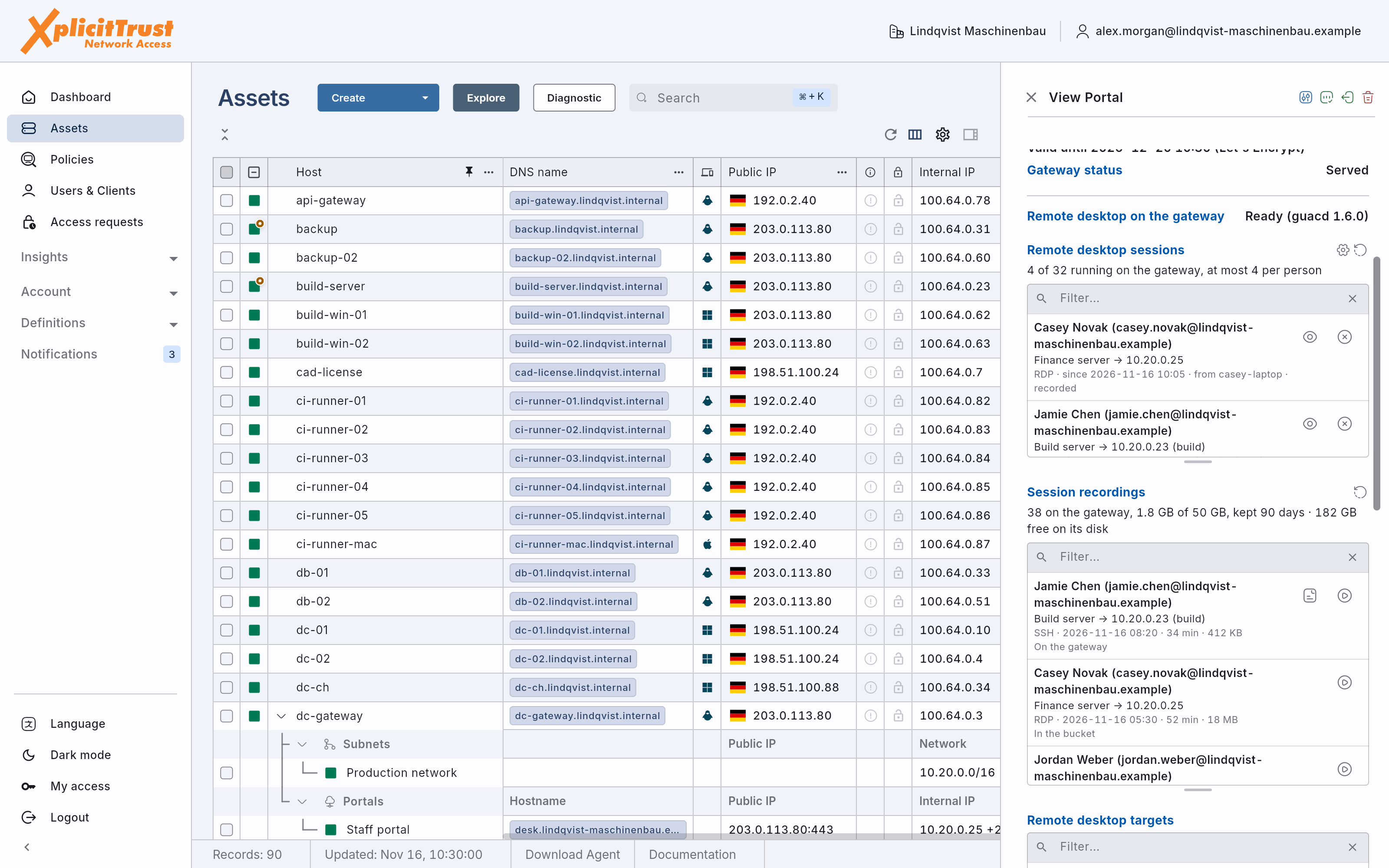
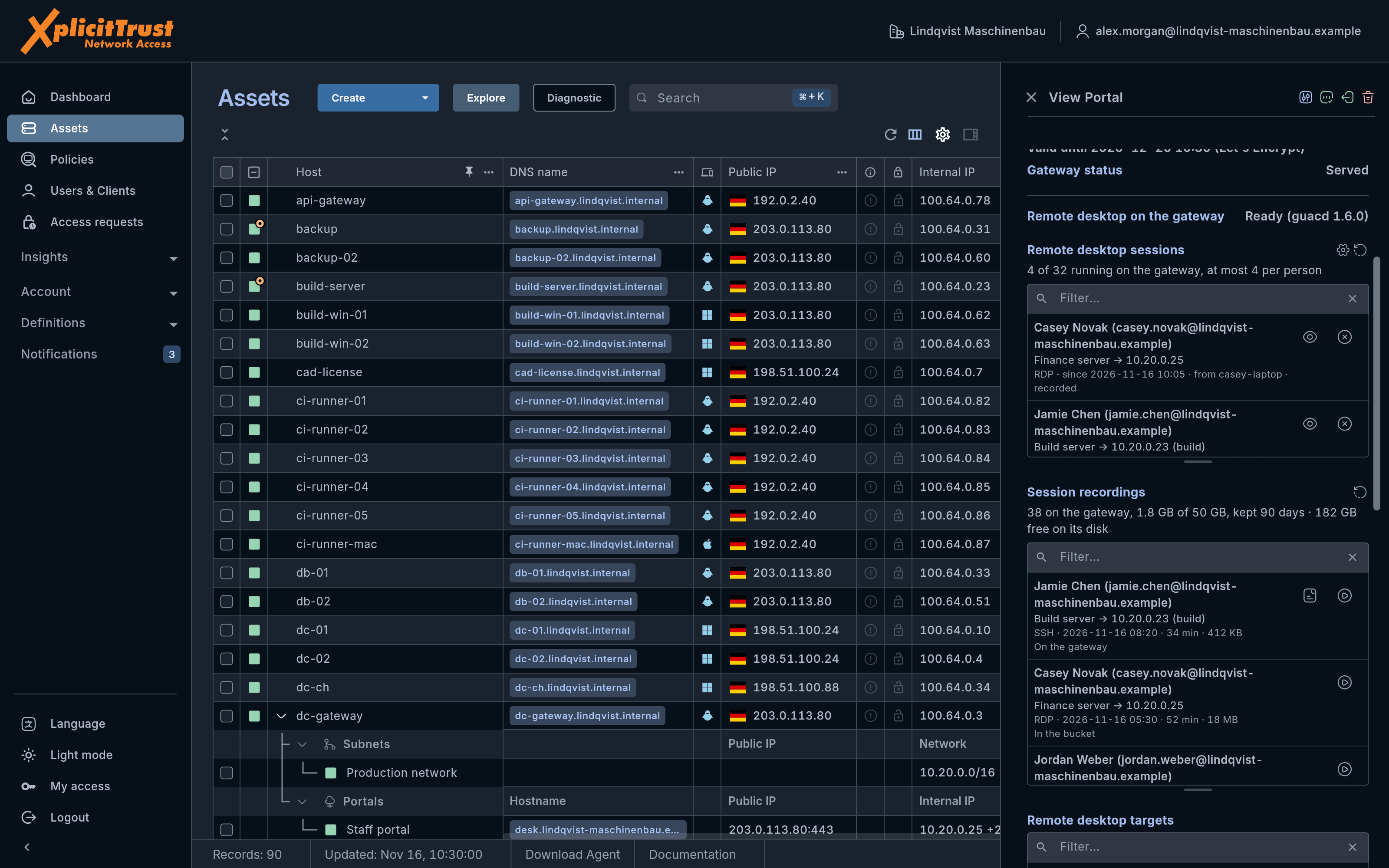
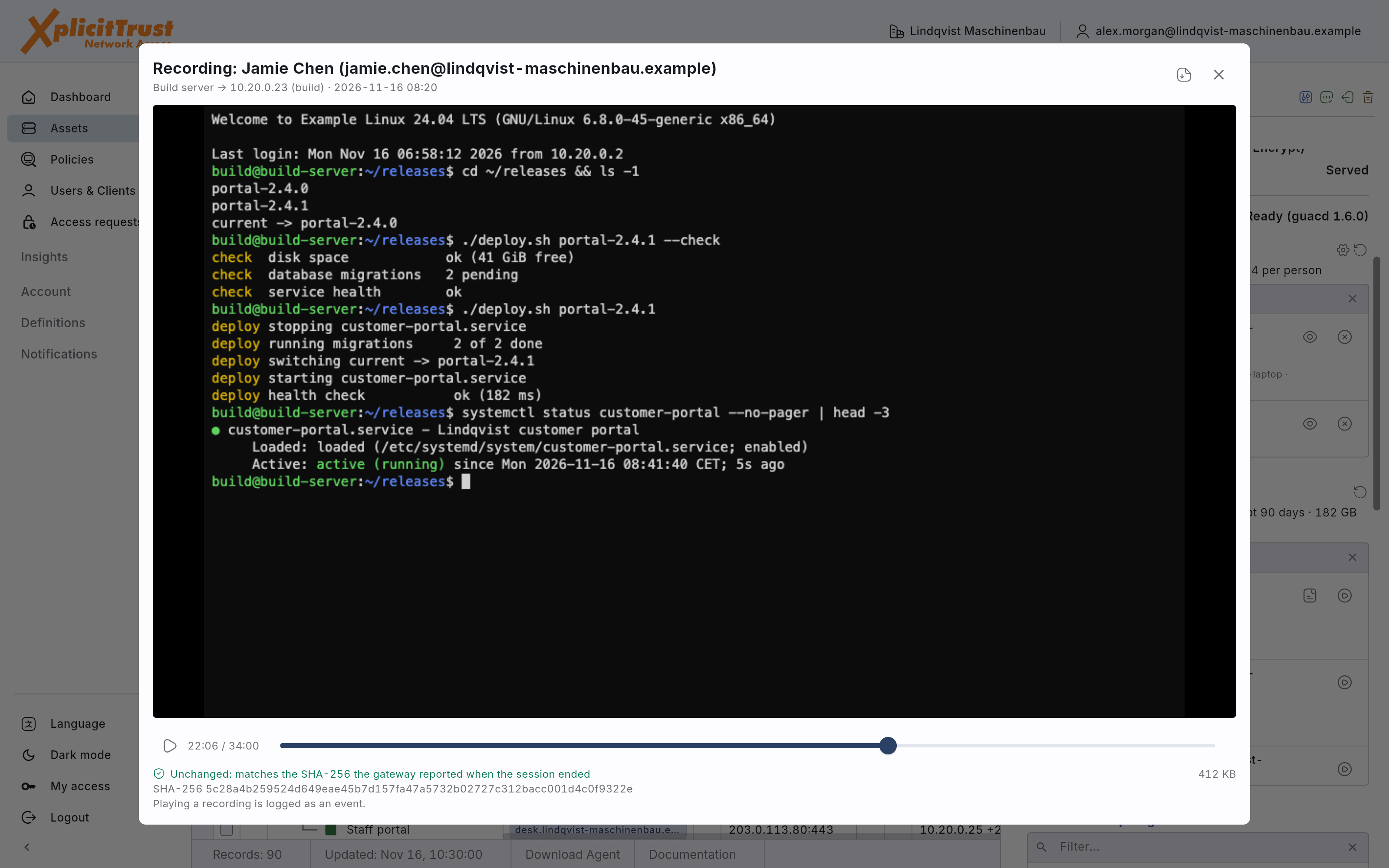
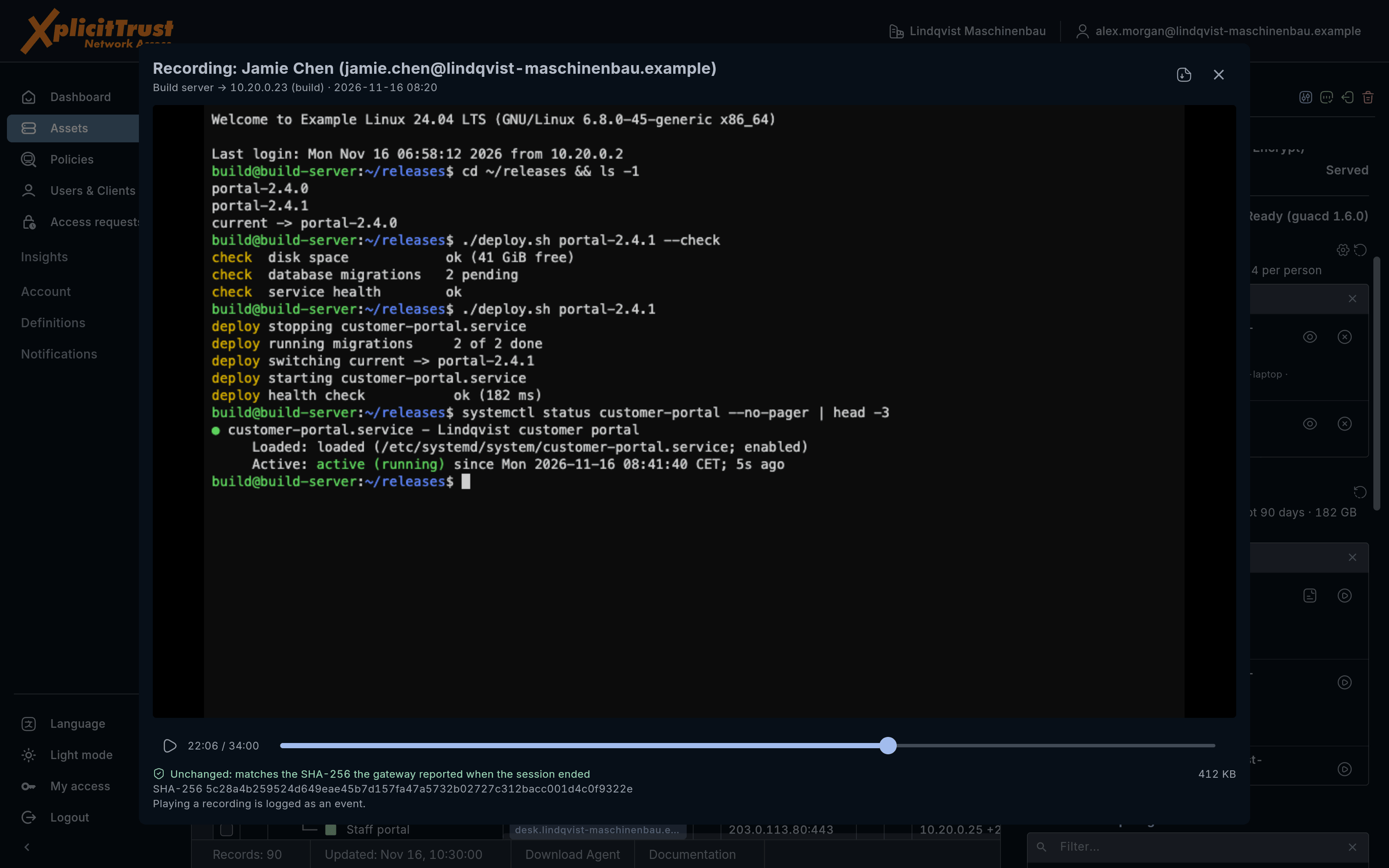
Choose the play button next to a recording. The console asks the gateway
asset for the recording, wherever it is, checks it against the SHA-256 the
gateway asset took when the session ended, and plays it, with pause and a
position slider. Unchanged means the file is exactly what the gateway
asset recorded. The download button saves the file. The recording comes
from the portal's address, so the device you watch on has to reach the
portal, just like the people who use it; for a tunnel portal, that means
a device with the agent.
Transcript of an SSH session
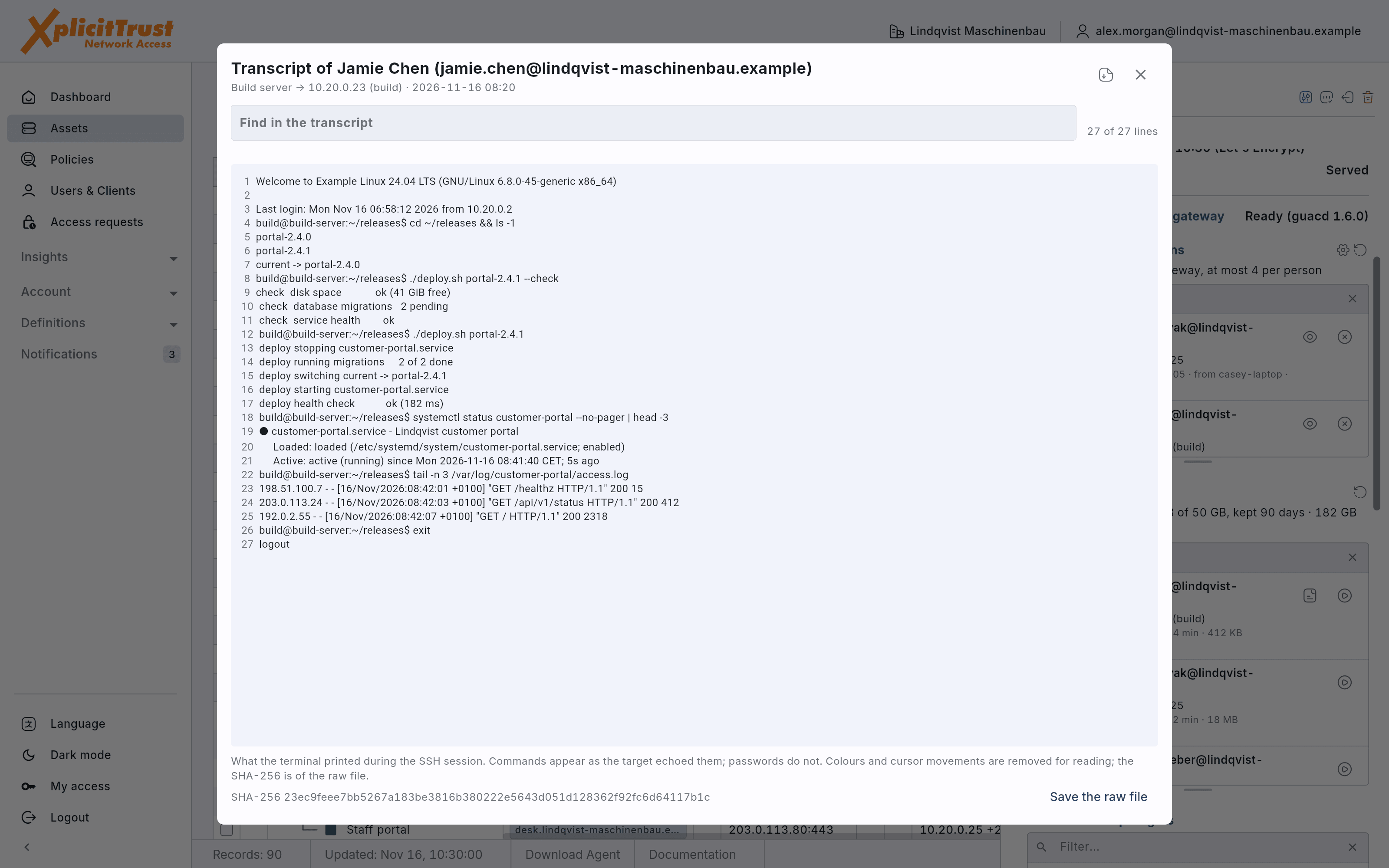
A recording can be watched, but not searched. A recorded SSH session also gets a transcript: the text its terminal printed. Read the transcript next to the recording shows it with line numbers and Find in the transcript, and saves it as text or as the raw file.
- It holds what the terminal printed. A command is in it as the target
echoed it. A password typed at a prompt is not, because the target does
not echo it; a password written into a command line, such as
mysql -psecret, is. - For reading, colours and cursor movements are removed. That is exact for a shell, and rough for a full-screen program such as an editor, whose text comes out in the order it was sent.
- It belongs to its recording: it is uploaded to the bucket with it, kept and deleted with it, and its SHA-256 is in the recording's events. Reading it is recorded like playing the recording.
- RDP and VNC sessions have no text, and no transcript.
A transcript shows what the person saw. It is not proof of what ran on the target: whoever wants to hide a command can, for example, run it from a script. For an authoritative record, use the target's own logging, such as auditd.
How much space
A recording grows with what changes on the screen, not with the length of the session: an idle desktop costs next to nothing, scrolling, videos and animations a lot. The measured sizes for each protocol, and how to work out the disk for a retention period or for a bucket, are in Sizing the Gateway Asset.
- Plan with about 120 MB per hour for ordinary work, about 1 GB for a working day of one session.
- A session that scrolls, plays video or animates the whole screen fills gigabytes per hour: the default of 4 GiB holds less than half an hour of it.
- A recording is removed or uploaded only once its session has ended, so Disk space for recordings must hold at least the largest session you expect, plus everything the retention keeps. With a bucket it only has to hold what waits for upload.
Once your own sessions are recorded, the list shows their sizes and the line above it what the recordings take now; adjust the settings to that.
Access while a session runs
Access is checked again every 10 seconds while a session runs. Sign Out Everyone, the end of the login's lifetime, a removed policy or a change to the application ends the session within seconds, and the page says Your access to this remote desktop has ended.
Just-in-time access
When the policy that grants the portal requires approval (see Just-in-Time Access), the gateway asset learns the end of the approved access together with the access itself. The session ends at that end even when the gateway asset cannot reach the controller at that moment; a revoked or shortened access still ends within seconds, as above.
The session's bar shows Access until and the time. In the last hour it counts the minutes down, from 10 minutes before the end it is highlighted, and Request more time opens the request on the self-service page, where the technician asks for an extension. An approved extension moves the end on the page within half a minute, and the session runs on without reconnecting. When the time is over, the page says Your access to this remote desktop has ended. in the language of the page.


Events
| Event | Meaning |
|---|---|
web_app_desktop_session_started |
A remote desktop session opened. The event names the user, the device for a tunnel application, the target and the account on the target. |
web_app_desktop_session_ended |
The session ended, with its duration and the reason: closed, access_revoked (sign out, an expired login, a removed policy or a changed application), idle_timeout, ended_by_admin or failed with the error. |
web_app_desktop_session_end_requested |
An administrator ended the session. It names the administrator, and whose session it was. |
web_app_desktop_session_watched |
An administrator opened the live view of the session. It names the administrator, and whose session it was. |
web_app_desktop_recording_completed |
The session's recording is complete, with its size and SHA-256, and for an SSH session those of its transcript. |
web_app_desktop_recording_uploaded |
The gateway asset uploaded the recording to your bucket and removed its own copy. |
web_app_desktop_recording_upload_failed |
An upload failed, with the error; the recording stays on the gateway asset and is tried again. |
web_app_desktop_recording_deleted |
The gateway asset removed a recording, with the reason: age (the retention), size (the disk space for recordings) or missing (the file was gone). |
web_app_desktop_recording_viewed |
An administrator played the recording, or read its transcript, in the console. |
The account is the application's username when the application stores credentials, and otherwise the name the person typed; the target's own log tells who really signed in. A VNC session names the application's username or no account, as its page asks for none. A gateway asset that stops in the middle of a session never reports the end, so a start can have no matching end.